

Azure OpenAI Setup in Turbo360
- 12 Jun 2026
- 2 Minutes to read
- Print
- DarkLight
- Download PDF
Azure OpenAI Setup in Turbo360
- Updated on 12 Jun 2026
- 2 Minutes to read
- Print
- DarkLight
- Download PDF
Article summary
Did you find this summary helpful?
Thank you for your feedback!
Introduction
Turbo360 supports AI-powered features through Azure OpenAI integration. This integration enables capabilities such as AI-generated summaries and resource analysis within Cost Analyzer.
The setup experience differs based on the selected deployment model:
- SaaS: AI capabilities are available by default and do not require additional configuration.
- Private hosting: AI capabilities require a customer-managed Azure OpenAI resource to be configured.
Private hosting deployment
For private deployments, Turbo360 requires an external Azure OpenAI connection. Users must create and configure their own Azure OpenAI resource and provide the required connection details within Turbo360.
Prerequisites
Before configuring Azure OpenAI in Turbo360, ensure the following prerequisites are available:
- An active Microsoft Azure subscription
- Azure OpenAI resource created in Azure portal
- Access to Azure OpenAI API keys and endpoint details
- A deployed model in Azure OpenAI
- Required permissions to manage Azure resources
Create Azure Open AI resource
Step 1: Create the resource
- Sign in to the Azure portal.
- Search for Azure OpenAI and select Create.
.png)
- Provide the required details such as:
- Subscription
- Resource Group
- Region
- Complete the resource deployment.
Step 2: Deploy a Model
The deployment types compatible with Turbo360 include: Global Standard, Standard, and DataZone Standard.
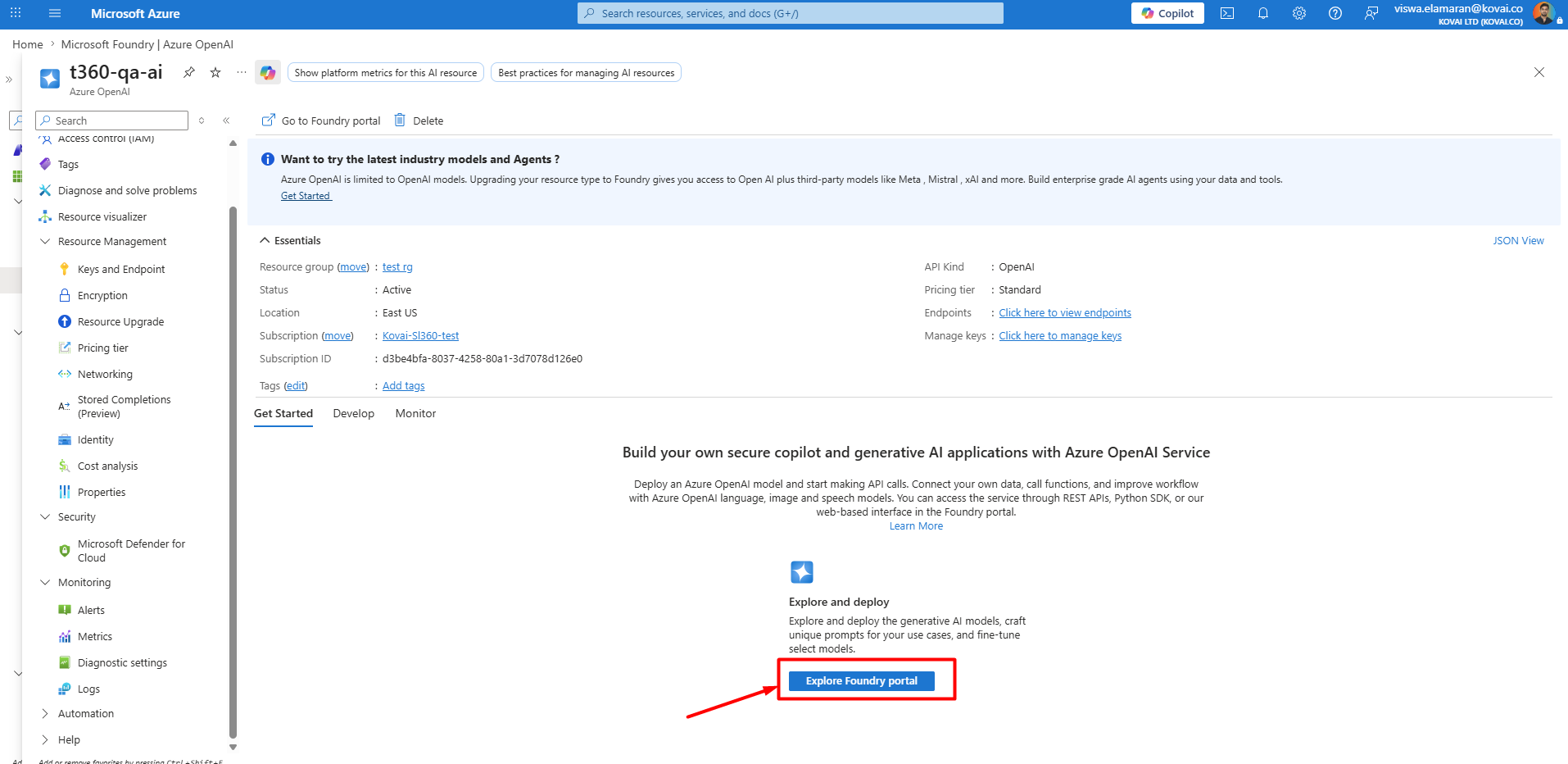
- Open the Azure OpenAI resource.
- Click Overview -> Explore Foundry portal option to deploy generative AI models.
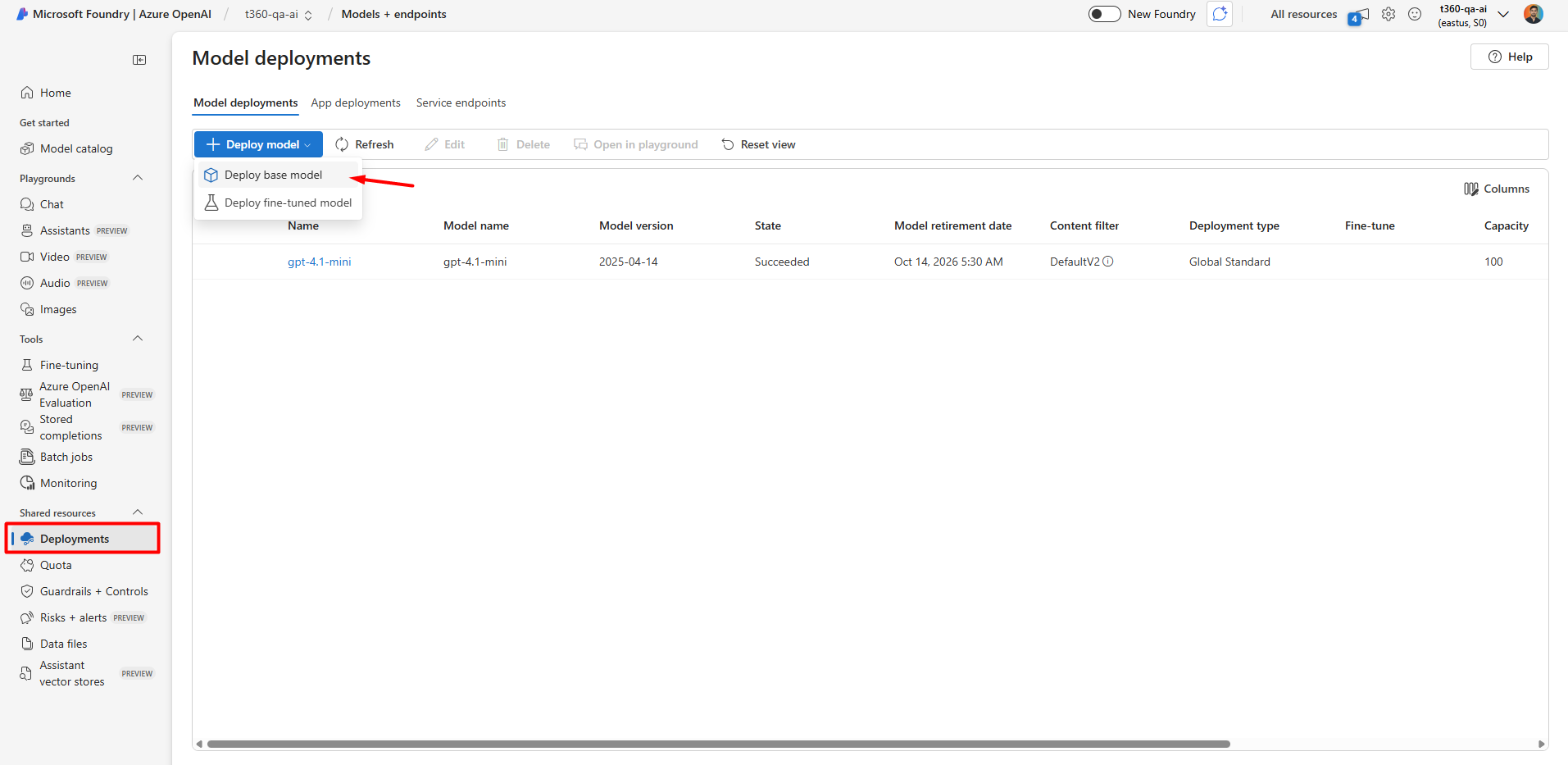
- Go to Shared resources -> Deployments in the Microsoft Foundry portal.
- Click + Deploy model -> Deploy base model to deploy the required model for Turbo360 AI operations.
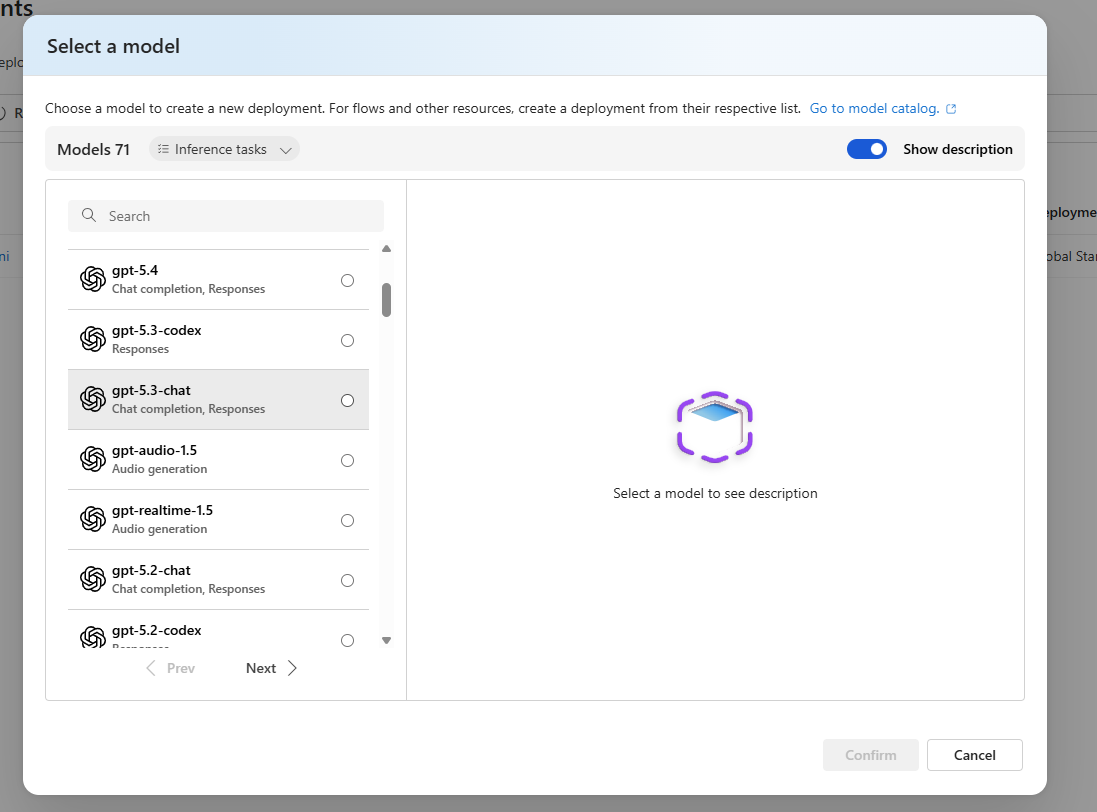
- Choose the desired model and click Confirm to initiate the deployment.
Step 3: Retrieve connection details
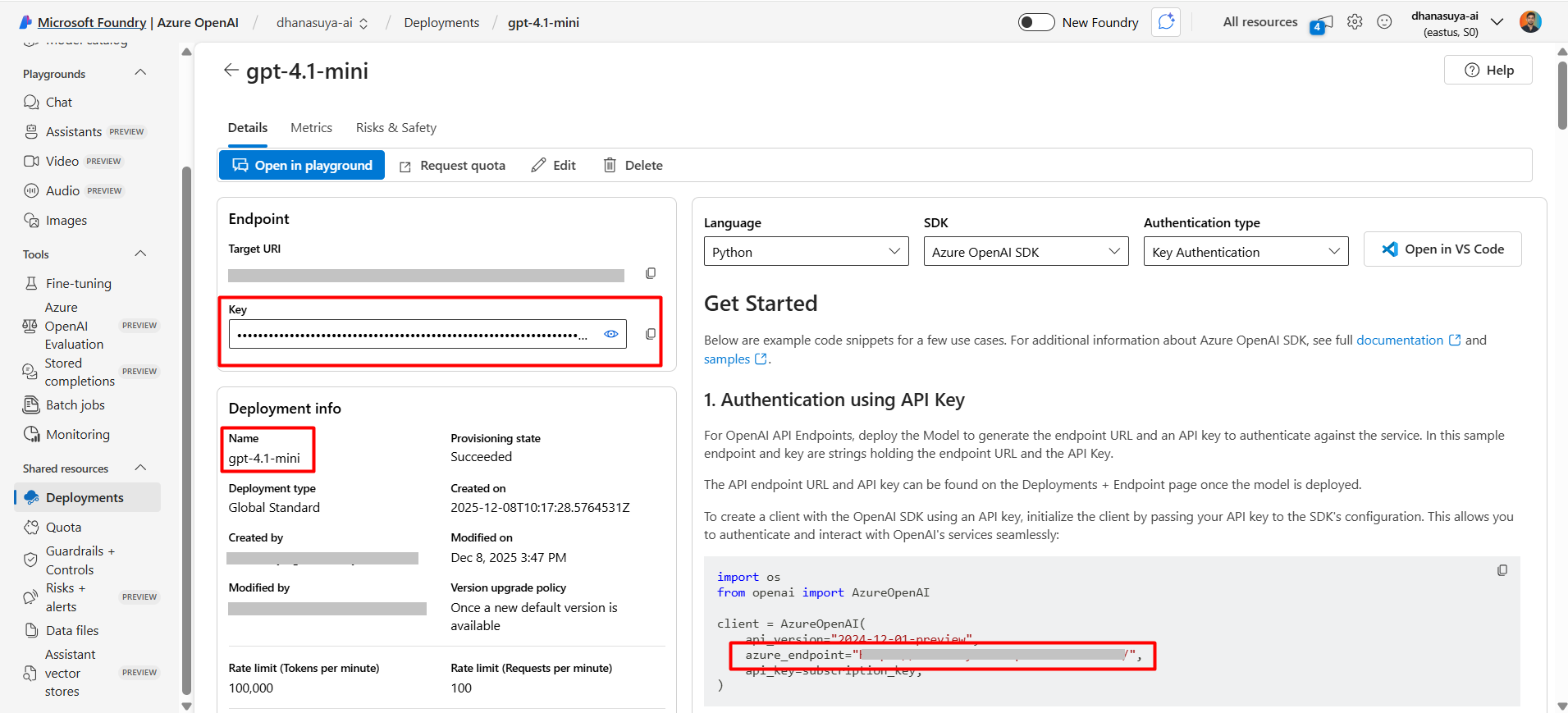
- Once the deployment is complete, click on the deployed model from the Model deployments screen available in the Microsoft Foundry portal
- The following details can be found here:
- API key
- Endpoint url
- Deployment name
Configure Azure OpenAI in Turbo360
Step 1: Open Connection Settings
- In Turbo360, open the Cost Analyzer module.
- Navigate to Settings > OpenAI connection.
.png)
Step 2: Create a Connection
- Enter the Azure OpenAI connection details:
- Endpoint URL
- API key
- Deployment name
.png)
Step 3: Validate the Connection
- Click Validate to verify the provided details.
- Confirm the validation is successful.
Step 4: Save Configuration
- Click Save to complete the Azure OpenAI connection setup.
Verify the Integration
After completing the configuration, verify the Azure OpenAI integration by generating an AI summary in Cost Analyzer.
- Open the Cost Analyzer module and navigate to the Analysis, Recommendations, (or) Schedules section. Access the Cost intelligence view for the required resource.
- Open the AI Agents tab within the view.
- Select any available AI Agent and click Generate.
- Confirm that the AI-generated response is returned successfully.
Available AI Agents in Cost Analyzer
The AI Agents tab displays the list of available AI-powered agents in Cost Analyzer after successful Azure OpenAI configuration. Users can select and run the required agent based on their analysis use case.
.png)
Troubleshooting
| Issue | Resolution |
|---|---|
| Invalid API key | Verify the API key from Azure portal |
| Invalid endpoint | Confirm the endpoint URL is correct |
| Deployment not found | Verify deployment name configured in Azure OpenAI |
| Validation failed | Check authentication details and network accessibility |
Security best practices
- Store API keys securely and avoid exposing them in source code.
- Restrict Azure access permissions where possible.
- Rotate credentials periodically based on internal security policies.
Related articles
- Cost Analyzer overview
- Cost intelligence for Resources: Analysis, Rightsizing, Reservations, and Schedules
Was this article helpful?