

Configuration Management
- 09 Aug 2026
- 2 Minutes to read
- Print
- DarkLight
- Download PDF
Configuration Management
- Updated on 09 Aug 2026
- 2 Minutes to read
- Print
- DarkLight
- Download PDF
Article summary
Did you find this summary helpful?
Thank you for your feedback!
Overview
A document configuration defines all the settings Azure Documenter uses to generate a report — document name, type, Service principal scope, branding, publish destination, optional schedule, and notification channels. Configurations are created through the Add configuration wizard and managed from the document configurations list.
Business value
- Standardize how each report is generated — all settings are saved in one reusable configuration
- Produce recurring reports on demand or on a schedule without reconfiguring settings each time
- Manage all configurations from a central list with generate, edit, and delete options per configuration
Prerequisites
Required permissions
Azure Documenter requires the following access to generate documents for a subscription:
Service principal access
A Service principal with Reader access to the target Azure subscription.
Turbo360 access
| Role | Permission level | Access |
|---|---|---|
| Account owner, Owner, Contributor | — | Full access to the Documentation tab |
| Custom role | Documentation enabled | Can create documents and perform all activities within the Documentation tab |
.jpg)
Dependencies
A configured Service principal is required before you can create a document configuration — Azure Documenter uses it to retrieve the subscriptions available for selection.
Add a configuration
Creating a configuration saves the document type, Service principal scope, branding, publish settings, and schedule that Azure Documenter reuses every time this document is generated.
- In the document configurations list, click + New configuration.
- Complete the Add configuration wizard:
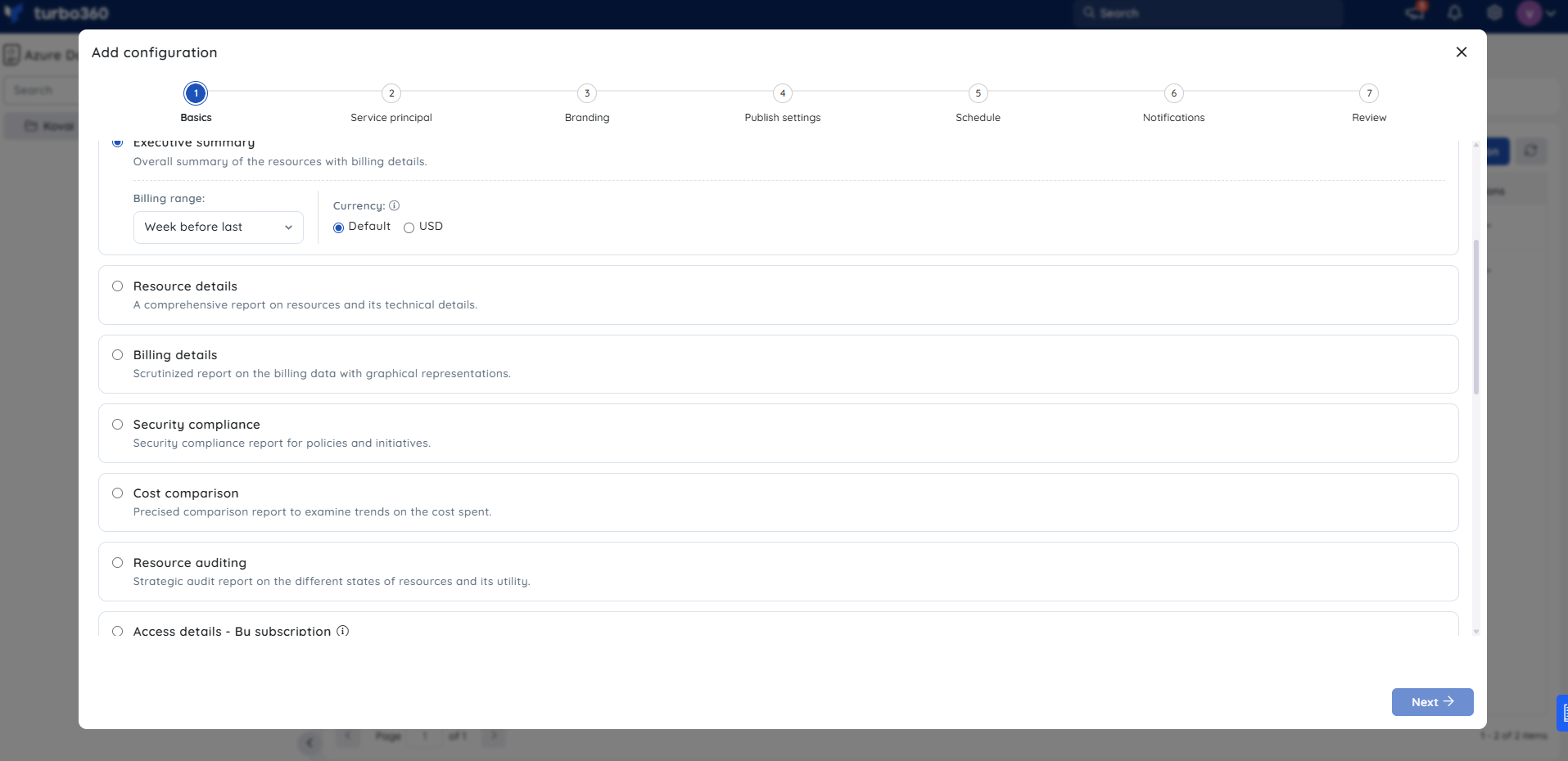
- Basics — enter a Name (required) and optional Description. Under Choose document type, select a document type using the filter tabs (Executive, Finance, Security, Operations, Architecture, Sustainability, Microsoft 365) or the search field. Configure the document-type-specific options that appear (for example, billing range and currency for cost-related types).
- Service principal — select the Service principal and the subscriptions to include. Click Bulk scope selection to apply scope filters across multiple subscriptions at once.
.png)
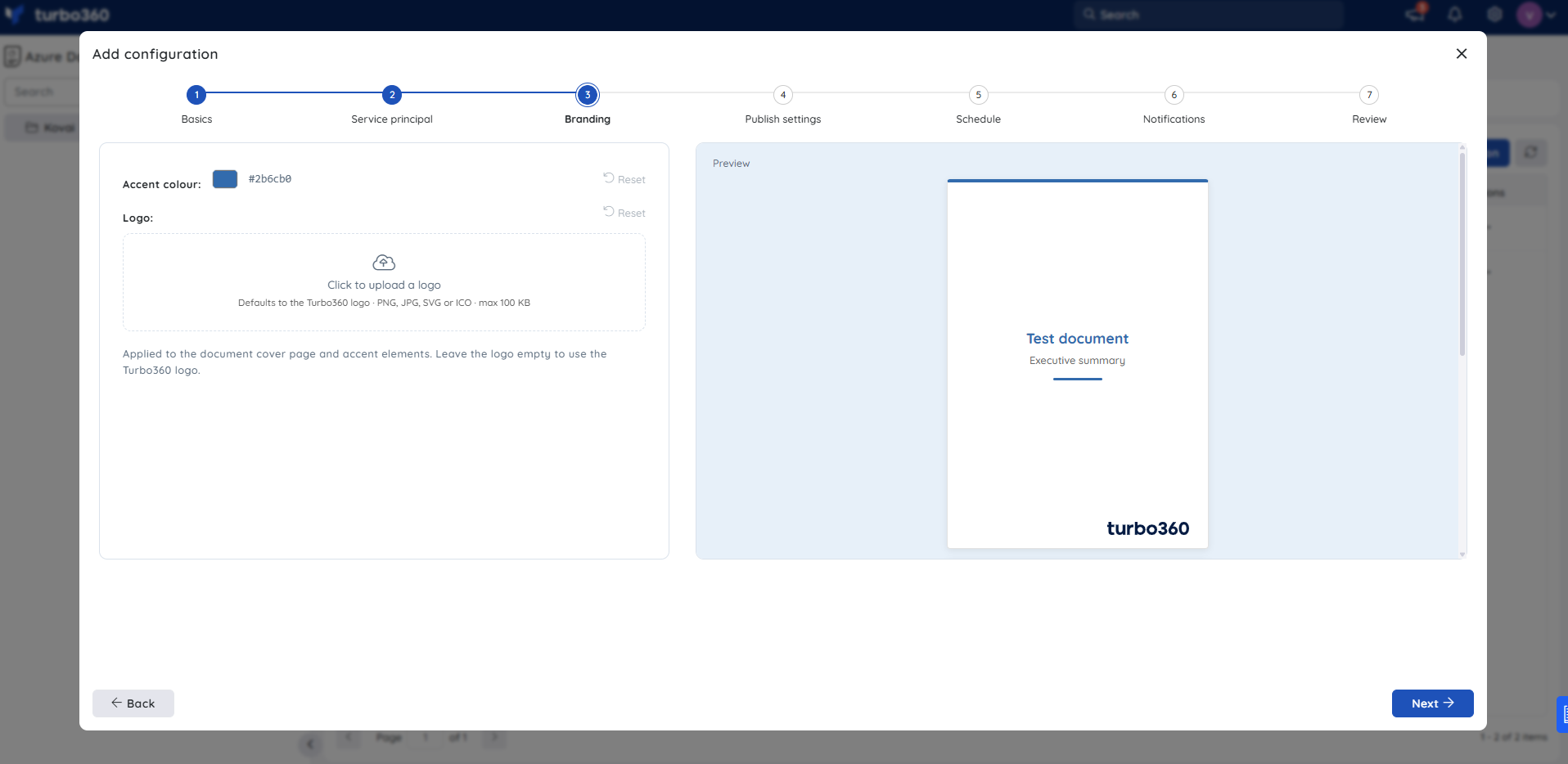
- Branding — set an Accent colour (default
#2b6cb0) and optionally upload a Logo (PNG, JPG, SVG, or ICO; max 100 KB). These apply to the document cover page and accent elements.
- Publish settings — choose Publish document to Azure Storage account (PDF, Word, or Excel) or Publish document to Document360.
.png)
- Schedule — optionally enable a recurring generation schedule. Set the Frequency (Weekly or Monthly), day, and time. Click + Add schedule to add multiple schedules.
.png)
- Notifications — optionally enable Download report from notifications, enter a Recipient email address, select an Email template, and choose additional notification channels to receive alert notifications when a document generation is succeeded or failed.
.png)
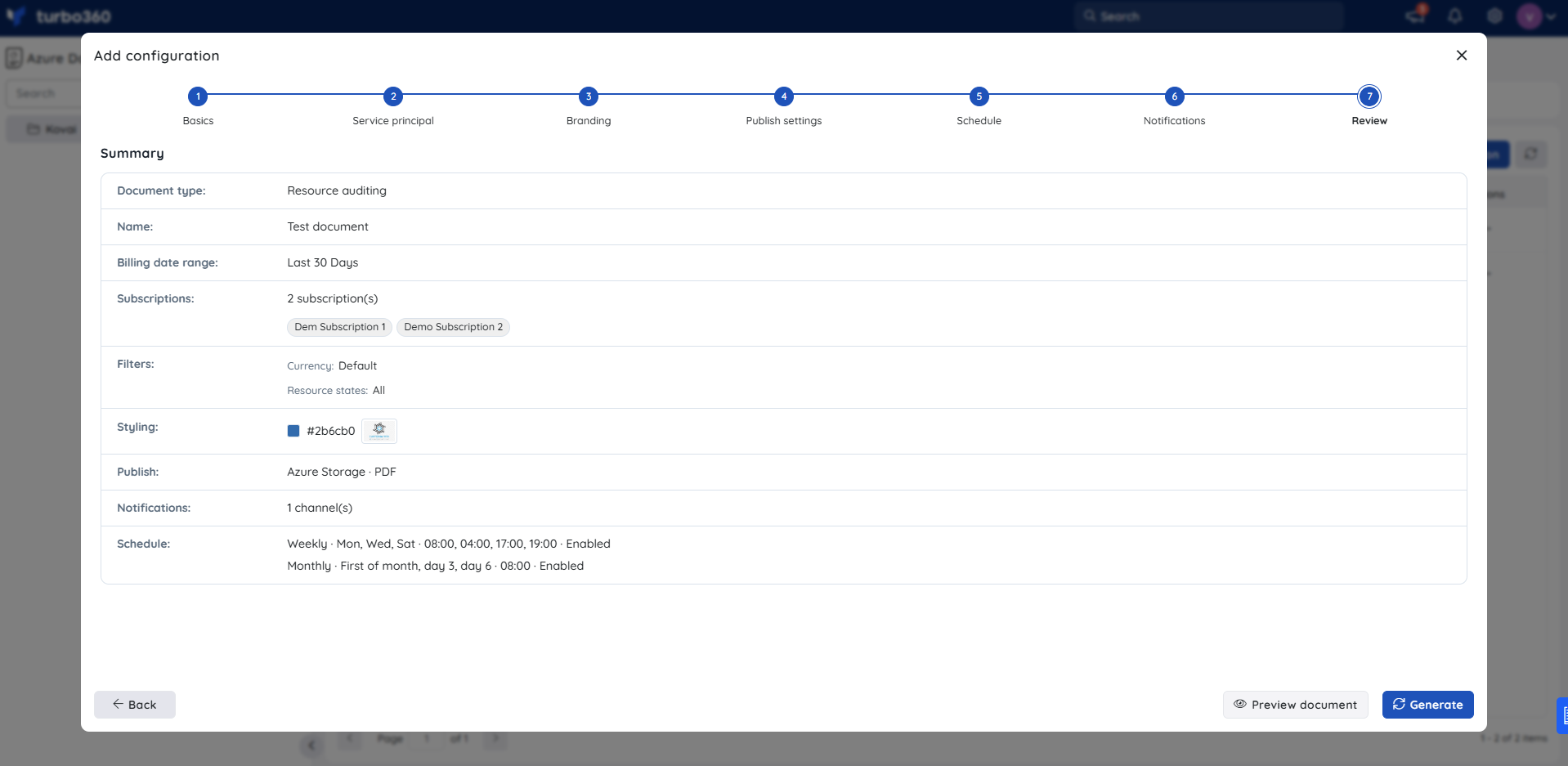
- Review — a Summary of all settings is displayed. Click Preview document to preview the output, or click Generate to save the configuration and generate the document immediately.
- Basics — enter a Name (required) and optional Description. Under Choose document type, select a document type using the filter tabs (Executive, Finance, Security, Operations, Architecture, Sustainability, Microsoft 365) or the search field. Configure the document-type-specific options that appear (for example, billing range and currency for cost-related types).
Edit a configuration
Editing lets you update an existing configuration's settings without recreating it.
- Click the Actions menu next to the configuration you want to edit.
- Select Edit.
- Update any of the configuration's settings — name, description, document type, Service principal, subscriptions, branding, publish settings, schedule, or notification channels.
- Click Save changes.
Delete a configuration
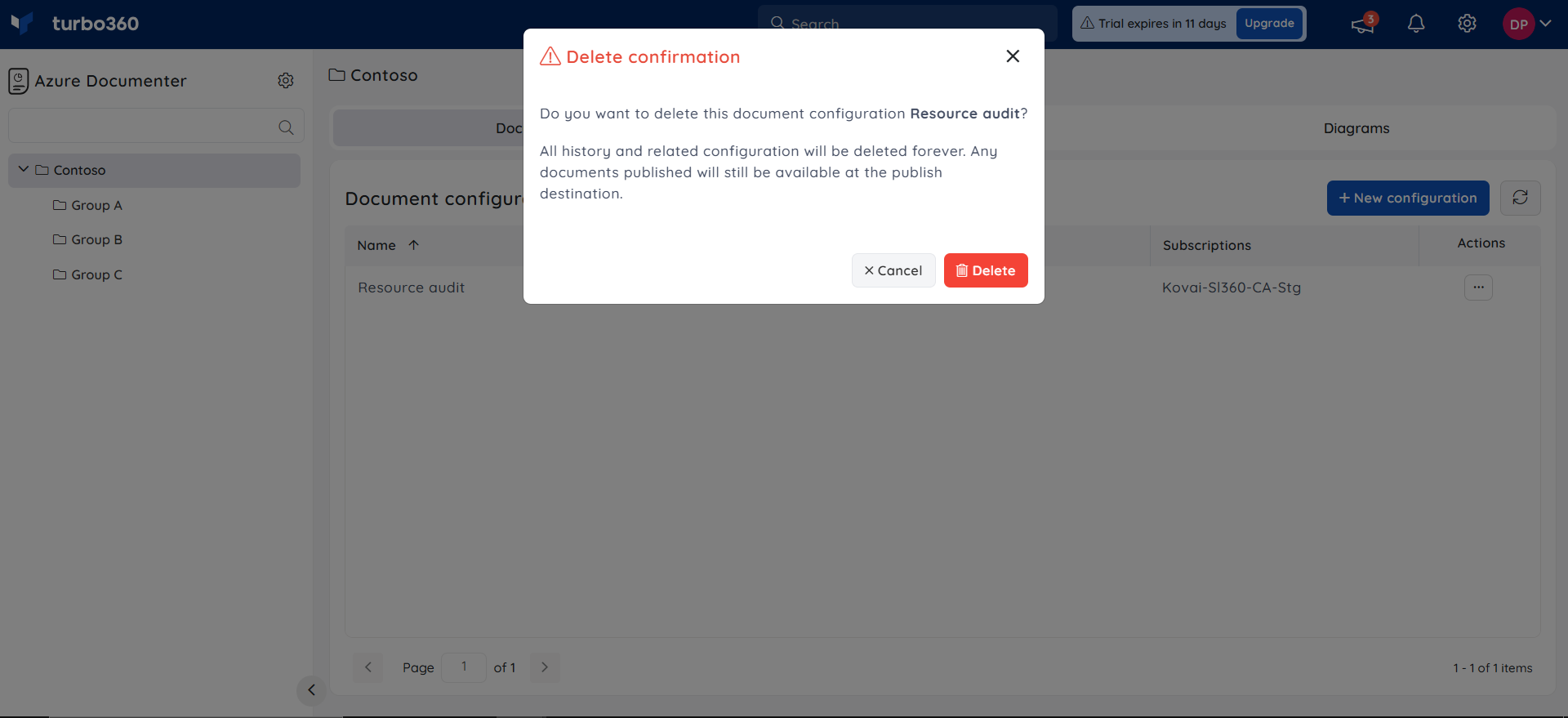
Deleting a configuration permanently removes it and all its settings from Azure Documenter.
- Click the Actions menu next to the configuration you want to delete.
- Select Delete.
- Click Delete in the confirmation dialog.
Was this article helpful?