

Cost pulse summary report
- 10 Apr 2026
- 1 Minute to read
- Print
- DarkLight
- Download PDF
Cost pulse summary report
- Updated on 10 Apr 2026
- 1 Minute to read
- Print
- DarkLight
- Download PDF
Article summary
Did you find this summary helpful?
Thank you for your feedback!
Introduction
Cost pulse summary is a daily report available in Excel (.xlsx) format, providing a structured overview of recent cost performance. The report is distributed to the user’s configured notification services each day by 12:00 AM UTC.
Cost data is grouped by user-defined dimensions such as resource type, service name, meter, subscription, and other supported attributes to support targeted, dimension-based analysis. The report includes either a 7-day daily cost breakdown or a two-month workload comparison to highlight month-over-month cost changes and performance variations.
Email alerts include an embedded cost chart generated from the report data, enabling quick visual analysis without accessing the Excel file. Users can choose to receive only the cost chart in email alerts, providing a simplified, high-level summary view.
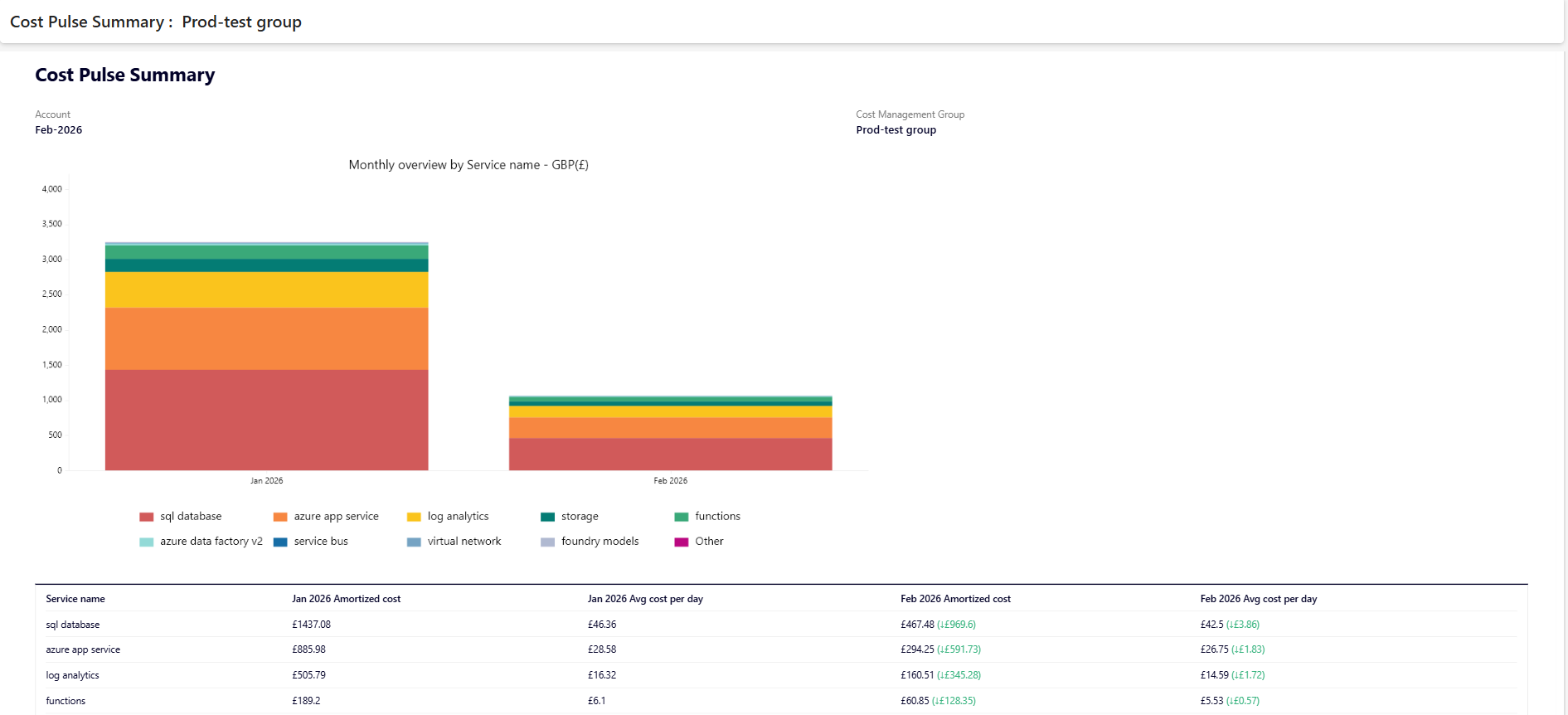
The image given below illustrates a sample cost pulse summary alert received via email with a 7-day daily cost breakdown:
Report configuration
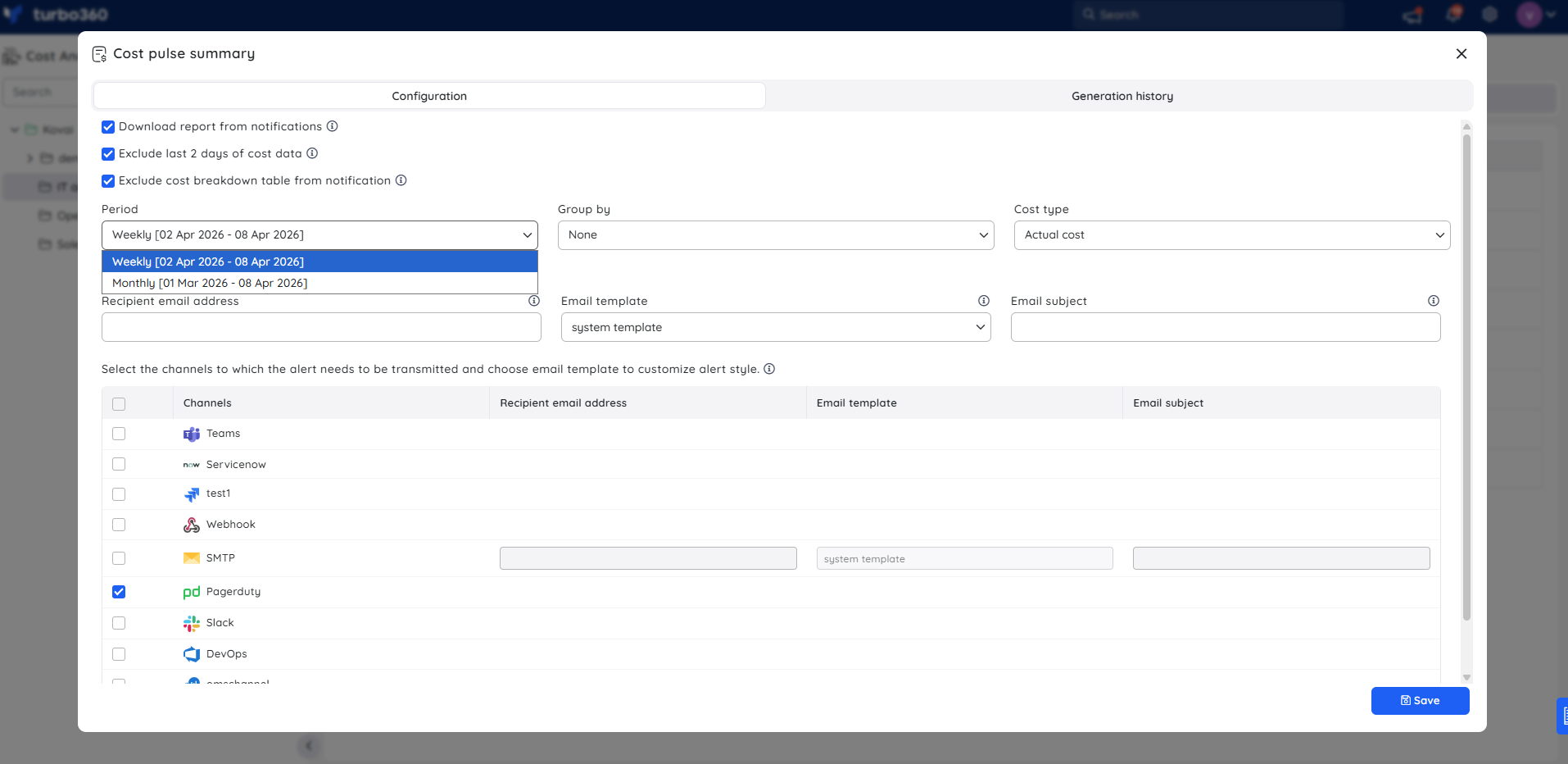
Refer to the steps below to schedule cost pulse summary reports on a daily basis for the desired cost management group:
Navigate to Cost management group -> Reports.
Click the Edit icon next to the Cost pulse summary report type.
Configure the report settings:
- Select Weekly or Monthly from the Period dropdown.
- Choose the required dimension from Group by dropdown.
- Select Actual or Amortized as the cost type.
- (Optional) Enable Download report from notifications.
- (Optional) Select Exclude last 2 days of cost data, if required.
- (Optional) Select Exclude cost breakdown table from notification to display only the cost chart in email alerts.
Choose the desired notification services.
Click Save, and enable the Cost pulse summary report type toggle.
Instant reports
On-demand cost pulse summary reports can be generated with the help of Generate Now option available in the Actions menu of the relevant report type.
.png)
The toggle should be enabled for the report type in the Reports section and atleast one notification channel should be selected.
Generation history
All triggered reports for the relevant cost management group appear in the Generation history, with a download option provided next to each record for easy access.
.png)
Sample report
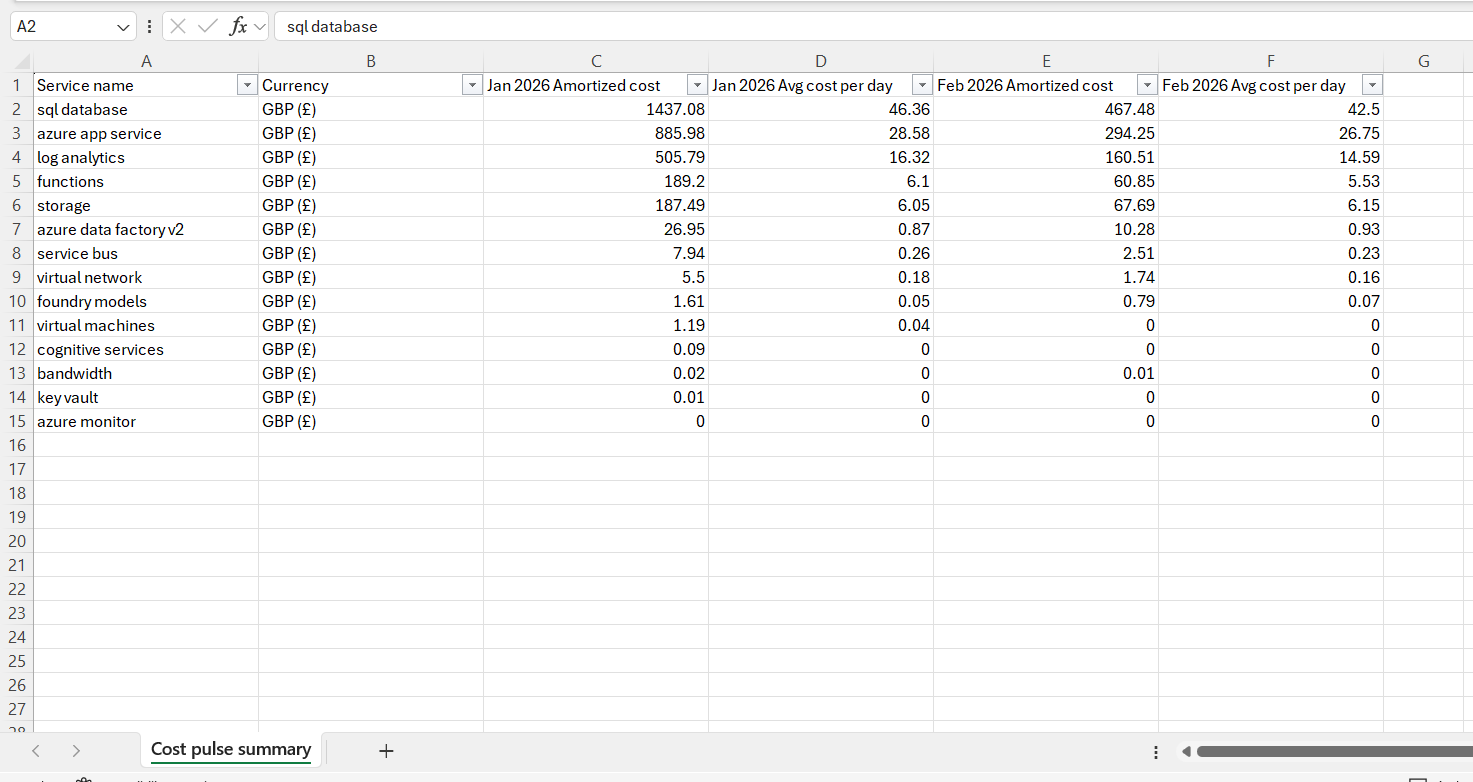
The following image illustrates a sample Cost pulse summary report featuring a two-month workload comparison, downloaded from Generation history.
Was this article helpful?