

Creating a Service Principal
- 16 Jun 2026
- 4 Minutes to read
- Print
- DarkLight
- Download PDF
Creating a Service Principal
- Updated on 16 Jun 2026
- 4 Minutes to read
- Print
- DarkLight
- Download PDF
Article summary
Did you find this summary helpful?
Thank you for your feedback!
In this page it will walk through how to create a Service Principal (App Registration) in the Azure Portal.
Create a service principal
To create a service principal, perform the following steps:
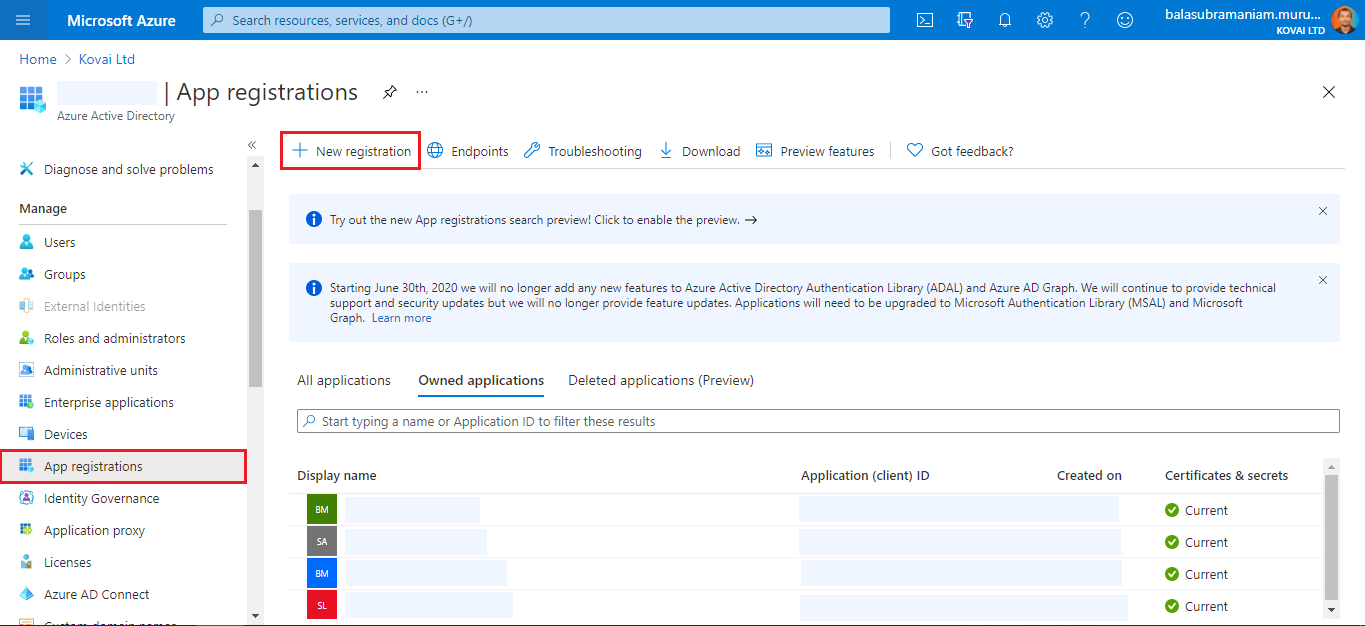
Navigate to the Microsoft Entra ID tab in the left side menu in the azure portal and click App registrations.
Click on the New registration button.
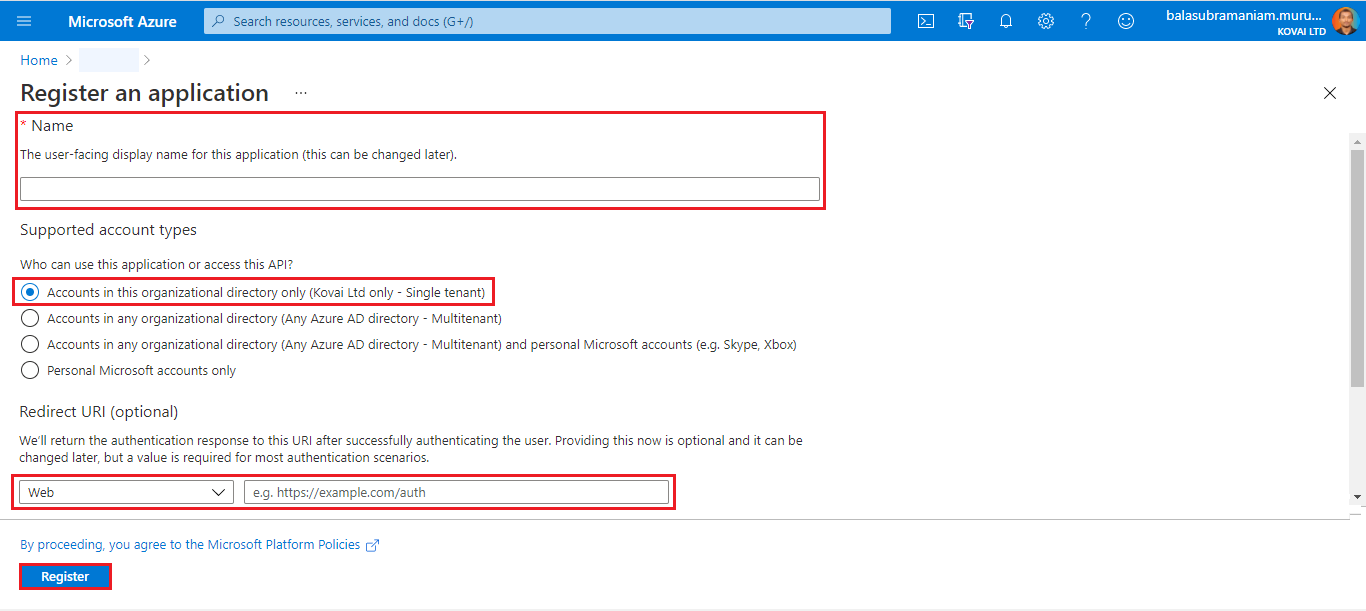
Provide a Name for the service principal. Select a supported account type, which determines who can use the application. Under Redirect URI, select Web for the type of application that needs to be created. Enter the URI to which the access token is sent to. Click on the Register button.
Once the service principal is created successfully, it will be listed in the App Registration grid.
Get Azure Tenant ID
In Azure Microsoft Entra ID, a tenant is a representative of an organization.
It is a dedicated instance of the Azure Microsoft Entra ID service that an organization receives and owns when it creates by signing up for a Microsoft Azure account.
Each Azure AD tenant is distinct and separate from other Azure Microsoft Entra ID tenants.
In order to obtain the Tenant ID, perform the following steps:
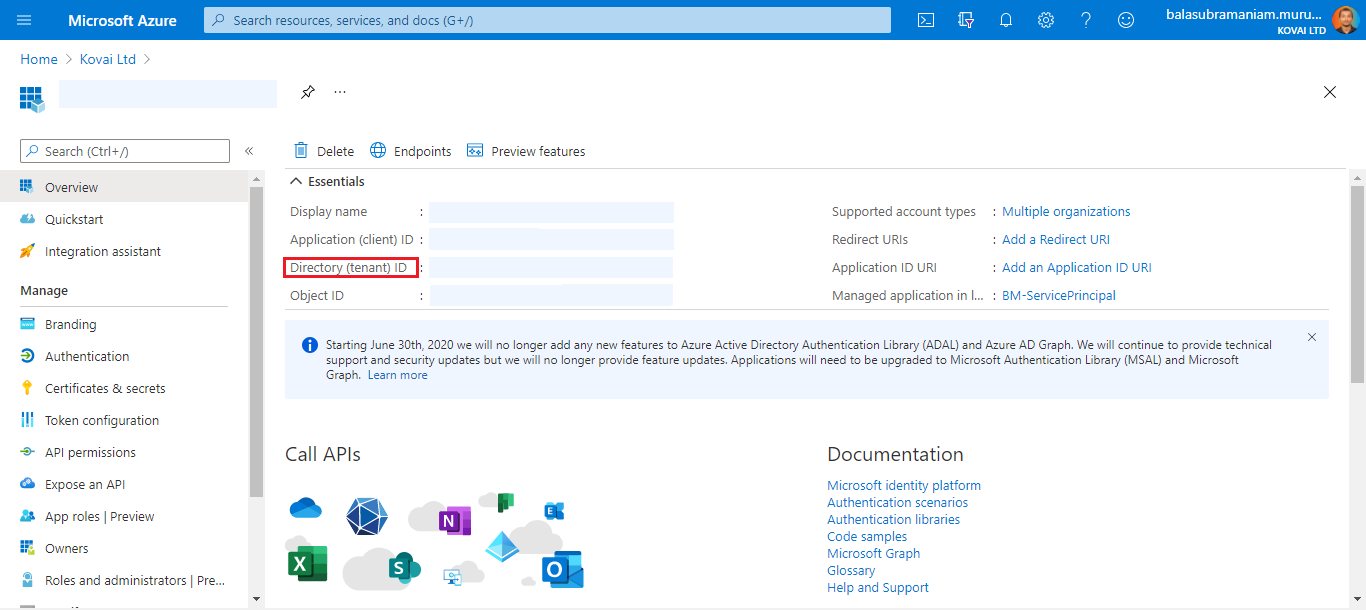
Click on the name of the service principal.
The required Tenant Id is the Directory (tenant) ID from the Essentials section.
Get Client ID and Client Secret
A Client ID is a 16-character string that represents the application.
Follow the below steps to obtain the Client ID:
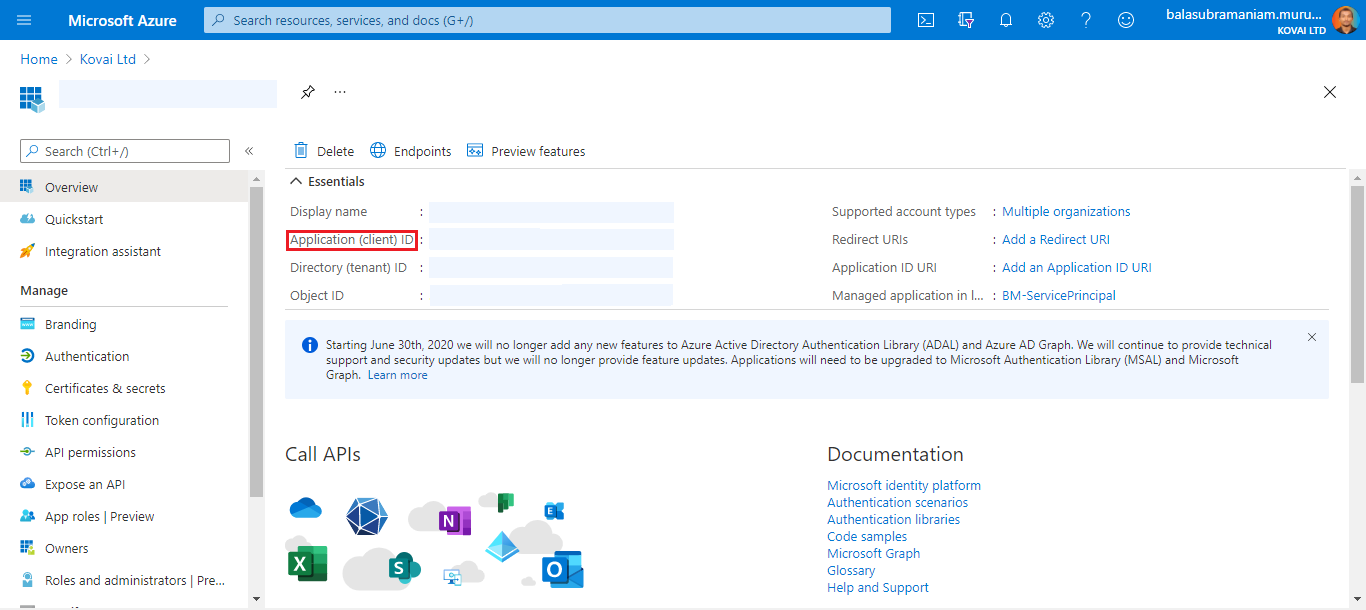
Click on the name of the service principal.
The required Client Id is the Application (client) ID from the Essentials section.
Secret key is a security key that Windows Live ID uses to encrypt and sign all tokens. It is used by the application to prove its identity when requesting a token.
To obtain the Client secret, follow the below steps:
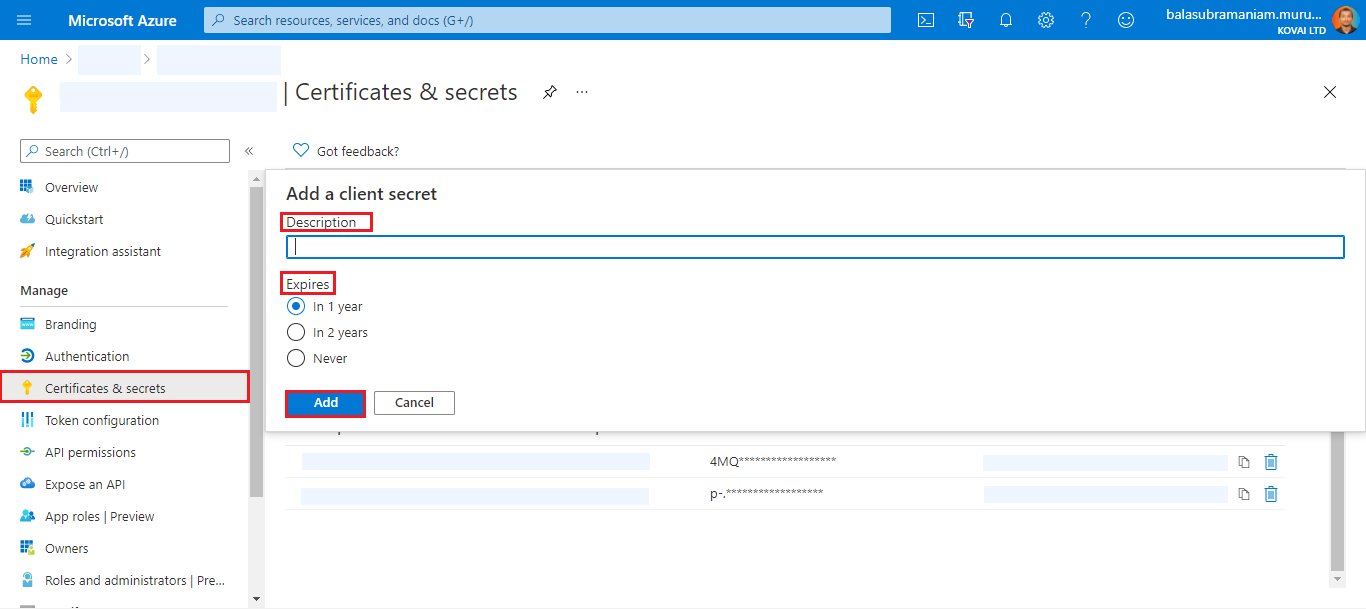
Click on Certificates & secrets under the Manage section from the left pane.
Click on New client secret, provide the Description and Expiry time, and Click Add.
Once saved, it will show the client secret. This key will only be shown once. This value should be copied and saved.
Deciding which Level to Provide Access to the Service Principal
In order to give Turbo360 access to Azure the service principal will be registered in Turbo360. The service principal will also be given access to subscriptions in Azure. There is a decision point to be made. The choices are:
Level of Authorization | Impact | When typically chosen |
|---|---|---|
Root Management Group | Turbo360 will see all subscriptions and any future subscriptions added | Most customers choose this option |
Child Management Group | Turbo360 will only see subscriptions in this management group | This is chosen when a complex management group structure is in place but the users of Turbo360 want to limit access to only subscriptions with the specific management group scope. This is not used that often compared to the other 2 approaches. |
Subscription | Turbo360 will only see specific subscriptions which access is granted too | This is common if a specific team or project is using Turbo360 to manage the costs for just their application or project and they want to limit access to just 1 or a handful of subscriptions. |
Provide Access for a Service Principal at Root Management Group Level
This option will give Turbo360 access to all Azure Subscriptions in the tenant. The steps to set this up are below.
Navigate to the Azure Portal
In the search bar at the top type Management Groups
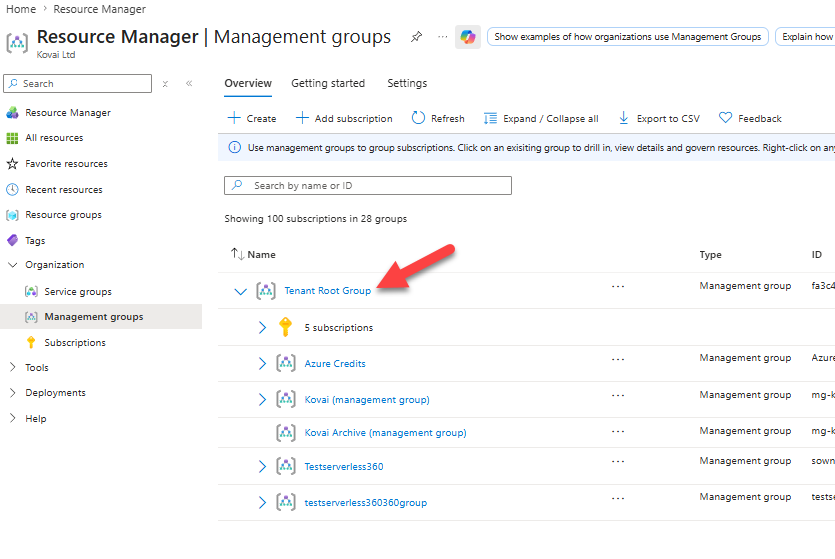
On the management groups screen check the Tenant Root Group is shown as a hyper link and if it is click it. (If it is not then refer to troubleshooting below)
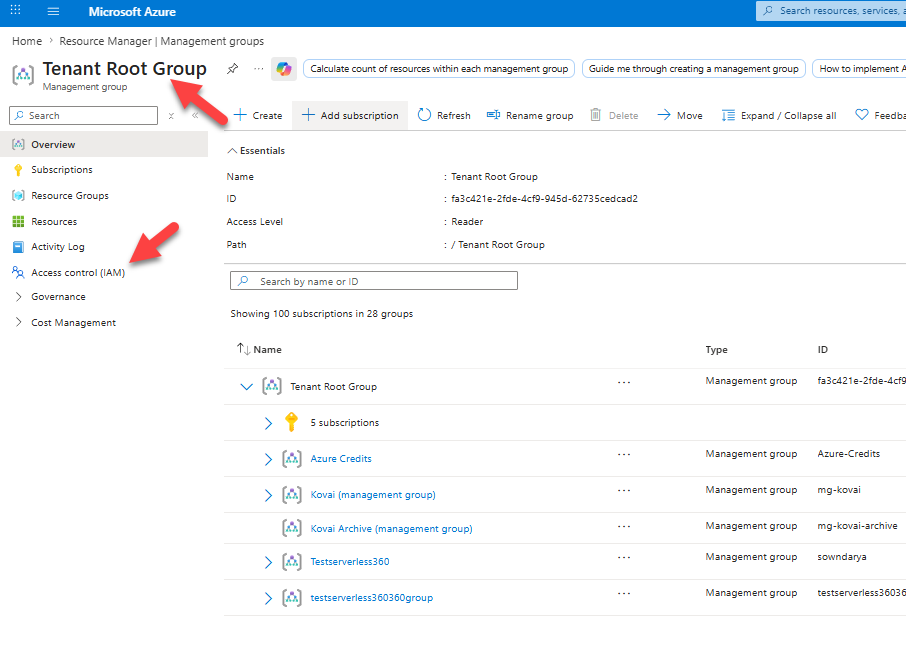
You should now see Tenant Root Group shown as the name at the top
Click on the Access Control (IAM)
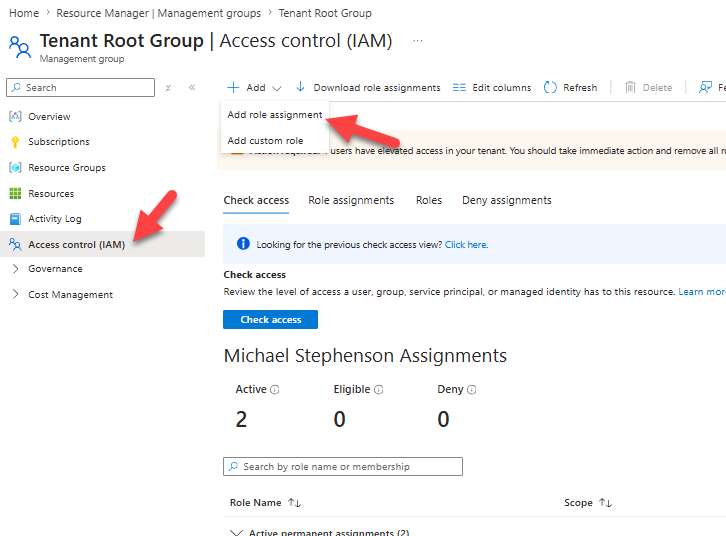
Select Add->Add role assignment.
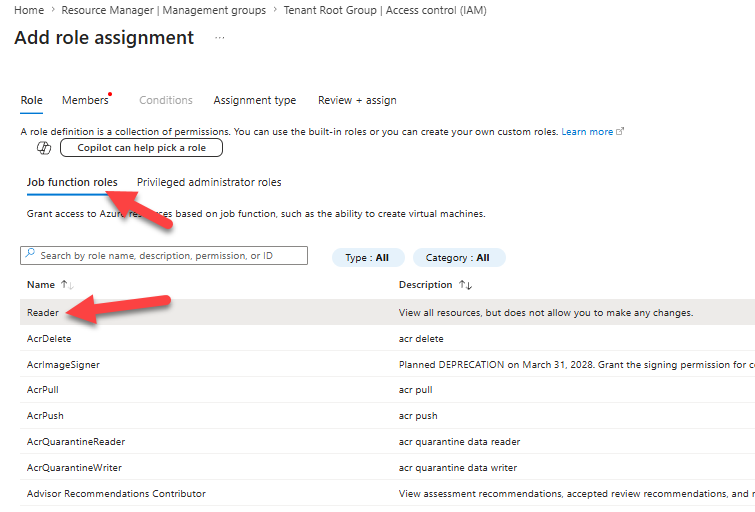
Switch to the Job function roles tab and choose Reader.
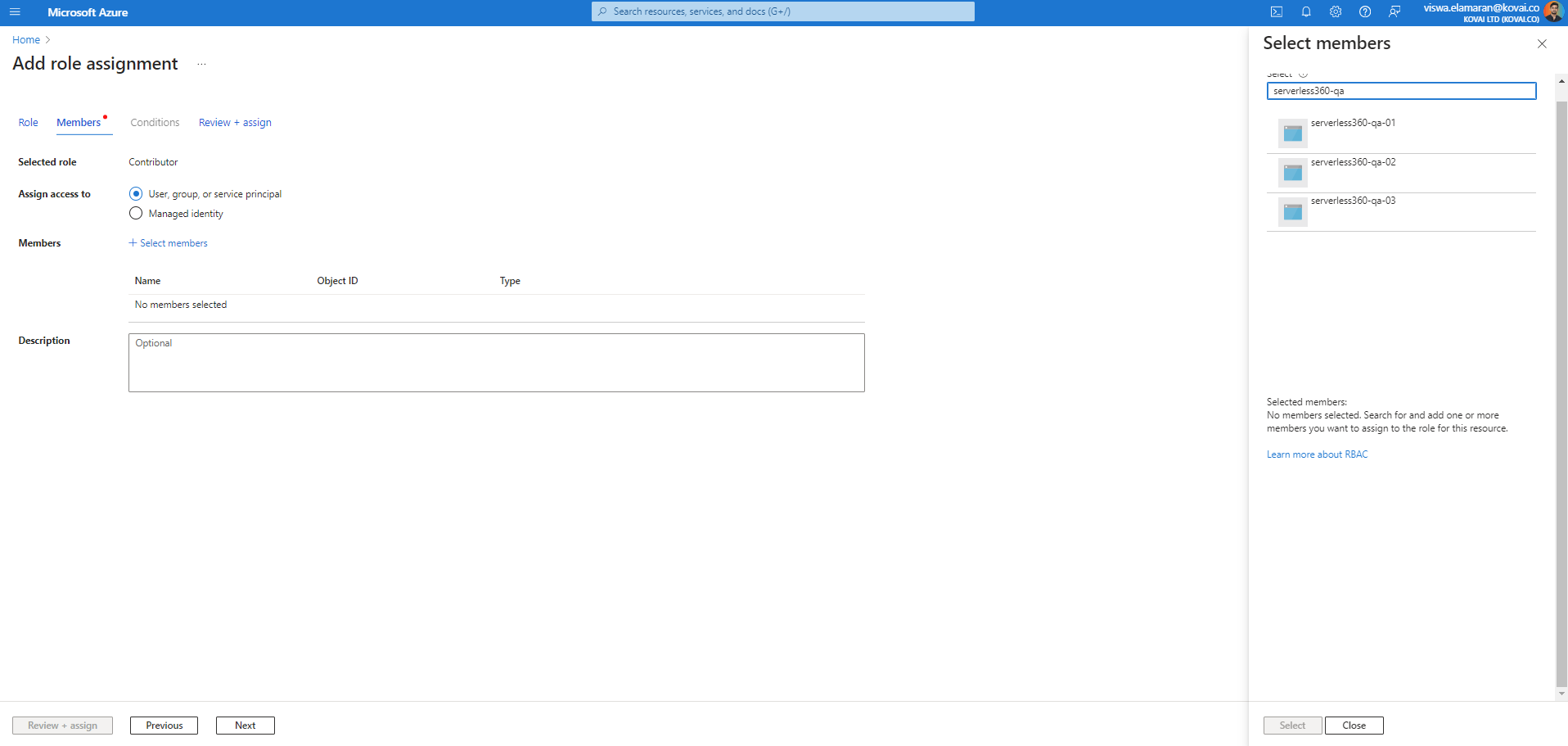
Clicking Next will proceed to the role assignment screen. Choose User, group, or service principal option for the Assign access to field.
Multiple service principals can be assigned with the specified role acess for the relevant Azure Subscription by selecting them as its Members.
Click Review+assign to review and save the role assignment.
It may take some time for the above configurations to take effect.
Troubleshooting
By default a global administrator does not always have access to manage the tenant root management group unless they are an Owner or User Access Administrator on the root management group. In this scenario you will see the tenant root management group disabled and not a clickable link.
Sign in to the Azure portal as a Global Administrator.
Browse to Microsoft Entra ID > Manage > Properties.
Under Access management for Azure resources, set the toggle to Yes
At this point you will then have access to the root management group and be able to complete the actions above. Once complete you can remove the access management for Azure resources back to No.
Provide Access for a Service Principal at Child Management Group Level
This setup is the same as the root management group above but you just choose the appropriate management group and apply the access control at that level.
Provide Access for Service Principal at Subscription Level
To access the resources in a subscription, the application must be assigned to a role. The right permissions for each role are defined based on different use cases. The scope of the application can be set at the level of the subscription, resource group, or resource.
Permissions are inherited to lower levels of scope. For example, if an application has the Contributor / Owner role for a resource group, it can access the resource group and any resources it contains.
To authorize the service principal to access a Subscription:
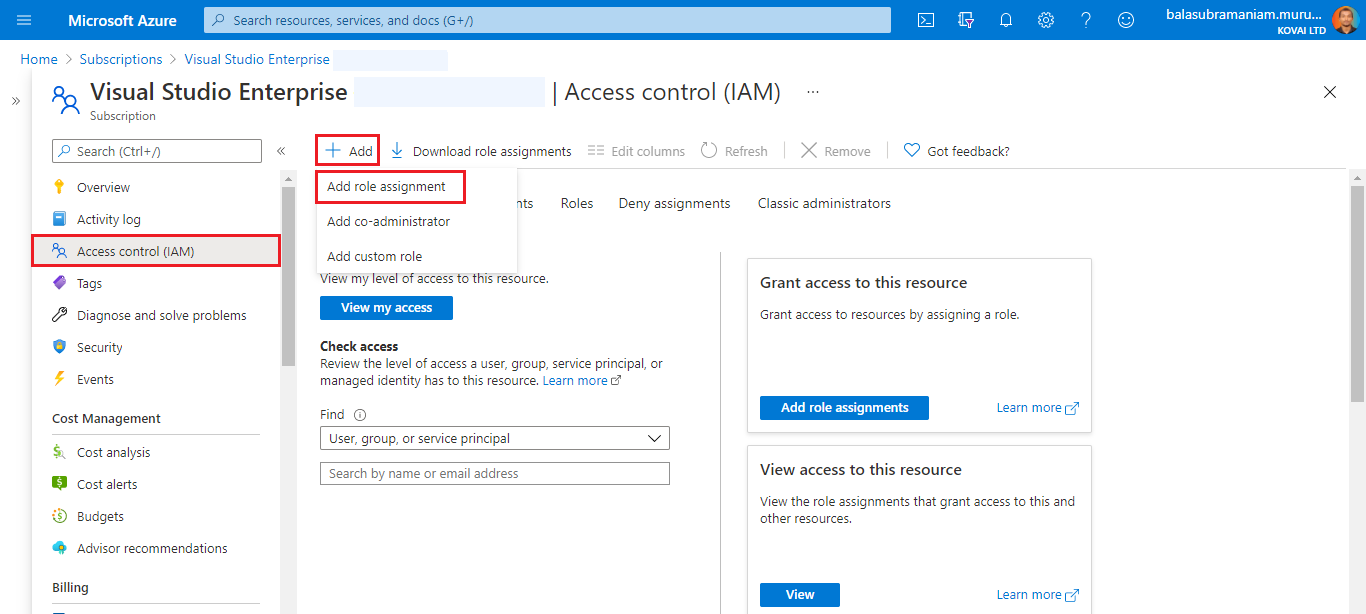
Navigate to that Subscription. Click on Access control (IAM).
Select Add->Add role assignment.
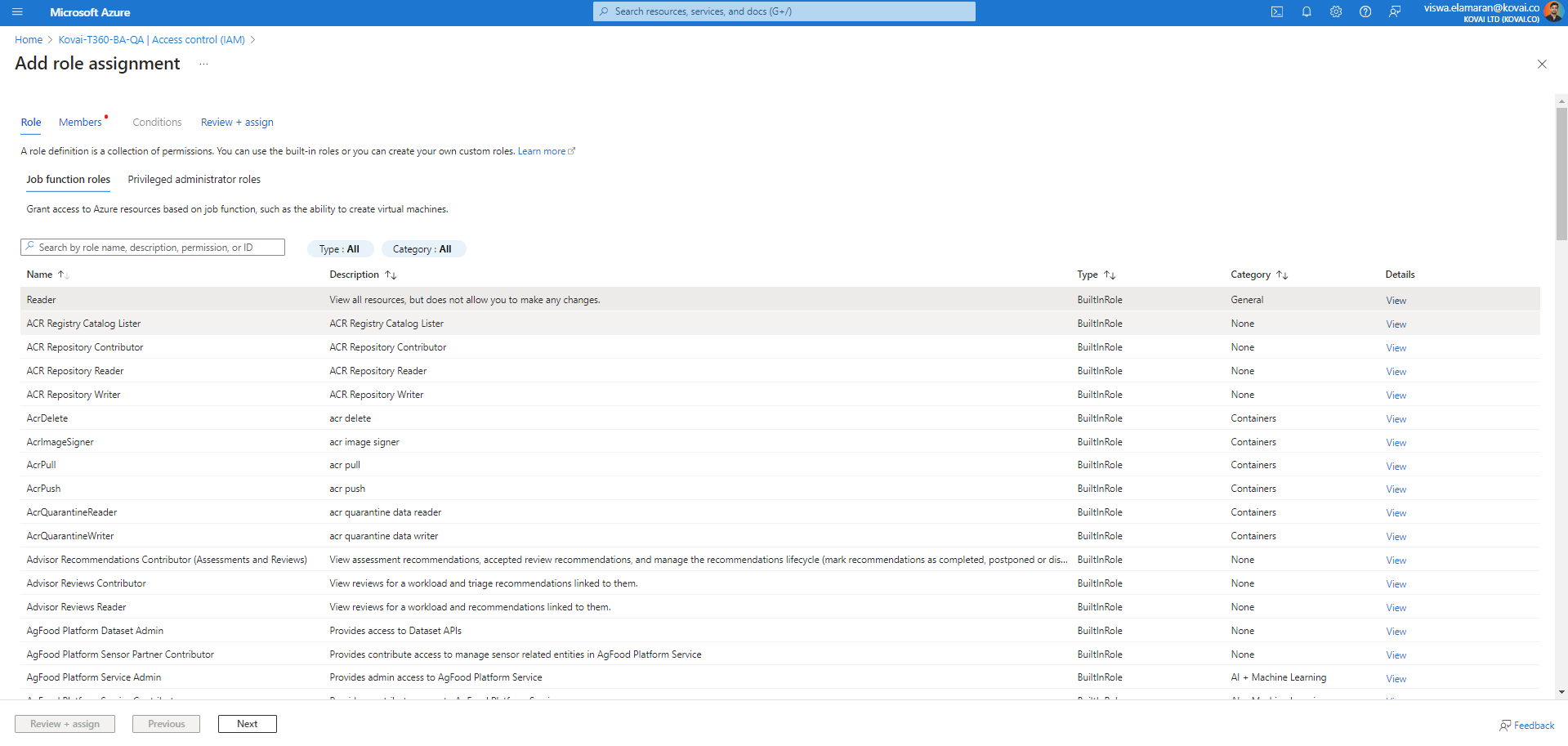
Switch to the Job function roles tab and choose Reader.
Clicking Next will proceed to the role assignment screen. Choose User, group, or service principal option for the Assign access to field.
Multiple service principals can be assigned with the specified role acess for the relevant Azure Subscription by selecting them as its Members.
Click Review+assign to review and save the role assignment.
It may take some time for the above configurations to take effect.
To know more about service principals and the above process, read the following articles from Microsoft:
Was this article helpful?