

Getting started with AI Agents
- 24 Jun 2026
- 2 Minutes to read
- Print
- DarkLight
- Download PDF
Getting started with AI Agents
- Updated on 24 Jun 2026
- 2 Minutes to read
- Print
- DarkLight
- Download PDF
Article summary
Did you find this summary helpful?
Thank you for your feedback!
Overview
AI Agents in Cost Analyzer provide intelligent, AI-generated insights for your Azure resources. Each agent is designed to analyze a specific aspect of your resource, such as cost drivers, rightsizing opportunities, carbon footprint, scheduling, and more, helping you make informed decisions to optimize cost and performance.
Click here to view the documentation related to setting up Azure OpenAI connection in a Turbo360 Private Hosting Instance.
Available AI Agents
The following agents are available under the AI Agents tab:
Resource summary – Get an AI-generated summary of your Azure resource covering summary, cost, and health.
Analyze cost drivers – See exactly what you are being charged for and what makes the cost rise or fall, covering meters, breakdown, and drivers.
Cost spike troubleshooter – Analyze and troubleshoot unexpected cost spikes for your Azure resource, covering anomaly, trend, and root cause.
Cost optimization checklist – Run a prioritized audit of cost issues and quick wins for your Azure resource, covering audit, quick wins, and score.
Analyze rightsizing – Explore rightsizing opportunities for your Azure resource, covering SKU, utilization, and savings.
Analyze resource purpose – Understand what the resource does, who depends on it, and whether it is still needed, covering purpose, dependencies, and usage.
Evergreen recommendations – Identify modernization opportunities to keep your Azure resource up to date, covering modernize, generation, and risk.
Carbon optimizer recommendations – Discover opportunities to reduce the carbon footprint of your Azure resource, covering CO₂, region, and energy.
Analyze data centre change – Review the impact of moving your Azure resource to a different data centre, covering region, migration, and latency.
Analyze hybrid benefit – Estimate cost savings by applying Azure Hybrid Benefit to your resource, covering license, AHB, and savings.
Analyze resource scheduling – Evaluate start/stop or scale-down scheduling for your Azure resource and estimate savings, covering schedule, off-peak, and savings.
Permissions
AI Agents in Cost Analyzer are accessible to the following users:
- Account Owner – Has full access to all features in Cost Analyzer, including AI Agents, by default.
- Owner – Has complete access to Cost Analyzer, including AI Agents, by default.
- Contributor – Has access to manage everything at the scope at which it is assigned, including AI Agents, by default.
- Custom Role – Users with a custom role must have the AI Agents feature permission explicitly set to Enabled.
Accessing AI Agents
AI Agents for a resource can be accessed from the following sections in Cost Analyzer:
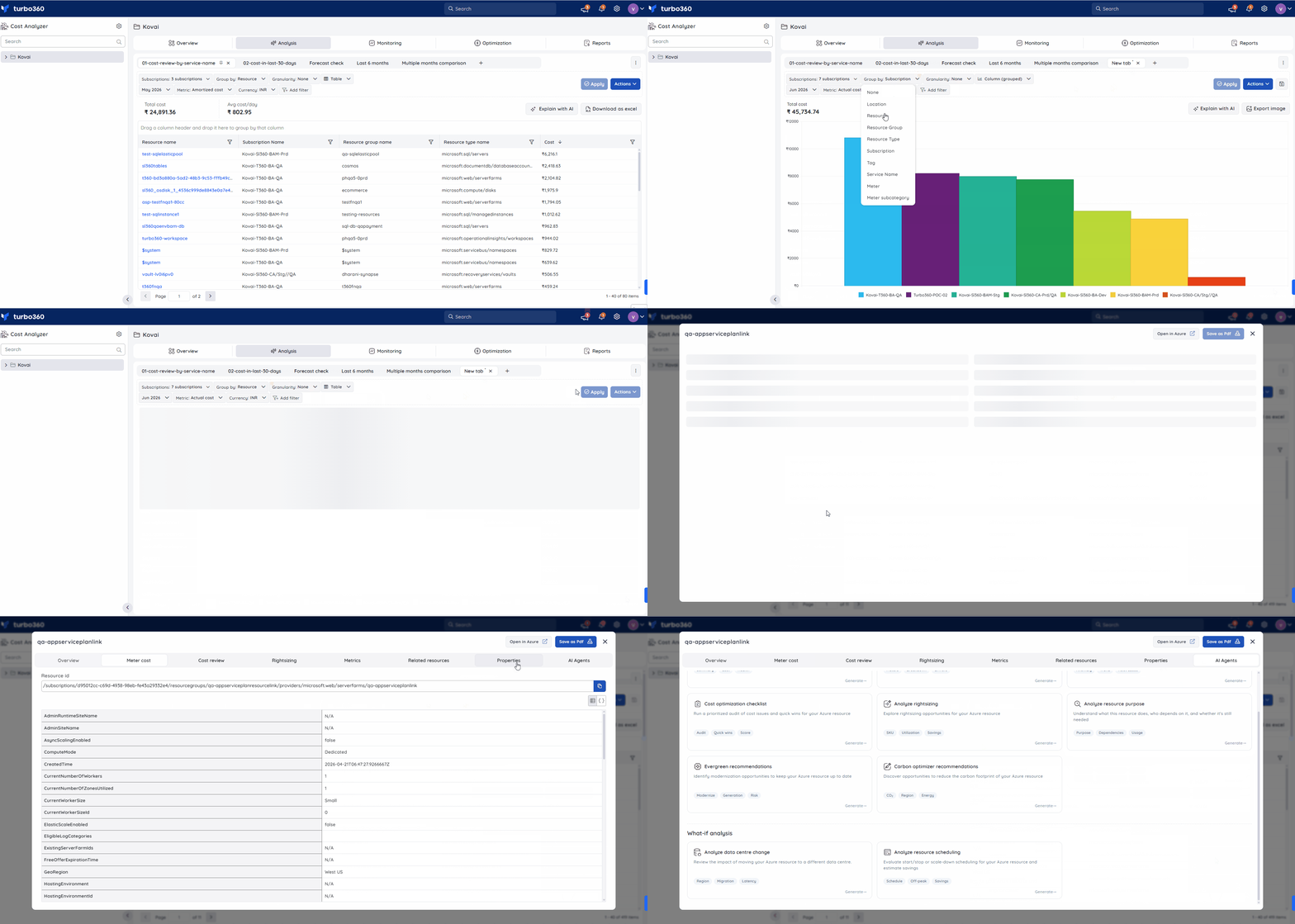
- From the Analysis section – Create a view with the chart type set to Table and the Group by filter set to Resource. Click on a resource from the results and switch to the AI Agents tab to access the required agent.
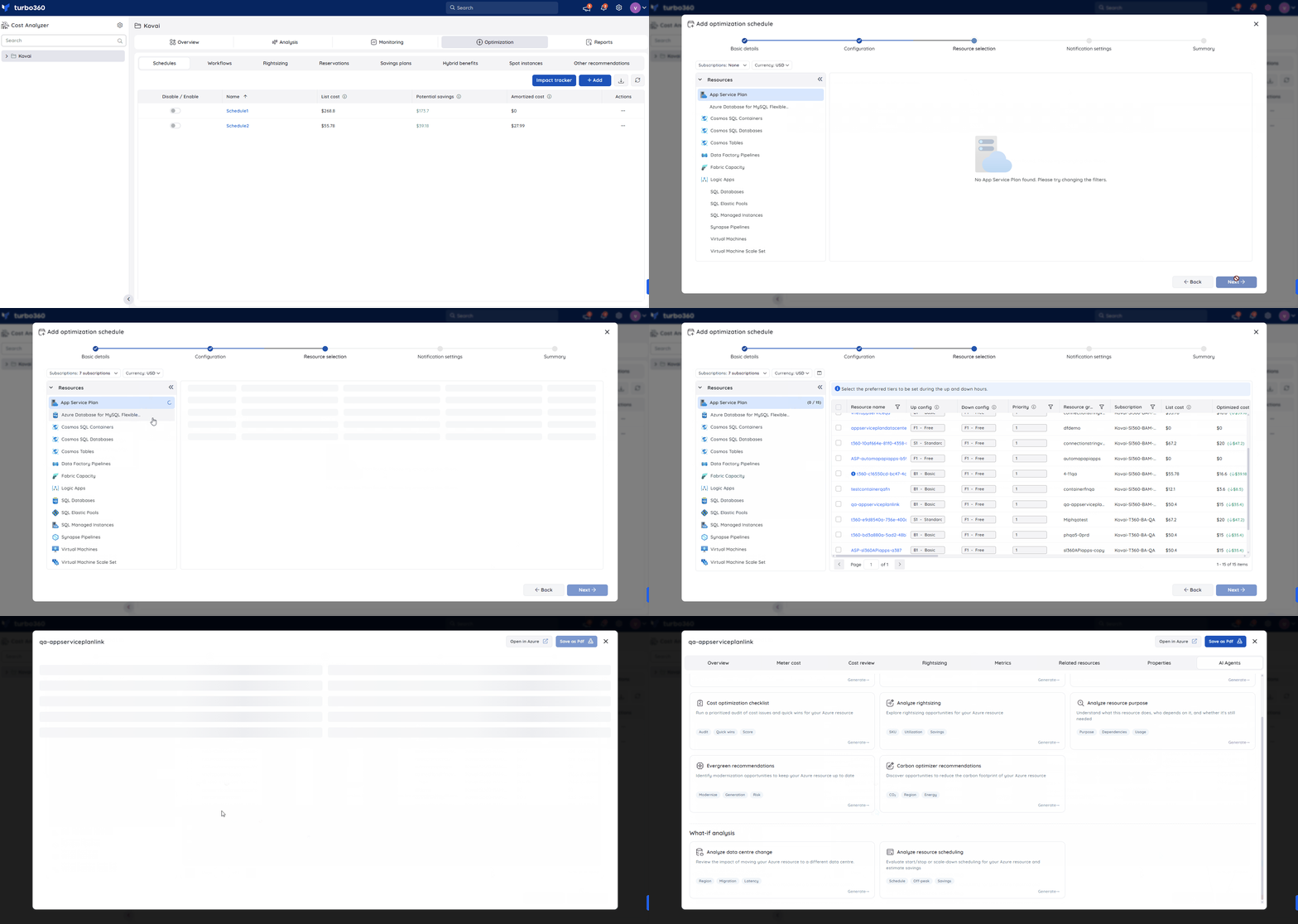
- From Optimization > Schedules – During schedule creation, click on any resource from the resource selection screen and switch to the AI Agents tab.
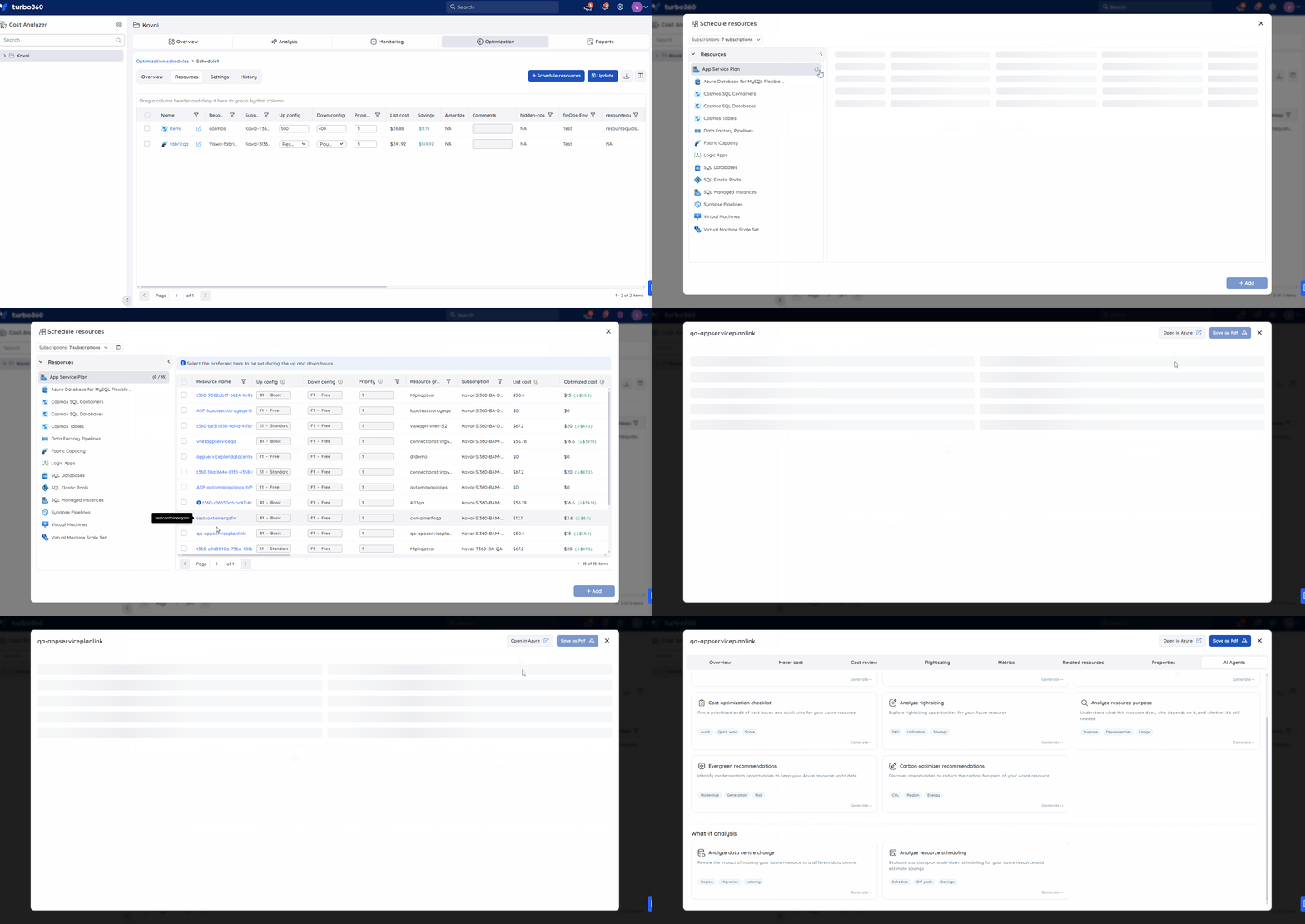
Alternatively, within an existing schedule, click on Schedule Resources, select any resource from the resource selection screen, and switch to the AI Agents tab to access the required agent.
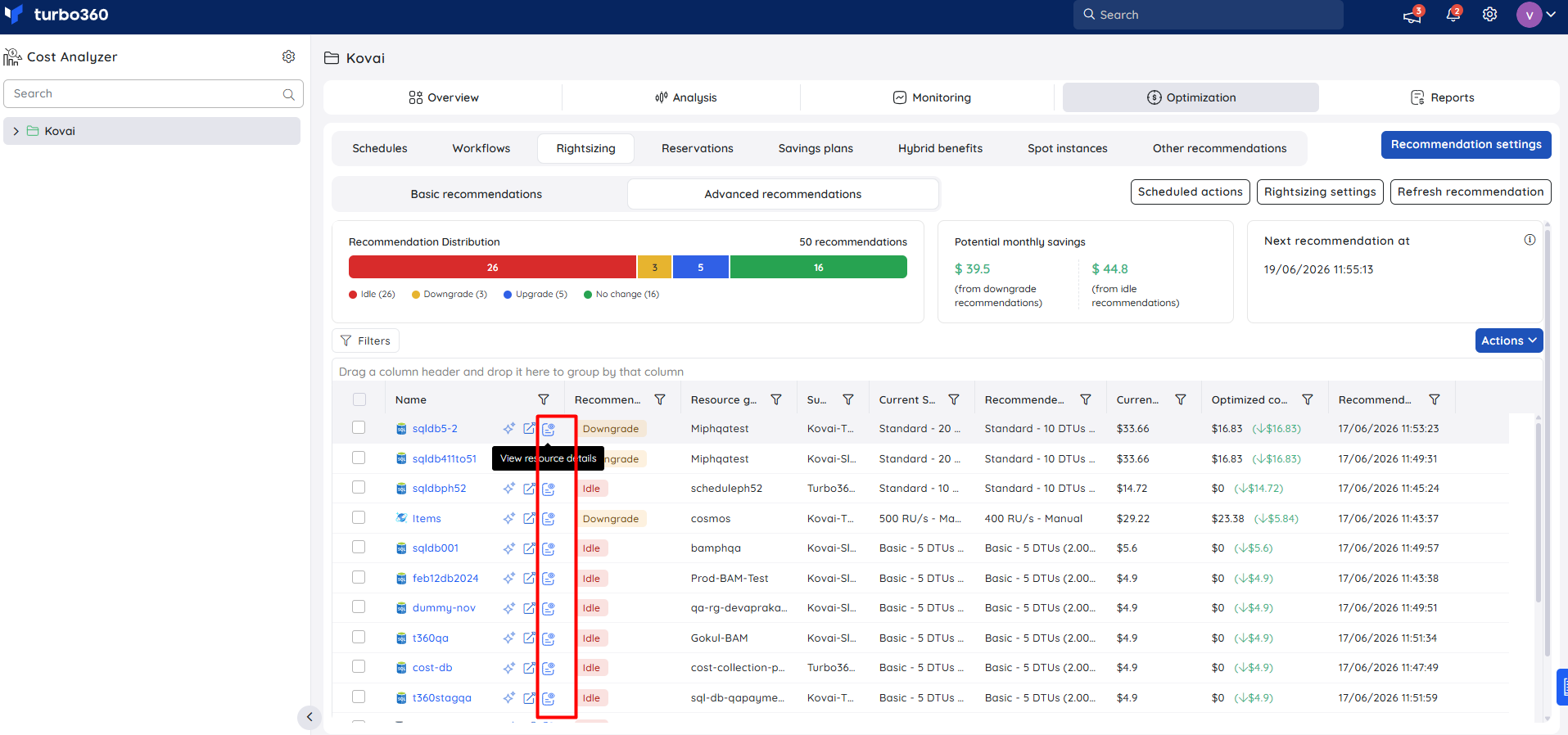
- From Optimization > Rightsizing > Advanced Recommendations and Optimization > Reservations > Advanced Recommendations – Click the View resource details icon for any resource and switch to the AI Agents tab to access the required agent.
Related articles
- Cost intelligence view for Azure resources: Analysis, Rightsizing, Reservations, and Schedules
Was this article helpful?