

Giving Service Principal Additional Permissions
- 16 Jun 2026
- 1 Minute to read
- Print
- DarkLight
- Download PDF
Giving Service Principal Additional Permissions
- Updated on 16 Jun 2026
- 1 Minute to read
- Print
- DarkLight
- Download PDF
Article summary
Did you find this summary helpful?
Thank you for your feedback!
In this page we will walk through how to setup the permissions needed for other roles needed by Turbo360 for accessing cost management features.
Reservation Reader
In the Azure Portal go to the top menu and type Reservations
Click Role Assignments
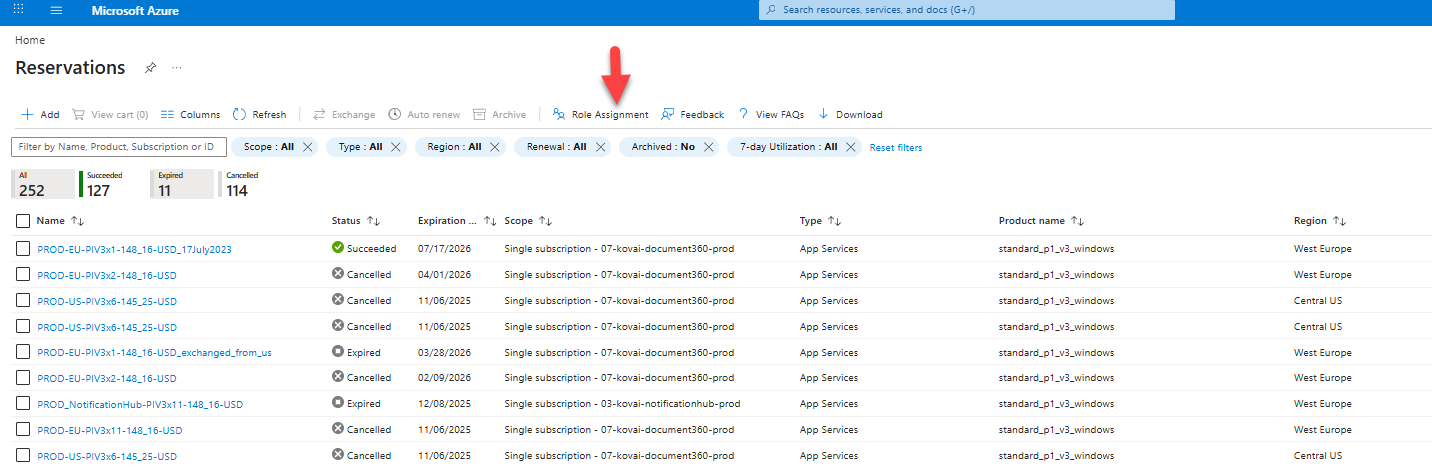
Choose Add —> Add Role Assignment
Choose the reservations reader role and click Next
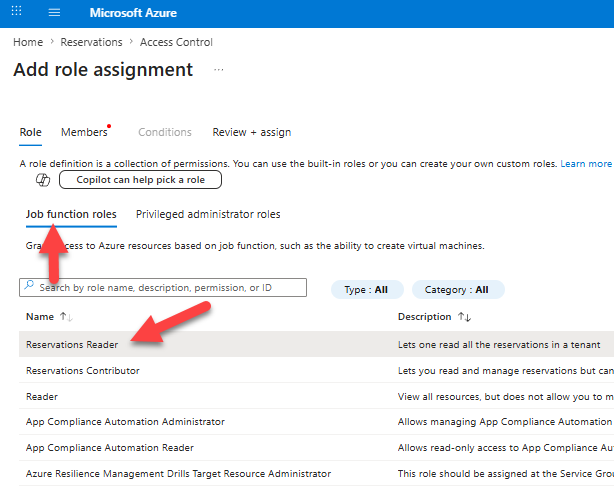
Select the members to add and choose the Turbo360 App Registration then click Next
Click Review and Assign
Troubleshooting
If you are unable to edit the permissions for Reservations then its likely you do not have the appropriate roles. The roles that should be able to edit reservation permissions include:
Global Administrator (if the elevate to manage Azure resources)
MCA = Billing Profile Owner
EA = Enterprise Administrator
Reservations Administrator
Savings Plan Reader
In the Azure Portal go to the top menu and type Savings Plans
Click Role Assignments
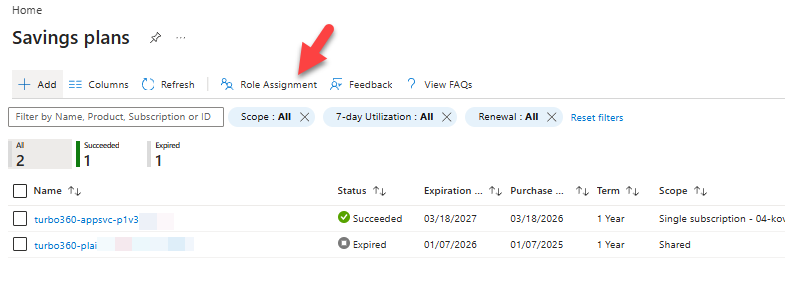
Choose Add —> Add Role Assignment
Choose the savings plan reader role and click Next
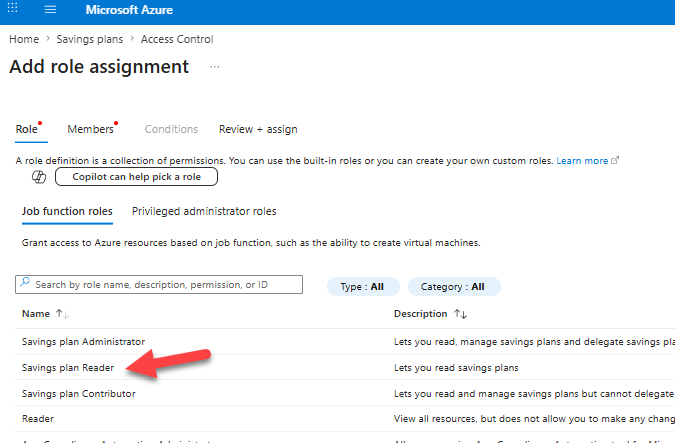
Select the members to add and choose the Turbo360 App Registration then click Next
Click Review and Assign
Troubleshooting
If you are unable to edit the permissions for Reservations then its likely you do not have the appropriate roles. The roles that should be able to edit reservation permissions include:
Global Administrator (if the elevate to manage Azure resources)
MCA = Billing Profile Owner
EA = Enterprise Administrator
Savings Plan Administrator
Was this article helpful?