

Idle session management workflow for AVD
- 13 Feb 2026
- 1 Minute to read
- Print
- DarkLight
- Download PDF
Idle session management workflow for AVD
- Updated on 13 Feb 2026
- 1 Minute to read
- Print
- DarkLight
- Download PDF
Article summary
Did you find this summary helpful?
Thank you for your feedback!
Introduction
Kill idle sessions is a workflow that enables automated termination of idle user sessions in an Azure Virtual Desktop (AVD) host pool. The workflow can be executed on demand or configured to run on a schedule, helping organizations proactively manage session sprawl and optimize resource usage.
By automatically identifying and terminating idle or disconnected sessions, this workflow helps reduce unnecessary consumption of compute resources, improve host pool availability, and control operational costs.
It eliminates the need for manual session cleanup while ensuring that idle sessions do not continue to occupy system resources.
Sample use case
An organization uses Azure Virtual Desktop to support a large remote workforce operating primarily during business hours. However, many users disconnect without properly signing out, leaving idle sessions running overnight and on weekends. These idle sessions consume resources and prevent optimal scaling of the host pool.
By creating a Kill idle sessions workflow scheduled to run after business hours, the organization can automatically terminate all idle sessions in the host pool. This ensures that resources are freed up, virtual machines can scale down efficiently, and costs are reduced—without requiring manual intervention from administrators.
Workflow setup
- Click New configuration -> Host Pool -> Kill idle sessions in the Workflows section.
.png)
- Provide a name to the workflow.
- Select the required Azure Virtual Desktop (AVD) host pool from the list of available subscriptions accessible to the cost group.
.png)
- Control the frequency and timing of workflow execution.
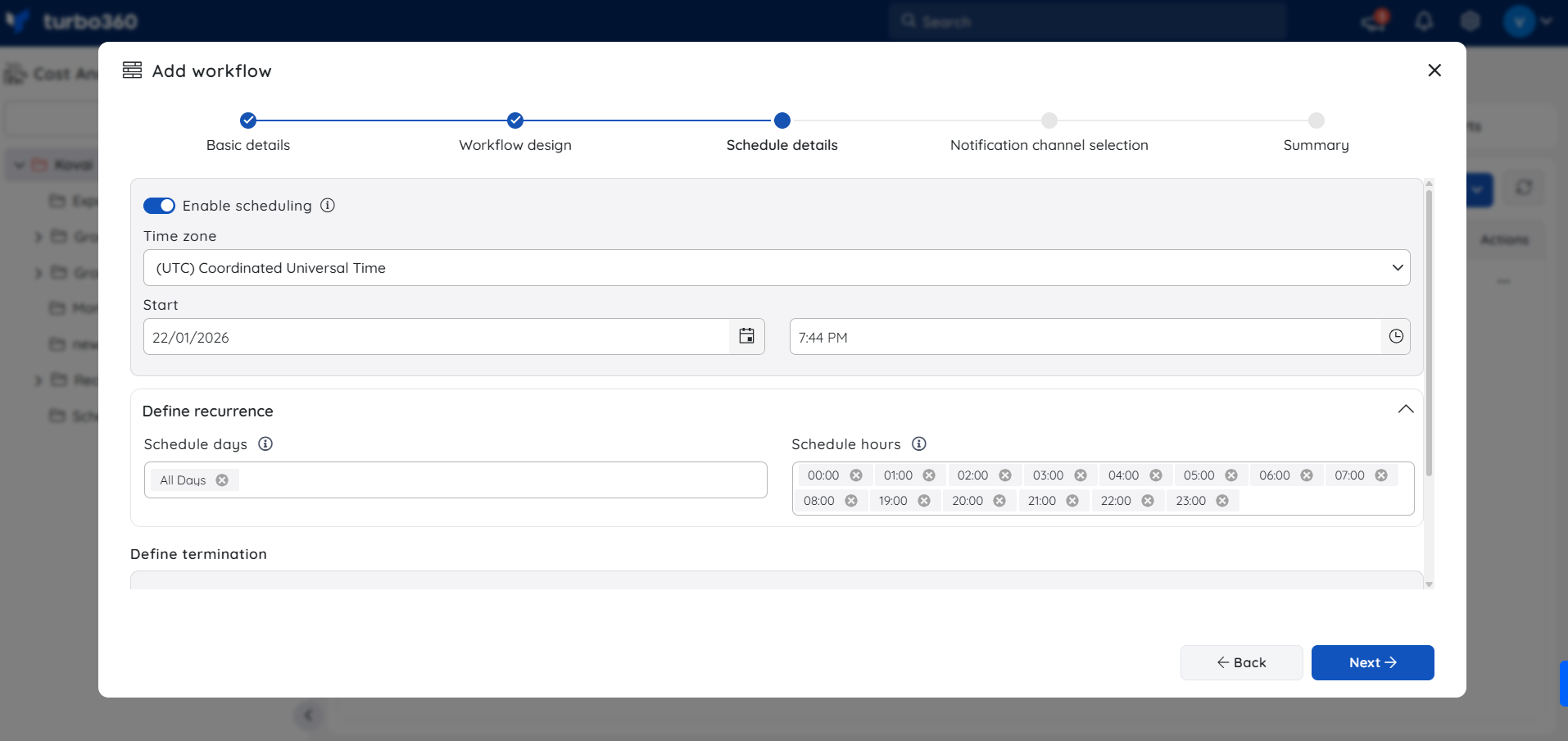
- Configure the desired notification services to receive alerts for workflow executions.
By checking one or both the options under Advanced settings, users can authorize the workflow's notifications to be received in specific situations.
.png)
- Press the Save button to finish setting up the workflow.
.png)
Run history
The View runs option offers details of both processed runs and scheduled runs awaiting processing.
.png)
On demand runs
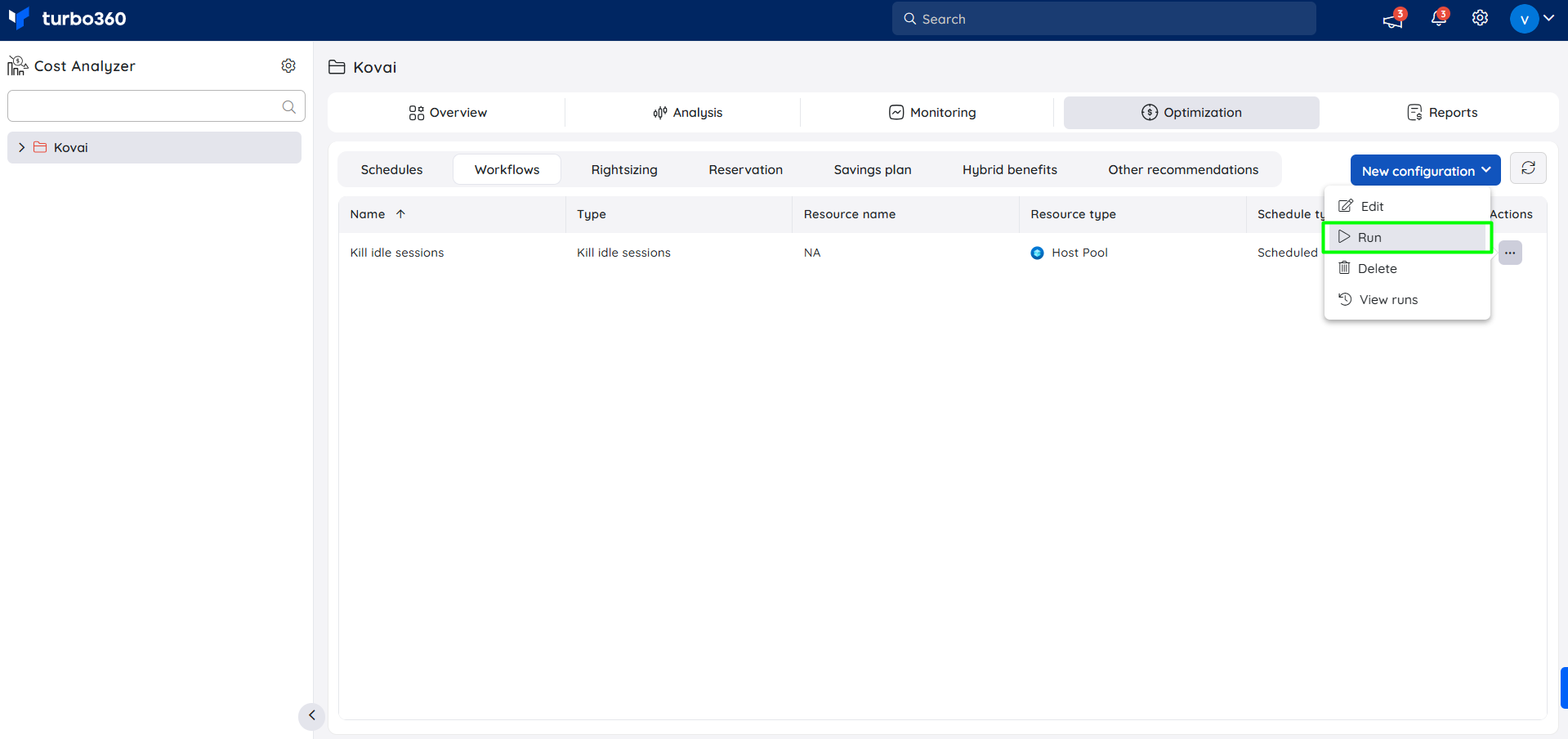
In order to run a configured workflow manually, select Run from the context menu of the workflow configuration.
Was this article helpful?