Overview
Other recommendations identifies idle or underutilized Azure resources across multiple subscriptions and management groups, consolidates them, and offers actionable recommendations. It's available in a cost management group at Cost Analyzer > Optimization > Other recommendations.
Business value
Other recommendations consolidates idle and underutilized resource findings across subscriptions into a single view, so teams can act on cost-saving opportunities without reviewing each subscription individually.
Prerequisites
Required permissions
Access to Other recommendations is controlled through the Optimization tab permissions in Cost Analyzer roles.
| Permission | Description |
|---|---|
| Optimization (tab) | Must be enabled on the role before any Optimization capability, including Other recommendations, becomes accessible. |
| Other recommendations: Read | View recommendation types, affected resources, and consolidated savings. |
| Other recommendations: Manage | Trigger notifications, ignore or restore resources, and export recommendation data |
To configure: go to Cost Analyzer > User management > Roles, add or edit a role, enable Optimization, then under Specify optimization tab permissions, toggle on Other recommendations and select Read and/or Manage.
System-defined roles (Owner and Contributor) include Manage access by default. Reader includes Read access only.
How it works
Other recommendations scans Azure resources across subscriptions and management groups to identify idle and underutilized resources, then consolidates them into recommendation types.
- Each recommendation type lists a description, the number of affected resources across subscriptions, and the consolidated cost of the identified resources to highlight potential savings.
- Each recommendation type also displays an Impact label (High, Medium, or Low) based on the consolidated cost of the affected resources, so you can prioritize which recommendations to act on first.
| Impact | Consolidated cost |
|---|---|
| High | Greater than 100 |
| Medium | 10–100 |
| Low | Less than 10 |
- Selecting a recommendation name opens the resources and details identified for that recommendation type.
- Each listed resource includes quick-action icons to open the resource directly in the Azure portal and to view the resource's single view.
Recommendation categories
Recommendation types are grouped into the following categories:
- Database optimization — recommendations related to Azure SQL and database configurations.
- Monitoring & logging — recommendations for Log Analytics workspaces and monitoring resource configurations.
- Storage optimization — recommendations for storage account configurations and replication settings.
- Savings opportunity — recommendations for unused or idle resources that can be removed to reduce cost.
- Empty containers — recommendations for resource groups and containers with no deployed resources.
- Security & compliance — recommendations related to certificates, security configurations, and storage security settings.
Available recommendations
The following recommendation types are available in Other recommendations:
| Recommendation | Category | Description |
|---|---|---|
| Azure SQL backups with RA-GRS | Database optimization | Azure SQL databases using RA-GRS backups may incur higher costs. |
| Azure SQL Business Critical tier | Database optimization | Azure SQL databases running on the Business Critical tier. |
| Log Analytics - Workspace with Long Retention | Monitoring & logging | Log Analytics workspaces with data retention configured beyond the default. |
| Log Analytics - Workspace with No Cap | Monitoring & logging | Log Analytics workspaces without a data cap, allowing uncapped ingestion costs. |
| Storage with higher replication | Storage optimization | Storage accounts configured with higher replication than required. |
| Snapshots older than 60 days | Storage optimization | Disk snapshots that are older than 60 days. |
| App Service With No Apps | Savings opportunity | App Service plans that do not have any applications deployed. |
| Private Endpoints which are unused | Savings opportunity | Network interfaces that are not currently connected to a resource. |
| Managed Disks without VM | Savings opportunity | Storage disks that are not currently attached to any virtual machine. |
| Public IP which are unused | Savings opportunity | Public IP addresses that are not currently associated with a resource. |
| API Connections with no Logic App | Savings opportunity | Integrations that do not have any associated Logic App. |
| Subnet which are unused | Savings opportunity | Subnets that do not have any active resources or traffic. |
| Network Security Groups which are unused | Savings opportunity | Network security groups that are not associated with any resource. |
| Network Interfaces which are unused | Savings opportunity | Network interface cards that are not currently attached to a resource. |
| VNET which are unused | Savings opportunity | Virtual networks that have no resources connected to them. |
| Orphaned Availability Sets | Savings opportunity | Availability sets that no longer have any virtual machines associated. |
| Elastic Pool without DB | Savings opportunity | Azure SQL Database Elastic Pools that do not have any databases. |
| Route Tables which are unused | Savings opportunity | Route tables that are not associated with any subnet. |
| Load Balancers which are unused | Savings opportunity | Load balancers that are not currently routing traffic. |
| Frontdoor WAF Policy which are unused | Savings opportunity | WAF policies in Azure Front Door that are not currently associated with any resource. |
| Traffic Manager which are unused | Savings opportunity | Traffic management systems or resources that are not actively routing traffic. |
| App Gateways which are unused | Savings opportunity | Application gateways that are not currently being utilized. |
| NET Gateways which are unused | Savings opportunity | Network gateways that are not actively routing traffic. |
| IP Groups which are unused | Savings opportunity | Collections of IP addresses that are not currently assigned to any resource. |
| Private DNS Zones which are unused | Savings opportunity | DNS zones that are not actively resolving or managing any records. |
| VNet Gateways which are unused | Savings opportunity | VNet gateways that are not actively routing traffic. |
| DDOS without protected resources | Savings opportunity | DDoS protection systems that have no associated protected resources. |
| Resource Groups with no Resources | Empty containers | Resource groups that contain no deployed or allocated resources. |
| Subscriptions with no Resource Groups | Empty containers | Subscriptions that do not contain any allocated or deployed resource groups. |
| Expired Certificates | Security & compliance | Certificates that have passed their validity period. |
| Storage with SFTP Enabled | Security & compliance | Storage accounts with SFTP enabled for secure file transfer. |
Resource detail view
Clicking a recommendation name opens a detail panel listing the affected resources. The columns shown vary by recommendation type but always include: Id, Name, SubscriptionId, Subscription name, ResourceGroup, and Location. Recommendation-specific columns provide additional context — for example, Log Analytics recommendations include a Retention days column showing the current retention configuration for each workspace.
Each resource row includes an Actions dropdown with: Ignore, View ignored recommendations, Trigger notification, and Download as excel.
Generate a cleanup script
Generating a cleanup script produces ready-to-run Azure CLI commands to delete the resources identified by a recommendation, without leaving Turbo360.
- Select a recommendation name.
- Click Actions > Generate cleanup script.
The Cleanup script (Az CLI) dialog opens with the commands needed to delete each affected resource, grouped by subscription: an az account set command followed by the relevant deletion command per resource (for example, az network vnet subnet delete for an unused subnet).
- Review the commands.
- Click Download to save the script, or copy it directly, then run it in Azure Cloud Shell (Bash).
These commands permanently delete the listed resources. Review each command carefully before running it.
Generate cleanup script is available for recommendation types that identify unused or empty resources.
Task planner integration
Cost Analyzer integrates with Task planner to automatically generate a task when a user triggers a notification for Other recommendations.
The generated task can be accessed in two ways:
- From the respective cost management group, click the Context menu ( ⋮ ) within the Analysis section, then select Tasks.
- From Task planner, available under the My profile dropdown, for broader visibility across groups.
Steps
Use the following steps to trigger notifications, ignore resources, generate a cleanup script, and export recommendation data. Navigate to Optimization > Other recommendations within a cost management group to get started.
Trigger a recommendation notification
Triggering a notification sends a consolidated report on selected resources to a team or team member so they can prioritize action.
- Select a recommendation name.
- Select a recommended resource.
- Click Actions > Trigger notification.
- Choose the desired channels, or configure a recipient email address.
- Click Send.
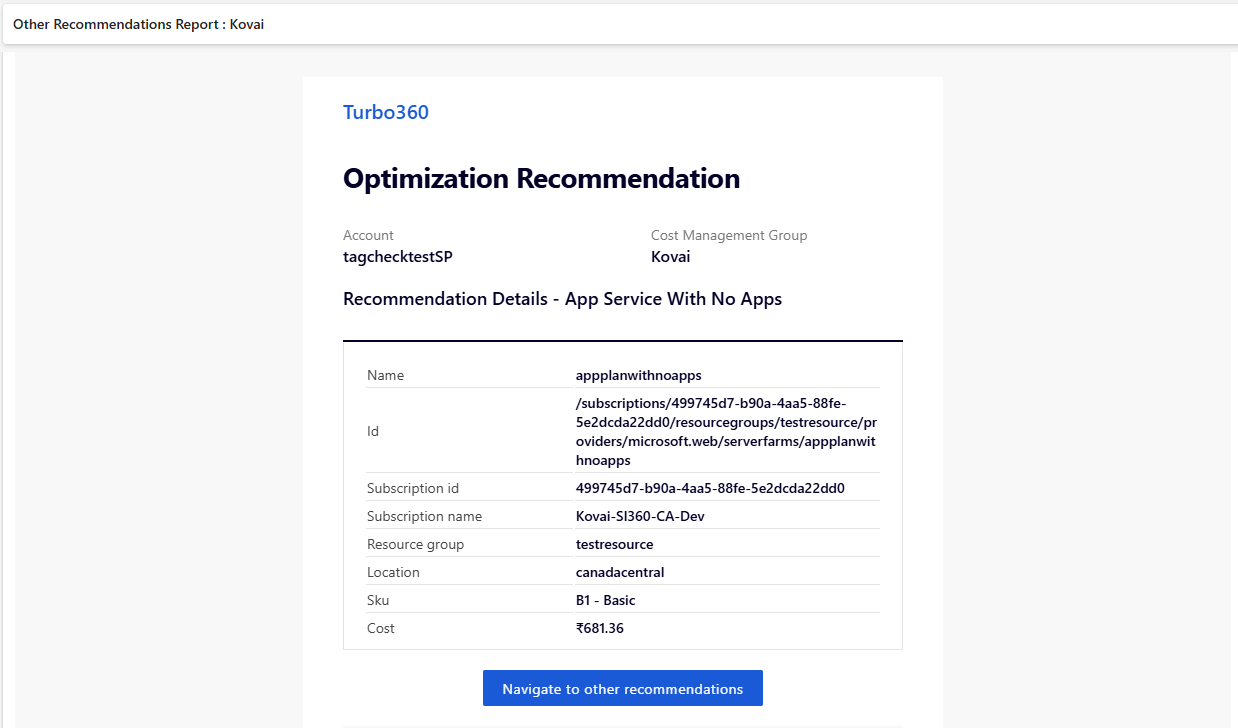
The recommended resource data is sent as a report to the configured channels.
A maximum of 10 recommendations can be selected to trigger a consolidated notification.
Below is a sample recommendation report received by email after triggering a notification:
Ignore a recommendation
Ignoring a resource excludes it from future recommendations when you prefer to keep its current usage.
- Select the resources from the recommendation.
- Click Actions > Ignore.
- Choose to permanently exclude the resource, or ignore it until a specified date range.
Ignored resources are accessible under Actions > View ignored recommendations.
Export recommendations
Exporting downloads the recommendation data as an Excel workbook containing basic resource details.
- Click Recommendation name > Actions > Download as excel.
Example scenario
An operations team manages a Contoso cost management group spanning multiple subscriptions. Reviewing Other recommendations, they find several idle disks and underutilized virtual machines consolidated into recommendation types. The team lead selects the top resources, triggers a notification to the finance channel, and permanently ignores three resources reserved for a planned migration. The remaining resources are exported as an Excel workbook for the monthly cost review.
Troubleshooting
-
Other recommendations isn't visible in the Optimization tab
Cause: The Optimization feature permission is disabled for your role, or the Other recommendations toggle isn't enabled.
Fix: Ask your administrator to enable Optimization and grant at least Read on Other recommendations under Specify optimization tab permissions in Roles. -
Can't trigger a notification or ignore a resource
Cause: Your role only has Read permission on Other recommendations.
Fix: Request Manage permission on Other recommendations from your administrator. -
Generate cleanup script option is greyed out or not available for a recommendation
Cause: The selected recommendation type does not support resource deletion; Generate cleanup script is available only for recommendation types that identify unused or empty resources.
Fix: Confirm the recommendation type falls under a category such as Savings opportunity or Empty containers. For recommendation types that require reconfiguration rather than deletion, use the relevant Azure portal setting instead.
FAQs
-
How many recommendations can I notify at once?
You can select a maximum of 10 recommendations to trigger a single consolidated notification. -
Can I permanently exclude a resource from recommendations?
Yes. Use Actions > Ignore and choose to permanently exclude the resource, or ignore it until a specified date range. -
Can I export recommendation data?
Yes. Use Actions > Download as excel to export the basic resource details for a recommendation. -
Does Generate cleanup script delete resources automatically?
No. It only generates the Azure CLI commands. You must review and run them yourself in Azure Cloud Shell; Turbo360 does not execute the deletion.