The daily file replication demo illustrates how Turbo360 can be used to manage and monitor Data Factory-based ETL solutions. It focuses on a common scenario where branch offices send data to a central location for consolidation and reporting.
Demo story
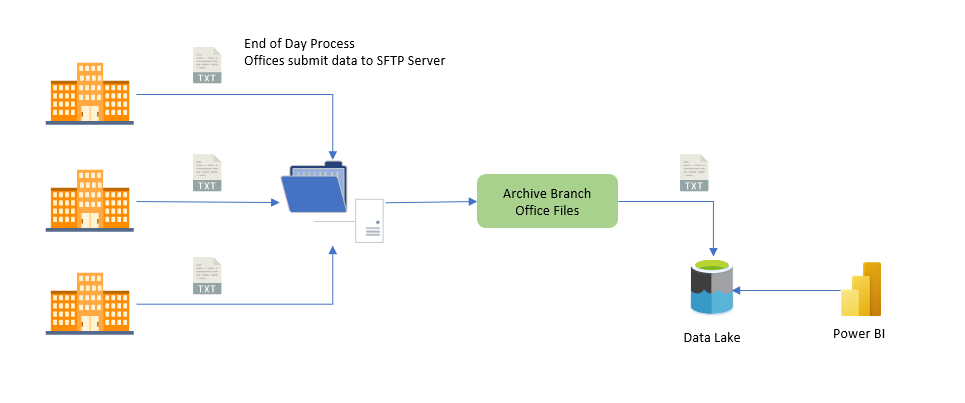
An organisation has multiple branch offices that each need to submit data to head office at the end of every day. Each branch uploads its data to an SFTP server. A Data Factory pipeline then picks up the files, archives them into a data lake, and makes the data available for Power BI reporting on branch-level activity.
The diagram below shows the logical solution architecture.
Implementation
The solution uses a Data Factory with a recurring trigger that fires a pipeline to check an Azure Storage Account for newly uploaded files. When files are found, the pipeline archives them into a data lake. Power BI is then pointed at the data lake to build branch office reports.
The diagram below shows the Azure view of the solution.
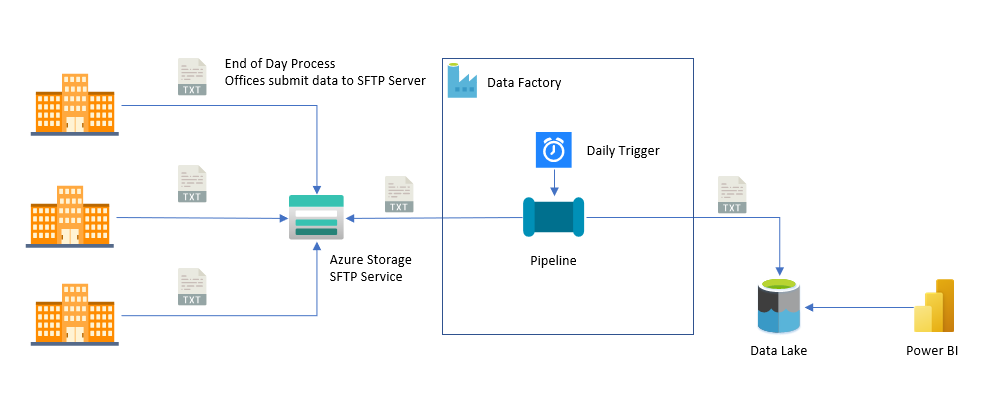
This demo focuses on the Data Factory processing layer: specifically how Turbo360 is used to manage and monitor the pipeline execution.
Who this demo is for
This demo is relevant if you work with Data Factory or are implementing ELT/ETL solutions on Azure.
Azure services covered
- Azure Data Factory
Turbo360 features covered
Business Applications
- Service map
- Business Application dashboard
- Data Factory: run history, action required, monitoring
Business Activity Monitoring
- Transaction tracking for Data Factory pipeline runs