

API management
- 29 May 2026
- 1 Minute to read
- Print
- DarkLight
- Download PDF
API management
- Updated on 29 May 2026
- 1 Minute to read
- Print
- DarkLight
- Download PDF
Article summary
Did you find this summary helpful?
Thank you for your feedback!
Introduction
Turbo360 enables Partners to automate managed account APIs and integrate account management into workflows, simplifying onboarding and improving visibility across all accounts.
Get Started with API Automation
Follow these steps to begin with API automation:
1. Register a Single-Tenant Application in Microsoft Entra ID
1. Sign in
Sign in to the Azure portal or Microsoft Entra admin center.
2. Navigate to App Registrations
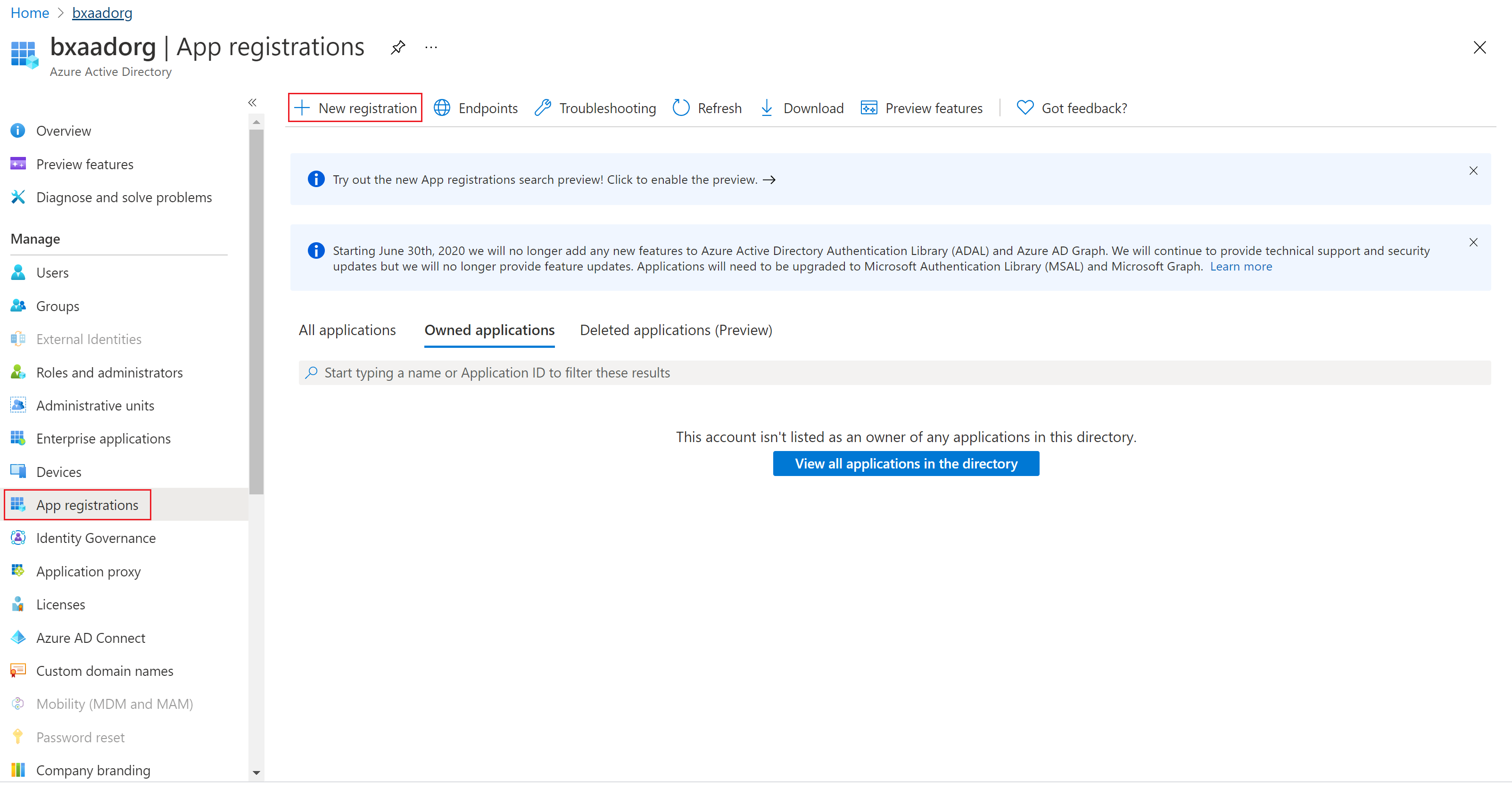
Go to Microsoft Entra ID -> App registrations.
3. Create an Application
Select + New registration.
4. Configure settings
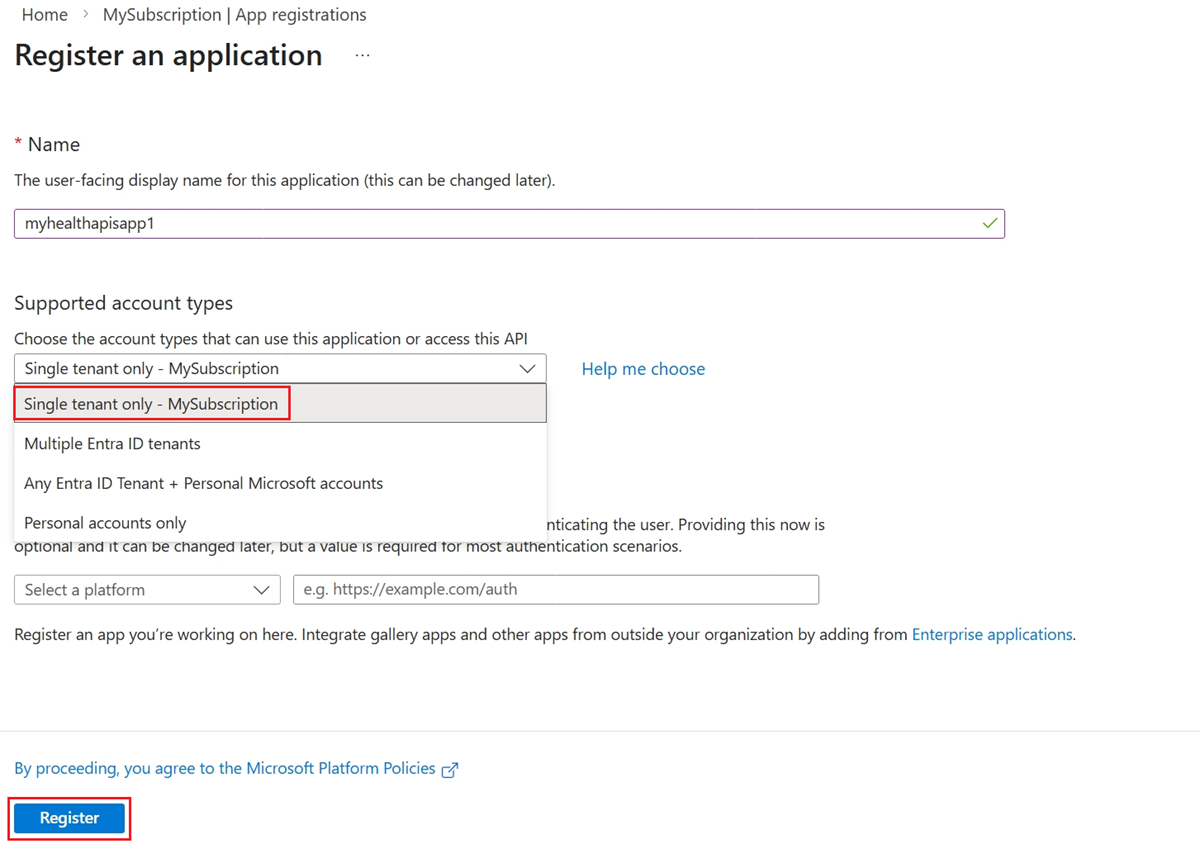
Name: Enter the application name.
Supported account types: Select Accounts in this organizational directory only (Single tenant).
5. Register
Select Register.
6. Retrieve Application IDs
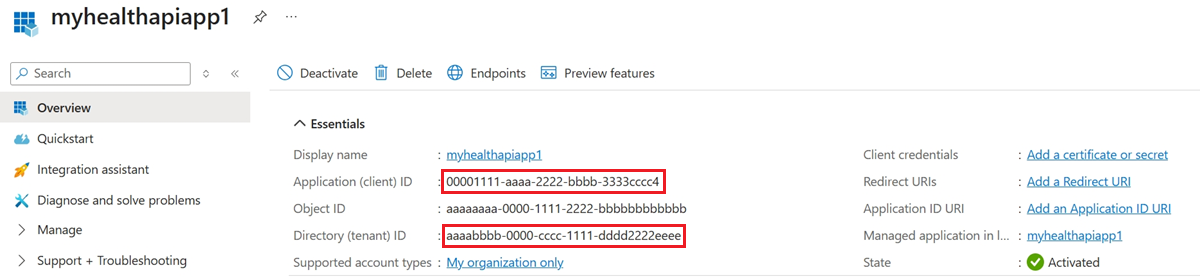
From the overview page, copy:
Application (client) ID
Directory (tenant) ID
7. Create Client Secret
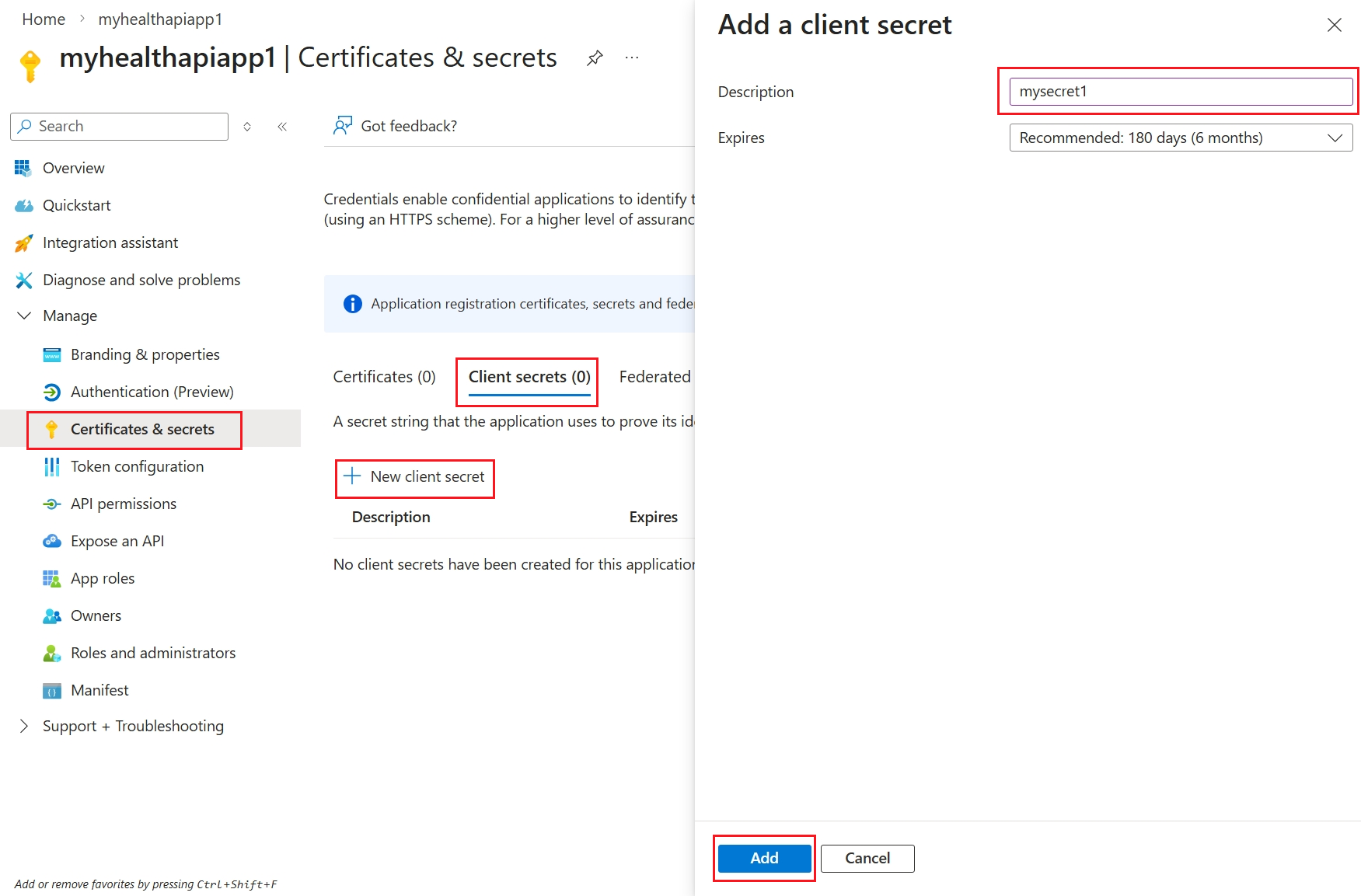
Navigate to Certificates & secrets and create a new client secret.
2. Provide admin consent to the Turbo360 Partner App
Use the URL below to grant admin consent to the Turbo360 Partner App, replacing the tenant ID with the registered application’s tenant ID.
https://login.microsoftonline.com/{customer-tenant-id}/adminconsent?client_id=3ff33167-ae34-4bb3-b86d-109c22d28fc8
3. Add API permissions to the registered application
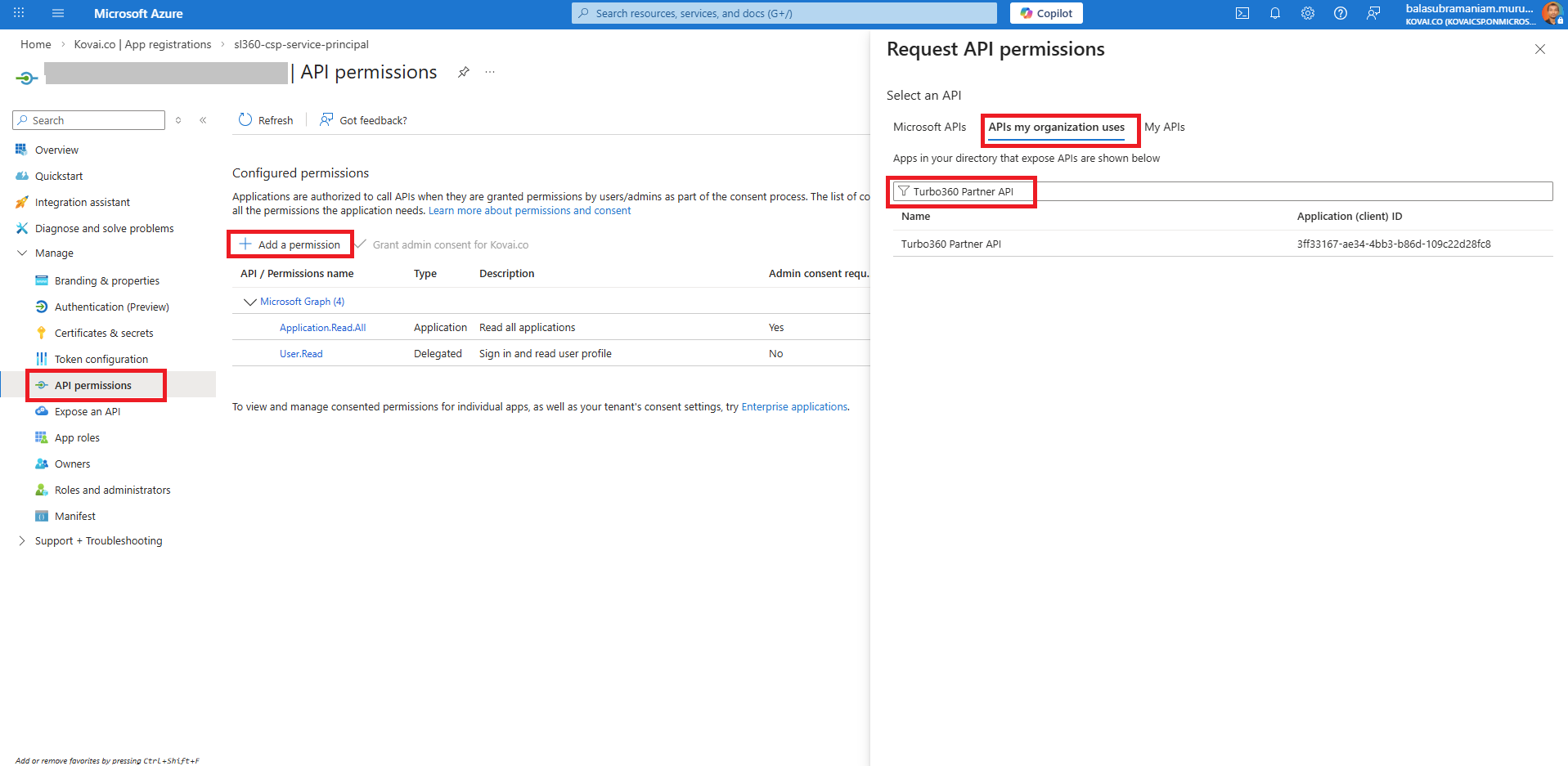
- Navigate to API permissions -> Select Add a permission -> Open the APIs my organization uses tab.
- Search for Turbo360 Partner API using the filter option.
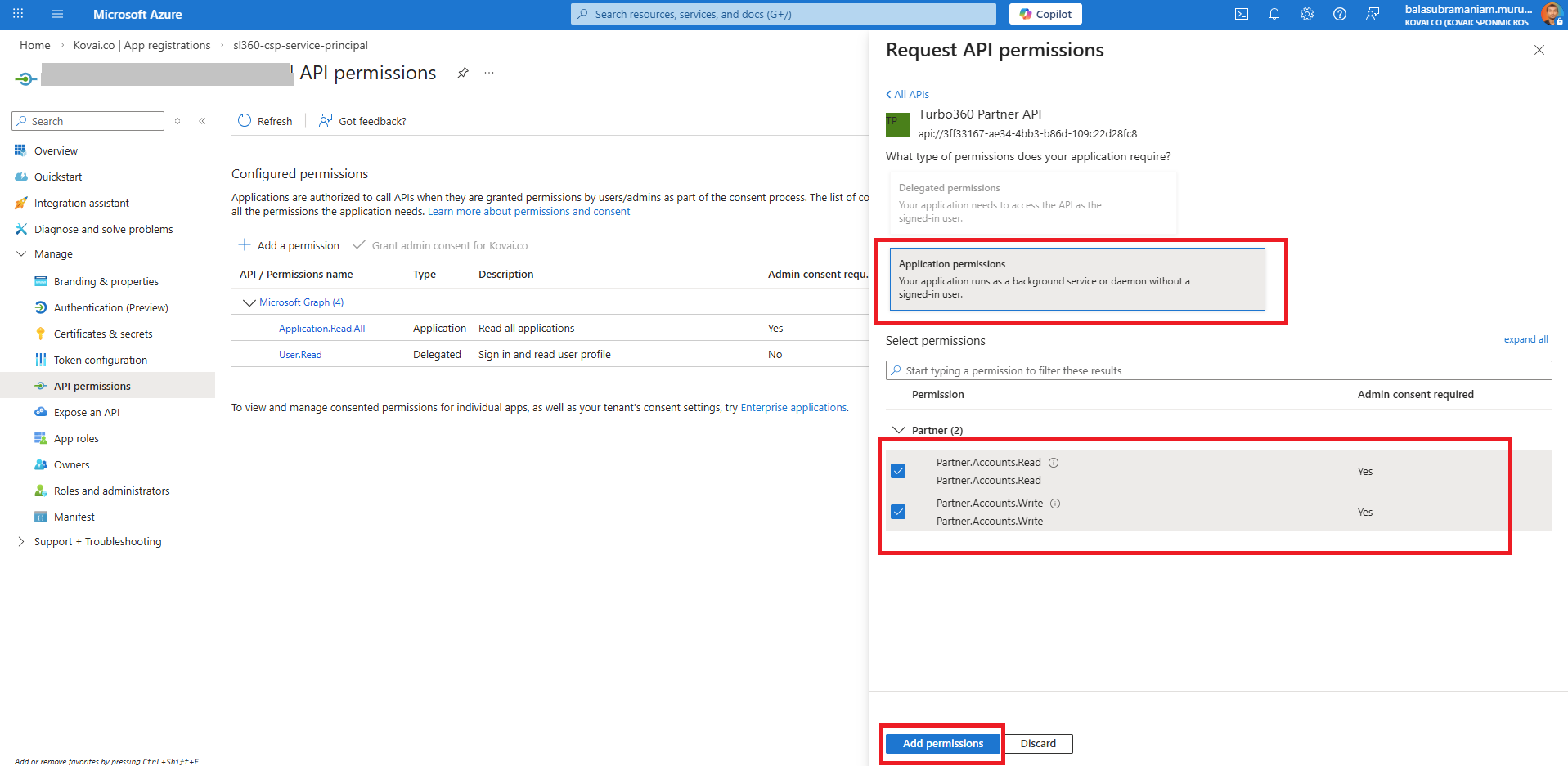
- Select Turbo360 Partner API -> Choose Read and Write under Application permissions -> Click Add permissions.
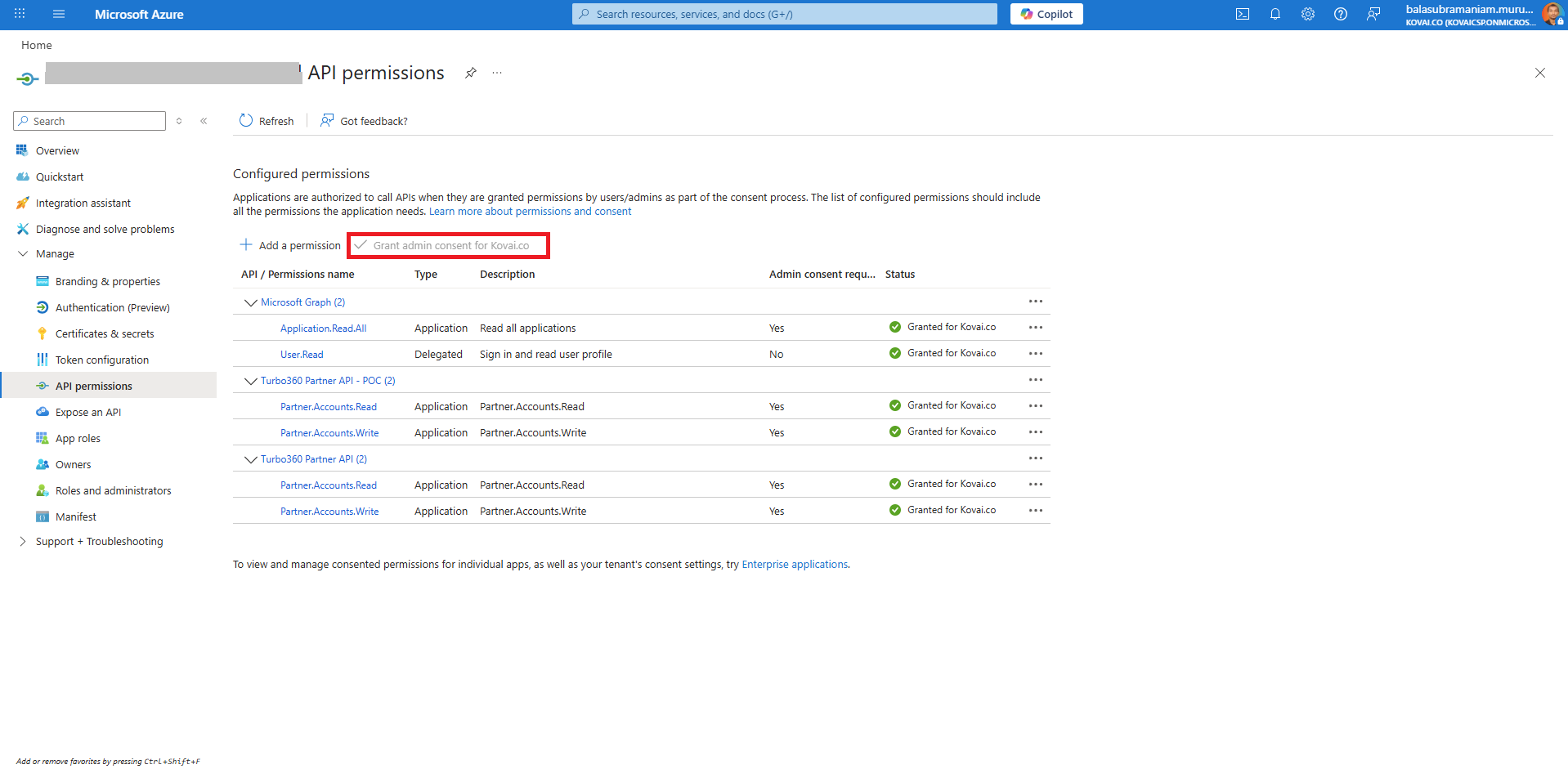
- Grant admin consent for the configured permissions.
OAuth configuration in Turbo360
Follow these instructions to set up OAuth and create an OAuth token:
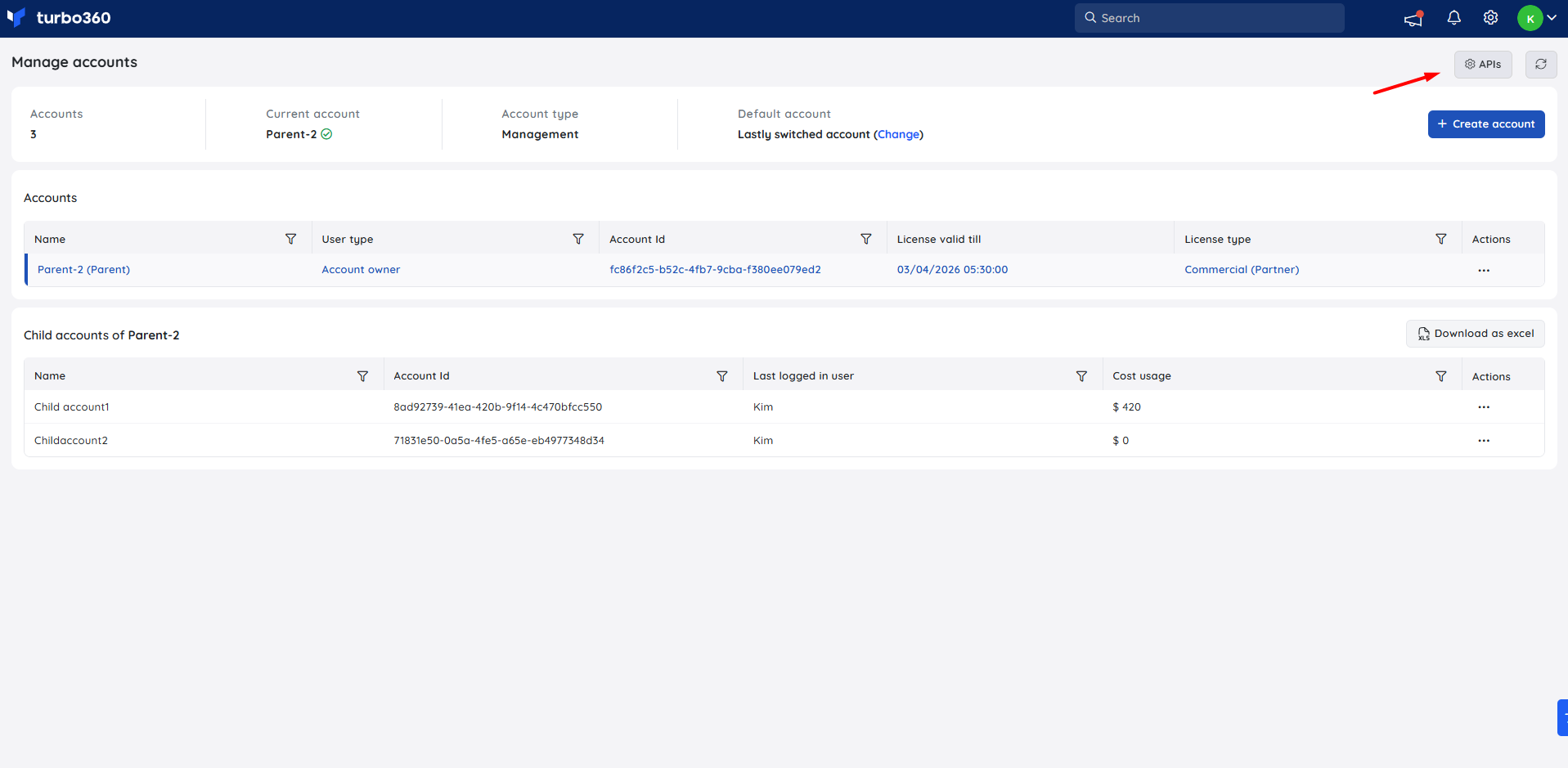
- From a Partner account, navigate to the Manage accounts screen.
- Select APIs from the top-right corner.
- Enter the Microsoft Entra (Tenant) ID and Client (Application) ID obtained from the registered application.
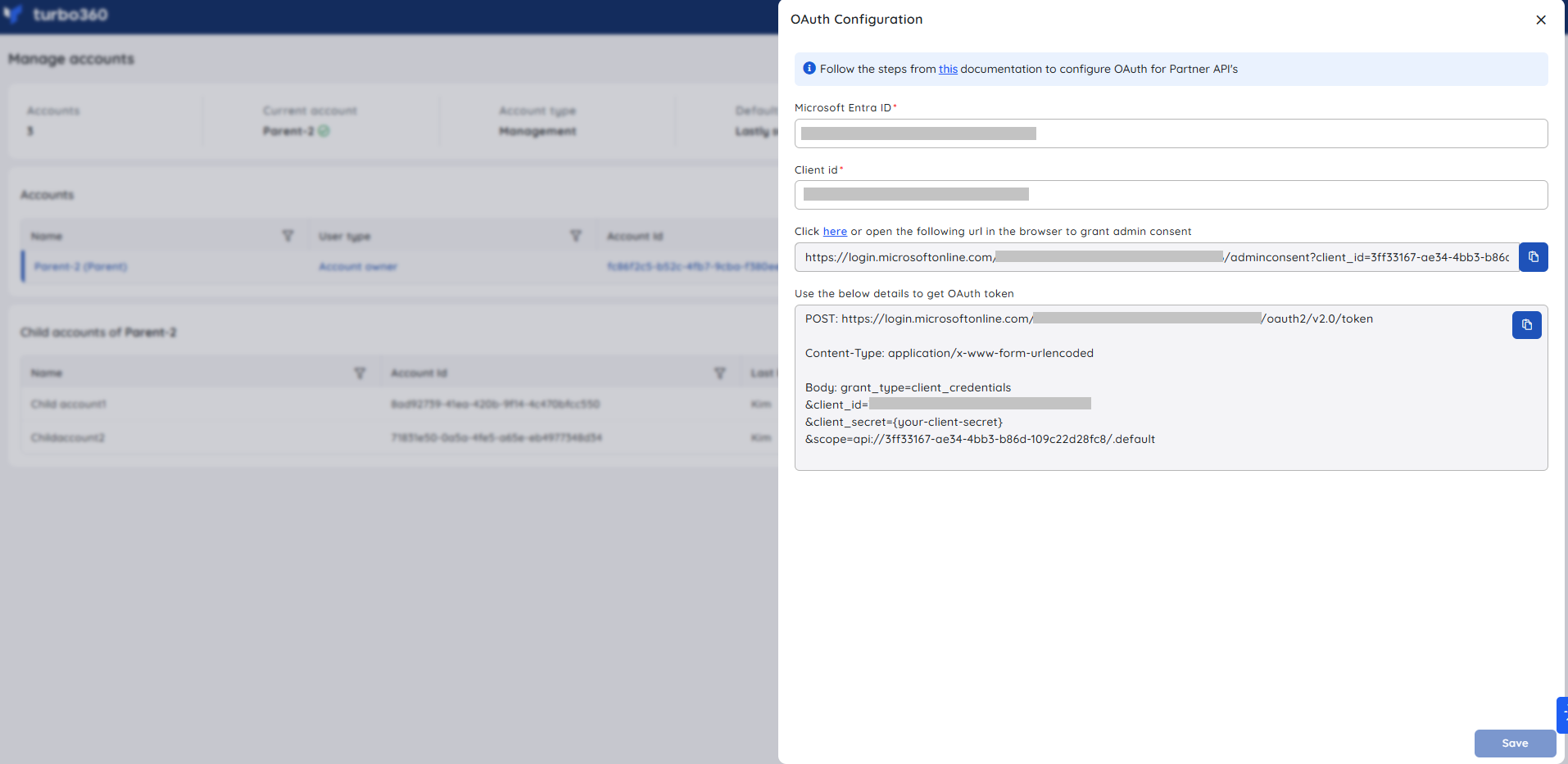
- Click Save to store the OAuth configuration.
Notes:
Admin consent for the Turbo360 Partner App can also be granted using the link generated during this process.
Use the API request details to generate an OAuth token for Partner API management.
Available APIs can be viewed in Swagger using the link available in the OAuth Configuration screen.
Was this article helpful?