Overview
Publish to Azure Storage lets you choose where Azure Documenter saves generated documents: either in Turbo360's built-in storage, or in your own Azure Storage account. You can register and manage Azure Storage accounts from Storage accounts under Settings, then select one as the publish destination when creating or editing a document configuration.
Business value
Controlling where generated documents are stored lets you align document storage with your organization's data residency, retention, and compliance requirements, instead of relying solely on Turbo360-managed storage.
Prerequisites
Required permissions
| Role | Permission level | Access |
|---|---|---|
| Account owner, Owner, Contributor | Built-in | Full access to configure publish settings and manage storage accounts. |
| Custom role | Documentation: Read | View existing publish settings configuration. Cannot change it. |
| Custom role | Documentation: Manage | Full access to configure publish settings, in addition to Read access. |
How it works
Azure Documenter supports two storage destinations for generated documents:
- Turbo360 storage account: the default. Documents are saved in Turbo360's own built-in storage account. No configuration is required to use this option.
- Your own Azure Storage account: documents are saved in an Azure Storage account you own. You must register the storage account in Settings before selecting it as a publish destination.
Each Azure Storage account is registered using its connection string; the storage account name is auto-populated once validation succeeds. A registered storage account appears as an available publish destination when creating or editing a document configuration.
The default Turbo360 storage cannot be edited or deleted. A custom storage account can only be deleted if it is not currently associated with any document configuration.
Steps
Manage Azure Storage accounts
Use the following steps to add, edit, or delete a custom Azure Storage account. Navigate to Azure Documenter > Settings > Storage accounts to get started.
Add an Azure Storage account
- Click Add in the Storage accounts section.
- Enter the Azure Storage account connection string. The storage account name is auto-populated once the connection string is validated.
- Click Save.
You'll need the connection string from your Azure Storage account. Find it on the storage account's Access keys page in the Azure portal.
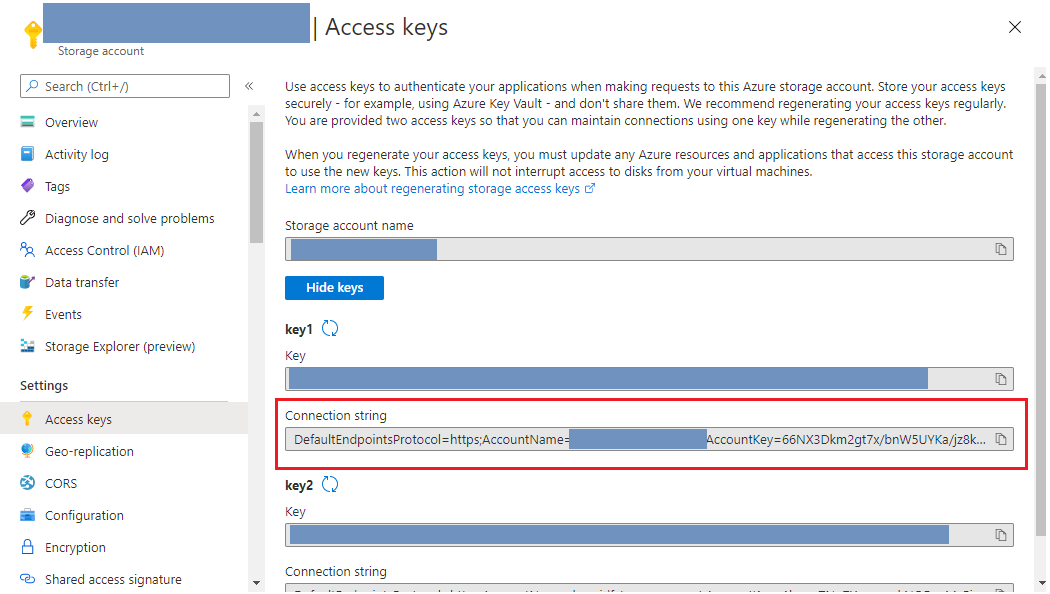
Edit an Azure Storage account
- Click the Edit icon next to the storage account you want to update.
- Provide the new connection string and save your changes.
Delete an Azure Storage account
- Click the Delete icon next to the storage account you want to remove.
A storage account can only be deleted if it is not currently selected as a publish destination on any document configuration.
Configure publish destination
Use the following steps to set the publish destination when creating or editing a document configuration. Navigate to Publish settings in the Configure your document wizard to get started.
Save to Turbo360 storage
This is the default option and requires no additional configuration.
- Choose Use existing storage account in the Publish settings section.
Save to your own Azure Storage account
- Choose Add new storage account in the Publish settings section.
- Select the storage account you registered under Settings, or enter a new connection string directly.
Example scenario
An organization needs all generated compliance documents to stay within their own Azure tenant for retention purposes. They register their Azure Storage account under Settings, then select it as the publish destination in Publish settings. When the storage account's access key is later rotated, they edit the connection string from Settings to keep generation working.
Limitations
- The default Turbo360 Storage cannot be edited or deleted.
- A custom storage account can only be deleted if it is not associated with any document configuration.
Troubleshooting
-
Storage account name doesn't auto-populate after adding
Cause: the connection string entered may be incomplete or incorrect.
Fix: confirm the connection string was copied in full from the storage account's Access keys page in the Azure portal. -
Can't delete a custom storage account
Cause: the storage account is still selected as the publish destination on one or more document configurations.
Fix: update those document configurations to use a different publish destination, then delete the storage account. -
Custom role user can't change publish settings
Cause: the user's custom role has Documentation: Read, but not Manage.
Fix: enable Documentation: Manage on the custom role to allow changing publish settings. -
Connection string validation fails
Cause: the connection string is incorrect, incomplete, or belongs to a storage account the service principal cannot access.
Fix: retrieve the correct connection string from the Azure portal under Storage accounts > Access keys and re-enter it.
FAQs
-
Where are generated documents saved by default?
In Turbo360's own built-in storage account, unless you configure your own Azure Storage account in Publish settings. -
What do I need to save documents to my own Azure Storage account?
The connection string from the Azure Storage account, available from its Access keys page in the Azure portal. -
Does the storage account name need to be entered manually?
No. It's auto-populated once you enter the Azure Storage account connection string. -
Who can manage storage accounts?
Users with the Account owner, Owner, or Contributor role. Storage account management is not available to other roles.