

Resources summary report
- 10 Apr 2026
- 2 Minutes to read
- Print
- DarkLight
- PDF
Resources summary report
- Updated on 10 Apr 2026
- 2 Minutes to read
- Print
- DarkLight
- PDF
Article summary
Did you find this summary helpful?
Thank you for your feedback!
Introduction
Resources summary report provides a structured, two-month overview of resource-level changes in Excel format. Data is generated using cost thresholds configured for each data category, taking the user’s billing currency into account.
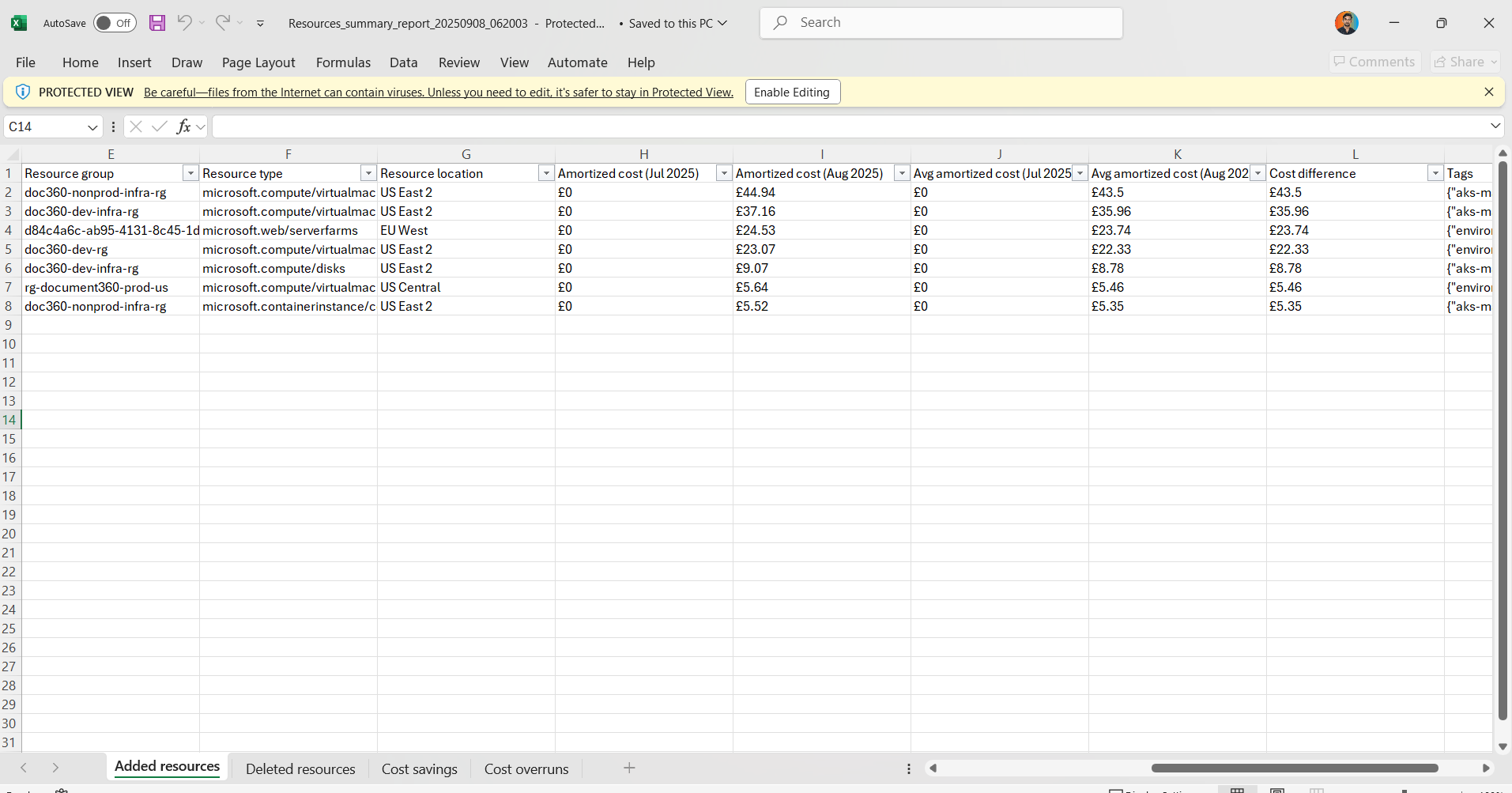
The report is organized into separate sheets for:
- New charges – Resources that have recently begun incurring costs compared to the previous two months, where the cost difference exceeds the user-defined threshold.
- No longer charged – Resources that have been decommissioned or are no longer generating costs compared to the previous two months, where the cost variance exceeds the user-defined threshold.
- Cost savings – Resources that have achieved cost reductions compared to the previous two months, where the cost variance exceeds the user-defined threshold.
- Cost overruns – Resources incurring increased costs compared to the previous two months, where the cost variance exceeds the user-defined threshold.
By presenting these insights, the report enables executives and management teams to:
- Track changes in resource usage and associated costs.
- Identify areas of cost efficiency and opportunities for optimization.
- Monitor budget compliance and proactively address cost overruns.
- Make informed decisions to align resource allocation with organizational and financial goals.
Report configuration
Refer to the steps below to schedule resources summary reports on a monthly basis for the desired cost management group:
- Navigate to the following path: Cost management group -> Reports
- Click the Edit icon next to the Resources summary report type.
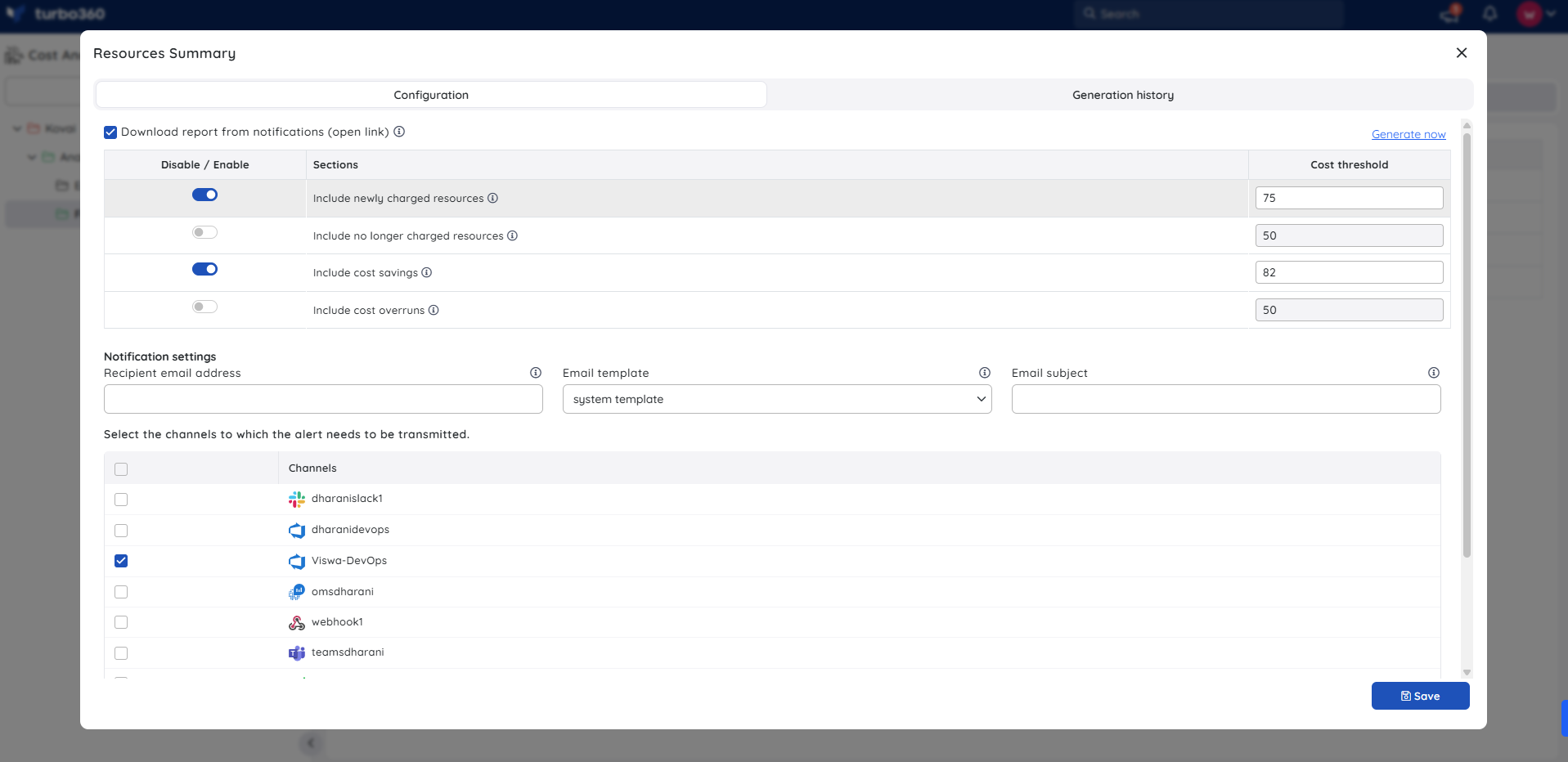
- Turn on the required data toggles to include those details in the report.
- Set a cost threshold for each data section to ensure report data is generated only when costs, compared over the past two months, exceed the configured limit.
- Check Download report from notifications to allow the report to be downloaded from alerts.
- Choose the desired notification services to receive alerts.
- Click Save.
- Enable the Resources summary report type toggle.
Important notes
- The configured cost threshold is defined using the billing currency.
- Resource Summary Reports can only be scheduled on a monthly basis.
- Report generation will fail if the cost management group contains subscriptions with different billing currencies.
Instant reports
On-demand monthly resource summary reports can be generated with the help of Generate Now option available in the Actions menu of the relevant report type.
.png)
The toggle should be enabled for the report type in the Reports section and atleast one notification channel should be selected.
Generation history
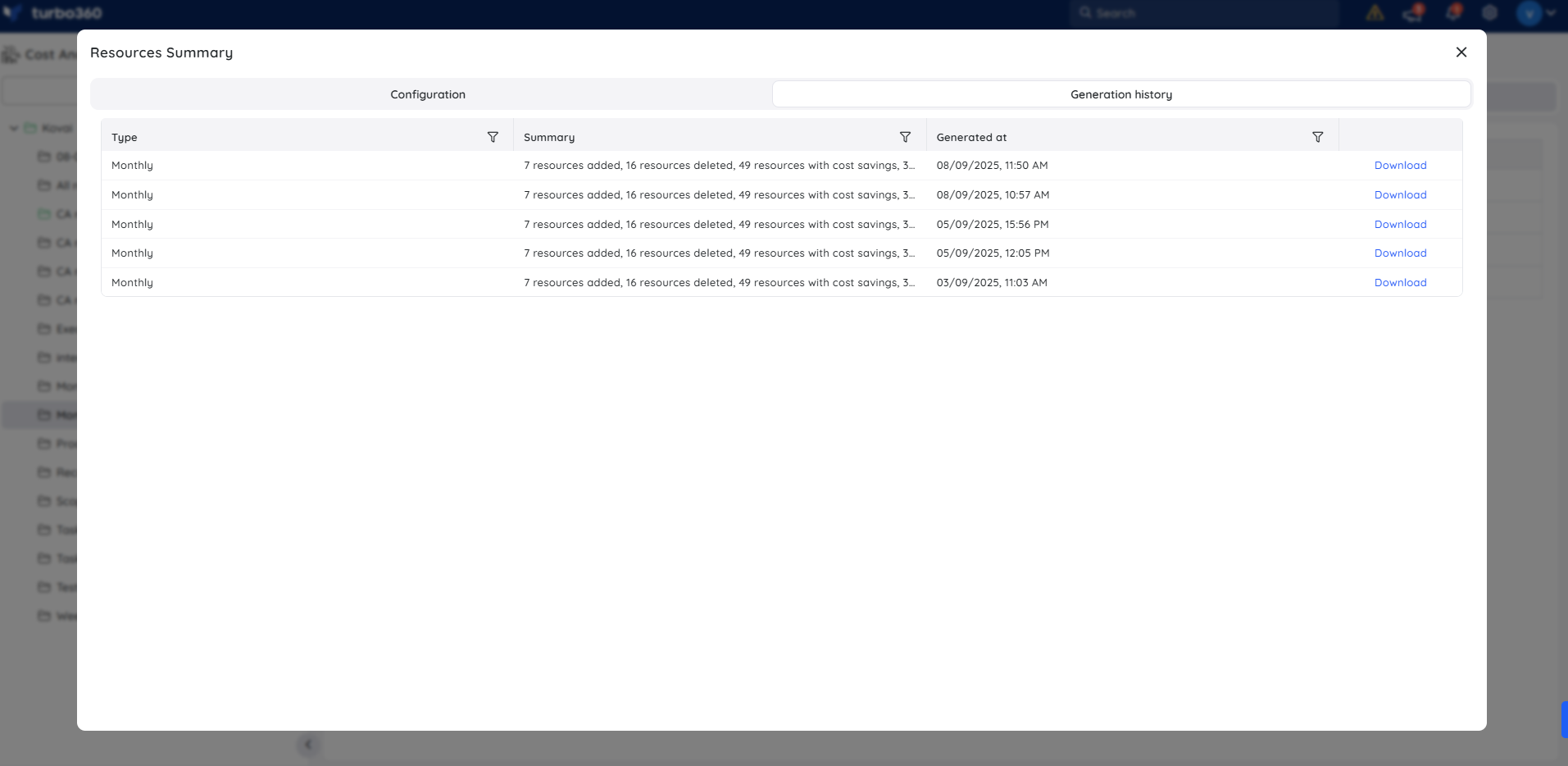
All triggered reports for the relevant cost management group appear in the Generation history, with a download option provided next to each record for easy access.
Sample report
The following image illustrates a sample monthly resources summary report downloaded from the Generation history:
Was this article helpful?