

Scheduled resources summary report
- 10 Apr 2026
- 1 Minute to read
- Print
- DarkLight
- Download PDF
Scheduled resources summary report
- Updated on 10 Apr 2026
- 1 Minute to read
- Print
- DarkLight
- Download PDF
Article summary
Did you find this summary helpful?
Thank you for your feedback!
Introduction
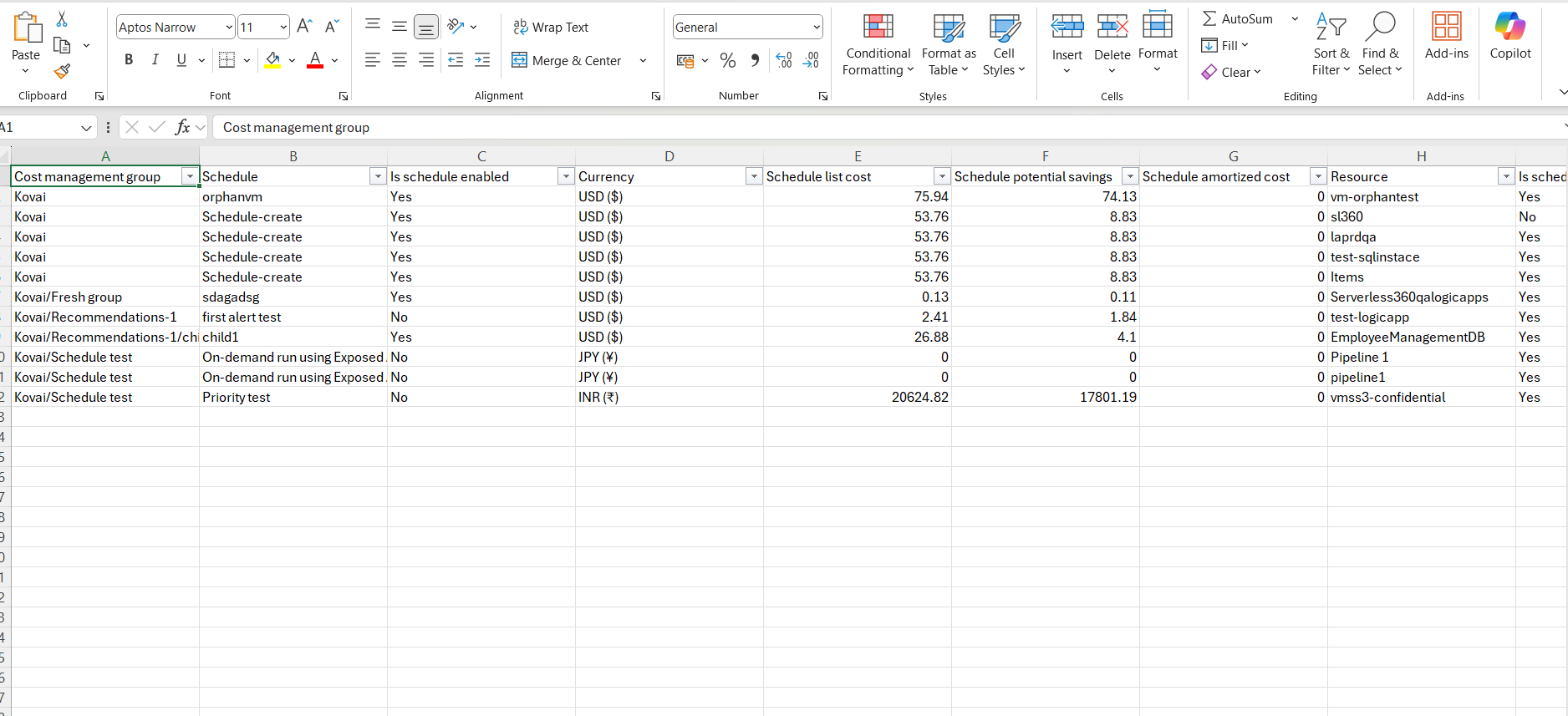
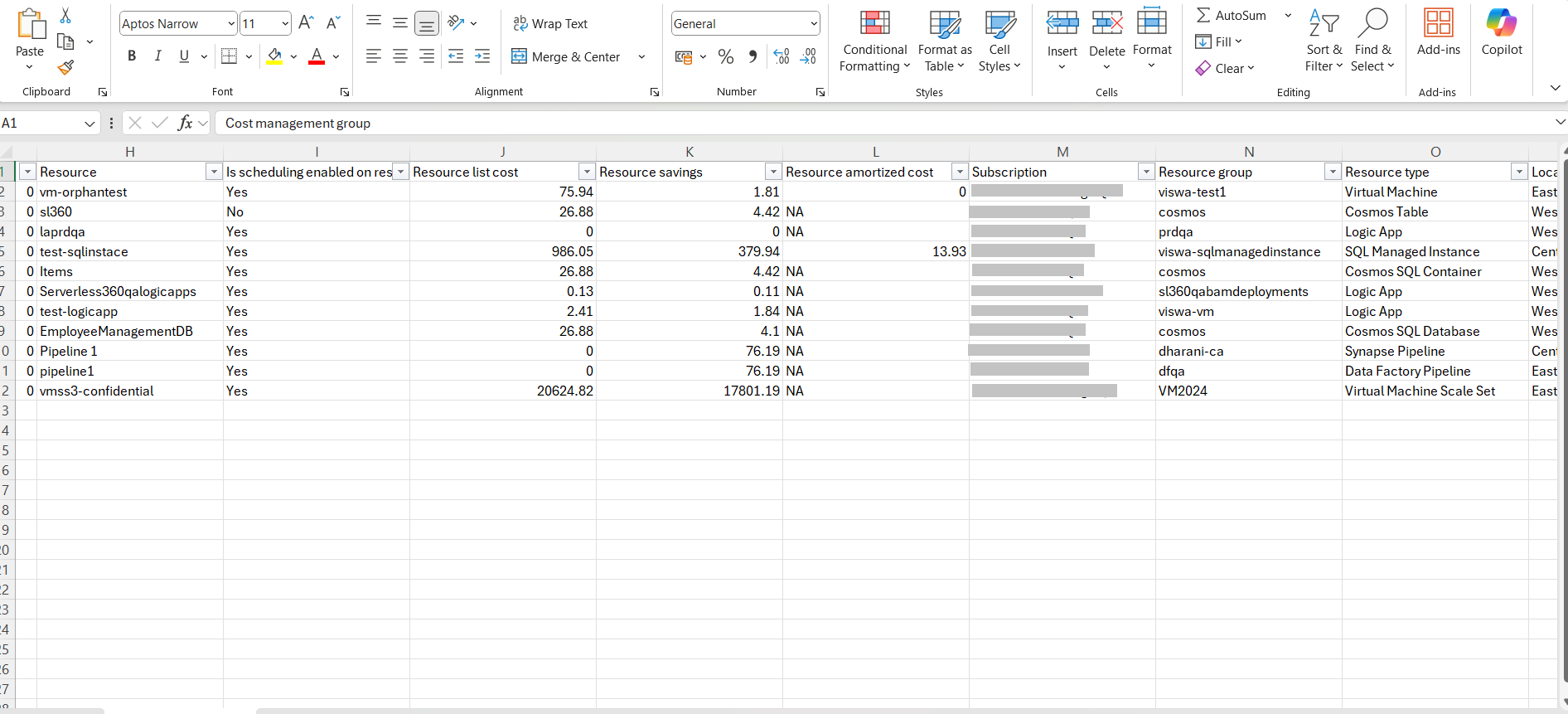
Scheduled resources summary report is a monthly Excel-based analytical report that provides a consolidated view of all azure resources that are associated with schedules within a cost management group. This report is designed to help organizations understand how scheduled resource management impacts operational costs, usage efficiency, and potential savings.
By consolidating scheduling cost data into a single, easy-to-analyze report, users can quickly identify which resources are actively governed by schedules, evaluate their current scheduling status, and assess the financial implications of those schedules.
The report supports cost optimization efforts by identifying both actual and potential savings achieved through scheduled start and stop operations.
The report includes detailed information for each scheduled resource, such as:
- Current scheduling status (enabled, disabled)
- Resource type and associated schedule
- Potential savings achievable through effective scheduling
- Resource-level scheduling status
Report configuration
Refer to the steps below to schedule Scheduled resources summary reports on a monthly basis for the desired cost management group:
- Navigate to the following path: Cost management group -> Reports
- Click the Edit icon next to the Scheduled resources summary report type.
- Check Download report from notifications to allow the report to be downloaded from alerts.
- Enabling the Includes resources scheduled in child groups checkbox will include the resources data from schedules available in the child groups.
- Choose the desired notification services to receive alerts.
- Click Save.
- Enable the Scheduled resources summary report type toggle.
.png)
Instant reports
On-demand monthly scheduled resources summary reports can be generated with the help of Generate Now option available in the Actions menu of the relevant report type.
.png)
The toggle should be enabled for the report type in the Reports section and atleast one notification channel should be selected.
Generation history
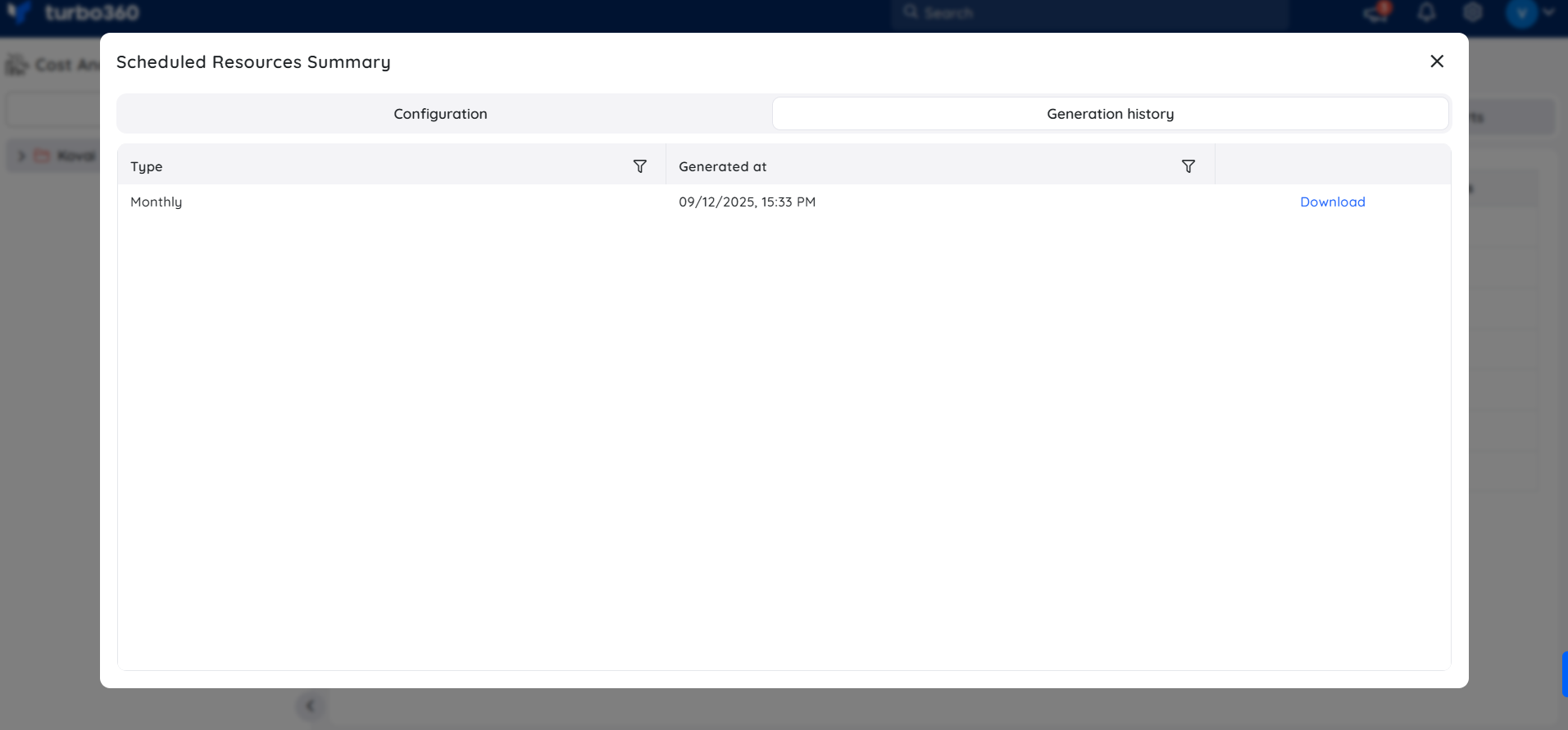
All triggered reports for the relevant cost management group appear in the Generation history, with a download option provided next to each record for easy access.
Sample report
The following image illustrates a sample monthly scheduled resources summary report downloaded from the Generation history:
Was this article helpful?