

Schedules
- 15 Apr 2026
- 4 Minutes to read
- Print
- DarkLight
- Download PDF
Schedules
- Updated on 15 Apr 2026
- 4 Minutes to read
- Print
- DarkLight
- Download PDF
Article summary
Did you find this summary helpful?
Thank you for your feedback!
Introduction
The primary objective of Cost Analyzer is to deliver an effective cost management solution that helps users reduce Azure subscription costs based on resource utilization.
As an initial step toward cost optimization, Cost Analyzer enables users to lower resource expenses by scheduling resources to deallocate or scale down according to business operating hours.
The Schedules feature in Cost Analyzer allows users to create optimization schedules and associate resources by defining tiers, throughput values, and resource states based on weekly or monthly up and down hours.
In addition, users can configure recurrence settings so that optimization schedules run automatically at defined intervals.
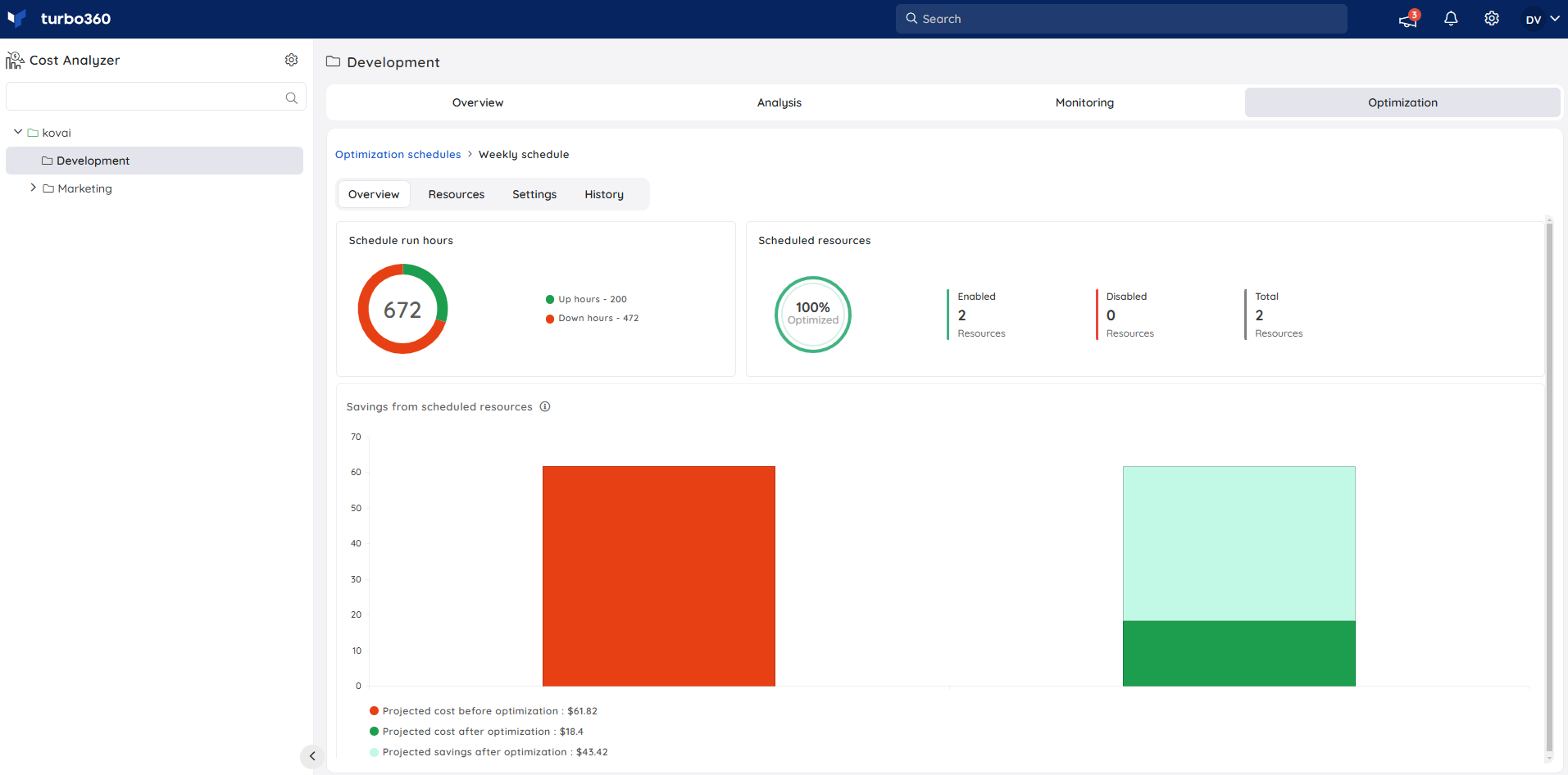
Watch the video below for a brief overview of this feature.
Supported resource types
The following resource types can be scheduled for automation:
1. App Service Plan
An App Service Plan's pricing tier can be scheduled to run at a higher tier during Up hours and a lower tier during Down hours.
The Up and Down config values determine the tiers that should be set to the resources in the Up and Down hours, respectively.
.png)
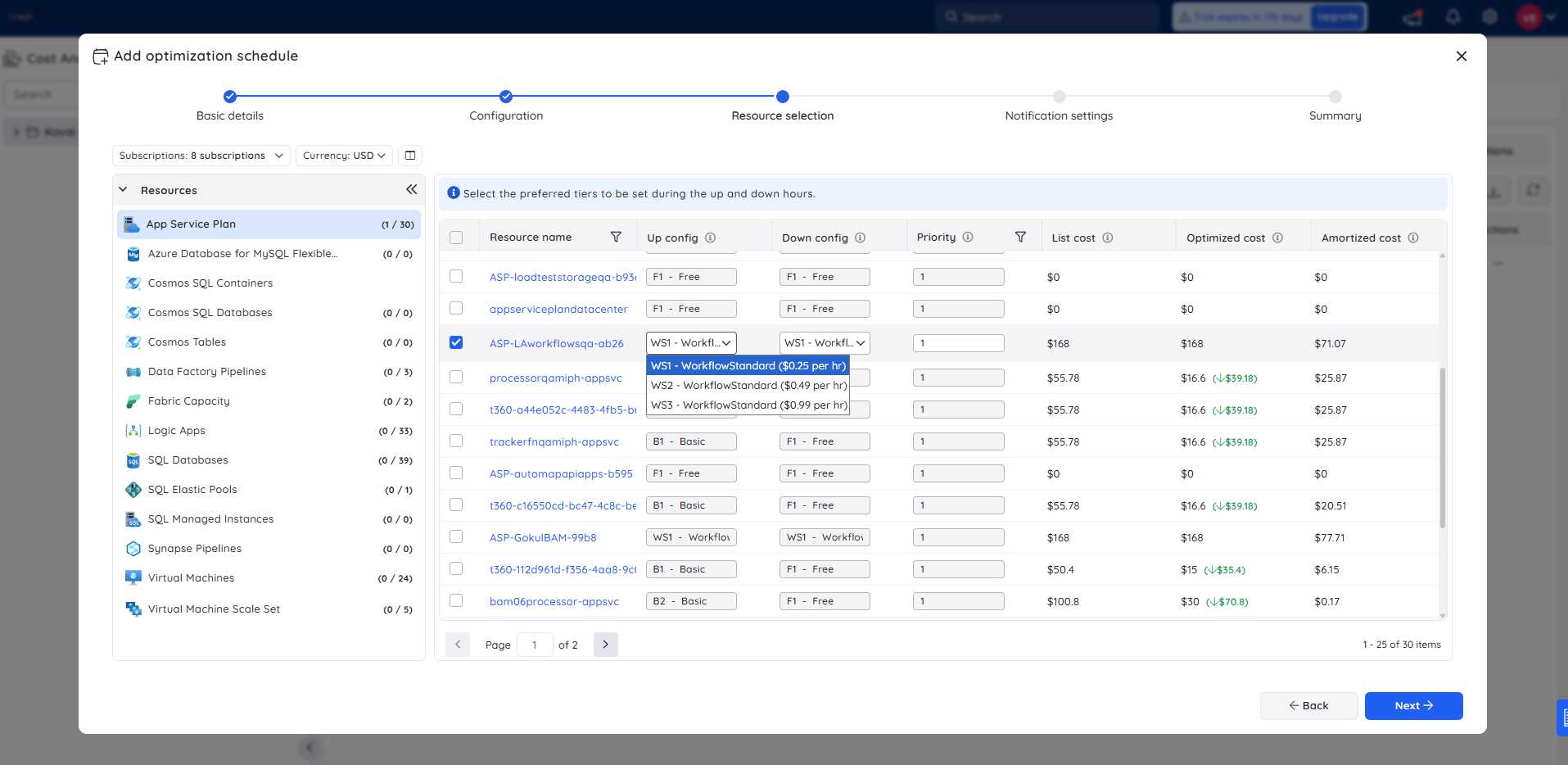
1.1. App service plan (Workflow Standard SKU)
The Workflow Standard's pricing tier can be scheduled to run at a higher tier during Up hours and lower tier during Down hours.
The Up and Down config values determine the tiers that should be set to the resources in the Up and Down hours respectively.
2. Azure Database for MySQL flexible server
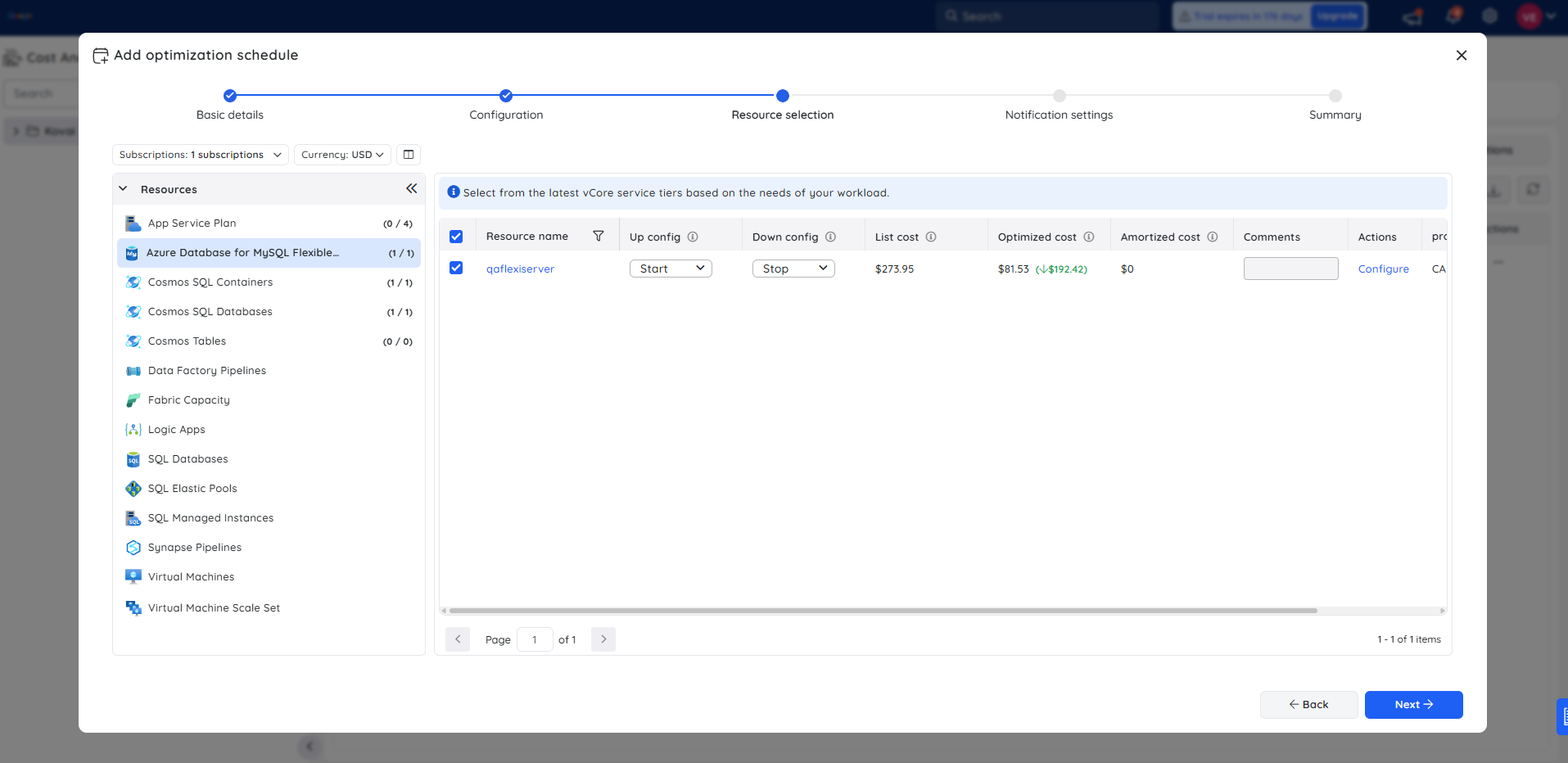
The Up and Down config of an MYSQL flexible server can be scheduled to run at a higher tier during Up hours and a lower tier during Down hours (or) initiate server startup/shutdown.
Selecting resize option from the configuration dropdown value will allow to configure the compute tier, compute size and IOPS.
.png)
Please note that the storage size cannot be scaled down once the server is created.
2. Cosmos SQL Container
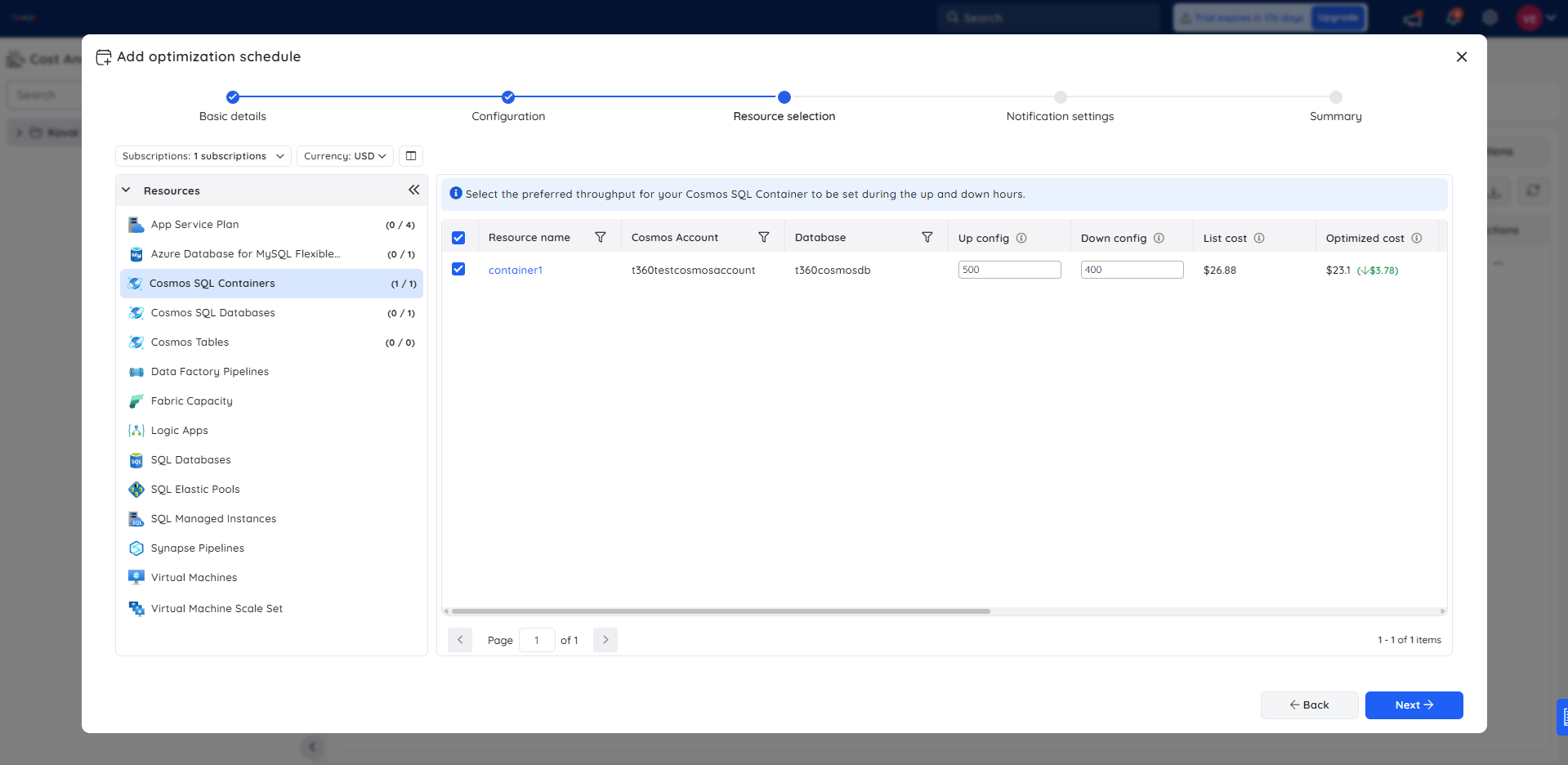
The throughput value of a Cosmos SQL Container can be scheduled to run at a higher value during Up hours and a lower value during Down hours.
The Up and Down config values determine the throughput values that should be set to the resources in the Up and Down hours, respectively.
3. Cosmos SQL Database
The throughput value of a Cosmos SQL Database can be scheduled to run at a higher value during Up hours and a lower value during Down hours.
The Up and Down config values determine the throughput values that should be set to the resources in the Up and Down hours, respectively.
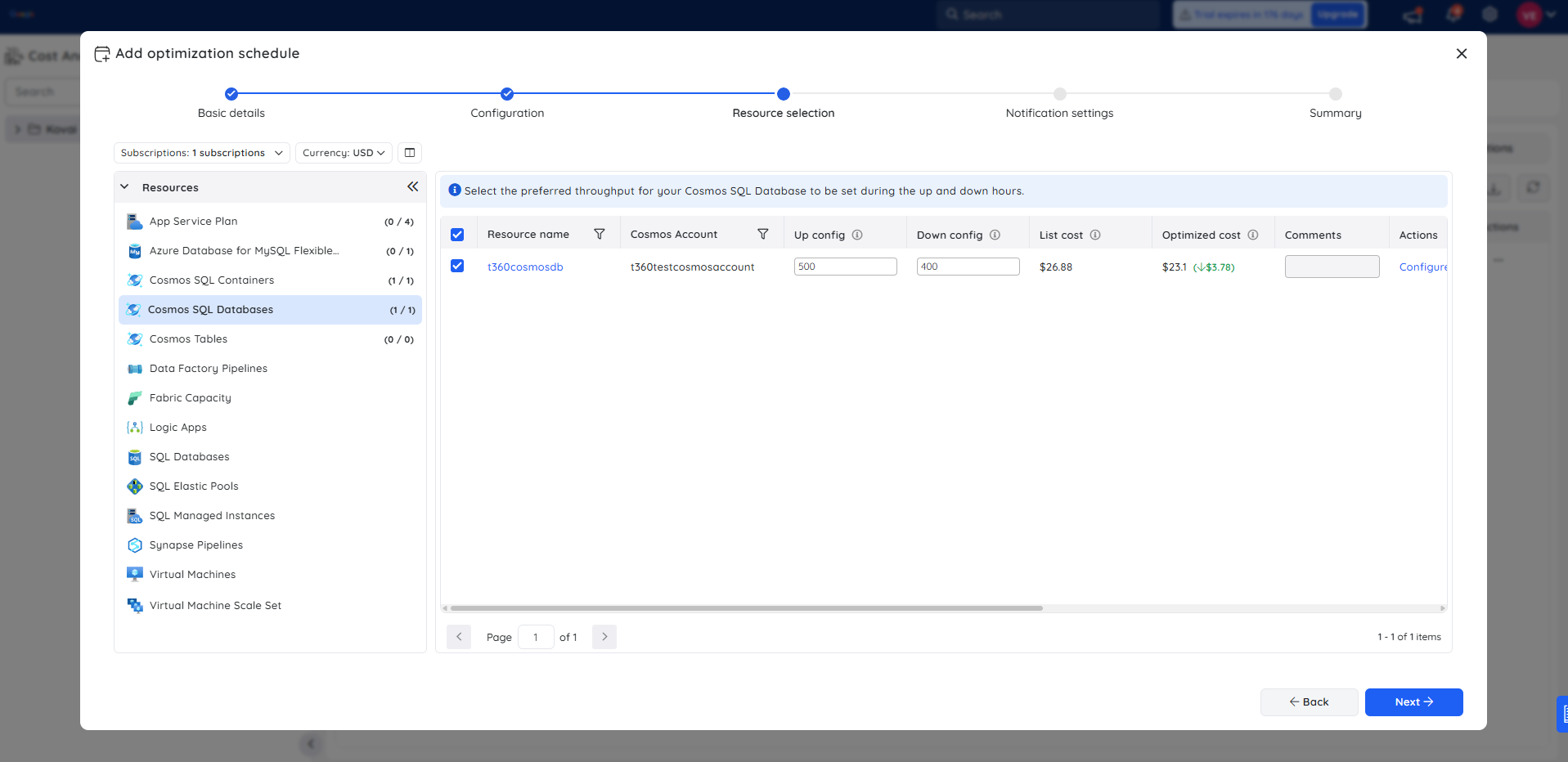
4. Cosmos Table
The throughput value of a Cosmos Table can be scheduled to run at a higher value during Up hours and a lower value during Down hours.
The Up and Down config values determine the throughput values that should be set to the resources in the Up and Down hours, respectively.
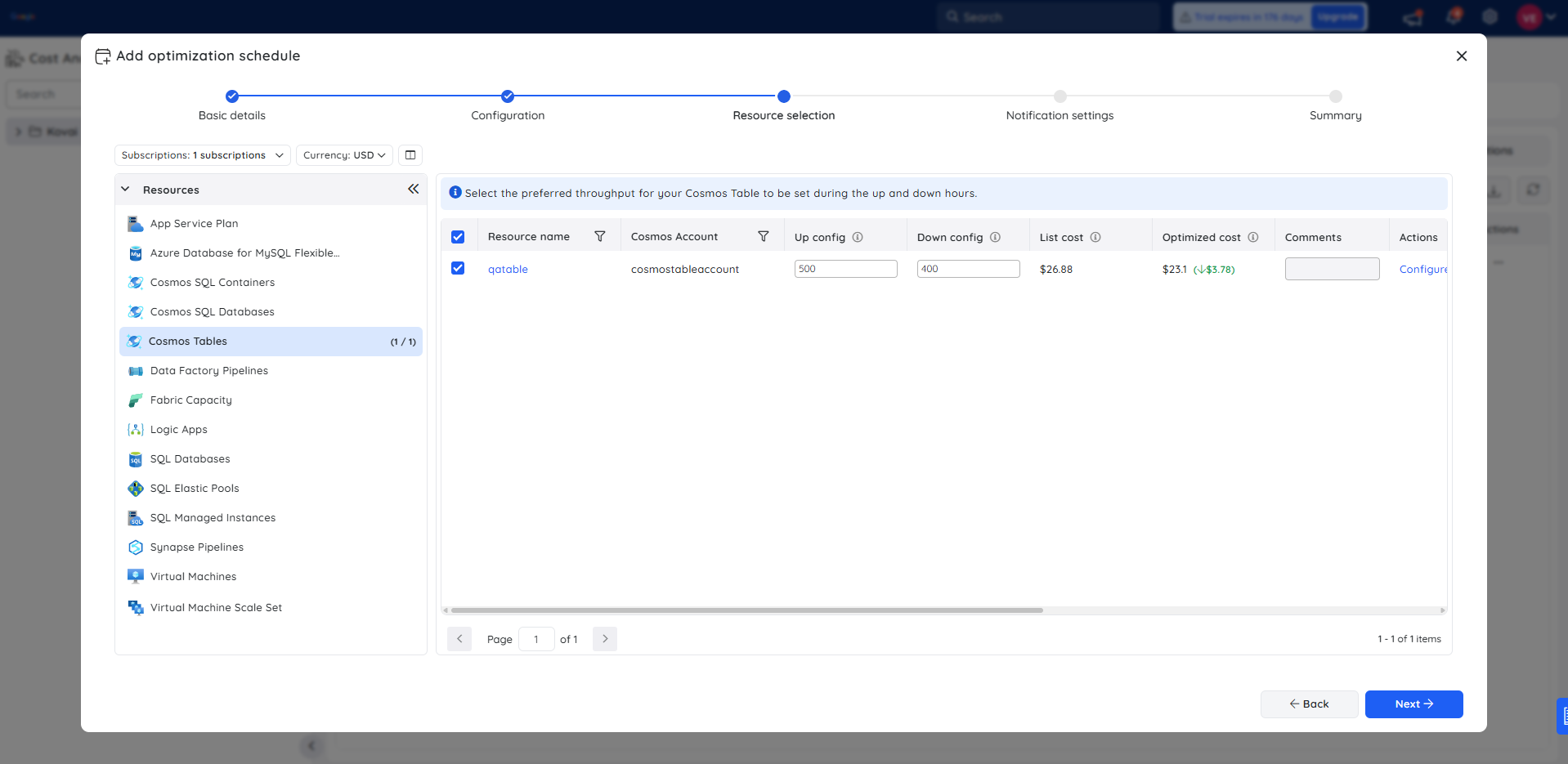
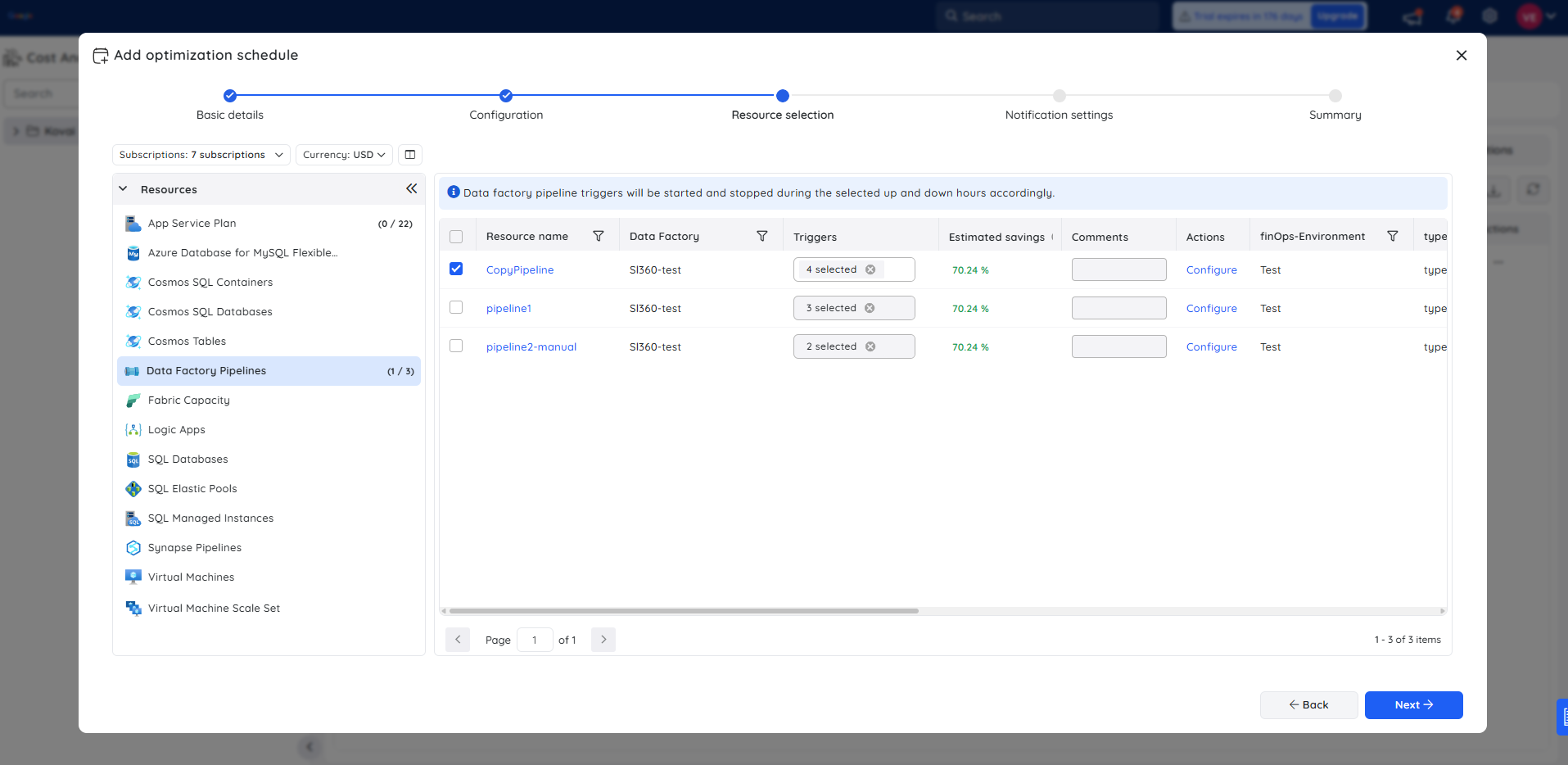
5. Data Factory Pipelines
- Pipeline triggers can be scheduled to start in Up hours and stop in Down hours.
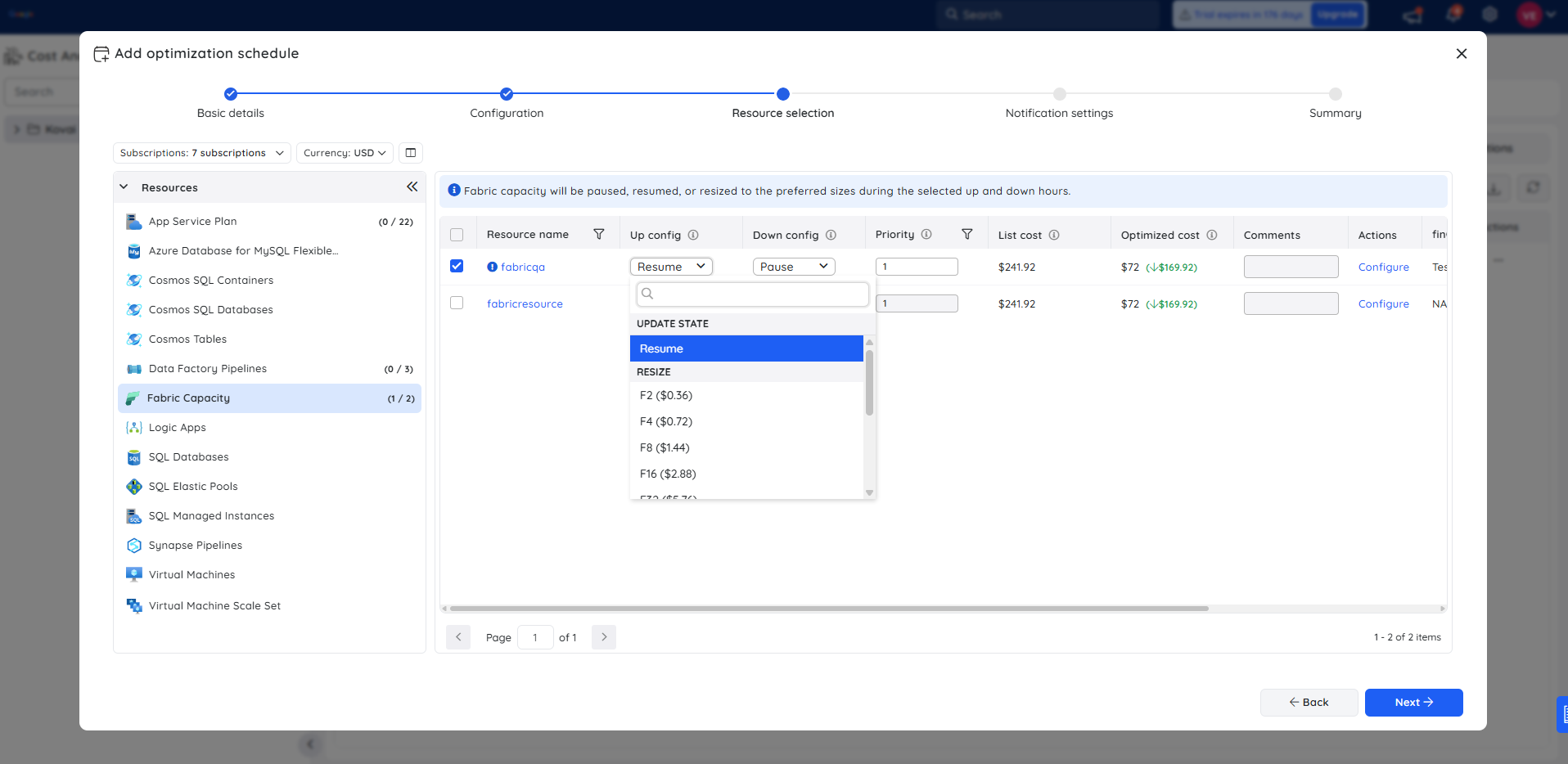
6. Fabric Capacity
- The Up and Down hours can be scheduled to adjust the pricing tier of fabric capacity (or) to trigger resume and pause actions.
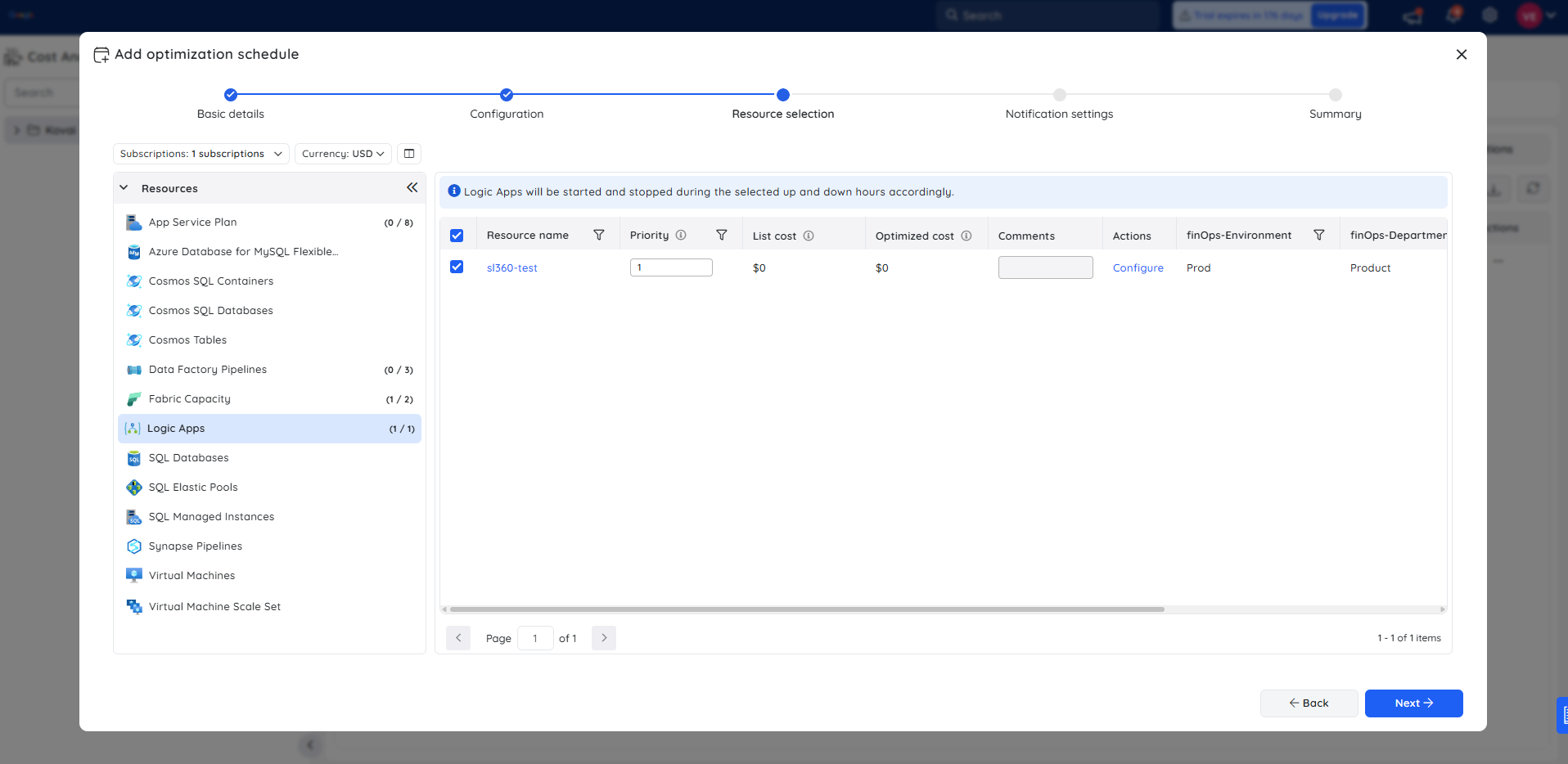
7. Logic Apps
- Logic Apps can be scheduled to run in the Up hours and stopped in the Down hours.
8. SQL Database
The pricing tier of an SQL DB can be scheduled to run at a higher tier during Up hours and a lower tier during Down hours.
The Up and Down config determines the pricing tier that should be set to the resources in the Up and Down hours, respectively.
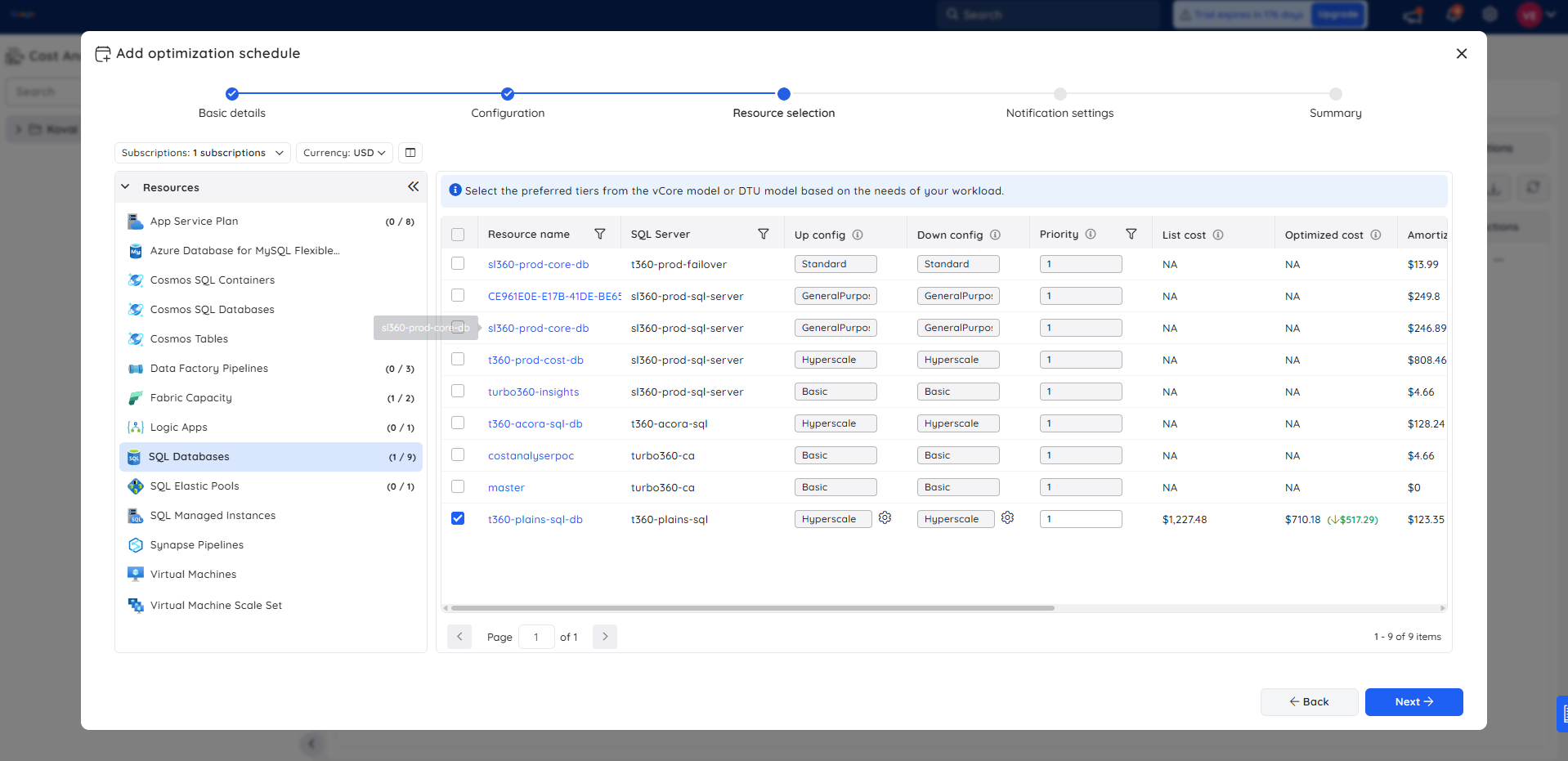
- The DTU count and Data max size can be customized for the DTU-based purchasing model. In contrast, the hardware configuration for Vcore-based purchasing models can be customized.
.png)
9. SQL Elastic Pool
The pricing tier of an SQL Elastic pool can be scheduled to run at higher tier during Up hours and a lower tier during Down hours.
The Up and Down config determines the pricing tier that should be set to the resources in the Up and Down hours, respectively.
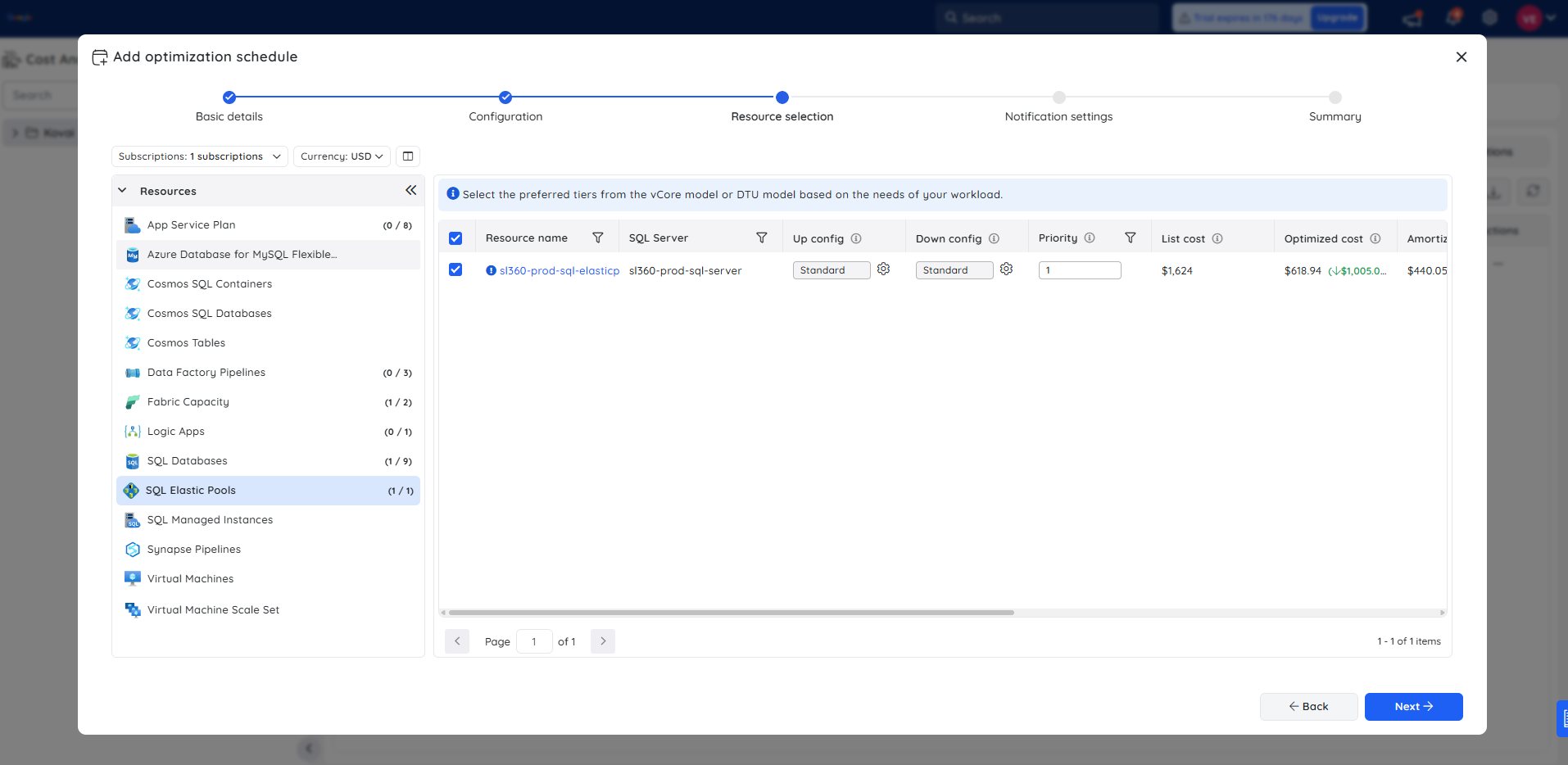
- The DTU count and Data max size can be customized for the DTU-based purchasing model. In contrast, the hardware configuration for Vcore-based purchasing models can be customized.
10. SQL Managed Instances
- The Up and Down config of an SQL Managed Instance can be scheduled to run at a higher tier during Up hours and a lower tier during Down hours (or) initiate a startup/shutdown.
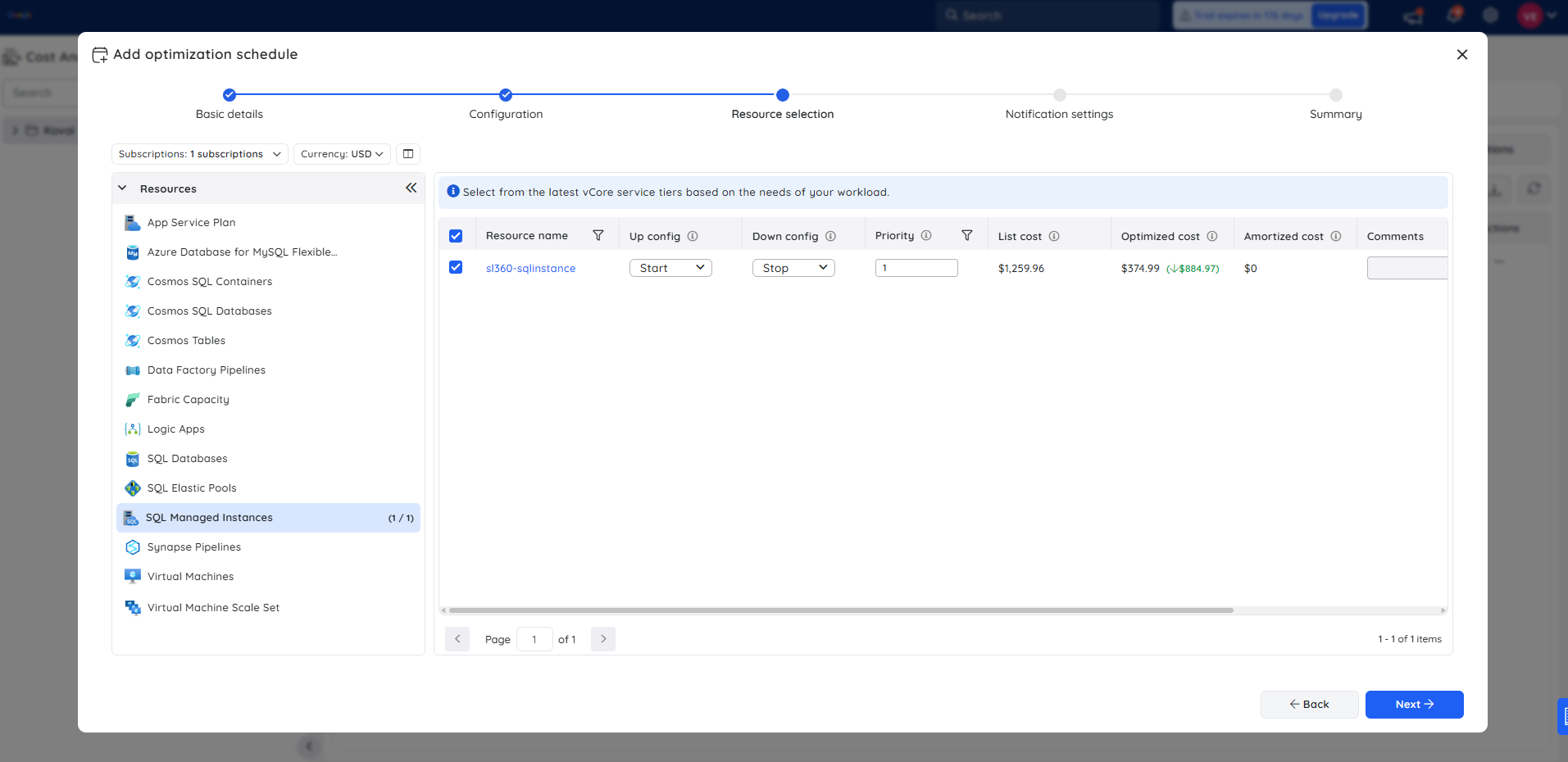
- The Vcore, Data max size, and Hardware configuration can be customized based on the Service tier.
.png)
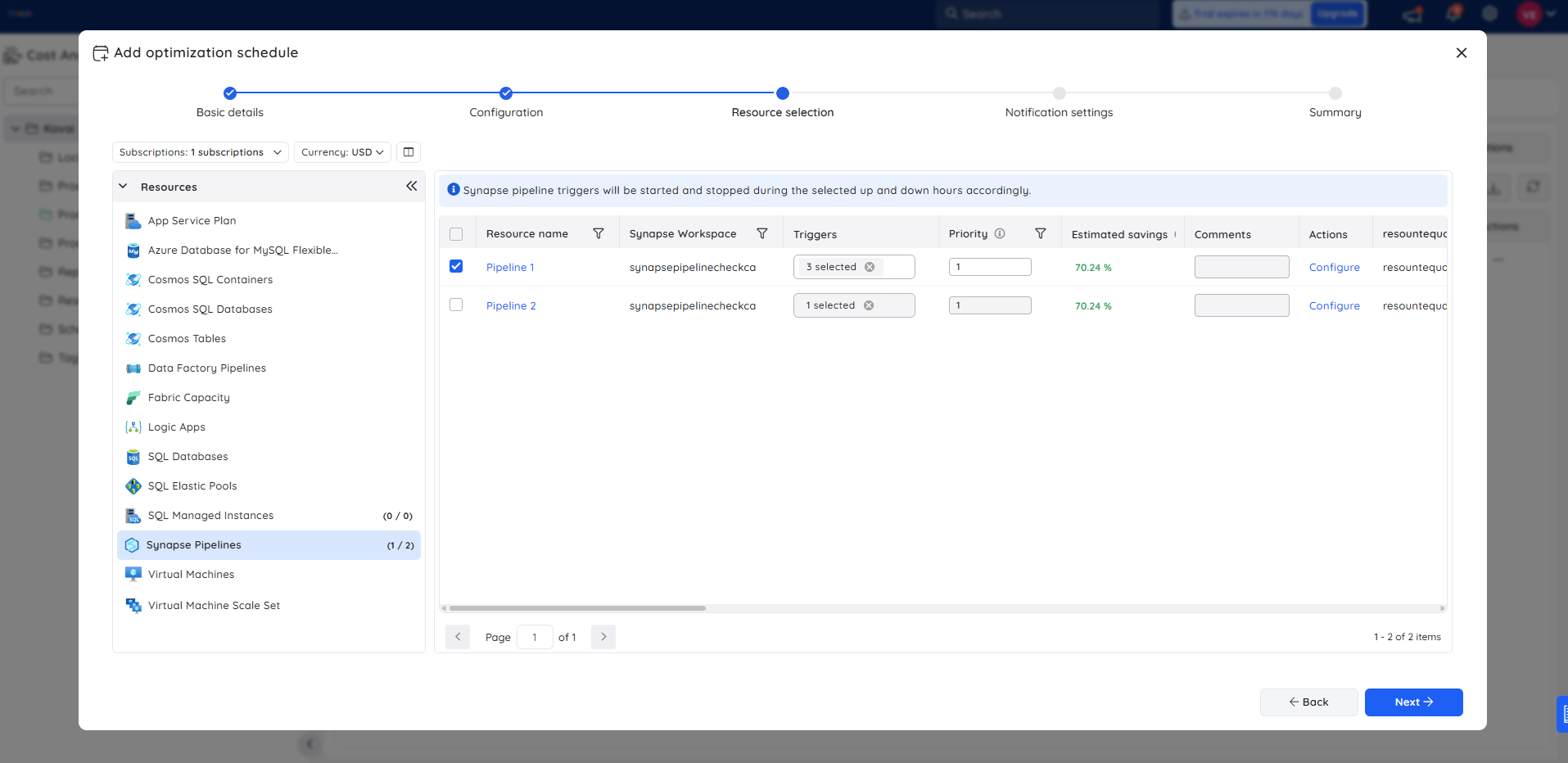
11. Synapse Pipelines
- Pipeline triggers can be scheduled to start in Up hours and stop in Down hours.
12. Virtual Machine
- The Up and Down hours can be scheduled to upgrade/downgrade the virtual machine service tier (or) initiate startup/shutdown.
.png)
13. Virtual Machine Scale Set
- The Up and Down hours can be scheduled to upgrade/downgrade the service tier of virtual machine scalesets (or) initiate startup/shutdown.
.png)
Note:
- The Optimization schedule runs only once every hour, irrespective of the Up, Down, and Skip hours specified, and performs the necessary action.
- The Optimization schedule run history data will be available only when the previous state and the next state are different.
Task planner integration
Cost Analyzer integrates with Task planner to create tasks every time a resource is associated with an optimization schedule, ensuring that all rightsizing actions are systematically tracked and providing teams with clear visibility into upcoming and completed optimizations.
Task insights
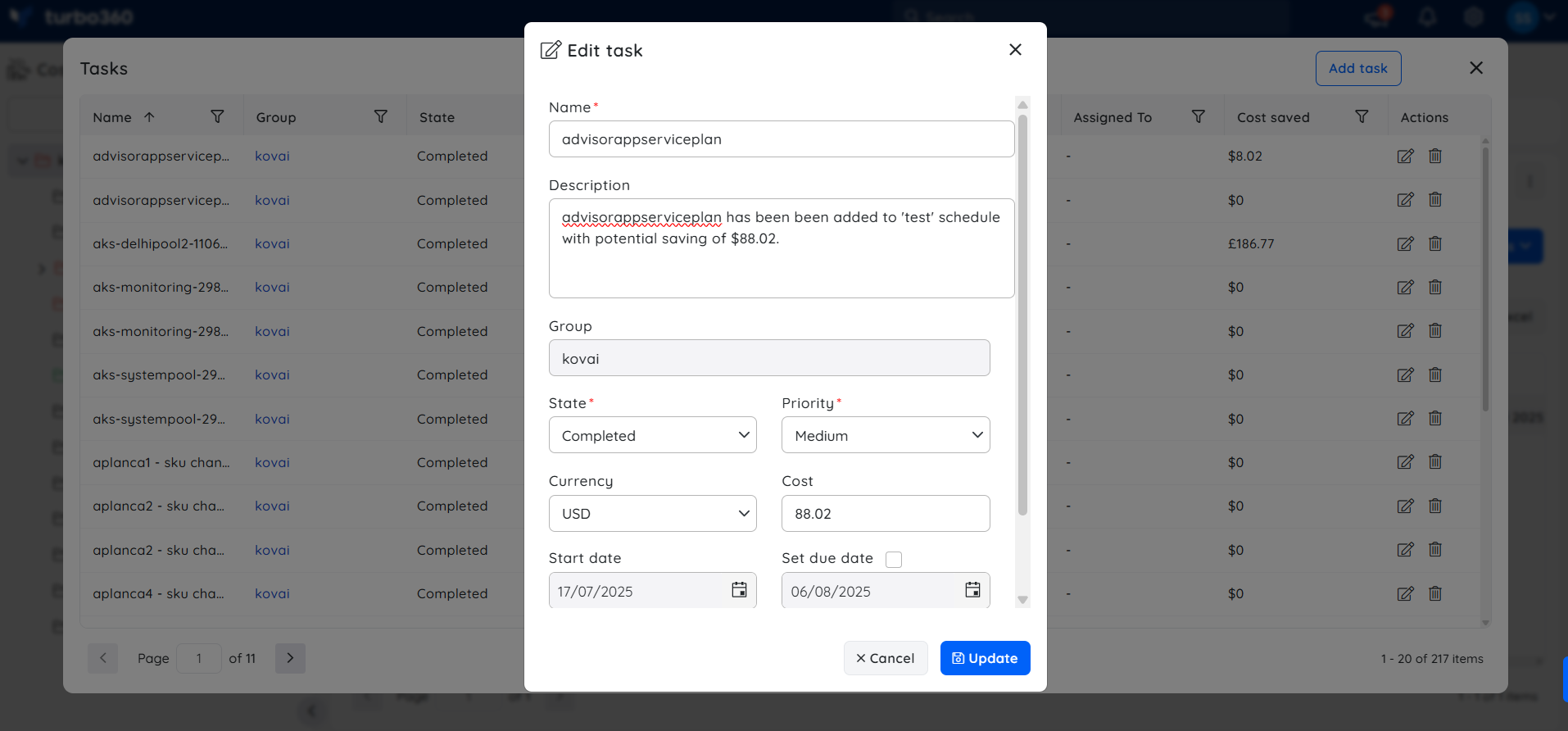
- A task is generated in Task planner each time a resource is linked to an optimization schedule - whether through scheduling recommendations, during schedule creation, or when adding new resources to an existing schedule.
- Each task includes a detailed description of the savings achieved, the name of the schedule, and the optimization technique applied.
Accessing the task
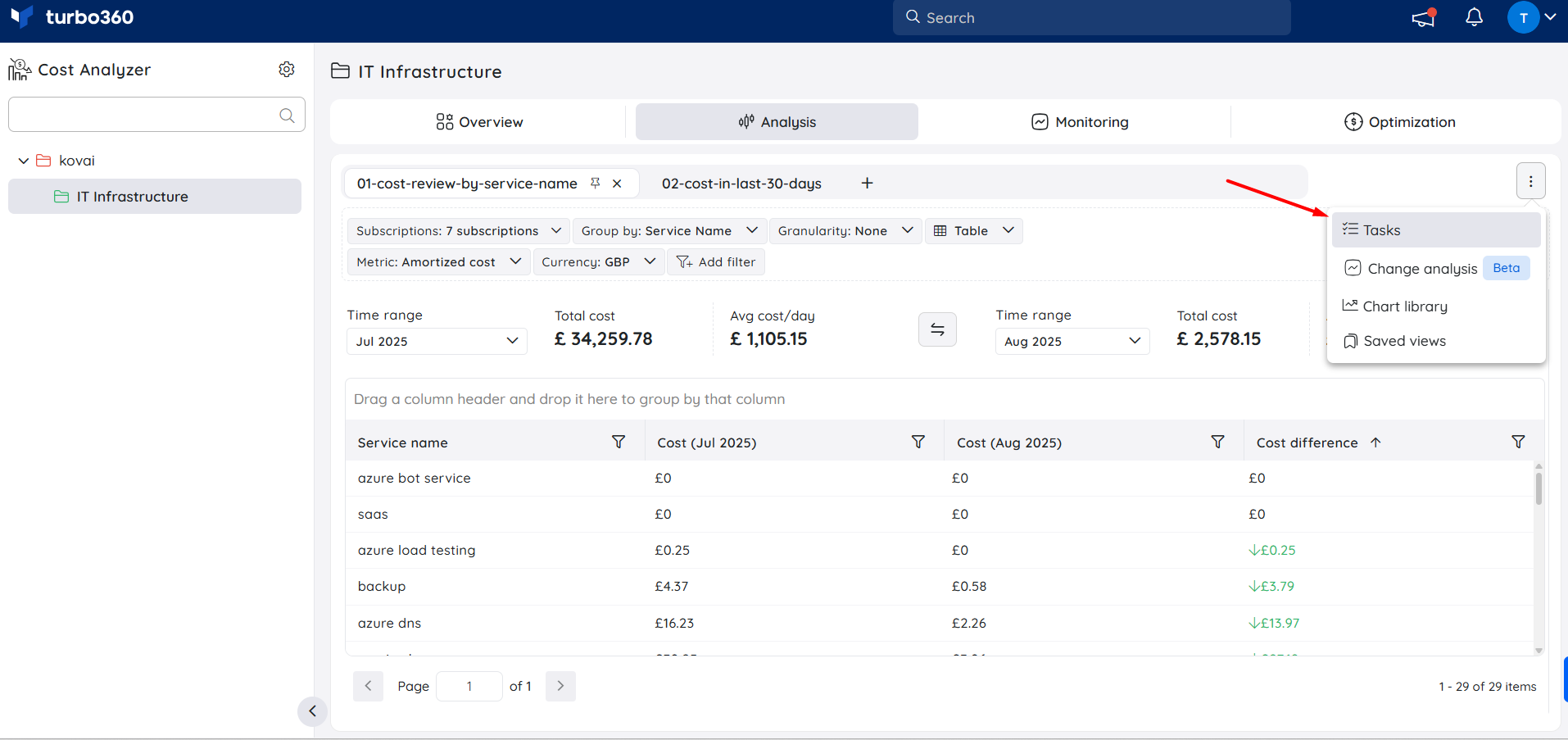
The generated task will be available in the respective cost management group by clicking Tasks option from the three-dotted menu available within the Analysis section.
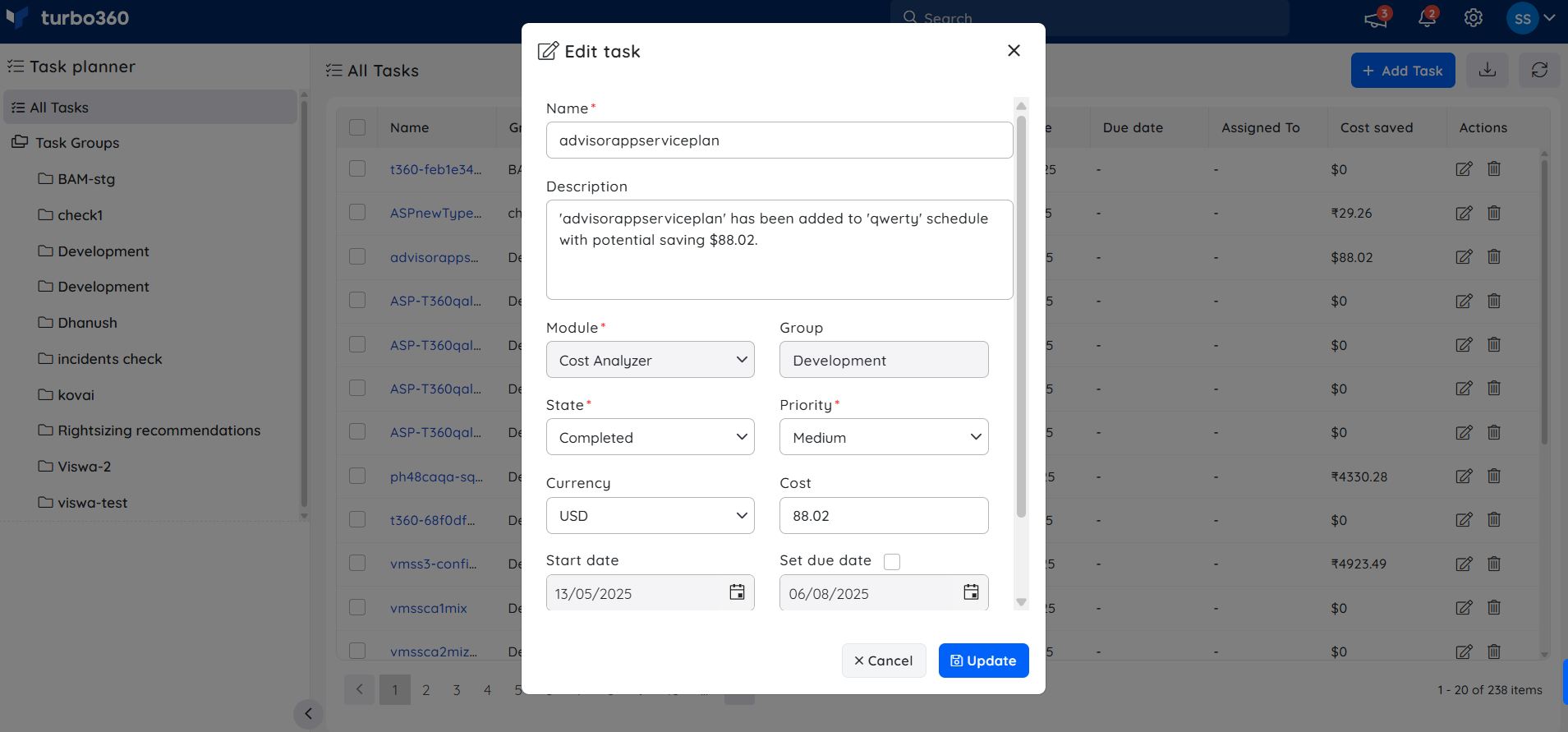
- Alternatively, the task can also be accessed through the Task planner, available under the My profile dropdown, for broader visibility across groups.
Was this article helpful?