Overview
The Turbo360 Business Activity Monitoring (BAM) APIs give you direct HTTP access to the BAM tracking endpoints without installing a library or connector. Any language or framework that can issue an HTTP POST request can use these APIs to start transactions and record checkpoint stages.
The BAM Function App exposes three functions: Start Transaction, CheckPoint, and CheckPoint with Correlation. You call these using endpoint URLs and an authentication key retrieved from the Turbo360 portal.
Business value
The BAM APIs remove any runtime dependency on the .NET library or a custom connector. Teams working in Java, Python, Node.js, PowerShell, or any other language can integrate BAM tracking into their workflows using standard HTTP tooling; this makes them the right choice for heterogeneous integration environments where multiple languages and runtimes participate in the same tracked transaction.
Prerequisites
- A BAM environment deployed in your Azure subscription.
- A business process and transaction configured in the Turbo360 portal.
- Your BAM endpoint URLs and authentication key, available from Actions > BAM Connection Details > Individual Endpoints in the Turbo360 portal.
- An HTTP client (for example, Postman, curl, or a REST API client in your preferred language).
Required permissions
| Permission | Role |
|---|---|
| Read BAM connection details | BAM Reader or higher |
| Call BAM API endpoints | BAM Contributor or higher |
How it works
The BAM API Function App accepts tracking events via HTTP POST to two primary endpoints:
- StartTransaction: opens a new transaction instance and returns a
TransactionInstanceIdused to correlate all subsequent checkpoints. - CheckPoint: records a stage update on an existing transaction instance using the
TransactionInstanceIdfrom the start call. - CheckPoint with Correlation: records a stage by matching a tracked functional property, for use in async flows where the
TransactionInstanceIdis not available.
You authenticate requests using your Functions App Key, passed either as the x-functions-key header or as a query parameter. Both methods are supported.
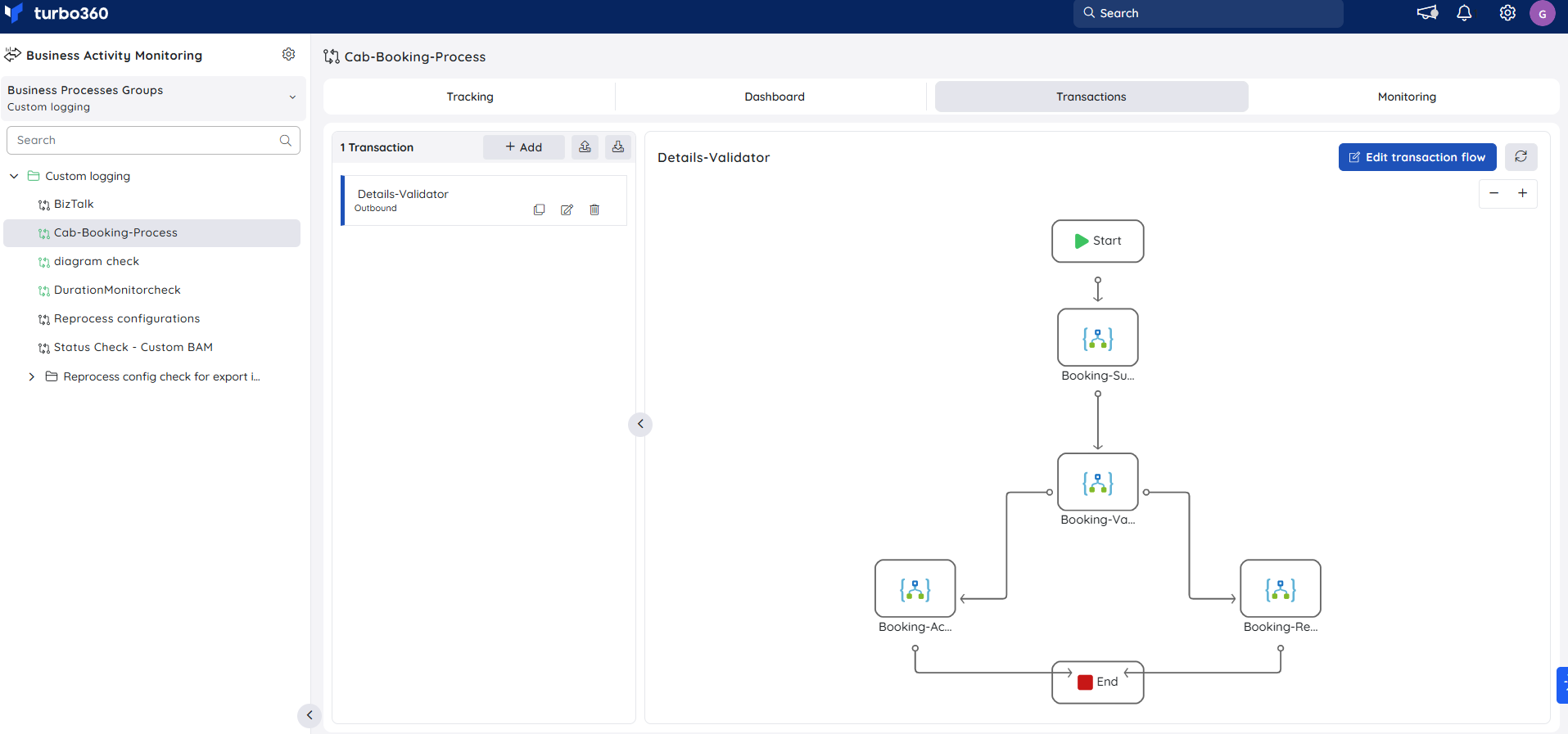
The business transaction flow through BAM looks like this:
Steps
The following steps show how to start a transaction and record checkpoints using the BAM APIs. Retrieve your endpoint URLs and key from Actions > BAM Connection Details before starting.
Access your BAM endpoint details
Before making API calls, locate the endpoint URLs and authentication key in the Turbo360 portal.
- Navigate to your business process in the Turbo360 portal.
- Click the Actions menu.
- Select BAM Connection Details.
- Under Individual Endpoints, copy the Start Transaction URL, CheckPoint URL, and Functions App Key.
Two authentication methods are available: pass the key as the x-functions-key request header, or include it as a query parameter on the endpoint URL.
Start a transaction
Starting a transaction opens a new tracking instance and returns the TransactionInstanceId you need for all subsequent checkpoint calls.
Send a POST request to the Start Transaction URL using your chosen authentication method. Note the TransactionInstanceId returned in the HTTP response. Pass this value in the BAM-TransactionInstanceId header of every subsequent checkpoint call to associate it with the same transaction instance.
Configure a checkpoint
A checkpoint updates the transaction at a new stage using the TransactionInstanceId from the StartTransaction response.
-
Send a POST request to the CheckPoint URL with the following headers:
BAM-TransactionInstanceId: the ID returned by StartTransaction.BAM-Stage: the name of the current stage.BAM-StageStatus: the stage outcome (Success,InProgress, orFailure).BAM-IsTransactionComplete: set totrueon the final checkpoint.
-
For subsequent checkpoints, use the same
TransactionInstanceId. SetBAM-IsTransactionCompletetotrueon the final checkpoint to close the transaction.
The completed transaction is then visible in Business Activity Monitoring.
Example scenario
A Node.js order-processing service sends tracking events directly to the BAM API. On receiving an order, it calls StartTransaction and stores the returned TransactionInstanceId. As the order moves through validation, fulfillment, and dispatch stages, it calls CheckPoint with the same ID and sets BAM-IsTransactionComplete: true on the dispatch call. The complete flow is visible in the BAM dashboard.
Troubleshooting
-
Start Transaction returns a 401 Unauthorized error
Cause: The authentication key is missing or passed in the wrong location (header vs. query parameter).
Fix: Confirm the key is present either as thex-functions-keyheader or as thecodequery parameter, matching the access method shown in the Individual Endpoints section. -
Start Transaction returns a 404 Not Found error
Cause: The endpoint URL is incorrect or the BAM Function App is not running.
Fix: Copy the URL directly from BAM Connection Details > Individual Endpoints in the Turbo360 portal. Verify the Function App is deployed and running in the Azure portal. -
TransactionInstanceId is null in the Start Transaction response
Cause: Required tracking headers (BAM-BusinessProcess,BAM-Transaction,BAM-Stage) are missing or do not match the names configured in the portal.
Fix: Verify header values against the exact names in the Turbo360 portal and ensureContent-Type: application/jsonis set. -
Checkpoint does not appear under the expected transaction instance in the BAM dashboard
Cause: TheBAM-TransactionInstanceIdvalue is incorrect or was not copied from the StartTransaction response.
Fix: Capture theTransactionInstanceIdfrom the StartTransaction HTTP response body and pass it unmodified to all subsequent checkpoint calls. -
Transaction remains open after the final checkpoint
Cause:BAM-IsTransactionCompletewas not set totrueon the last checkpoint call.
Fix: IncludeBAM-IsTransactionComplete: truein the headers of the final checkpoint request.