Overview
The Turbo360 private instance supports an optional VNet configuration during deployment. When enabled, all Function Apps, SQL, and Storage resources are placed inside a private virtual network (VNet), and public network access to SQL and Storage is disabled automatically after all post-deployment verifications complete.
Business value
VNet configuration improves the security posture of your private instance by restricting all resource communication to a private network. This reduces the attack surface, supports network isolation requirements, and helps meet compliance standards that mandate no public endpoint exposure on data resources.
Prerequisites
- An active Turbo360 private instance deployment in progress using the Turbo360 installer.
- The Resource details step of the installer must be reachable.
- An existing VNet, or permission to create one in the target resource group and region.
Required permissions
The service principal used for deployment must have the permissions required for standard private instance deployment, plus rights to create or modify virtual networks and private endpoints in the target subscription.
Dependencies
- Turbo360 installer (latest version).
- Azure subscription with VNet creation rights or an existing VNet available for selection.
- If using Managed Identity: the Managed Identity must be pre-configured as described in the Deployment article.
How it works
When you enable the Include VNet configuration checkbox in the installer, the following happens during deployment:
- A VNet is created (or an existing one is selected).
- Function Apps, SQL, and Storage resources are placed inside the VNet using VNet integration and private endpoints.
- After all post-deployment steps complete, public network access to SQL and Storage is automatically disabled.
Future upgrades on a VNet-enabled instance must be run from a VM inside the virtual network, or by temporarily re-enabling public access on SQL and Storage.
Steps
Use the following steps to enable VNet configuration during deployment. Open the Turbo360 installer and proceed to the Resource details step to get started.
Enable VNet configuration during deployment
Enabling VNet configuration places all deployment resources inside a private network and disables public endpoints on SQL and Storage after deployment completes.
-
Open the Turbo360 installer and proceed to the Resource details step.
-
Under Authentication, select Connection string or Managed identity.
-
Check the Include VNet configuration checkbox.
-
Once the checkbox is selected, VNet fields are auto-filled with default values. Provide the Resource Group, Region, and Virtual Network name, or click Use existing to select a pre-provisioned VNet.
The Address Space (CIDR), Integration Subnet, and Private Endpoint Subnet fields populate automatically.
-
Scroll down to provide resource names for each component: Web App, Processor, Document generator, Chart generator, SQL Server, SQL database, and Storage account, across their respective resource groups and regions.
-
Click Start deployment.
Configuration
| Field | Description | Default |
|---|---|---|
| Include VNet configuration | Enables VNet integration for all resources | Off |
| Resource Group | Resource group for the VNet | Inherits from deployment |
| Region | Azure region for the VNet | Inherits from deployment |
| Virtual Network name | Name of the new or existing VNet | Auto-generated |
| Address Space (CIDR) | IP address range for the VNet | Auto-populated |
| Integration Subnet | Subnet for Function App VNet integration | Auto-populated |
| Private Endpoint Subnet | Subnet for SQL and Storage private endpoints | Auto-populated |
Permission behavior
With VNet enabled: All Function Apps, SQL, and Storage resources are network-isolated. Public access to SQL and Storage is disabled after deployment. Subsequent upgrades must be performed from within the VNet or with public access temporarily re-enabled.
Without VNet configuration: Resources are deployed with default Azure networking settings. Public endpoints remain accessible based on standard Azure resource defaults.
Example scenario
A security-conscious enterprise wants to deploy Turbo360 with no publicly accessible data endpoints. During deployment, the platform team enables Include VNet configuration, accepts the auto-generated subnet values, and starts deployment. After deployment completes, the SQL database and Storage account have no public endpoint. All application traffic routes through the private VNet.
Limitations
- Future upgrades on a VNet-enabled instance must be run from a VM inside the VNet, or by temporarily re-enabling public network access on SQL and Storage.
- VNet configuration is set at deployment time and cannot be enabled retroactively on an existing instance without redeployment.
- If Cost Analyzer is configured with Azure SQL Database on a VNet-enabled instance, cost imports may fail with
SqlException 4861until the SQL server Managed Identity is configured (see Troubleshooting below).
Troubleshooting
-
Cost imports fail with SqlException 4861: Access is denied
Cause: The storage account is restricted to the VNet, and the SQL Database credentials no longer have access viaOPENROWSET BULK.
Fix: Switch the SQL server to use its Managed Identity to access the storage account. Follow the three-step resolution below.Warning:The storage account's public network access must be set to "Enabled from selected virtual networks and IP addresses" for this fix to work. Setting it to fully Disabled prevents Azure SQL Database from reaching it via Managed Identity.
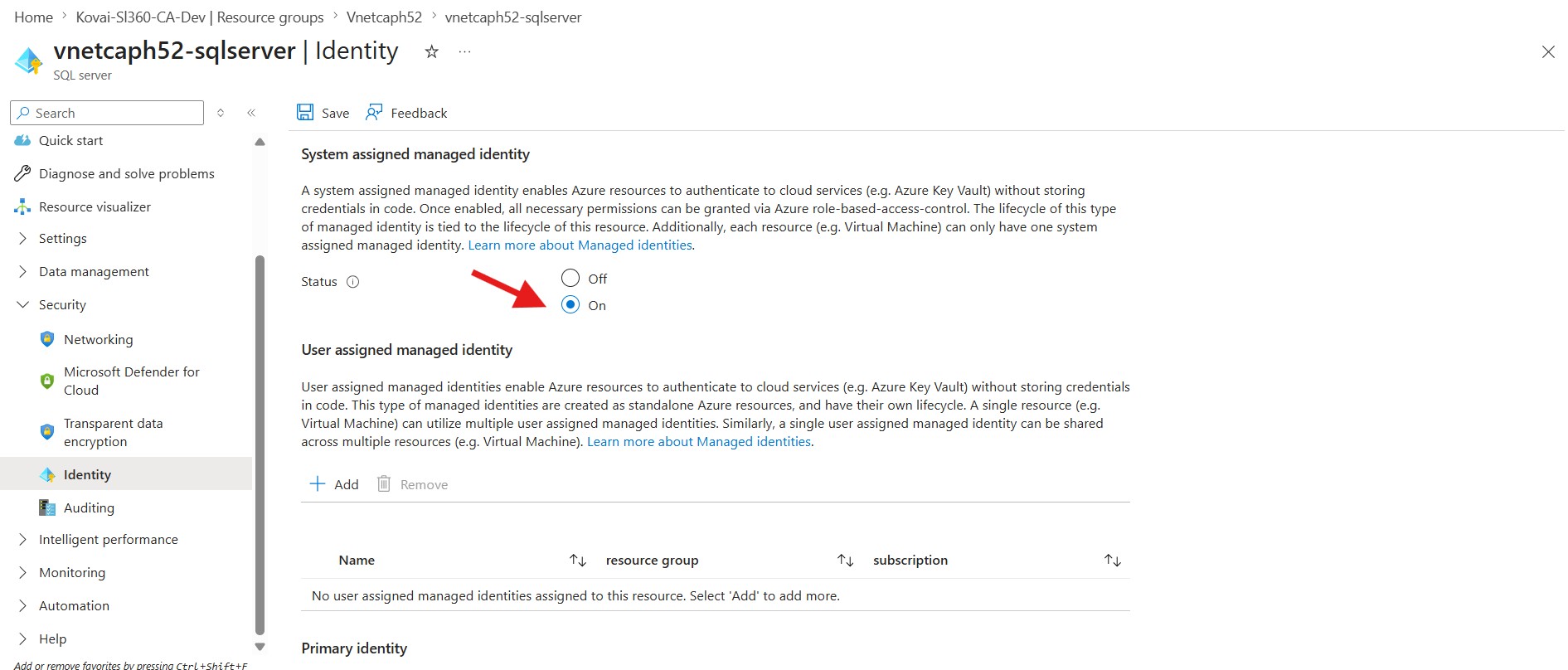
Step 1: Enable the SQL server's Managed Identity
- In the Azure portal, search for and open your SQL server (search for "SQL server", not "SQL database").
- Go to Security > Identity.
- Set System assigned > Status to On, then click Save.
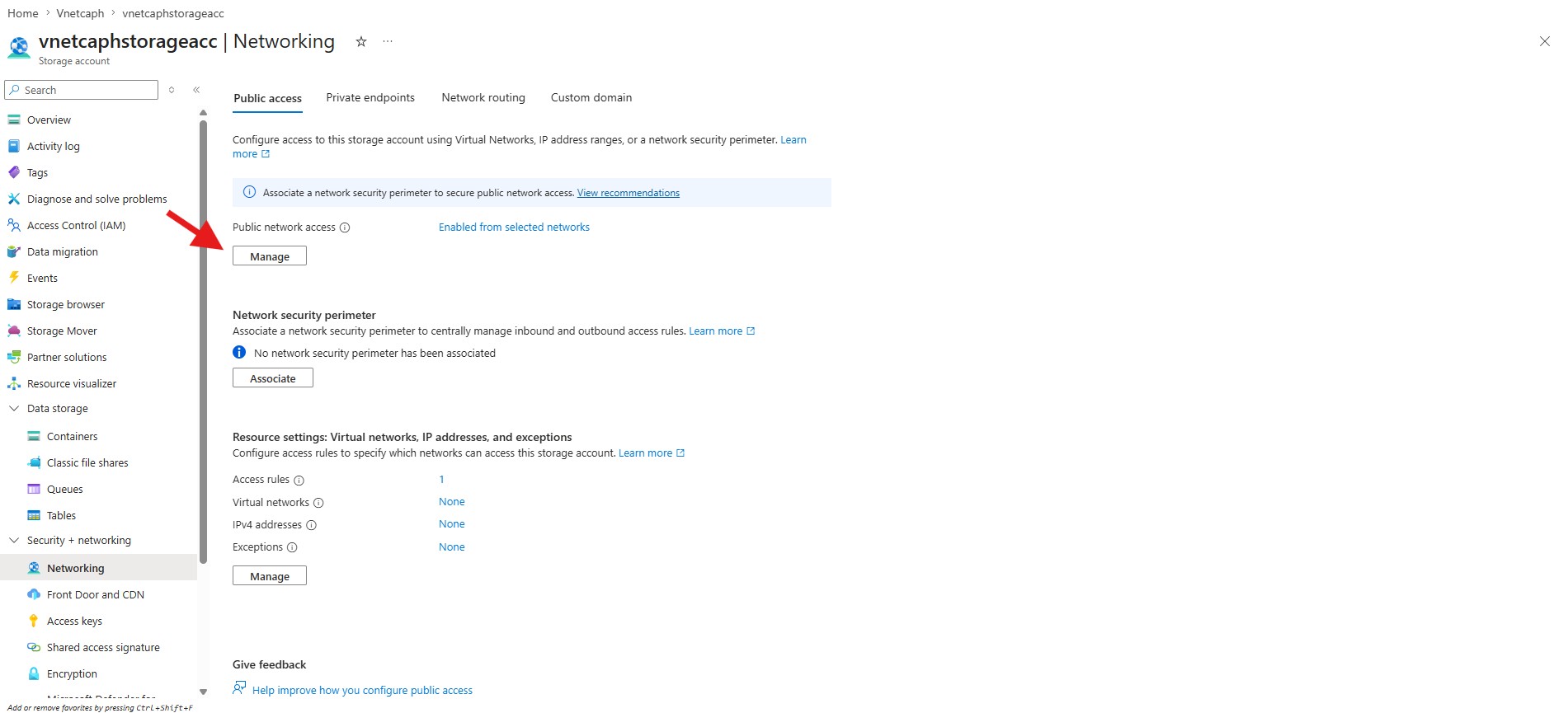
Step 2: Allow the SQL server through the storage firewall
- Open Storage account > Security + networking > Networking.
- On the Public access tab, click Manage next to the public network access status.
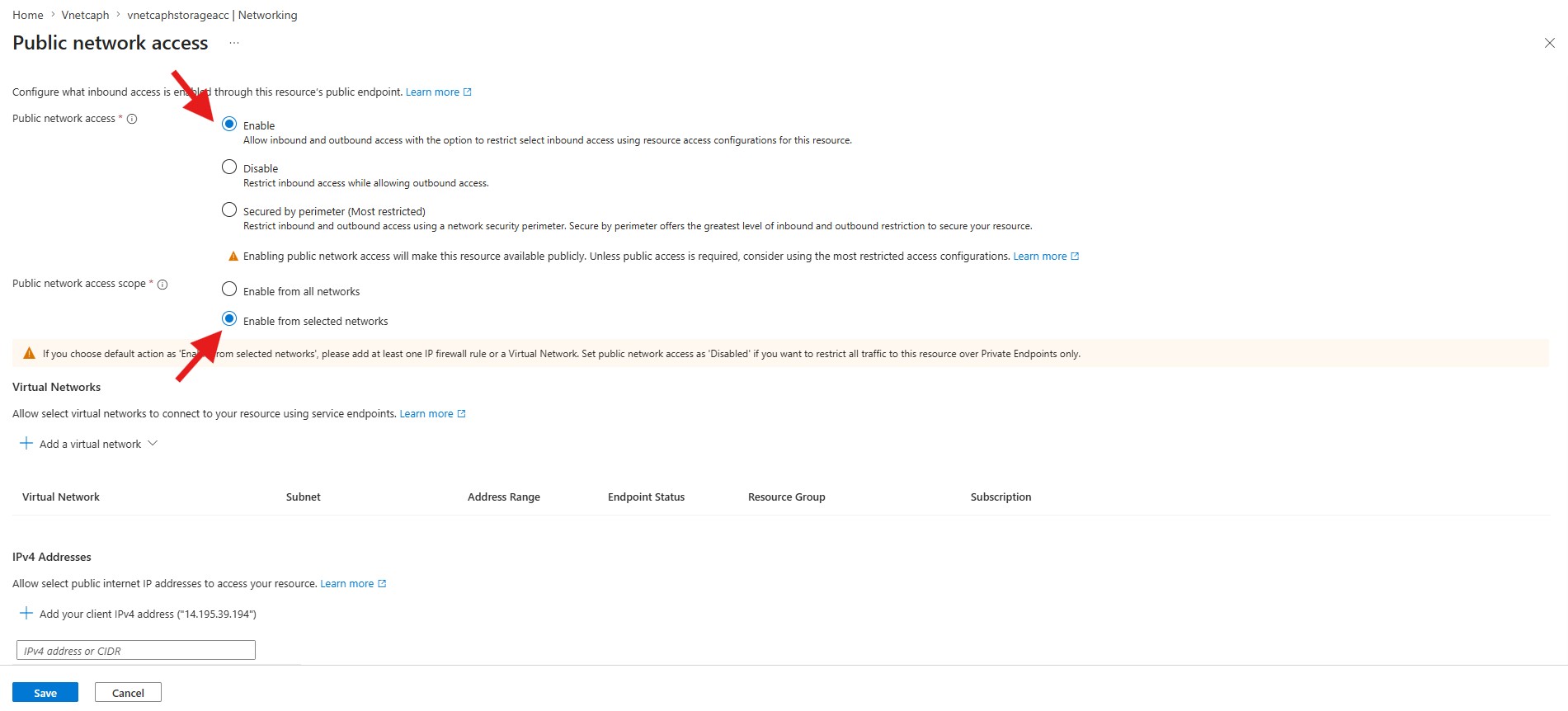
- In the Public network access panel, set Public network access to Enable.
- Under Public network access scope, select Enable from selected networks.
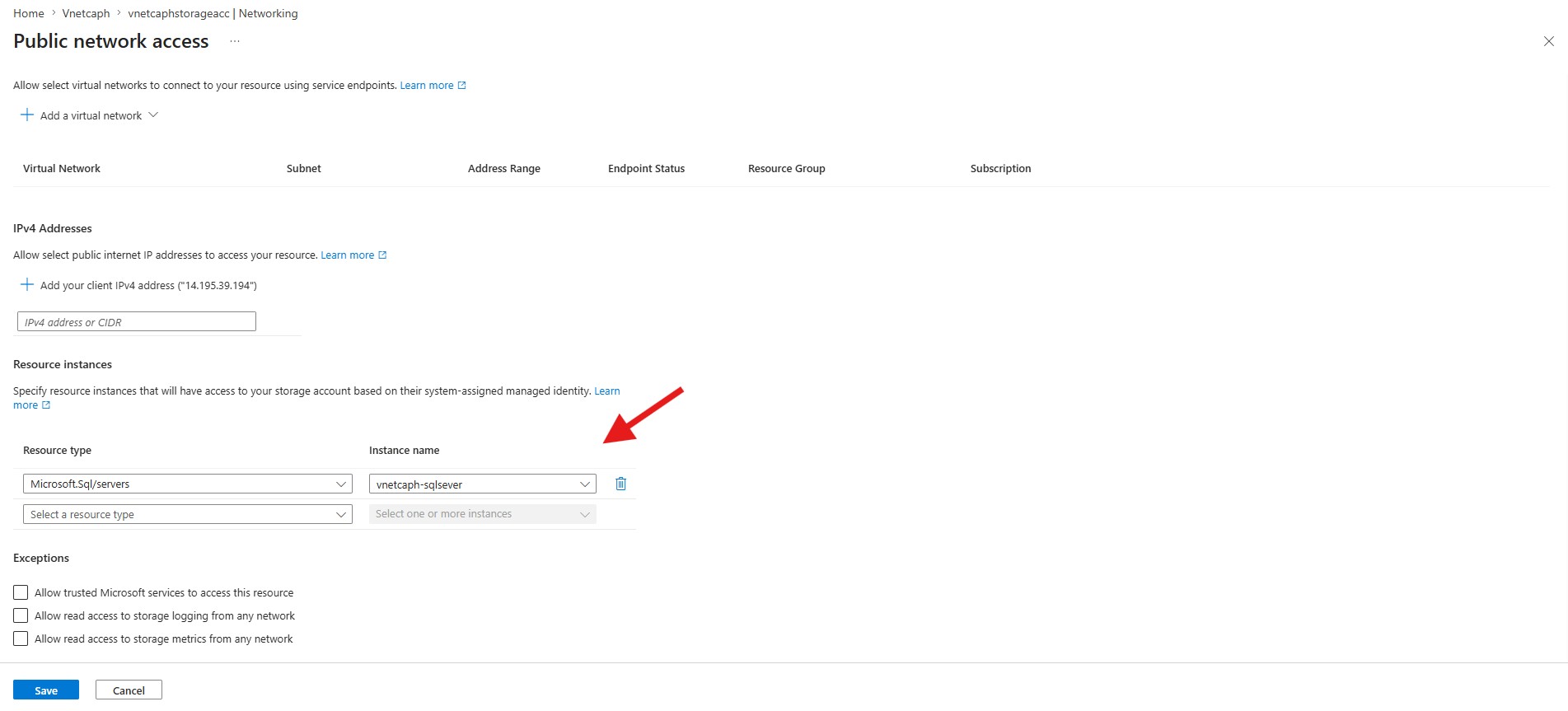
- Scroll down to the Resource instances section and set:
- Resource type:
Microsoft.Sql/servers - Instance name: your SQL server
- Resource type:
- Click Save.
Step 3: Grant the SQL identity read access on storage
- Go to Storage account > Access Control (IAM).
- Click + Add > Add role assignment.
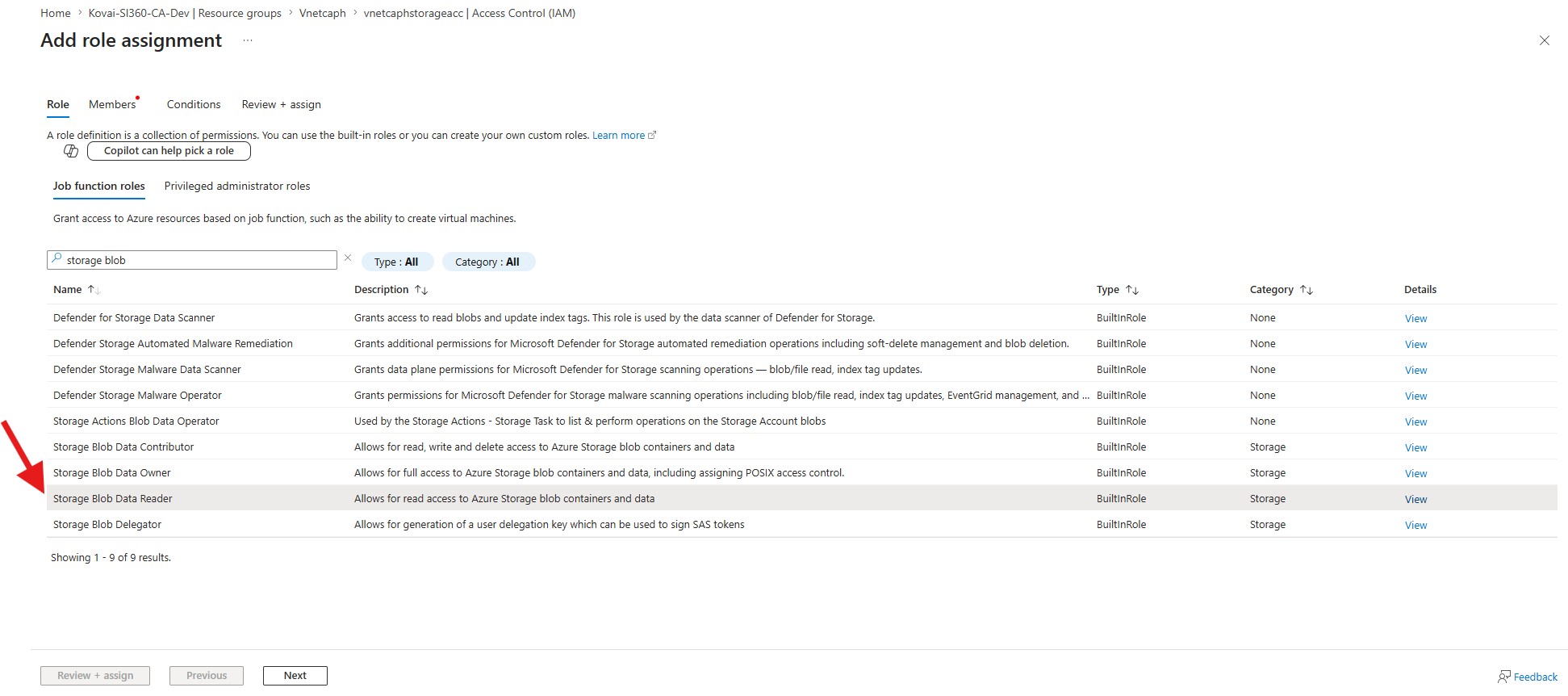
- Select the role Storage Blob Data Reader, then click Next.
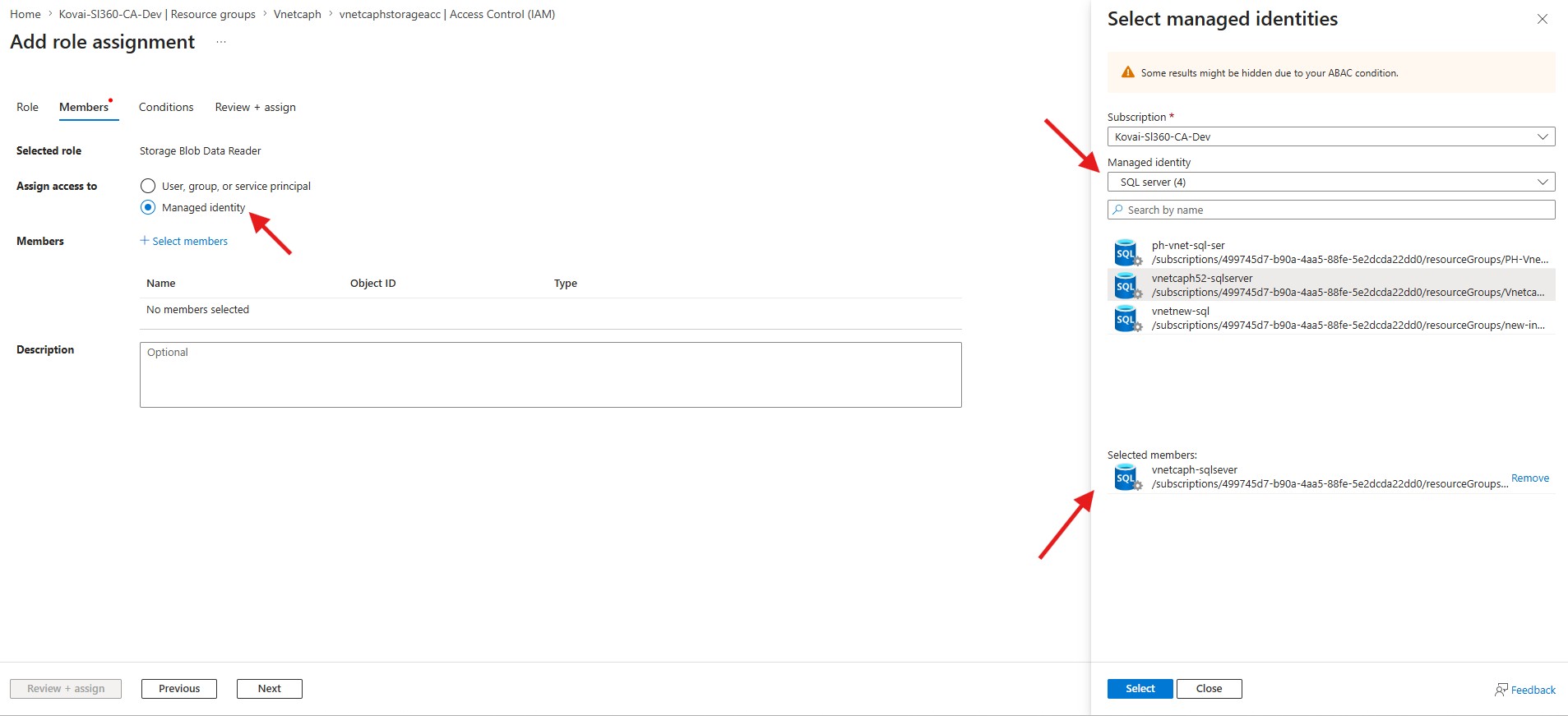
- Under Members, set Assign access to = Managed identity, then click + Select members.
- Choose SQL server as the managed identity type and select your SQL server instance.
- Click Review + assign twice to confirm.
Verify: Navigate to Cost Analyzer > Cost imports and manually trigger the import by clicking the run button next to the subscription, or wait for the next orchestrator run. The import should complete successfully.
-
VNet fields are not displayed after checking Include VNet configuration
Cause: An older version of the installer is in use.
Fix: Download the latest Turbo360 installer from the Turbo360 portal and retry. -
Deployment fails at the private endpoint creation step
Cause: Insufficient permissions to create private endpoints in the target subscription, or subnet CIDR conflicts with existing VNets.
Fix: Verify that the service principal has rights to create private endpoints. Check for CIDR conflicts with existing VNets in the subscription and adjust the address space if needed. -
Upgrade fails on a VNet-enabled instance
Cause: The upgrade is being run from outside the VNet, and SQL/Storage public access is disabled.
Fix: Run the upgrade from a VM inside the VNet, or temporarily set SQL and Storage public network access to Enabled from selected virtual networks and IP addresses before running the upgrade, then disable it again afterward. -
Cannot connect to the private instance after deployment
Cause: The client machine is not inside the VNet or connected via VPN/ExpressRoute.
Fix: Connect to the VNet using Azure VPN Gateway, ExpressRoute, or a jumpbox VM inside the VNet to access the private instance.
FAQs
-
Can I enable VNet configuration on an existing private instance that was deployed without it?
No. VNet configuration must be selected during the initial deployment. Enabling it retroactively requires redeployment of the private instance. -
Can I use an existing VNet instead of creating a new one?
Yes. On the Resource details step, click Use existing to select a pre-provisioned VNet. The Address Space, Integration Subnet, and Private Endpoint Subnet fields populate automatically based on the selected VNet. -
Does VNet configuration work with both Connection string and Managed Identity authentication?
Yes. VNet configuration is compatible with both authentication modes available in the Turbo360 installer.