

Advanced recommendations for Rightsizing
- 13 Apr 2026
- 7 Minutes to read
- Print
- DarkLight
- Download PDF
Advanced recommendations for Rightsizing
- Updated on 13 Apr 2026
- 7 Minutes to read
- Print
- DarkLight
- Download PDF
Article summary
Did you find this summary helpful?
Thank you for your feedback!
Introduction
Cost Analyzer gives personalized rightsizing recommendations for compatible Azure services through Advanced recommendation, with the flexibility to modify settings to control the recommendations provided.
The following resource types can be rightsized using Turbo360's Cost Analyzer:
- App service plan
- App Service Plan (Workflow Standard SKU)
- Azure Database for MySQL flexible server
- Cosmos SQL Container
- Cosmos SQL Database
- Cosmos Table
- SQL Database
- SQL Elastic pool
- SQL Managed Instance
- Virtual Machine
- Virtual Machine scale set
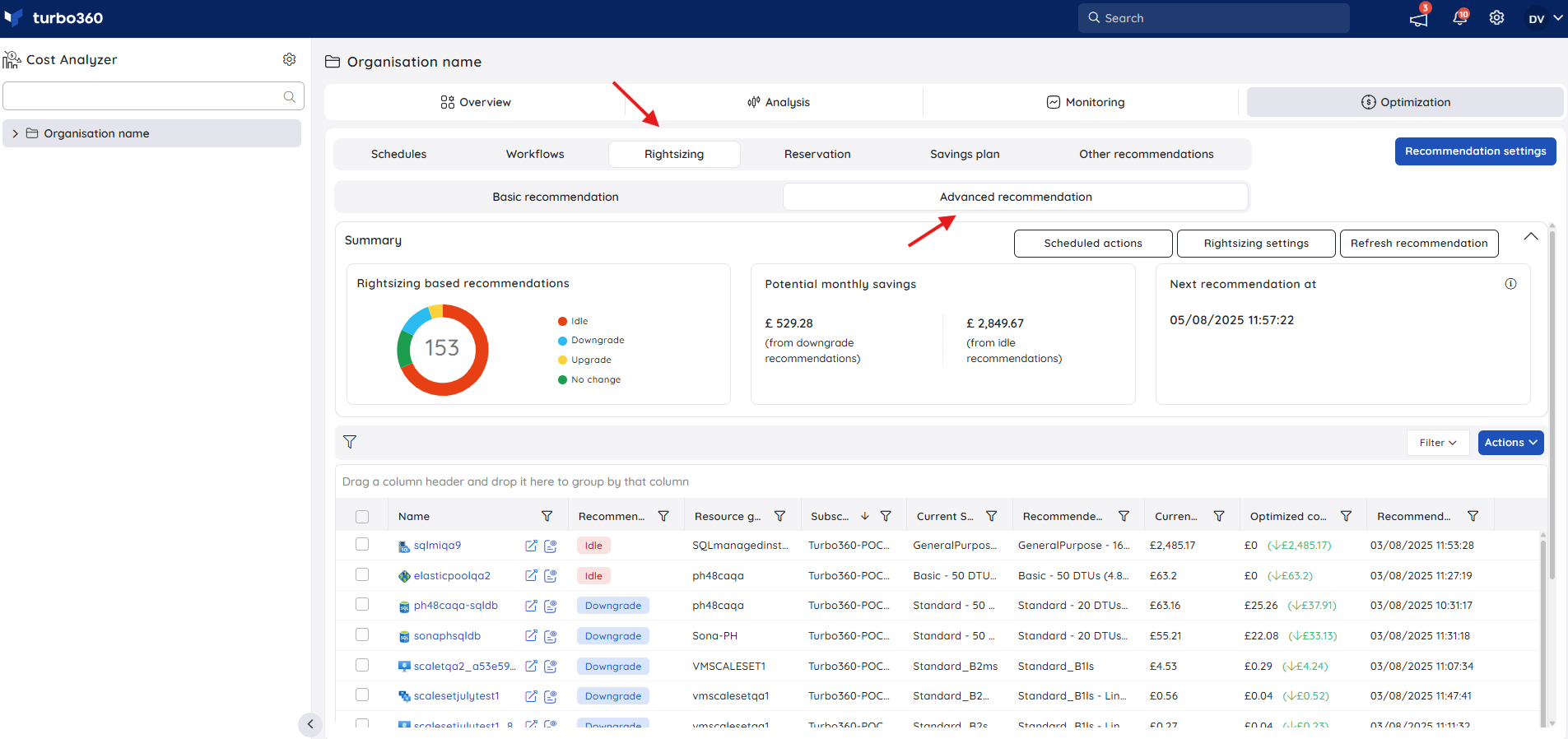
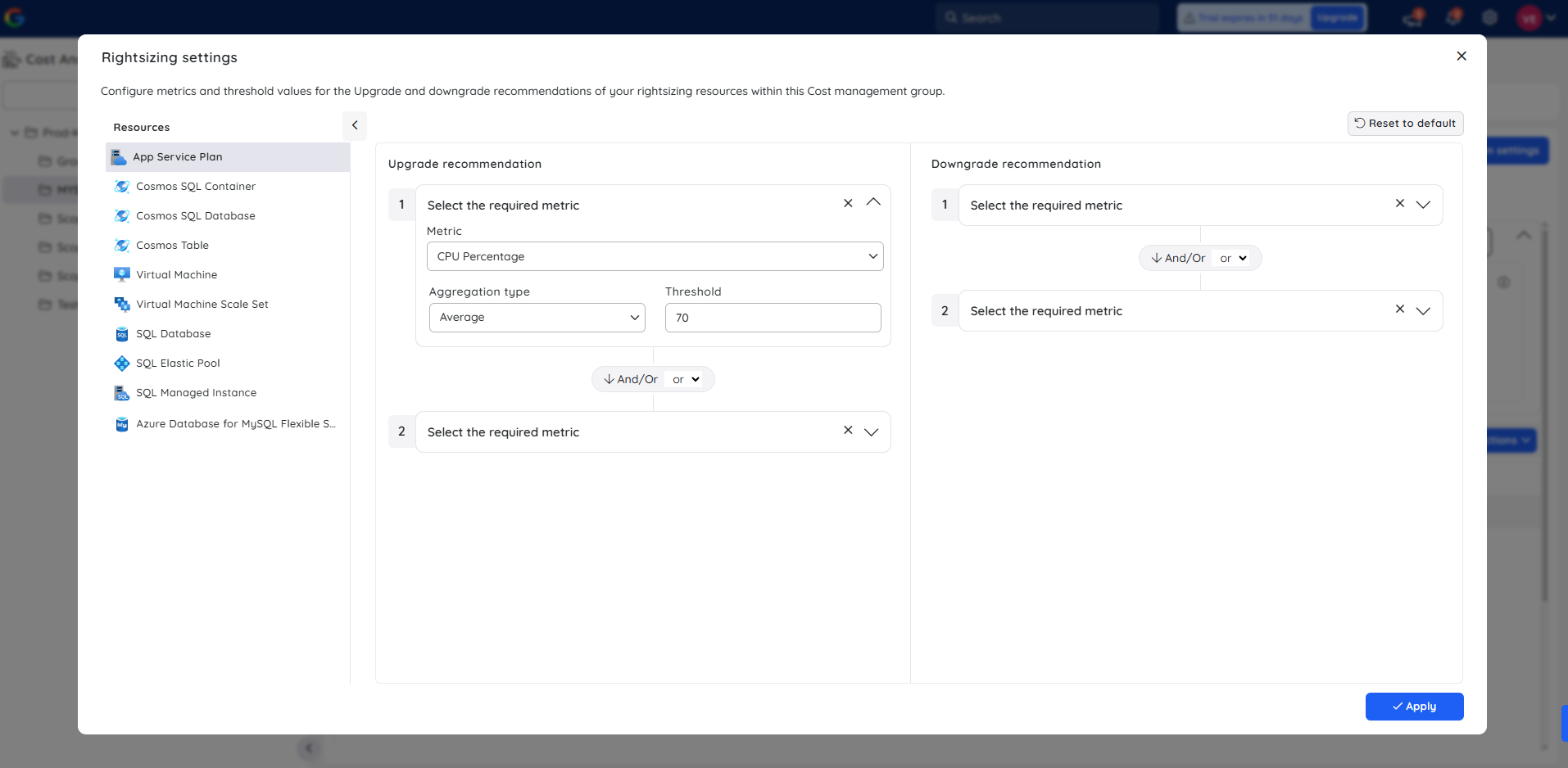
Cost Analyzer offers users the ability to set a custom range of parameters to determine the right-sizing status of resources through the Rightsizing settings option.
By defining rules based on metrics like CPU and Memory, users enable Cost Analyzer to analyze real-time usage and deliver customized recommendations.
Recommendations
Cost Analyzer provides four different types of recommendations for Azure resources:
1. Upgrade
A recommendation of this type indicates that resources often consume the maximum capacity of the purchased SKU. An upgrade to a higher SKU will increase resource performance.
2. Downgrade
A resource that does not utilize its maximum capacity is deemed to have this recommendation. Taking it down to a lower SKU will reduce resource costs.
3. Idle
This recommendation indicates that the resource is not being used for an extended period and can be deleted if no longer required.
4. No change
A recommendation of this type indicates that the resource frequently utilizes the average capacity of the SKU, and thus, no change in SKU is required.
Perform the following operations to apply the recommended sku to a resource:
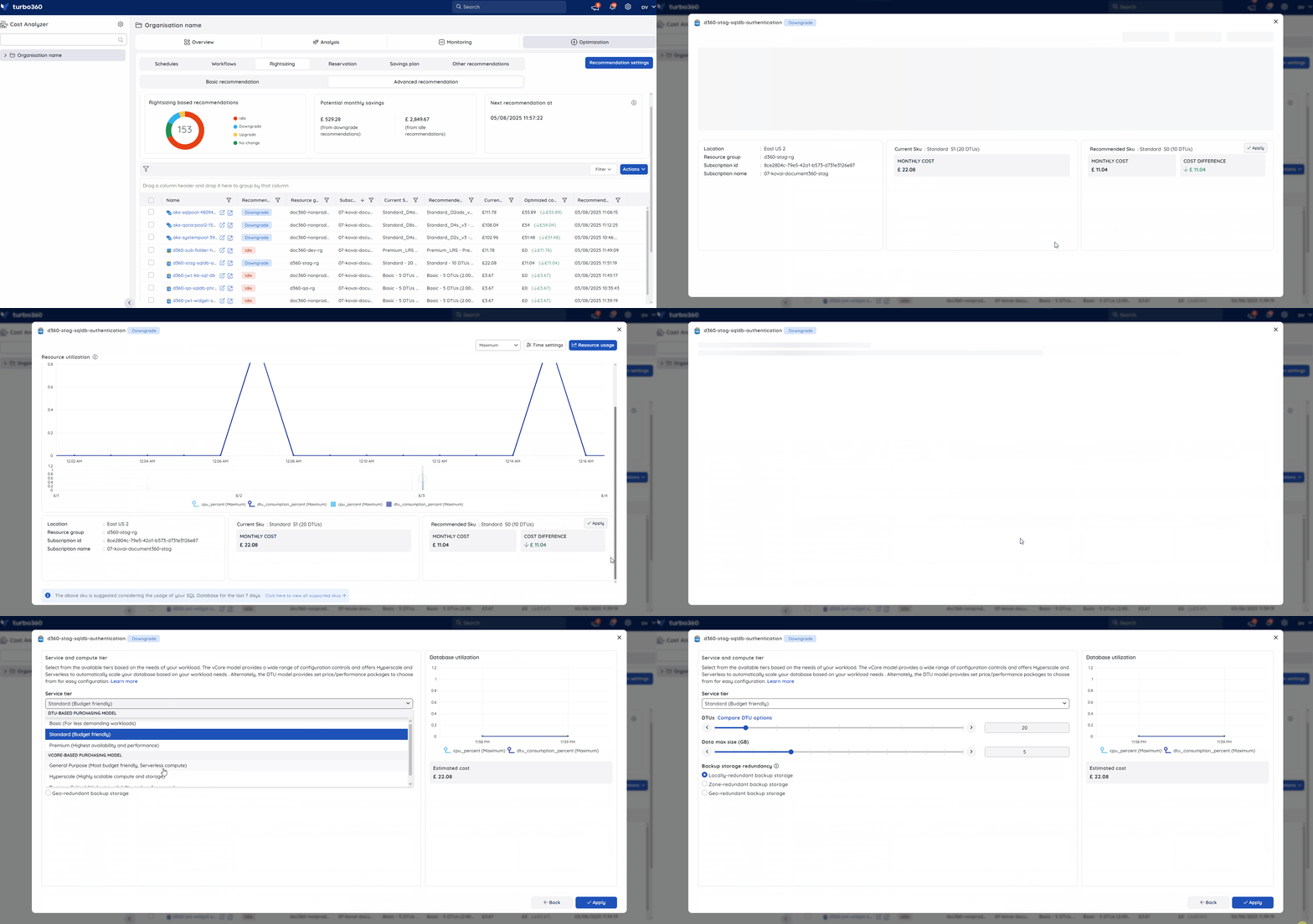
- Click any of the desired resource in Rightsizing.
The user will be provided with a data trend chart based on the resource usage for the last 7 days. The aggregation type and the time settings can be modified to view the data trend for a specified interval.
The Recommended Sku based on the analysis, will be available for users to apply instantly.
You can also manually choose one among the supported SKUs by clicking the Click here to view all supported SKUs option.
Note:
- The recommended SKU can only be applied when the Service Principal has Contributor access.
Cost intelligence view
The Cost intelligence view structures resource data into distinct categories and visual sections, providing users with a detailed overview of cost distribution and utilization. It highlights key optimization opportunities by identifying areas of high or low resource efficiency.
Through these categorized insights, users can easily monitor spending patterns, evaluate cost performance, and take data-driven actions to optimize resource usage and reduce overall expenses.
Click this link to know more about its capabilities.
How to access this view?
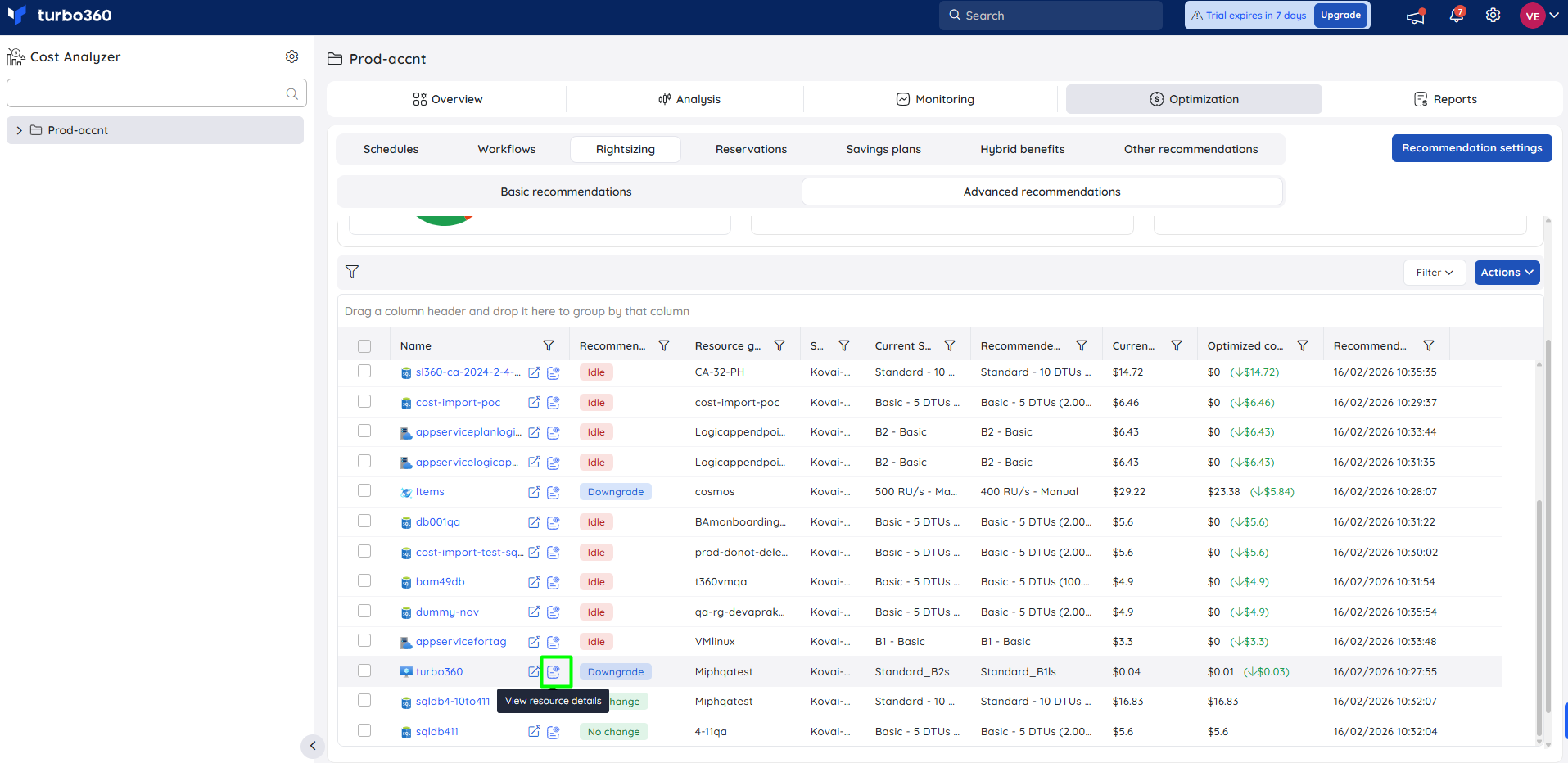
- Navigate to the following path within a cost management group: Optimization -> Rightsizing -> Advanced recommendations
- Click the View resource details icon next to a recommended resource to access its Cost intelligence view.
Supported resource types for Idle recommendations
The resource types supported for idle recommendations is constantly being improved, with the goal of increasing Azure subscription efficiency and reducing costs.
Besides the resource types eligible for Rightsizing recommendations, specific resource types detached from all Azure services exclusively facilitate Idle Rightsizing recommendations. This targeted approach aims to efficiently delete resources that are no longer necessary.
The list of resource types that exclusively support Idle recommendations is as follows:
- Disks
- Public IP Addresses
- Virtual Network
- Subnet
A virtual network without any subnet is considered for idle recommendation.
Rightsizing settings
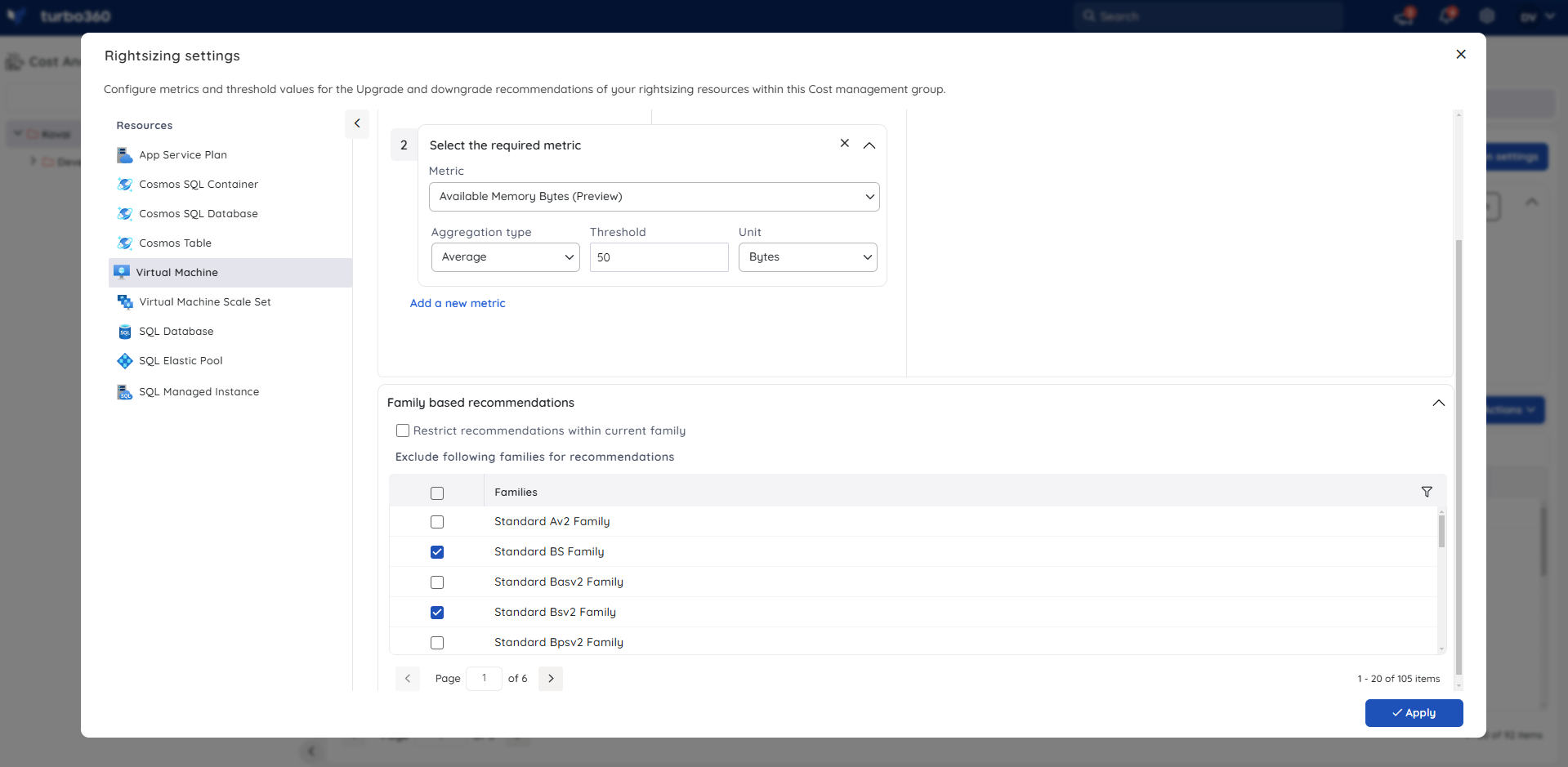
By default, Cost Analyzer considers CPU usage to recommend the optimal tier. Users can customize the Rightsizing settings to factor in additional metrics, such as memory consumption, if required.
Exclude families for recommendation
- Enabling the Family restriction checkbox for Virtual Machine (or) Virtual Machine Scale sets ensures that their rightsizing recommendations are within the bounds of the Current SKU family. This option can be used when you want to exclude certain non-production VM families from being recommended for your production VMs.
Refreshing recommendation data
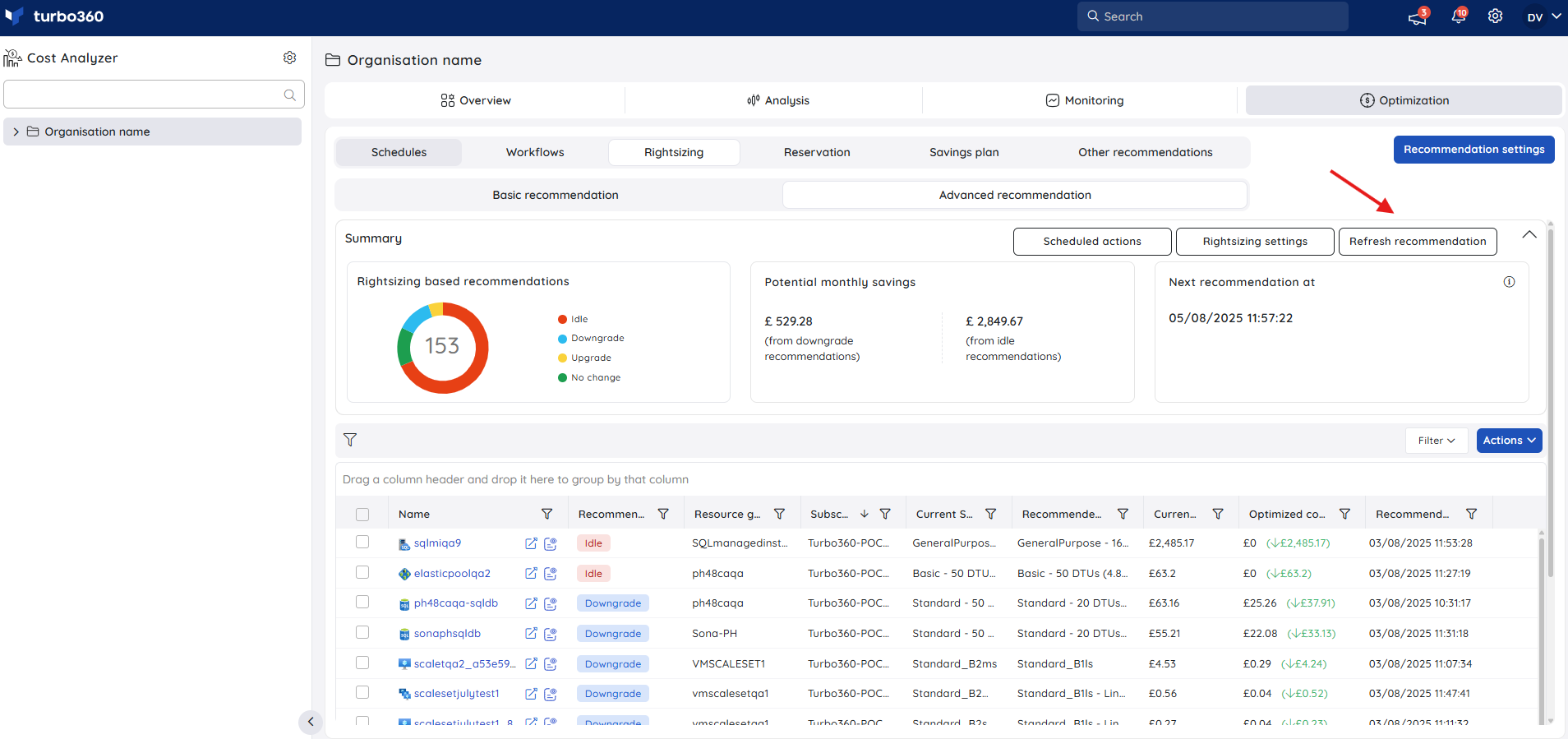
Rightsizing recommendations for a cost group will be refreshed every 48 hours.
On demand refresh can also be performed for any group by navigating to Rightsizing -> Advanced recommendation and clicking Refresh recommendation option.
Refreshing at the root level will update recommendations across all cost groups, whereas refreshing a specific cost group will only update recommendations for that group.
Recommendation settings
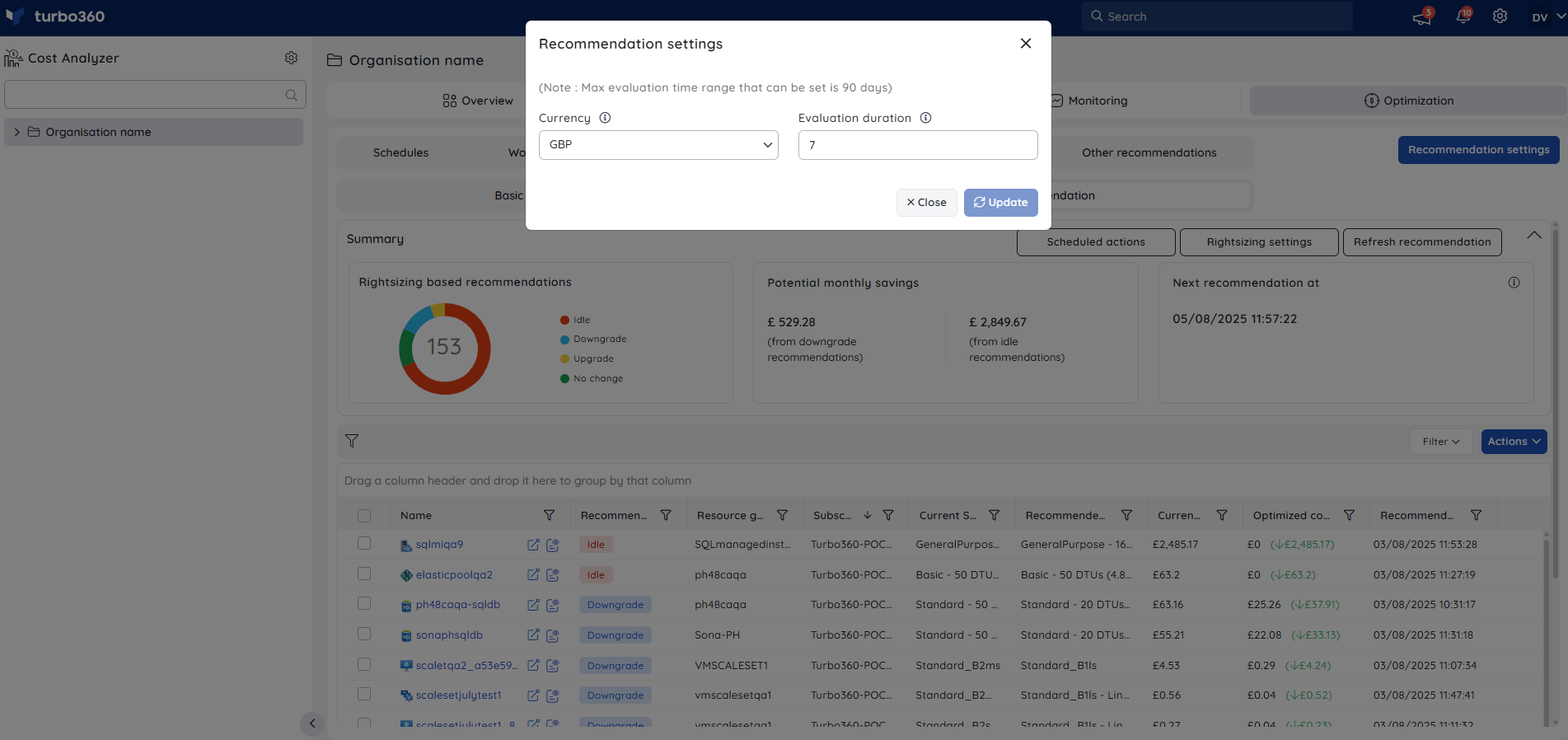
The Recommendation settings button allows users to adjust the evaluation duration and the currency type to receive customized recommendations.
Ignore recommendations
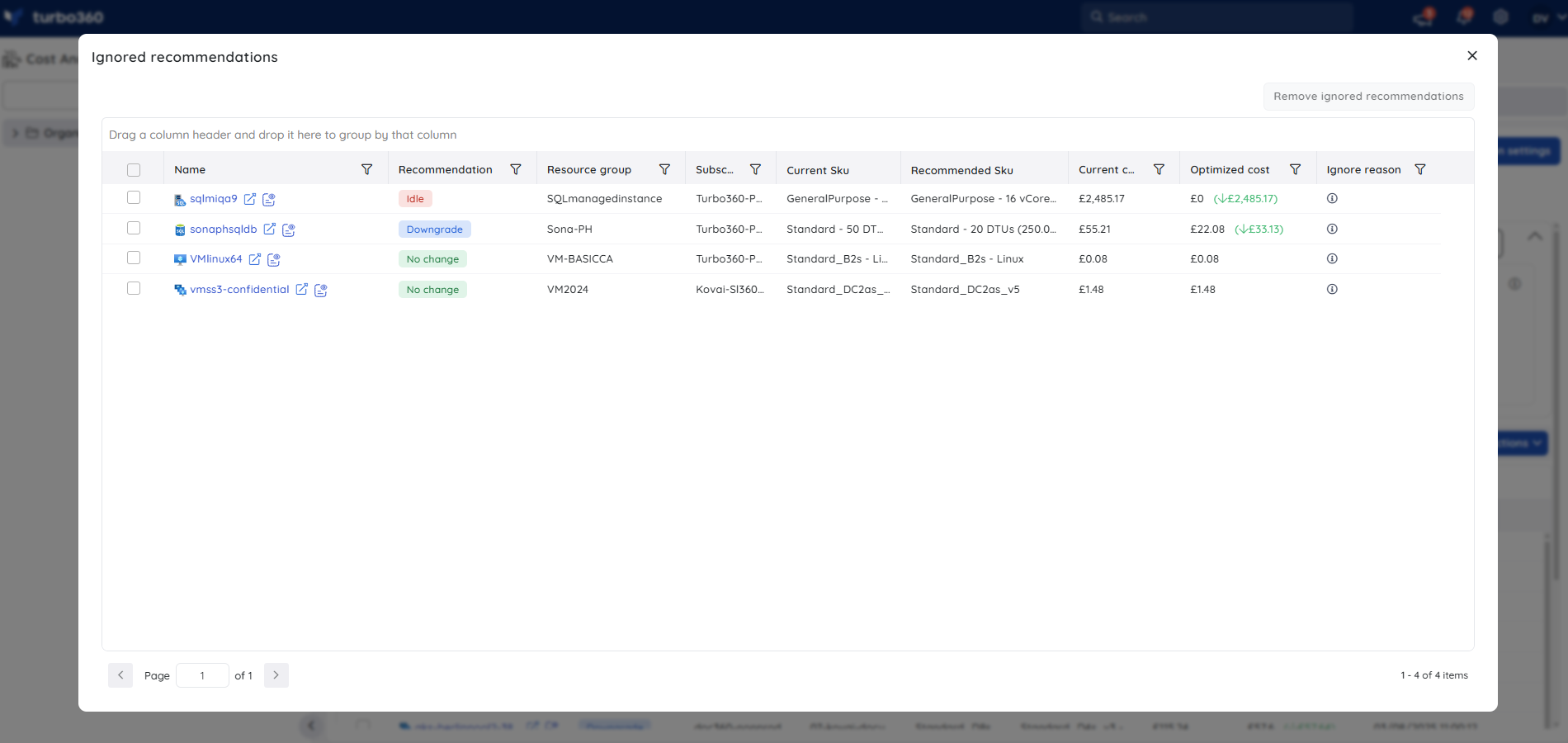
Recommendations can be disregarded if you prefer to use the resource with its existing SKU. This can be done by selecting the recommendations and clicking Actions -> Ignore to ignore them.
The ignore action offers two options: completely ignoring the resource from recommendations or ignoring it until a specified date range.
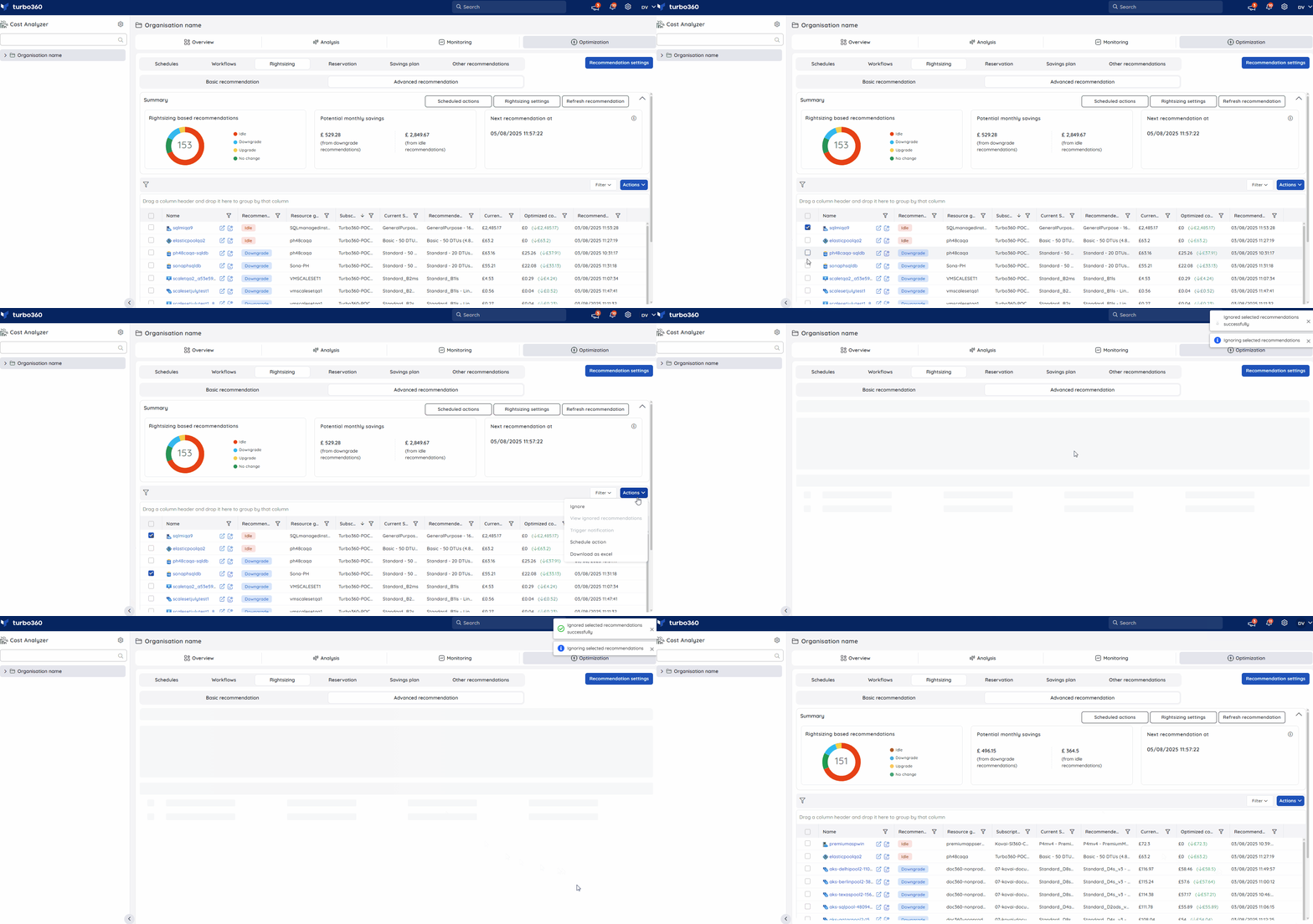
The ignored ones are accessible in Actions -> View ignored recommendations.
Visualizing resource usage
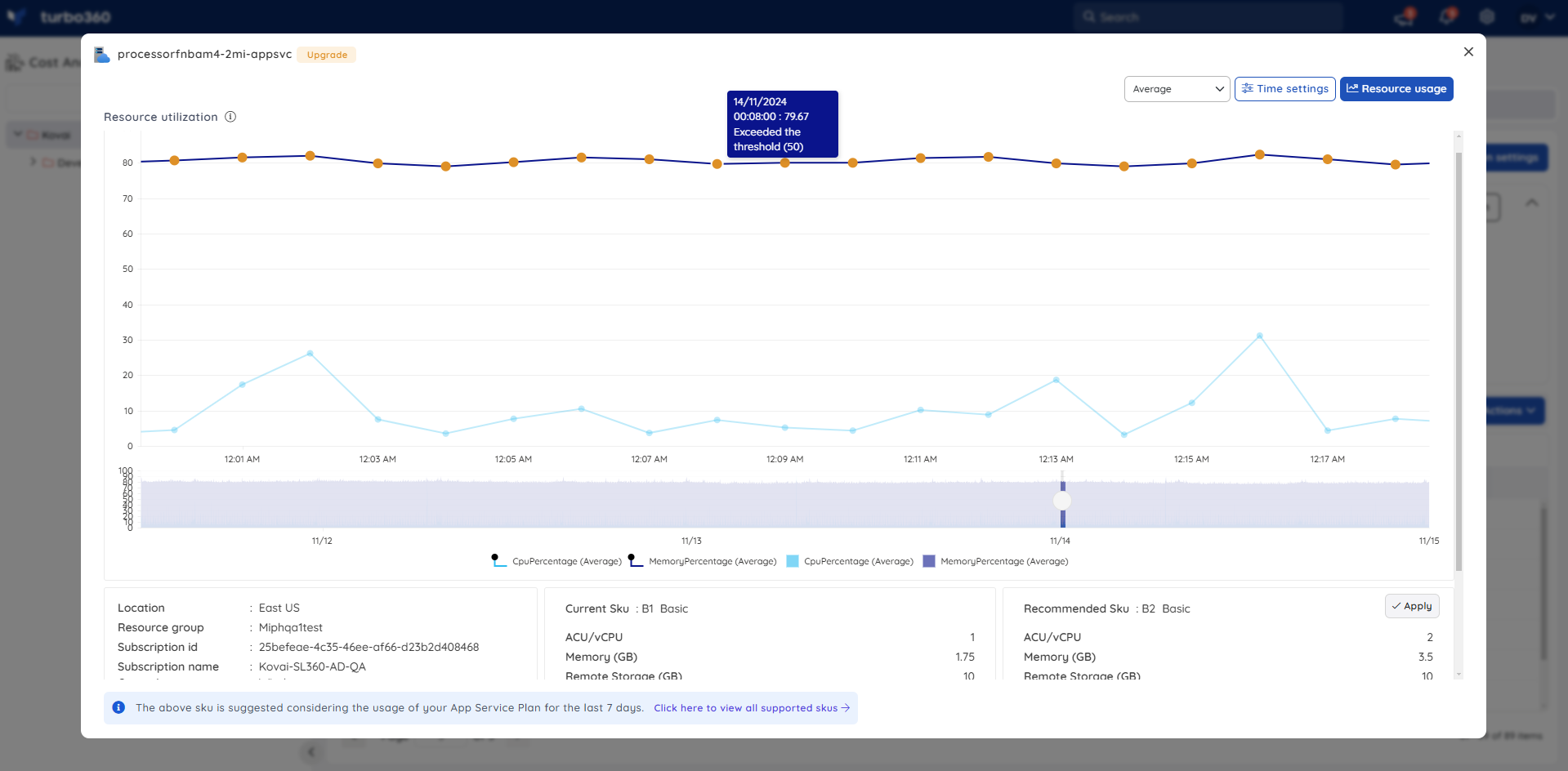
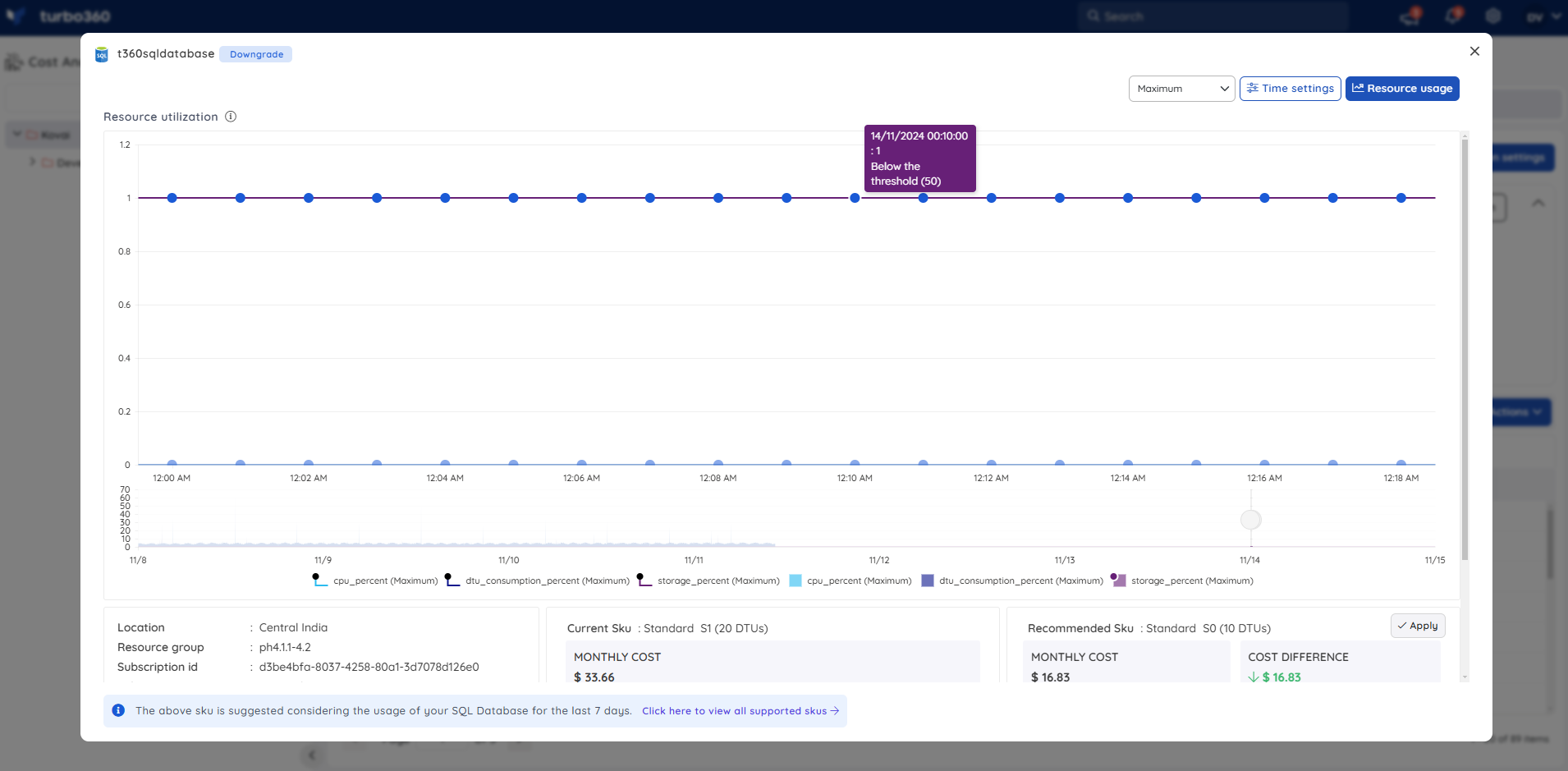
The usage patterns of resources listed in advanced recommendation can be accessible by clicking it, with time range customizable through the Time settings option to focus on a specific interval.
The area chart below the usage trends enables the user to navigate between different intervals, providing detailed insights into the resource utilization data.
This widget also provides information on recommendations, including both the current and recommended SKUs.
Data points that surpass or fall below the thresholds defined for Upgrade and Downgrade in the Rightsizing settings will be visually distinguished as follows:
i) Yellow - identifies data points that have surpassed the threshold, recommending an upgrade to improve resource efficiency and productivity.
ii) Blue- identifies data points that fall below the threshold, recommending a downgrade for resource optimization.
Resource usage by status
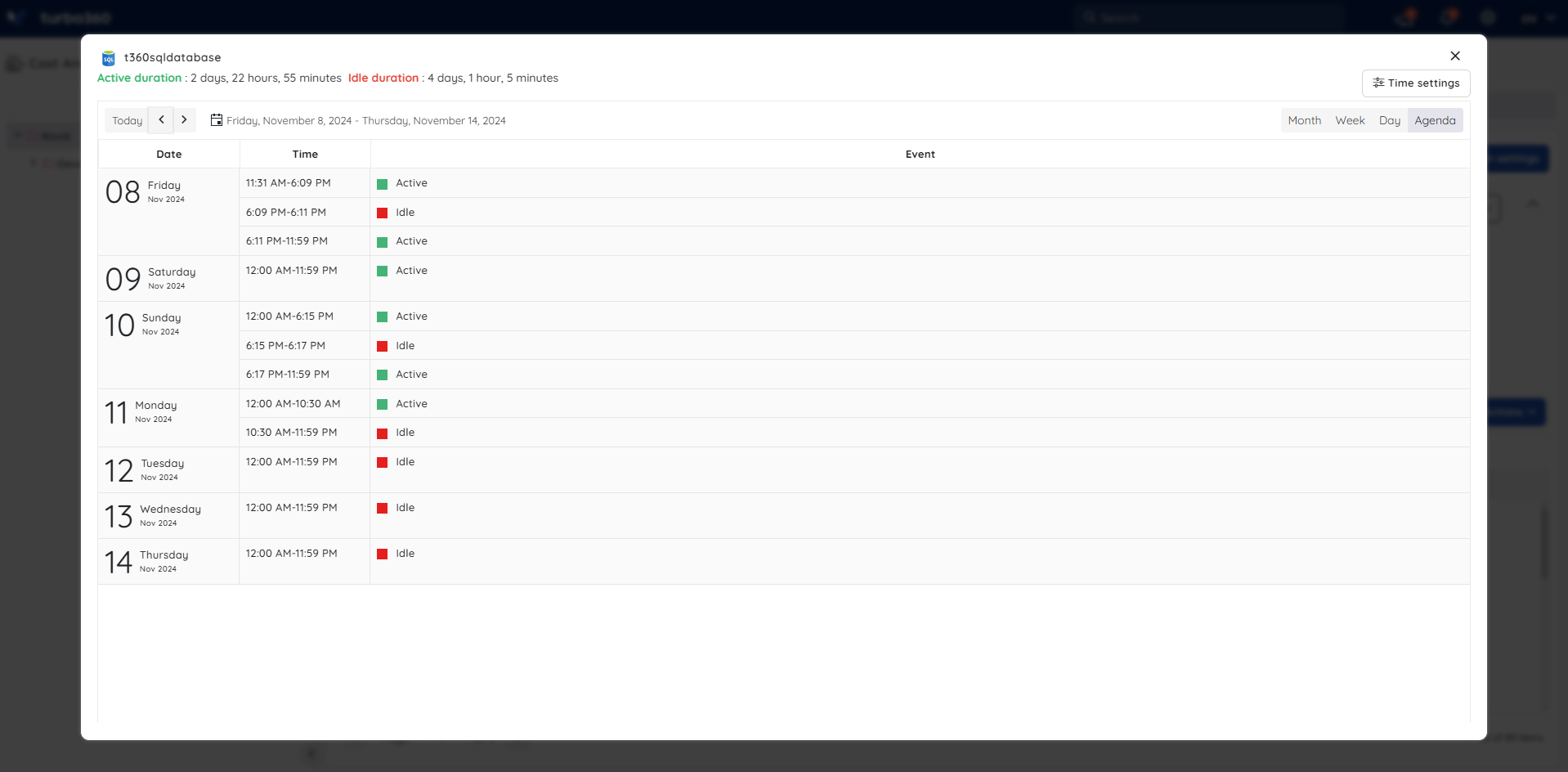
The resource usage option accessible when clicking an advanced rightsizing recommendation provides a calendar view that depicts the status of users' Azure resources over time. Multiple toggle modes are available for better accessibility.
The resource status considered here are:
- Active
- Idle
These status are determined based on specific metric values for the respective resource types:
- App service plan - CPU Percentage
- Azure Database for MySQL flexible server - Host CPU percent
- Cosmos SQL Container - Normalized RU Consumption
- Cosmos SQL Database - Normalized RU Consumption
- Cosmos Table - Normalized RU Consumption
- Disk - Disk Read Write
- SQL Database - DTU consumption
- SQL Elastic Pool - DTU consumption
- SQL Managed Instance - CPU Percentage
- Virtual Machine - CPU Percentage
- Virtual Machine Scale set - CPU Percentage
The Agenda view displays a day's active and idle hours in a grid format.
Scheduled rightsizing actions
The rightsizing feature evaluates workloads and recommends the most suitable SKU based on performance metrics. Using the Scheduled actions feature, users can specify a time for the recommended SKU to be applied automatically, enabling cost optimization, consistent performance, and simplified management without manual intervention.
How to schedule an action?
To automatically apply the recommended SKU in Azure, follow these steps:
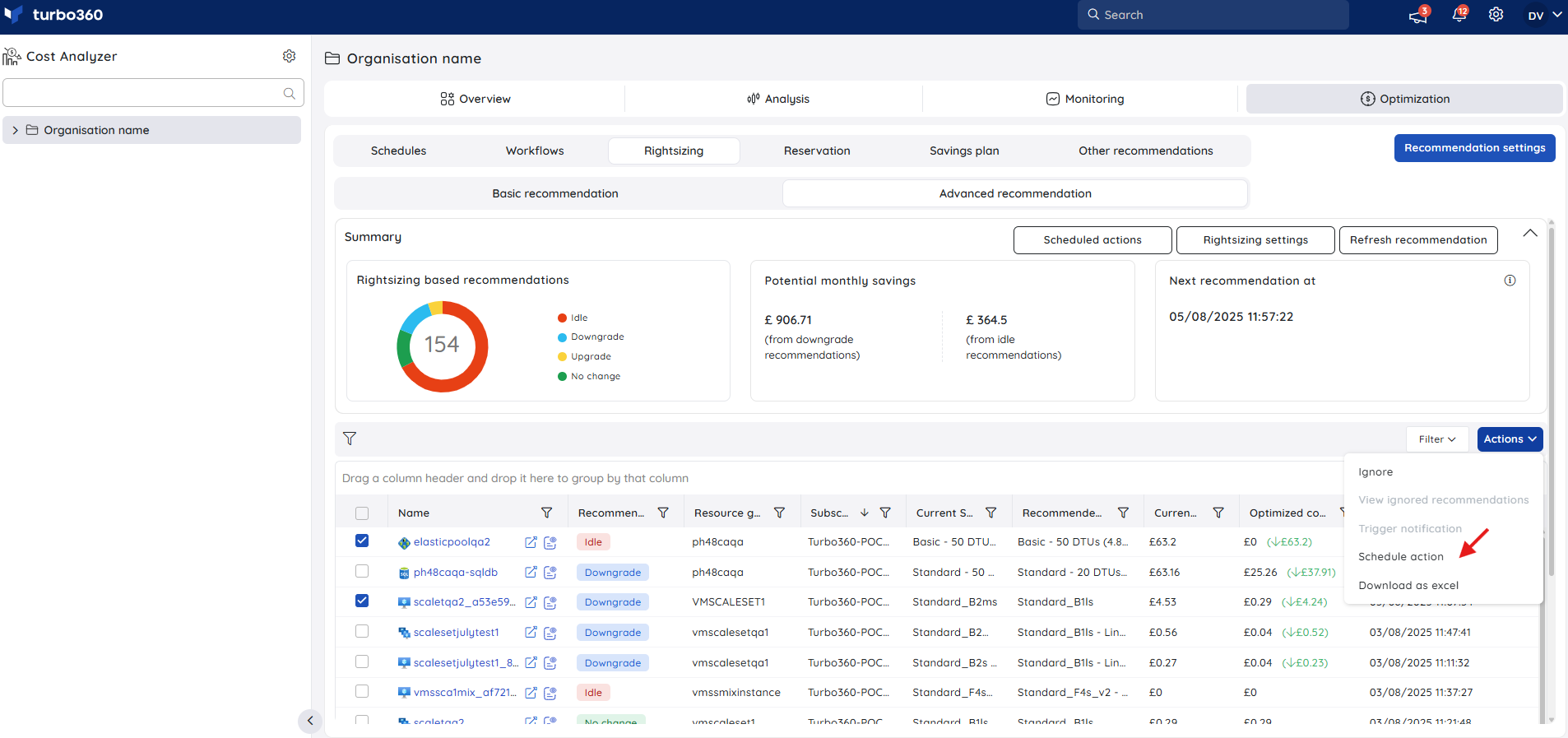
- Select one or more resources to schedule rightsizing.
- Go to Actions -> Schedule action.
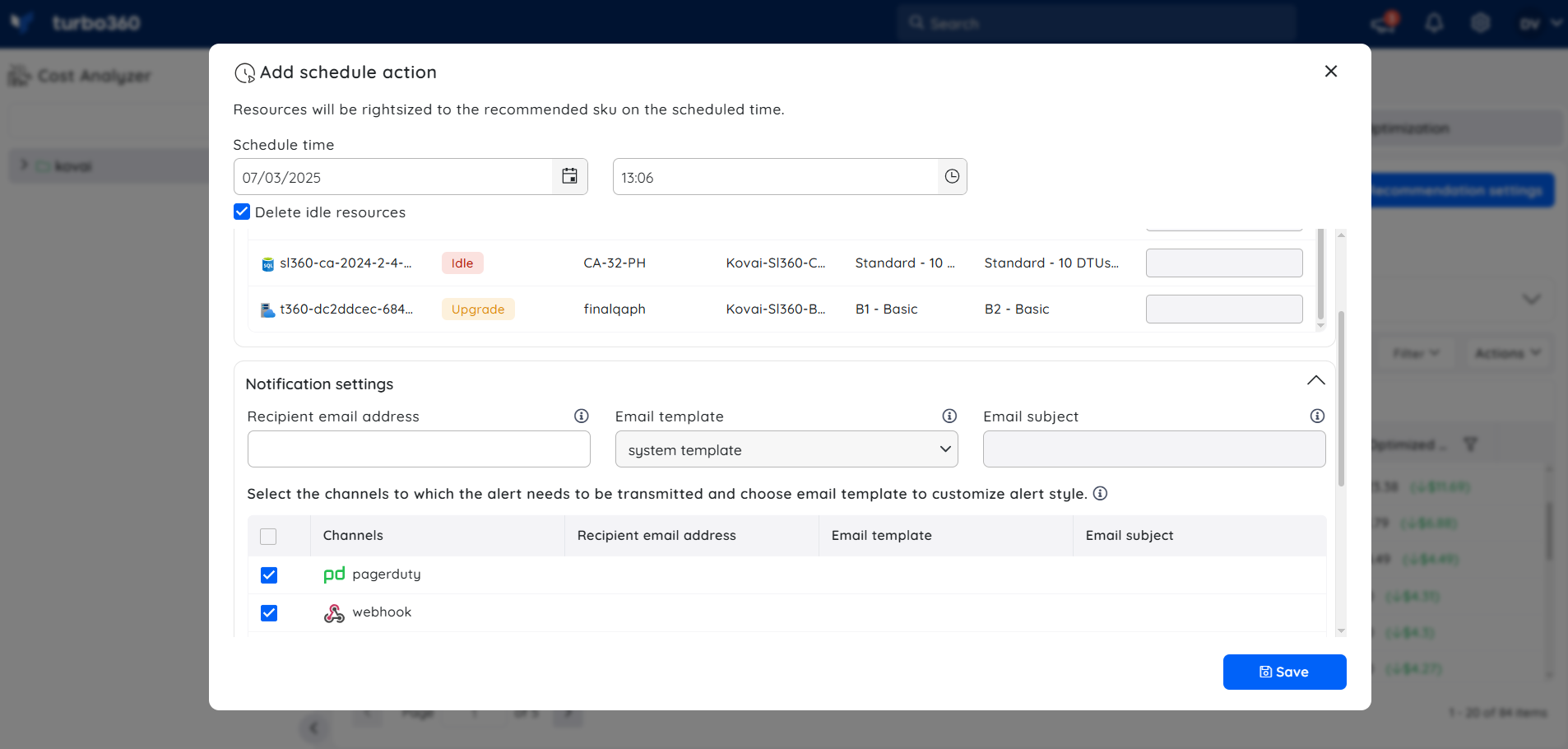
- Specify the scheduled date and time for the rightsizing.
- (Optional) Enable Delete idle resources to remove unused resources automatically.
- Select notification channels receive alerts for action execution.
- Click Save to apply the scheduled actions.
Review Scheduled actions
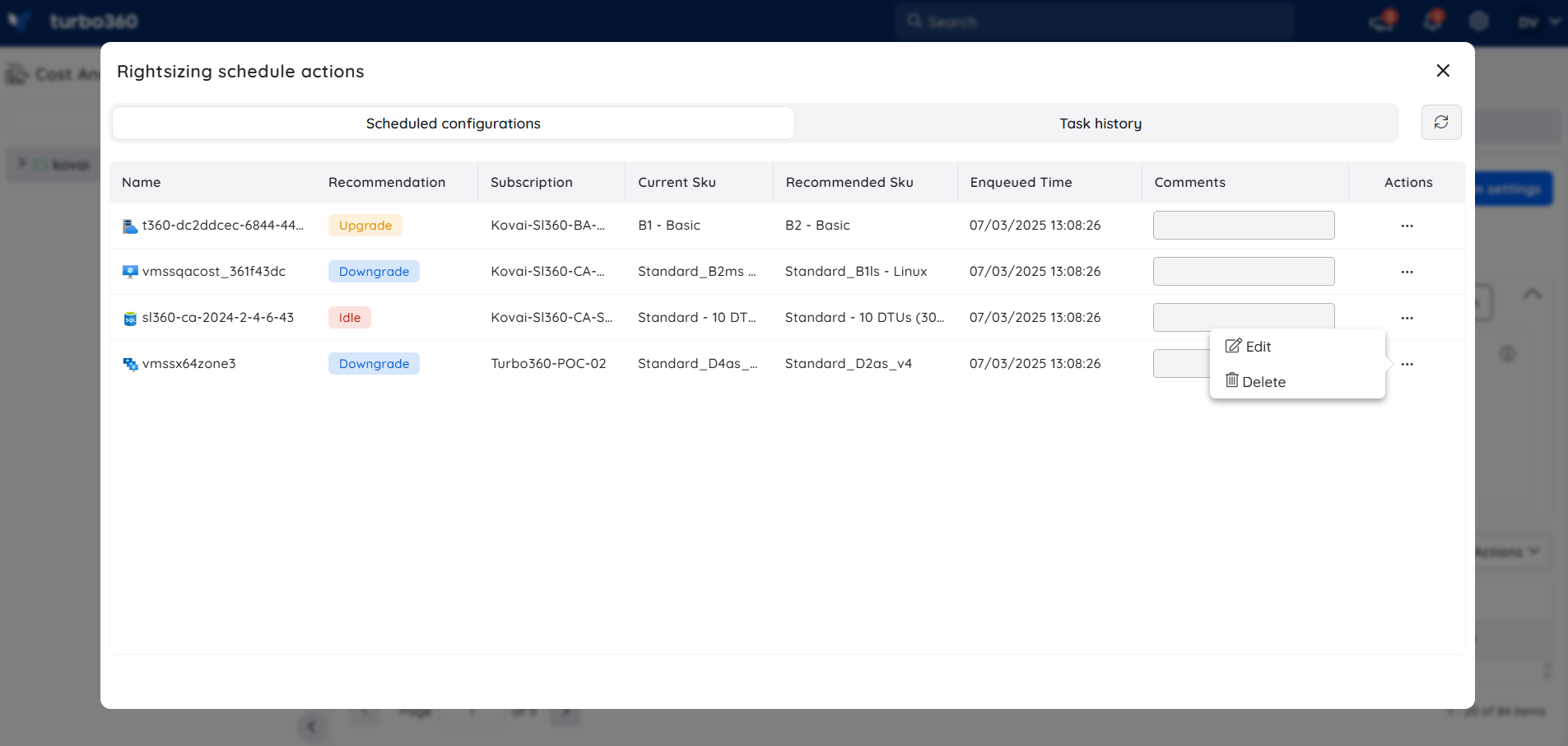
Click Scheduled actions option available within the Advanced recommendations under Rightsizing.
Users can manage scheduled resources by reviewing the list, modifying configurations, or removing resources from the schedule.
Task history
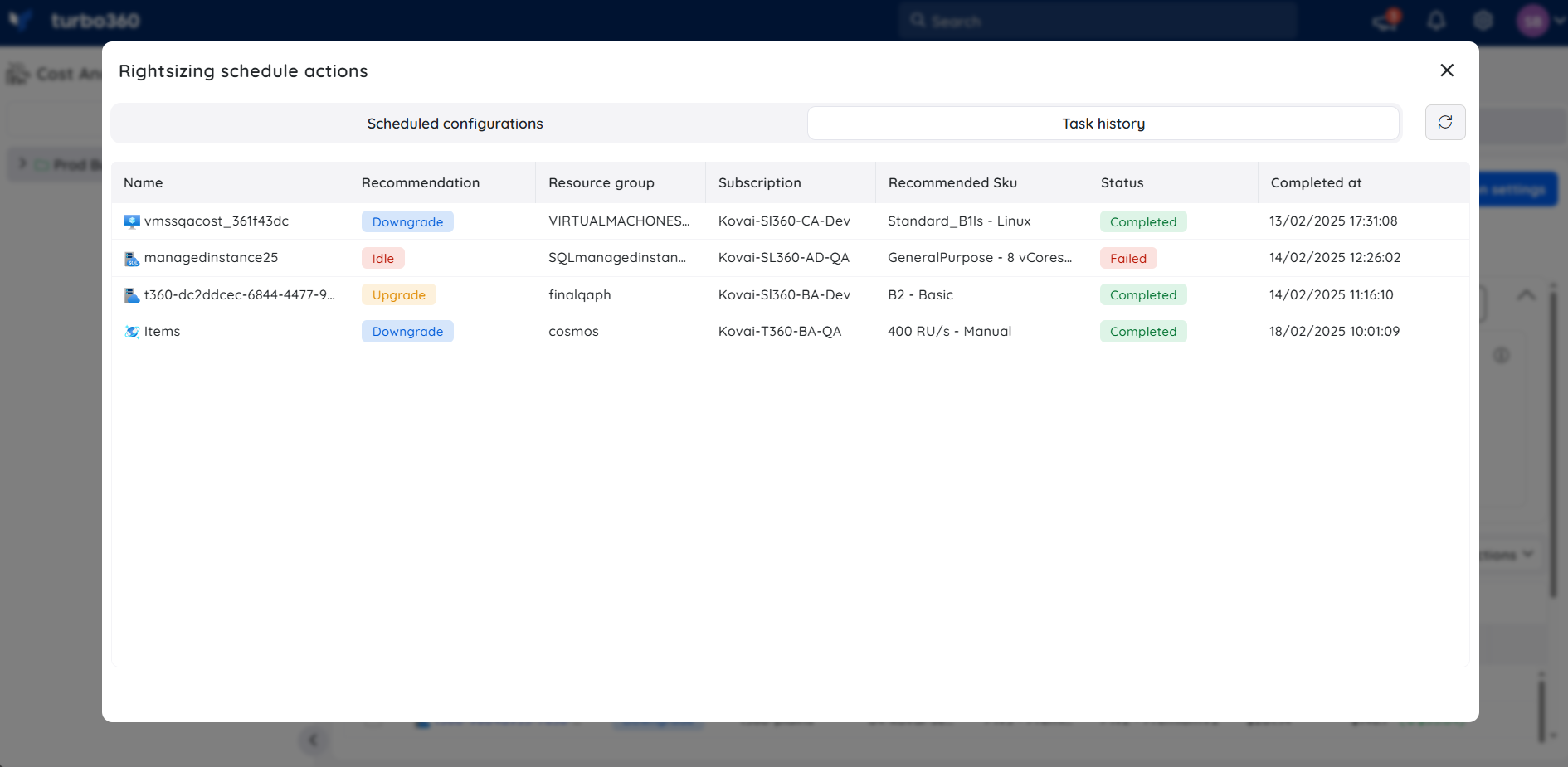
Use the Task history tab to review the status and detailed execution logs of scheduled resources.
Sample report
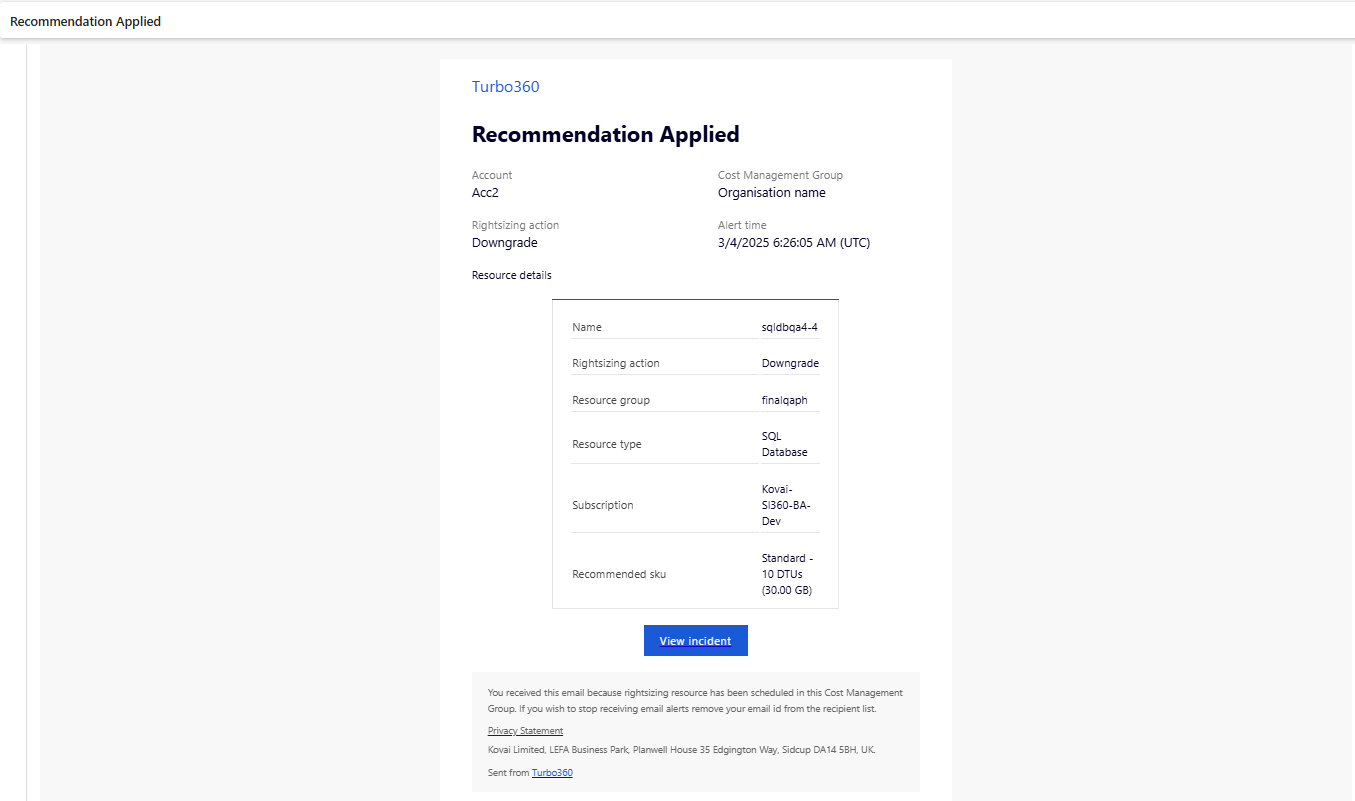
Below is a sample email report outlining the resource information and the applied rightsizing action.
Task planner integration
Cost Analyzer integrates with Task Planner to create tasks for both manual and scheduled rightsizing actions, enabling users to track, manage, and review optimization efforts in a centralized and organized manner.
Task insights
- A task is generated when a user applies a recommended SKU to a resource, schedules and executes a rightsizing action, or triggers a recommendation notification.
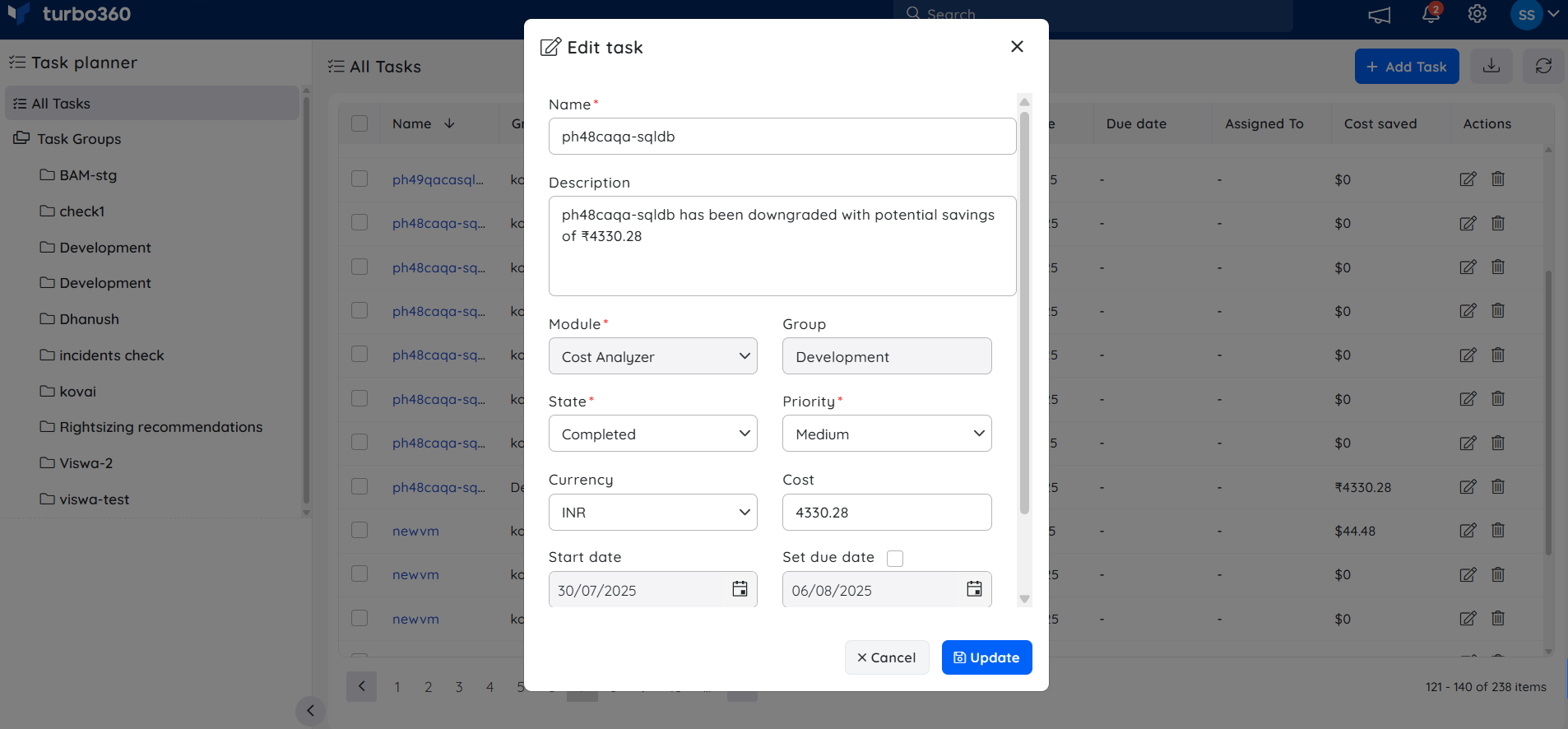
- Each task outlines the resource name, the optimization strategy applied, and the resulting cost savings.
Accessing the task
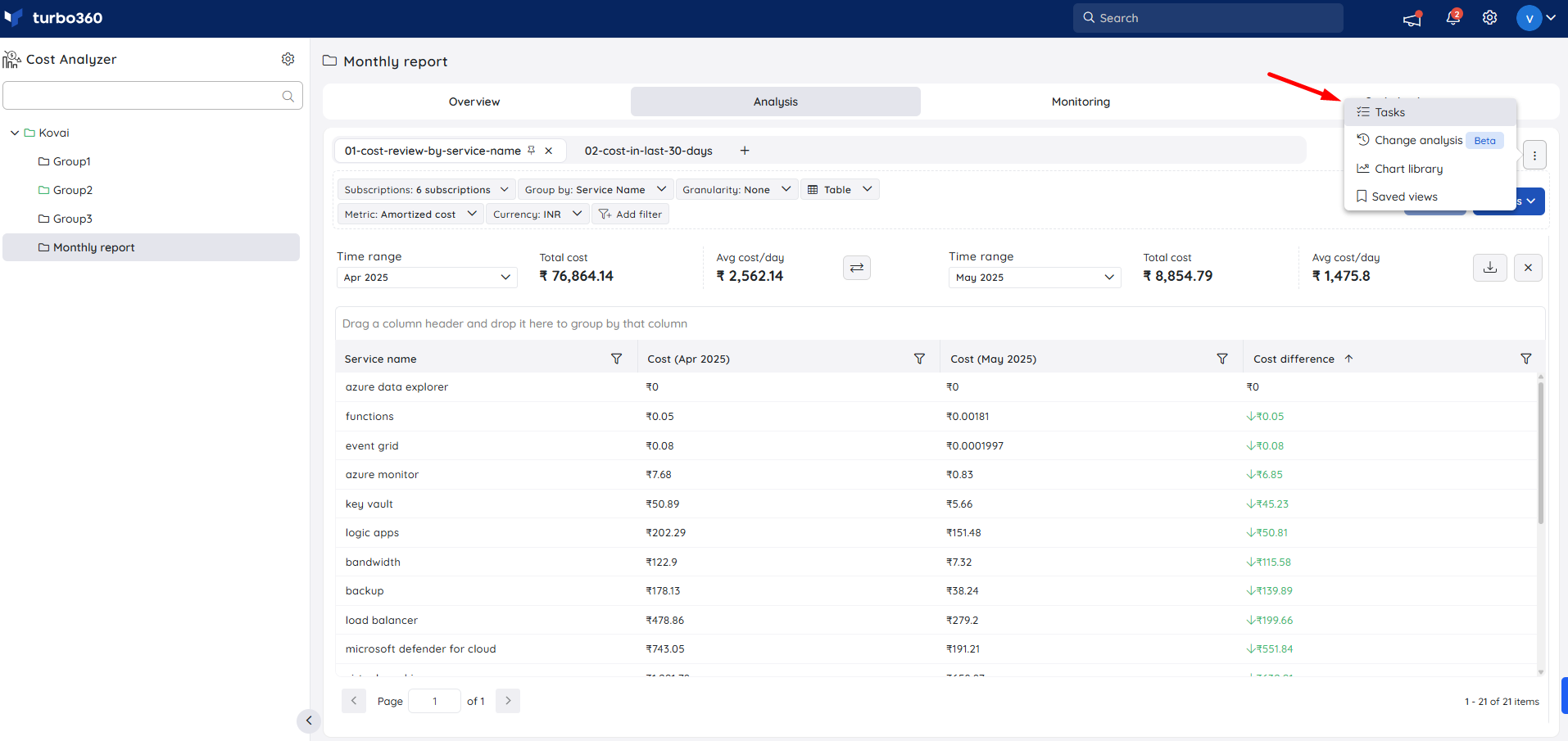
- The generated task will be available in the respective cost management group by clicking Tasks option from the three-dotted menu available within the Analysis section.
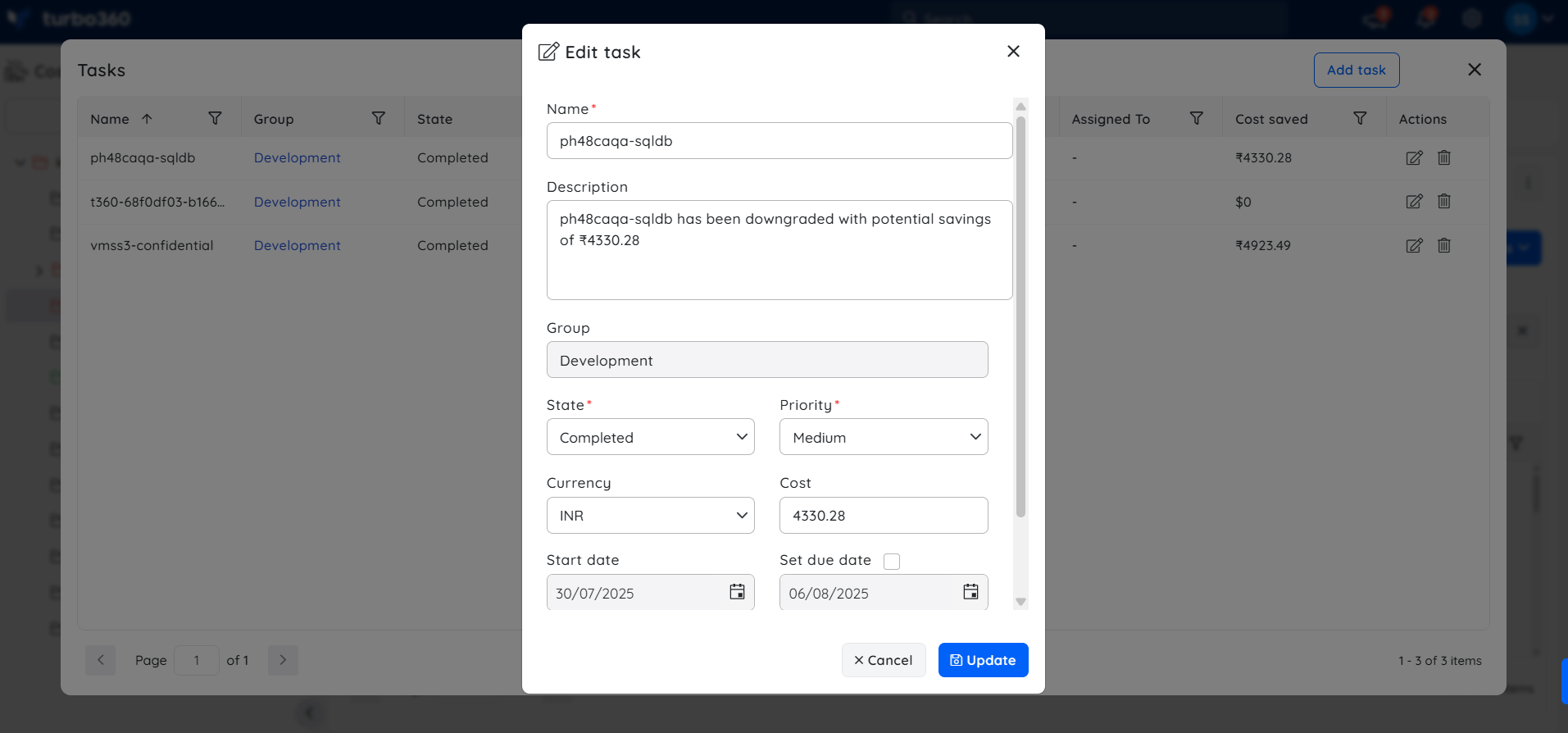
- Alternatively, the task can also be accessed through the Task Planner, available under the My Profile dropdown, for broader visibility across groups.
Recommendation notification
Advanced rightsizing recommendations can be notified as a recommendation report, allowing a specific team (or) team member to prioritize actions for a particular resource.
- Select a rightsizing recommendation
- Click Actions -> Trigger notification
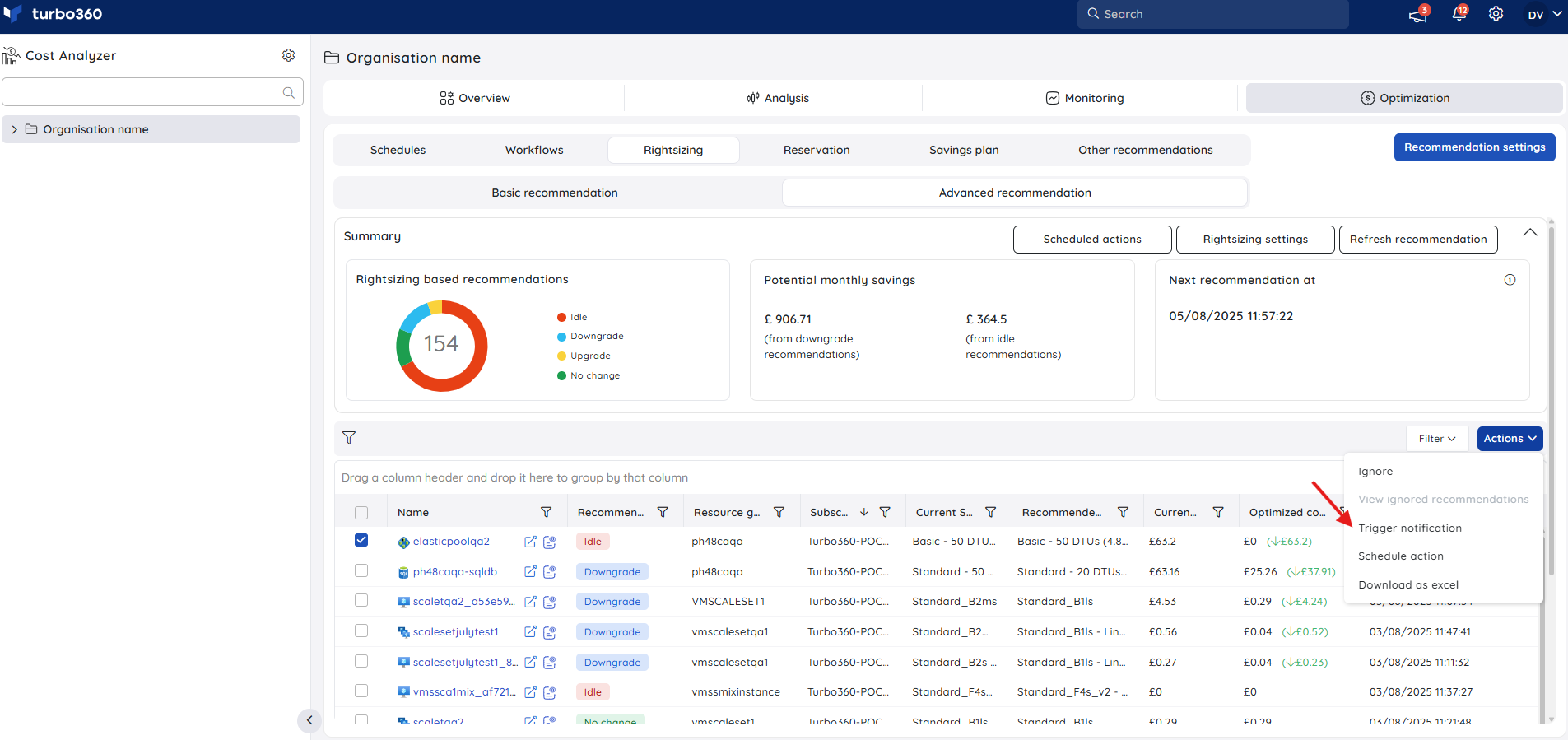
- Choose the desired channels (or) configure recipient mail address
- Click Send
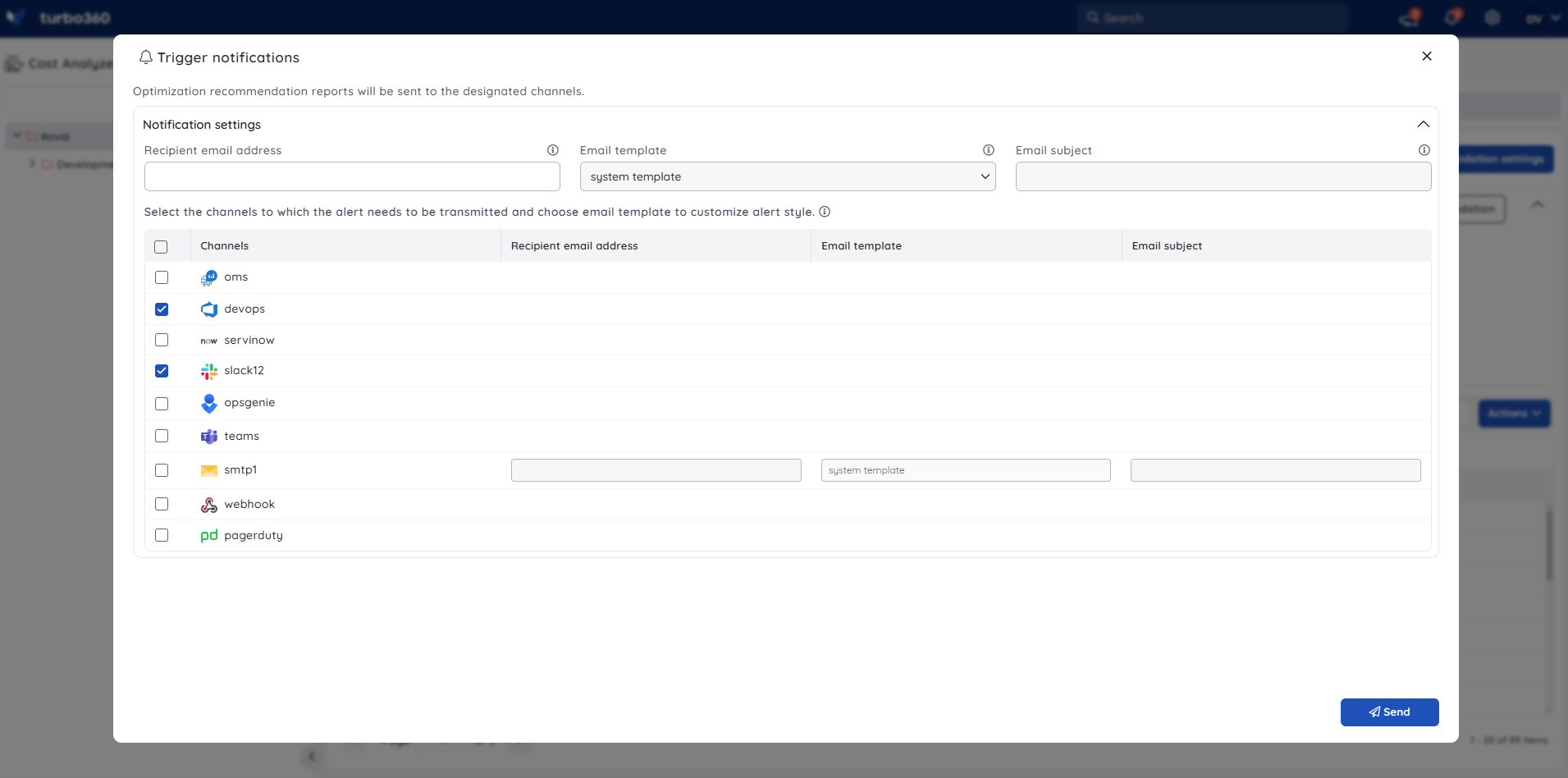
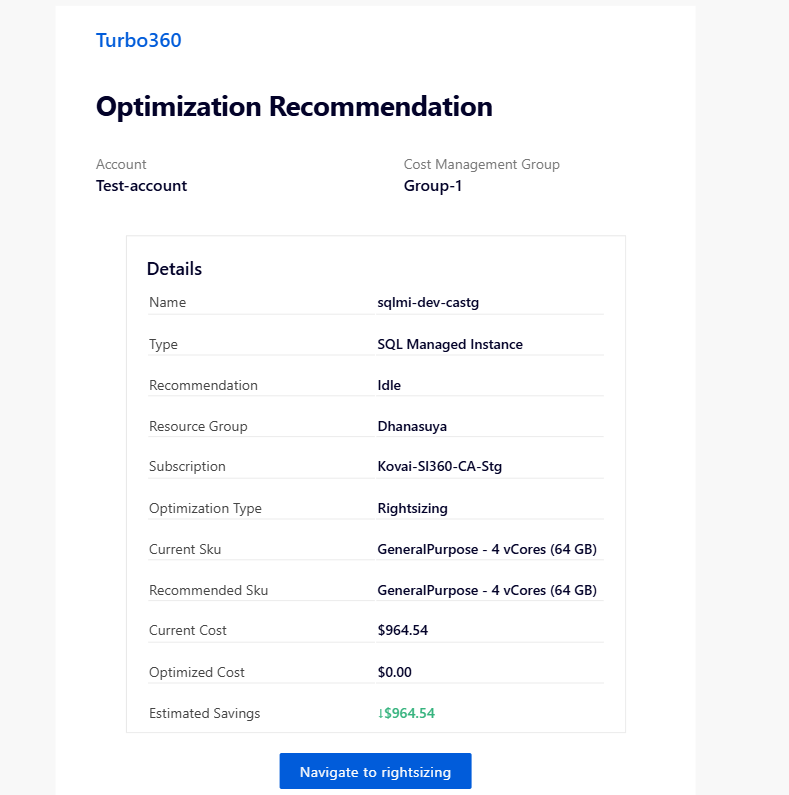
The recommendation data will be sent as a report to the configured channels.
Maximum of 10 recommendations can be selected to trigger a consolidated notification.
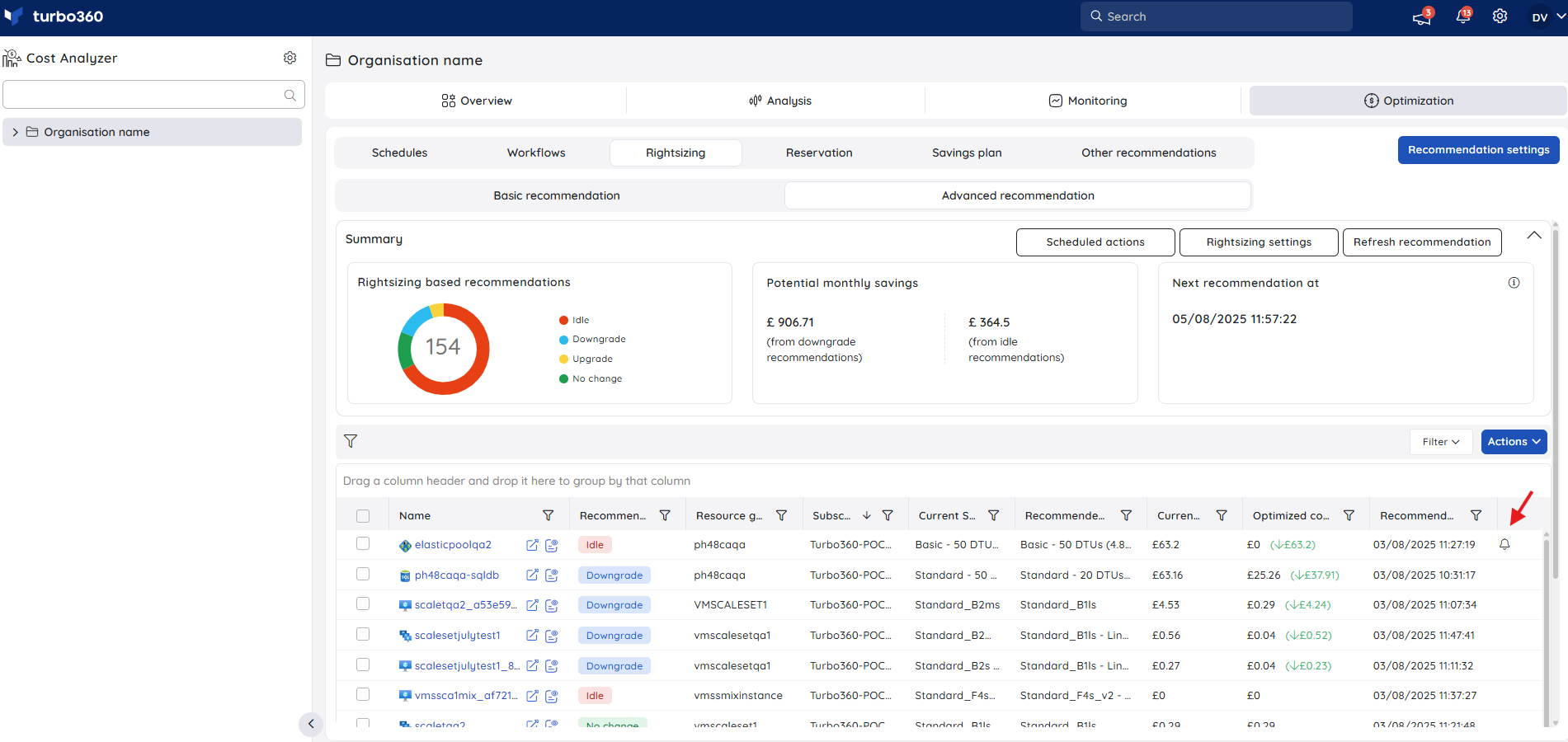
A bell icon will appear next to any recommendation for which a notification has been triggered. Clicking the icon will reveal the notification details.
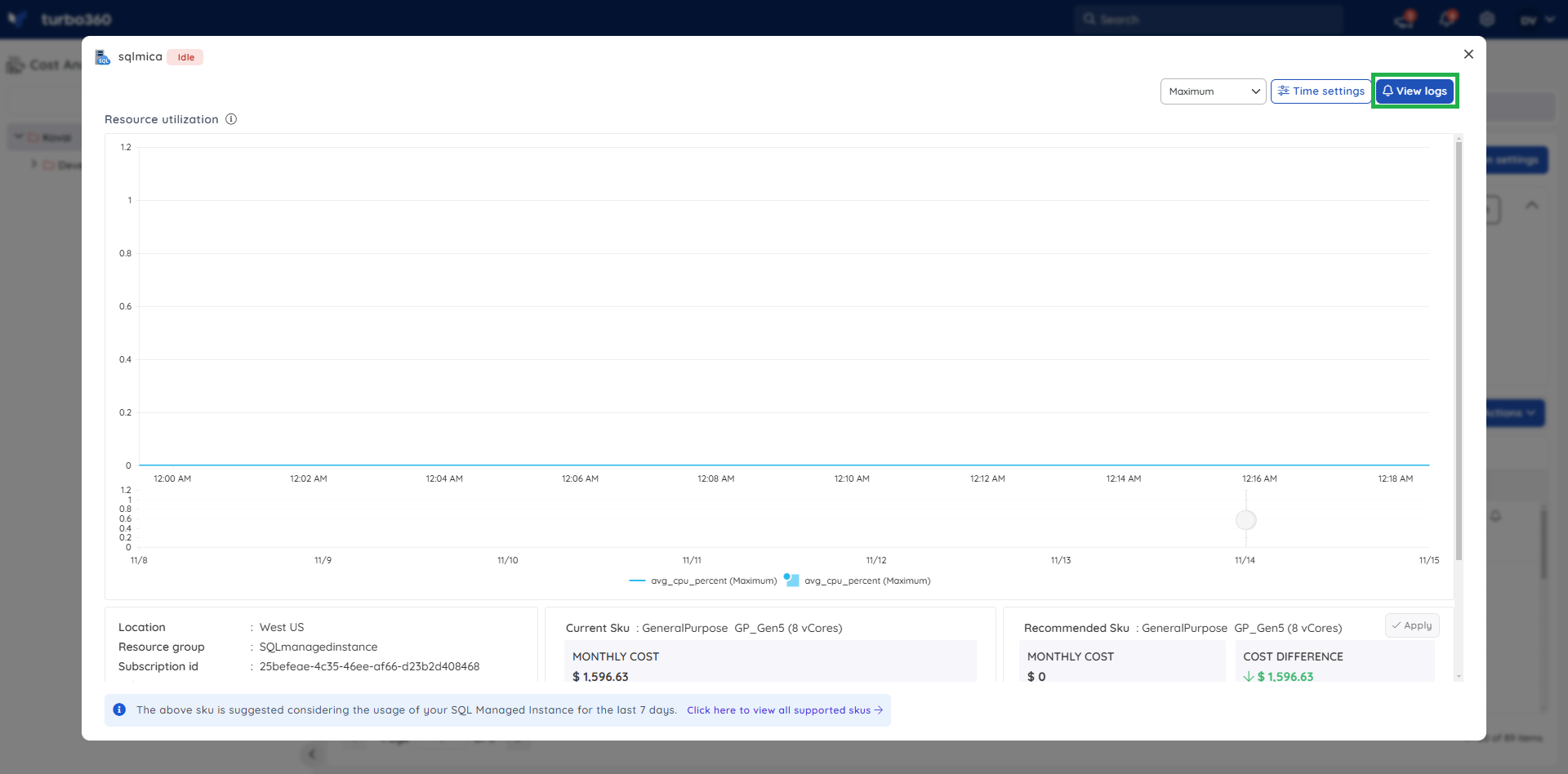
The View logs button, accessible when viewing a recommendation with an active notification, will also display the details of that notification.
Below is an image of recommendation report received via mail after triggering it for a rightsizing recommendation:
Export Rightsizing recommendations
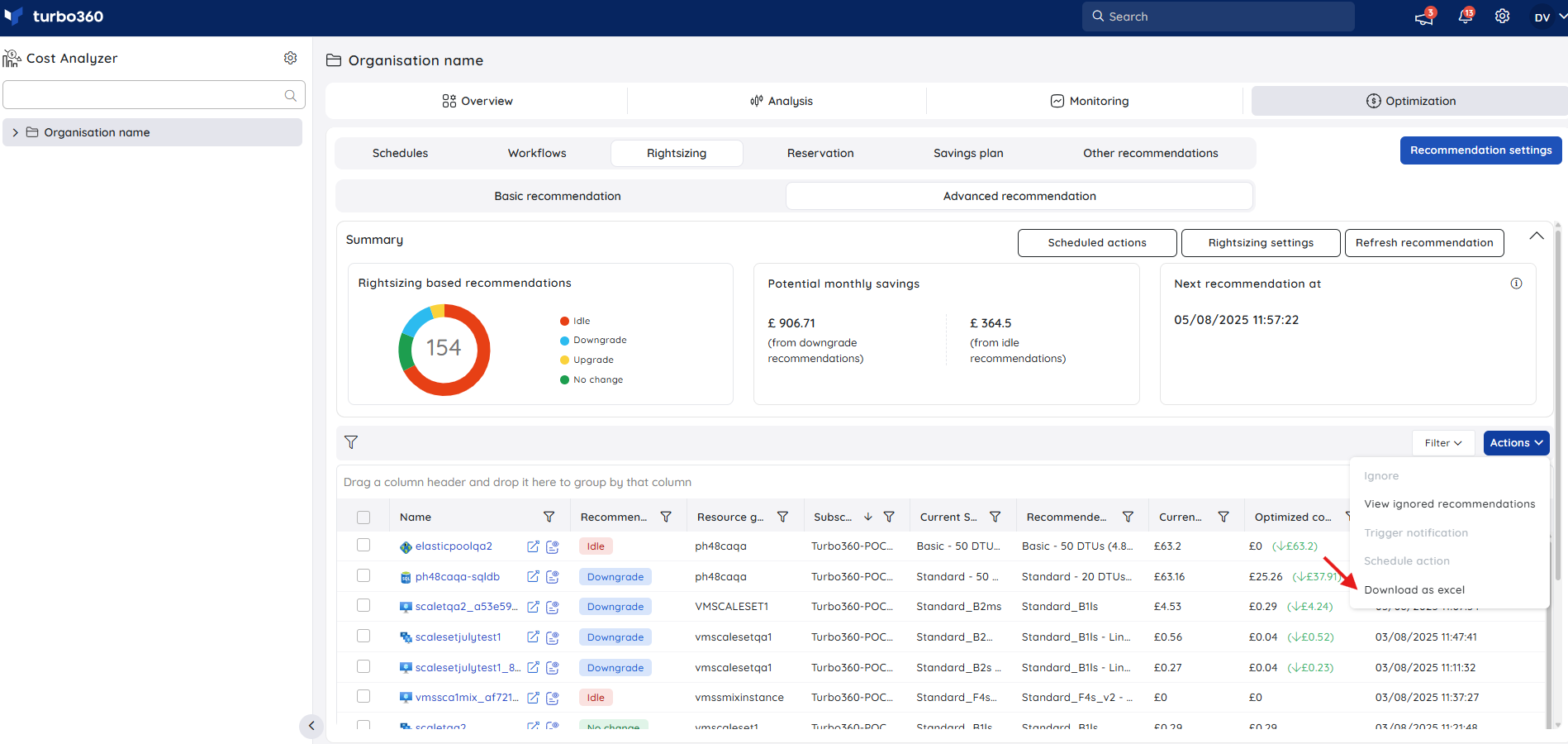
Advanced recommendations can be downloaded as an excel workbook.
- Click Actions -> Download as excel option to export the rightsizing recommendations in an excel worksheet.
Downloaded excel file contains the basic details of the resources and its recommendation.
Was this article helpful?