

Activity log monitoring
- 05 Aug 2026
- 4 Minutes to read
- Print
- DarkLight
- Download PDF
Activity log monitoring
- Updated on 05 Aug 2026
- 4 Minutes to read
- Print
- DarkLight
- Download PDF
Article summary
Did you find this summary helpful?
Thank you for your feedback!
Overview
Activity log monitoring lets you track significant Azure Activity Log entries for resources within a Business Application that can affect Azure health or cost. Turbo360 surfaces these entries as configurable rules — at the individual resource level or across a monitoring profile — so you can catch impactful operations without checking the Azure portal directly.
Business value
Activity log monitoring eliminates the need to manually review the Azure Activity Log per resource. Configure rules once and receive proactive alerts when an operation breaches an expected threshold, reducing the time it takes to detect Azure health or cost-impacting changes.
Prerequisites
The resource must be associated with a Business Application. The following tier-1 resource types support full management and monitoring operations, including activity log monitoring:
| Resource type |
|---|
| API App |
| APIM Service |
| App Service Certificate |
| Application Insights |
| Azure Function App |
| Data Factory |
| Event Grid Domain |
| Event Grid Topic |
| Integration Account |
| Key Vault |
| Kubernetes Service |
| Log Analytics Workspace |
| Logic App |
| Logic App (Standard) |
| Runbook |
| SQL Database |
| SQL Elastic Pool |
| Virtual Machine |
| Virtual Network Gateway |
| Web App |
Note:
Additional resource types — including App Service Plan, API Connection, and others — also support activity log monitoring. The list above covers tier-1 resources only.
Required permissions
Permission requirements differ depending on where the activity log rule is configured:
- Resource-level rules — requires at least Read access on the resource, plus Manage permission on the resource's Monitoring feature.
- Profile-level rules — requires Manage permission on the Monitoring profiles feature. This permission is assigned through custom role creation (RBAC) in the Business Applications module.
.png)
How it works
- Compatible resources expose an Activity logs tab under their Monitoring section, where you can add rules from a set of available categories and operations.
- Activity logs is also available as a rule category when configuring rules through a monitoring profile, so a single profile can apply activity log rules across multiple resources of the same type.
- An alert is triggered when a configured operation's status breaches the expected error threshold you've set.
- Rules can be configured independently at resource level and at profile level. A resource can have both; profile-level rules apply to every resource of that type linked to the profile.
Note:
If an activity log operation is not available in Azure, its monitoring value is shown as NA.
Steps
Use the following steps to configure activity log rules at the resource level or across multiple resources using a monitoring profile. Navigate to the resource's Monitoring section in the tree view to get started.
Configure a resource-level rule
Configuring a rule at the resource level monitors a specific operation for that resource only.
- Open the resource and navigate to its Monitoring section.
- Select the Activity logs tab.
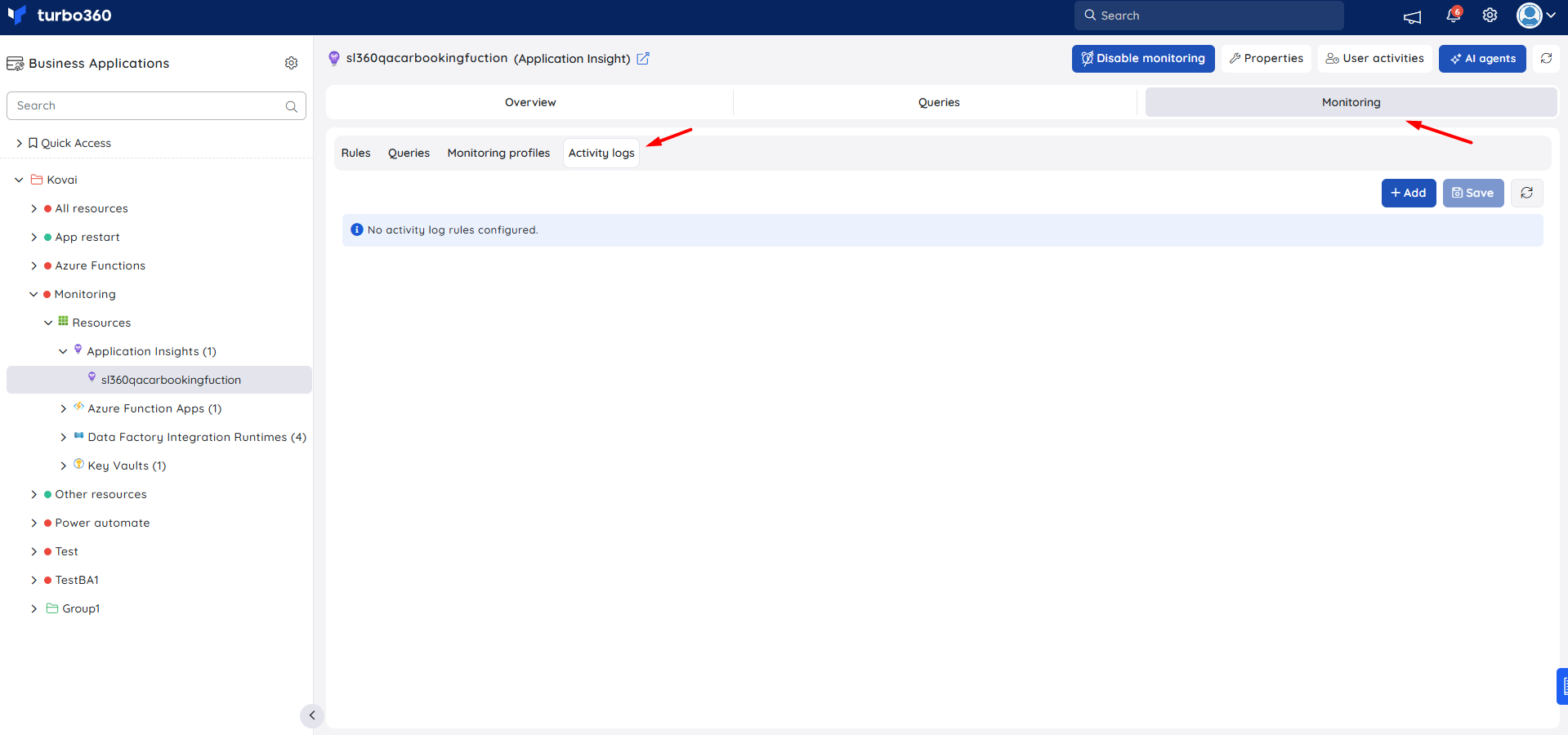
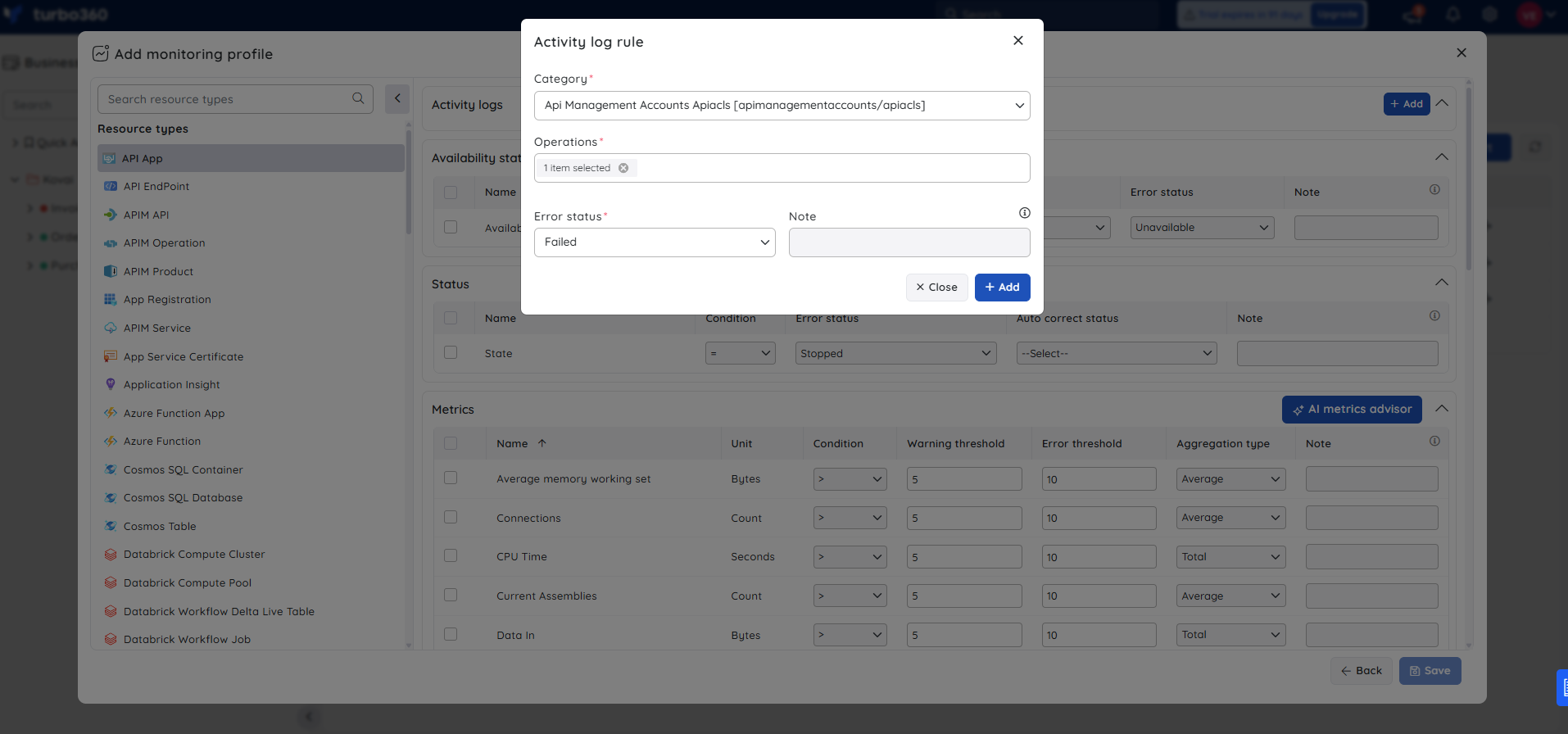
- Choose a category and the specific operation you want to monitor.
- Set the expected error threshold for the operation.
- Select Save.
Configure a profile-level rule
Configuring a rule at the monitoring profile level applies it to every resource of that type linked to the profile, eliminating per-resource setup.
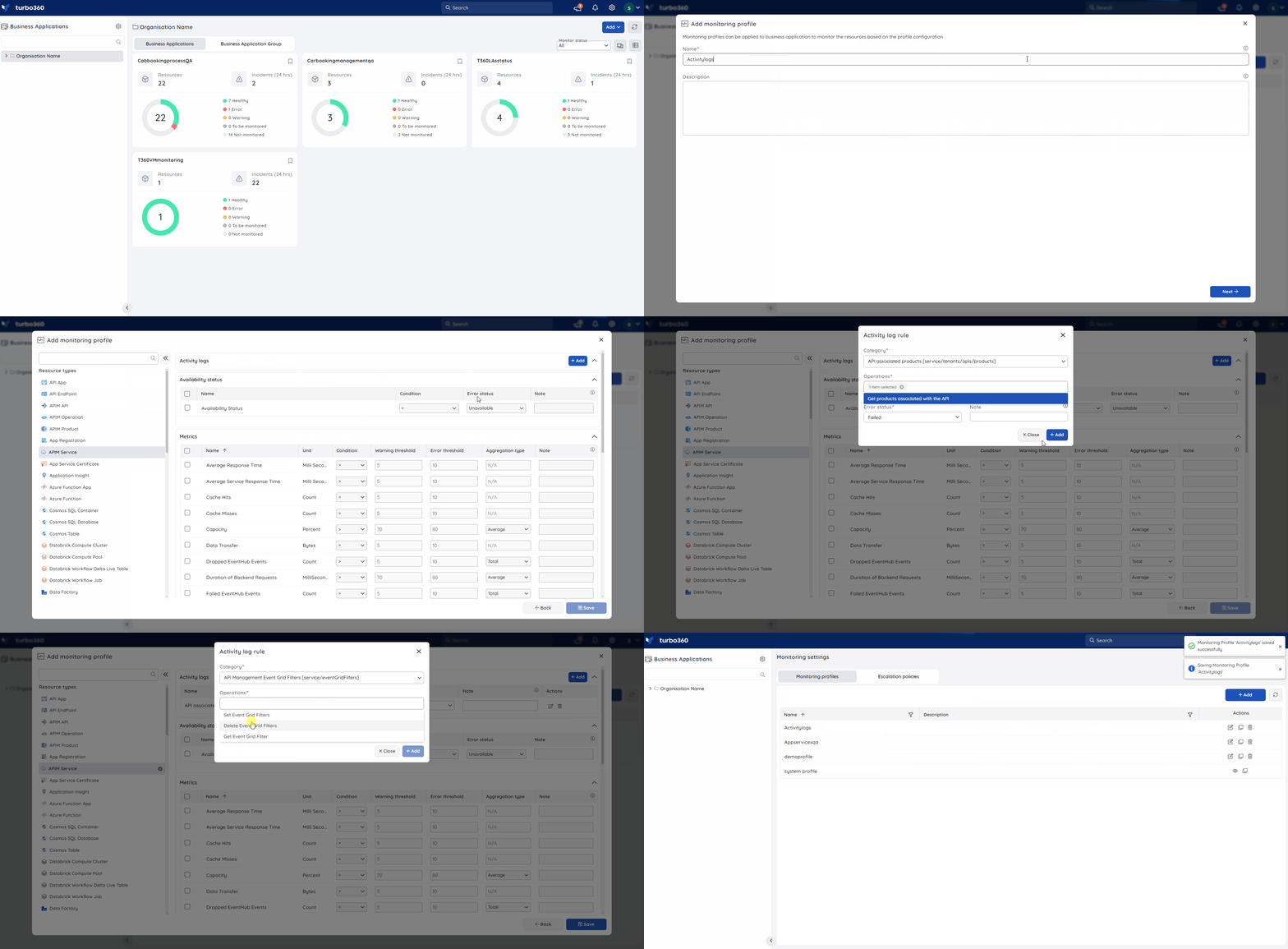
Open the monitoring profile for the relevant resource type.
Select Activity logs as the rule category.
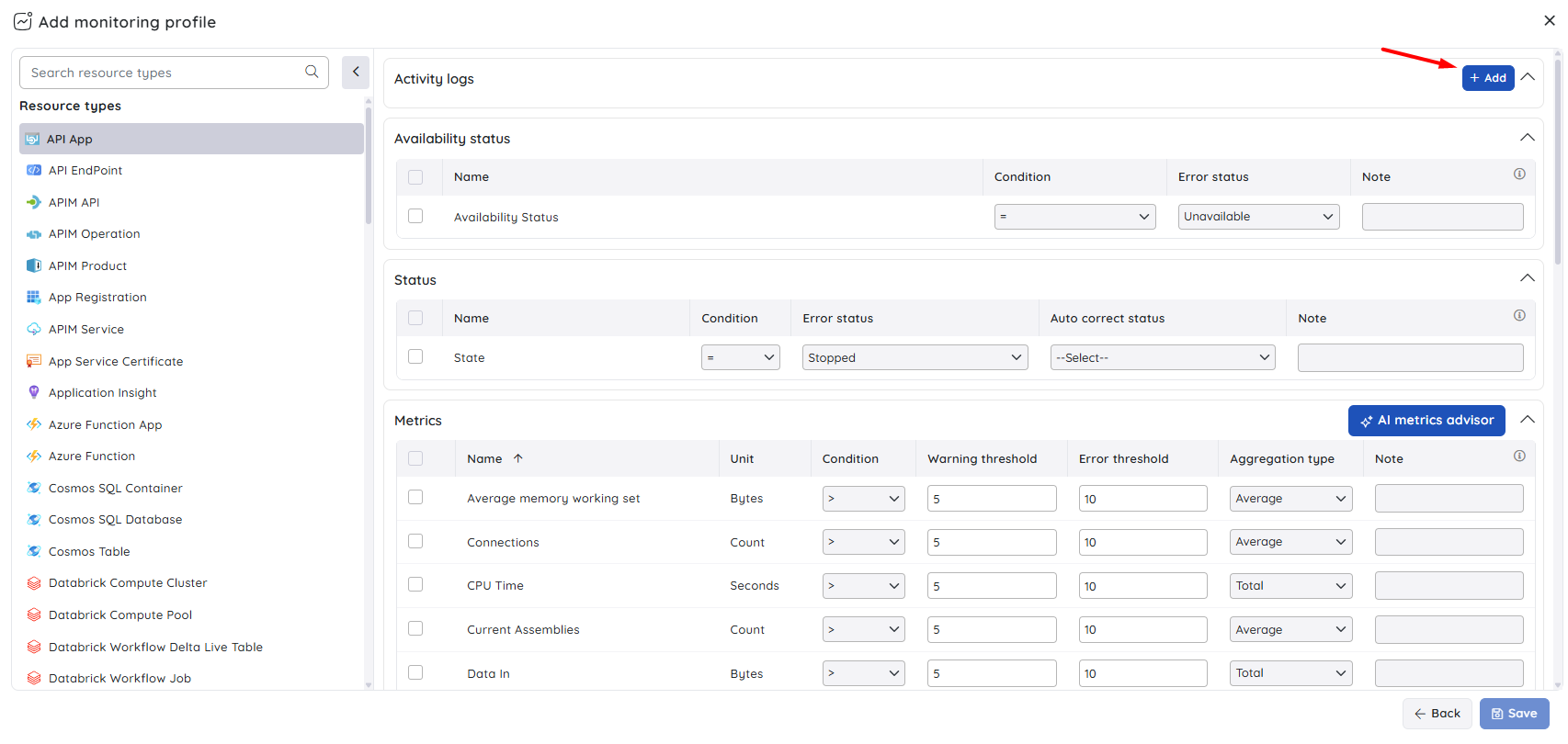
Choose the category and operation, then set the expected error threshold.
Select Save.
Configuration
| Option | Description |
|---|---|
| Category | The Activity Log category to monitor (resource-dependent). |
| Operation | The specific operation within the selected category. |
| Expected error threshold | The error count or rate that triggers a violation alert. |
Example scenario
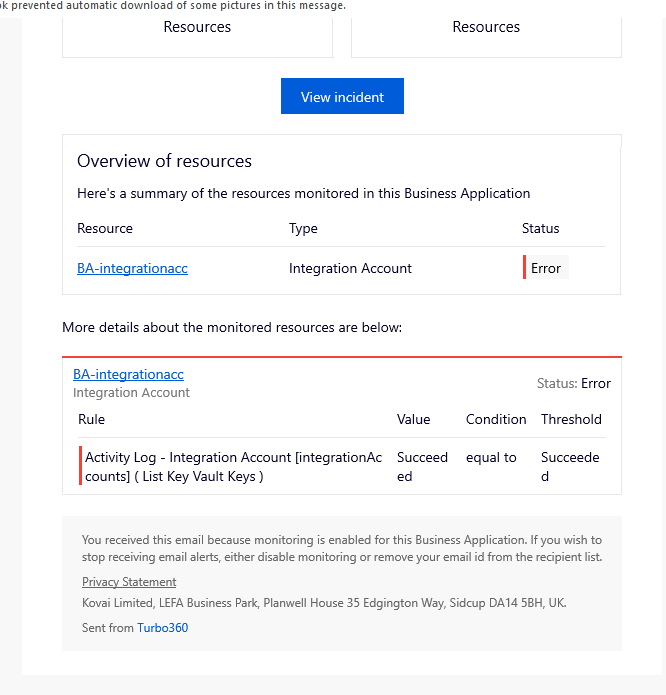
For an Integration Account, you configure an activity log rule to monitor a specific operation category. When that operation's status breaches the configured error threshold, Turbo360 triggers a violation alert so you can investigate before the issue affects downstream processes.
Permission behavior
Resource-level rules: With Read access on the resource and Manage permission on its Monitoring feature, you can create, edit, and delete activity log rules for that resource. With Read permission only, you can view existing rules but cannot modify them.
Profile-level rules: Configuring activity log rules through a monitoring profile requires Manage permission on the Monitoring profiles feature. This is assigned via custom role creation (RBAC) in the Business Applications module. Without this permission, profile-level rule configuration is unavailable.
Troubleshooting
- Monitoring value shows as NA
Cause: The configured activity log operation isn't available for that resource in Azure.
Fix: Choose a different supported operation, or verify in the Azure portal whether the operation applies to this resource type. - Activity logs tab or rule options are read-only
Cause: Your account has only Read permission on the resource's Monitoring area.
Fix: Request Manage permission for Monitoring on that resource from your administrator.
FAQs
- Can I configure activity log rules at both the resource level and the monitoring profile level?
Yes. Resource-level rules apply to that single resource only. Profile-level rules apply to every resource of that type linked to the profile. Both can be active at the same time. - What happens if an activity log operation isn't available in Azure for a resource?
The monitoring value for that operation is shown as NA. - What permissions do I need to configure activity log rules?
It depends on where you are configuring the rule. For resource-level rules, you need at least Read access on the resource plus Manage permission on its Monitoring feature. For profile-level rules, you need Manage permission on the Monitoring profiles feature, assigned via custom role creation (RBAC) in the Business Applications module.
Related articles
Was this article helpful?