

Additional service principal permissions
- 05 Aug 2026
- 3 Minutes to read
- Print
- DarkLight
- Download PDF
Additional service principal permissions
- Updated on 05 Aug 2026
- 3 Minutes to read
- Print
- DarkLight
- Download PDF
Article summary
Did you find this summary helpful?
Thank you for your feedback!
Overview
This article explains how to assign the optional Azure role assignments that Turbo360 needs to surface reservation and savings plan data in Cost Analyzer. These roles are separate from the core service principal permissions and are only required if your organization uses Azure Reserved Instances or Savings Plans.
Business value
Without these roles, Cost Analyzer cannot read reservation or savings plan coverage data, which limits the accuracy of optimization recommendations and realized savings calculations. Assigning these roles gives Turbo360 read-only visibility into your commitment-based discounts — enabling more complete cost analysis without granting write access.
Prerequisites
Before assigning these roles, ensure the following are in place:
- The Turbo360 App Registration (service principal) has already been created in Azure Active Directory.
- You have completed the core service principal setup in Turbo360.
- You have a role in Azure that permits editing Reservation or Savings Plan role assignments (see Troubleshooting below if you are unsure).
Required permissions
To assign the Reservations Reader role, you must hold one of the following Azure roles: Reservations Administrator, Global Administrator (with Azure resource elevation enabled), Billing Profile Owner (MCA), or Enterprise Administrator (EA).
To assign the Savings Plan Reader role, you must hold one of the following Azure roles: Savings Plan Administrator, Global Administrator (with Azure resource elevation enabled), Billing Profile Owner (MCA), or Enterprise Administrator (EA).
Steps
Use the following steps to assign the Reservation Reader and Savings Plan Reader roles to the Turbo360 service principal. Both procedures follow the same pattern in the Azure portal.
Assign the Reservations Reader role
Assigning this role allows Turbo360 to read your Azure reservation data and reflect it accurately in cost analysis and savings calculations.
- In the Azure portal, search for Reservations in the top menu and open it.
- Select Role assignments.
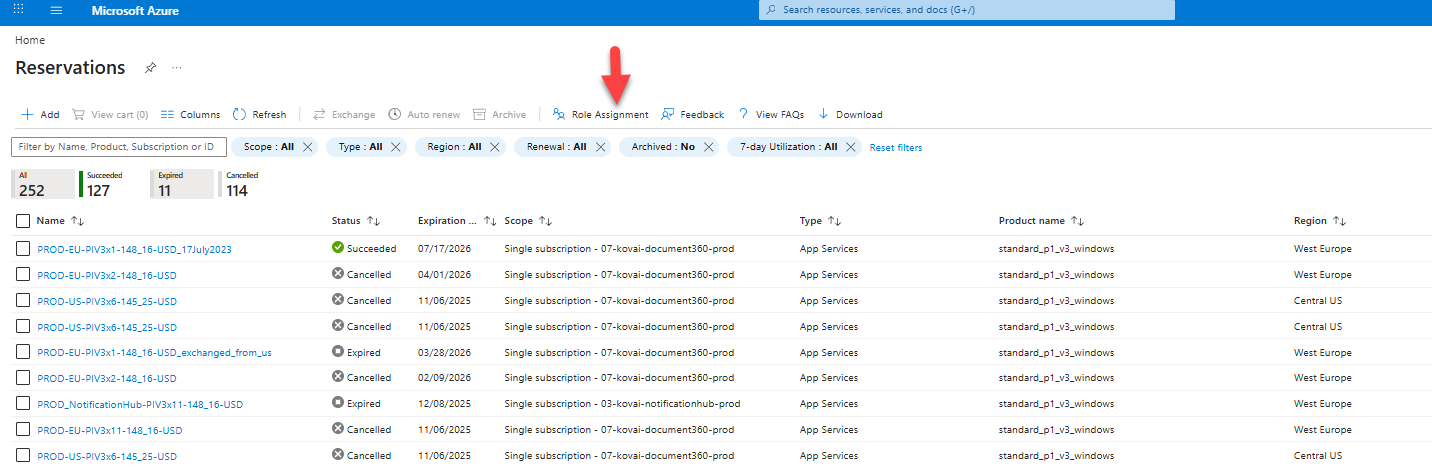
- Select Add > Add role assignment.
- Select the Reservations Reader role and click Next.
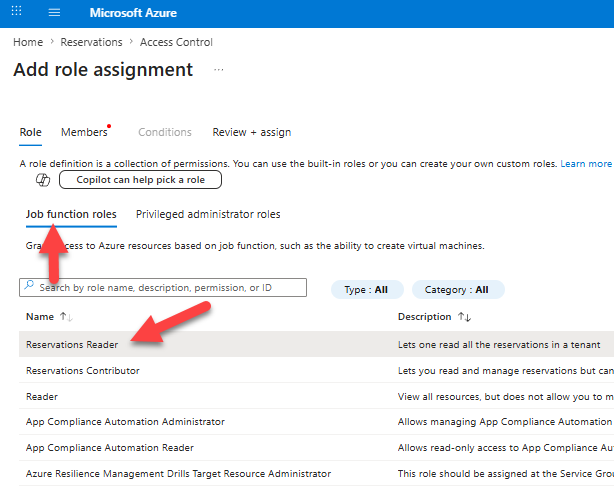
- Under Members, select the Turbo360 App Registration and click Next.
- Click Review + assign.
Assign the Savings Plan Reader role
Assigning this role allows Turbo360 to read your Azure savings plan data and include it in commitment coverage and cost optimization analysis.
- In the Azure portal, search for Savings Plans in the top menu and open it.
- Select Role assignments.
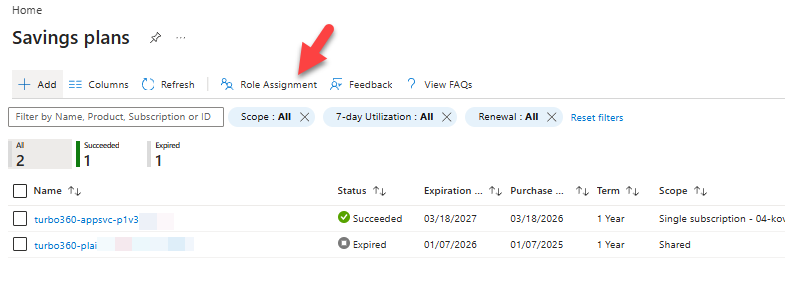
- Select Add > Add role assignment.
- Select the Savings Plan Reader role and click Next.
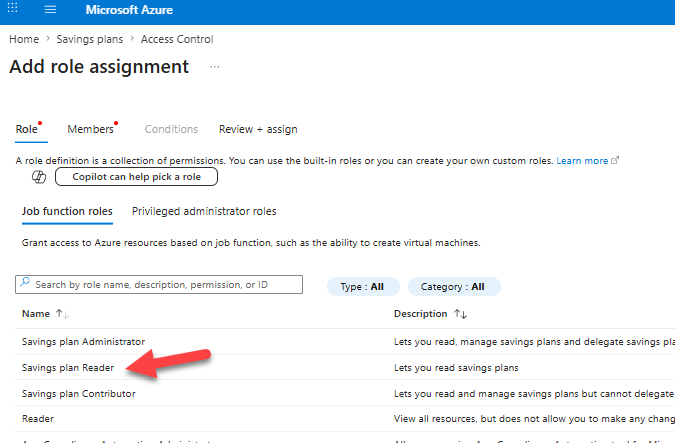
- Under Members, select the Turbo360 App Registration and click Next.
- Click Review + assign.
Troubleshooting
- The Add role assignment option is greyed out or missing for Reservations.
Cause: You do not have a role that permits editing Reservation role assignments.
Fix: Ask an administrator who holds one of the following roles to perform the assignment: Reservations Administrator, Global Administrator (with Azure resource elevation), Billing Profile Owner (MCA), or Enterprise Administrator (EA). - The Add role assignment option is greyed out or missing for Savings Plans.
Cause: You do not have a role that permits editing Savings Plan role assignments.
Fix: Ask an administrator who holds one of the following roles to perform the assignment: Savings Plan Administrator, Global Administrator (with Azure resource elevation), Billing Profile Owner (MCA), or Enterprise Administrator (EA). - The Turbo360 App Registration does not appear in the Members search.
Cause: The App Registration may not yet exist in the tenant, or the search term does not match the registered name.
Fix: Confirm the App Registration name in Azure Active Directory > App registrations before searching. If it does not exist, complete the service principal setup in Turbo360 first. - The role was assigned but reservation or savings plan data is not appearing in Cost Analyzer.
Cause: Role assignment propagation in Azure can take a few minutes. Data may also not appear until the next scheduled import cycle.
Fix: Wait 5–10 minutes, then trigger a manual data refresh in Cost Analyzer. If data is still absent after the next import cycle, verify the role is listed under the service principal's role assignments in the Azure portal. - Global Administrator role is present but the assignment still fails.
Cause: Global Administrators must explicitly elevate access to manage Azure resources before they can assign reservation or savings plan roles.
Fix: In Azure Active Directory > Properties, enable Access management for Azure resources, then retry the role assignment.
Related articles
Was this article helpful?