

Advanced recommendations for Reservations
- 09 Aug 2026
- 17 Minutes to read
- Print
- DarkLight
- Download PDF
Advanced recommendations for Reservations
- Updated on 09 Aug 2026
- 17 Minutes to read
- Print
- DarkLight
- Download PDF
Article summary
Did you find this summary helpful?
Thank you for your feedback!
Overview
Advanced recommendations give you personalized, in-depth reservation guidance for compatible Azure services. Cost Analyzer evaluates the subscriptions in a cost management group — including current SKU values — and returns tailored purchase, SKU-change, and utilization recommendations, along with visibility into reservations you've already purchased.
Business value
Advanced recommendations enhance cost efficiency and performance by combining purchased-reservation visibility, usage trends, and SKU-aware recommendations in one place, so you can act on reservation opportunities and expiry risk without switching between the Azure portal and spreadsheets.
Prerequisites
Required permissions
Reservation Reader access must be granted to the service principal in Azure to view reservations and reservation-based recommendations.
To provide Reservation Reader access to the service principal:
- Navigate to the Reservations section in the Azure portal by searching Reservations in the search bar.
- Select the Role assignment option.

- Select Add role assignment > Reservation Reader from the available job function roles.
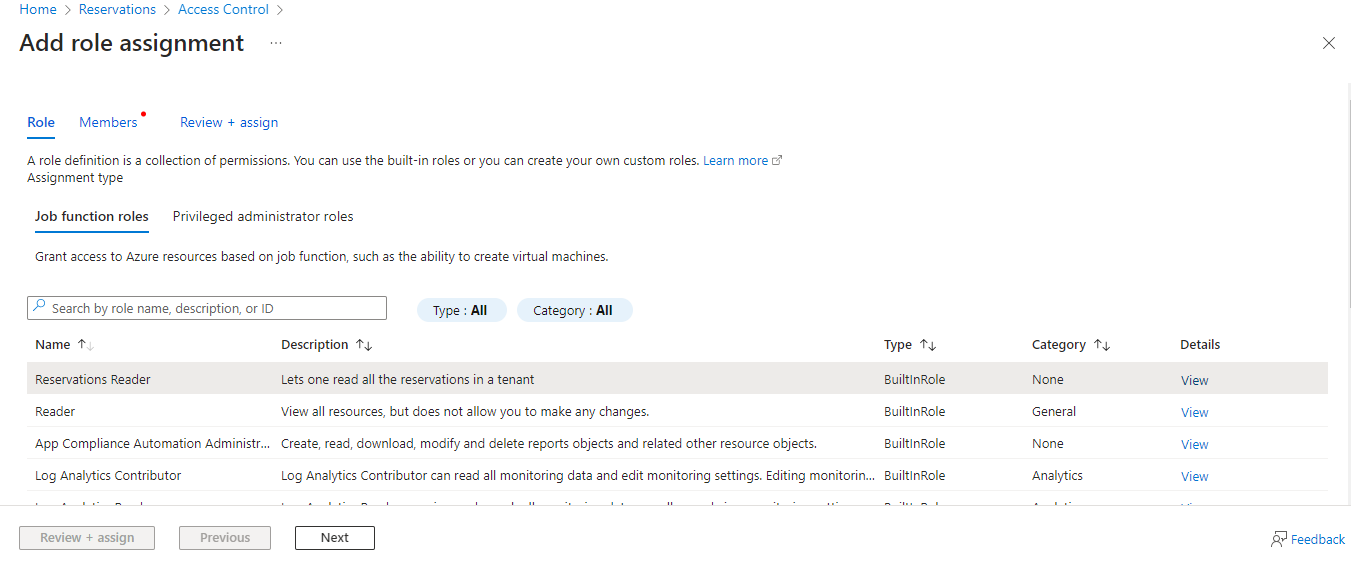
- Click Next and select the required service principal using the Select members option.
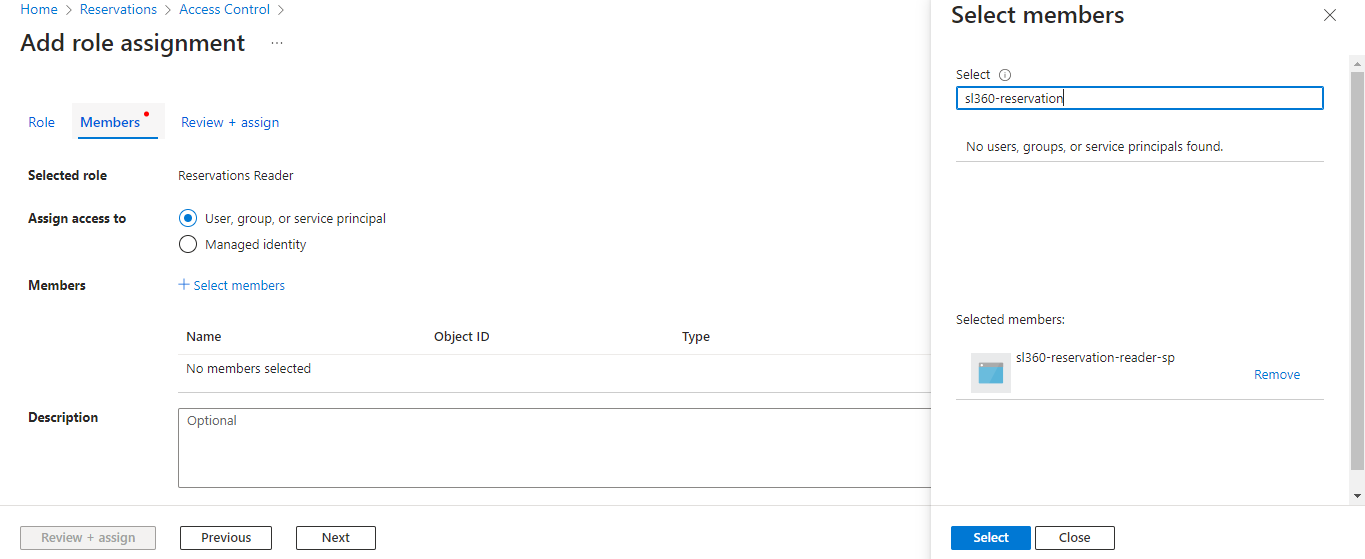
- Click Select and complete the process by selecting Review + assign.
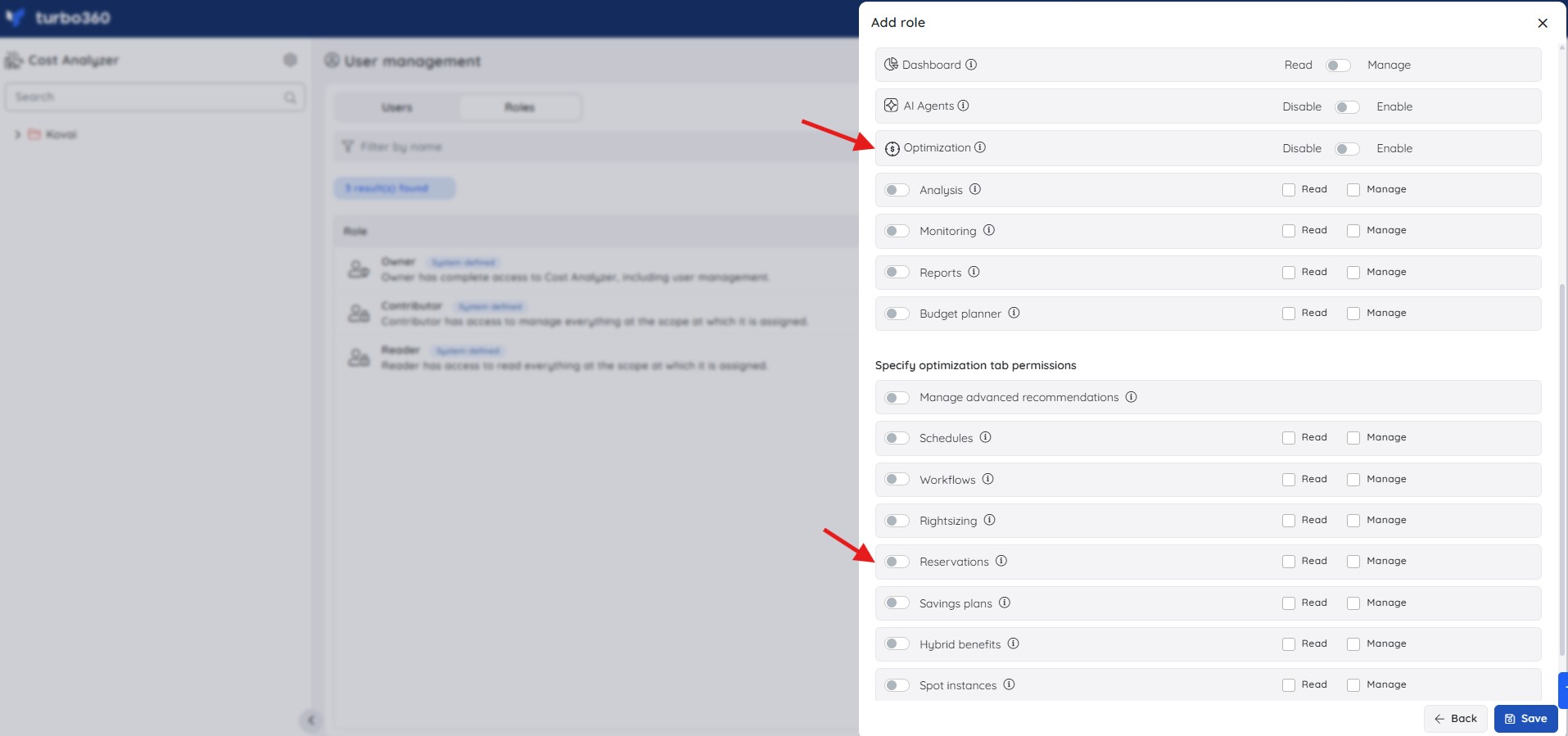
In addition, the following Turbo360 role permissions control access to Advanced recommendations within Cost Analyzer:
| Role | Permission level | Access |
|---|---|---|
| Account owner, Owner, Contributor | — | Full access to Advanced recommendations and Explain with AI |
| Custom role | Optimization feature enabled + Reservations: Read | View Advanced recommendations |
| Custom role | Optimization feature enabled + Reservations: Manage | Full access to Advanced recommendations |
| Custom role | AI Agents — Enable, Optimization — Enable, Reservations — Read (or Manage) | Access Explain with AI and Reservation advisor on any recommendation. Under Specify feature permissions, both AI Agents and Optimization must be set to Enable. Under Specify optimization tab permissions, Reservations must be toggled on with at least Read access. If any of the three is missing, the AI features are not available. |
Applying a recommended SKU additionally requires Contributor access on the Service Principal, regardless of role.
.jpg)
Azure portal redirect permissions
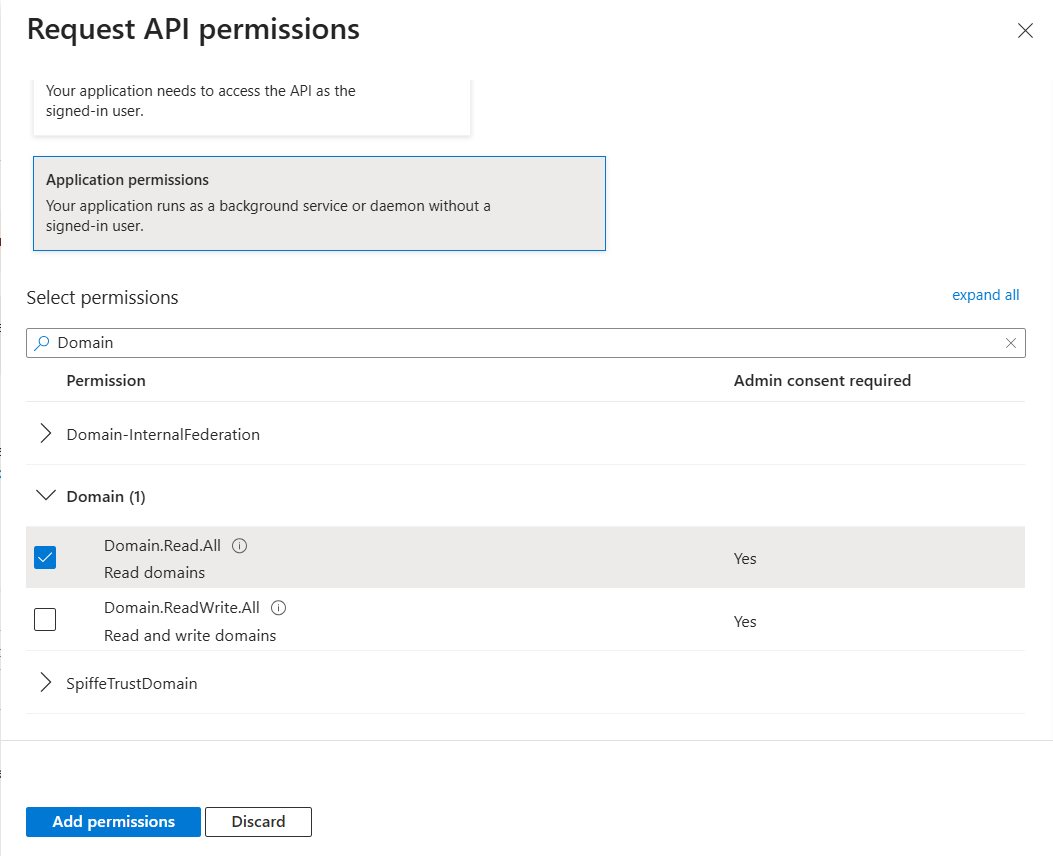
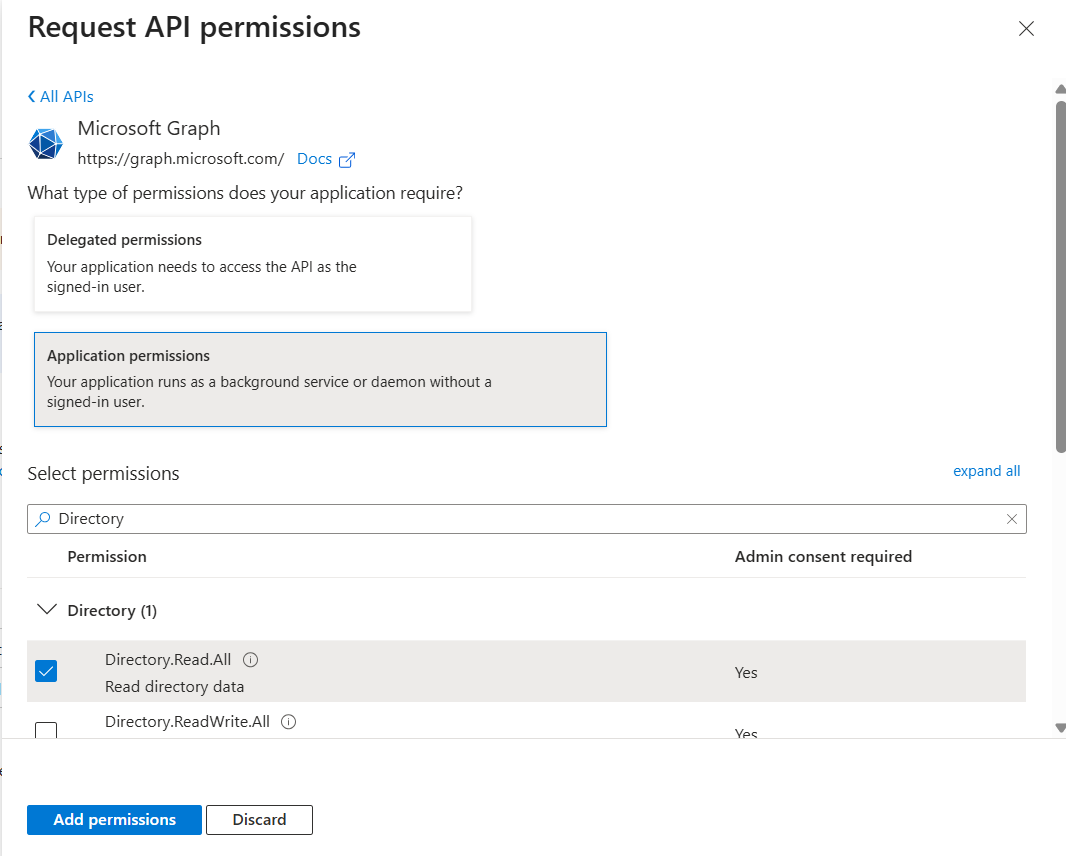
Redirecting to the Azure portal from any reservation recommendation requires the following Microsoft Graph application permissions to be granted on the app registration:
Directory.Read.AllDomain.Read.All
Ensure both permissions are granted with admin consent in the associated Microsoft Entra ID app registration.
How it works
Advanced recommendations present purchased-reservation data and cost-efficiency recommendations for the subscriptions in your cost group.
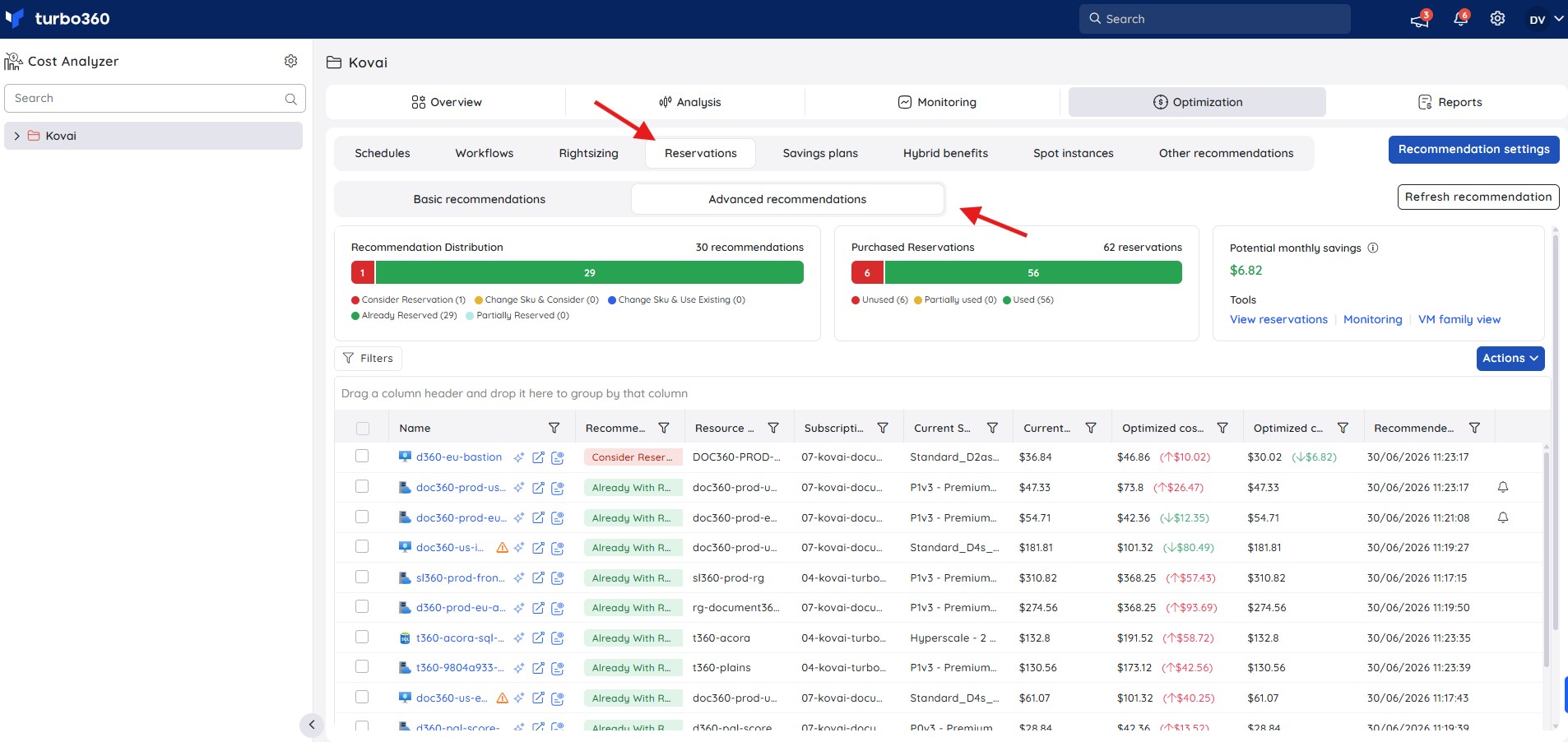
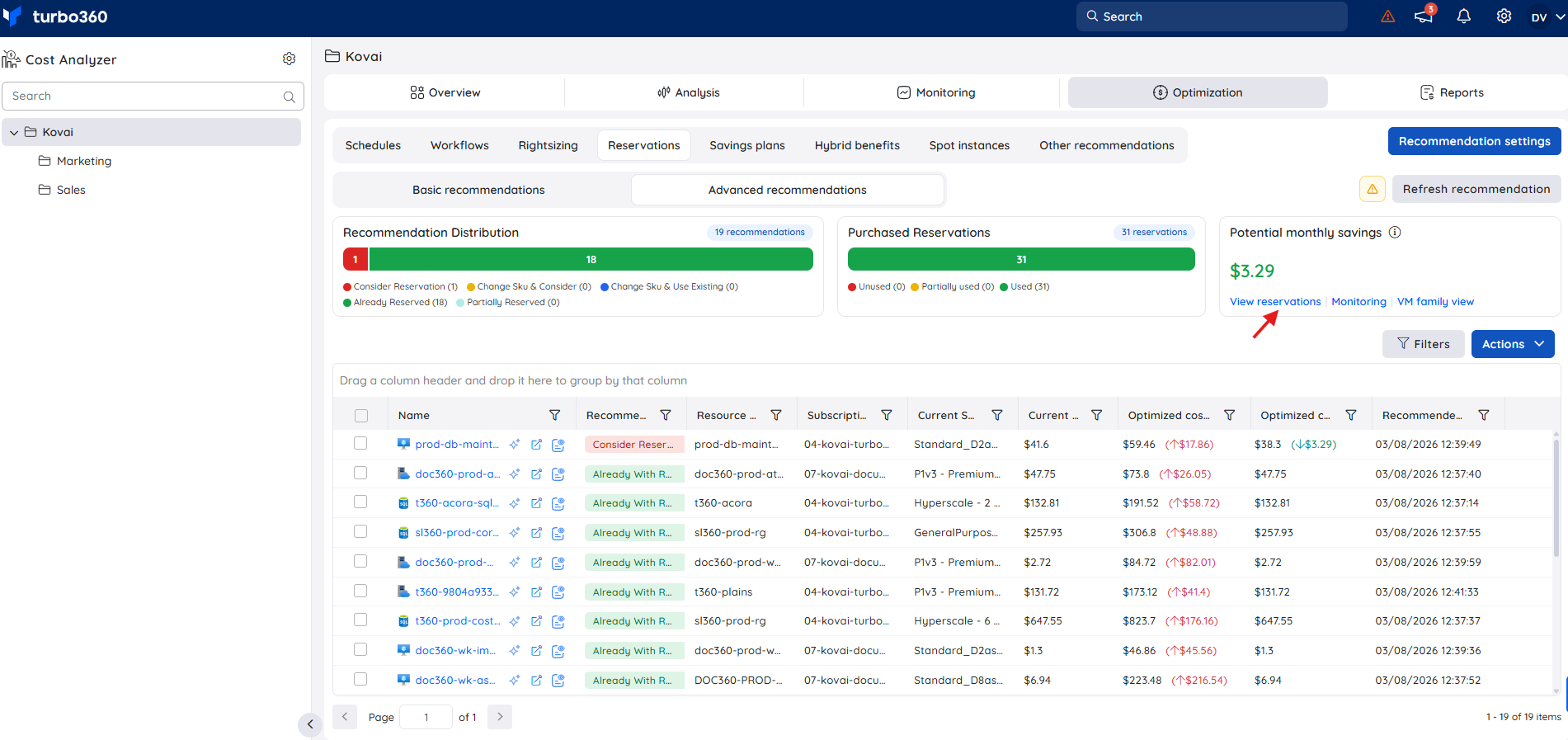
The Summary card provides an overview of reservation recommendations, showing their count, usage status, and estimated monthly savings.
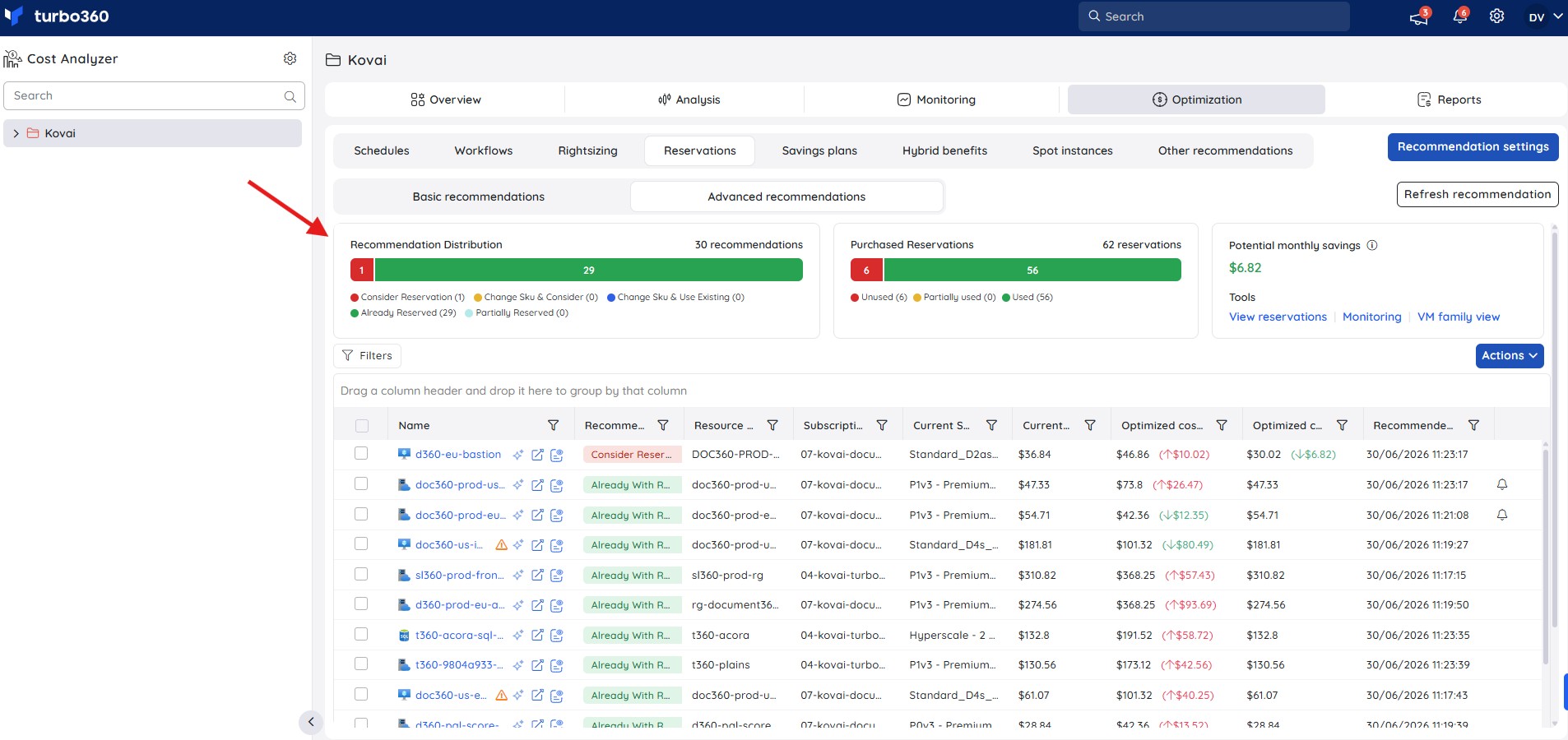
The View reservations option in the Tools card provides access to all purchased reservations irrespective of resource type, including types not compatible with advanced recommendations. Usage status is based on the last 7 days of utilization data: a reservation is shown as Used when utilization is 100%, and as Partially used when utilization is below 100%.
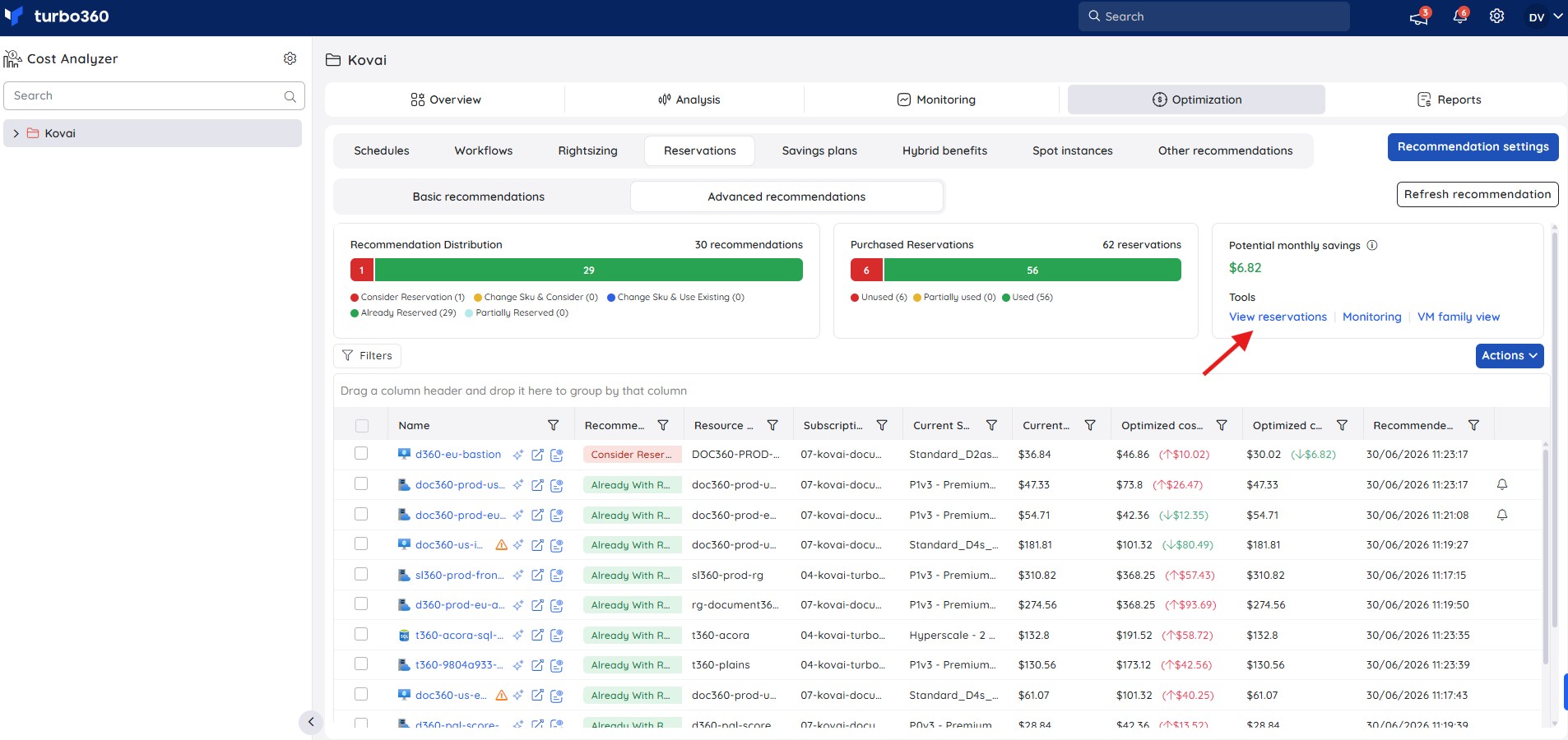
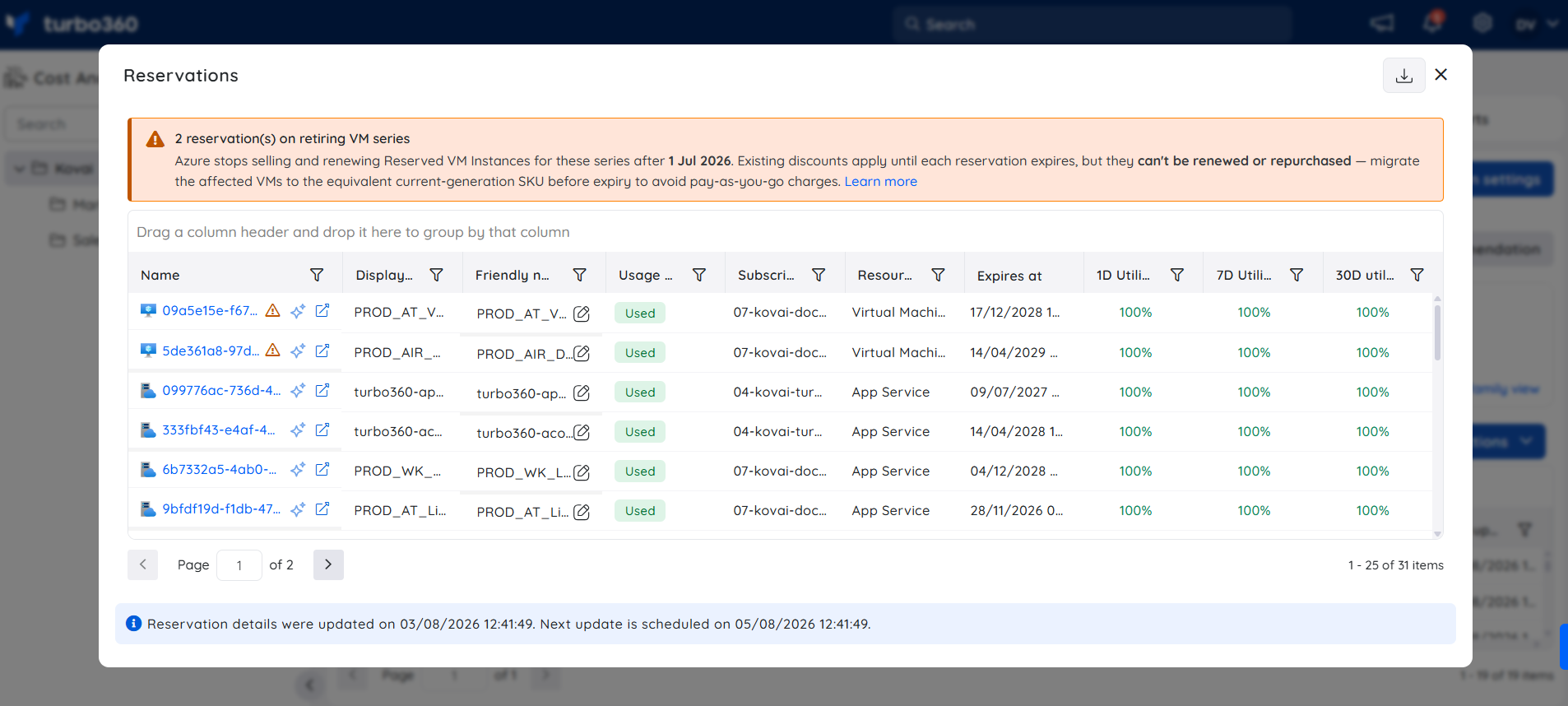
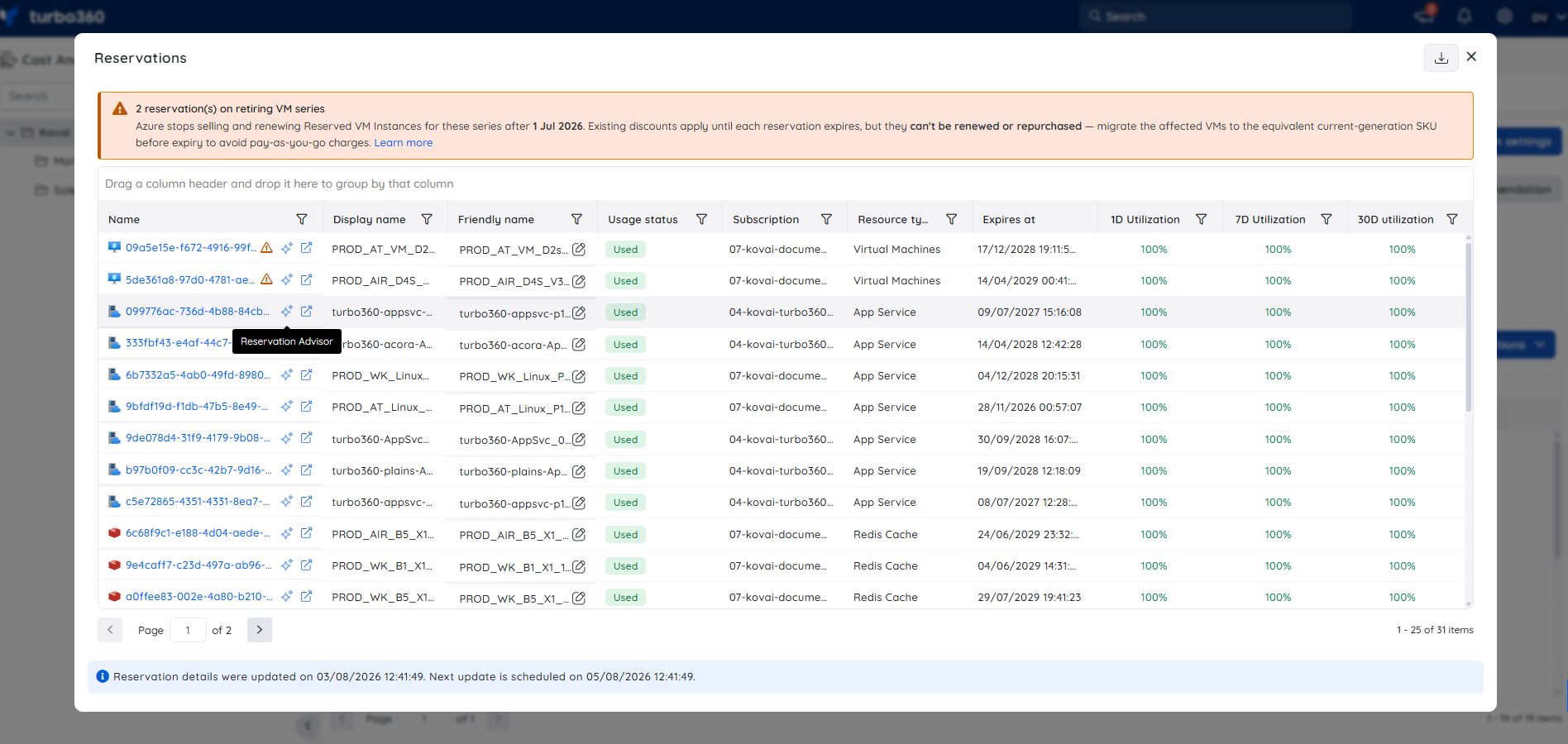
When purchased reservations include VM series that Azure is retiring, the Reservations panel displays a warning banner naming the affected reservations and the retirement date. Existing discounts continue until each reservation expires, but the reservation can't be renewed or repurchased — migrate the affected VMs to an equivalent current-generation SKU before expiry to avoid pay-as-you-go charges.
Each reservation in the list also includes a Reservation advisor icon. See the Reservation advisor section below for details.
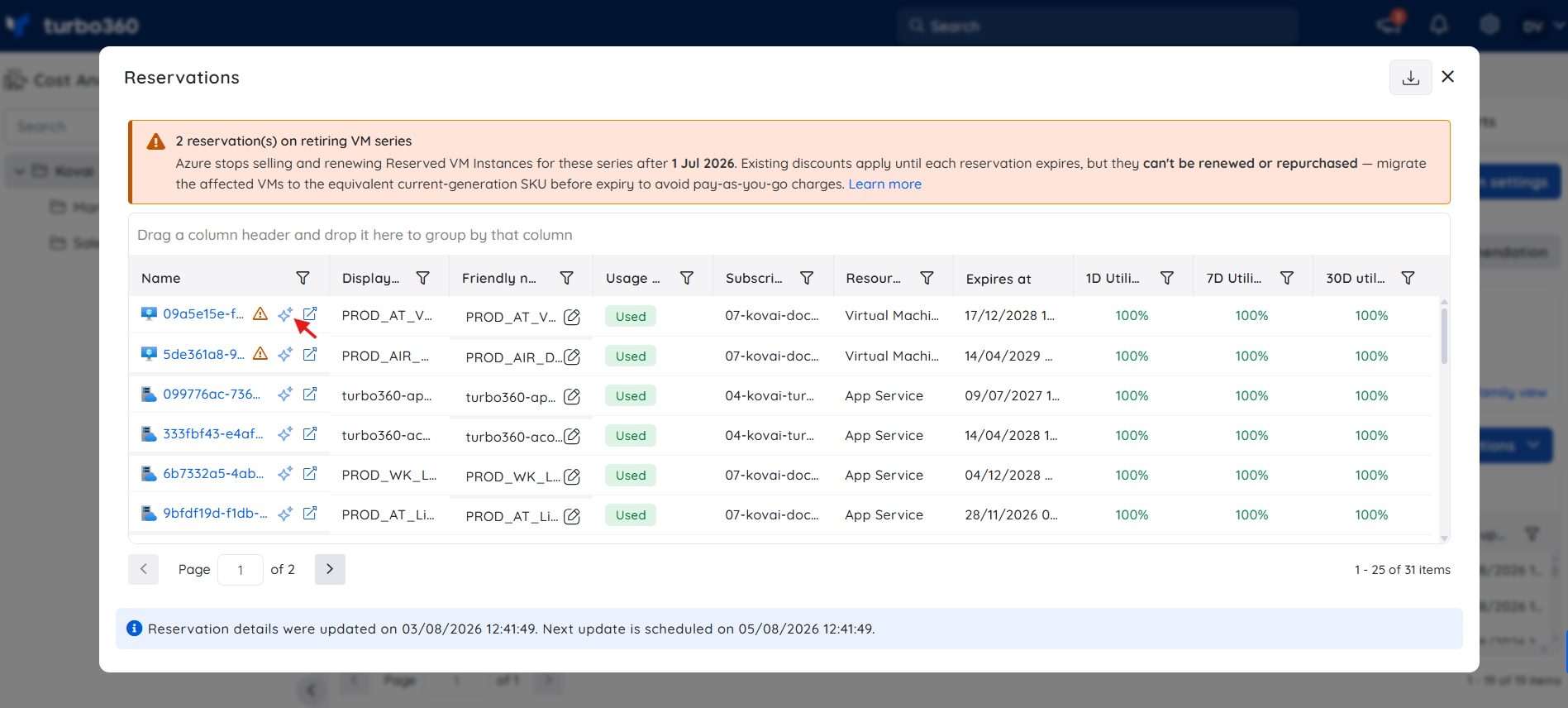
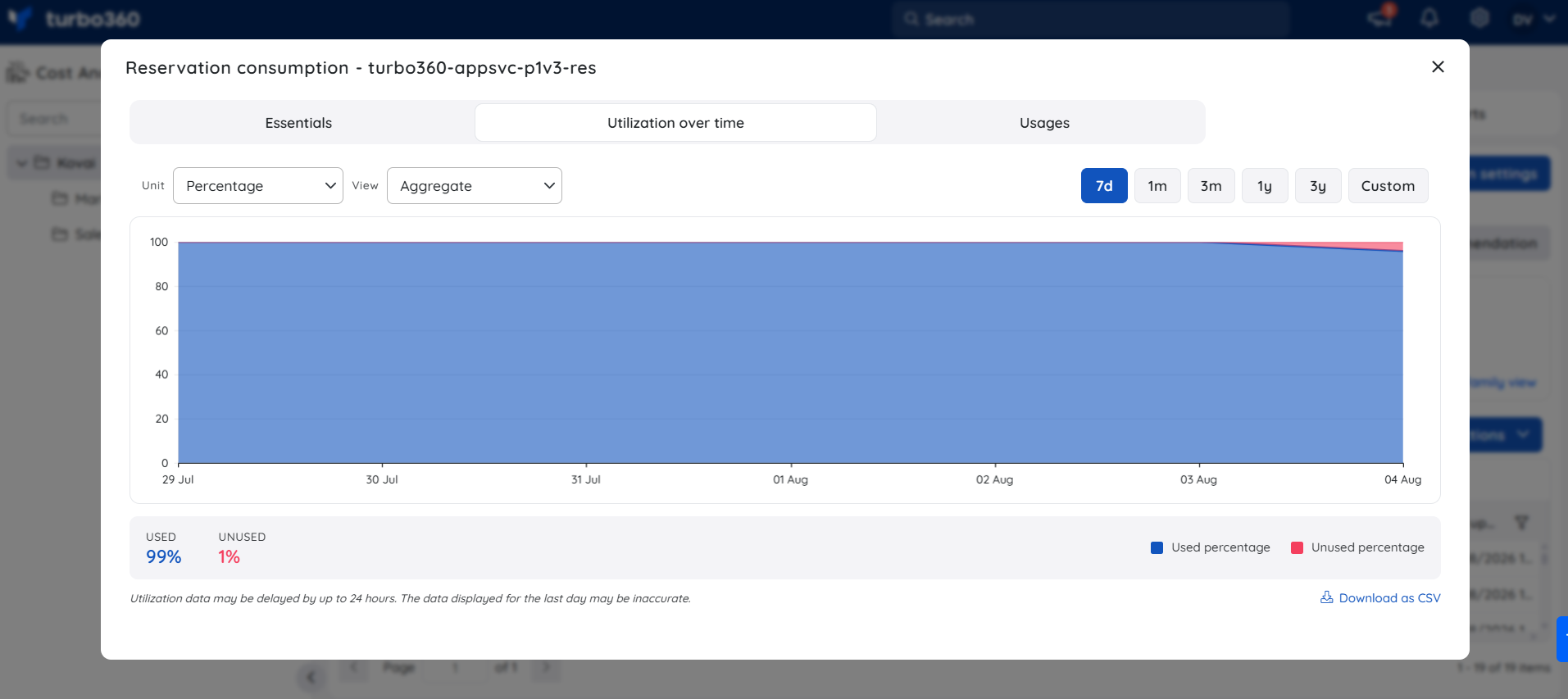
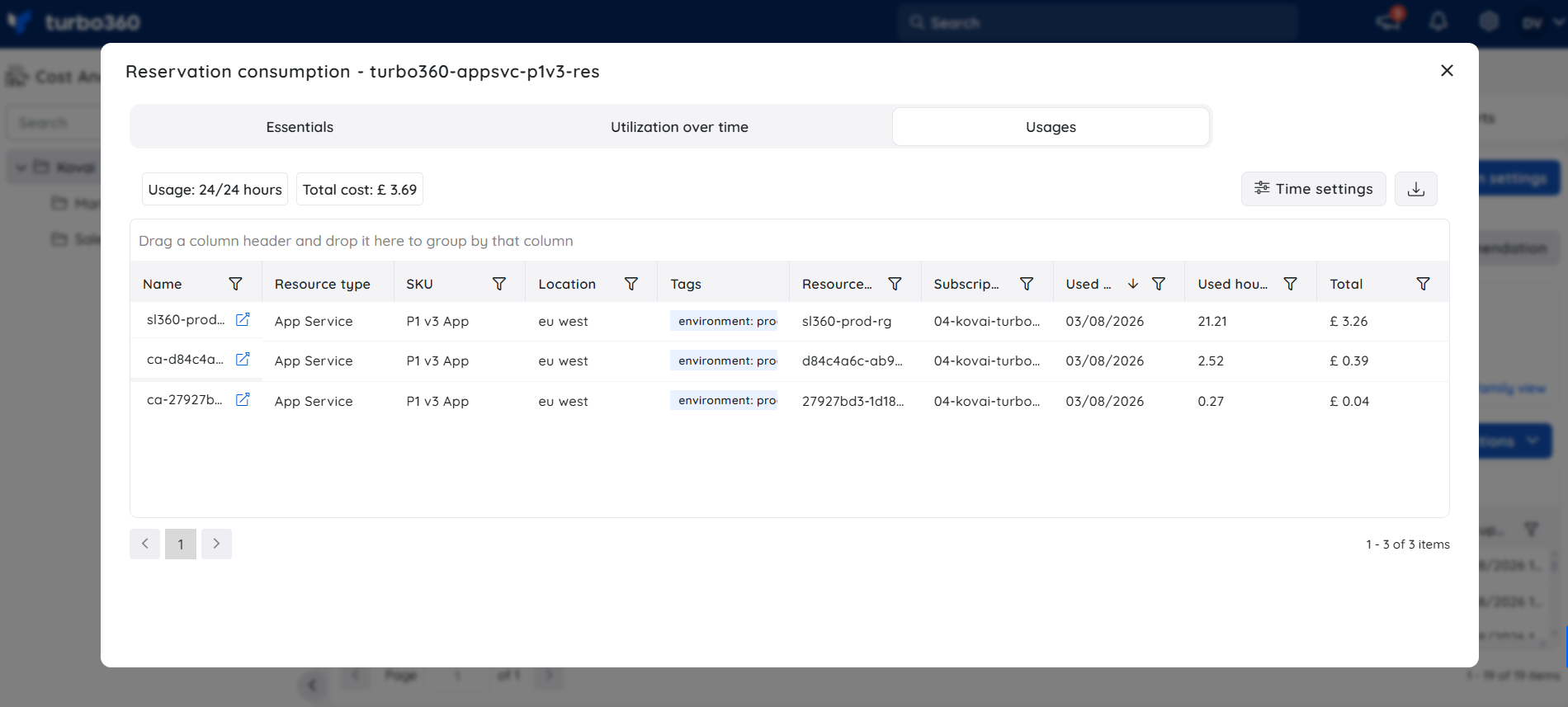
Selecting a reservation also opens a Reservation consumption dialog with three tabs:
- Essentials — reservation metadata, including display name, location, resource type, SKU description, quantity, subscription, purchase date, and expiry date.
.png)
- Utilization over time — a chart of used versus unused percentage over a selectable time range (7d, 1m, 3m, 1y, 3y, or Custom), exportable via Download as CSV. Utilization data may be delayed by up to 24 hours, and the most recent day's data may be inaccurate.
- Usages — a resource-level breakdown of cost incurred against the reservation, including resource name, type, SKU, location, tags, subscription, and used hours, with configurable Time settings and an export option.
VM family grouping with reservation coverage
The VM family view combines active virtual machine usage with Azure reservation coverage, grouped by VM family (for example, Dv2, Ev4, Fsv2) and subscription, on a single screen.
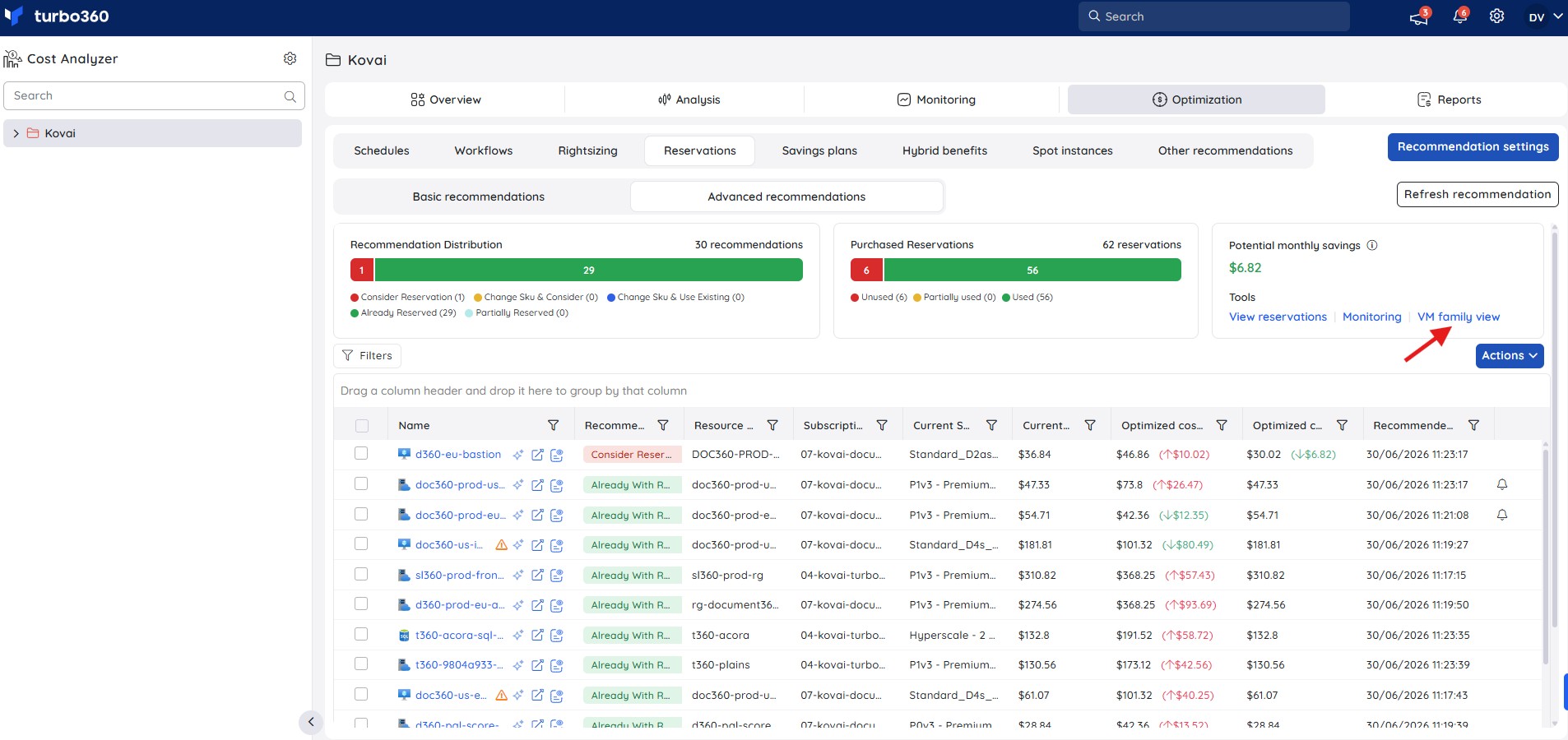
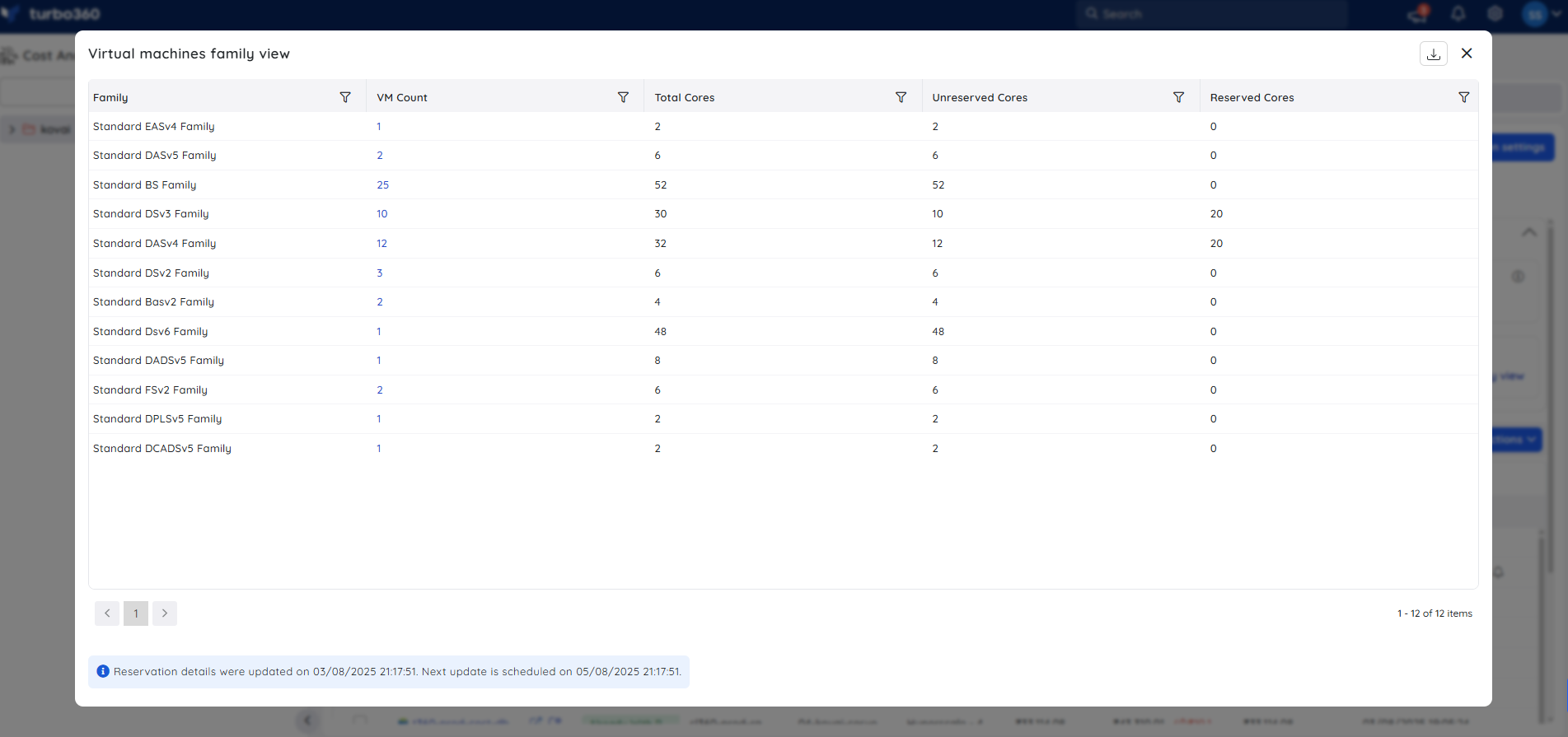
For each VM family, the view provides:
- VM count — the total number of active VMs deployed within the family, useful for assessing how widely it's utilized.
- Total cores — the cumulative number of virtual CPU cores consumed by all VMs in the family, useful for understanding compute demand.
- Reserved cores — how many of the total cores are currently covered by active Azure Reservations, useful for tracking reservation utilization.
- Unreserved cores — the number of cores not covered by any active Azure Reservation within the family.
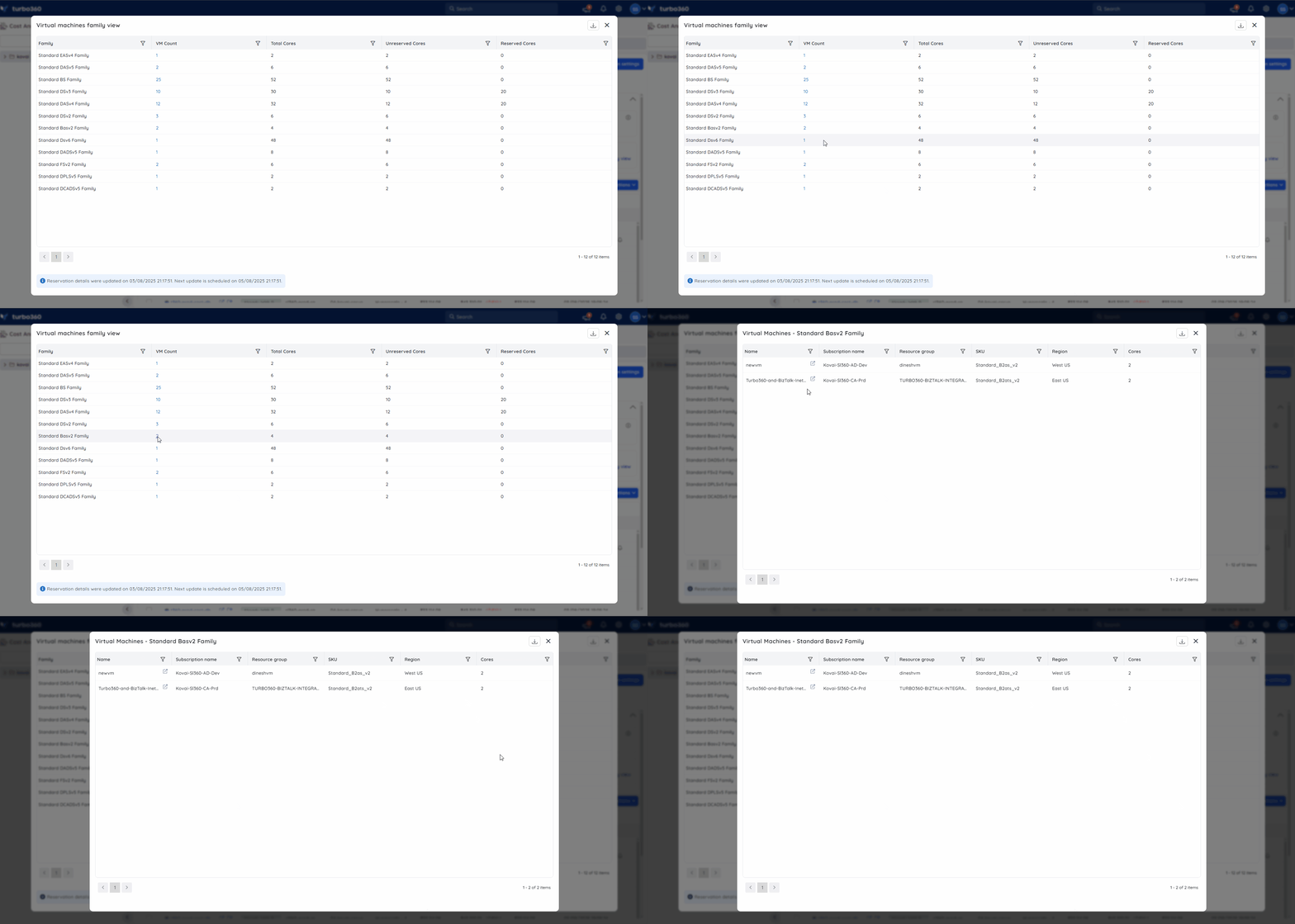
You can drill down into each VM family to view the virtual machines deployed across subscriptions, including subscription name, resource group, VM size (SKU), region, and allocated cores.
Types of recommendations
Recommendations are currently available only for the following resource types, based on their SKU:
- App service plan
- SQL Database
- SQL Managed instance
- Virtual Machine
Cost Analyzer provides five recommendation types for supported resources:
- Consider Reservation — you can optimize cost by purchasing a reservation with a one-year or three-year pricing commitment.
- Change SKU and Consider Reservation — the resource's SKU should change to one compatible with reservations, and a reservation can then be purchased.
- Change SKU and Use Existing Reservation — the resource's SKU should change to one compatible with reservations so it can use an existing unused reservation.
- Already with Reservation — the resource is already using a purchased reservation.
- Partially Reserved — the SQL database resource has a purchased reservation, but its current vCore count exceeds what was purchased.
Refresh recommendation data
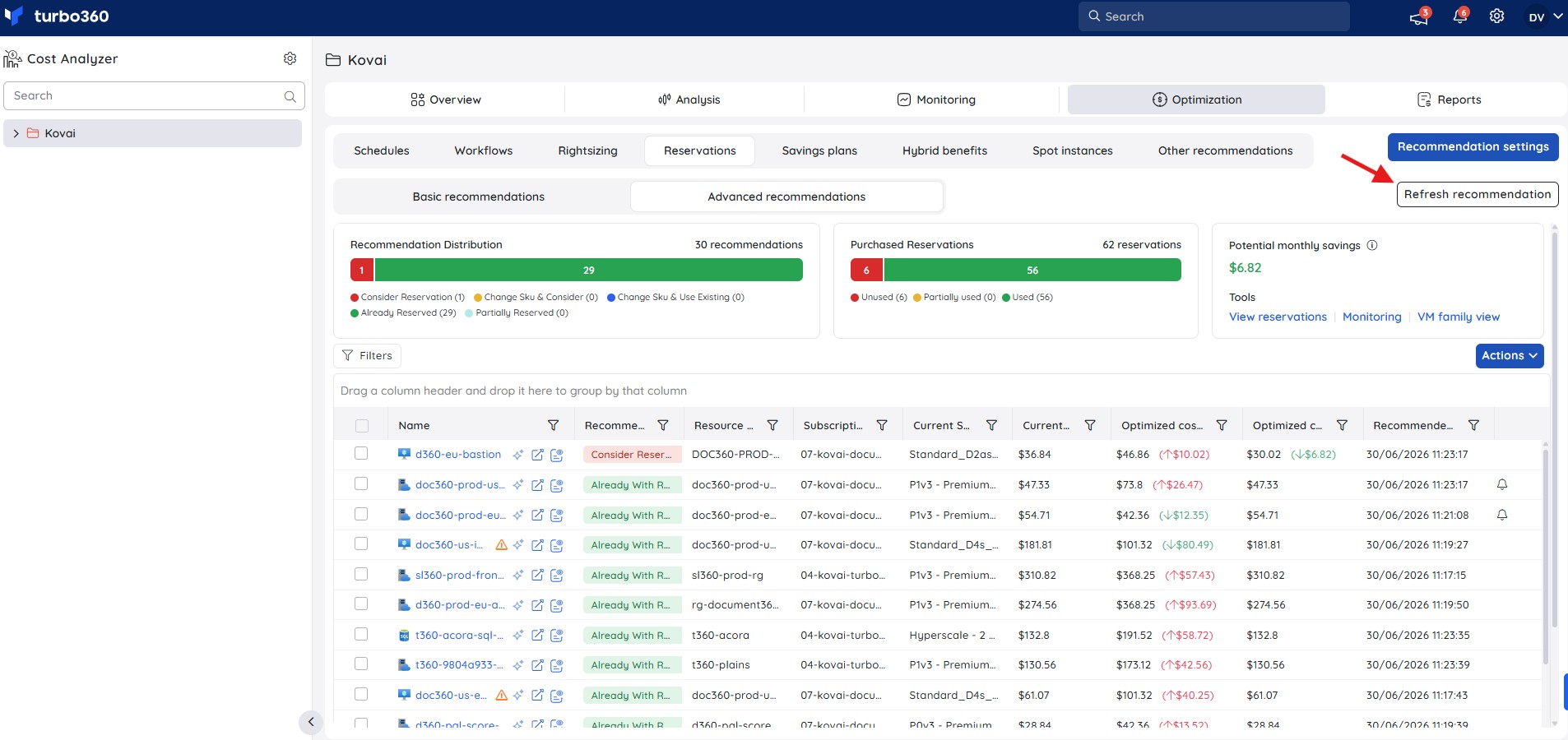
- Reservation recommendations are updated every 48 hours from the time the cost group is created.
- A manual refresh is available within Advanced rightsizing recommendations at the root cost group, to view recommendations immediately.
Recommendation settings
The Recommendation settings button lets you adjust the evaluation duration and currency type to receive customized recommendations.
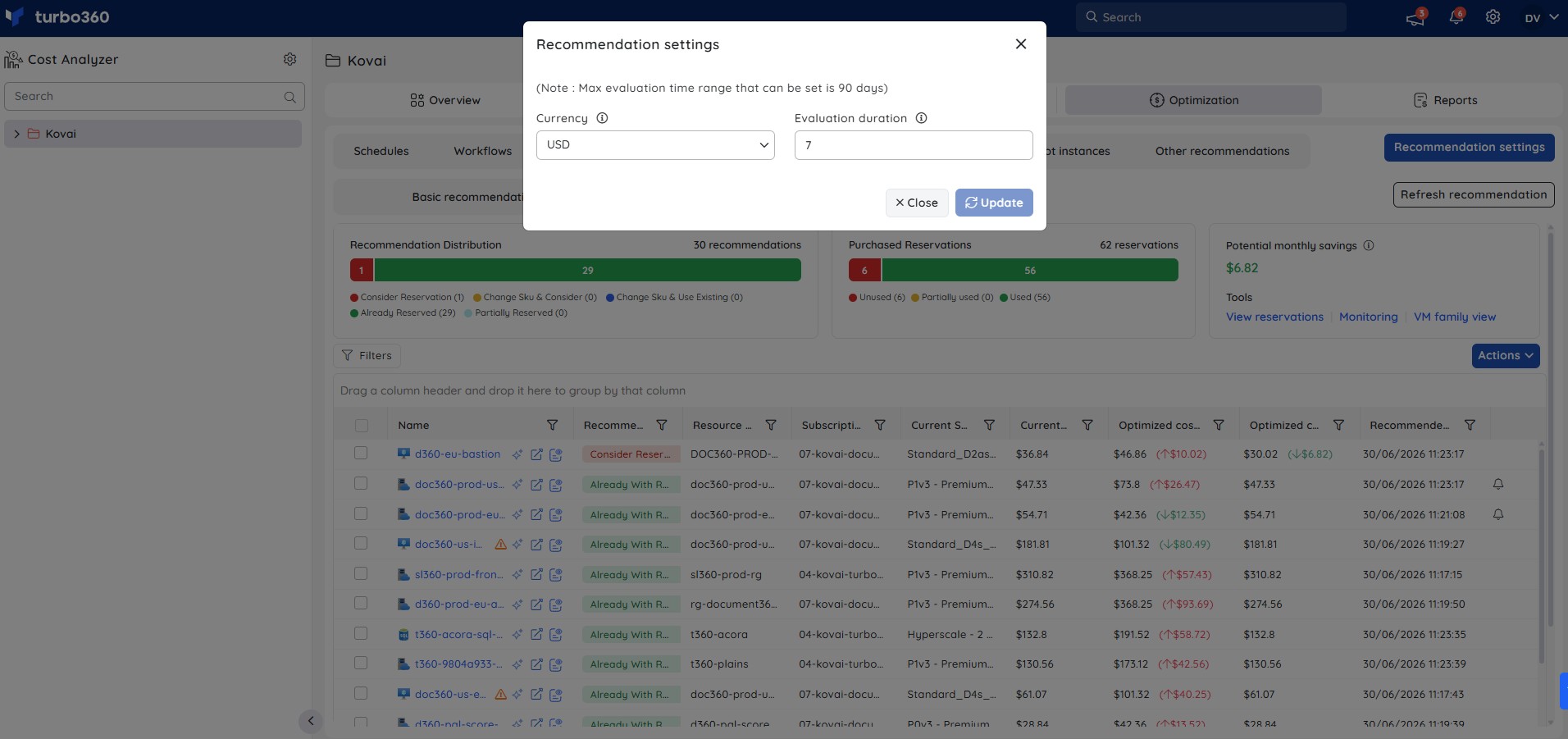
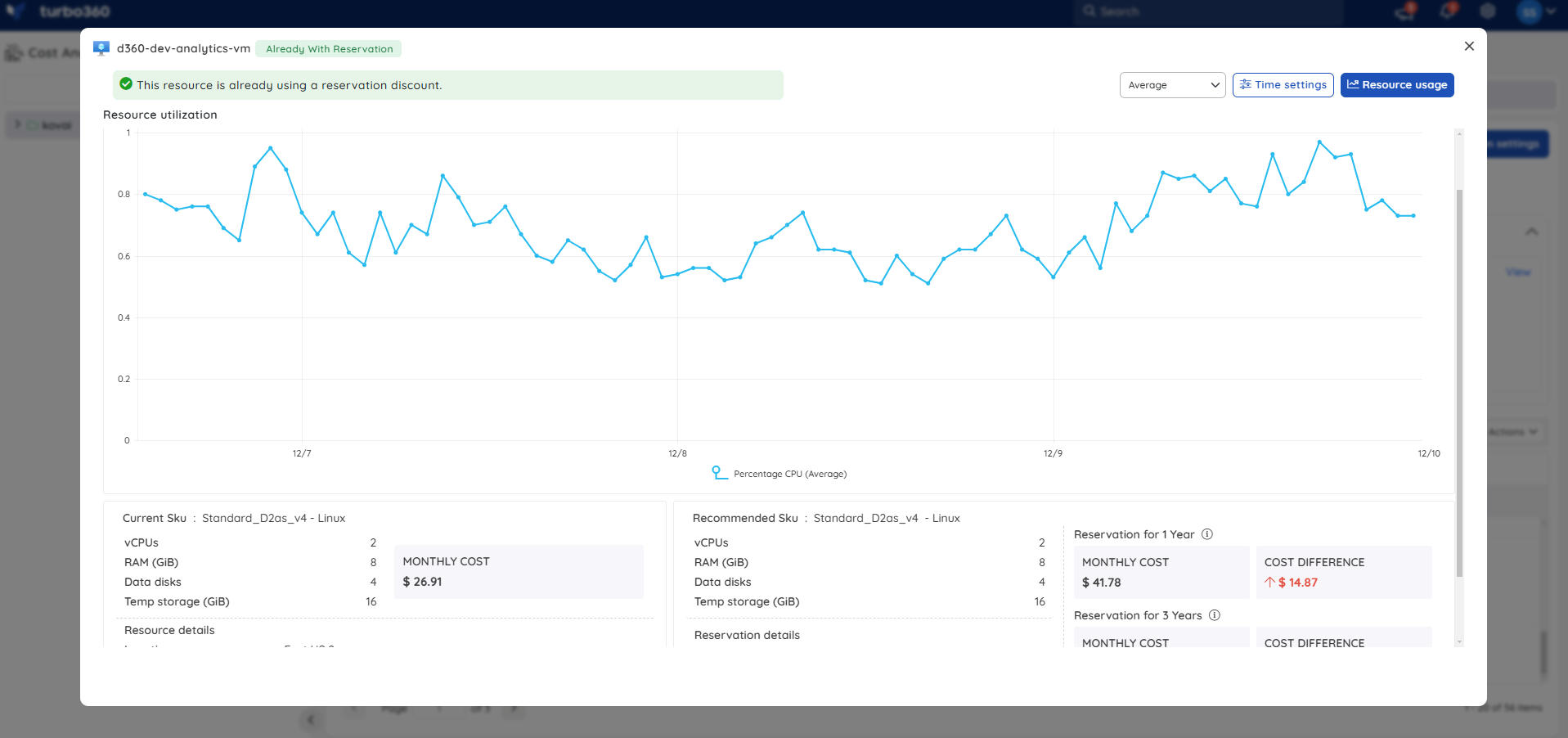
Understanding resource usage charts
Clicking a resource listed in Advanced recommendations shows its usage pattern, with the time range customizable through Time settings to focus on a specific interval. This widget also shows the current and recommended SKUs.
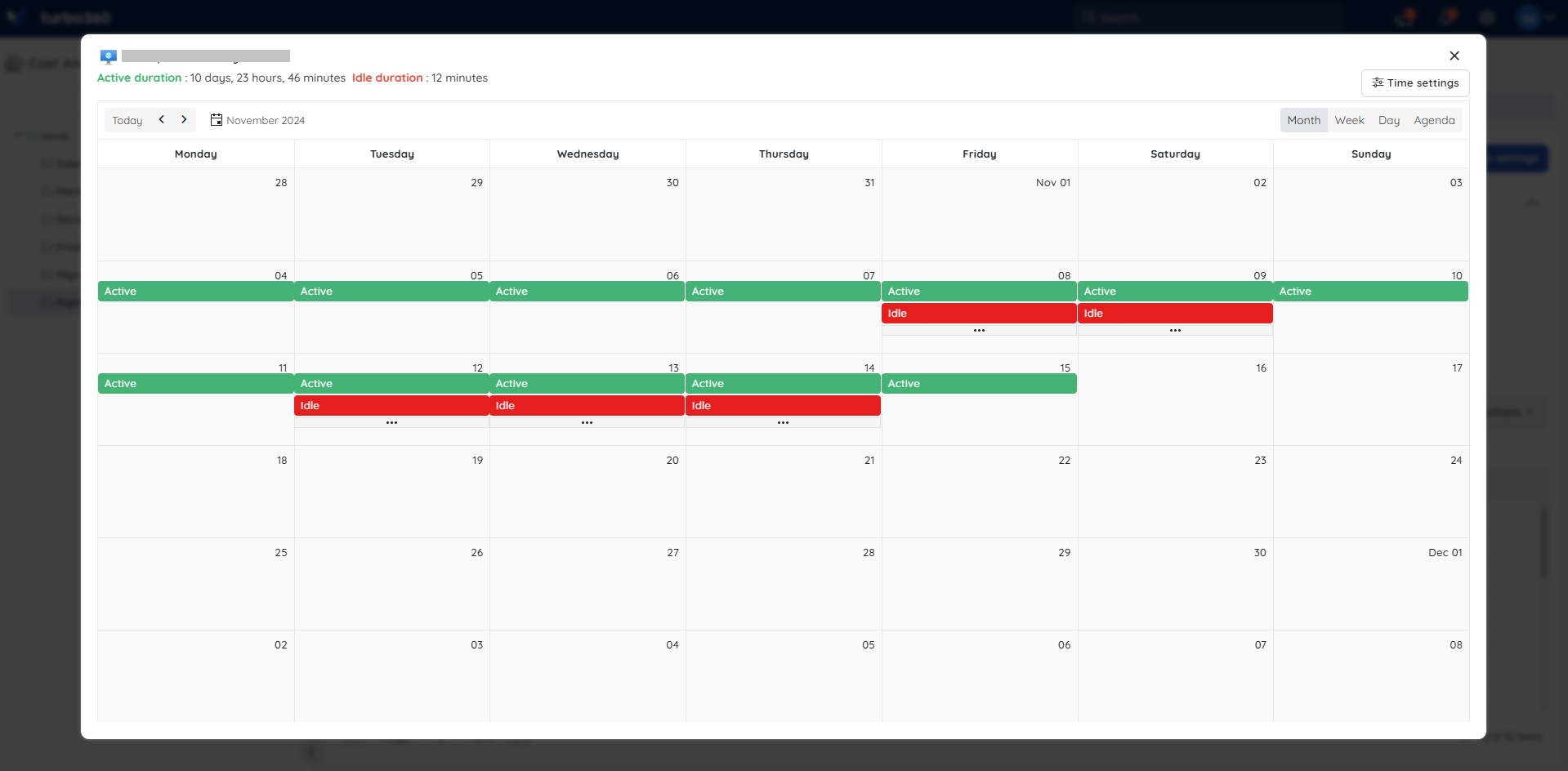
Resource status calendar
The resource usage option, accessible from an advanced reservation recommendation, provides a calendar view of your Azure resource status over time, with multiple toggle modes for accessibility.
Resource status is one of:
- Active
- Idle
Status is determined by a metric specific to each resource type:
- App service plan — CPU Percentage
- SQL Database — CPU Percentage
- SQL Managed instance — CPU Percentage
- Virtual Machine — CPU Percentage
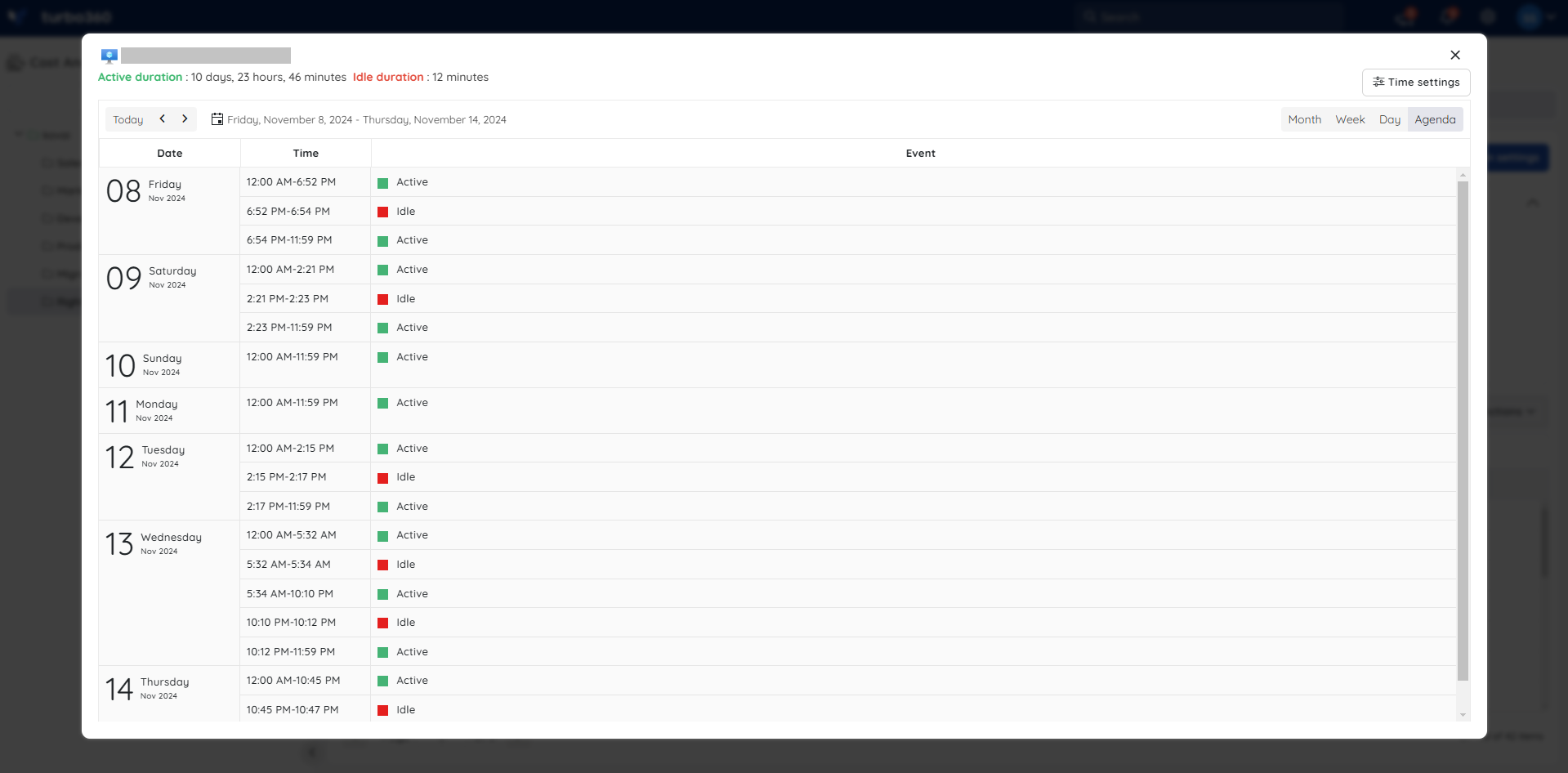
The Agenda view displays a day's active and idle hours in a grid format.
Explain with AI
Explain with AI generates a structured nine-section breakdown of the selected Turbo360 reservation recommendation, covering current reservation status, savings context, implementation steps, risk assessment, and renewal guidance — without leaving Cost Analyzer.
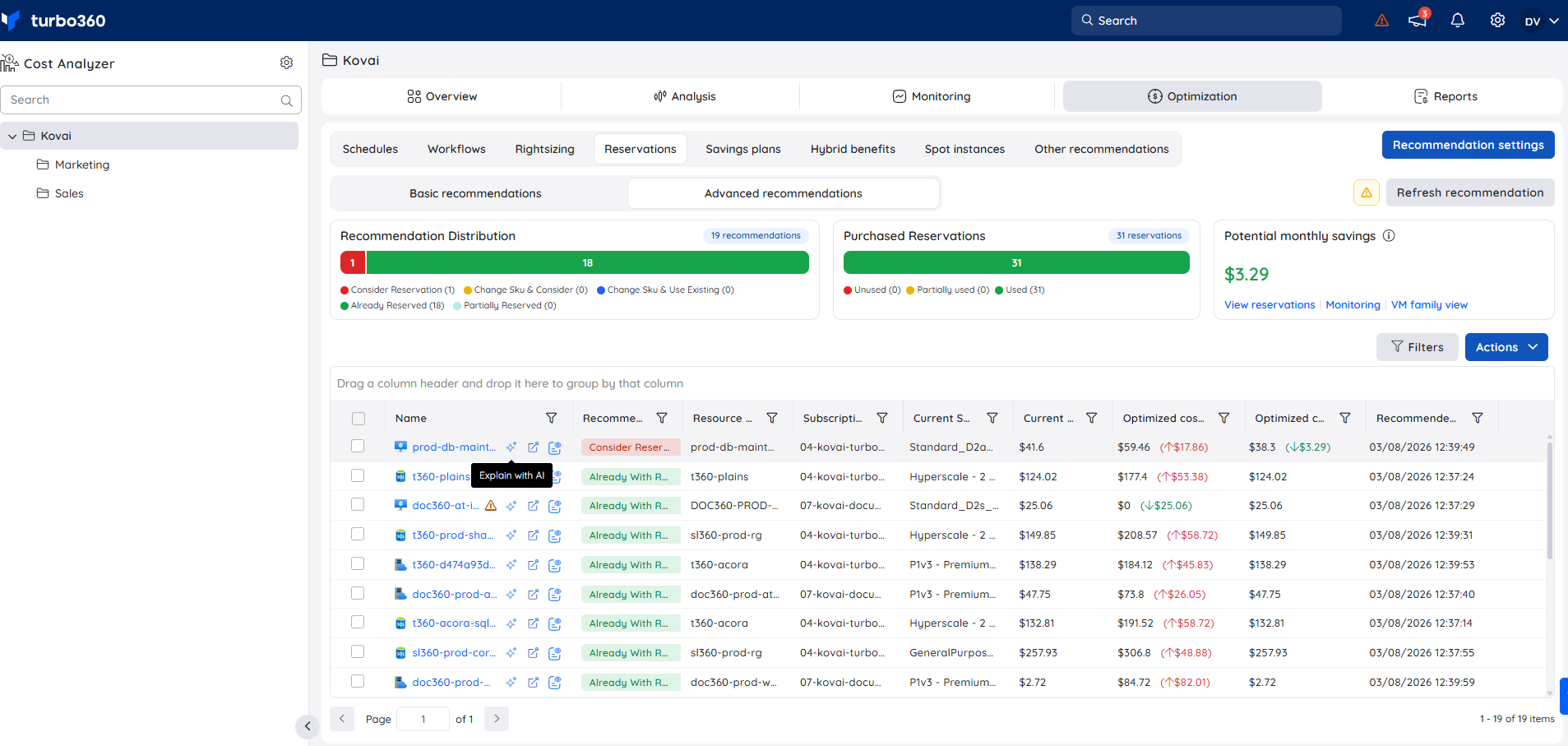
To open Explain with AI:
- Go to Cost Analyzer > Optimization > Reservations.
- Select the Advanced recommendations tab.
- Hover over a recommendation row and click the Explain with AI icon that appears.
- The AI Insights panel opens with a full analysis of the selected recommendation.
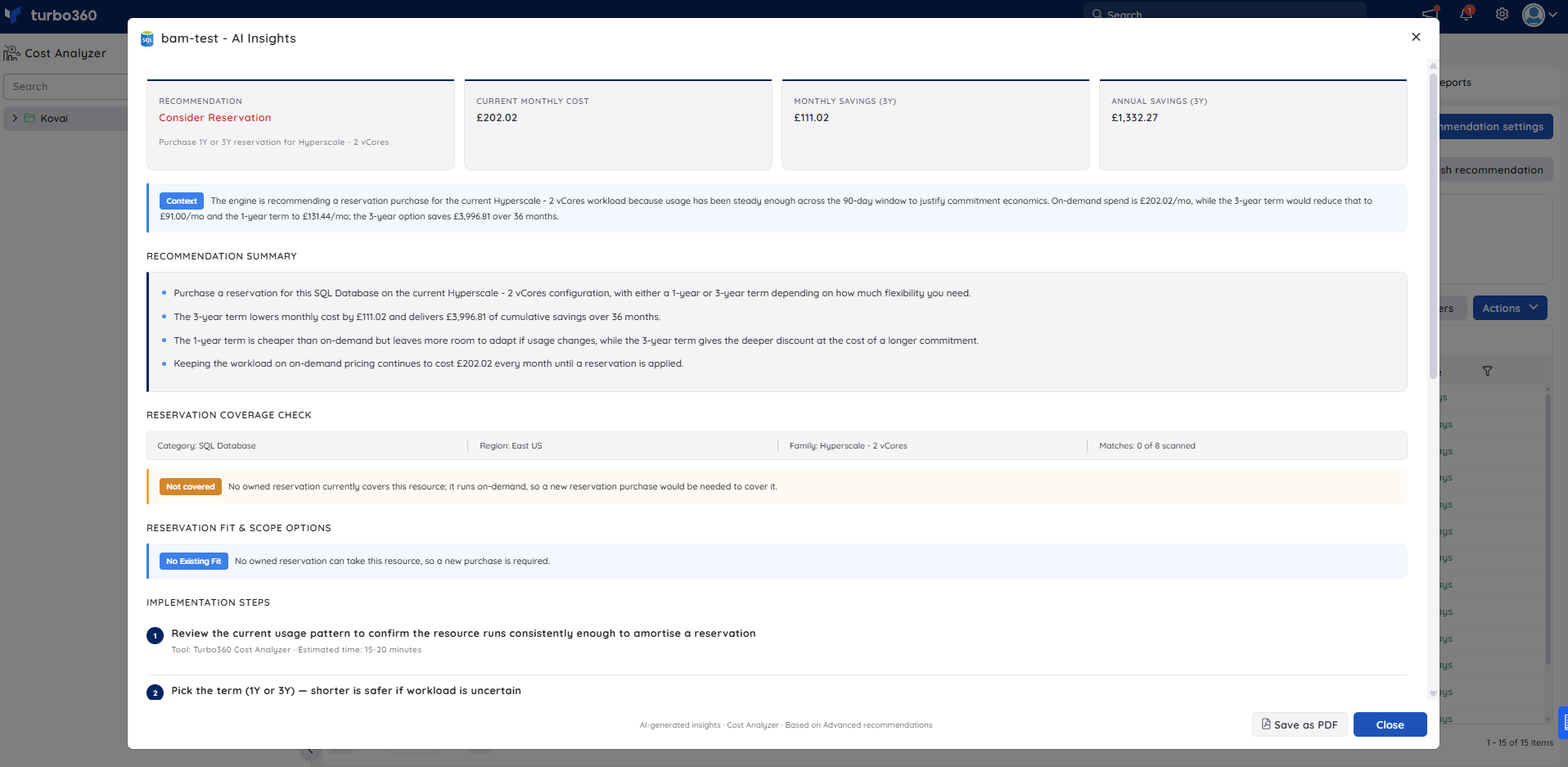
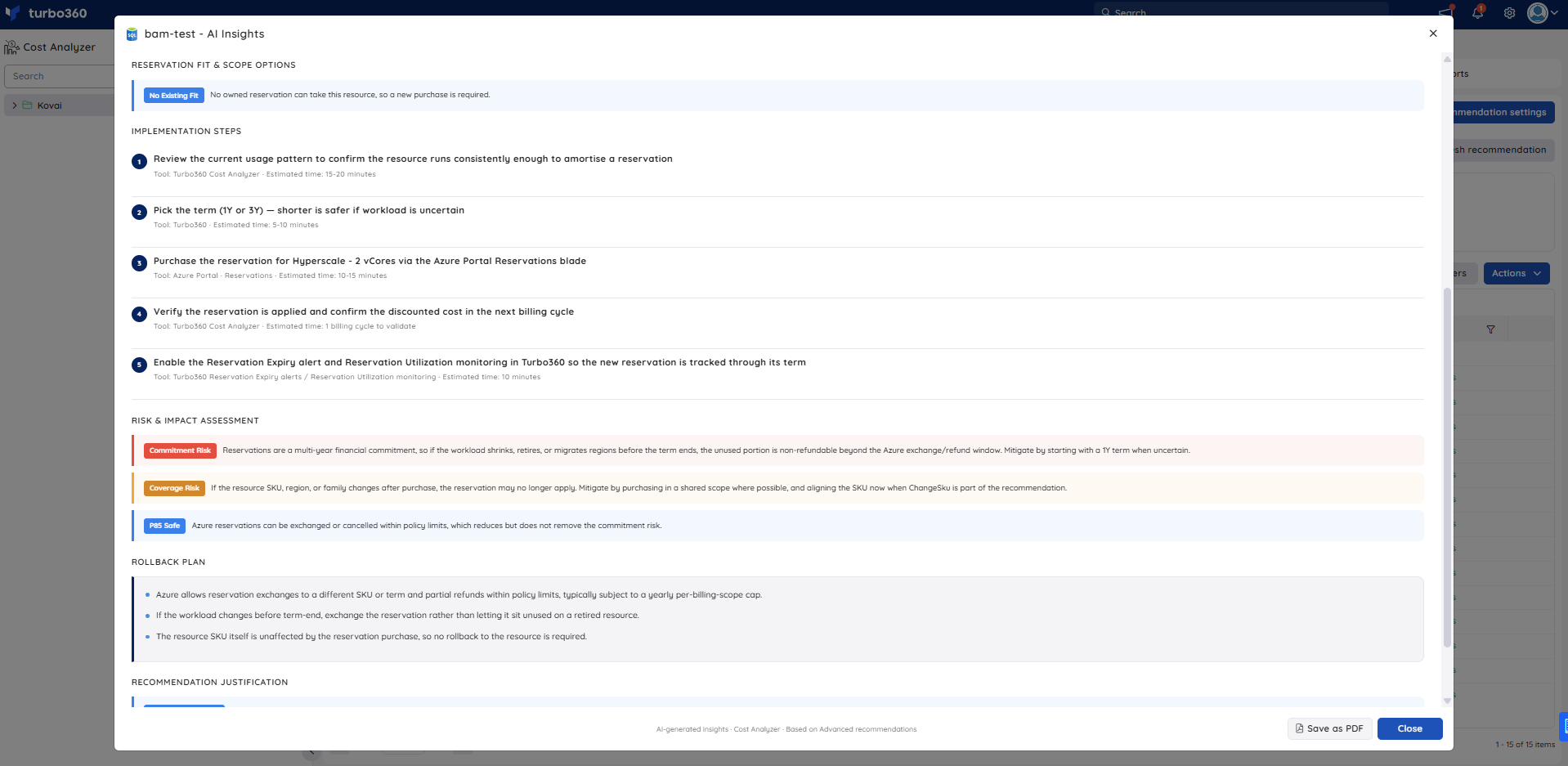
The AI Insights panel covers nine sections:
- Savings summary — displays the recommendation type (Consider Reservation, Change SKU & Consider, Change SKU & Use Existing, Already Reserved, or Partially Reserved), along with the current monthly cost, the monthly savings with the recommended term applied, and the projected annual savings, giving a clear view of whether action is needed or the existing commitment is already aligned.
- Context — a highlighted summary comparing the on-demand cost against the 1-year and 3-year reservation costs, and the cumulative savings (or savings already realized) over the full term, so the financial basis for the recommendation is clear at a glance.
- Recommendation summary — explains the current reservation coverage status, what action is needed (if any), and what to monitor to ensure the commitment continues to deliver positive ROI.
- Reservation coverage check — shows the resource's Category, Region, and Family, along with how many existing reservations were scanned for a match. When an active reservation already covers the resource, this section displays a Covered by callout with the reservation name, 30-day utilization, quantity used versus purchased, SKU, region, term, scope, and expiry date. When no reservation covers the resource, it displays a Not covered callout instead.
- Reservation fit & scope options — states whether an existing reservation already covers the resource (Already Covered) or whether no existing reservation can be applied (No Existing Fit), with a brief explanation of why.
- Implementation steps — lists the actions needed based on the recommendation type, each with an estimated time and the Turbo360 tool required — such as Turbo360 Reservation Utilization monitoring, Turbo360 Reservation Expiry alerts, or Turbo360 Cost Analyzer.
- Risk & impact assessment — covers the key risks associated with the recommendation, which vary by type — including Drift Risk (usage shifting before the reservation renews), Commitment Risk (multi-year exposure if the workload changes before term end), and Coverage Risk (the reservation no longer applying if the SKU, region, or family changes) — and provides an Overall Safety rating (for example, P95 Safe) for the current cycle.
- Rollback plan — describes whether any rollback is applicable. For Already Reserved recommendations where no purchase or change is made, this section confirms no rollback is needed. For new purchases, it outlines Azure's reservation exchange and refund options if the workload changes before term end.
- Recommendation justification — explains why the recommendation was generated based on the monitored usage pattern and savings opportunity, and provides recommended timing (Why Recommended and Recommended Timing) for the next review, renewal, or purchase.
Reservation advisor
Reservation advisor is an AI agent that analyzes a single purchased reservation and generates a renewal recommendation, utilization breakdown, and cost-saving insights directly from the Reservations view — without requiring you to cross-reference usage data manually.
It reduces the manual effort of evaluating whether a reservation is worth renewing by surfacing utilization trends, break-even status, and underused capacity in one view, helping you make faster, more confident renewal and rightsizing decisions before a reservation expires.
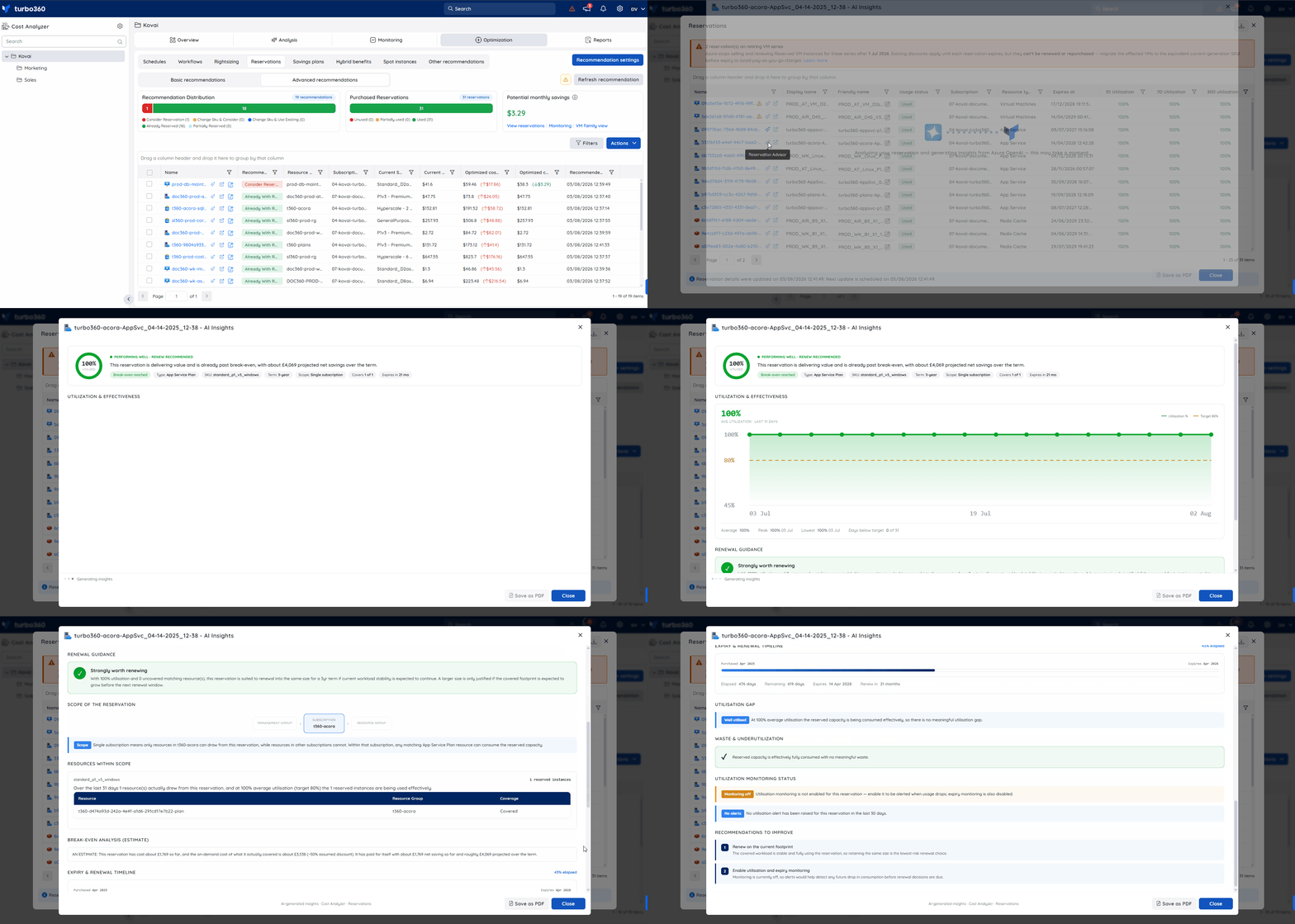
Reservation advisor is available from the Reservations list in Cost Analyzer > Optimization > Reservations > View reservations. Each reservation row has a (✦) icon; selecting it opens an AI Insights panel scoped to that reservation.
The panel includes:
- Utilization summary — a 30-day average utilization percentage against the reservation's target, with a stability indicator (for example,
stable) - Renewal guidance — a recommendation (for example,
Strongly worth renewing) based on utilization, uncovered matching resources, and workload stability - Scope — the management group, subscription, and resource group the reservation applies to, with an explanation of what the configured scope means for coverage
- Resources within scope — a table of resources currently drawing from the reservation, each resource's resource group, and its coverage status
- Break-even analysis (estimate) — the reservation's cost to date, the on-demand equivalent cost of what it has covered, and the estimated net saving so far and projected over the full term
- Expiry and renewal timeline — purchase date, expiry date, elapsed and remaining days, and a suggested renewal window
- Utilisation gap — whether the reservation is well-utilized or under-utilized relative to its target
- Waste and underutilization — an estimated cost of unused reserved capacity over the last 30 days
- Utilization monitoring status — whether utilization and expiry monitoring are enabled for the reservation, and any recent alerts
- Recommendations to improve — a numbered list of suggested actions, such as resizing at renewal or enabling monitoring, each with a brief rationale
All figures are estimates based on current usage and cost data at the time the panel is generated.
Task planner integration
Tasks are automatically created in Task planner when you trigger a recommendation notification, giving your team a trackable action item linked to the reservation recommendation.
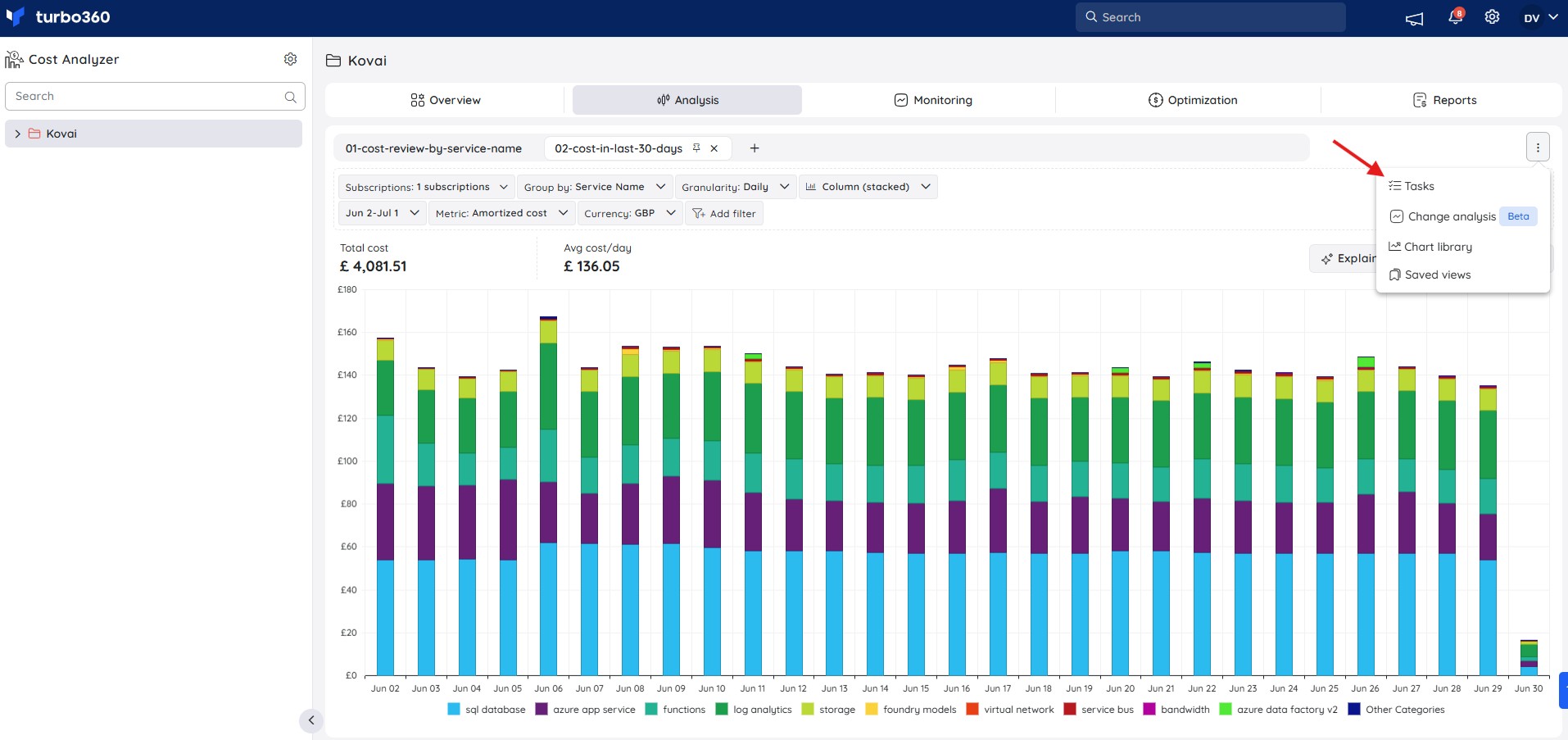
- The generated task is available in the cost management group by clicking Tasks from the Context menu ( ⋮ ) available within the Analysis section.
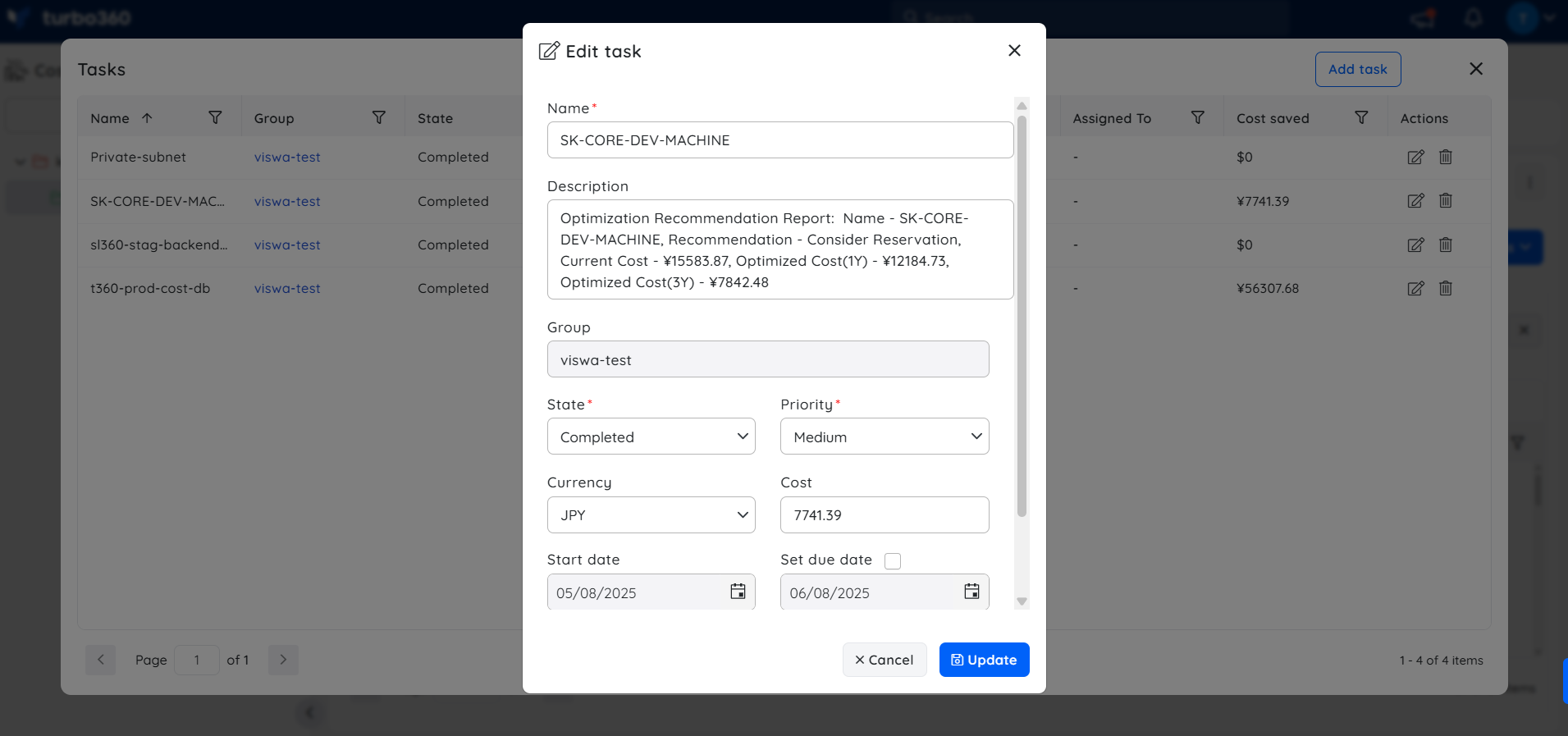
- Alternatively, access the task through Task planner, available under the My profile dropdown, for broader visibility across groups.
Steps
Use the following steps to configure monitoring, manage recommendations, send notifications, and export data. Navigate to Optimization > Reservations > Advanced recommendations within a cost management group to get started.
Access the Cost intelligence view
Accessing the Cost intelligence view opens a detailed breakdown of cost distribution and utilization for a recommended resource, helping you evaluate spending patterns and take targeted optimization action.
- Click the View resource details icon next to a recommended resource.
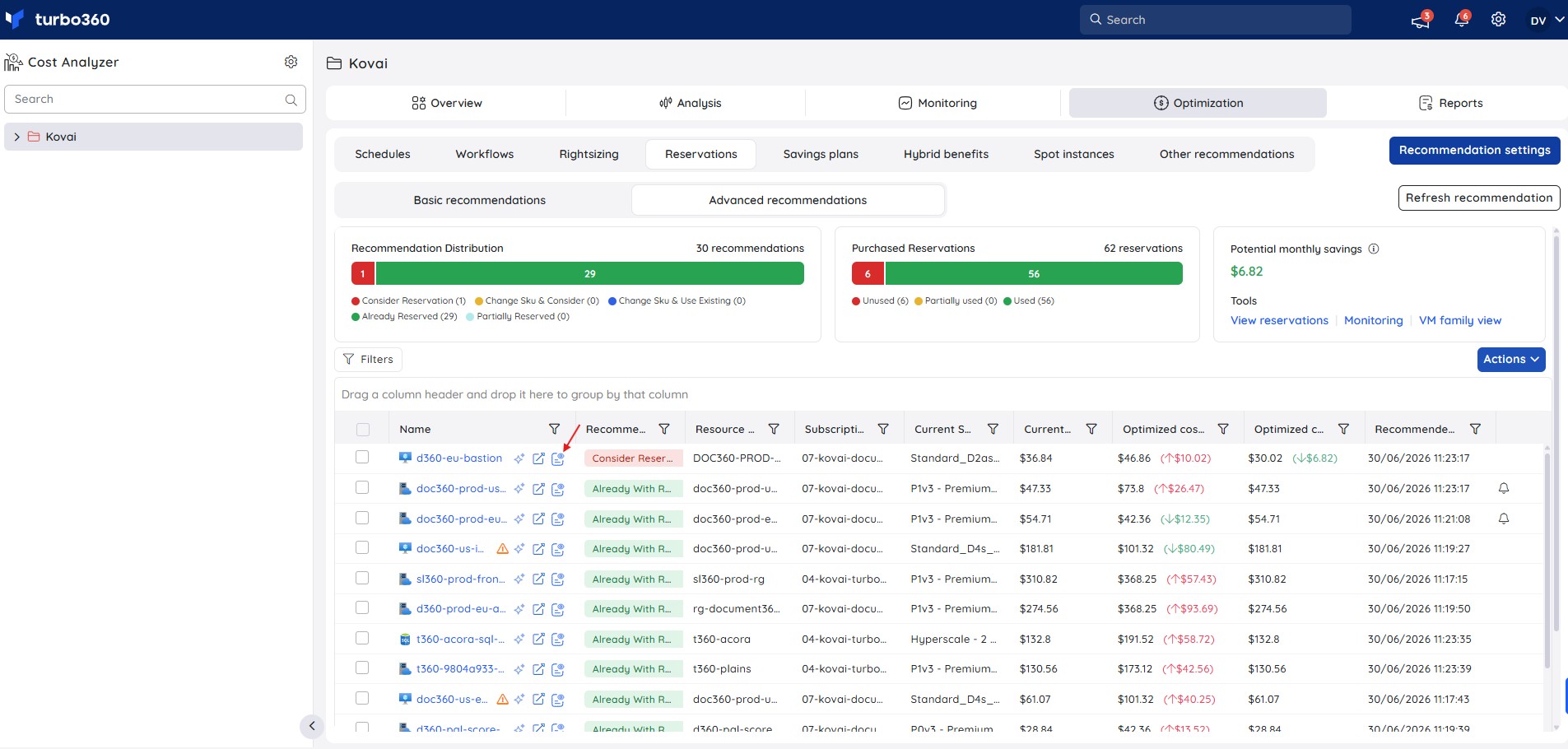
The Cost intelligence view structures resource data into distinct categories and visual sections, giving a detailed overview of cost distribution and utilization, and highlighting areas of high or low resource efficiency. Through these categorized insights, you can monitor spending patterns, evaluate cost performance, and take data-driven action to optimize resource usage and reduce expenses. See the Managing analysis views article to learn more about its capabilities.
Configure expiry monitoring
Configuring expiry monitoring ensures you receive advance notification before a reservation term ends, preventing unexpected cost increases when resources revert to pay-as-you-go pricing.
- Click the Monitoring option available within the Tools card.
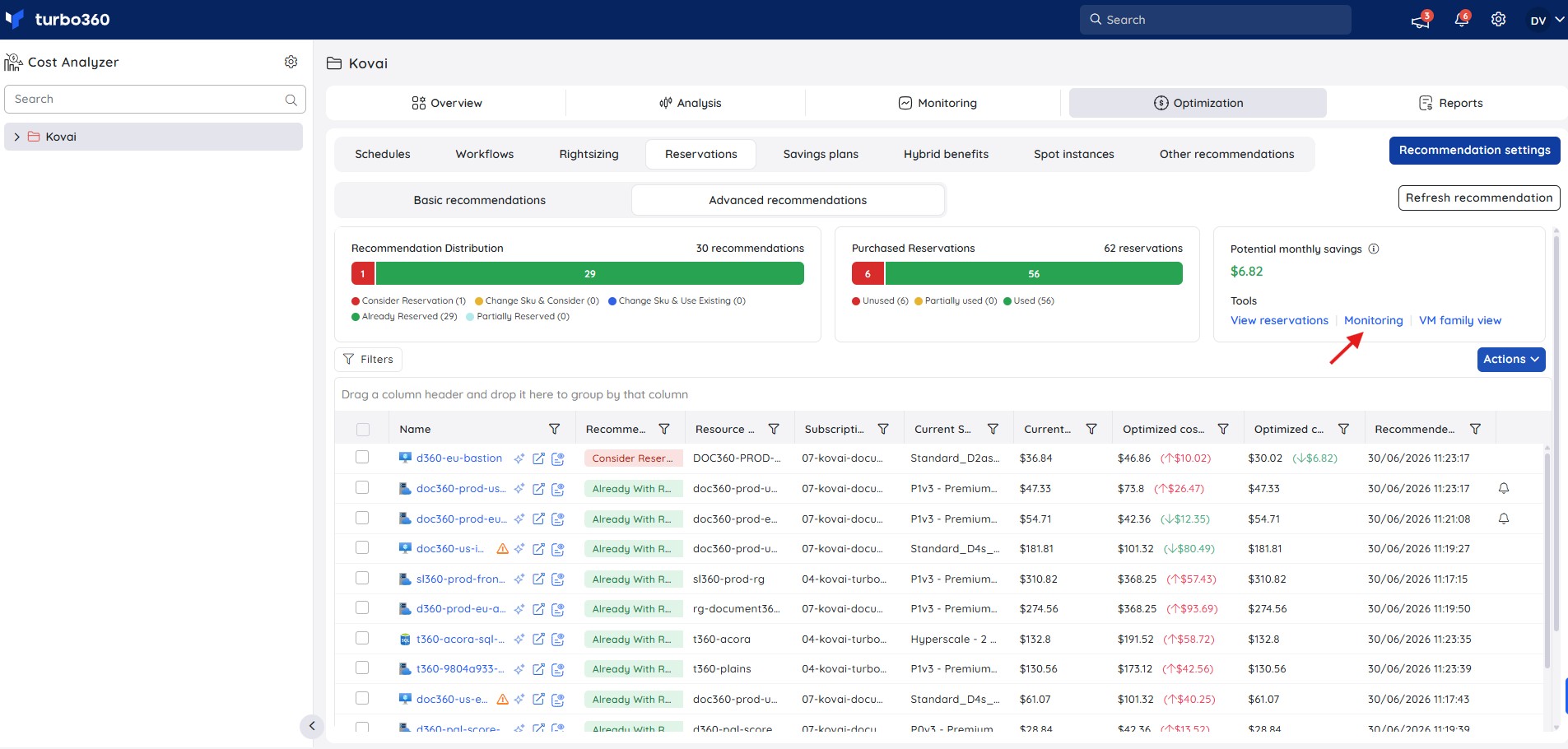
- Enable reservation expiry monitoring.
- Set the number of days in advance to receive reminders before the reservation expires.
- Select the preferred notification channels for receiving monitoring alerts.
- Click Save to activate reservation expiry monitoring.

Below is an example of a reservation expiry alert received via Turbo360 mail, detailing the reservation information, including the purchase date and expiry date.

Alert incidents:
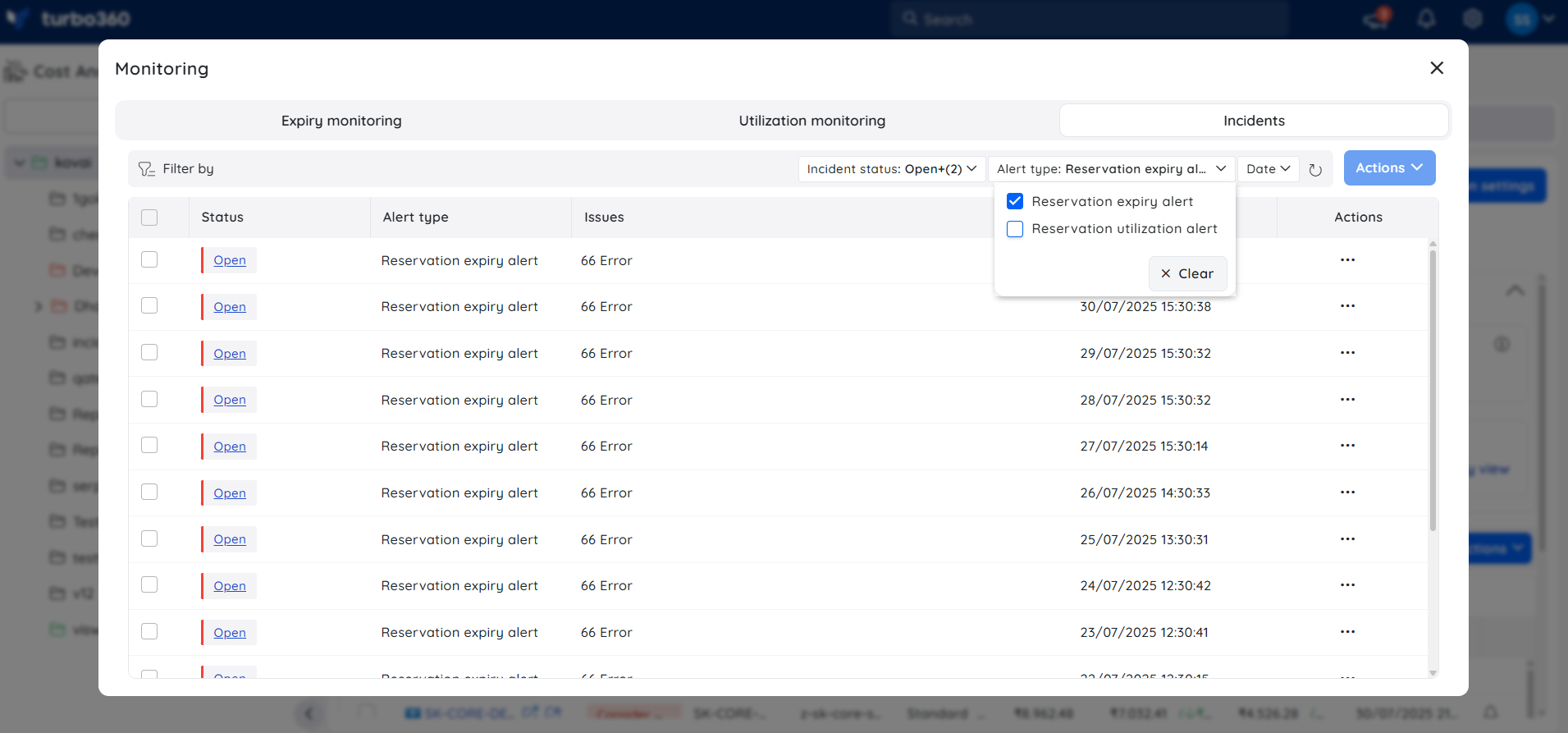
- Go to the Incidents section of the Monitoring interface.
- In the Alert type dropdown or filter panel, select Reservation expiry alert.
- The list now displays only incidents triggered by reservation expiration events.
Configure utilization monitoring
Configuring utilization monitoring lets you track how actively your purchased Reserved Instances are being consumed, so you can identify underutilized capacity and act before it becomes a cost drain.
- Click the Monitoring option available within the Tools card.
.jpg)
- Enable the utilization monitoring toggle.
- Choose the utilization interval that defines how frequently usage is evaluated for alerting.
- Set a utilization threshold — alerts trigger when actual usage drops below this percentage.
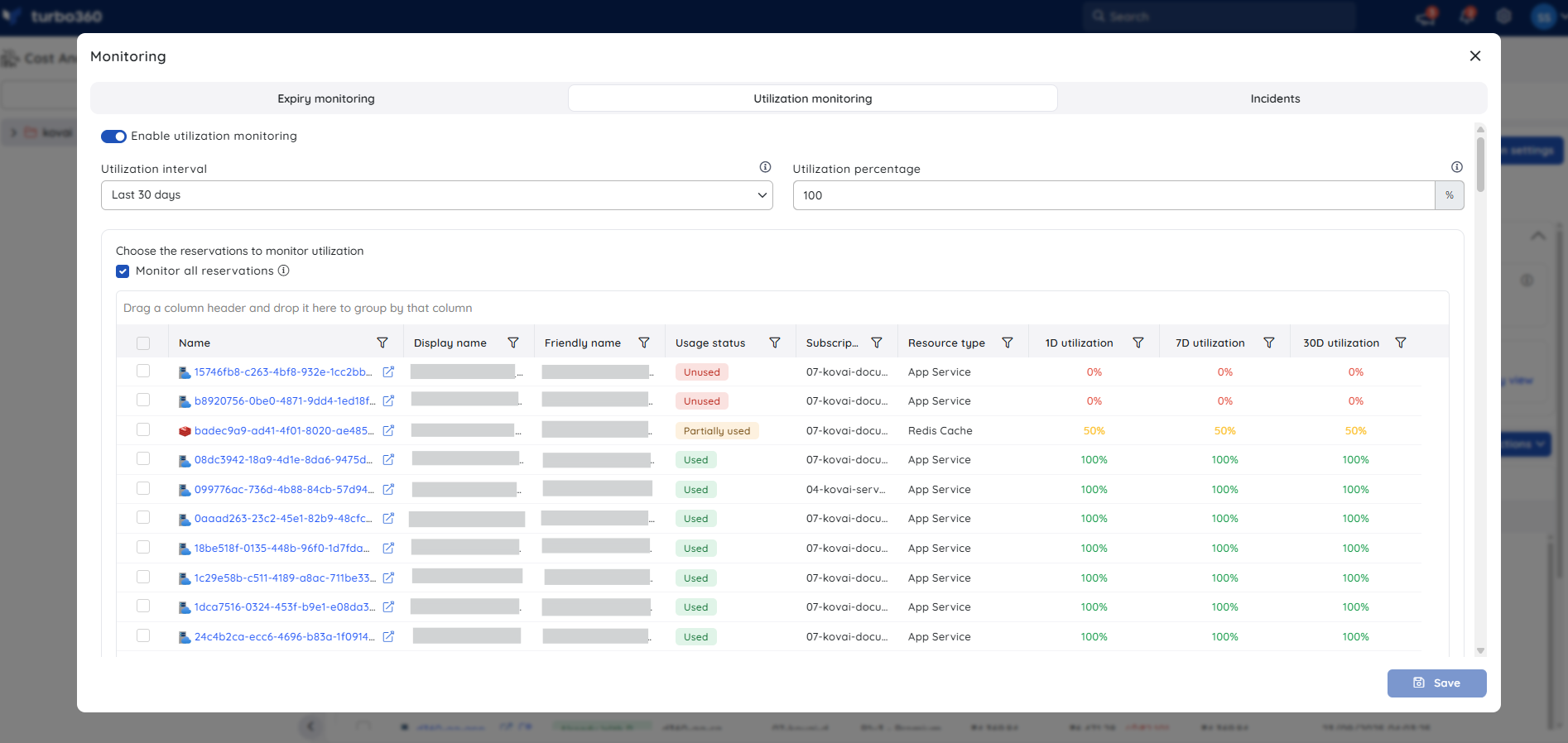
- To monitor all current and future reservations, select Monitor all reservations. Alternatively, choose specific reservations to monitor.
- Select the preferred notification channels for receiving monitoring alerts.
- Click Save to activate reservation utilization monitoring.
Below is an example of a reservation utilization alert received via Turbo360 mail, detailing the utilization percentage for each reservation.
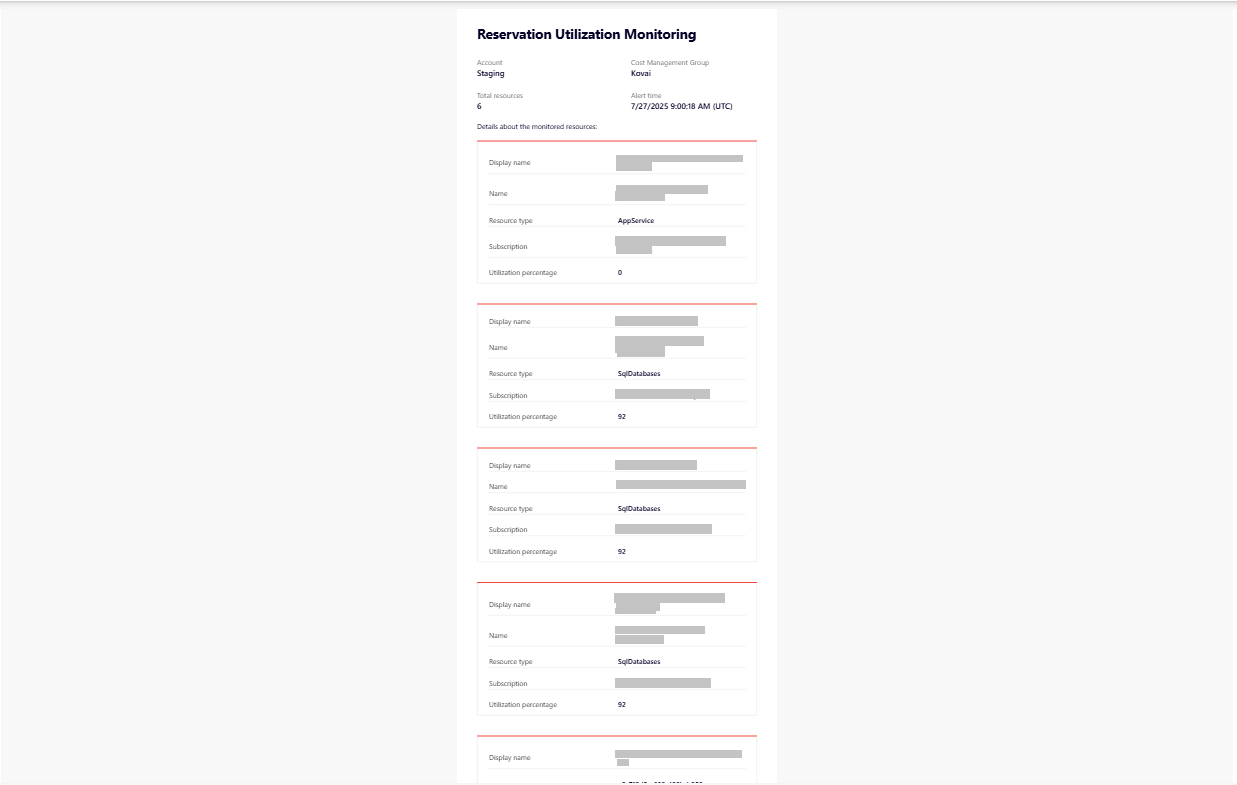
Alert incidents:
- Go to the Incidents section of the Monitoring interface.
- In the Alert type dropdown or filter panel, select Reservation utilization alert.
- The list now displays only incidents triggered by reservation utilization events.
Export reservation recommendations
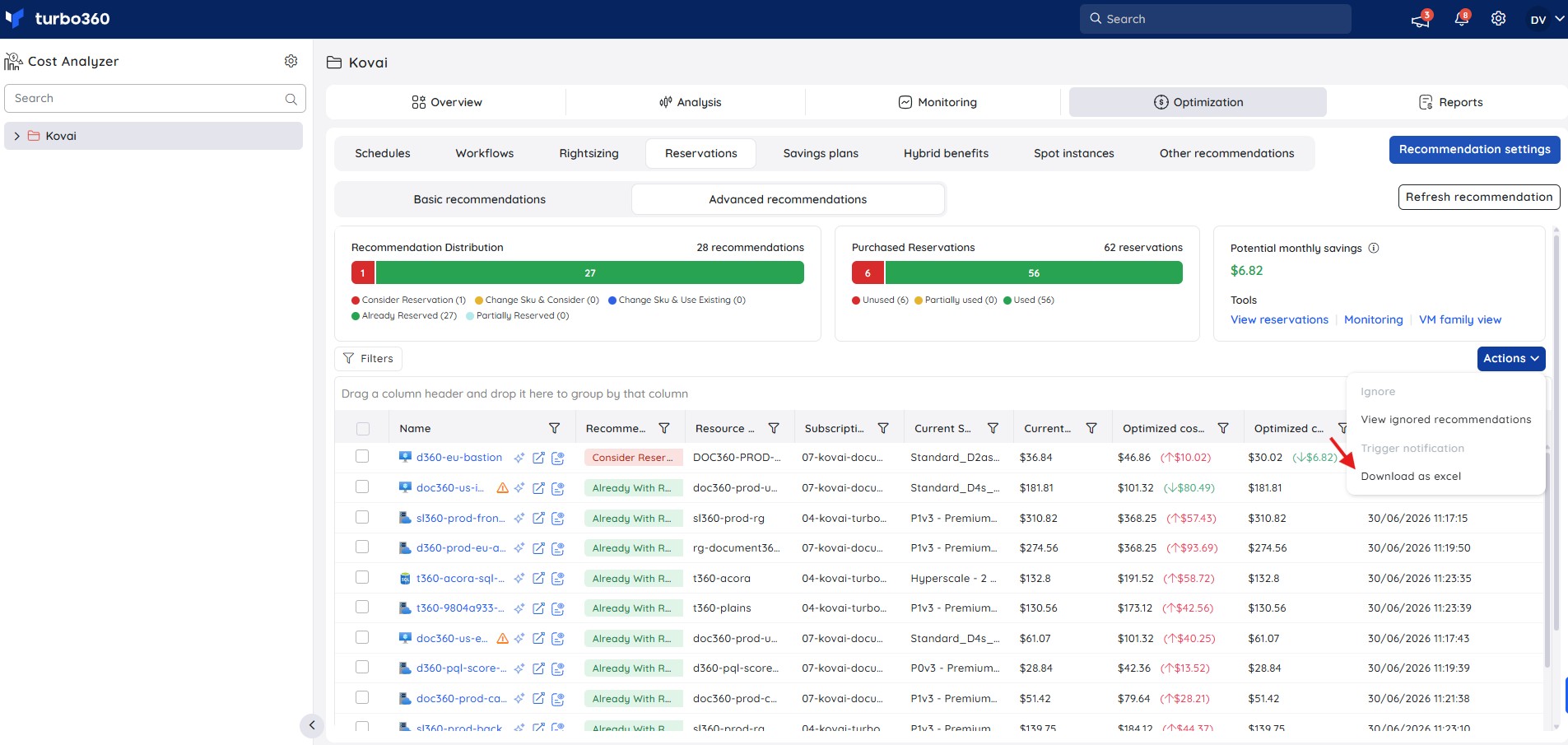
Exporting downloads the current recommendation list as an Excel file, providing a portable record for reporting or offline review.
- Go to the Action dropdown in the Reservations section.
- Click Download as excel.
The downloaded file contains the basic details of the resources and their recommendations.
Ignore a recommendation
Ignoring a recommendation removes it from the active list when you intend to keep a resource on its existing SKU, either permanently or until a specified date.
- Select the recommendation to ignore.
- Click Actions > Ignore.
- Choose to ignore the resource completely or until a specified date range, then confirm.
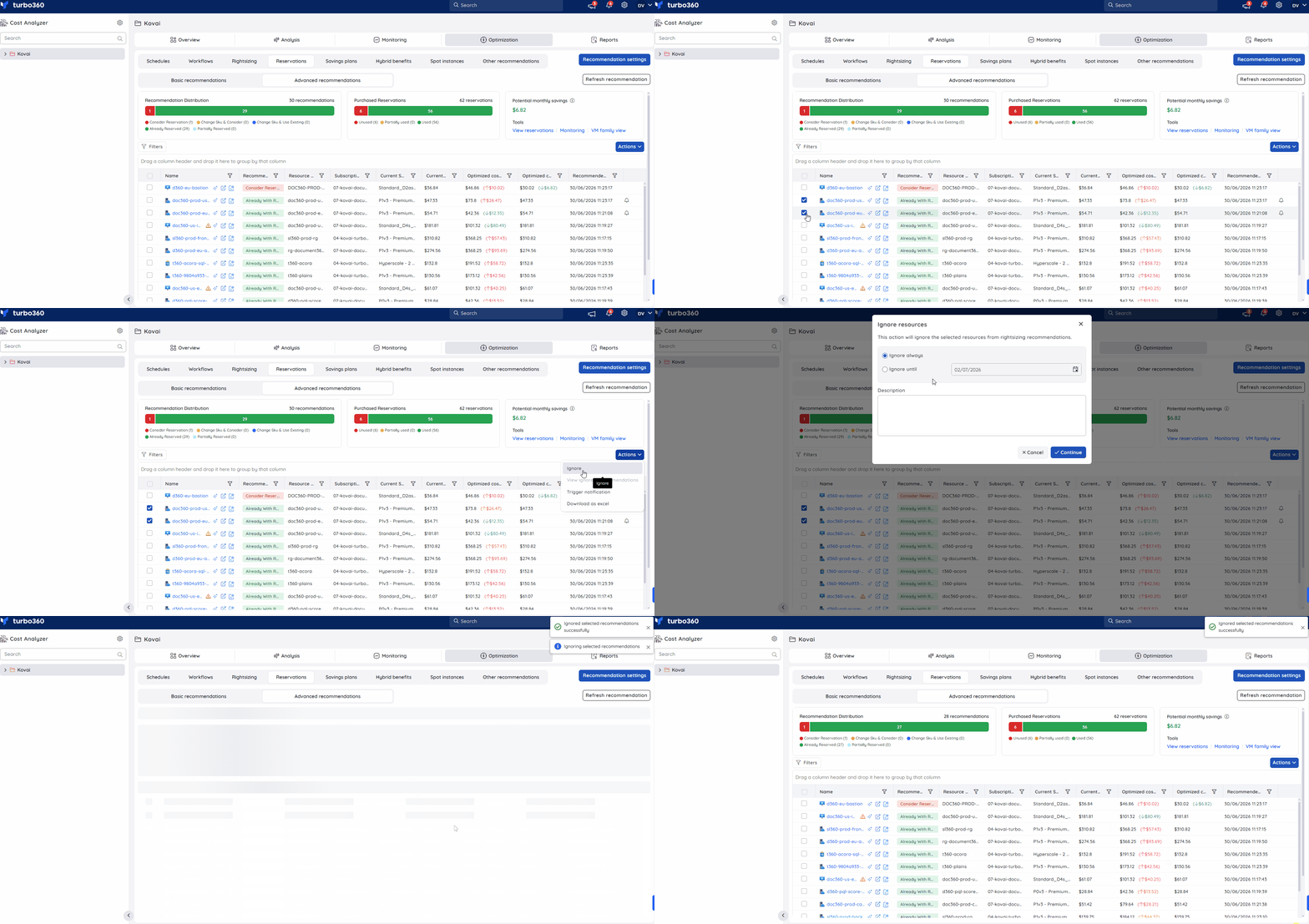
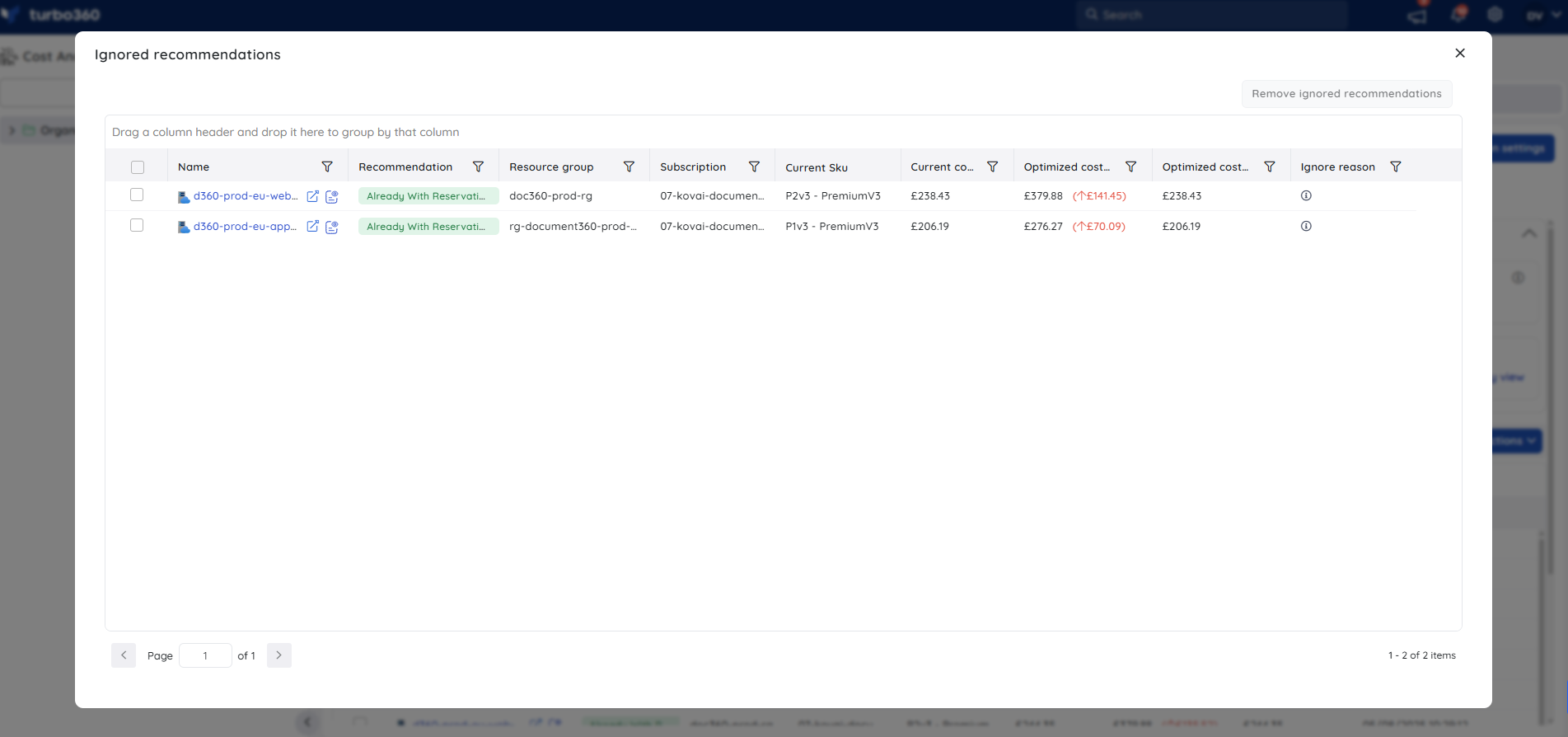
Ignored recommendations are accessible in Actions > View ignored recommendations.
Trigger a recommendation notification
Triggering a notification sends a recommendation report to a specific team or team member so they can prioritize action on a resource.
- Select a reservation recommendation.
- Click Actions > Trigger notification.
.jpg)
- Choose the desired channels, or configure a recipient mail address.
- Click Send.
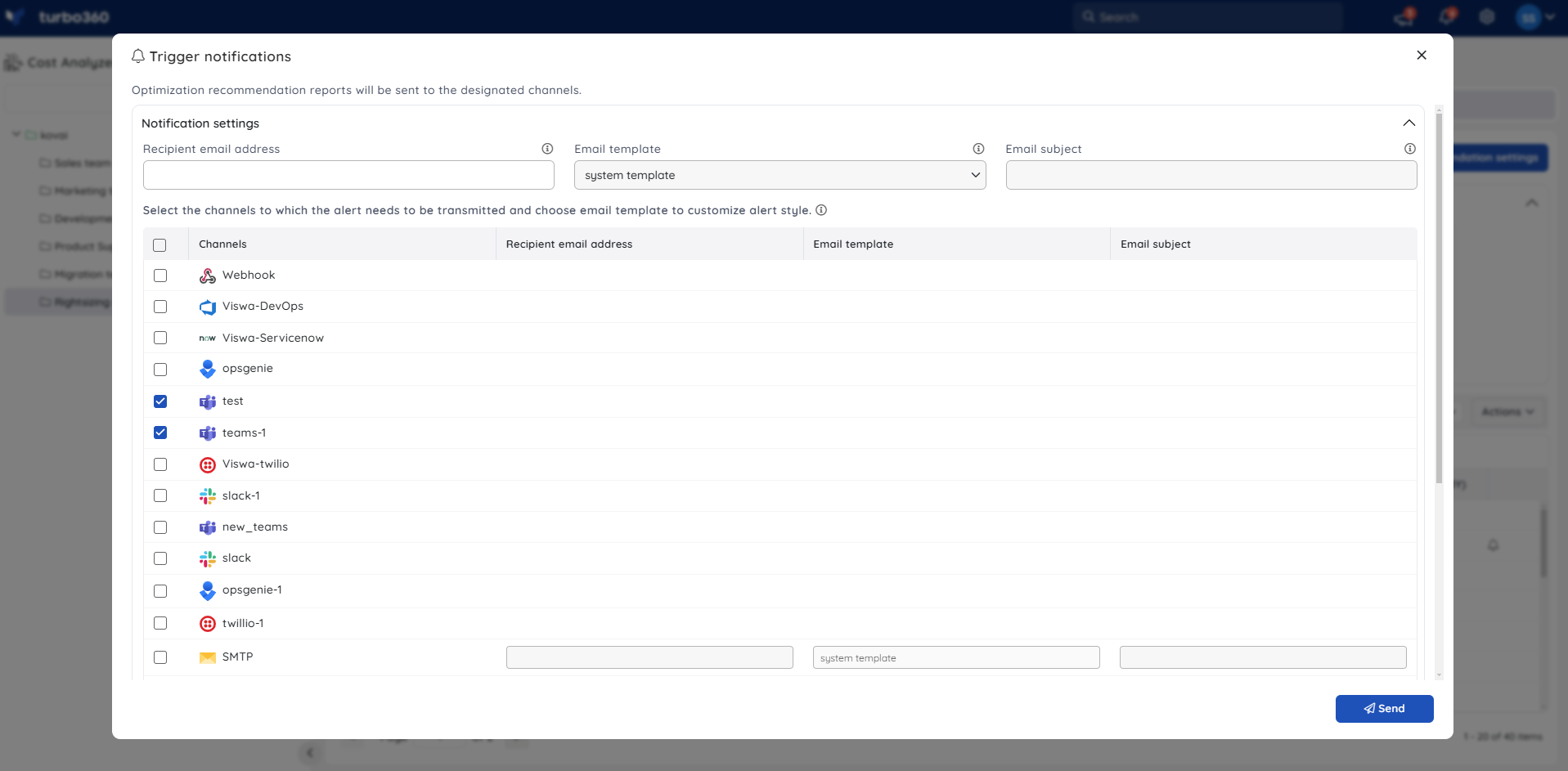
The recommendation data is sent as a report to the configured channels.
A maximum of 10 recommendations can be selected to trigger a consolidated notification.
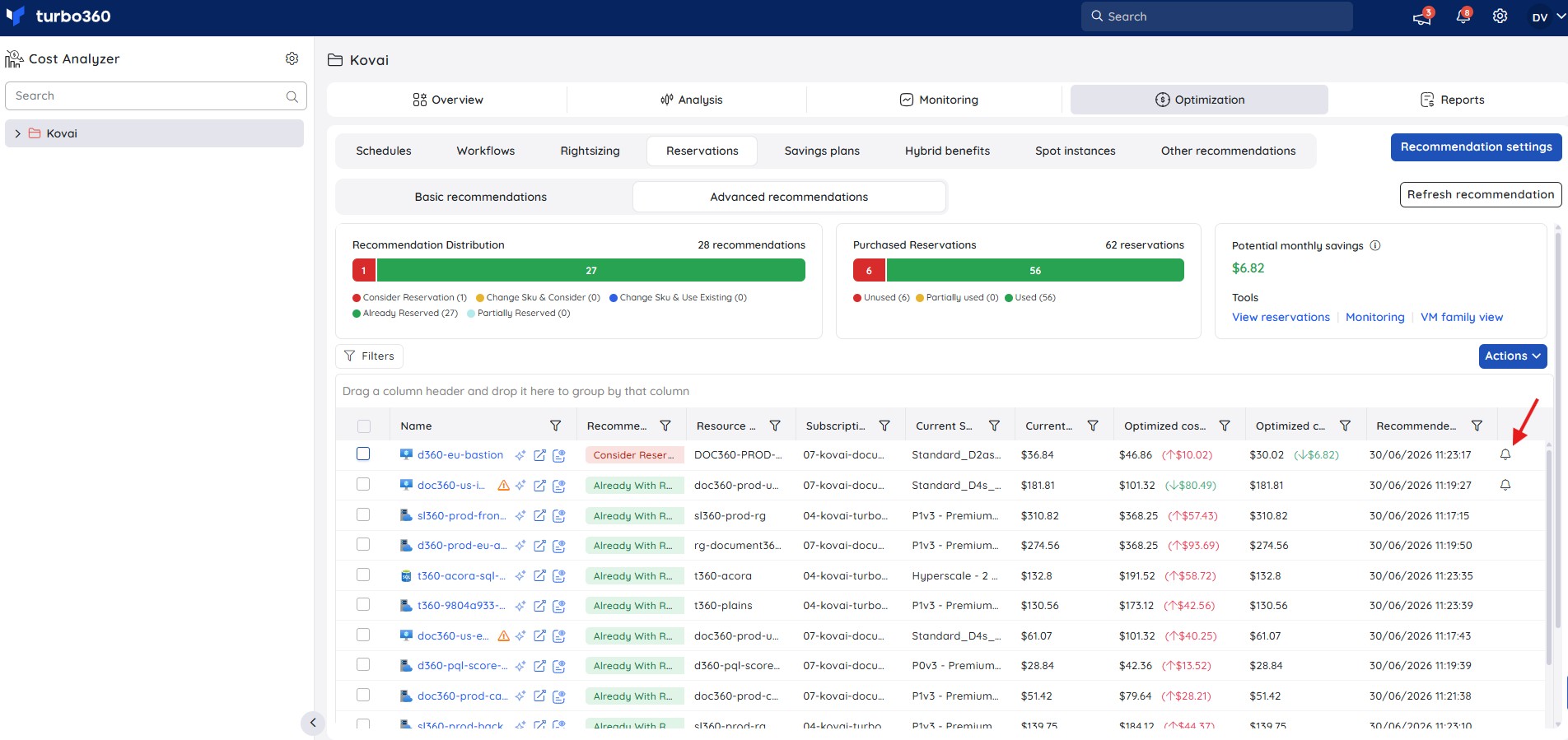
A bell icon appears next to any recommendation with an active notification. Clicking the icon reveals the notification details.
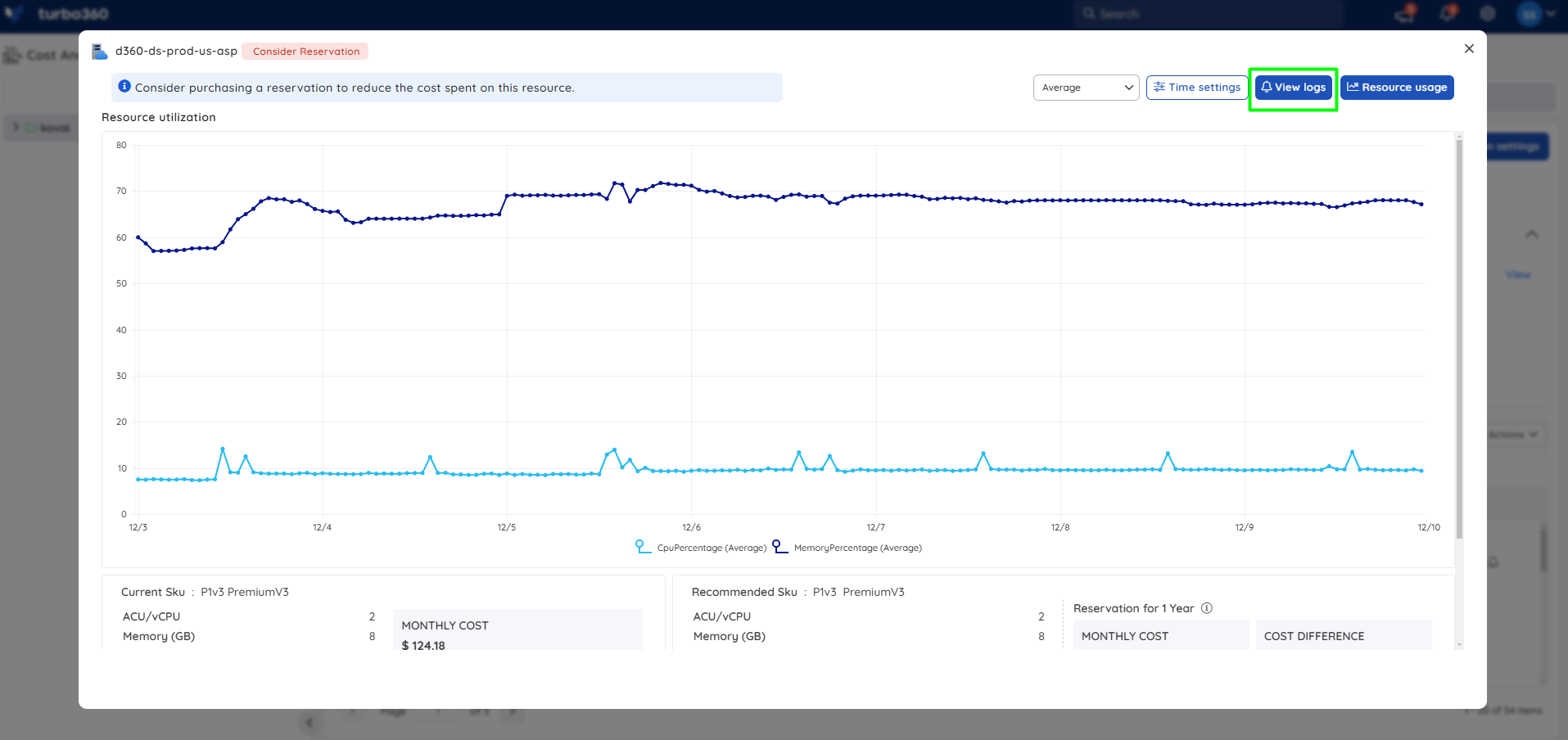
The View logs button, available when viewing a recommendation with an active notification, also displays that notification's details.
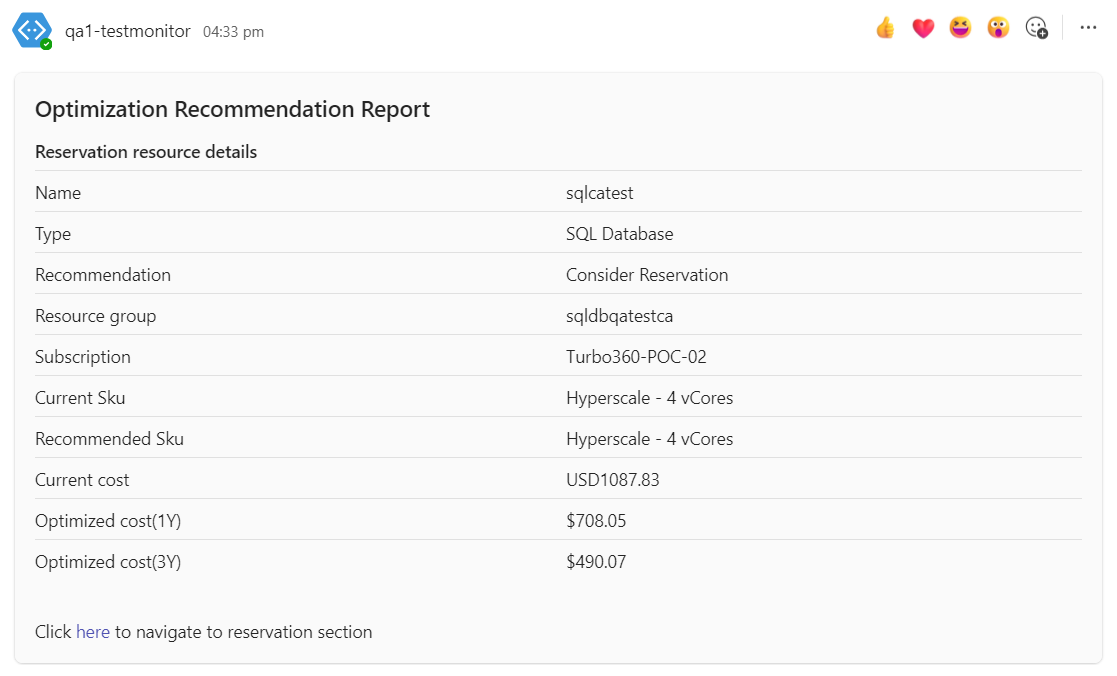
Below is an example of a recommendation report received via a Teams channel after triggering a notification for a reservation recommendation.
Limitations
Recommendations are currently available only for App service plan, SQL Database, SQL Managed instance, and Virtual Machine resource types. A maximum of 10 recommendations can be selected for a single consolidated notification.
Troubleshooting
No recommendations appear for a resource I expect to see.
Cause: Advanced recommendations are only available for App service plan, SQL Database, SQL Managed instance, and Virtual Machine resource types.
Fix: Confirm the resource type is supported. Unsupported resource types don't generate recommendations.Recommendation data looks out of date.
Cause: Advanced recommendations refresh only every 48 hours from the time the cost group was created.
Fix: Trigger a manual refresh within Advanced rightsizing recommendations at the root cost group to see updated data immediately.A notification can't be triggered for a batch of recommendations.
Cause: A consolidated notification supports a maximum of 10 recommendations at a time.
Fix: Split the selection into smaller batches and trigger separate notifications.Explain with AI icon is not visible next to a recommendation.
Cause: The user's Custom role does not have the AI Agents feature permission enabled, or Optimization and Reservations permissions are not correctly configured.
Fix: Go to User management > Roles, edit the relevant Custom role, and ensure AI Agents and Optimization are set to Enable under Specify feature permissions, and Reservations is toggled on with at least Read access under Specify optimization tab permissions.The AI Insights panel opens but shows no content or fails to load.
Cause: A temporary service interruption or browser session issue prevented the AI response from completing.
Fix: Close the panel and click Explain with AI again. If the issue persists, refresh the page and retry. If the panel consistently fails to load for a specific recommendation, raise a support ticket with the recommendation details.The (✦) Reservation advisor icon is not visible next to a reservation in the Reservations list.
Cause: The user's Custom role does not have the AI Agents feature permission enabled, or Optimization and Reservations permissions are not correctly configured.
Fix: Go to User management > Roles, edit the relevant Custom role, and ensure AI Agents and Optimization are set to Enable under Specify feature permissions, and Reservations is toggled on with at least Read access under Specify optimization tab permissions.A purchased reservation doesn't appear in the Reservations list at all.
Cause: The service principal connected to the subscription lacks the Reservation Reader role. Reservations under that service principal aren't surfaced, so Reservation advisor has nothing to analyze for them.
Fix: Assign the Reservation Reader role to the affected service principal in Azure, then allow the next sync cycle to complete before checking the Reservations list again.Reservation advisor renewal guidance looks out of date.
Cause: The panel generates insights from utilization and cost data at the time it's opened; if usage changed recently, the figures may lag behind the latest activity.
Fix: Close and reopen the panel to regenerate the insights with the most current data.Utilization monitoring status shows as off in Reservation advisor even though alerts were expected.
Cause: Utilization monitoring is a separate setting from Reservation advisor and must be enabled per reservation.
Fix: Enable utilization monitoring for the reservation from the Reservations list, then reopen Reservation advisor to confirm the status updates.
FAQs
What's the difference between Basic and Advanced recommendations?
Basic recommendations come directly from Azure Advisor with no additional configuration. Advanced recommendations are Cost Analyzer's own SKU-aware analysis across App service plan, SQL Database, SQL Managed instance, and Virtual Machine resources, with configurable settings and dedicated expiry/utilization monitoring.How often are Advanced recommendations refreshed?
Every 48 hours from the time the cost group is created, or on demand via a manual refresh at the root cost group.Which resource types support Advanced recommendations?
Advanced recommendations are currently available for App service plan, SQL Database, SQL Managed instance, and Virtual Machine. Other resource types don't generate recommendations regardless of usage.What does Drift Risk mean in the risk assessment?
Drift Risk flags the possibility that workload usage shifts significantly before the reservation term renews, which could reduce the ROI of the commitment. Monitor usage trends and review the recommendation again before the next renewal cycle.Does Explain with AI make reservation changes automatically?
No. It provides a commitment or renewal plan only; you take the recommended action manually using the implementation steps provided.Does Reservation advisor purchase or renew a reservation automatically?
No. It provides renewal guidance and supporting analysis only; you take the recommended action manually in the Azure portal.What does the "resources within scope" table in Reservation advisor show if a reservation is under-utilized?
It lists every resource currently drawing from the reservation and its coverage status, so you can see exactly which resources are consuming reserved capacity and which portion is sitting idle.
Related articles
Was this article helpful?