

Advanced recommendations for Rightsizing
- 09 Aug 2026
- 12 Minutes to read
- Print
- DarkLight
- Download PDF
Advanced recommendations for Rightsizing
- Updated on 09 Aug 2026
- 12 Minutes to read
- Print
- DarkLight
- Download PDF
Article summary
Did you find this summary helpful?
Thank you for your feedback!
Overview
Rightsizing aligns your provisioned Azure resources with actual workload requirements, so you get optimal cost efficiency without sacrificing performance. Advanced recommendations give you personalized, configurable rightsizing suggestions from Cost Analyzer, going beyond the Azure Advisor-based Basic recommendations view.
Navigate to Cost group > Optimization > Rightsizing > Advanced recommendations to get started.
Business value
Advanced recommendations reduce unnecessary cloud expenditure by flagging oversized and underutilized resources with configurable, resource-specific analysis, and let you act on those recommendations — apply, schedule, notify a team, or generate a ready-to-run script — without leaving Cost Analyzer.
Prerequisites
Required permissions
| Role | Permission level | Access |
|---|---|---|
| Account owner, Owner, Contributor | — | Full access to Advanced recommendations and Explain with AI |
| Custom role | Optimization feature enabled + Rightsizing: Read | View Advanced recommendations |
| Custom role | Optimization feature enabled + Rightsizing: Manage | Full access to Advanced recommendations |
| Custom role | AI Agents — Enable, Optimization — Enable, Rightsizing — Read (or Manage) | Access Explain with AI on any recommendation. Under Specify feature permissions, both AI Agents and Optimization must be set to Enable. Under Specify optimization tab permissions, Rightsizing must be toggled on with at least Read access. If any of the three is missing, the Explain with AI option is not available. |
Applying a recommended SKU additionally requires Contributor access on the Service Principal, regardless of role.
Roles are created under Cost Analyzer > User management > Roles > Add role, and access can be scoped to specific cost management groups.
.png)
How it works
Cost Analyzer analyzes actual resource utilization against the provisioned SKU and generates a rightsizing recommendation for each compatible resource. You can customize the metrics and thresholds that drive those recommendations, and act on them directly from within Cost Analyzer.
The following resource types support Advanced recommendations:
- App service plan
- App Service Plan (Workflow Standard SKU)
- Azure Database for MySQL flexible server
- Cosmos SQL Container
- Cosmos SQL Database
- Cosmos Table
- SQL Database
- SQL Elastic pool
- SQL Managed Instance
- Virtual Machine
- Virtual Machine scale set
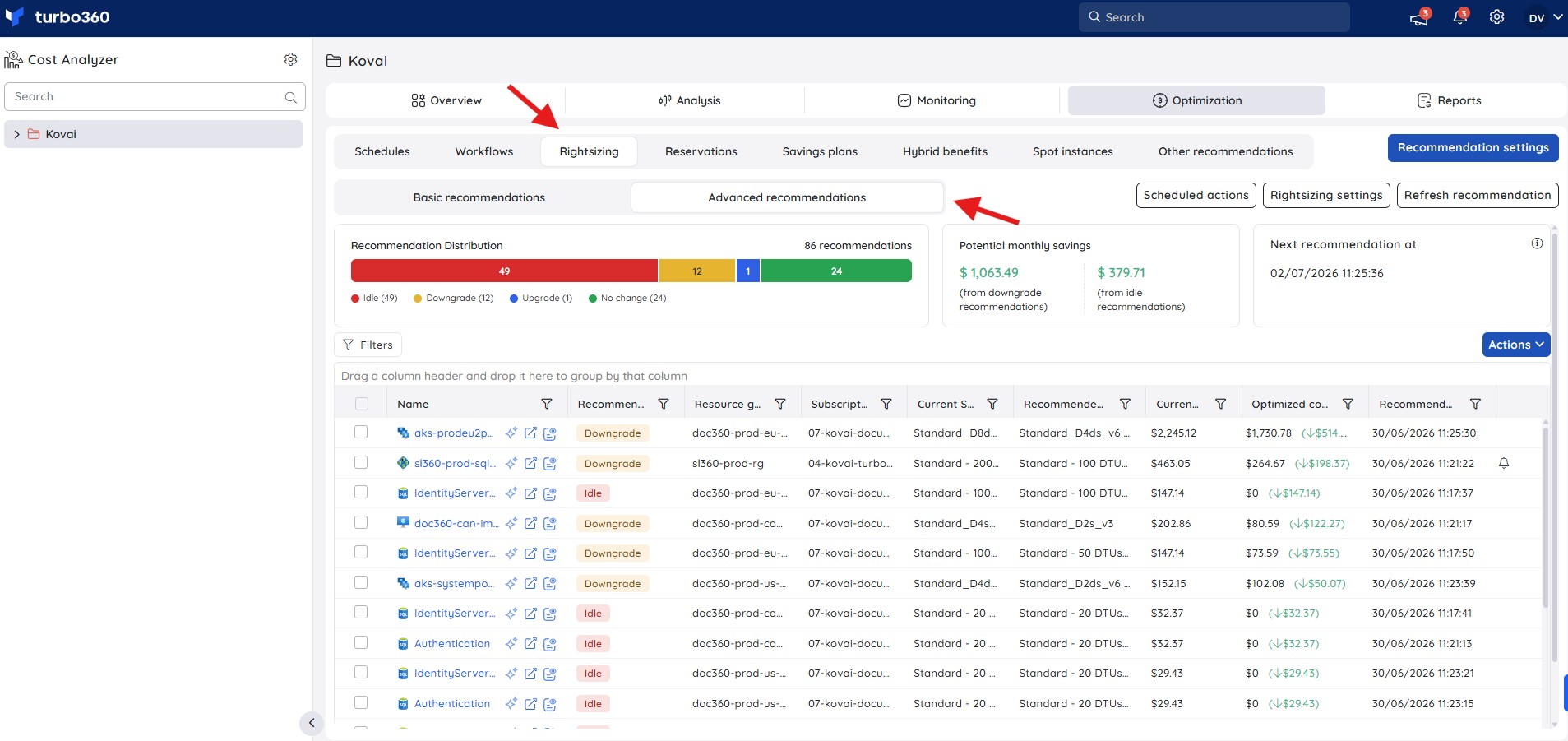
Cost Analyzer produces four recommendation types:
- Upgrade — the resource frequently hits the maximum capacity of its current SKU. Moving to a higher SKU improves performance and prevents resource contention.
- Downgrade — the resource consistently operates well below its capacity. Moving to a lower SKU reduces cost without impacting performance.
- Idle — the resource has seen no meaningful usage for an extended period. It can be deleted if it is no longer required.
- No change — the resource utilization aligns well with the current SKU. No action is needed.
Understanding resource usage charts
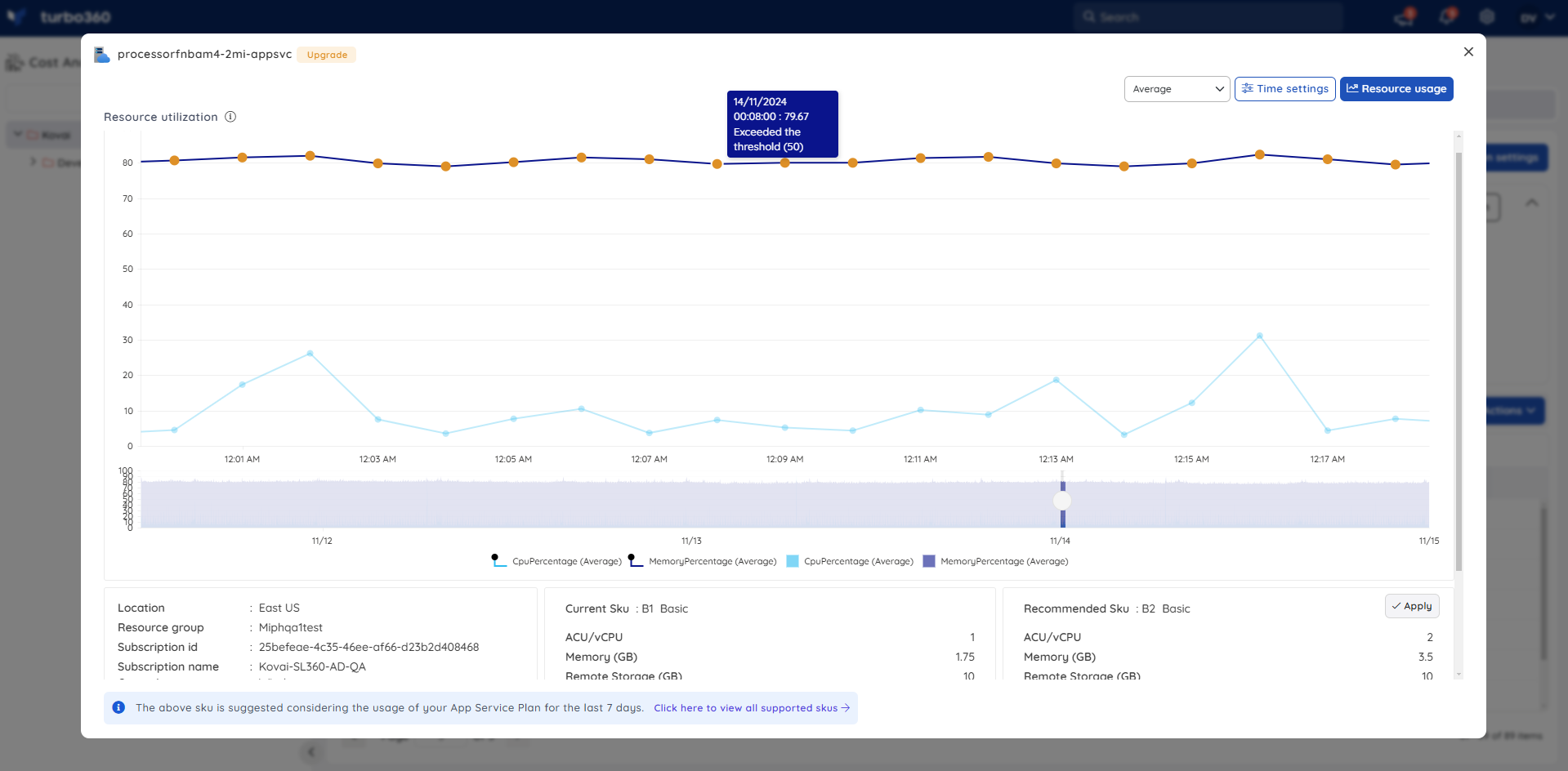
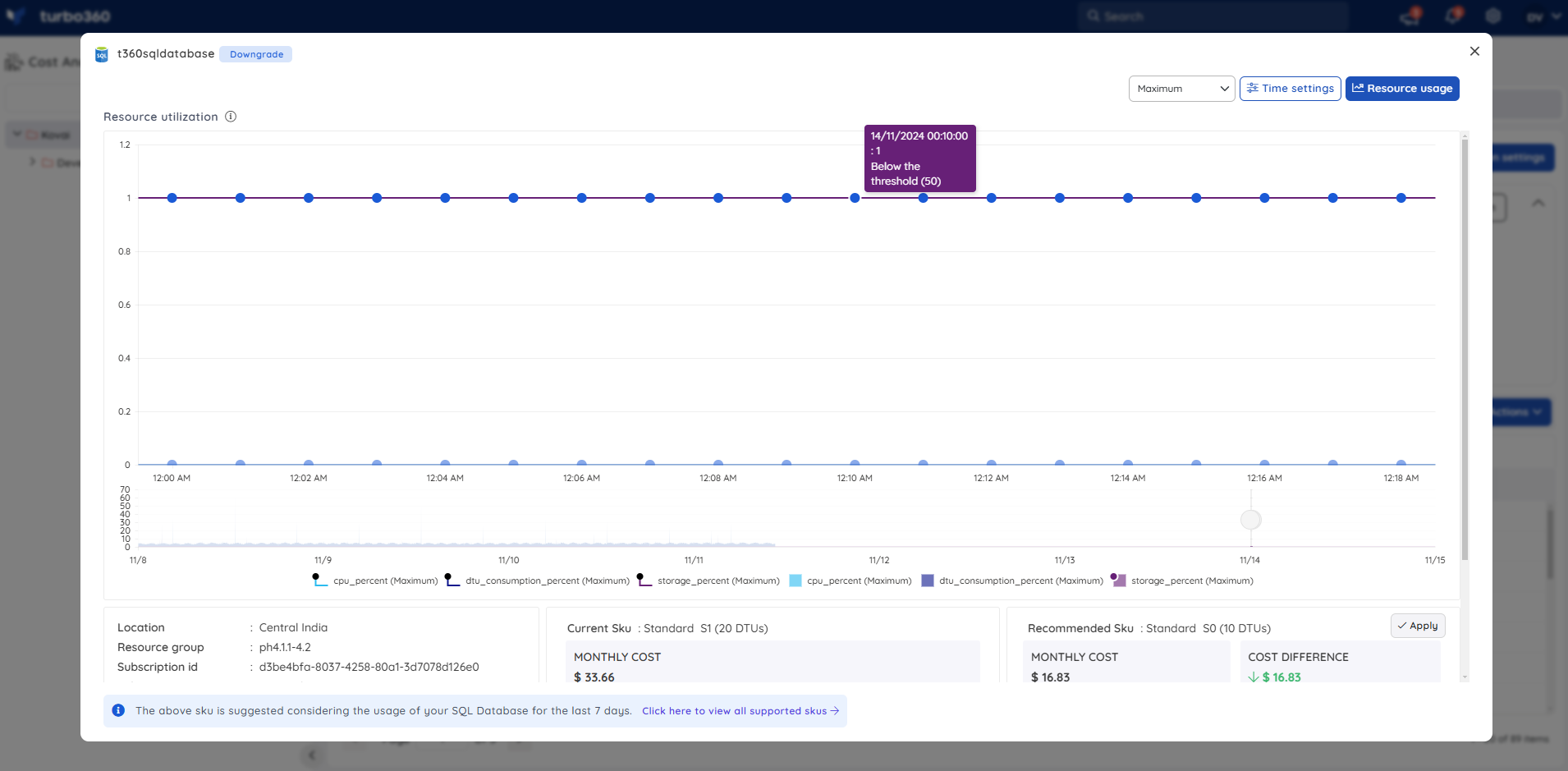
Click any resource listed under Advanced recommendations to view its usage patterns. Use the Time settings option to adjust the time range and focus on a specific interval.
The area chart below the usage trends lets you navigate between intervals for detailed insights into resource utilization, and shows both the current and recommended SKUs for direct comparison.
Data points that exceed or fall below the thresholds configured in Rightsizing settings are visually distinguished:
Yellow — the data point surpassed the upgrade threshold, indicating the resource is under pressure and a higher SKU is recommended.
Blue — the data point fell below the downgrade threshold, indicating the resource is underutilized and a lower SKU is recommded.
Resource status calendar
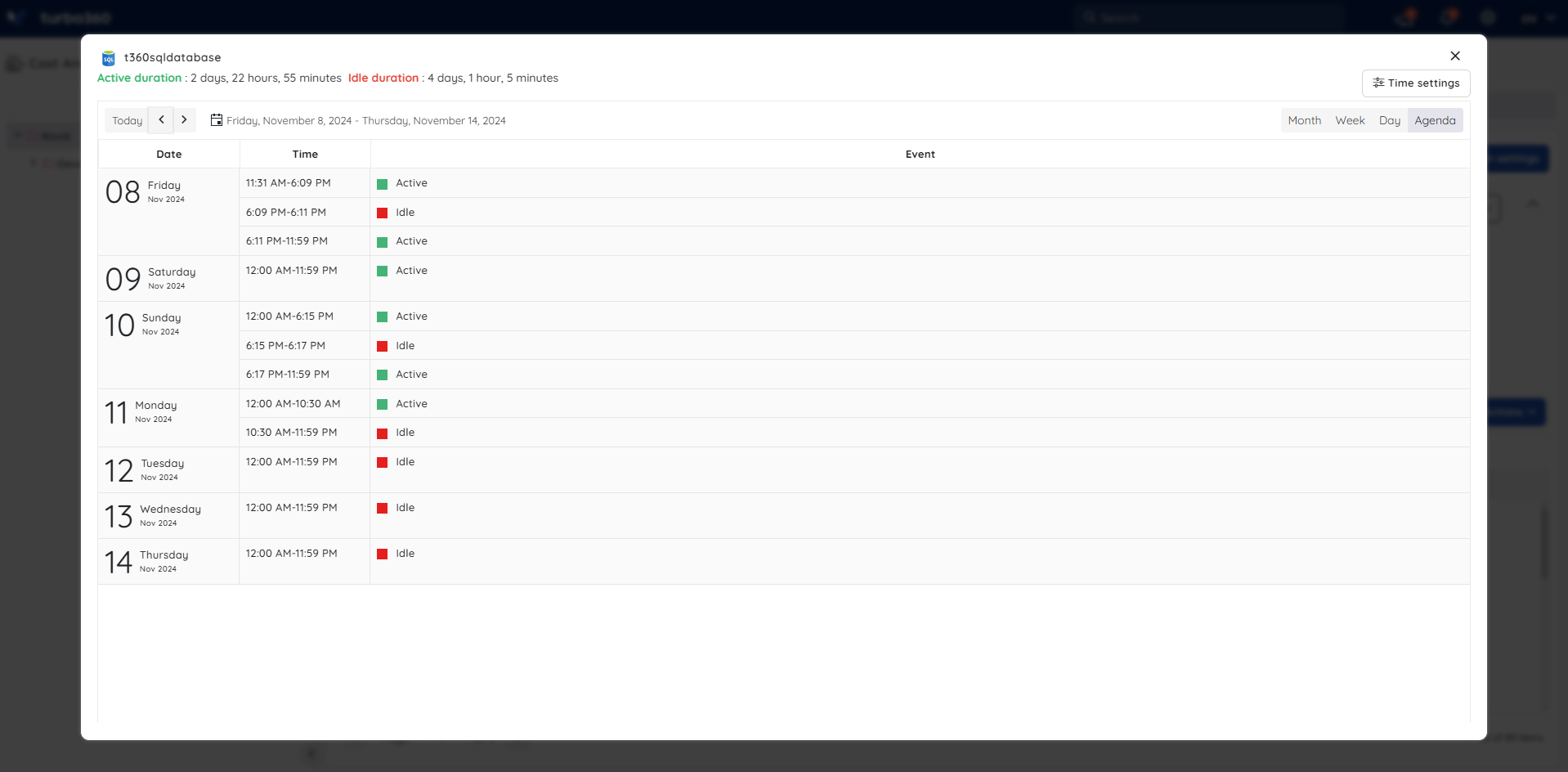
Clicking an Advanced recommendation also opens a resource usage calendar view that shows the status of the resource over time, with multiple toggle modes available for accessibility.
Resource status is one of:
- Active
- Idle
Status is determined by the following metric for each resource type:
- App service plan — CPU Percentage
- Azure Database for MySQL flexible server — Host CPU percent
- Cosmos SQL Container — Normalized RU Consumption
- Cosmos SQL Database — Normalized RU Consumption
- Cosmos Table — Normalized RU Consumption
- Disk — Disk Read Write
- SQL Database — DTU consumption
- SQL Elastic Pool — DTU consumption
- SQL Managed Instance — CPU Percentage
- Virtual Machine — CPU Percentage
- Virtual Machine Scale set — CPU Percentage
The Agenda view displays a day's active and idle hours in a grid format for a granular look at utilization patterns.
Idle recommendation resource types
Beyond the resource types eligible for standard rightsizing recommendations, the following resource types — when detached from all Azure services — exclusively support Idle recommendations. This allows you to identify and remove abandoned resources that are accruing cost without serving any workload:
- Disks
- Public IP Addresses
- Virtual Network
- Subnet
A virtual network without any subnet is considered for idle recommendation.
Cost intelligence view
The Cost intelligence view structures resource data into distinct categories and visual sections, giving you a detailed overview of cost distribution and utilization. It highlights key optimization opportunities by identifying areas of high or low resource efficiency, so you can monitor spending patterns, evaluate cost performance, and take data-driven optimization actions.
See Cost analysis to learn more about the Cost intelligence view's capabilities.
To access this view, navigate to Optimization > Rightsizing > Advanced recommendations within a cost management group, then click the View resource details icon next to a recommended resource.
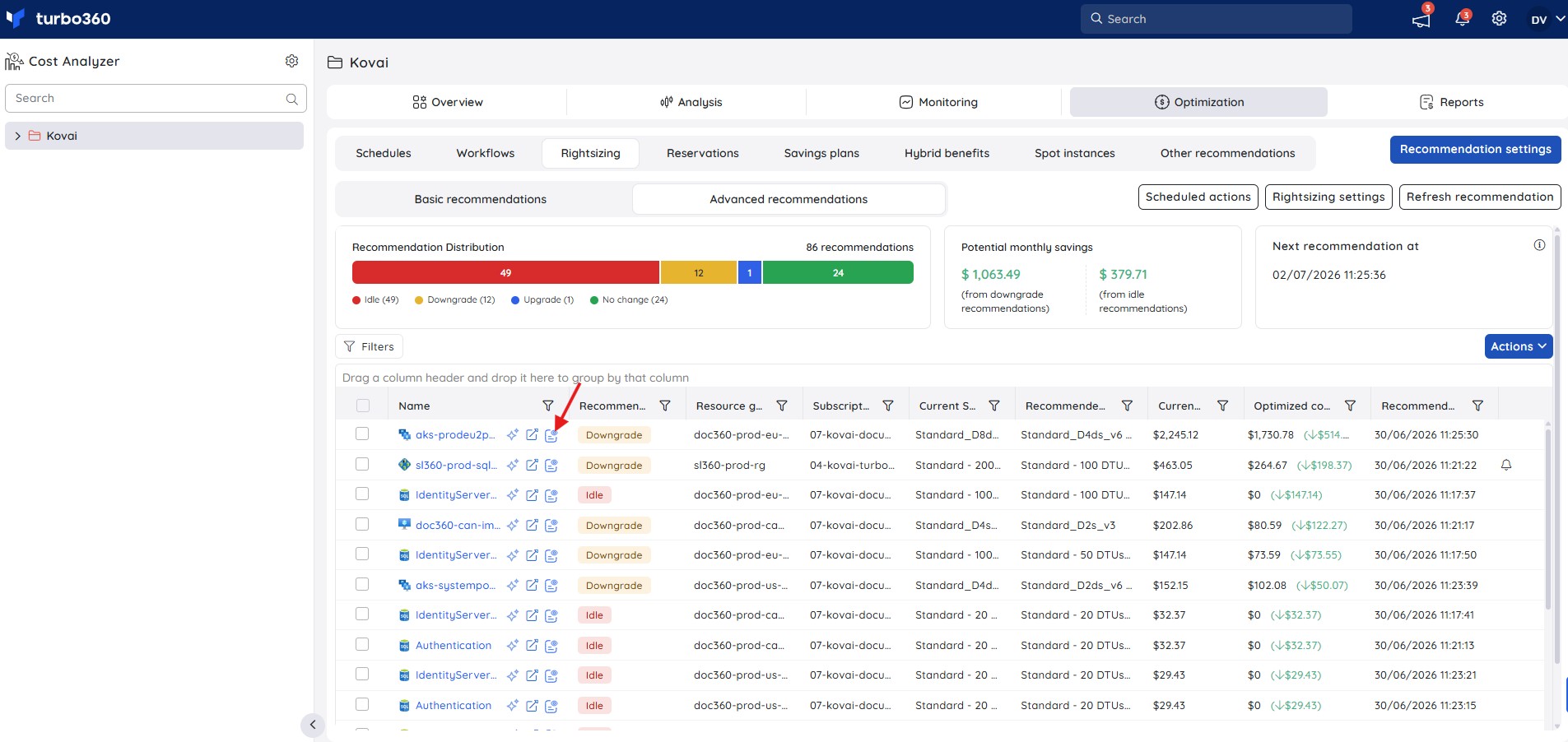
Explain with AI
Each Advanced recommendation includes an Explain with AI option. Hover over a recommendation and click the icon to open a detailed AI-generated analysis panel covering seven areas:
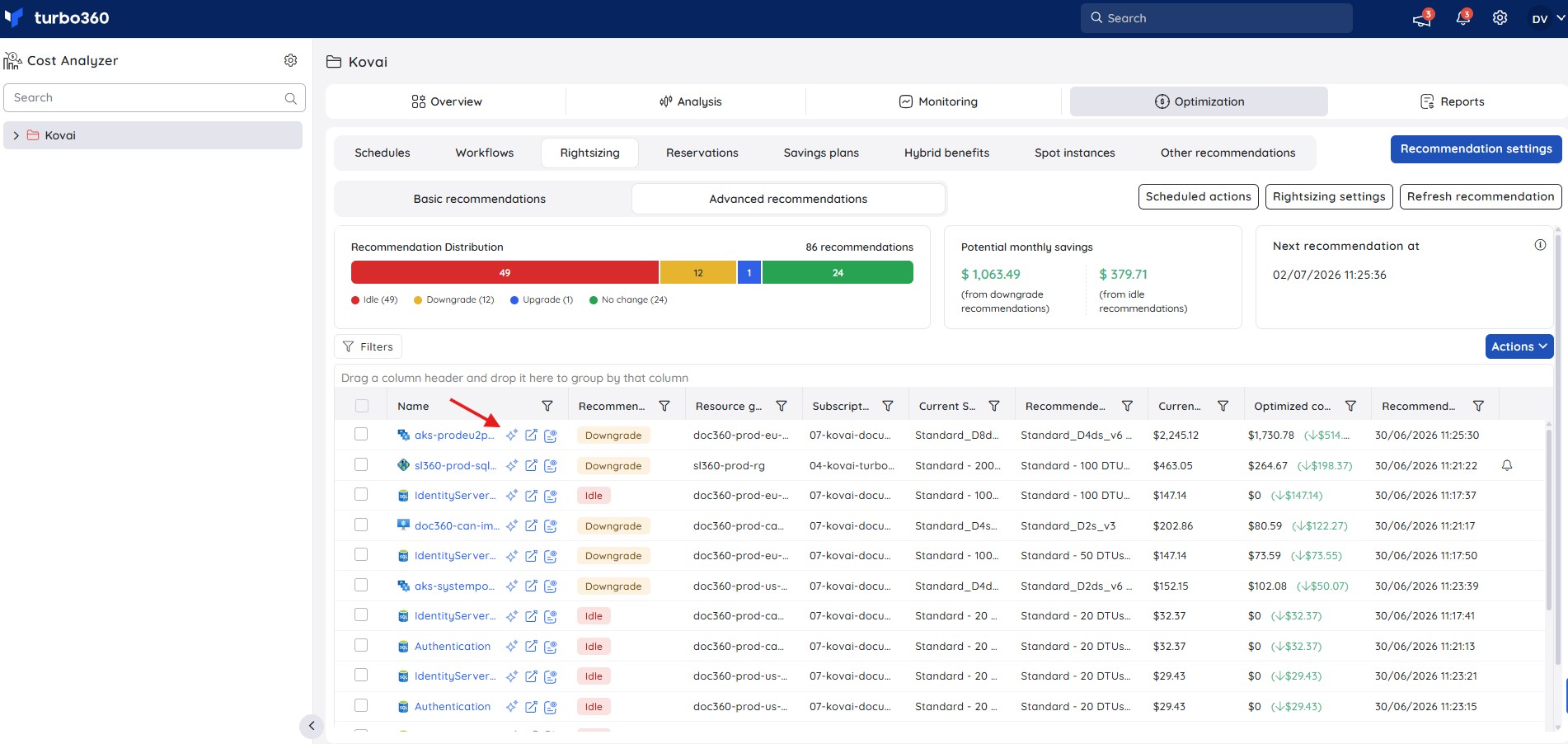
- Savings summary — recommendation type (Downgrade, Upgrade, Idle, or No change), current monthly cost, monthly and annual savings, and a context note explaining the basis of the recommendation.
- Metric analysis — the monitored metrics used to generate the recommendation (such as CPU percentage and DTU percentage), with average, peak, downgrade threshold, and upgrade threshold values, each labeled against its threshold status.
- Recommendation summary — what SKU change is being recommended, why the workload qualifies based on monitored signals, and the financial impact of keeping the current tier versus acting.
- Implementation steps — step-by-step actions with an estimated time and the tool required (Turbo360 Cost Analyzer, Turbo360 Rightsizing Settings, or Azure Monitor).
- Risk & impact assessment — Performance Risk, Availability Risk, and an Overall Safety rating, with guidance on what to monitor after the change.
- Rollback plan — how to revert the change, including early warning signals and confirmation that data, logins, and configuration are preserved.
- Recommendation justification — why the recommendation was generated based on monitored metric samples, and the recommended timing to minimize operational impact.
.png)
.png)
Generate an Az CLI script
Generating an Az CLI script produces a ready-to-run Bash script that resizes your selected resources to their recommended SKUs when executed in Azure Cloud Shell, so you can apply multiple rightsizing changes in a single automated pass without manual portal edits.
- Select one or more resources with a Downgrade, Upgrade or Idle recommendation using the row checkboxes.
- Click Actions > Generate Az CLI script.
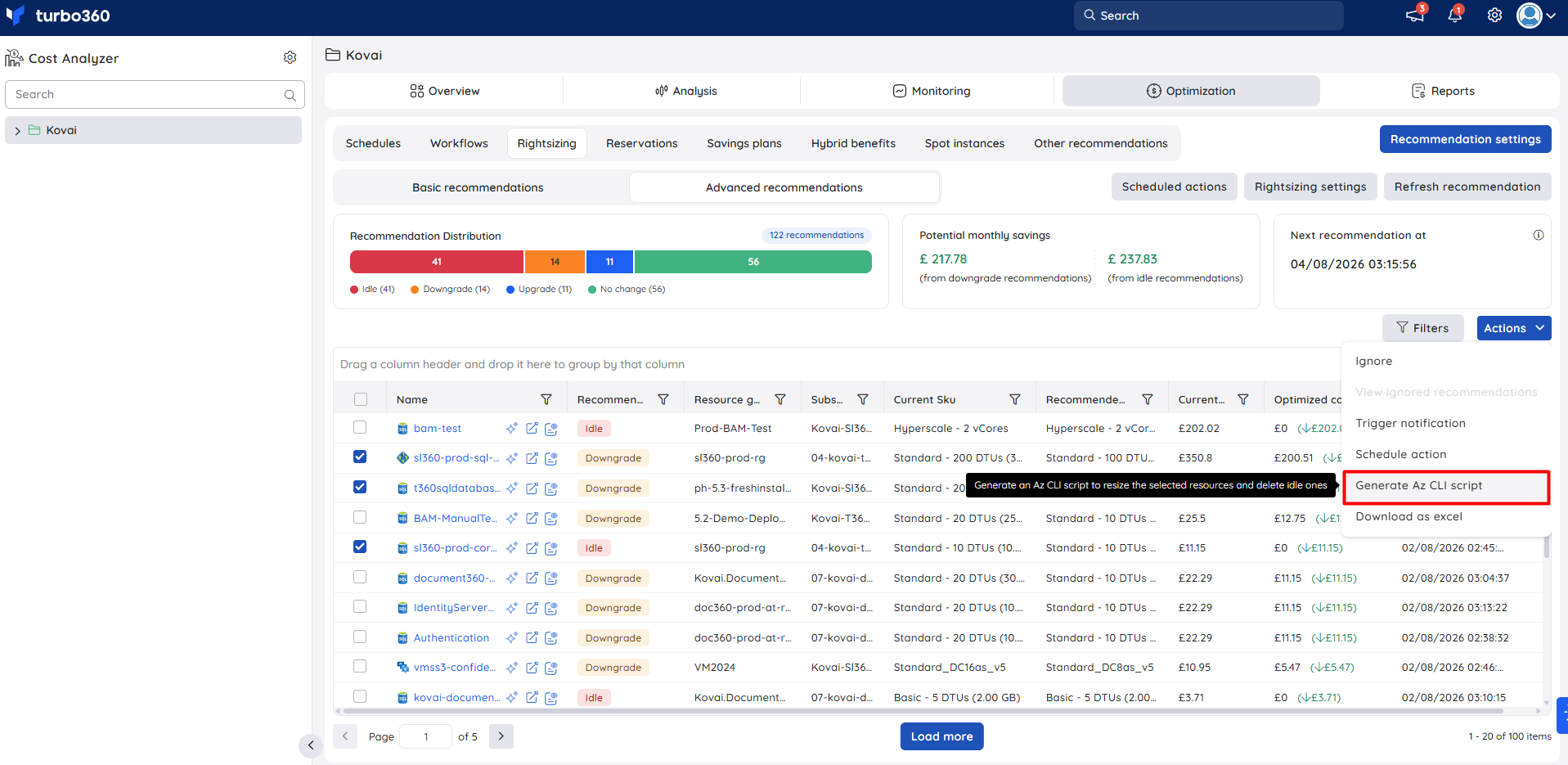
The Resize script (Az CLI) modal opens, showing a summary and the generated script.
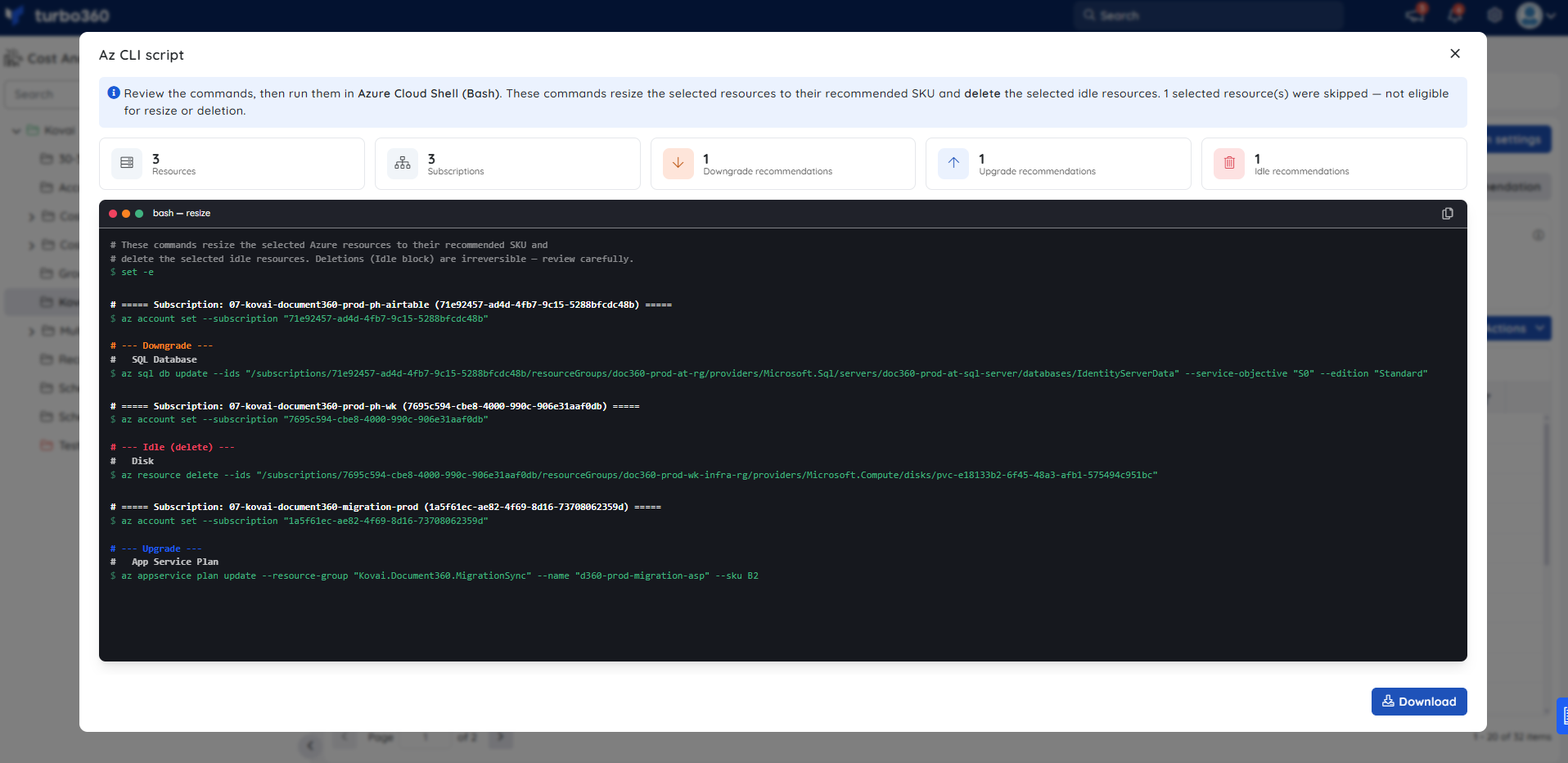
The modal displays:
- An info banner: "Review the commands, then run them in Azure Cloud Shell (Bash). These commands resize the selected resources to their recommended SKU."
- Four summary tiles: Resources (eligible resource count), Subscriptions (unique subscription count), Downgrade recommendations, and Upgrade recommendations.
- A dark terminal panel labelled bash — resize containing the generated script. The script begins with
set -eto halt on first error, groups commands by subscription block, and within each block organizes resize commands by resource type under Downgrade and Upgrade sections.
- To copy the script to the clipboard, click Copy in the modal footer or use the copy icon at the top-right of the terminal panel.
- To save the script as a
.shfile, click Download. - Run the script in Azure Cloud Shell (Bash) to apply the resize changes.
Note:
No change recommendations are automatically excluded from the script. When ineligible resources are included in the selection, the modal displays a warning showing the count of skipped resources. When all selected resources are ineligible, the modal shows "None of the selected resources can be resized." and no script is generated.
Task planner integration
Cost Analyzer integrates with Task planner to create tasks for both manual and scheduled rightsizing actions, giving you a centralized record of optimization activity across cost groups.
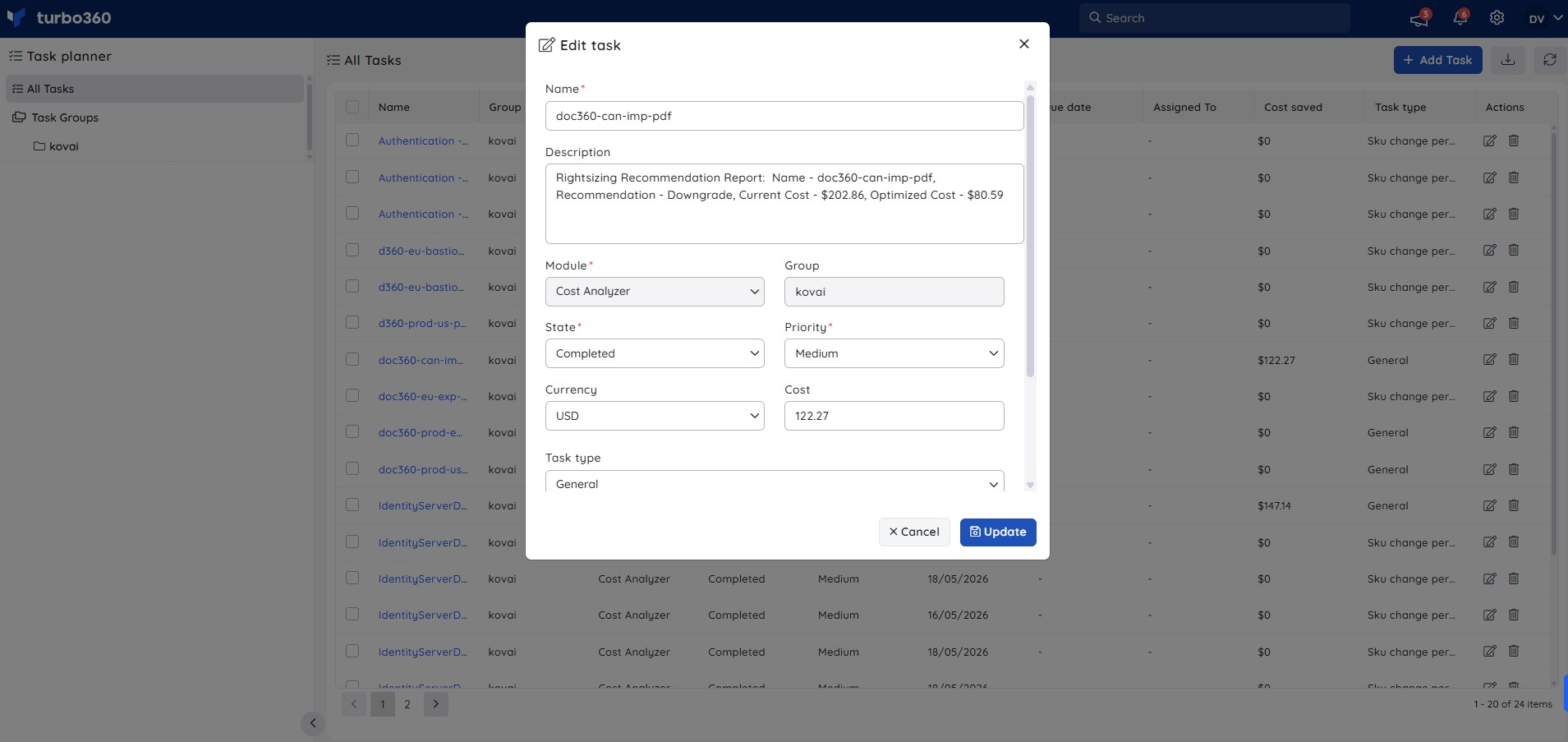
A task is generated when you apply a recommended SKU, execute a scheduled rightsizing action, or trigger a recommendation notification. Each task records the resource name, the optimization strategy applied, and the resulting cost savings.
To access generated tasks, click the Context menu ( ⋮ ) next to the relevant cost management group in the Analysis section and select Tasks.
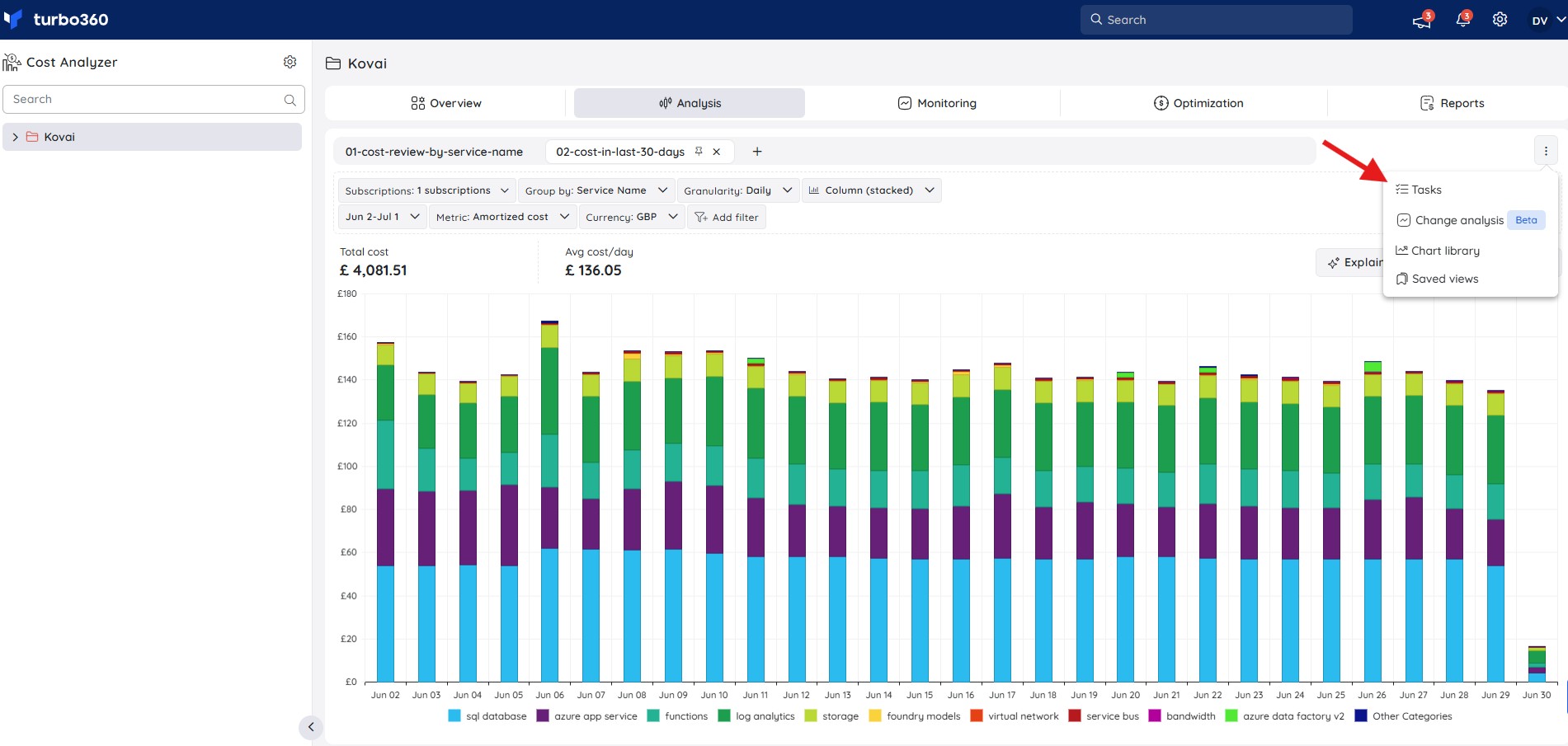
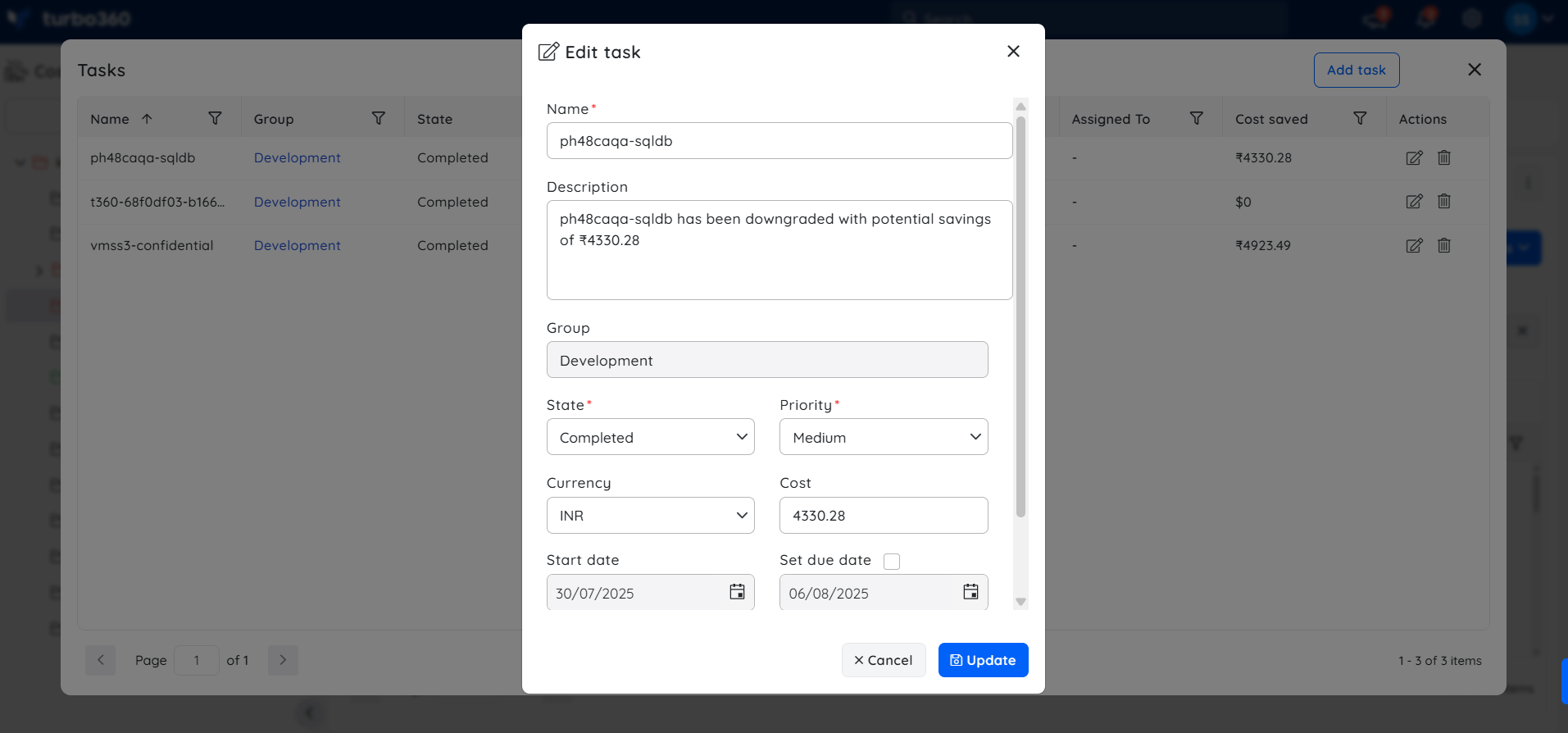
You can also access tasks through Task planner under the My profile dropdown for visibility across all groups.
Steps
Use the following steps to apply, ignore, schedule, notify, export, and generate an Az CLI script from Advanced recommendations. Navigate to Cost group > Optimization > Rightsizing > Advanced recommendations to get started.
Apply a recommended SKU
Applying a recommended SKU resizes the resource directly from Cost Analyzer without requiring manual changes in the Azure portal.
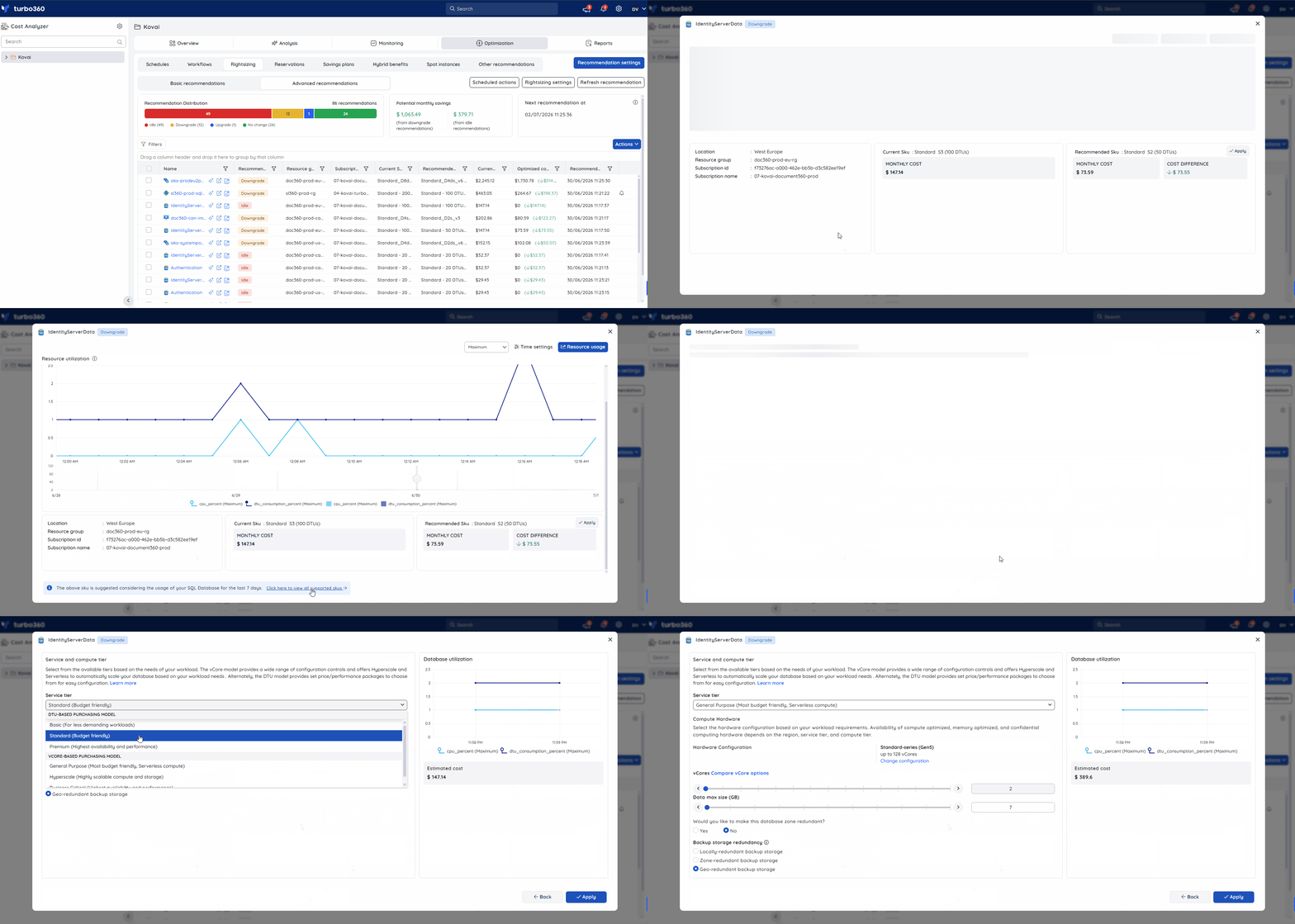
- Click any resource listed under Rightsizing. A data trend chart appears showing resource usage for the last 7 days — adjust the aggregation type and time settings to view a different interval.
- Review the Recommended SKU displayed based on the analysis, then click to apply it instantly.
- To choose a different SKU, click Click here to view all supported SKUs and select from the supported list.
Note:
The recommended SKU can only be applied when the Service Principal has Contributor access.
Ignore a recommendation
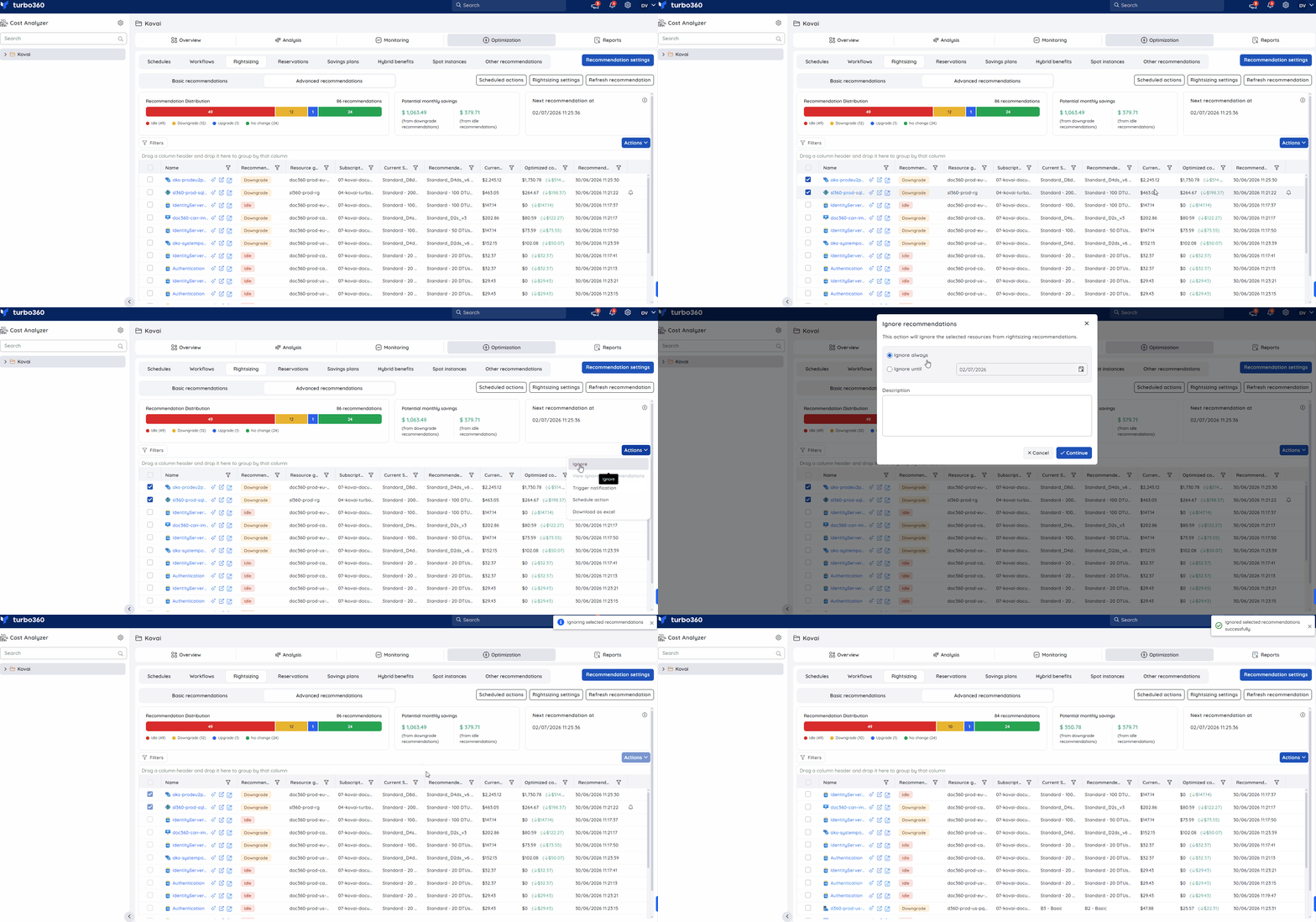
Ignoring a recommendation removes it from the active list so it does not reappear while you have deliberately chosen to keep the resource at its current SKU.
- Select the recommendation(s) to ignore.
- Click Actions > Ignore.
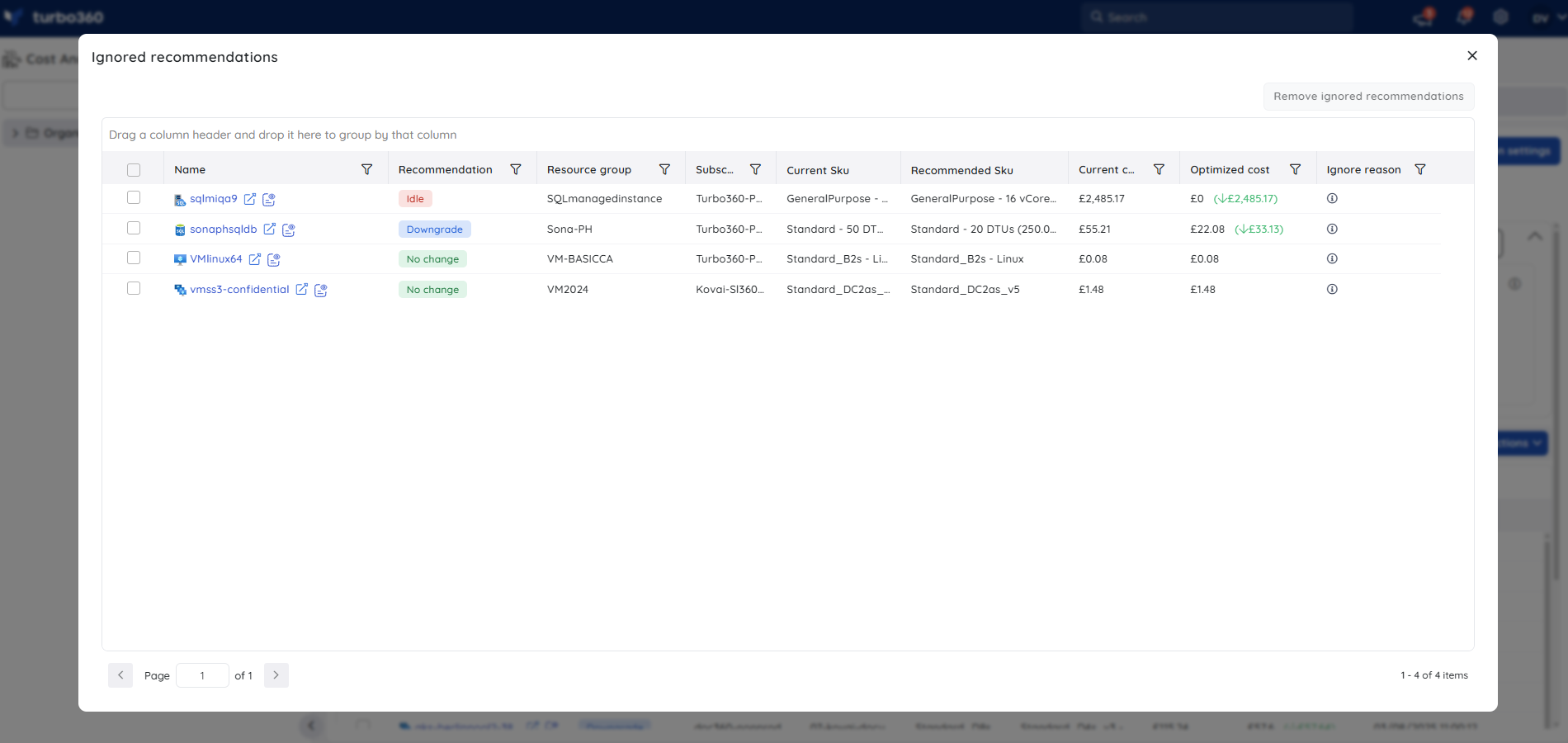
You can ignore a resource permanently or until a specified date. Ignored recommendations are accessible from Actions > View ignored recommendations.
Schedule a rightsizing action
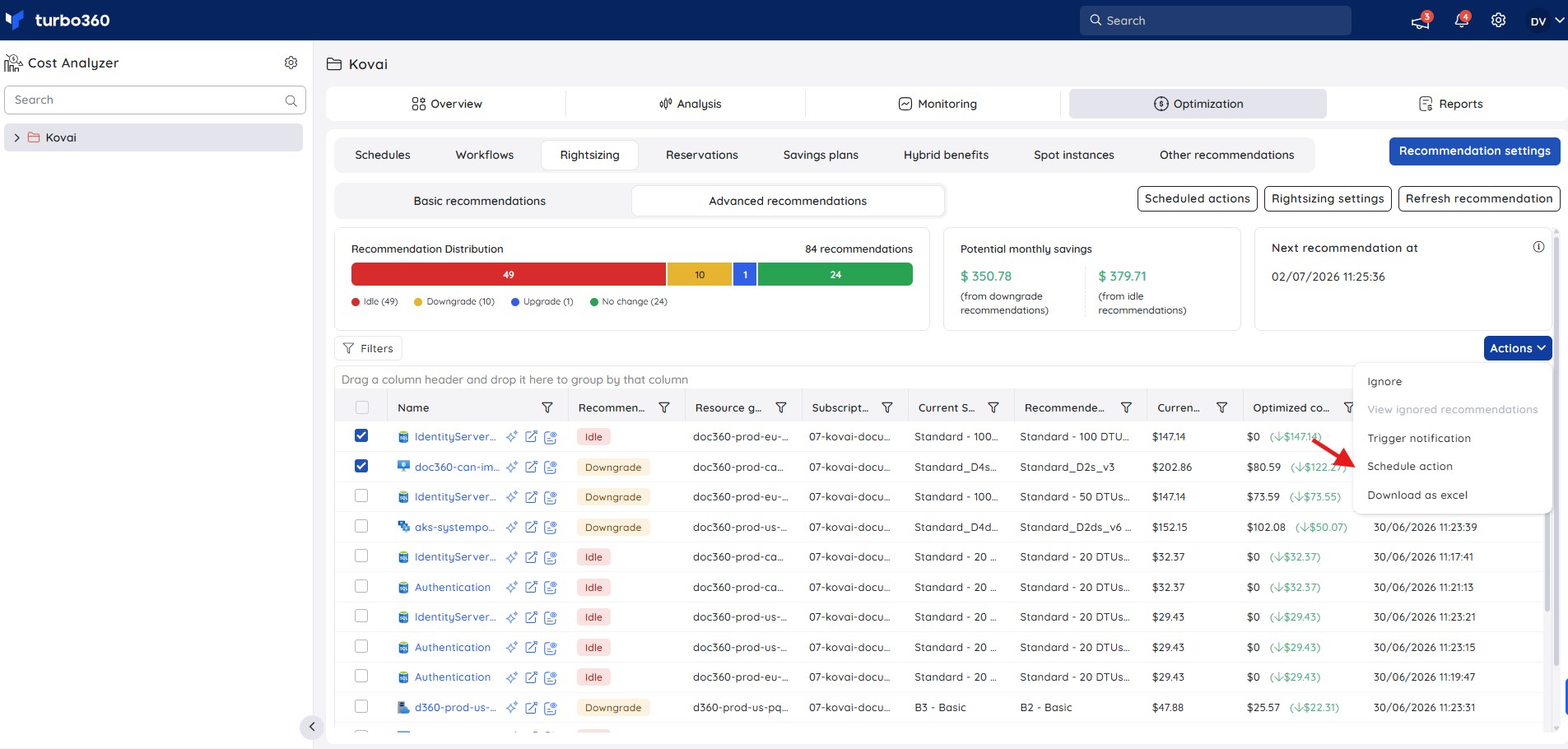
Scheduling a rightsizing action applies the recommended SKU automatically at a time you specify, enabling consistent optimization without manual intervention.
- Select one or more resources to schedule.
- Click Actions > Schedule action.
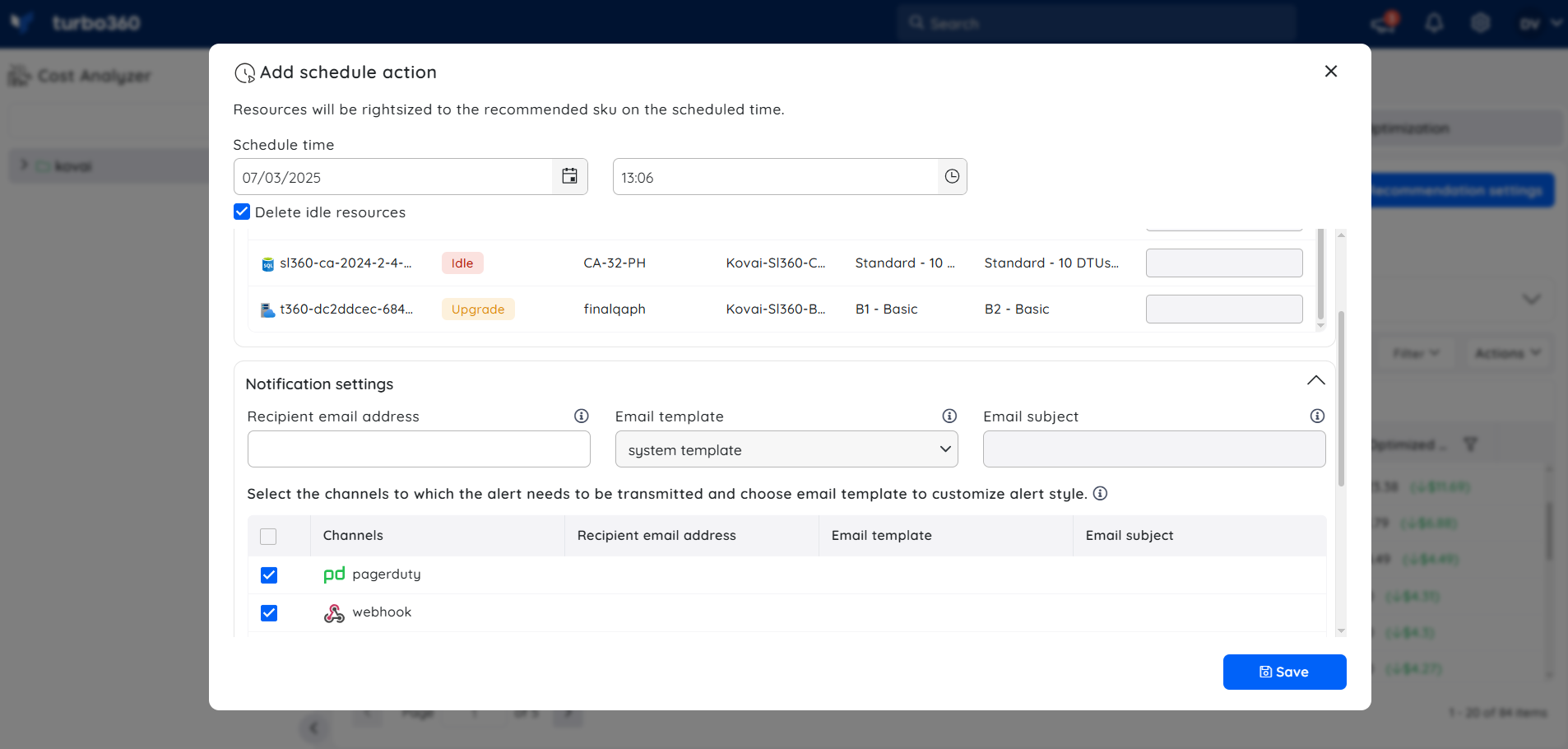
- Specify the date and time for the action to run.
- (Optional) Enable Delete idle resources to automatically remove resources with an Idle recommendation at the scheduled time.
- Select the notification channels to alert when the action executes.
- Click Save.
To review, modify, or remove scheduled actions, click Scheduled actions within the Advanced recommendations view.
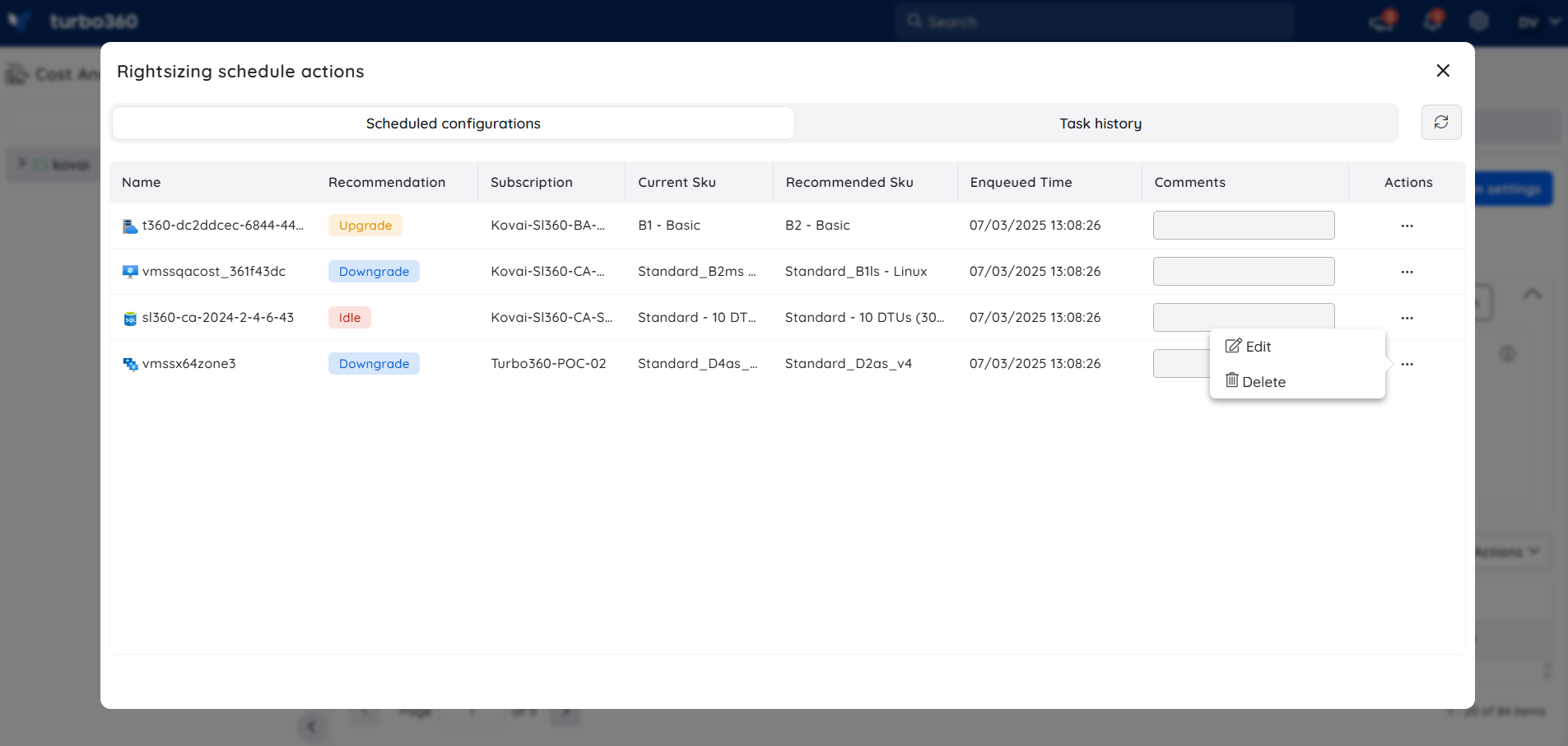
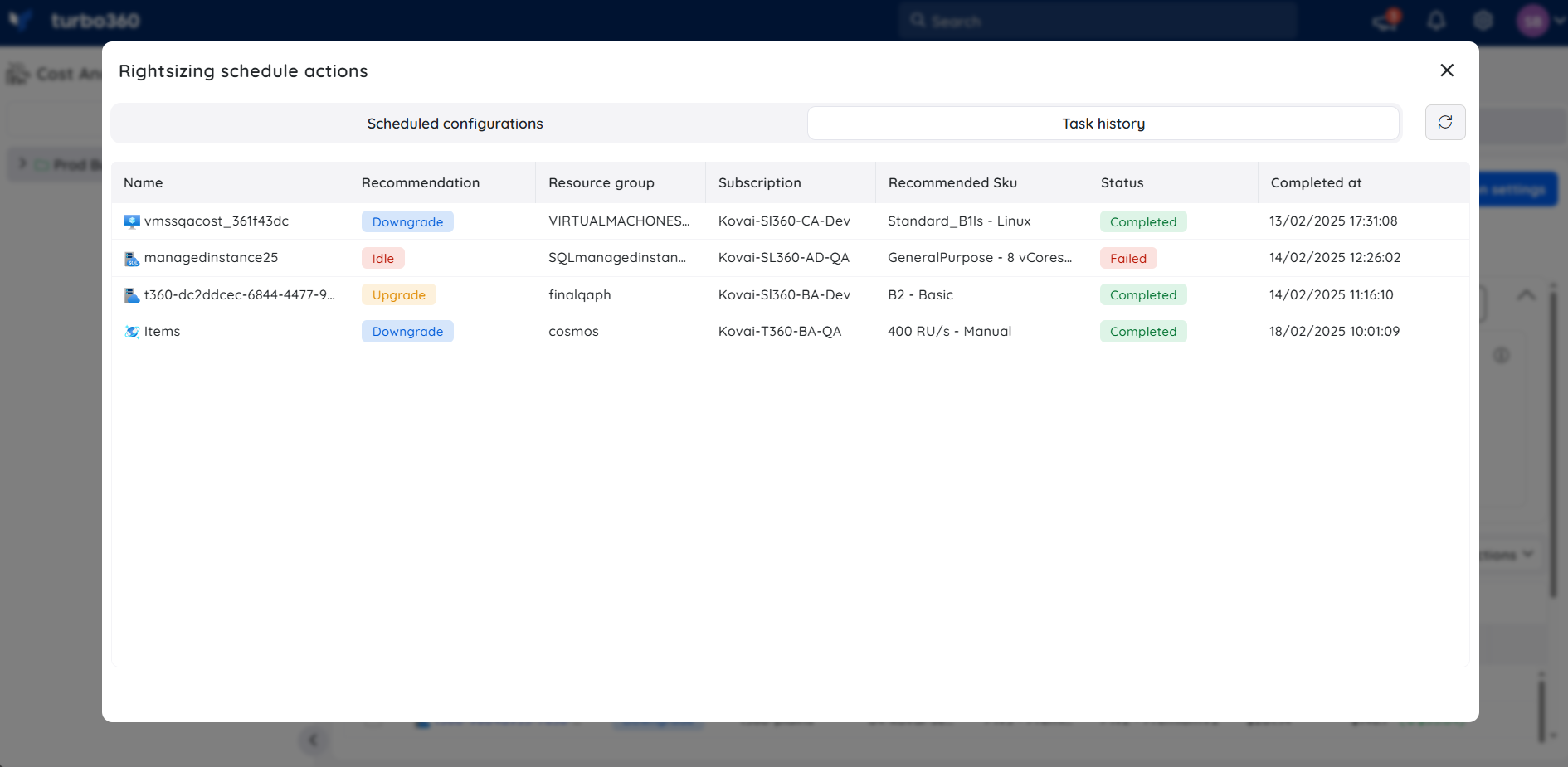
Use the Task history tab to review execution status and logs for scheduled resources.
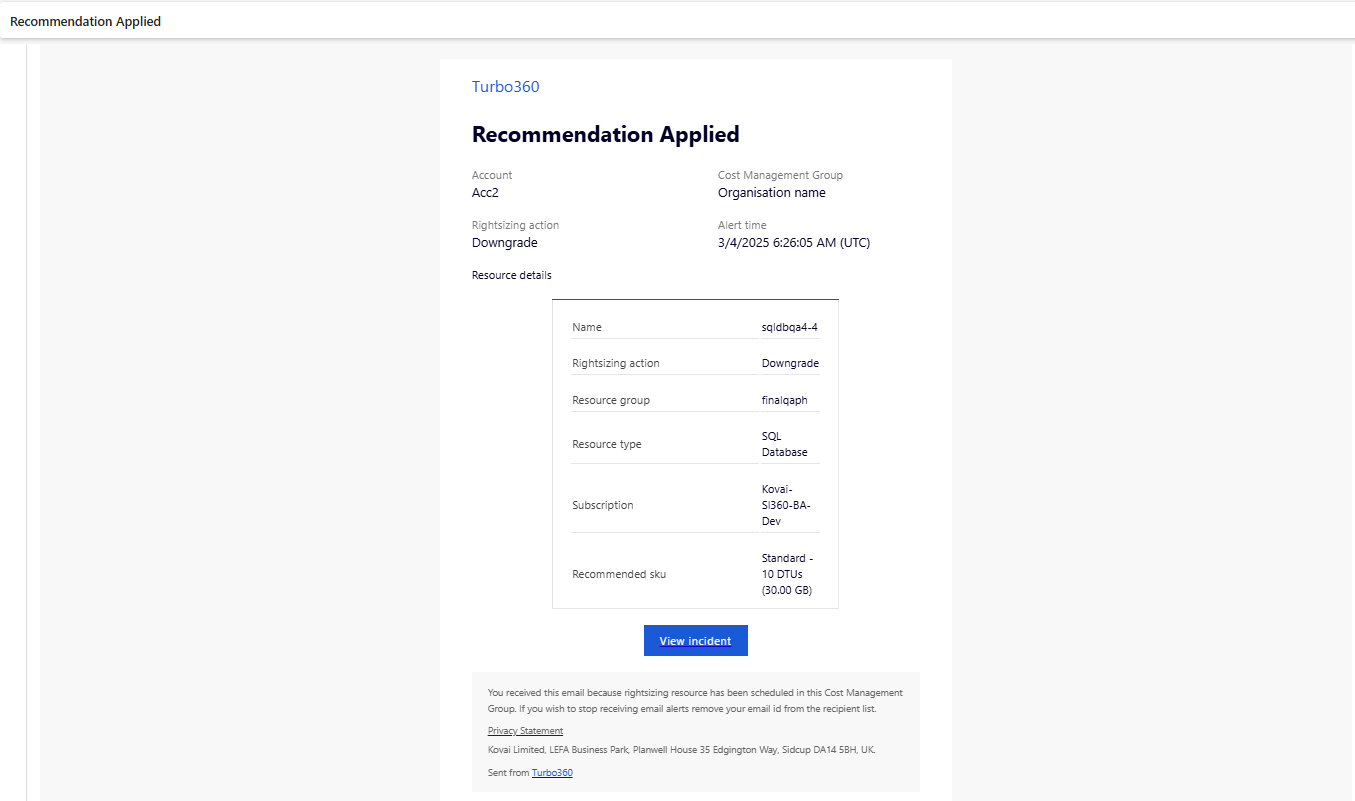
A sample email report is shown below, outlining the resource details and the applied rightsizing action.
Trigger a recommendation notification
Use recommendation notifications to share a rightsizing report with a specific team member or team so they can prioritize and act on recommendations for particular resources.
- Select a rightsizing recommendation.
- Click Actions > Trigger notification.
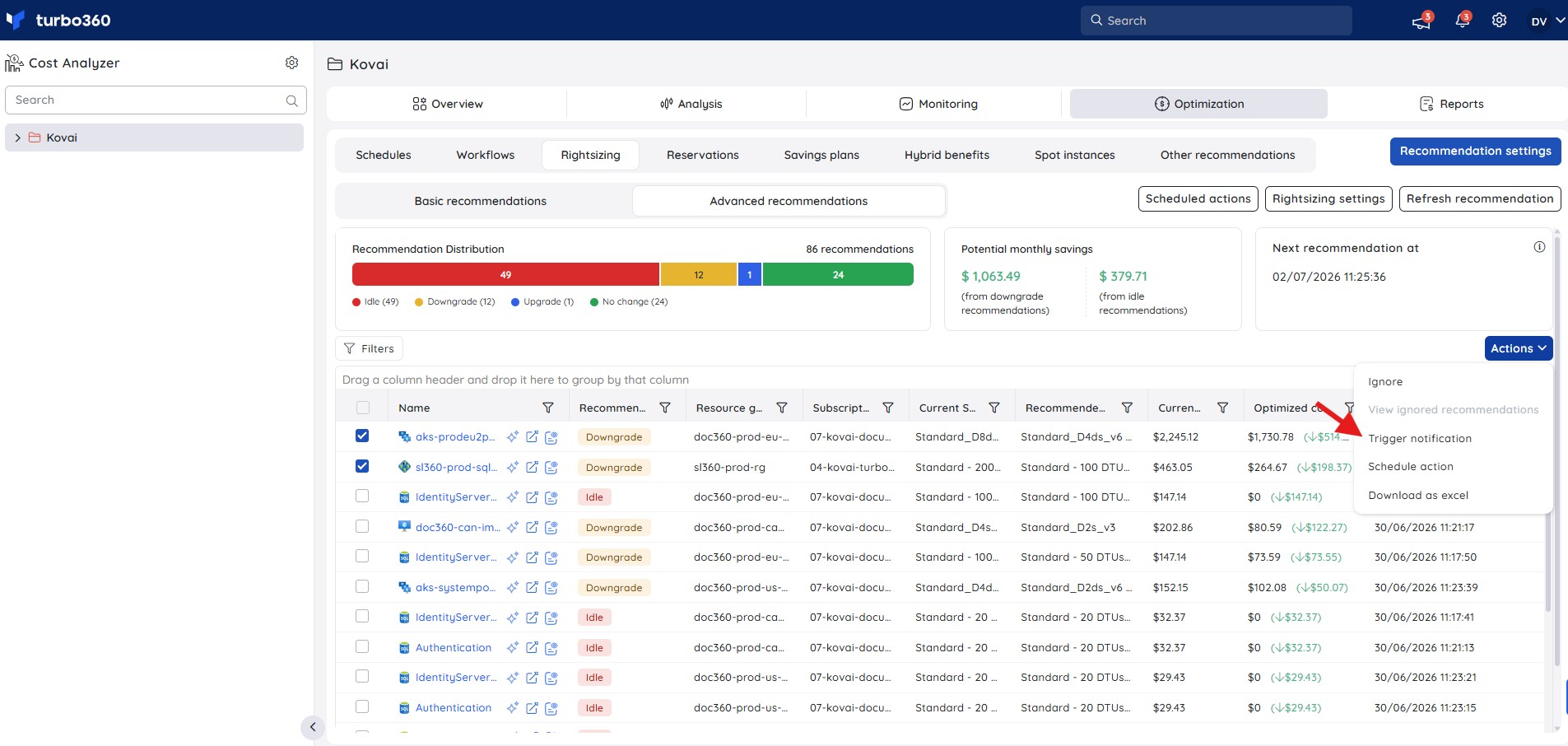
- Select the notification channels or enter a recipient email address.
- Click Send.
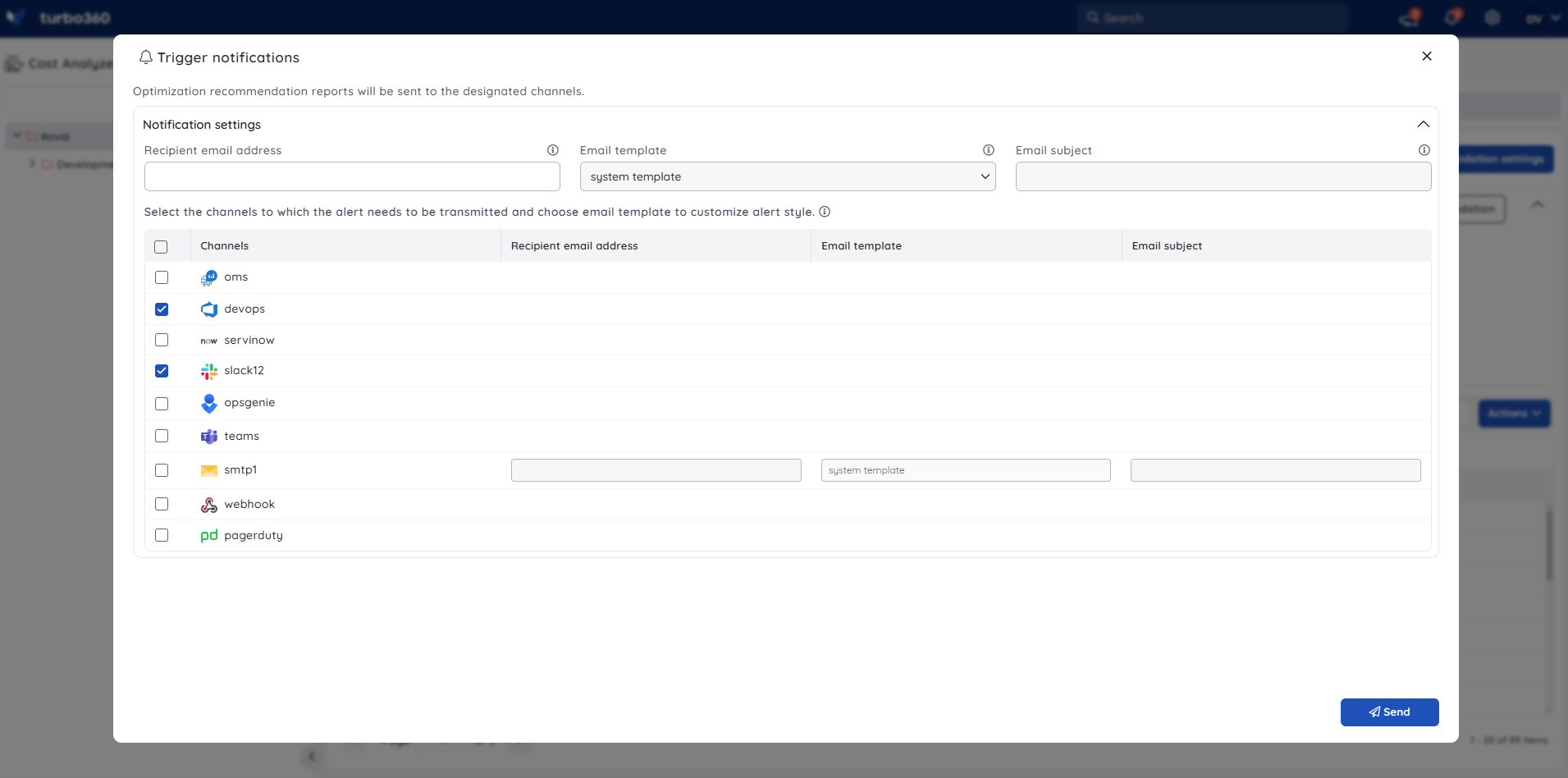
A maximum of 10 recommendations can be included in a single notification.
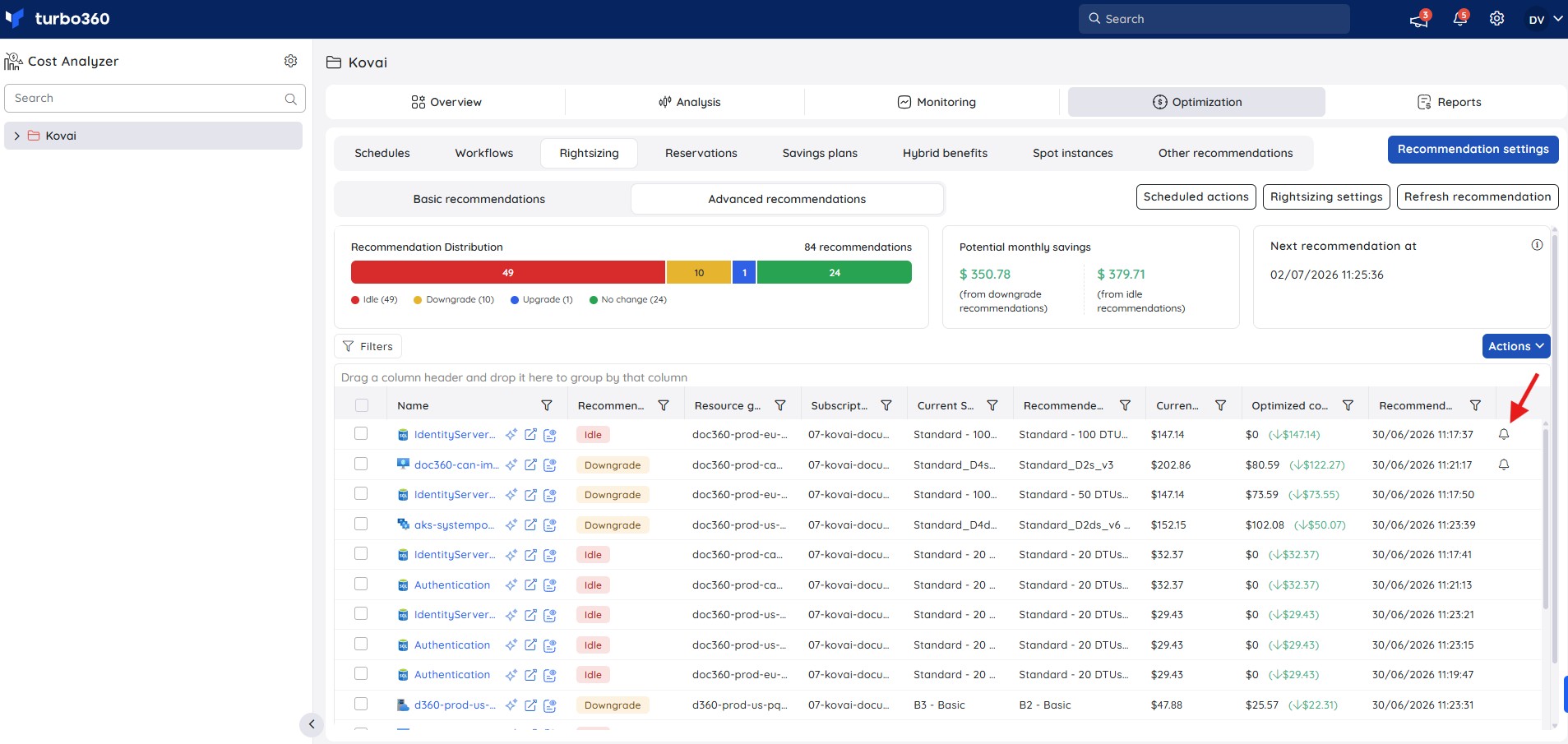
A bell icon appears next to any recommendation for which a notification has been triggered. Click it to view the notification details.
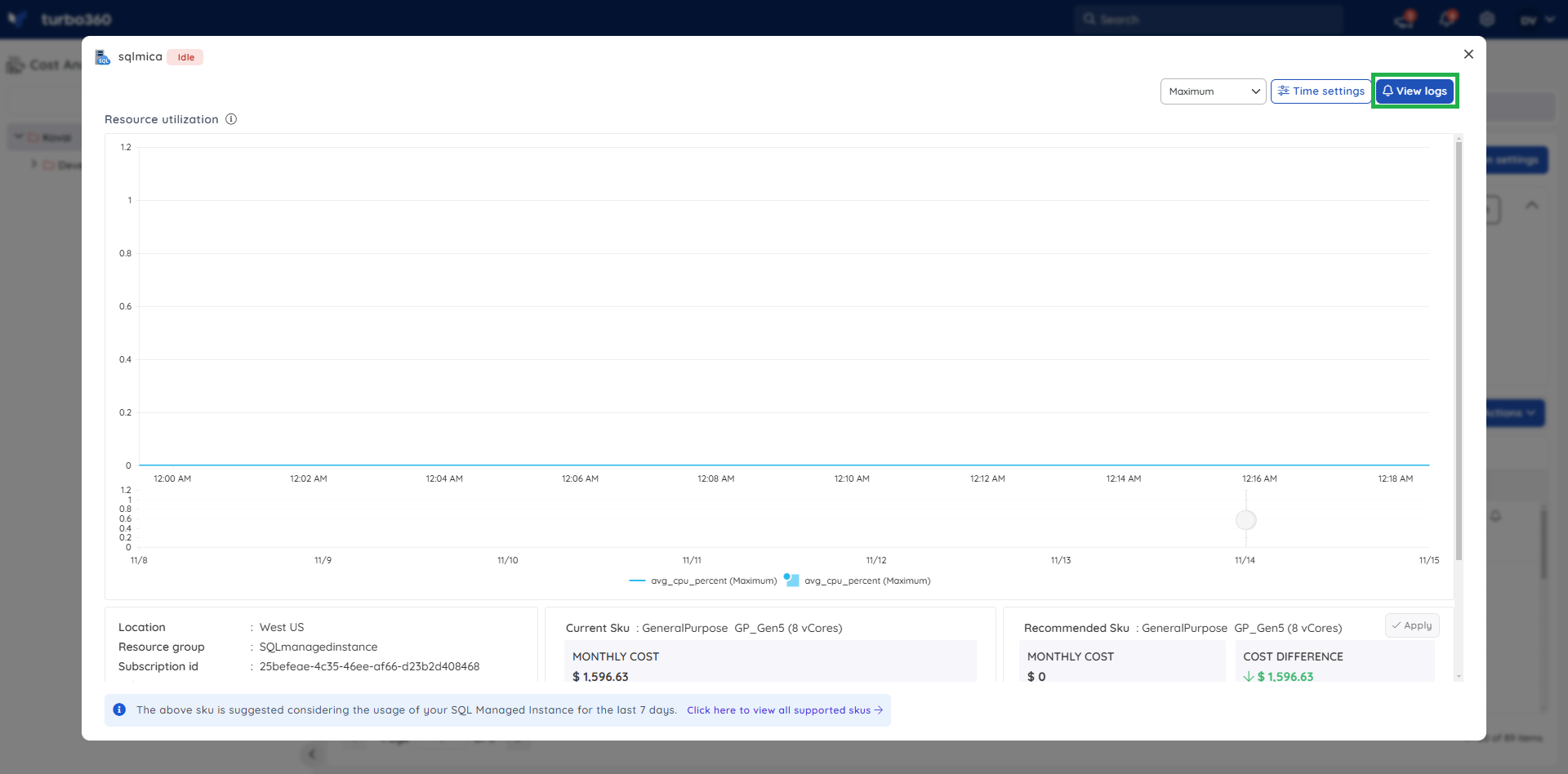
The View logs button, visible when reviewing a recommendation with an active notification, also shows the notification details.
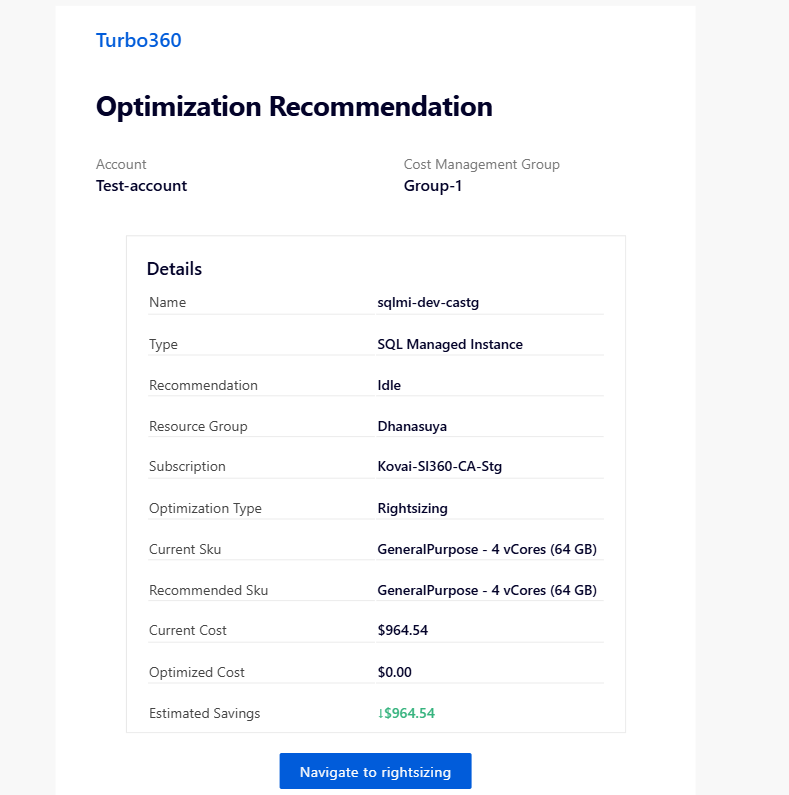
A sample recommendation report received by email is shown below.
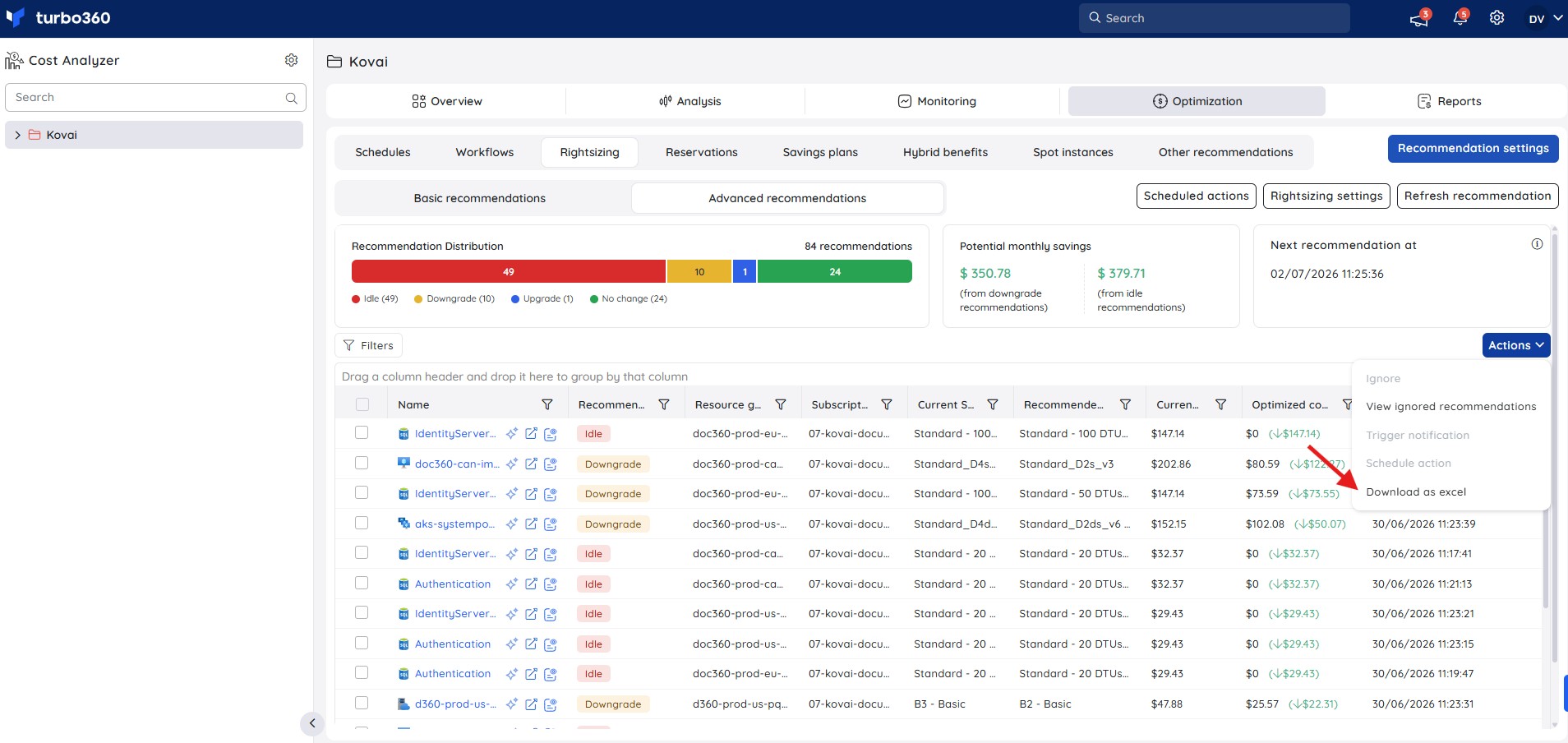
Export rightsizing recommendations
Exporting downloads a summary of all flagged resources and their recommendation types for offline review or stakeholder reporting.
- Click Actions > Download as excel.
The downloaded file contains the key details of each resource and its recommendation type.
Configuration
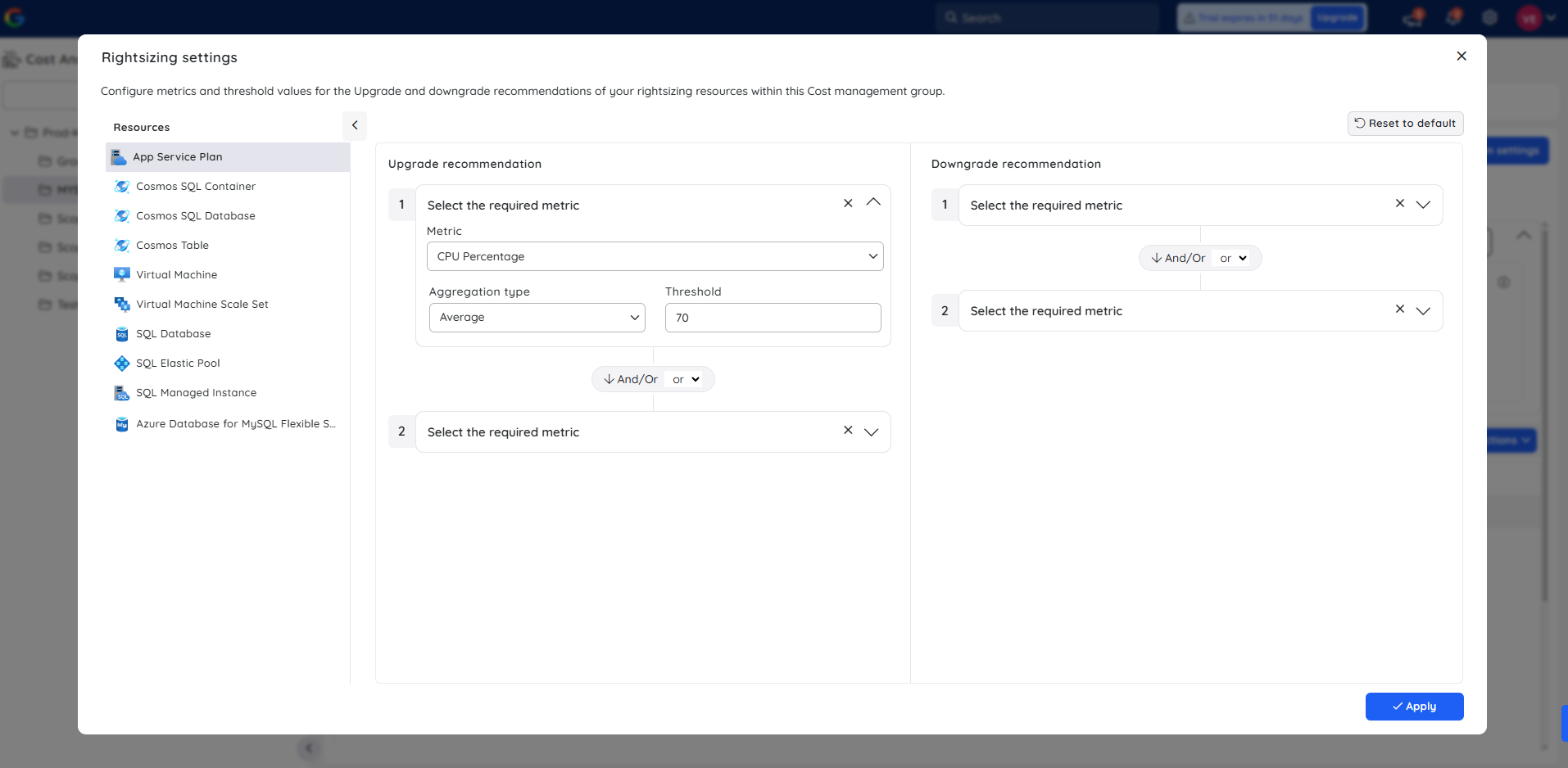
Rightsizing settings
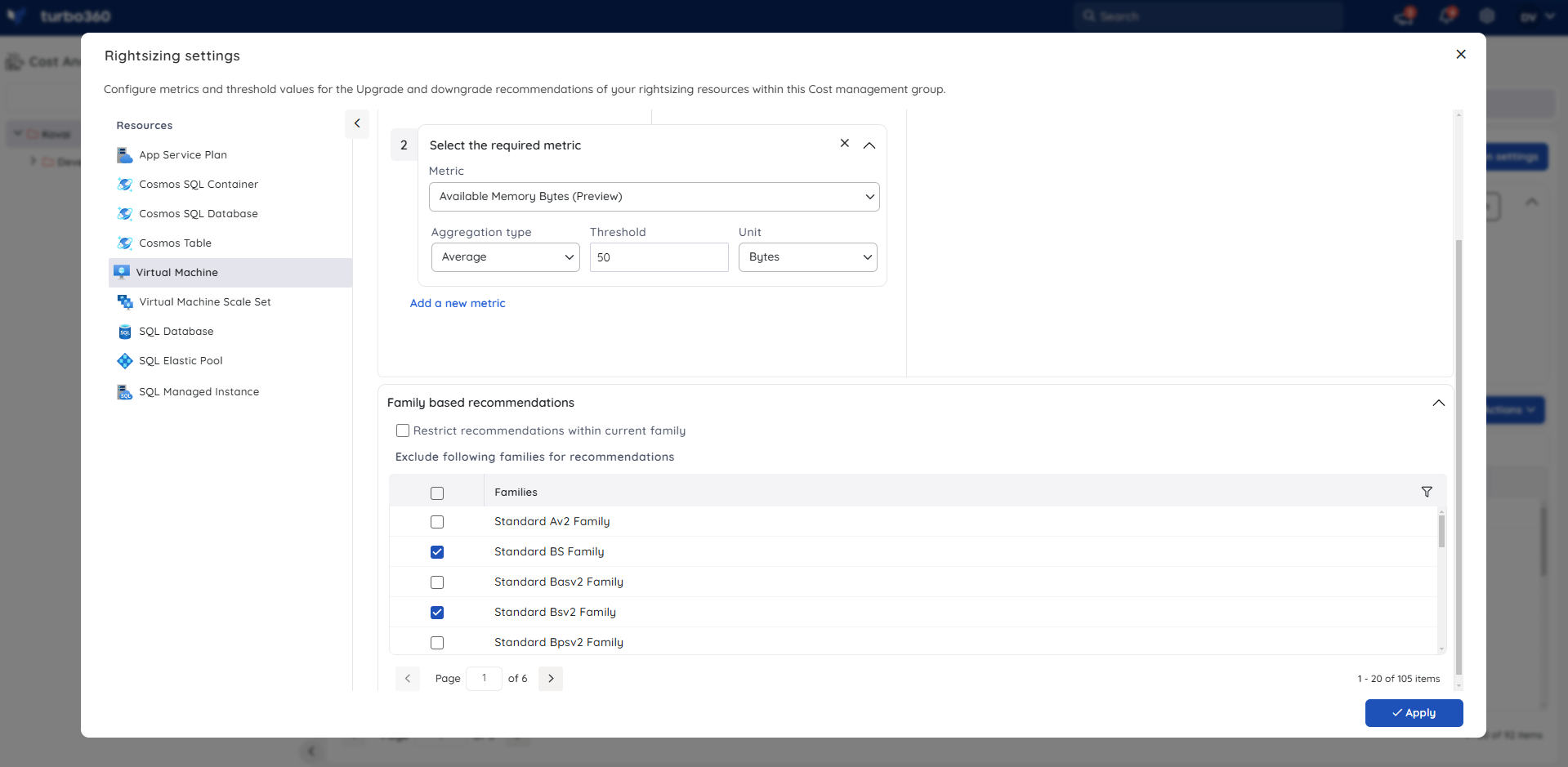
By default, Cost Analyzer uses CPU utilization to determine the optimal tier for a resource. You can customize Rightsizing settings to include additional metrics — such as memory consumption — for a more accurate analysis.
Exclude families for recommendation — enable the Family restriction checkbox for Virtual Machine or Virtual Machine Scale sets to restrict recommendations to SKUs within the same family as the current resource. Use this when you want to prevent non-production VM families from appearing as candidates for production workloads.
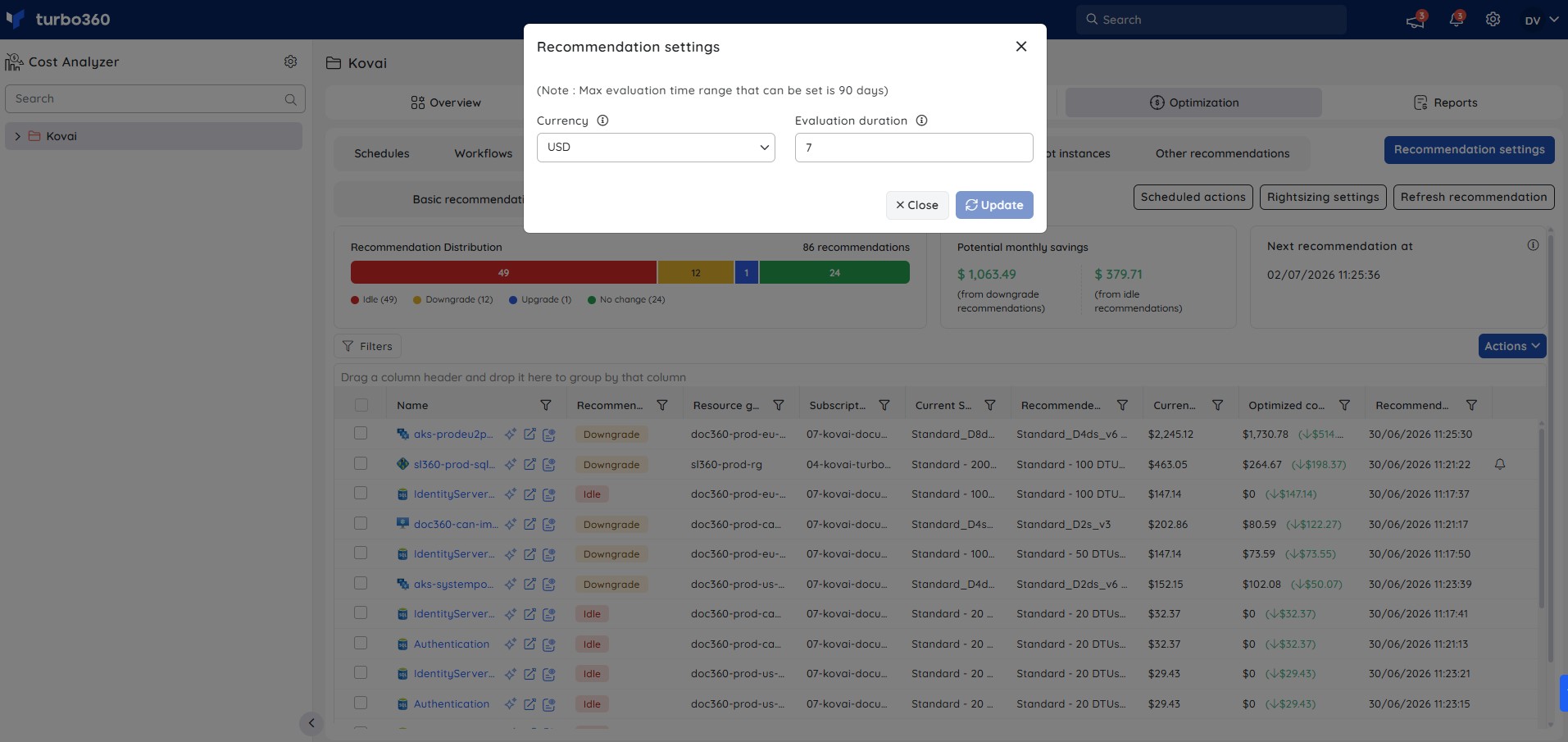
Recommendation settings
The Recommendation settings option lets you adjust the evaluation duration and currency type used when generating recommendations.
Refreshing recommendations
Rightsizing recommendations refresh automatically every 48 hours. To update recommendations immediately, navigate to Rightsizing > Advanced recommendations and click Refresh recommendations. Refreshing at the root level updates all cost groups; refreshing a specific group updates only that group.
.jpg)
Permission behavior
The recommended SKU can only be applied when the Service Principal has Contributor access on the target subscription. Without Contributor access, you can view recommendations but cannot apply them.
Example scenario
A cloud operations team notices a Virtual Machine flagged with a Downgrade recommendation in Advanced recommendations. They open the resource's usage trend chart to review the last 7 days, confirm the VM is consistently underutilized relative to its provisioned SKU, and apply the recommended tier directly from Cost Analyzer — reducing the VM's monthly cost without any manual changes in the Azure portal.
Limitations
- Advanced recommendations are available only for the supported resource types listed above.
- Recommendation data refreshes on a 48-hour cycle unless manually triggered.
- A single notification can include a maximum of 10 recommendations.
- Az CLI script generation is available for Downgrade and Upgrade recommendations only. Idle and No change resources are excluded from the generated script.
Troubleshooting
The recommended SKU can't be applied to a resource
Cause: The Service Principal associated with the subscription doesn't have Contributor access.
Fix: Grant the Service Principal Contributor access on the target subscription, then retry applying the SKU.Recommendations appear outdated or don't reflect a recent change
Cause: Recommendation data refreshes automatically every 48 hours.
Fix: Navigate to Rightsizing > Advanced recommendation and click Refresh recommendation to trigger an immediate update.A recommendation notification wasn't delivered to all selected resources
Cause: A single notification supports a maximum of 10 recommendations.
Fix: Select 10 or fewer recommendations per notification, and send separate notifications for the remainder.Rightsizing recommendations suggest SKUs outside a preferred VM family
Cause: The Family restriction option is not enabled for the Virtual Machine or Virtual Machine Scale Set resource type.
Fix: Enable Family restriction in Rightsizing settings to restrict recommendations to the current SKU family.The Advanced recommendations tab is not visible
Cause: The Optimization feature permission is disabled for your role, or the Rightsizing permission is not configured.
Fix: Ask your Account owner to enable Optimization and grant at least Read access on Rightsizing in your role definition.
FAQs
Who can view Advanced recommendations?
Any role with Read or Manage permission on Rightsizing (with Optimization enabled) can view Advanced recommendations.Who can apply, schedule, ignore, or trigger notifications on a recommendation?
Roles with Manage permission on Rightsizing. Applying a recommended SKU also requires the associated Service Principal to have Contributor access on the subscription.Why can't I access Advanced recommendations at all?
Your role's Optimization feature permission is disabled, or the Rightsizing permission is not granted. Ask your Account owner to update your role.
Related articles
Was this article helpful?