

AI Agents in Cost Analyzer
- 05 Aug 2026
- 6 Minutes to read
- Print
- DarkLight
- Download PDF
AI Agents in Cost Analyzer
- Updated on 05 Aug 2026
- 6 Minutes to read
- Print
- DarkLight
- Download PDF
Article summary
Did you find this summary helpful?
Thank you for your feedback!
Overview
AI Agents is Cost Analyzer's built-in AI capability that provides intelligent, AI-generated insights for your Azure resources. Each agent analyzes a specific aspect of a resource — such as cost drivers, rightsizing opportunities, carbon footprint, or scheduling — to help you make informed decisions on cost and performance.
How you enable AI Agents depends on your deployment type:
- SaaS — AI Agents works out of the box, using Turbo360's in-house OpenAI connection. No additional configuration is required.
- Private Hosting — you bring your own Azure OpenAI resource and connect it to your Turbo360 instance before AI Agents can generate summaries. See OpenAI setup in Turbo360 for the full setup procedure.
Business value
AI Agents surfaces AI-generated cost and resource insights directly inside Cost Analyzer, reducing the time your team spends manually interpreting cost data and enabling faster, more consistent decision-making across subscriptions.
Prerequisites
- An active Azure OpenAI resource (Private Hosting only). SaaS deployments do not need this step. See OpenAI setup in Turbo360 for setup steps.
Required permissions
| Role | Permission level | Access |
|---|---|---|
| Account owner, Owner, Contributor | — | Full access to AI Agents |
| Custom role | AI Agents feature: Enable | Full access to AI Agents |
| Custom role | AI Agents feature: Disable | No access to AI Agents |
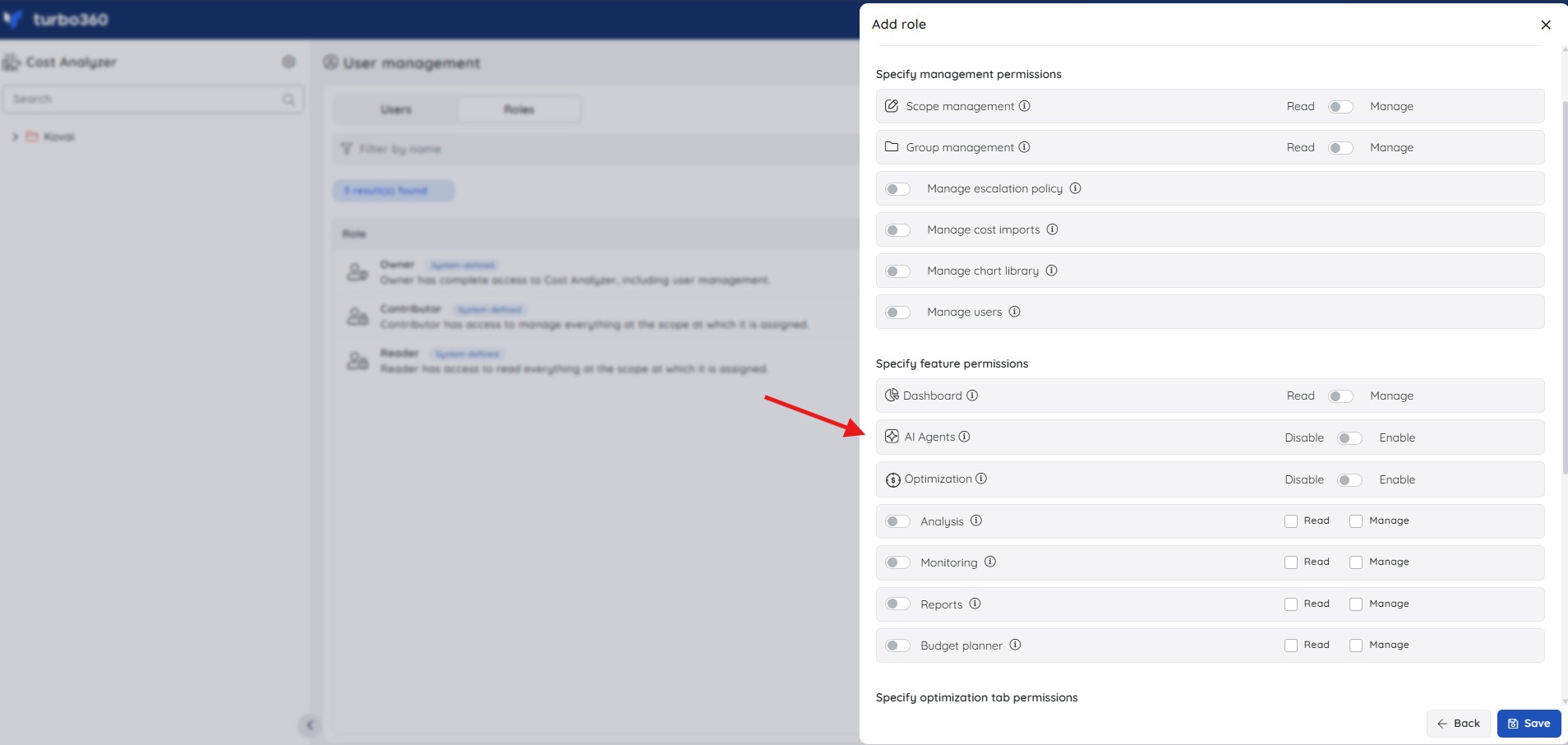
The AI Agents permission is a single Enable/Disable toggle under Specify feature permissions when adding or editing a Custom role — it does not use separate Read/Manage levels.
How it works
- In SaaS, Turbo360 uses its in-house OpenAI connection to generate AI-driven resource insights with no setup on your part.
- In Private Hosting, Cost Analyzer requires a dedicated Azure OpenAI connection before its built-in AI Agents can generate insights and analysis. For the full connection procedure, see OpenAI setup in Turbo360.
Available AI Agents
The following agents are available under the AI Agents tab for a resource:
- Resource summary — an AI-generated summary of the resource covering summary, cost, and health.
- Cost spike troubleshooter — analyzes and troubleshoots unexpected cost spikes, covering anomaly, trend, and root cause.
- Analyze OS change impact — evaluates the impact of changing the operating system of a Virtual Machine, covering downtime, cost implications, compatibility risks, and migration effort.
- Analyze AMD vs Intel impact — analyzes the cost and performance impact of switching between AMD and Intel processor families for a Virtual Machine, covering SKU, pricing, and performance trade-offs.
- Analyze data centre change — the impact of moving the resource to a different data centre, covering region, migration, and latency.
- Analyze rightsizing — rightsizing opportunities for the resource, covering SKU, utilization, and savings.
- Evergreen recommendations — modernization opportunities to keep the resource up to date, covering modernize, generation, and risk.
- Analyze hybrid benefit — estimated cost savings from applying Azure Hybrid Benefit, covering license, AHB, and savings.
- Carbon optimizer recommendations — opportunities to reduce the resource's carbon footprint, covering CO2, region, and energy.
- Analyze resource scheduling — start/stop or scale-down scheduling opportunities and estimated savings, covering schedule, off-peak, and savings.
- Analyze cost drivers — what you're being charged for and what makes the cost rise or fall, covering meters, breakdown, and drivers.
- Analyze resource purpose — what the resource does, who depends on it, and whether it's still needed, covering purpose, dependencies, and usage.
- Cost optimization checklist — a prioritized audit of cost issues and quick wins, covering audit, quick wins, and score.
Explain with AI on recommendations
In addition to the AI Agents tab, Cost Analyzer surfaces Explain with AI directly on rightsizing and reservation recommendations. This is a separate AI capability — it generates a structured analysis panel for a specific recommendation (a rightsizing suggestion or a reservation purchase opportunity) rather than operating as a general resource-level agent.
Explain with AI is available on the following:
- Basic recommendations for Rightsizing
- Advanced recommendations for Rightsizing
- Basic recommendations for Reservations
- Advanced recommendations for Reservations
Explain with AI on recommendations requires the AI Agents permission plus the relevant Optimization tab permission (Rightsizing or Reservations) to be enabled for the user's role.
Explain with AI on monitoring widgets
Cost Analyzer also surfaces Explain with AI on monitoring widgets at the cost management group level. These generate AI-driven audit reports scoped to the widget's data — separate from the resource-level AI Agents tab.
- Automatic anomaly detection — the (✦) icon on the Automatic anomaly detection widget opens an Anomaly Insights audit covering setup score, cost consistency, alert routing, and tuning recommendations. Requires AI Agents + Monitoring permissions.
- Group budget monitoring — the (✦) icon on the Group budget widget opens a Budget Insights report covering budget configuration, spend trend, threshold health, and improvement recommendations. Requires AI Agents + Monitoring permissions.
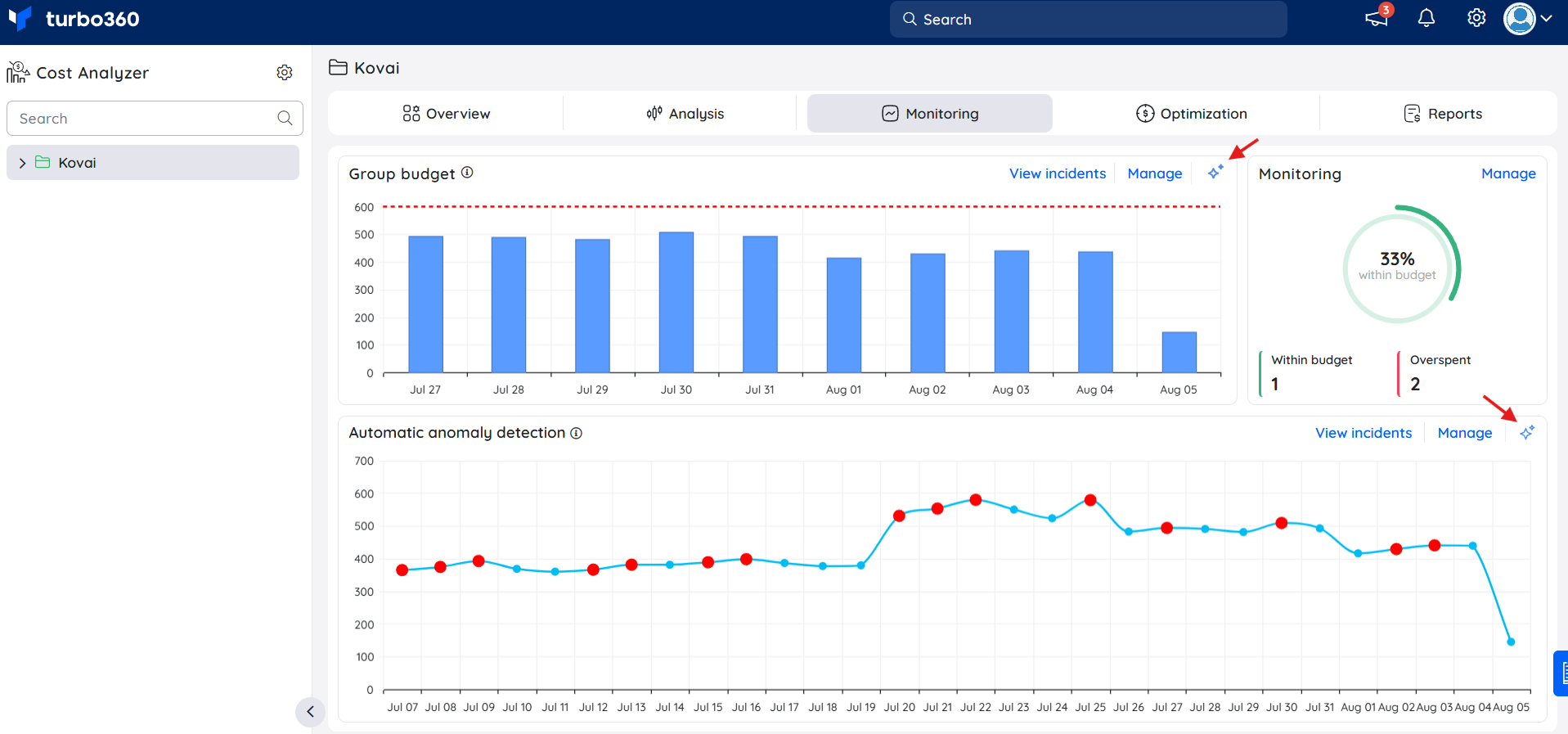
Steps
Use the following steps to access AI Agents for a resource. AI Agents can be reached from three places in Cost Analyzer.
Access from Analysis
Accessing AI Agents from Analysis lets you review AI-generated insights alongside your cost data for any resource.
- In Analysis, create a view with the chart type set to Table and the Group by filter set to Resource.
- Click a resource from the results.
- Switch to the AI Agents tab to access the required agent.
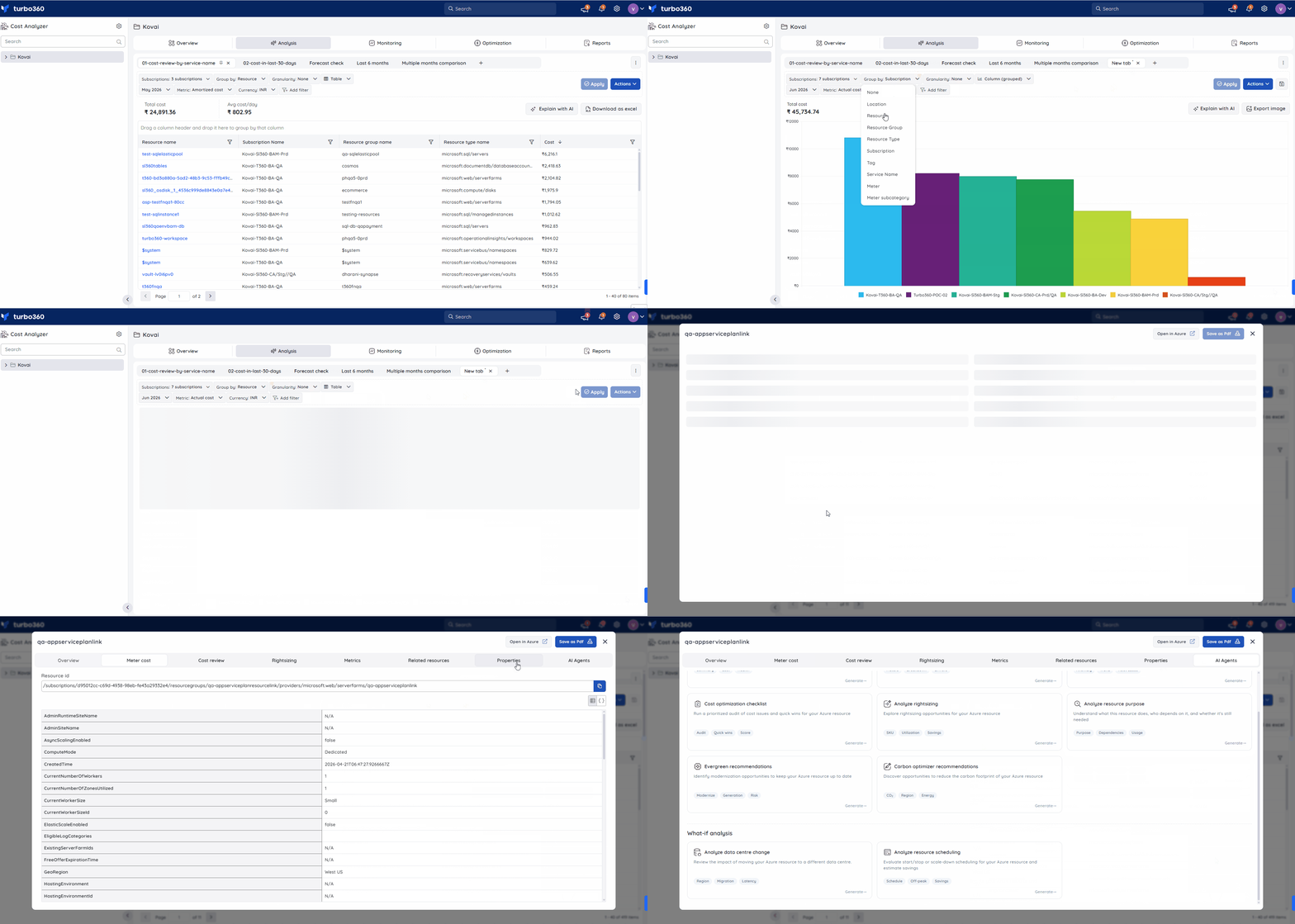
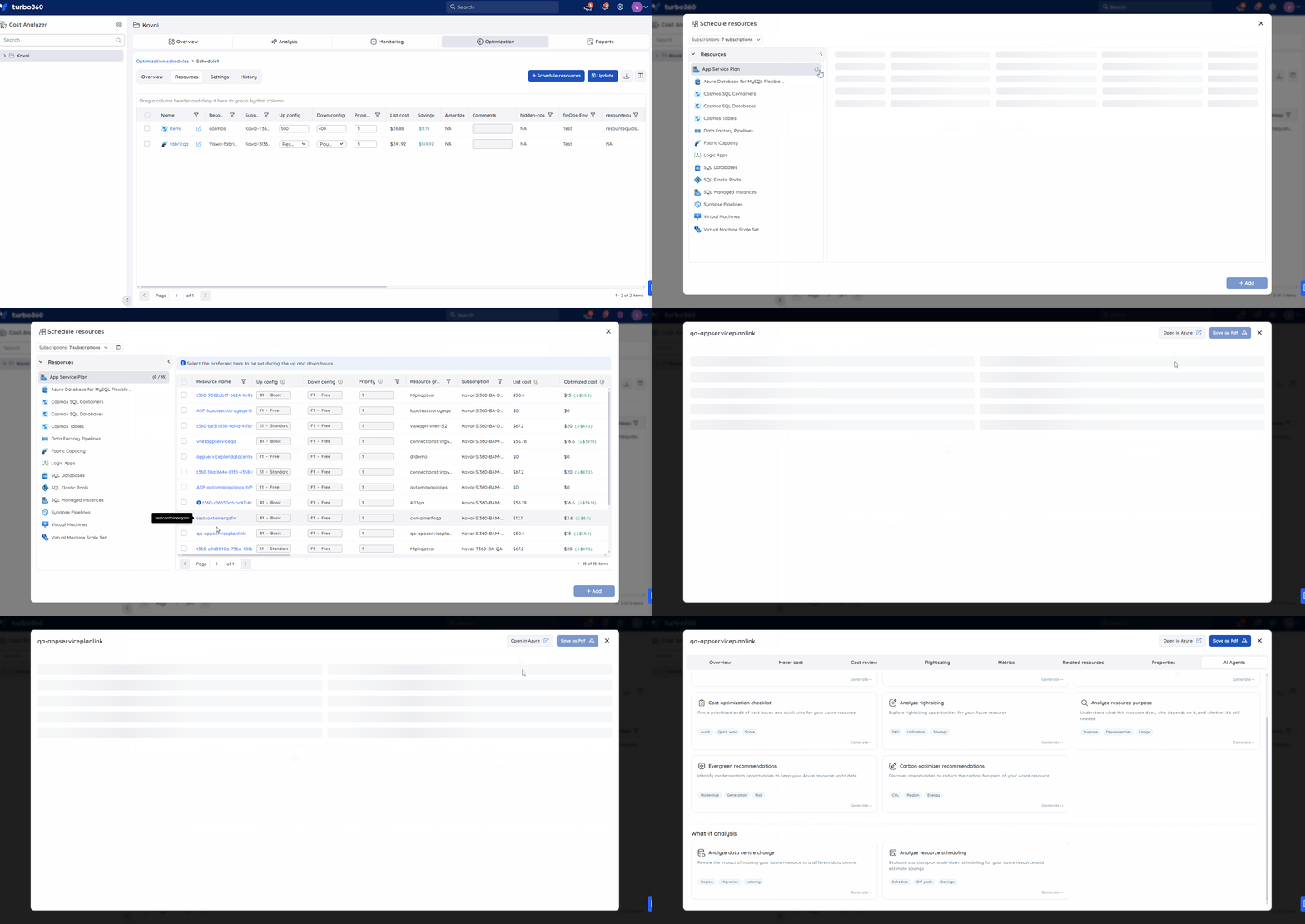
Access from Optimization schedules
Accessing AI Agents during schedule creation lets you evaluate a resource before committing it to a schedule.
- During schedule creation, click a resource from the resource selection screen.
- Switch to the AI Agents tab to access the required agent.
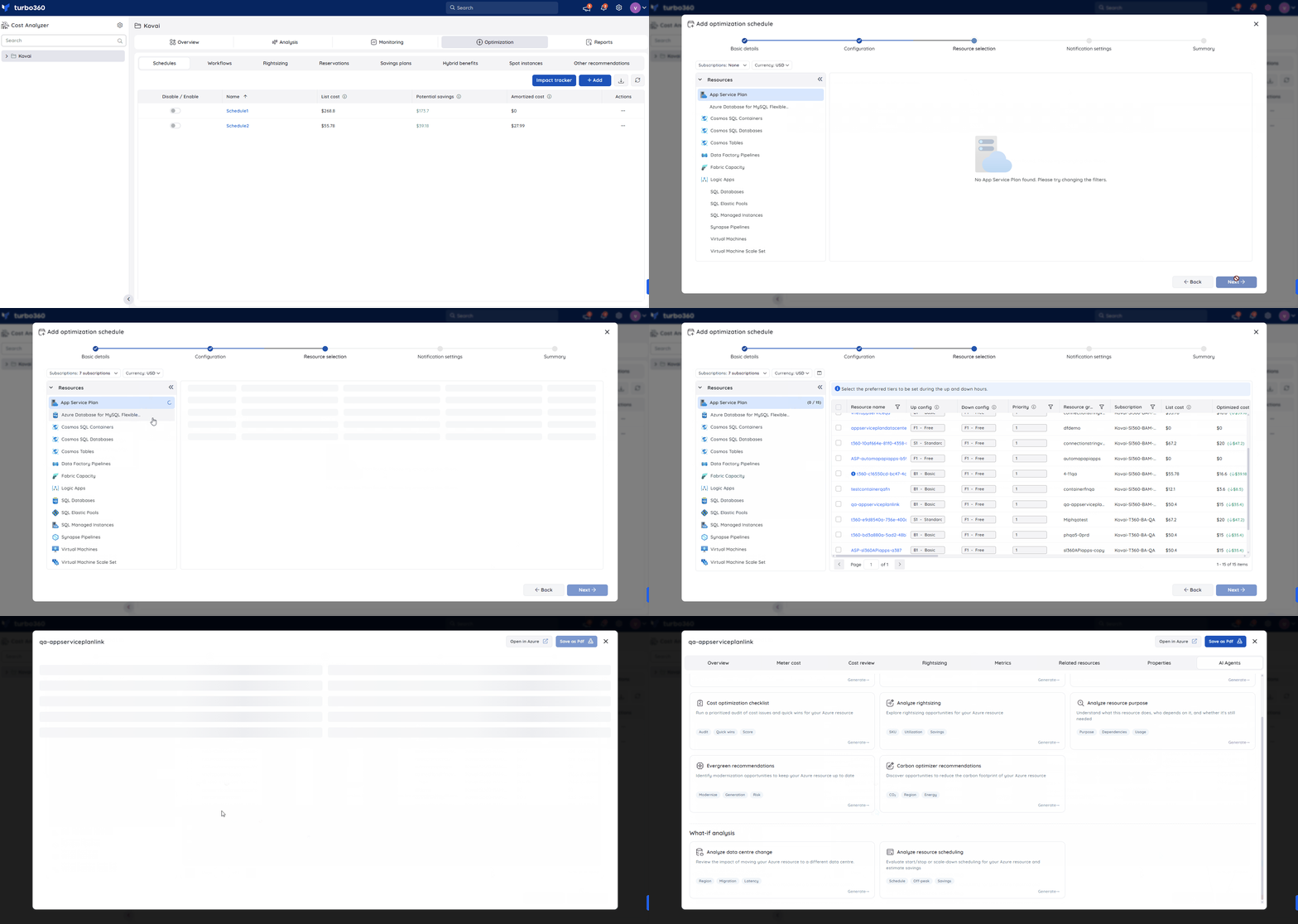
Alternatively, within an existing schedule:
- Click Schedule Resources.
- Select a resource from the resource selection screen.
- Switch to the AI Agents tab to access the required agent.
Access from Advanced recommendations
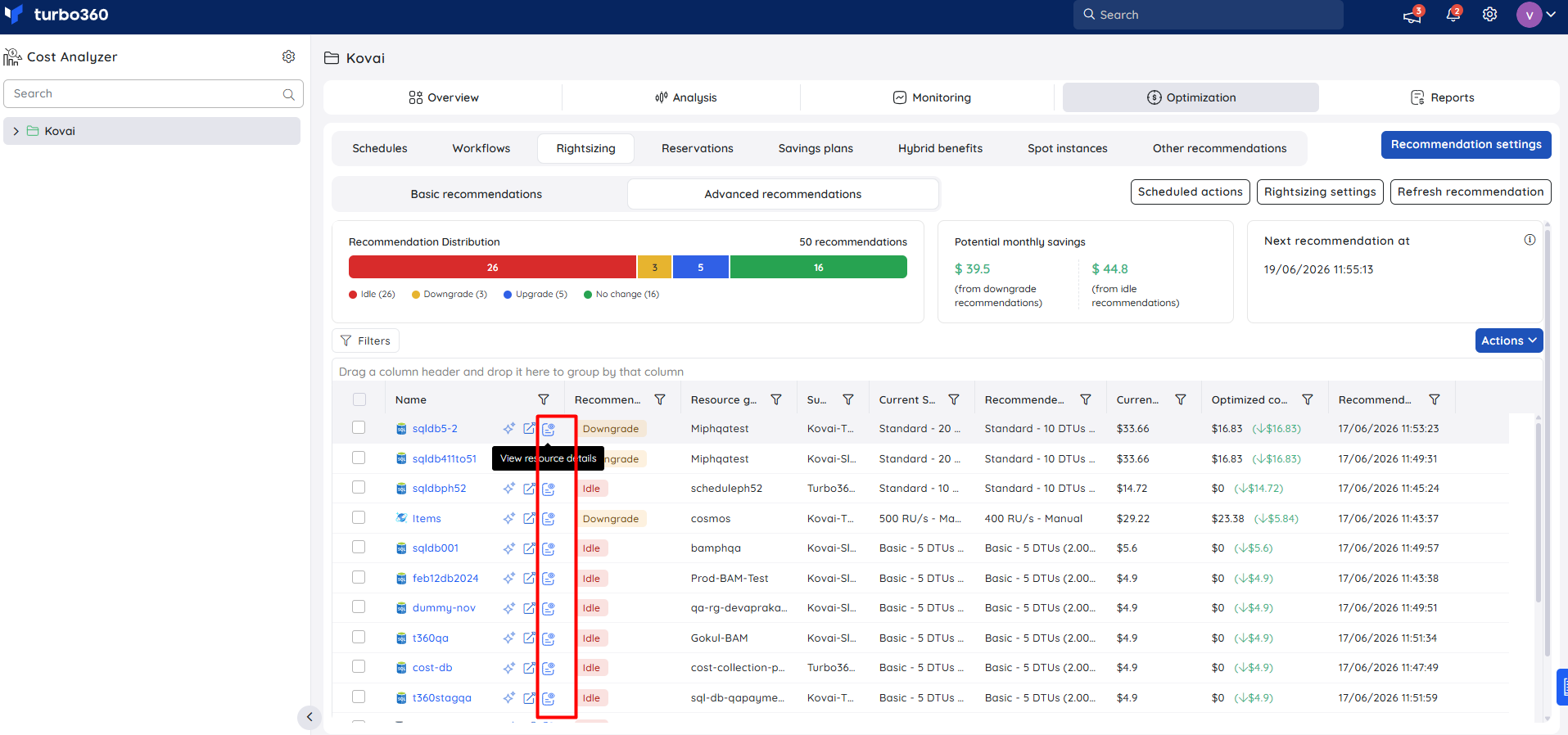
Accessing AI Agents from Advanced recommendations lets you evaluate a resource directly from Rightsizing or Reservations recommendations.
- Go to Optimization > Rightsizing > Advanced Recommendations or Optimization > Reservations > Advanced Recommendations.
- Click the View resource details icon for a resource.
- Switch to the AI Agents tab to access the required agent.
Example scenario
An administrator managing a Private Hosting deployment of Cost Analyzer wants their team to see AI-generated cost summaries. They follow OpenAI setup in Turbo360 to connect their organization's Azure OpenAI resource. Once saved, AI Agents becomes available to any role with the AI Agents permission enabled, accessible from Analysis, Schedules, or Advanced Recommendations.
Troubleshooting
- OpenAI connection validation fails
Cause: The Azure OpenAI connection details (endpoint, key, or deployment configuration) entered don't match the Azure OpenAI resource.
Fix: See OpenAI setup in Turbo360 for troubleshooting steps. - AI Agents option is not visible to a user
Cause: The user's Custom role does not have the AI Agents feature permission enabled.
Fix: Go to User management > Roles, edit the relevant Custom role, and enable the AI Agents toggle under Specify feature permissions.
FAQs
- Do I need to configure an OpenAI connection on Turbo360 SaaS?
No. SaaS deployments use Turbo360's in-house OpenAI connection, so AI Agents works without any additional setup. - Which roles can access AI Agents by default?
Account owner, Owner, and Contributor have full access by default. Custom roles need the AI Agents permission enabled. - Where can I access AI Agents for a resource?
From Analysis (table view grouped by resource), from Optimization > Schedules during or after schedule creation, or from Rightsizing/Reservations Advanced Recommendations. - What's the difference between AI Agents and Explain with AI?
AI Agents runs from the AI Agents tab on a resource and covers general cost, health, and optimization topics. Explain with AI surfaces on individual rightsizing and reservation recommendations and on monitoring widgets (anomaly detection, group budget), generating a structured analysis scoped to that specific feature — it is not available from the AI Agents tab.
Related articles
Was this article helpful?