

Analyze hybrid benefit
- 05 Aug 2026
- 5 Minutes to read
- Print
- DarkLight
- Download PDF
Analyze hybrid benefit
- Updated on 05 Aug 2026
- 5 Minutes to read
- Print
- DarkLight
- Download PDF
Article summary
Did you find this summary helpful?
Thank you for your feedback!
Overview
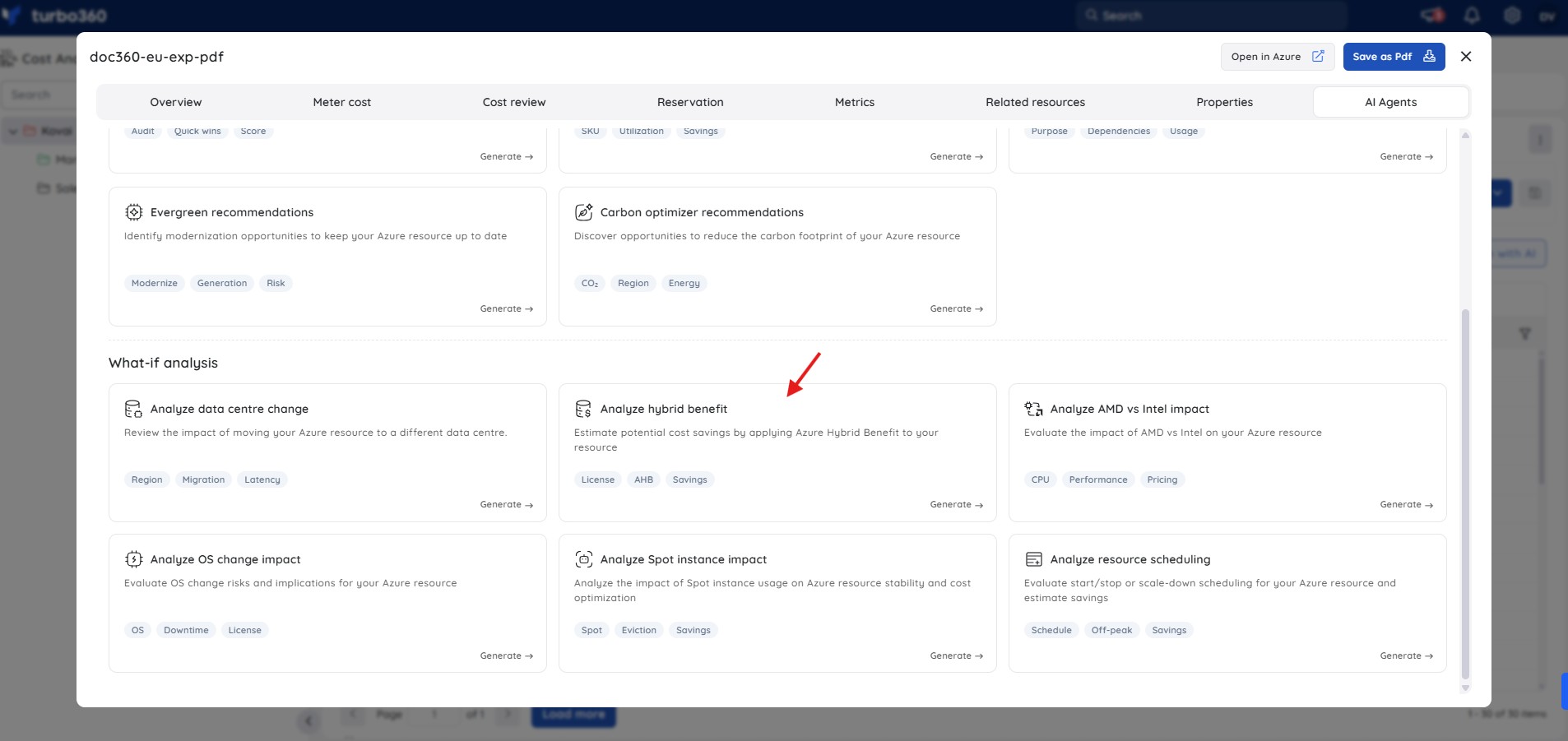
Analyze hybrid benefit is an AI Agent in Cost Analyzer that analyzes Azure resources to estimate potential cost savings by applying Azure Hybrid Benefit where eligible. It evaluates licensing configuration, usage patterns, and cost data to determine whether Hybrid Benefit can reduce pay-as-you-go licensing charges.
Business value
Surfacing Hybrid Benefit eligibility and estimated savings in one view helps you reduce licensing costs without manually cross-checking usage and licensing data.
Prerequisites
- On Private Hosting deployments, an Azure OpenAI connection must be configured before this AI Agent can generate insights. See OpenAI setup in Turbo360 for setup instructions. SaaS deployments do not need this step.
Required permissions
Access requires both the AI Agents feature to be enabled for the role and Read access to the Analysis feature, since Analyze hybrid benefit is surfaced from the resource-level Cost intelligence view within Analysis.
| Role | Permission level | Access |
|---|---|---|
| Account Owner / Owner / Contributor | Full access | Can use Analyze cost drivers on any resource |
| Custom role | AI Agents — Enable, Analysis — Read (or Manage) | When AI Agents is set to Enable and Analysis is toggled on with at least Read access, the user can view Analyze hybrid benefit insights for resources within their assigned scope; if either is missing, the option is not available |
.jpg)
How it works
The AI Agent generates a Hybrid Benefit summary containing the following insights:
- Eligibility assessment — identifies whether the resource qualifies for Azure Hybrid Benefit and whether it is currently enabled.
- Cost comparison — compares current costs with estimated costs after applying Hybrid Benefit and highlights potential percentage savings.
- Licensing requirements — outlines required licenses, Software Assurance or subscription prerequisites, and compliance considerations.
- Operational impact — summarizes configuration changes, possible downtime, and ongoing licensing responsibilities.
- Recommendation — provides a data-driven recommendation based on savings potential, usage patterns, and licensing eligibility.
Steps
To run an Analyze hybrid benefit analysis, navigate to Cost Analyzer > Analysis, open a Cost management group, and select a resource from the analysis view to open its Cost intelligence panel.
- In the Cost intelligence panel for a resource, select the Analyze hybrid benefit tab.
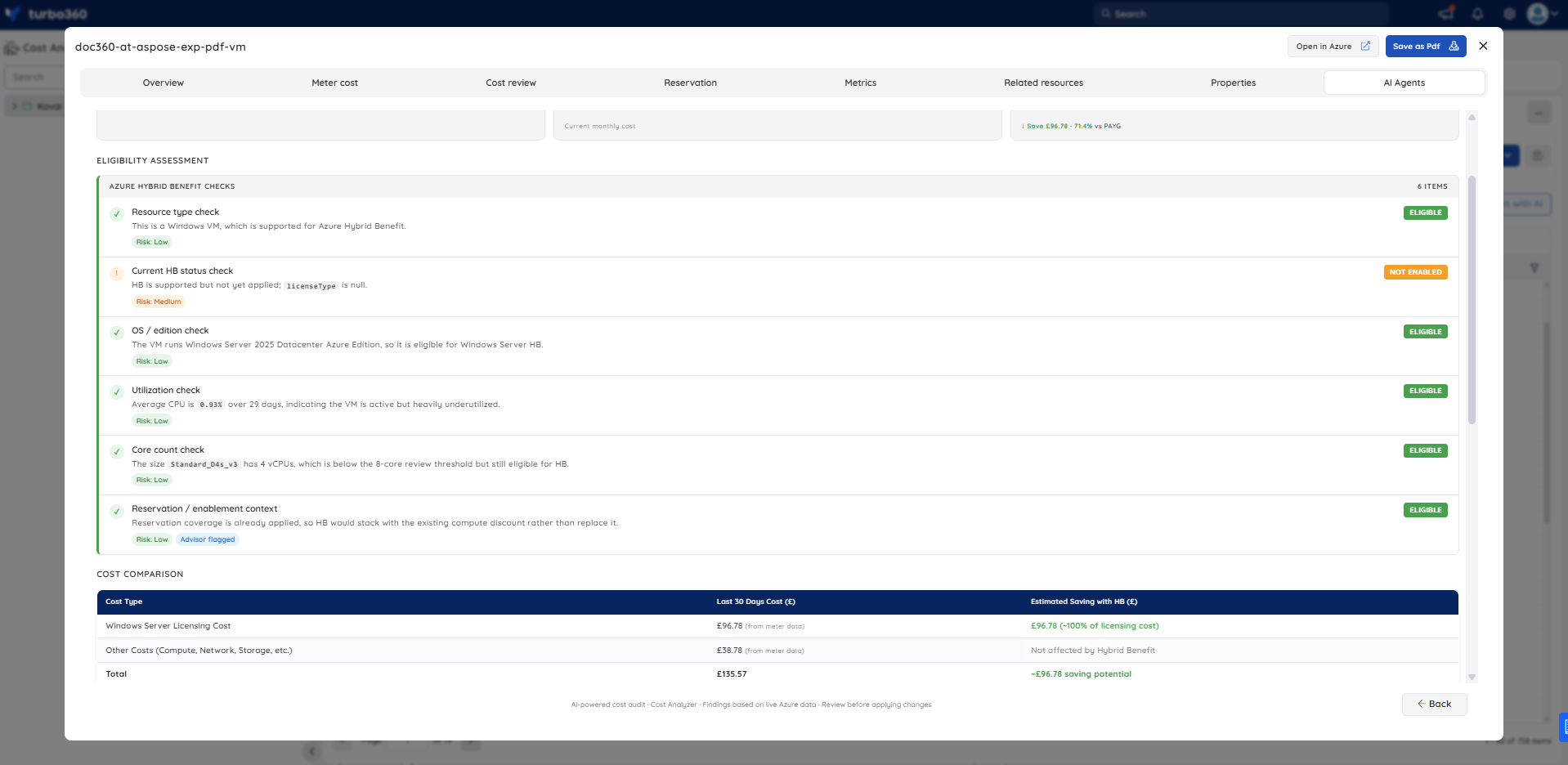
- Review the eligibility assessment, which runs six checks covering resource type, current HB status, OS edition, utilization, core count, and reservation or enablement context. Each check is marked Eligible, Not Enabled, or a warning.
- Review the cost comparison table, which shows the Windows Server licensing cost, other costs (compute, network, storage), the total current spend, and the estimated saving with HB applied.
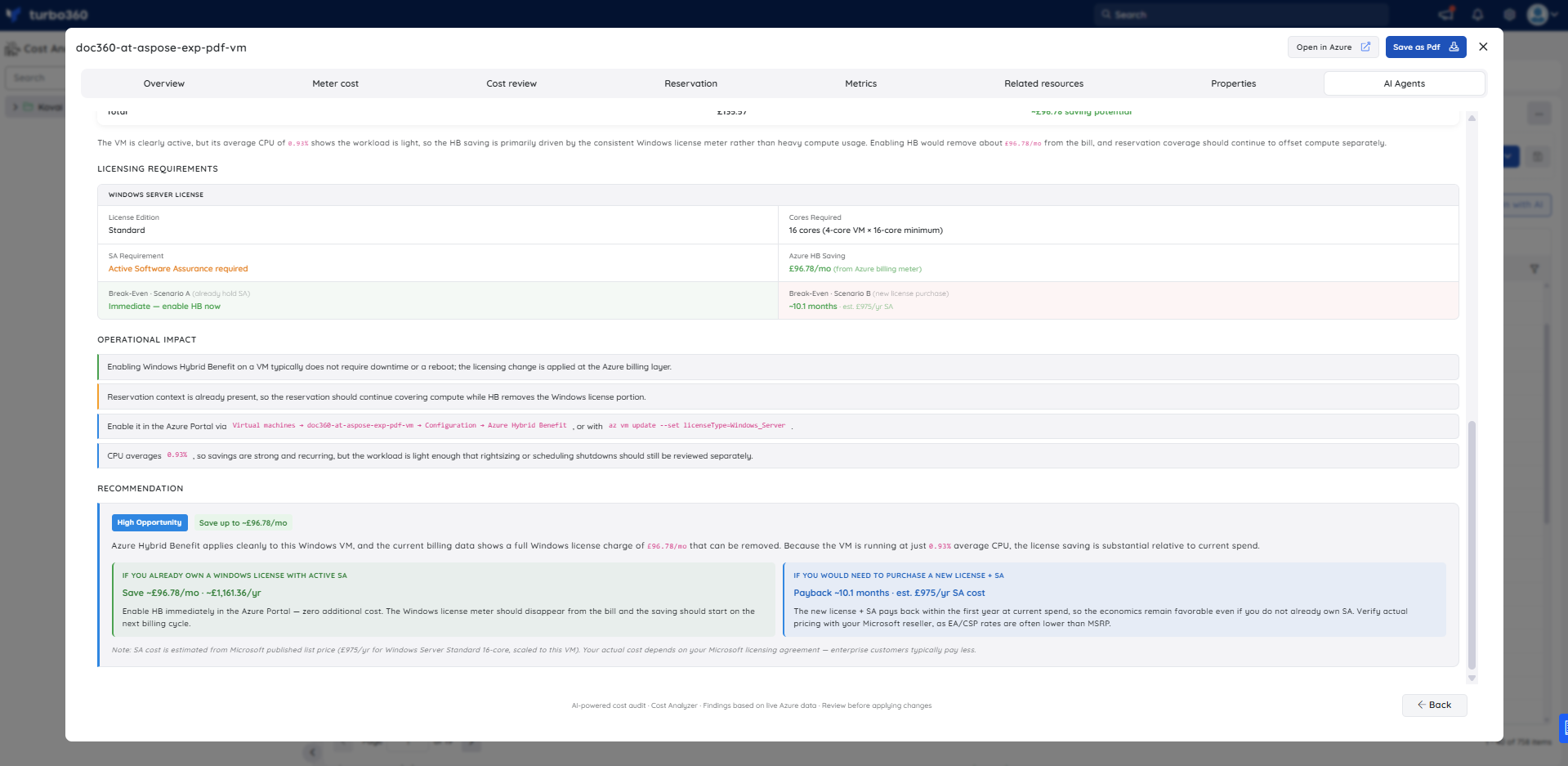
- Review the licensing requirements section, which states the required license edition, core count, Software Assurance requirement, estimated monthly saving from Azure billing data, and break-even calculations for two scenarios (already hold SA vs new license purchase).
- Review the operational impact section to confirm whether enabling HB requires downtime and to note the steps needed to apply it in the Azure portal or via the Azure CLI.
- Use the recommendation summary to decide whether to enable HB immediately or plan a license purchase, based on the payback period shown.
Example scenario
The example below is based on a Windows Virtual Machine (Standard_D4s_v3 in eastus) where Azure Hybrid Benefit is eligible but not yet enabled. The current HB status shows as Not Enabled with licenseType set to null.
Eligibility assessment — six checks are run. All six pass as eligible: resource type is a Windows VM (supported); OS is Windows Server 2025 Datacenter Azure Edition (eligible for Windows Server HB); average CPU is 0.93% over 29 days (active but heavily underutilized, eligible); core count is 4 vCPUs (below the 8-core review threshold but still eligible); and reservation coverage is already applied, so HB would stack with the existing compute discount rather than replace it. The HB status check is the only one flagged as Not Enabled, with Medium risk, indicating HB is supported but not yet applied.
Cost comparison — a three-row table shows the Windows Server licensing cost ($96.78/month from meter data), other costs such as compute, network, and storage ($38.78/month), and the total ($135.57/month). The estimated saving with HB applied is $96.78/month, removing approximately 100% of the licensing cost. Other costs are not affected by Hybrid Benefit.
Licensing requirements — the agent states that the required license edition is Windows Server Standard, the core count needed is 16 cores (4-core VM × 16-core minimum), active Software Assurance is required, and the estimated monthly saving from Azure billing data is $96.78/month. Two break-even scenarios are shown: if you already hold SA, the saving is immediate; if you need to purchase a new license and SA, the payback period is approximately 10.1 months based on an estimated $975/year SA cost.
Operational impact — enabling Windows Hybrid Benefit on a VM typically does not require downtime or a reboot; the change is applied at the Azure billing layer. The agent notes that the existing reservation should continue covering compute while HB removes the Windows license portion. It provides two enablement paths: via the Azure portal (Virtual machines > Configuration > Azure Hybrid Benefit) or via the Azure CLI (az vm update --set licenseType=Windows_Server).
Recommendation — the agent marks this as a High Opportunity, with a potential saving of up to $96.78/month. Because the VM runs at only 0.93% average CPU, the license saving is substantial relative to current spend. If SA is already in place, the saving is immediate with no additional cost.
Troubleshooting
- Analyze hybrid benefit tab is not visible for a resource
Cause: The user's Custom role does not have the AI Agents feature permission enabled.
Fix: Go to User management > Roles, edit the relevant Custom role, and enable the AI Agents toggle under Specify feature permissions. - No analysis is generated for a resource
Cause: The OpenAI connection is not configured or has failed validation (Private Hosting only).
Fix: See OpenAI setup in Turbo360 to verify or reconfigure the connection. - Eligibility assessment shows the resource does not qualify for Hybrid Benefit
Cause: The resource type, SKU, or operating system may not be eligible for Azure Hybrid Benefit under the current licensing configuration.
Fix: Review the licensing requirements section in the analysis output and verify whether the required Software Assurance or subscription licenses are in place before drawing conclusions.
FAQs
Does the Analyze hybrid benefit AI Agent support only Azure resource types that are supported by Azure Hybrid Benefit?
Yes. Only Virtual Machines, Virtual Machine Scale Sets and SQL Databases with General Purpose and Business critical tiers support Azure Hybrid Benefit.Does the agent apply Hybrid Benefit automatically?
No. It provides an eligibility and savings analysis only; you enable Hybrid Benefit yourself through the Azure portal or resource configuration.Are the savings estimates guaranteed?
No. Estimates are indicative and based on current usage patterns and licensing data. Actual savings depend on prevailing Azure pricing and your specific license terms at the time of applying Hybrid Benefit.
Related articles
Was this article helpful?