

Analyze OS change impact
- 05 Aug 2026
- 5 Minutes to read
- Print
- DarkLight
- Download PDF
Analyze OS change impact
- Updated on 05 Aug 2026
- 5 Minutes to read
- Print
- DarkLight
- Download PDF
Article summary
Did you find this summary helpful?
Thank you for your feedback!
Overview
The Cost intelligence view in Cost Analyzer includes a built-in AI agent, Analyze OS change impact, available under AI Agents, that evaluates the impact of changing the operating system of an Azure Virtual Machine by analyzing downtime, cost implications, compatibility risks, and migration effort.
Business value
Analyze OS change impact helps you evaluate the risk and cost of an OS change before committing to it, reducing the chance of unplanned downtime or compatibility issues during migration.
Prerequisites
- On Private Hosting deployments, an Azure OpenAI connection must be configured before this AI Agent can generate insights. See OpenAI setup in Turbo360 for setup instructions. SaaS deployments do not need this step.
Required permissions
Access requires both the AI Agents feature to be enabled for the role and Read access to the Analysis feature, since Analyze OS change impact is surfaced from the resource-level Cost intelligence view within Analysis.
| Role | Permission level | Access |
|---|---|---|
| Account Owner / Owner / Contributor | Full access | Can use Analyze OS change impact on any resource |
| Custom role | AI Agents — Enable, Analysis — Read (or Manage) | When AI Agents is set to Enable and Analysis is toggled on with at least Read access, the user can view Analyze OS change impact insights for resources within their assigned scope; if either is missing, the option is not available |
.jpg)
How it works
The agent evaluates the VM's current OS, SKU, licensing model, workload characteristics, and cost data, then generates a structured analysis across seven panels:
- Quick takeaway — an AI-generated recommendation summarizing whether the OS change is advisable, based on cost savings potential, compatibility risk, and reservation impact.
- Side-by-side comparison — a table comparing the current OS against the target OS across OS/Distribution, Licensing Model, Monthly Cost, Management Tooling, Identity Integration, and Reservation Coverage.
- Downtime — states the expected downtime window for the OS change. For cross-platform moves (Windows to Linux or Linux to Windows), this reflects a full VM rebuild rather than an in-place upgrade, and the estimate accounts for application reconfiguration and validation time.
- Cost implications — a table comparing Monthly Cost, Annual Cost, Azure Hybrid Benefit applicability, and Reservation Coverage between the current and target OS, with a narrative note on whether the cost delta justifies the switch.
- Compatibility issues — lists things to verify before switching, such as application stack dependencies, management tooling changes, identity and authentication requirements, and security agent compatibility. Each item carries a severity rating (Low, Medium, or High).
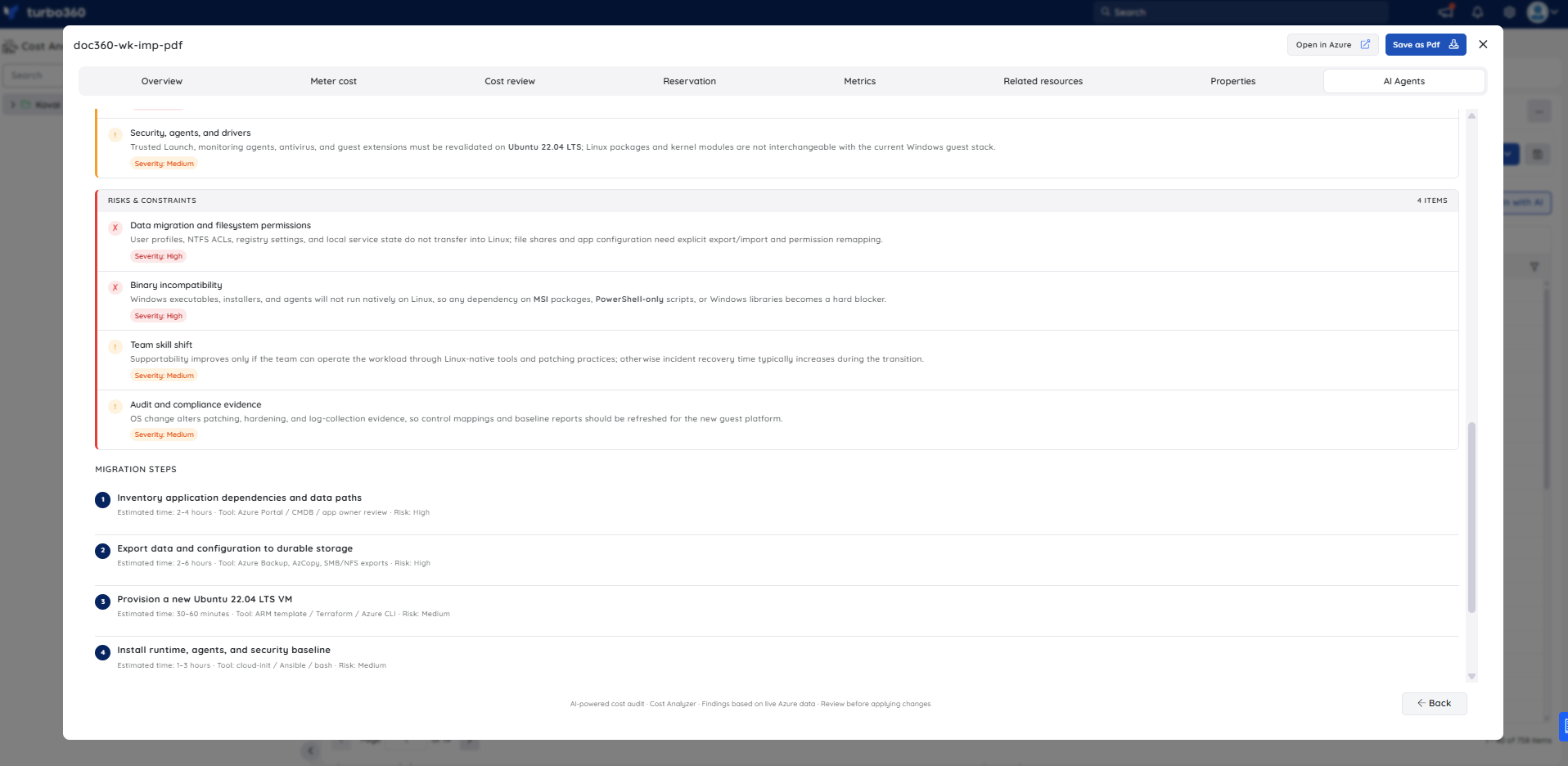
- Risks & constraints — identifies broader risks that could block or complicate the migration, including data migration and filesystem permission differences, binary incompatibility, team skill requirements, and audit and compliance evidence impacts. Each item carries a severity rating.
- Migration steps — a numbered migration plan with step-level time estimates, recommended tools, and risk ratings.
Steps
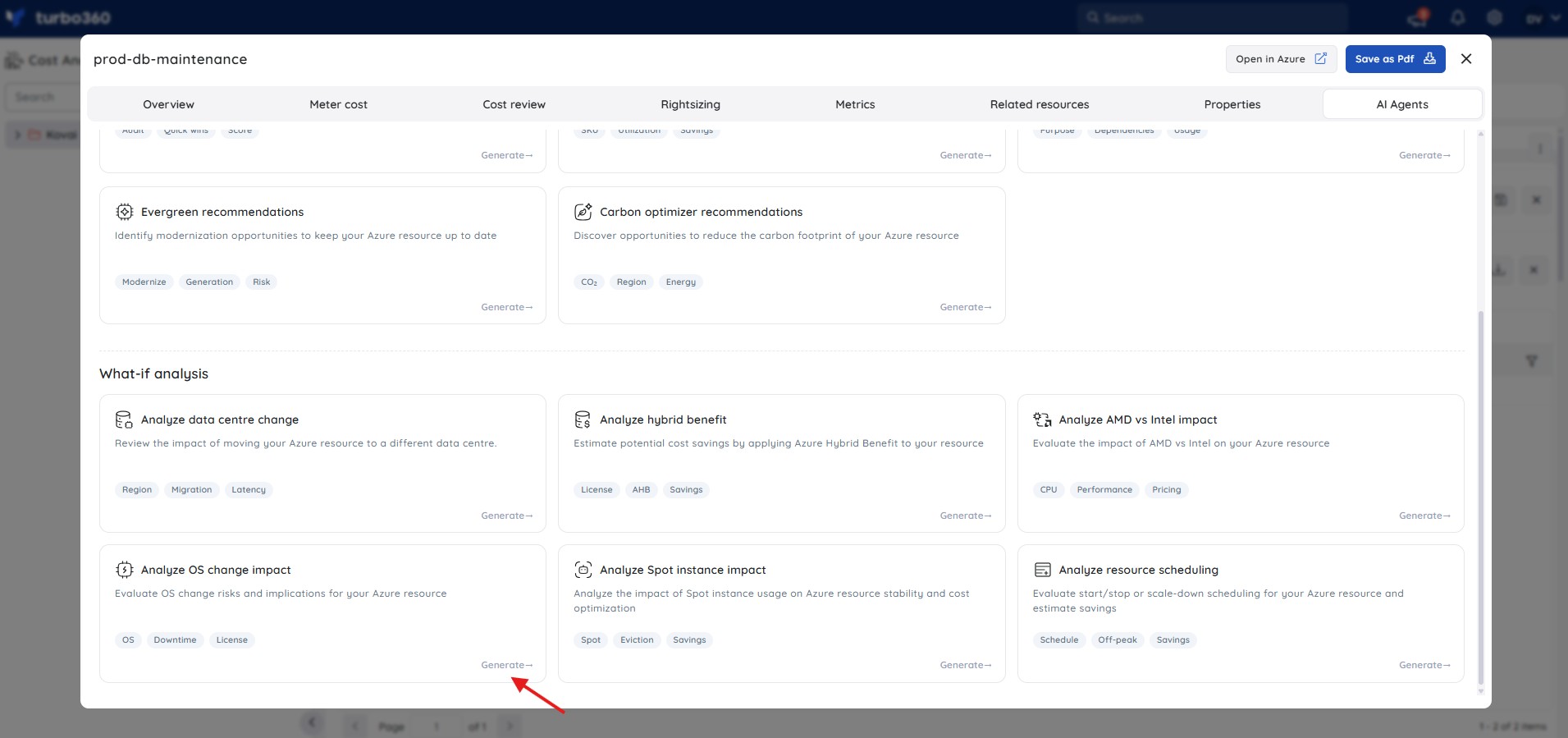
Use the following steps to open Analyze OS change impact and generate an analysis for a Virtual Machine. Navigate to Cost Analyzer > Analysis, then open a Cost management group and select a Virtual Machine resource to get started.
- In the Analysis section, expand the relevant Cost management group in the tree view.
- Select the Virtual Machine you want to evaluate.
- In the resource detail view, click AI Agents.
- Select Analyze OS change impact from the list of available agents.
- Click Generate to run the analysis.
- Review the generated output across the Quick takeaway, Side-by-side comparison, Downtime, Cost implications, Compatibility issues, Risks & constraints, and Migration steps panels.
Example scenario
A platform engineer is reviewing a Standard_D2as_v5 Virtual Machine (Windows Server 2022 Datacenter Azure Edition, West Europe) running at 0.43% average CPU utilization with an active reservation. The engineer opens Analyze OS change impact to evaluate switching to Ubuntu 22.04 LTS.
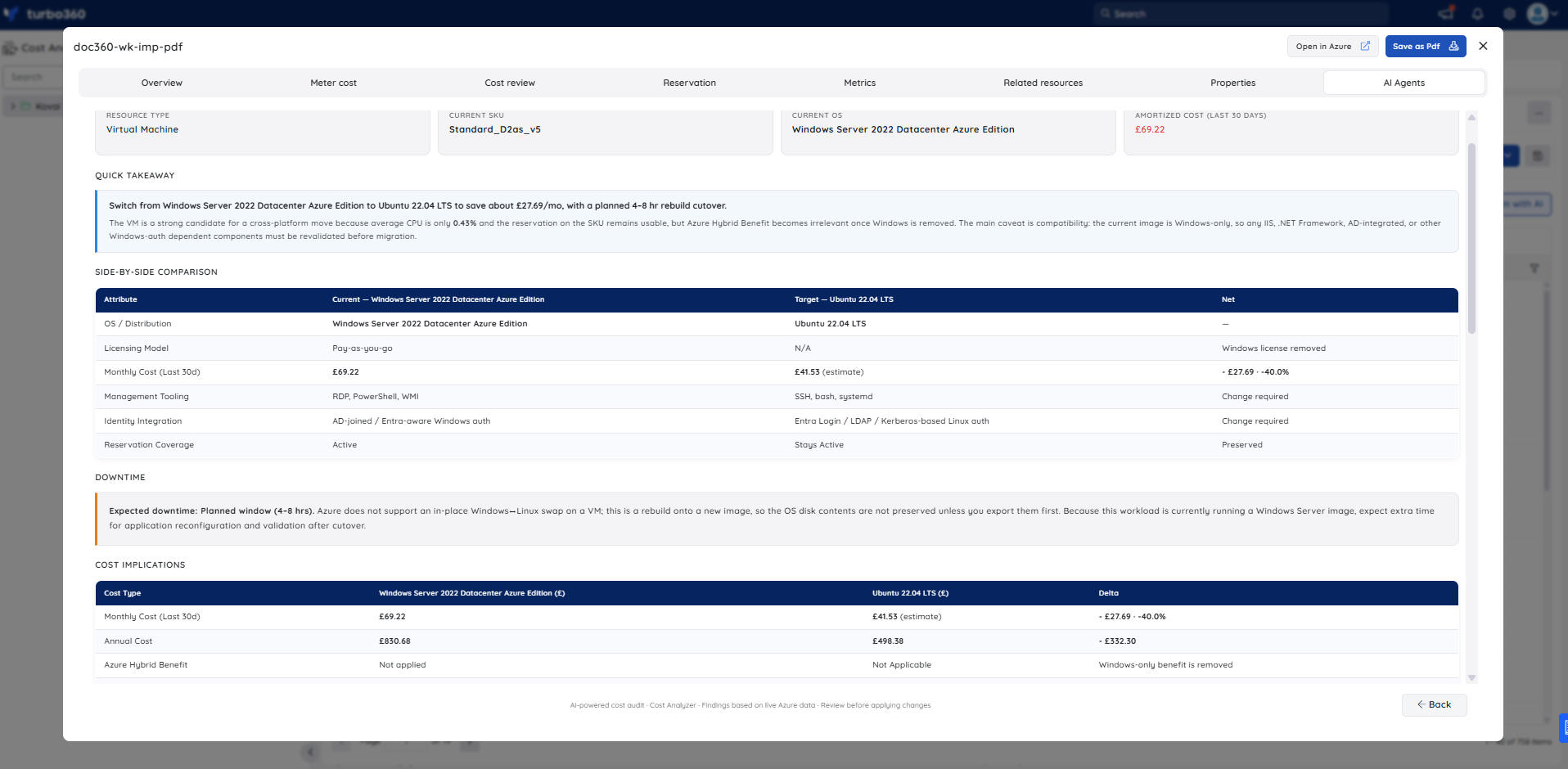
The Quick takeaway recommends the switch — the move would save approximately $27.69/month (~40%) by removing the Windows license component, and the existing reservation stays active on the same SKU. However, the Compatibility issues panel flags two High-severity items: the application stack includes Windows-only components (IIS, .NET Framework, AD-integrated auth) that require porting or replacement before the Linux image will boot the workload, and identity integration needs rework from Windows auth to an Entra or LDAP-based pattern.
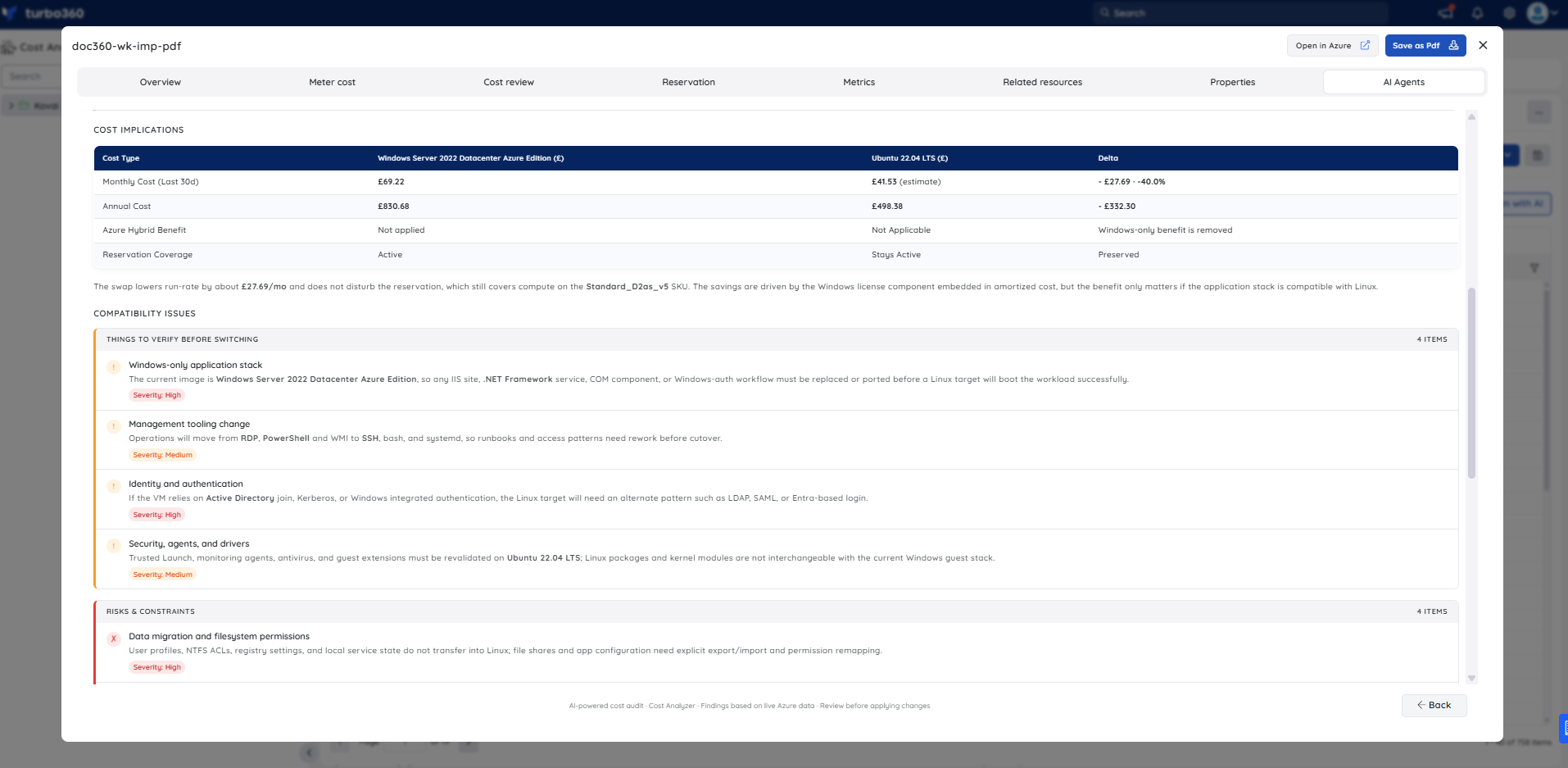
The Risks & constraints panel adds two further High-severity items: NTFS permissions and user profiles do not transfer to Linux and require explicit export and remapping, and Windows binaries are hard blockers with no native Linux equivalent. The Migration steps panel estimates a 4–8 hour planned cutover window across 7 steps, including dependency inventory, data export, new VM provisioning, and a post-migration validation hold before decommissioning the Windows VM.
Limitations
Analyze OS change impact is in beta. Always review and validate AI-generated outputs before using them to plan or execute an OS migration in a production environment.
Troubleshooting
- Analyze OS change impact tab is not visible for a resource
Cause: The user's Custom role does not have the AI Agents feature permission enabled.
Fix: Go to User management > Roles, edit the relevant Custom role, and enable the AI Agents toggle under Specify feature permissions. - No analysis is generated for a Virtual Machine
Cause: The OpenAI connection is not configured or has failed validation (Private Hosting only).
Fix: See OpenAI setup in Turbo360 to verify or reconfigure the connection. - Compatibility issues and Risks & constraints panels show fewer items than expected
Cause: The agent evaluates dependencies, extensions, and workloads it can detect from live Azure data; custom or undocumented application dependencies may not be captured.
Fix: Review the VM's installed extensions, application stack, and identity integrations manually alongside the generated analysis before acting on the recommendation.
FAQs
- Does Analyze OS change impact support any Azure Virtual Machine visible in Cost Analyzer?
Yes. The agent runs on any Virtual Machine resource that appears within the Analysis section of a Cost management group. The analysis is scoped to the VM's current configuration, extensions, and cost data available to Cost Analyzer. - Does the agent perform the OS change automatically?
No. It provides an impact analysis only; you plan and perform the OS change yourself. - Can I rely on the cost implications shown without further validation?
No. This feature is in beta — always review and validate AI-generated outputs before using them in production environments.
Related articles
Was this article helpful?