

Analyze resource scheduling
- 05 Aug 2026
- 8 Minutes to read
- Print
- DarkLight
- Download PDF
Analyze resource scheduling
- Updated on 05 Aug 2026
- 8 Minutes to read
- Print
- DarkLight
- Download PDF
Article summary
Did you find this summary helpful?
Thank you for your feedback!
Overview
Analyze resource scheduling is an AI Agent available under the AI Agents tab in Cost Analyzer. It evaluates whether an Azure resource is a candidate for start/stop or scale-down scheduling by examining its usage behavior over the past 14 days and estimating how much cost can be saved by running the resource only when it is needed.
.png)
Business value
Analyze resource scheduling removes the manual effort of reviewing usage graphs resource by resource to decide if scheduling is worthwhile. By surfacing a ready-to-use schedule window with a projected savings estimate and a confidence rating, it helps teams act on start/stop and scale-down opportunities faster and with more confidence, reducing spend on resources that run outside actual business hours.
Prerequisites
Required permissions
Access requires both the AI Agents feature to be enabled for the role and Read access to the Analysis feature, since Analyze resource scheduling is surfaced from the resource-level Cost intelligence view within Analysis.
| Role | Permission level | Access |
|---|---|---|
| Account Owner / Owner / Contributor | Full access | Can use Analyze cost drivers on any resource |
| Custom role | AI Agents — Enable, Analysis — Read (or Manage) | When AI Agents is set to Enable and Analysis is toggled on with at least Read access, the user can view Analyze resource scheduling insights for resources within their assigned scope; if either is missing, the option is not available |
.jpg)
How it works
When the agent is triggered for a resource, it pulls hourly utilization data over a 14-day window and maps usage intensity across each hour of the day for every day of the week.
Based on this pattern, it proposes a schedule window during which the resource can be stopped or scaled down, calculates the estimated cost under that schedule, and presents the projected monthly savings compared to the current list cost.
If no utilization data is available for the resource, the agent notes that the confidence in its recommendation is low and that the savings estimate is based on default assumptions for the resource type rather than observed activity.
Recommendation output
The agent surfaces the following information as part of its output:
- Resource type and current SKU or size
- Current list cost per month and estimated cost after applying the schedule
- Projected monthly savings in value and percentage
- Approximate hours saved per week
- A confidence rating for the recommendation, along with a plain-language explanation of what drove that rating
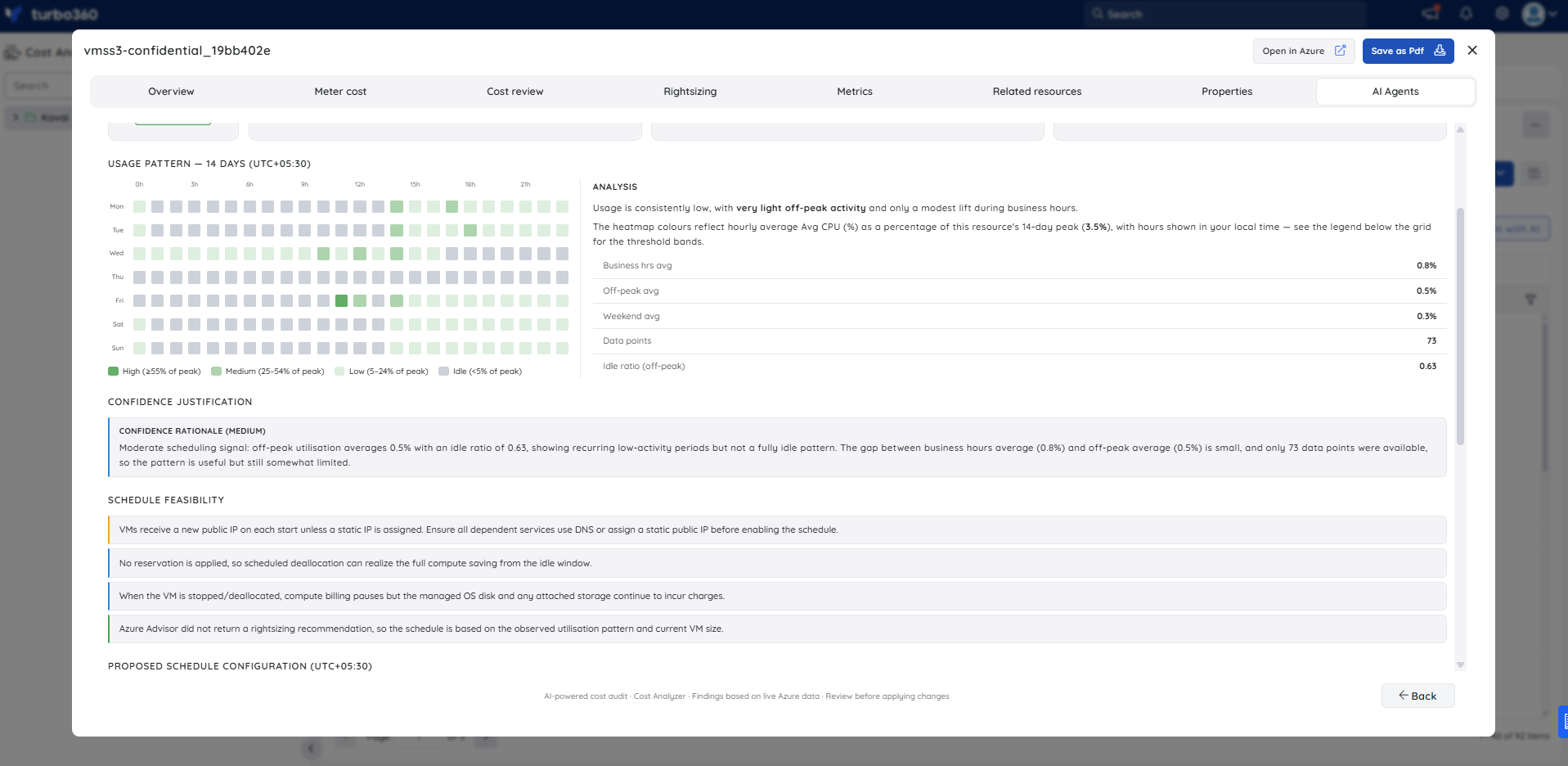
- A 14-day usage heatmap showing hourly utilization bucketed into four bands: High (≥55% of peak), Medium (25–54% of peak), Low (5–24% of peak), and Idle (<5% of peak)
- Average utilization figures for business hours, off-peak periods, and weekends
- Idle ratio during off-peak hours
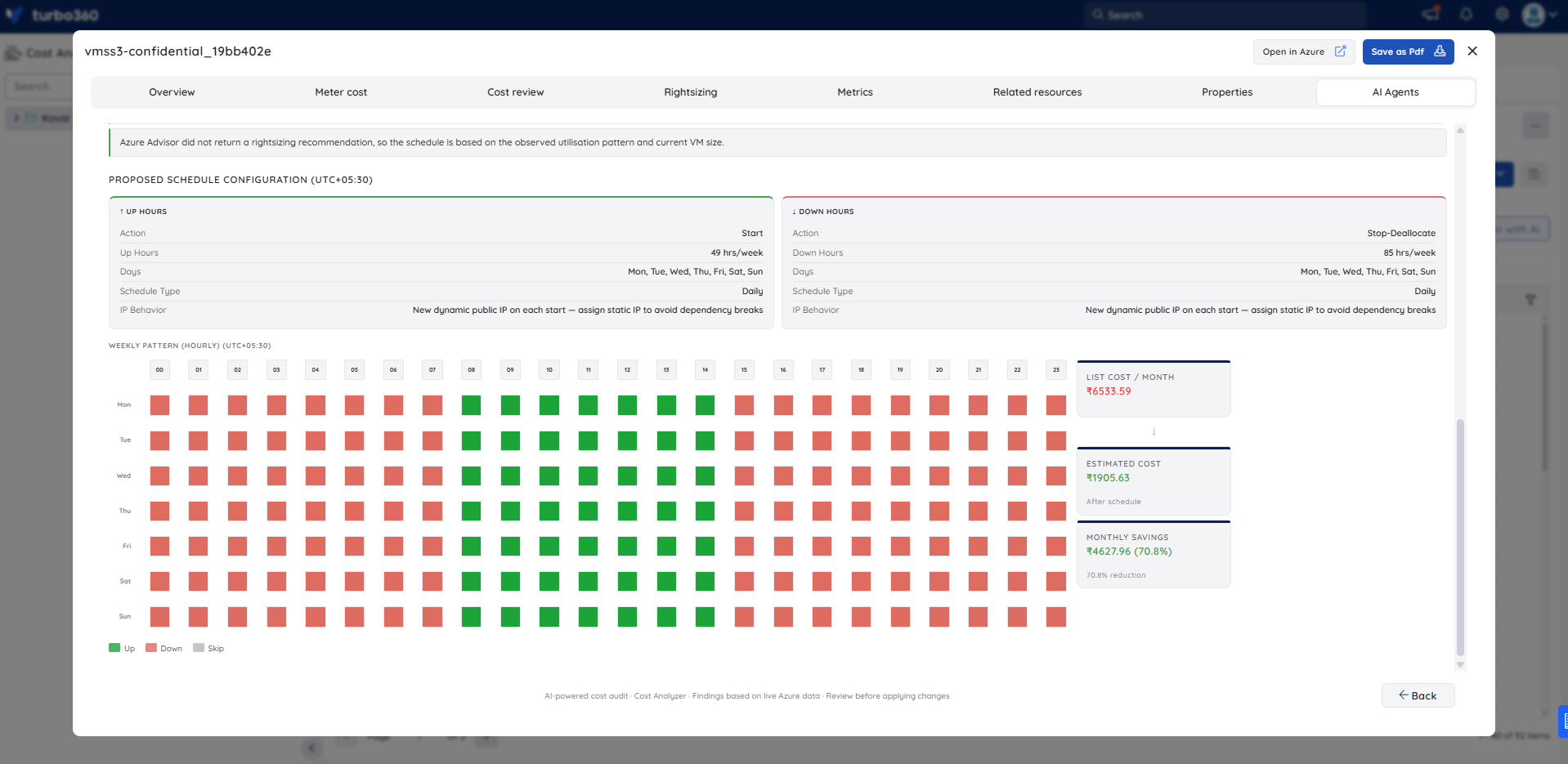
- A proposed schedule configuration showing the up hours (action, target tier, hours per week, days, and schedule type) and down hours (action, target tier, hours per week, days, and schedule type)
- A weekly hourly pattern heatmap showing the scheduled Up, Down, and Skip windows across each hour and day of the week
Note:
The timestamps shown in the usage pattern and proposed schedule configuration panels reflect your system time zone. The time zone offset is displayed alongside the section heading (for example, UTC+04:00).
Schedule feasibility
Before the recommendation is acted upon, the agent checks and communicates the following:
- Whether the proposed schedule window, typically Mon–Fri 08:00–18:00, is consistent with normal business usage patterns
- Whether any active reservations are applied to the resource, since reservations affect how savings are calculated
- Whether any rightsizing recommendations exist alongside the schedule suggestion
- Whether the resource may already be in a stopped or deallocated state, in which case a start/stop schedule would not produce additional savings against the listed cost, and no scheduling action would be needed.
Steps
To run an Analyze resource scheduling analysis, navigate to Cost Analyzer > Analysis, open a Cost management group, and select a resource from the analysis view to open its Cost intelligence panel.
- In the Cost intelligence panel for a resource, select the Analyze resource scheduling tab.
- Review the recommendation header — it shows the resource type, current SKU, 30-day average CPU, hours saved per week, list cost per month, estimated cost after applying the schedule, and projected monthly savings in both value and percentage.
- Review the confidence rating and the plain-language confidence justification, which explains what data drove the rating and any limitations in the usage signal.
- Review the 14-day usage heatmap and the analysis summary (business hours average, off-peak average, weekend average, idle ratio) to confirm the usage pattern supports the proposed schedule.
- Review the schedule feasibility section, which lists operational prerequisites — IP behavior, reservation status, rightsizing context, and any factors that would reduce or eliminate the projected saving.
- Review the proposed schedule configuration, which shows the exact up hours (action: Start, hours per week, days, schedule type, IP behavior) and down hours (action: Stop-Deallocate, hours per week, days, schedule type).
- Review the weekly hourly pattern heatmap to validate the proposed Up and Down windows against your team's actual usage hours.
- If the schedule looks correct, use Optimization > Schedules to create and apply the schedule to the resource.
Example scenario
The example below is based on a Virtual Machine Scale Set instance (Standard_DC2ads_v5 in eastus) running a confidential Windows VM workload. The agent recommends a Start/Stop schedule with Medium confidence.
Recommendation header — the agent shows Start/Stop as the recommendation type with Medium confidence and Schedulable status. The resource is running Standard_DC2ads_v5, with a 30-day average CPU of 0.5%. The projected saving is approximately ₹4,627.96/month (70.8%), with ~85 hours saved per week. List cost is ₹6,533.59/month; estimated cost after schedule is ₹1,905.63/month.
14-day usage heatmap and analysis — the heatmap shows consistently low (Idle band) activity across the full week, with only modest green tiles appearing during late afternoon on weekdays. The analysis summary confirms business hours average at 0.8%, off-peak average at 0.5%, and weekend average at 0.3%, across 73 data points. The idle ratio during off-peak hours is 0.63.
Confidence justification (Medium) — the agent explains that off-peak utilization averages 0.5% with an idle ratio of 0.63, showing recurring low-activity periods but not a fully idle pattern. The gap between business hours average (0.8%) and off-peak average (0.5%) is small, and only 73 data points were available, so the pattern is useful but still somewhat limited.
Schedule feasibility — four notices are listed. VMs receive a new public IP on each start unless a static IP is assigned; all dependent services should use DNS or a static IP before enabling the schedule. No reservation is applied, so scheduled deallocation can realize the full compute saving. When stopped or deallocated, compute billing pauses but the managed OS disk and any attached storage continue to incur charges. Azure Advisor did not return a rightsizing recommendation, so the schedule is based on the observed utilization pattern and current VM size.
Proposed schedule configuration — Up hours: Action Start, 49 hours/week, all 7 days (Mon–Sun), Daily schedule type, IP behavior note (new dynamic public IP on each start — assign static IP to avoid dependency breaks). Down hours: Action Stop-Deallocate, 85 hours/week, all 7 days (Mon–Sun), Daily schedule type, same IP behavior note.
Limitations
Analyze resource scheduling is only available for resource types that support Optimization schedules in Cost Analyzer. The following resource types are supported:
- App Service Plan (including Workflow Standard SKU)
- Azure Database for MySQL flexible server
- Cosmos SQL Container
- Cosmos SQL Database
- Cosmos Table
- Data Factory Pipelines
- Fabric Capacity
- Logic Apps
- SQL Database
- SQL Elastic Pool
- SQL Managed Instances
- Synapse Pipelines
- Virtual Machine
- Virtual Machine Scale Set
Resources outside this set will not display an Analyze resource scheduling option under AI Agents. See Understanding optimization schedules for details on each resource type.
Troubleshooting
- Analyze resource scheduling tab is not visible for a resource
Cause: The resource type does not support scheduling in Cost Analyzer, or the user's Custom role does not have the AI Agents feature permission enabled.
Fix: Confirm the resource type is compatible with scheduling. If it is, go to User management > Roles, edit the relevant Custom role, and enable the AI Agents toggle under Specify feature permissions. - The recommendation shows low confidence
Cause: Insufficient utilization data is available for the resource — typically because the resource has fewer than 14 days of recorded activity.
Fix: Wait until the resource has accumulated at least 14 days of usage history, then re-run the analysis for a data-driven recommendation rather than a default-assumption estimate. - Projected savings appear lower than expected
Cause: The resource may have an active reservation applied, which reduces the pay-as-you-go component that a start/stop schedule can affect; reserved instance charges continue regardless of the schedule.
Fix: Review the reservation details for the resource. Scheduling is most effective for pay-as-you-go resources without active commitments.
FAQs
- Which resource types support Analyze resource scheduling?
Only resource types compatible with the scheduling feature in Cost Analyzer are supported: App Service Plan (including Workflow Standard SKU), Azure Database for MySQL flexible server, Cosmos SQL Container, Cosmos SQL Database, Cosmos Table, Data Factory Pipelines, Fabric Capacity, Logic Apps, SQL Database, SQL Elastic Pool, SQL Managed Instances, Synapse Pipelines, Virtual Machine, and Virtual Machine Scale Set. Resources outside this set will not show the Analyze resource scheduling option. - Does the agent create the schedule automatically?
No. It provides a scheduling recommendation and savings estimate only; you create and apply the schedule manually through the Optimization > Schedules feature. - What happens if the resource is already stopped or deallocated?
The agent notes that no additional savings can be realized through a start/stop schedule against the listed cost, since the resource is already in a stopped state. No scheduling action is needed in that case.
Related articles
Was this article helpful?