

Analyze rightsizing
- 05 Aug 2026
- 5 Minutes to read
- Print
- DarkLight
- Download PDF
Analyze rightsizing
- Updated on 05 Aug 2026
- 5 Minutes to read
- Print
- DarkLight
- Download PDF
Article summary
Did you find this summary helpful?
Thank you for your feedback!
Overview
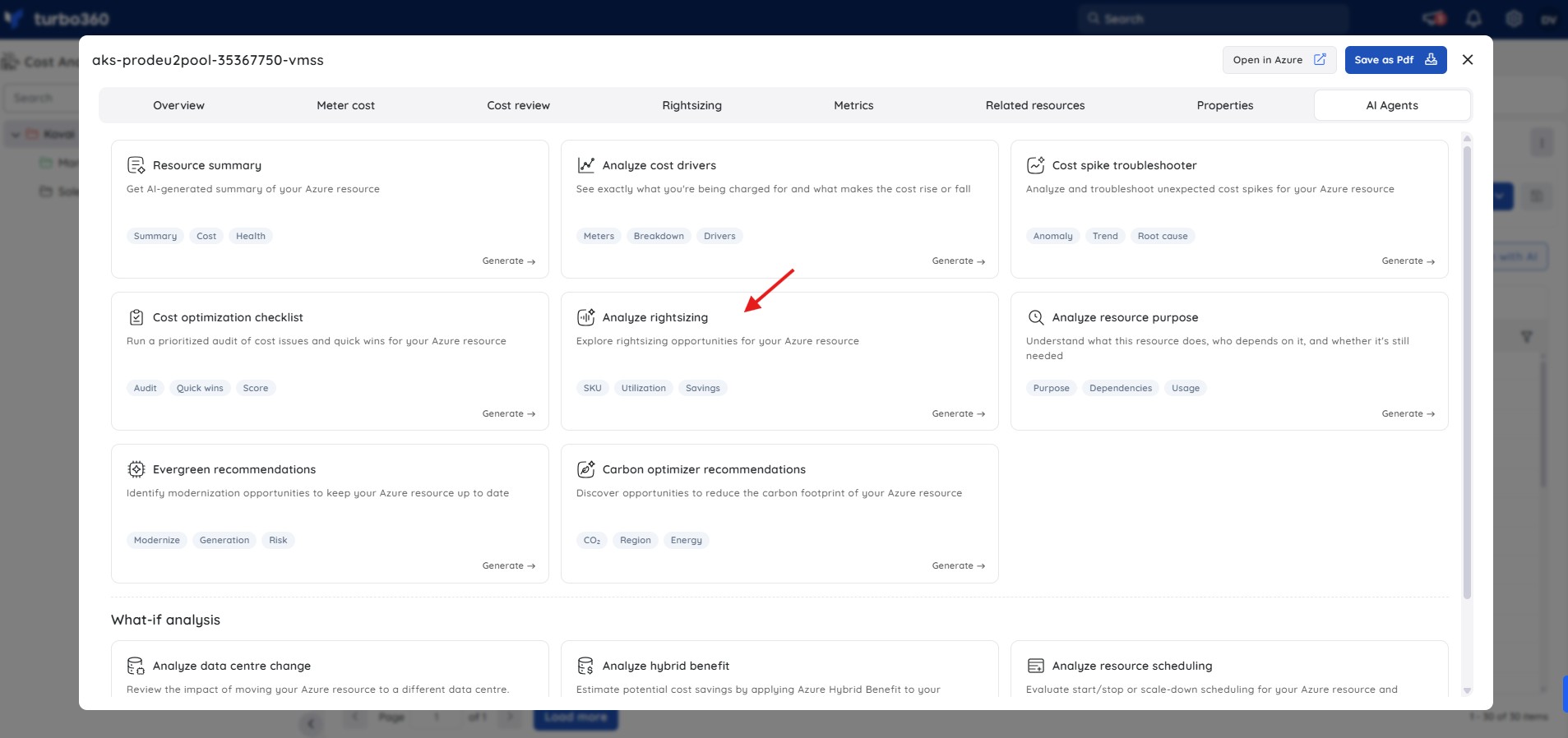
Analyze rightsizing is an AI Agent in Cost Analyzer that provides intelligent, data-driven insights to optimize an Azure resource for cost, performance, and efficiency. It evaluates usage, performance, configuration, and cost data to deliver actionable recommendations in a single consolidated view.
Business value
Consolidating usage, cost, and Advisor data into one rightsizing view helps you find and justify optimization actions faster, with data-backed reasoning and estimated savings rather than manual cross-checking.
Prerequisites
- On Private Hosting deployments, an Azure OpenAI connection must be configured before this AI Agent can generate insights. See OpenAI setup in Turbo360 for setup instructions. SaaS deployments do not need this step.
Required permissions
Access requires both the AI Agents feature to be enabled for the role and Read access to the Analysis feature, since Analyze rightsizing is surfaced from the resource-level Cost intelligence view within Analysis.
| Role | Permission level | Access |
|---|---|---|
| Account Owner / Owner / Contributor | Full access | Can use Analyze cost drivers on any resource |
| Custom role | AI Agents — Enable, Analysis — Read (or Manage) | When AI Agents is set to Enable and Analysis is toggled on with at least Read access, the user can view Analyze rightsizing insights for resources within their assigned scope; if either is missing, the option is not available |
.jpg)
How it works
The AI Agent analyzes:
- Resource usage and performance metrics
- Cost and billing data
- Configuration and SKU details
- Azure Advisor recommendations
- Custom recommendations from the Turbo360 platform
- Historical usage and pattern analysis
It breaks the analysis down into the following insights:
- Usage & performance overview — shows how the resource is utilized, including average and peak usage, helping identify over- or under-utilization.
- Rightsizing opportunities — highlights potential actions such as resizing, SKU changes, or configuration adjustments based on observed usage.
- Advisor & custom recommendations — combines Azure Advisor insights with custom recommendations generated by the platform for the specific resource.
- Additional optimization opportunities — includes analysis of SKU and configuration changes, resource utilization, Dev/Test subscription usage patterns, reservation opportunities, estimated monthly cost savings, and historical usage patterns.
- Recommended actions & justification — provides clear recommendations along with data-backed justification explaining why the action is suggested.
- Cost & performance observations — summarizes current versus optimized cost and expected performance impact.
- Risk assessment — evaluates potential risks of applying the recommendation, helping you make an informed decision.
Steps
To run an Analyze rightsizing analysis, navigate to Cost Analyzer > Analysis, open a Cost management group, and select a resource from the analysis view to open its Cost intelligence panel.
- In the Cost intelligence panel for a resource, select the Analyze rightsizing tab.
- Review the usage and performance summary, which shows utilization metrics from the last 30 days. If no Azure Monitor metrics are available for the resource type, the agent relies on cost profile and custom optimization signals.
- Review the rightsizing opportunities listed — each opportunity shows the recommended action, risk level, effort required, confidence rating, and estimated monthly saving.
- Select Do now, Review, or Optional actions as appropriate based on the risk and effort indicated.
- Use the recommendation comparison table (current SKU versus recommended SKU, cost delta, and performance impact) and the risk assessment to decide whether to apply the change.
Example scenario
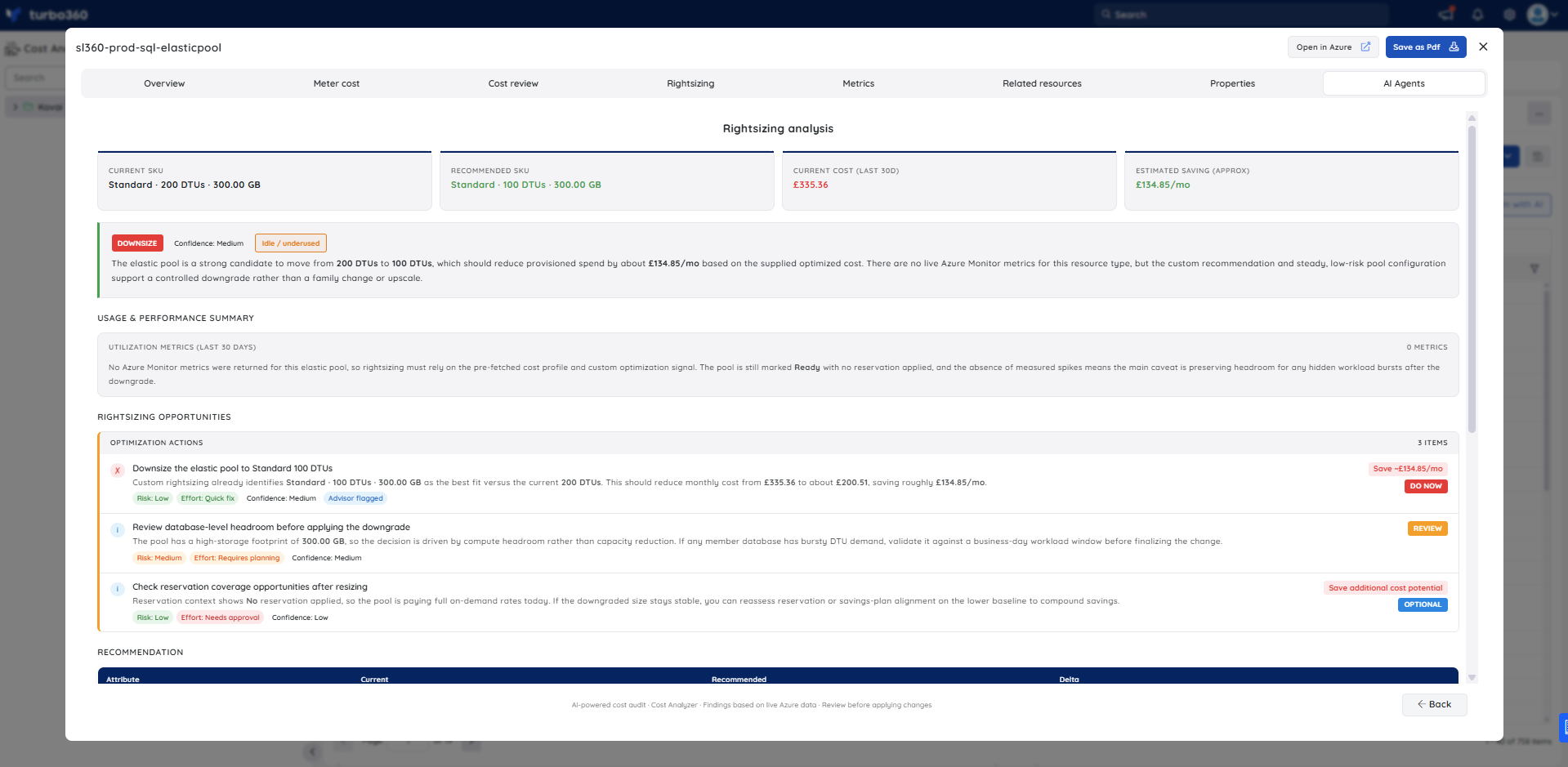
The example below is based on an Azure SQL elastic pool provisioned at Standard 200 DTUs. The agent recommends downsizing to Standard 100 DTUs and produces the following output:
Usage & performance summary — the agent notes that no Azure Monitor metrics were returned for this resource type. The analysis therefore relies on the cost profile and a custom optimization signal rather than observed utilization peaks. The pool is in a Ready state with no reservation applied.
Rightsizing opportunities — three items are listed. The primary action (marked Do now) is to downsize the elastic pool from Standard 200 DTUs to Standard 100 DTUs, saving approximately $134.85/month with Low risk and Quick fix effort. A second item (Review) recommends validating database-level headroom before applying the downgrade, given the high storage footprint of 300 GB. A third item (Optional) suggests reassessing reservation or savings plan coverage after the resize is stable.
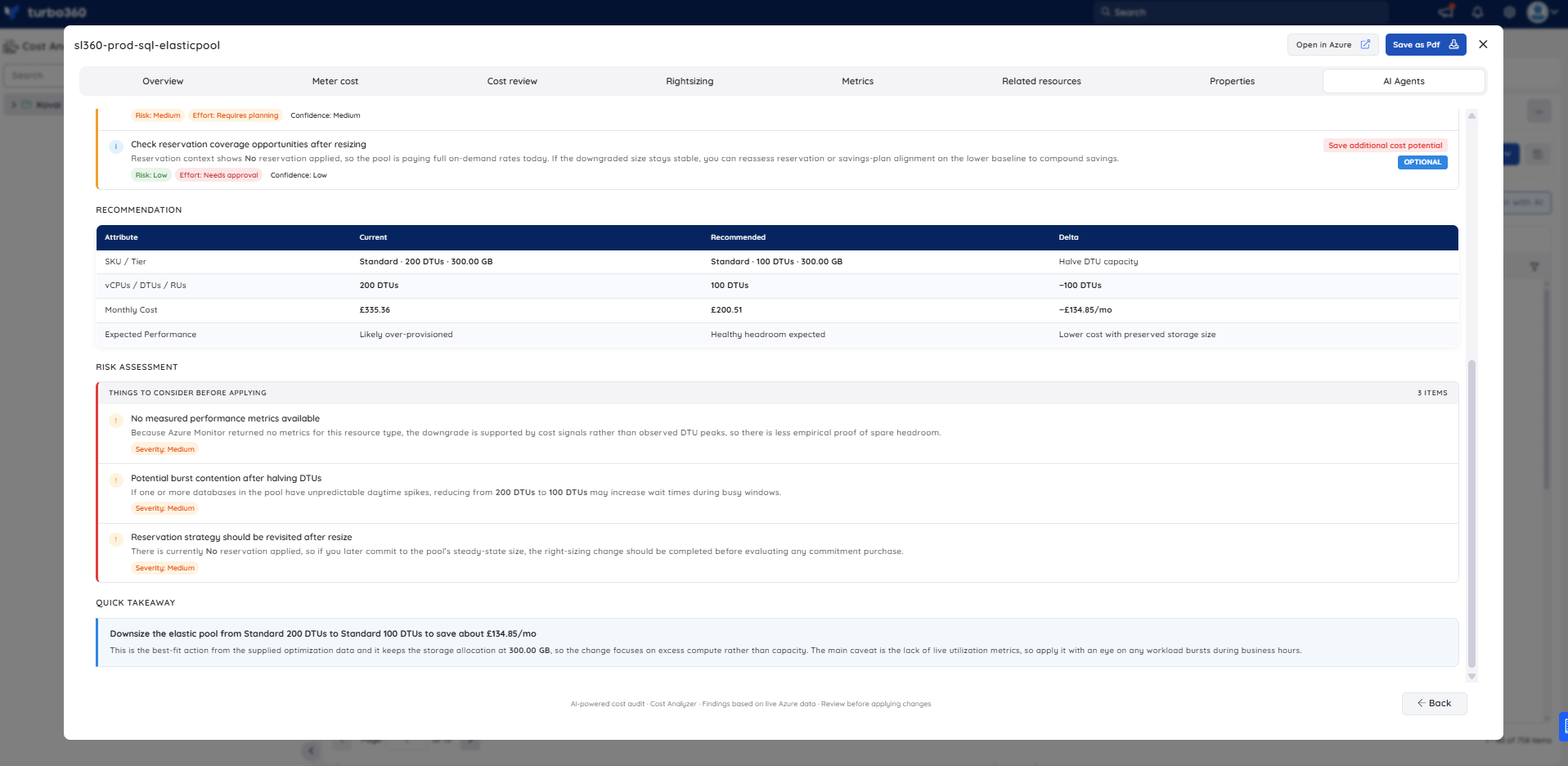
Recommendation comparison table — a side-by-side view shows current SKU (Standard · 200 DTUs · 300 GB at $335.36/month) versus recommended SKU (Standard · 100 DTUs · 300 GB at approximately $200.51/month), with a delta of −$134.85/month and a note that storage allocation is preserved while excess compute is removed.
Risk assessment — three risks are flagged: no measured performance metrics (Medium severity, since the recommendation is based on cost signals rather than observed DTU peaks); potential burst contention after halving DTUs (Medium severity, if member databases have unpredictable daytime spikes); and reservation strategy (Medium severity, recommending the resize be completed before evaluating any commitment purchase).
Troubleshooting
- Analyze rightsizing tab is not visible for a resource
Cause: The user's Custom role does not have the AI Agents feature permission enabled.
Fix: Go to User management > Roles, edit the relevant Custom role, and enable the AI Agents toggle under Specify feature permissions. - No analysis is generated for a resource
Cause: The OpenAI connection is not configured or has failed validation (Private Hosting only).
Fix: See OpenAI setup in Turbo360 to verify or reconfigure the connection. - Rightsizing opportunities show no recommendations
Cause: The resource may be appropriately sized based on its current usage patterns, or it may have insufficient usage history for the agent to evaluate.
Fix: Wait until the resource has accumulated sufficient usage history, then re-run the analysis. If the resource is intentionally over-provisioned for peak load, review the risk assessment before acting on any recommendations.
FAQs
- Does the agent apply the rightsizing changes automatically?
No. It provides recommendations only; you review and apply changes manually. - Are the estimated savings figures guaranteed?
No. Savings estimates are indicative and based on observed usage patterns. Actual savings depend on workload behavior after resizing and prevailing Azure pricing at the time of change.
Related articles
Was this article helpful?