

API Endpoint monitoring
- 05 Aug 2026
- 8 Minutes to read
- Print
- DarkLight
- Download PDF
API Endpoint monitoring
- Updated on 05 Aug 2026
- 8 Minutes to read
- Print
- DarkLight
- Download PDF
Article summary
Did you find this summary helpful?
Thank you for your feedback!
Overview
API Endpoint monitoring lets you add HTTP Endpoints to a Business Application and monitor their health using configurable assertion rules. Turbo360 evaluates each Endpoint on a schedule and triggers alerts when an assertion condition is breached — at the individual Endpoint level or across a monitoring profile that applies rules to all API Endpoint resources in a Business Application.
Business value
API Endpoint monitoring eliminates the need to manually test Endpoint availability and response quality. Define assertions once and receive proactive alerts when a status code, response time, header, or body value falls outside expected bounds, reducing the time it takes to detect API degradation or failures.
Prerequisites
The API Endpoint resource must be associated with a Business Application before monitoring rules can be configured.
Required permissions
Permission requirements differ depending on where the API Endpoint rule is configured:
- Resource-level rules — requires at least Read access on the API Endpoint resource, plus Manage permission on the same resource.
- Profile-level rules — requires Manage permission on the Monitoring profiles feature. This permission is assigned through custom role creation (RBAC) in the Business Applications module.
The API Endpoint resource exposes two permission levels that can be assigned independently per role:
| Permission | What it allows |
|---|---|
| Read | View existing API Endpoint configuration and monitoring rule status. |
| Manage | Add Endpoints, configure HTTP requests, and create, edit, and delete monitoring rules. |
Permissions are assigned in User management > Roles. When creating or editing a role, expand the API Endpoint resource under Specify resource permissions and enable the Read or Manage checkbox as required.
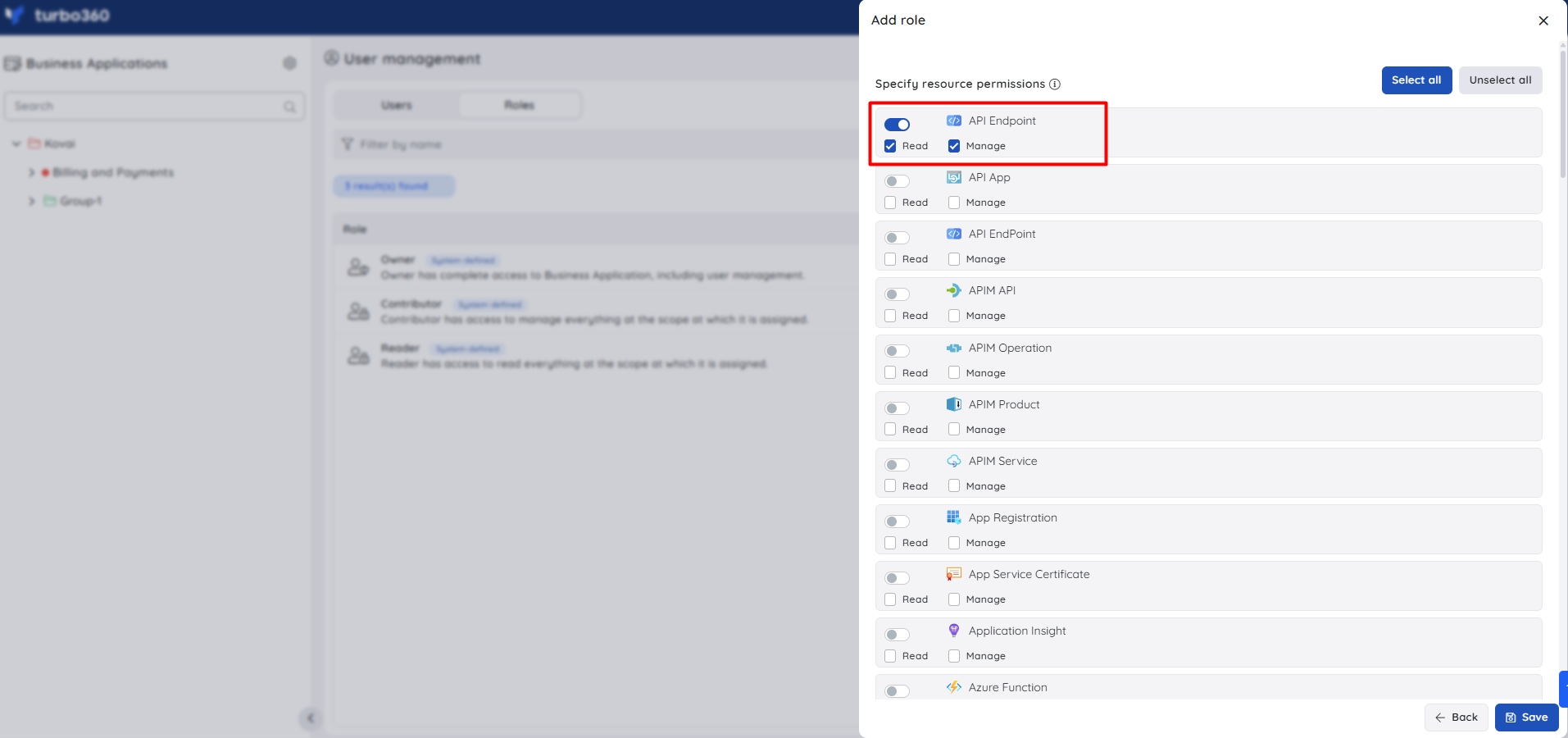
Note:
The screenshot above shows the Add role dialog in User management > Roles, with the API Endpoint resource and its Read and Manage permission checkboxes. Both permissions can be enabled independently.
How it works
- API Endpoints are added to a Business Application either manually (one at a time) or in bulk from a Swagger URL or OpenAPI specification file.
- Each Endpoint is configured with an HTTP request (URL, method, headers, body, authorization, and optional query parameters).
- Assertion rules define the expected response values. When Turbo360 evaluates an Endpoint and the response matches an error condition, the Endpoint is marked as Error; otherwise it remains Healthy.
- API Endpoint rules is also available as a rule category when configuring rules through a monitoring profile, so a single profile can apply assertion rules across all API Endpoint resources linked to a Business Application.
- Rules can be configured independently at the resource level and at the profile level. Both can be active at the same time.
- The health status of a configured API Endpoint can be tracked using Service Map.
Turbo360 evaluates assertions against the following response data:
- Status code — the HTTP status code returned by the Endpoint.
- Response time — the time taken for the Endpoint to respond, in milliseconds.
- Response header — a specific header value returned in the response.
- Response body — the response body content. Supported formats are plain text (regular expression optional), JSON (JSON expression required), and XML (XPath query required).
Steps
Use the following steps to add and configure API Endpoints for monitoring, or to apply assertion rules across multiple Endpoints using a monitoring profile. To add Endpoints manually or from Swagger, navigate to the Resources section of the relevant Business Application in the tree view.
Add an Endpoint manually
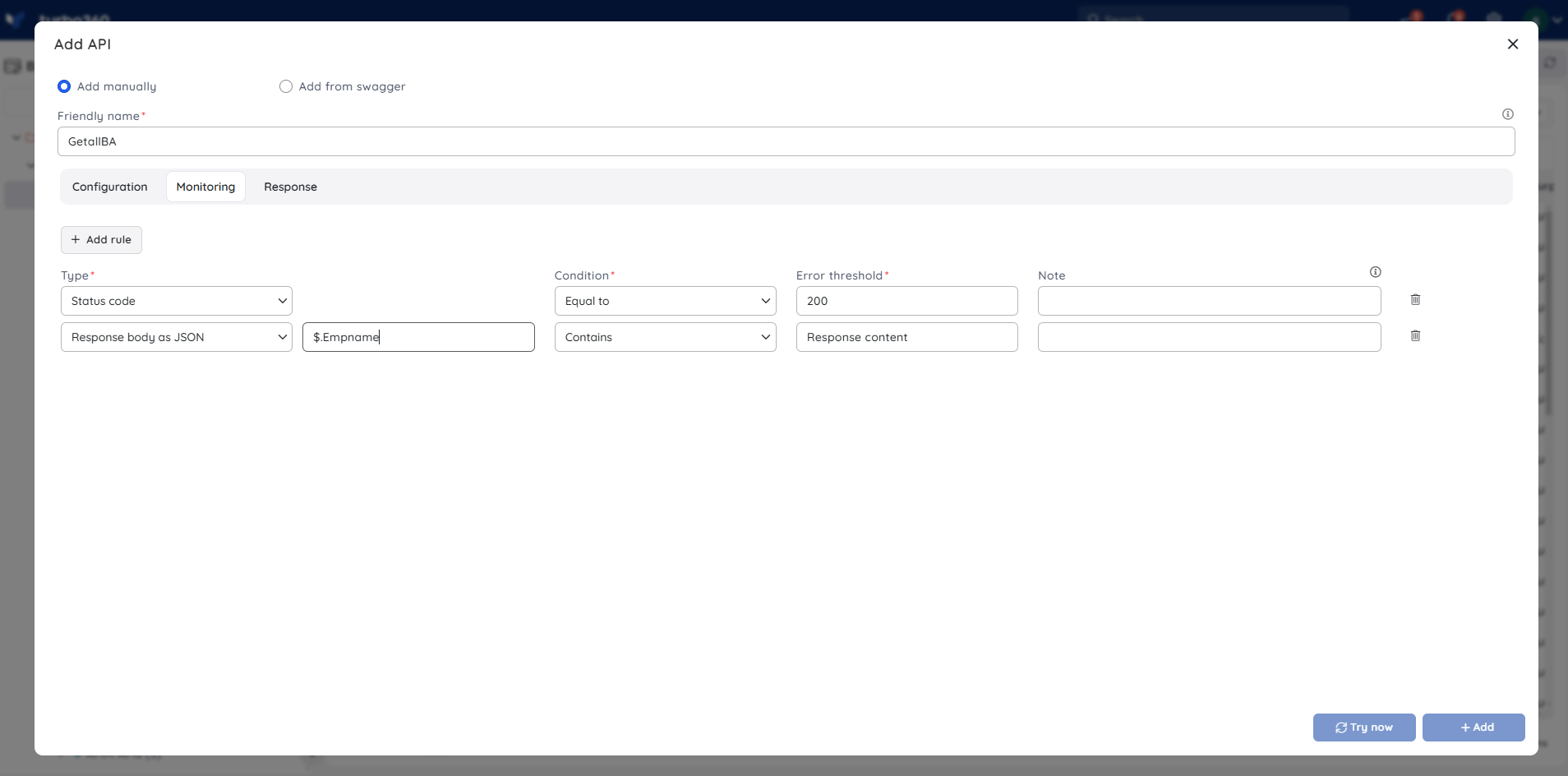
Adding an Endpoint manually lets you configure the request URL, method, headers, body, and monitoring rules for a single Endpoint.
- In the Resources section of the Business Application, click the Add dropdown and select API Endpoint.
- Select Add Manually.
- Enter a Name for the Endpoint.
- Configure the Endpoint settings and monitoring rules (see Configuring HTTP requests and Configuring monitoring rules below).
- Click Add.
Add Endpoints from Swagger
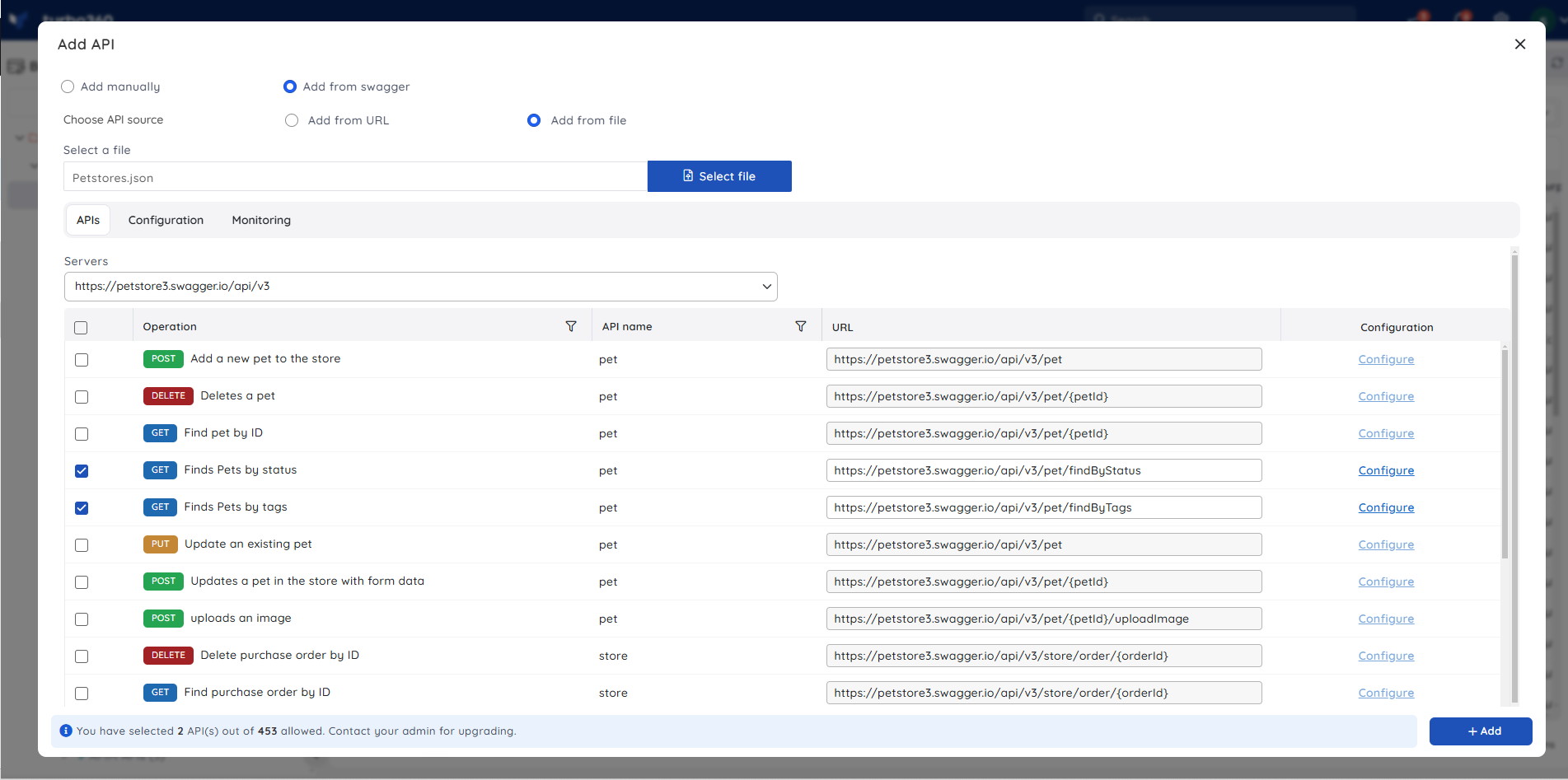
Adding Endpoints from Swagger lets you import and configure multiple API Endpoints in a single operation from a Swagger URL or OpenAPI specification file.
- In the Resources section of the Business Application, click the Add dropdown and select API Endpoint.
- Select Add from Swagger.
- Provide the Swagger URL or upload the OpenAPI specification file.
- Select the APIs to monitor and configure their settings.
- Click Add.
Note:
To configure Endpoint settings and monitoring rules collectively across all imported Endpoints, use the Configuration and Monitoring tabs. To configure settings for an individual Endpoint, use the Configure option at the Endpoint level.
Configuring HTTP requests
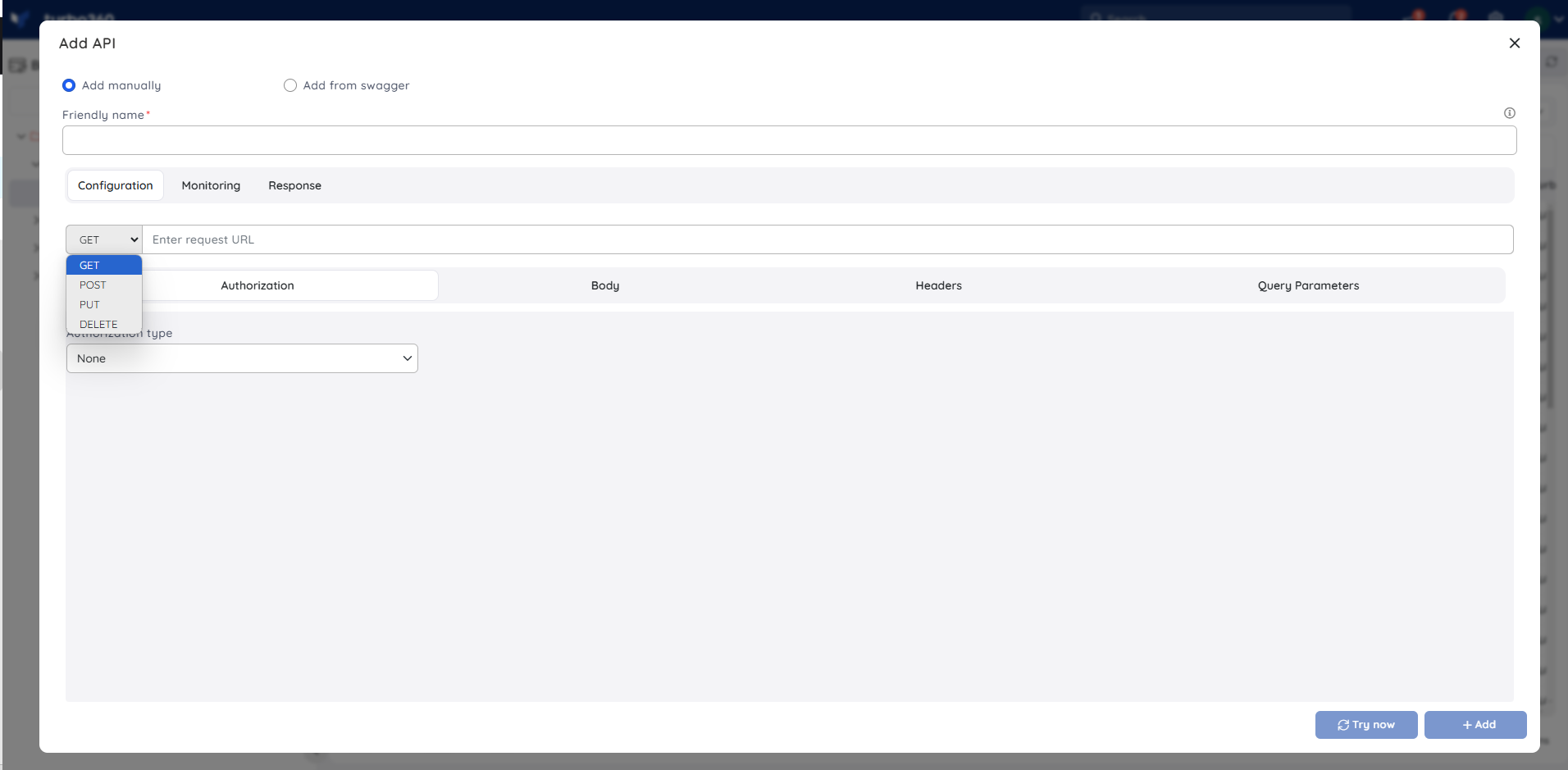
Configure the HTTP request Turbo360 sends when evaluating the Endpoint.
- Specify the Request URL, Request method (GET, PUT, POST, or DELETE), and any Custom headers.
- In the Body section, enter a request body in the required format.
Authorization
Turbo360 supports four authorization methods for API requests:
- Basic — enter a username and password. Turbo360 encrypts the credentials and includes the corresponding Authorization header in each request.
- Bearer — enter the Bearer token. Turbo360 adds the corresponding Authorization header to each request.
- API Key — enter the API key value. Turbo360 includes the corresponding Authorization header in each request.
- OAuth — provide client credentials, access token details, and other required OAuth parameters to create an OAuth-protected request.
.png)
Query parameters
If the request URL requires query parameters, add them in the Query Parameters section. The field value has no restrictions.
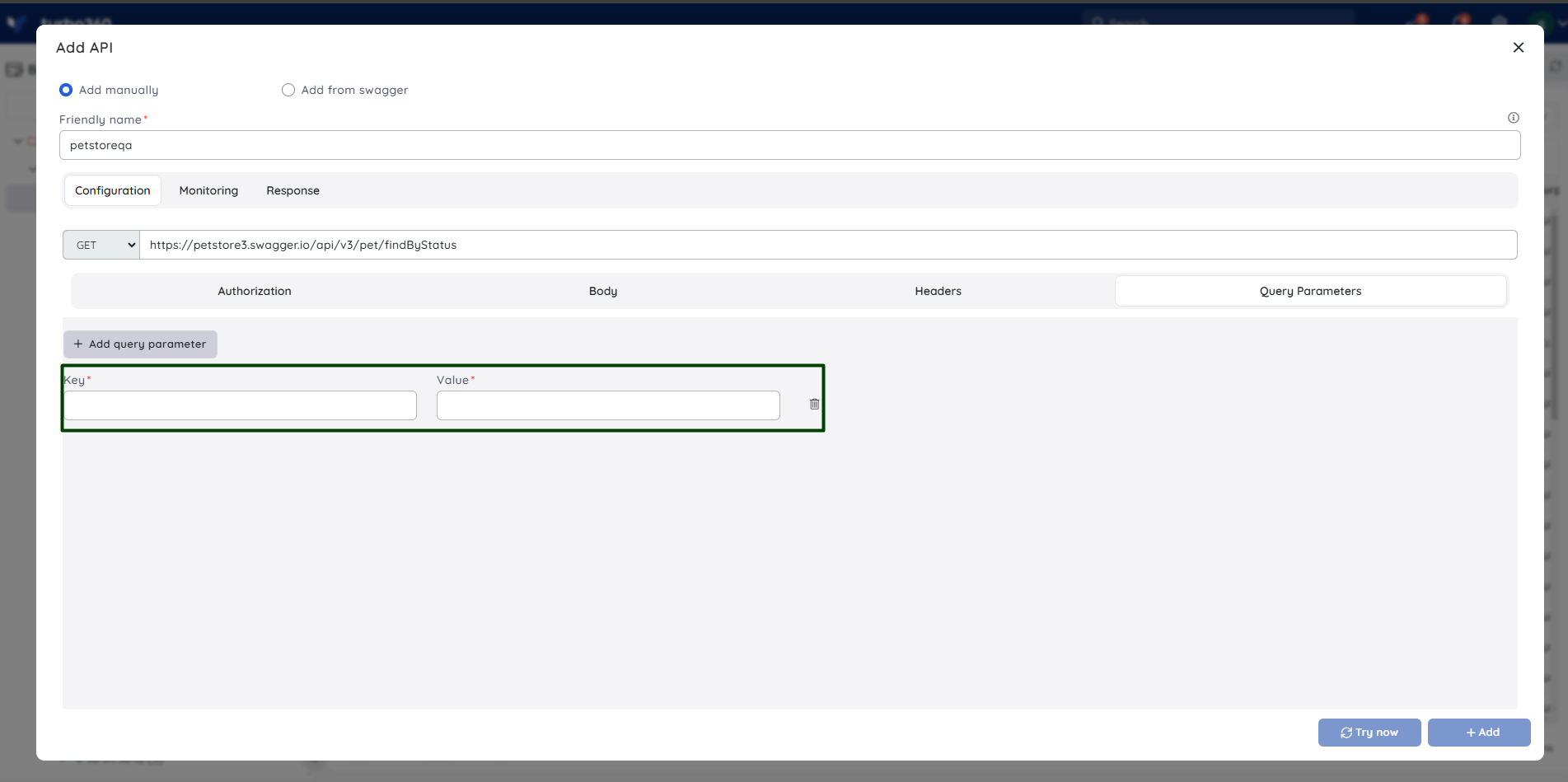
Note:
Query parameters are available only for Endpoints added manually.
Response preview
For manually added Endpoints, click Try Now in the Response section to send a test request and view the response at any time.
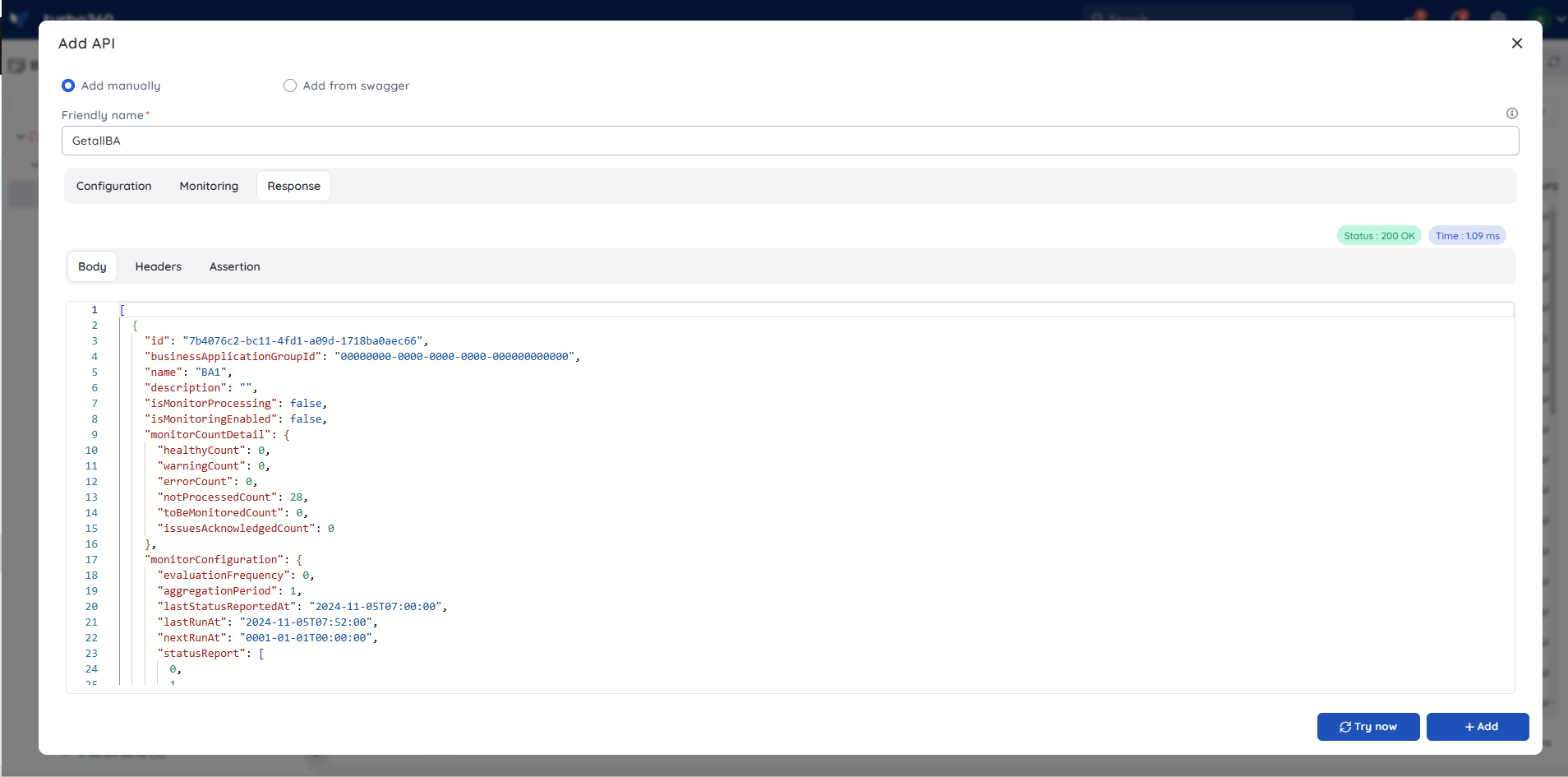
Note:
The Response section is available only for Endpoints added manually.
Configuring monitoring rules
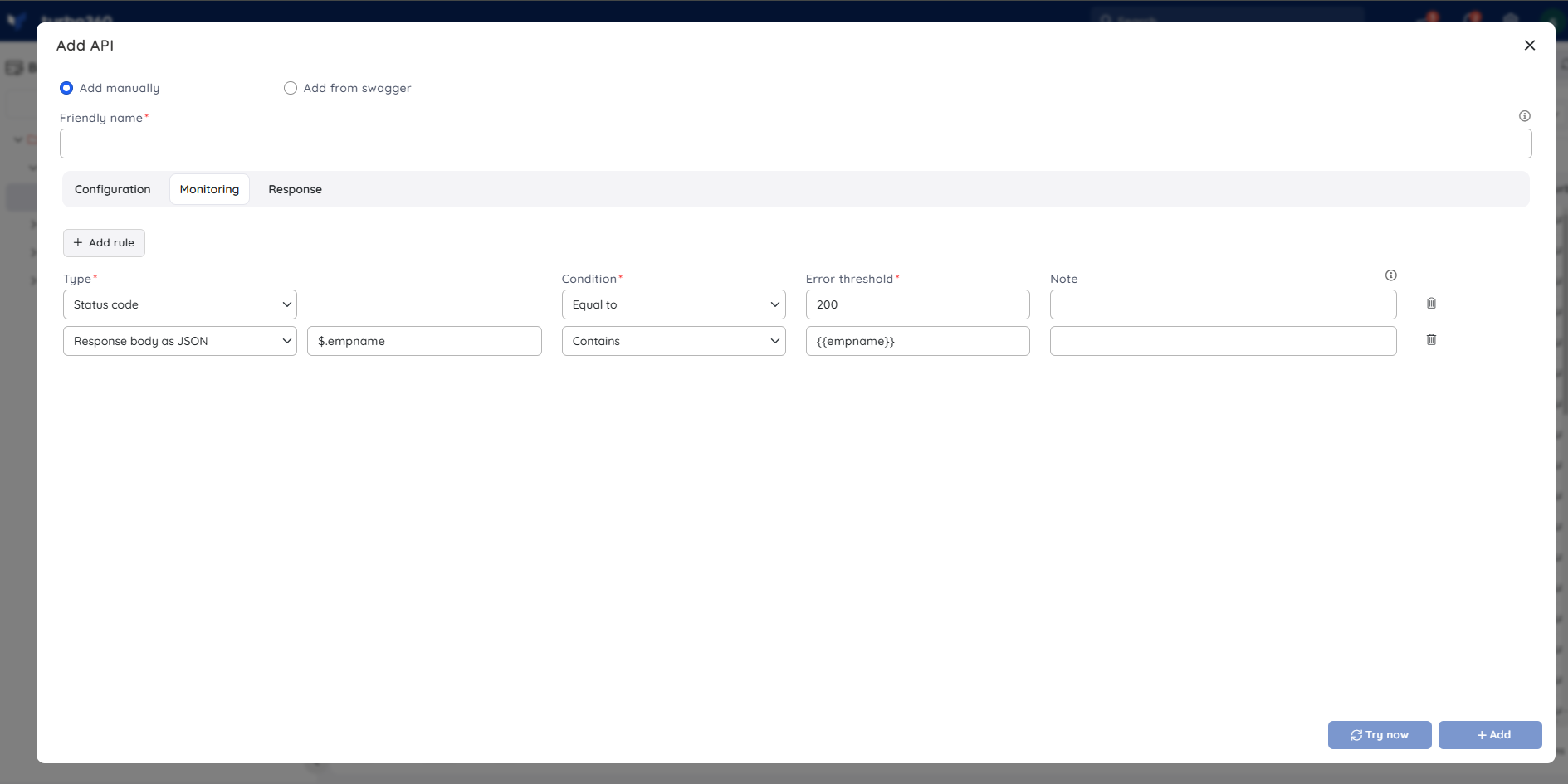
Configuring a monitoring rule defines the assertion condition Turbo360 evaluates to determine Endpoint health.
- In the Endpoint's Monitoring section, select the assertion Type from the dropdown.
- Set the Condition and Error threshold for the assertion.
- Optionally, enter a Note to appear alongside violation alerts.
- Click Add to save the rule.
After saving, Turbo360 begins tracking the Endpoint's health against the configured assertion on each monitoring cycle.
For manually added Endpoints, click Try Now to instantly check the current health status.
Configure a profile-level rule
Configuring a rule at the monitoring profile level applies it to every API Endpoint resource linked to the profile, eliminating per-Endpoint setup.
- Open the monitoring profile and select API Endpoint from the resource type list.
- Under API Endpoint rules, click + Add to open the rule dialog.
- Select the assertion Type (for example, Status code).
- Set the Condition and Error threshold.
- Optionally, enter a Note.
- Click Add to save the rule, then click Save to apply the profile.
.png)
Configuration
| Option | Description |
|---|---|
| Type | The assertion type: Status code, Response time, Response header, or Response body. |
| Condition | The comparison operator used to evaluate the response value against the threshold (for example, Equal to, >, <). |
| Error threshold | The value at which an error violation is triggered. |
| Note | Optional. A description displayed alongside the violation alert in configured notification channels. |
Response body options
| Body type | Required field |
|---|---|
| Plain text | Regular expression (optional) |
| JSON | JSON expression (required) |
| XML | XPath query (required) |
Example scenario
You add a critical internal API Endpoint manually to a Business Application. You configure a Status code assertion with condition Equal to and error threshold 200 — meaning any response that does not return HTTP 200 is treated as a violation. Turbo360 immediately begins evaluating the Endpoint on each monitoring cycle and sends an alert to your configured notification channel when the status code deviates from the expected value.
Permission behavior
Permissions for the API Endpoint resource are controlled at the role level in User management > Roles. Each role can be configured with Read, Manage, or both permissions for the API Endpoint resource independently.
Resource-level rules: With Read and Manage permission on the API Endpoint resource, you can add Endpoints, configure HTTP requests, and create, edit, and delete monitoring rules. With Read permission only, you can view existing Endpoint configuration but cannot modify it. With no permissions assigned, the API Endpoint resource is not accessible.
Profile-level rules: Configuring API Endpoint rules through a monitoring profile requires Manage permission on the Monitoring profiles feature. This is assigned via custom role creation (RBAC) in the Business Applications module. Without this permission, profile-level rule configuration is unavailable.
Alert notifications
API Endpoint alerts are delivered to the configured notification channels and email addresses in the same way as all other monitoring alerts.
The image below shows an example API Endpoint alert received via email (SMTP channel):
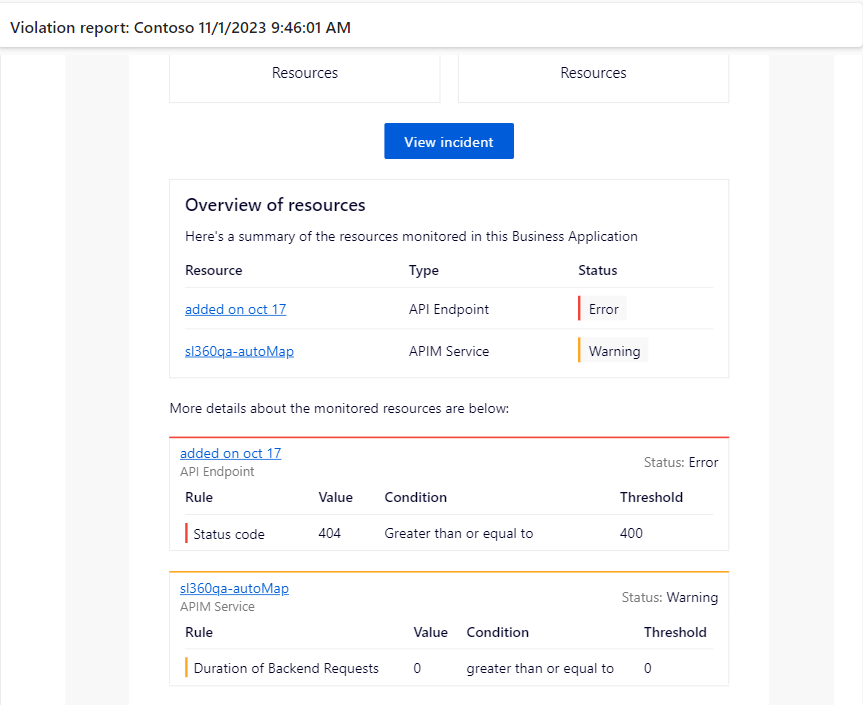
Note:
For information on configuring notification channels, see Managing notification channels.
Troubleshooting
API Endpoint always shows as Error despite a correct response
Cause: The assertion condition or threshold may be misconfigured. For example, a Status code rule with condition Equal to and threshold 200 will trigger an error for any status other than 200.
Fix: Review the assertion type, condition, and threshold in the Endpoint's Monitoring section. Use Try Now to test the current response and verify the expected values.Try Now button is not available
Cause: The Try Now and Response features are available only for Endpoints added manually. Endpoints imported from Swagger do not support this option.
Fix: No action required. To test a Swagger-imported Endpoint, verify the Endpoint directly in your API client.Query Parameters section is not visible
Cause: Query parameters are available only for manually added Endpoints.
Fix: If you need query parameters, add the Endpoint manually instead of importing it via Swagger.Profile-level API Endpoint rule configuration is unavailable
Cause: Your account does not have Manage permission on the Monitoring profiles feature.
Fix: Request the appropriate role assignment via custom role creation (RBAC) in the Business Applications module from your administrator.Endpoint monitoring rules are read-only
Cause: Your account has Read permission on the API Endpoint resource but not Manage.
Fix: Request Manage permission for the API Endpoint resource from your administrator.
FAQs
Can I configure API Endpoint rules at both the resource level and the monitoring profile level?
Yes. Resource-level rules apply to that single Endpoint only. Profile-level rules apply to every API Endpoint resource linked to the profile. Both can be active at the same time.What authorization methods does Turbo360 support for API Endpoint monitoring?
Turbo360 supports Basic, Bearer, API Key, and OAuth authorization methods. Each method results in the appropriate Authorization header being included in the monitoring request.What response body formats are supported for body assertions?
Plain text (regular expression optional), JSON (JSON expression required), and XML (XPath query required).
Related articles
Was this article helpful?