

Auto create groups
- 05 Aug 2026
- 4 Minutes to read
- Print
- DarkLight
- Download PDF
Auto create groups
- Updated on 05 Aug 2026
- 4 Minutes to read
- Print
- DarkLight
- Download PDF
Article summary
Did you find this summary helpful?
Thank you for your feedback!
Overview
Auto create groups automates the creation of cost management groups in Cost Analyzer using rules based on subscription, resource group, resource type, region, and tags. Rules are evaluated daily, so new groups are created automatically as your Azure environment changes.
Business value
Auto create groups removes the manual effort of creating and maintaining cost management groups as subscriptions, resources, and tags evolve. Rules keep your group structure current without repeated manual reconfiguration.
Prerequisites
An existing cost management group in Cost Analyzer is required as the starting point for configuring automation rules.
Required permissions
| Role | Permission level | Access |
|---|---|---|
| Account owner, Owner, Contributor | — | Full access to Auto create groups |
| Custom role | — | No access to Auto create groups |
How it works
- Automation rules are defined at the cost management group level using a Filter Type — Subscription, Resource type, Resource group, Location, or Tag.
- Rules undergo daily evaluation, and any matching items result in the automatic creation of groups.
- Child rules let you create nested child groups based on the same automation logic.
- Saved rules execute immediately, then recur daily at the time of the last save.
Steps
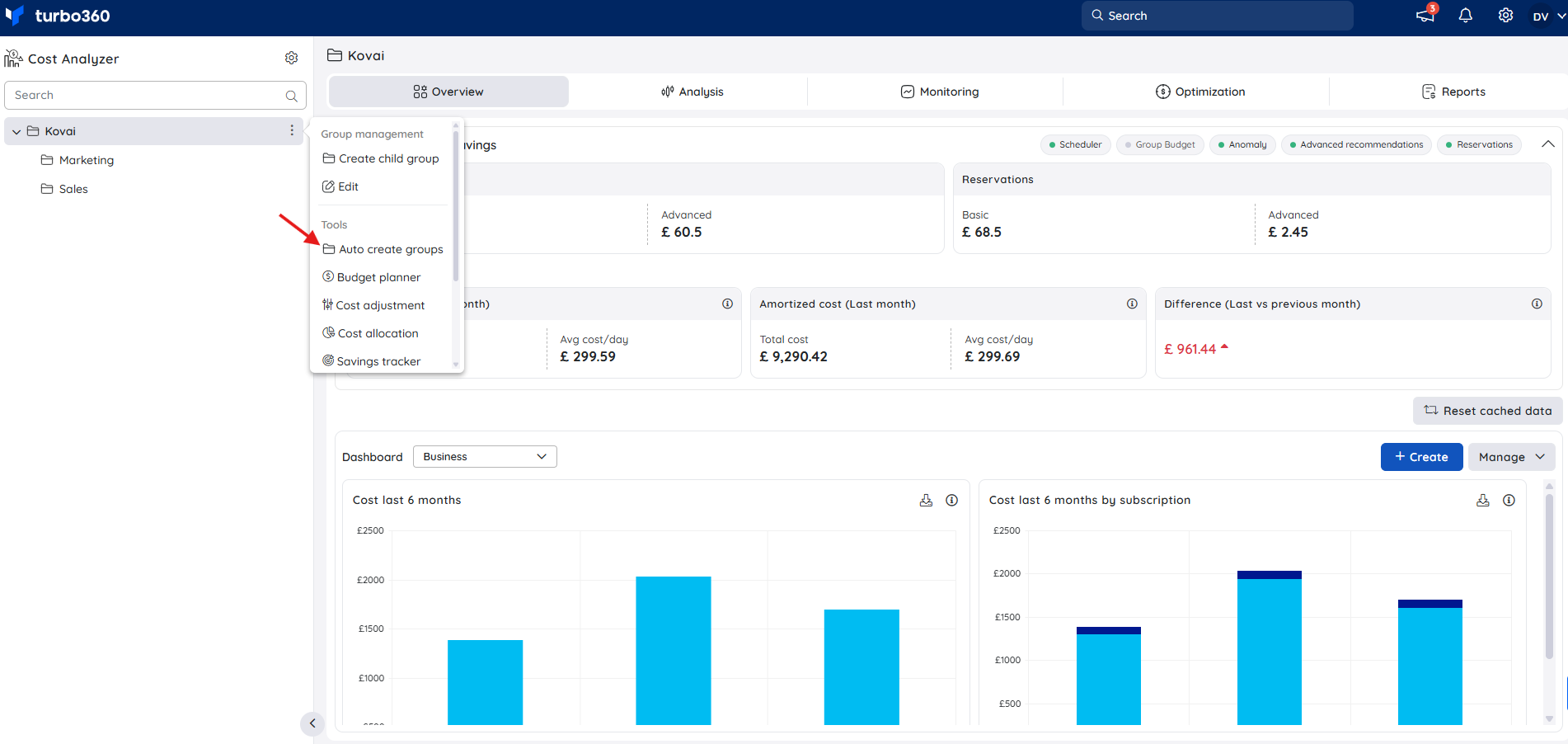
Use the following steps to configure and run group automation rules. Navigate to the Context menu ( ⋮ ) of the relevant cost management group to get started.
Configure automation rules
Configuring an automation rule sets up the filter logic Cost Analyzer uses to automatically create groups on a daily schedule.
- Click the Context menu ( ⋮ ) next to the cost management group in the tree view.
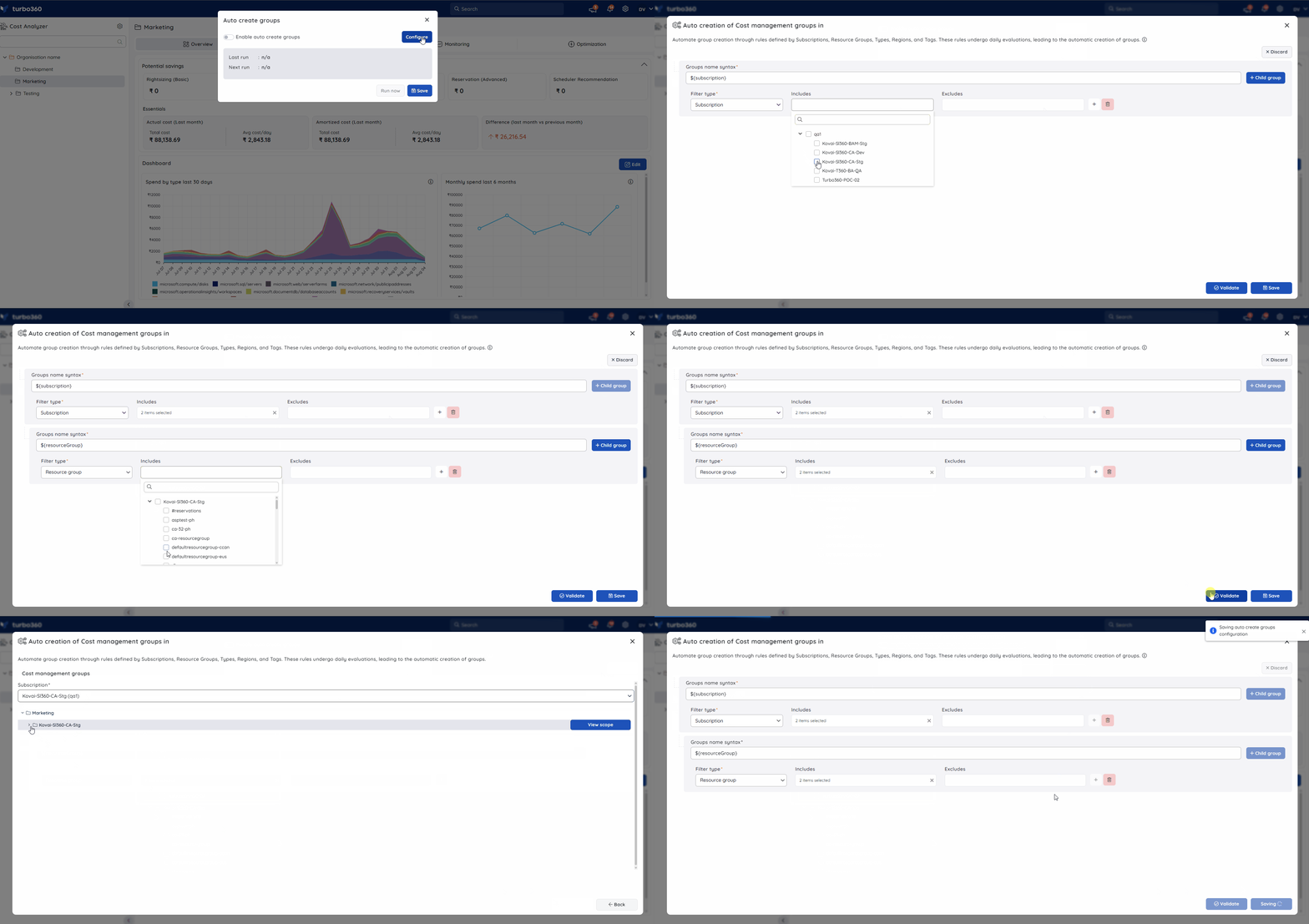
- Select Configure to open Auto create group.
- Add a new automation rule by selecting Group rule.
- Choose a Filter Type — Subscription, Resource type, Resource group, Location, or Tag — and specify the items to include in the Includes field.
- Add any items to exclude from the automated group in the Excludes field.
- Click Child rule to create nested child groups based on the defined rule.
- Use Delete to remove a rule, or Discard to revert unsaved changes.
- Click Validate to preview the resulting groups in a tree view based on the configured rules.
- Click View scope to see the filter items applied to each group.
- Click Save to persist and activate the rule.
The rule runs immediately after saving and then recurs daily at the time of the last save.
Run group automation instantly
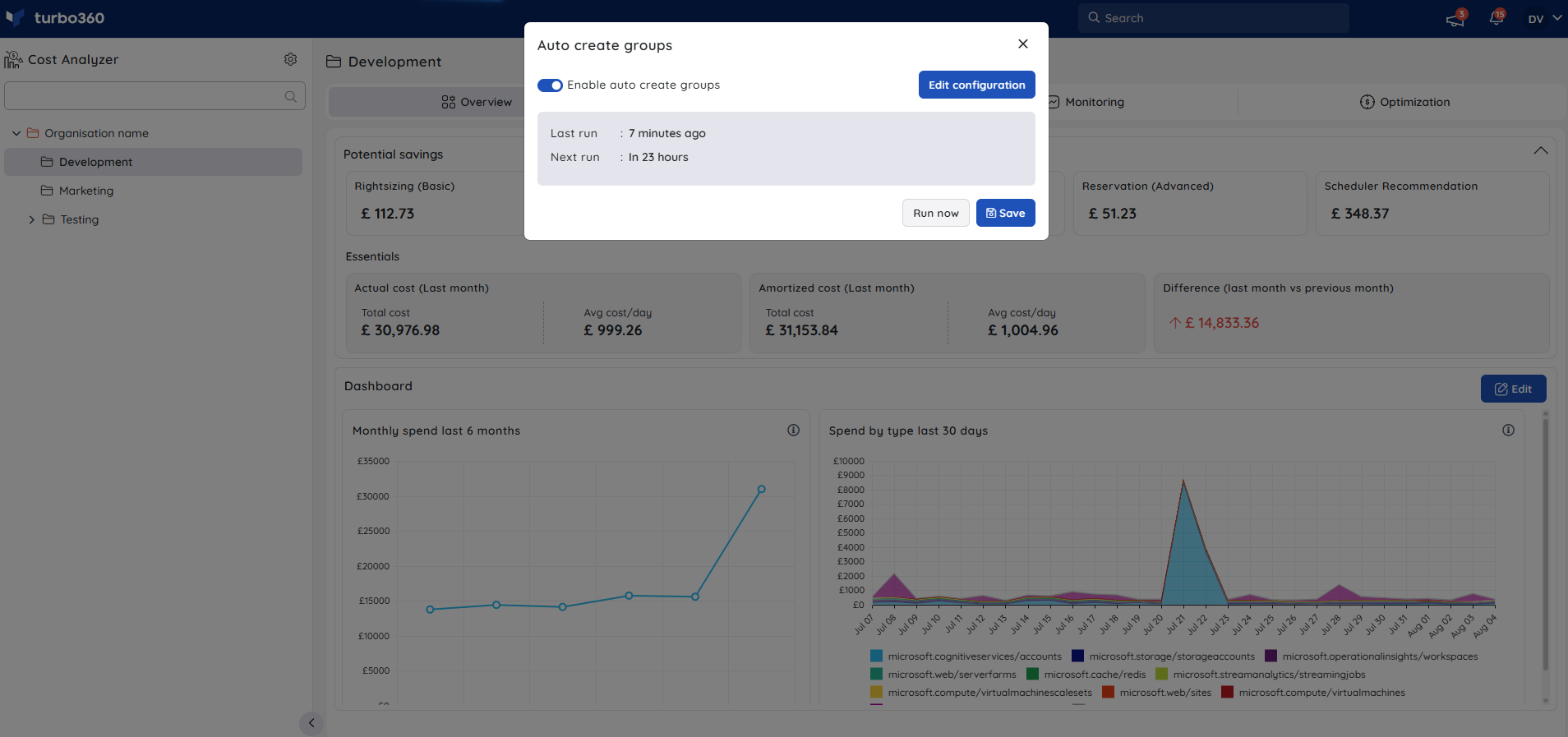
Running a rule instantly creates groups immediately instead of waiting for the next daily evaluation.
- Open the Context menu ( ⋮ ) of the relevant cost management group.
- Click Run now on the Auto create groups card to trigger group creation immediately.
The card also shows the run details, a toggle to enable or disable the automation, and an Edit option to update the configured rules.
Configuration
| Option | Type | Default | Required | Description |
|---|---|---|---|---|
| Filter type | Selection (Subscription / Resource type / Resource group / Location / Tag) | — | Yes | The attribute used to match resources for automatic group creation. |
| Includes | List of filter items | — | Yes | Items matching the selected filter type that should be included in the automated group. |
| Excludes | List of filter items | — | No | Items to exclude from the automated group even if they match the Includes filter. |
| Child rule | Rule definition | — | No | Defines nested child groups under the parent automation rule. |
Example scenario
A cloud team creates an automation rule on their "Production" cost management group using Resource group as the filter type, including all resource groups tagged env:prod. A child rule further splits the group by Location. The rule runs daily, automatically creating and updating subgroups as new tagged resource groups are deployed.
Troubleshooting
Groups are not being created after saving the rule
Cause: The filter items in the Includes field may not match any resources in the connected Azure subscriptions, or the subscription hasn't been scanned since the rule was saved.
Fix: Click Validate to preview which groups the rule would create. If the tree view is empty, review the filter type and included items to ensure they match existing resources.Automation stopped creating new groups after it was working
Cause: The resources that previously matched the filter may have been deleted, renamed, or re-tagged in Azure.
Fix: Click Validate to check the current expected output. Update the Includes or Excludes fields to reflect the current state of your Azure environment, then save the rule again to reset the daily schedule.Child groups are not appearing under the parent group
Cause: The child rule may not match any resources, or it may conflict with an Excludes entry in the parent rule.
Fix: Open the Configure panel and click Validate to check whether the child rule produces any results. Adjust the child rule filter and re-save.The Run now option is not visible
Cause: No automation rule has been configured for this cost management group yet.
Fix: Configure at least one automation rule and save it. The Auto create groups card with the Run now option appears in the group's context menu once a rule exists.An automation rule was deleted but the groups it created still exist
Cause: Deleting an automation rule stops future automatic group creation. It does not remove groups that were already created.
Fix: Manually delete any groups that are no longer needed from the tree view.
FAQs
Who can configure Auto create groups?
Only Account owner, Owner, and Contributor roles have access. Custom roles cannot configure or use this feature, regardless of assigned permissions.How often do automation rules run?
Rules run immediately after saving, then recur daily at the time of the last save.Can I preview which groups a rule will create before saving it?
Yes. Click Validate to preview the resulting groups in a tree view based on the configured rule, and View scope to see the filter items applied to each group.
Related articles
Was this article helpful?