

Automated resource association
- 05 Aug 2026
- 3 Minutes to read
- Print
- DarkLight
- Download PDF
Automated resource association
- Updated on 05 Aug 2026
- 3 Minutes to read
- Print
- DarkLight
- Download PDF
Article summary
Did you find this summary helpful?
Thank you for your feedback!
Overview
Automated resource association lets Turbo360 automatically associate Azure resources with a Business Application based on a rule set you define. Rules use combinations of Tags, Resource Groups, Regions, and Resource Types to match and include resources without manual selection.
Once configured, automated resource association runs immediately after each rule save and repeats daily at 12:00 UTC.
Business value
Automated resource association eliminates the need to manually add resources to Business Applications as your Azure environment grows. It keeps your Business Application membership current with your infrastructure, reducing operational overhead and ensuring monitoring and management coverage stays aligned with actual deployments.
How it works
You define automation rules by selecting filter criteria and combining them with AND/OR operators. Turbo360 evaluates the rules against your Azure environment and associates any matching resources with the Business Application.
Rule behavior:
- A parent rule and its first sub-rule always use the AND operator. Additional sub-rules support AND/OR operators.
- Resource association is skipped if the purchased resource limit has been reached.
- Rules run automatically each time you save a configuration change and once daily at 12:00 UTC.
- You can also trigger an immediate run at any time using the Run now option.
Steps
Use the following steps to configure automation rules and trigger on-demand association runs. Navigate to the Business Application in the tree view to get started.
Configure automation rules
Configuring automation rules defines the filter criteria Turbo360 uses to automatically associate matching Azure resources with the Business Application.
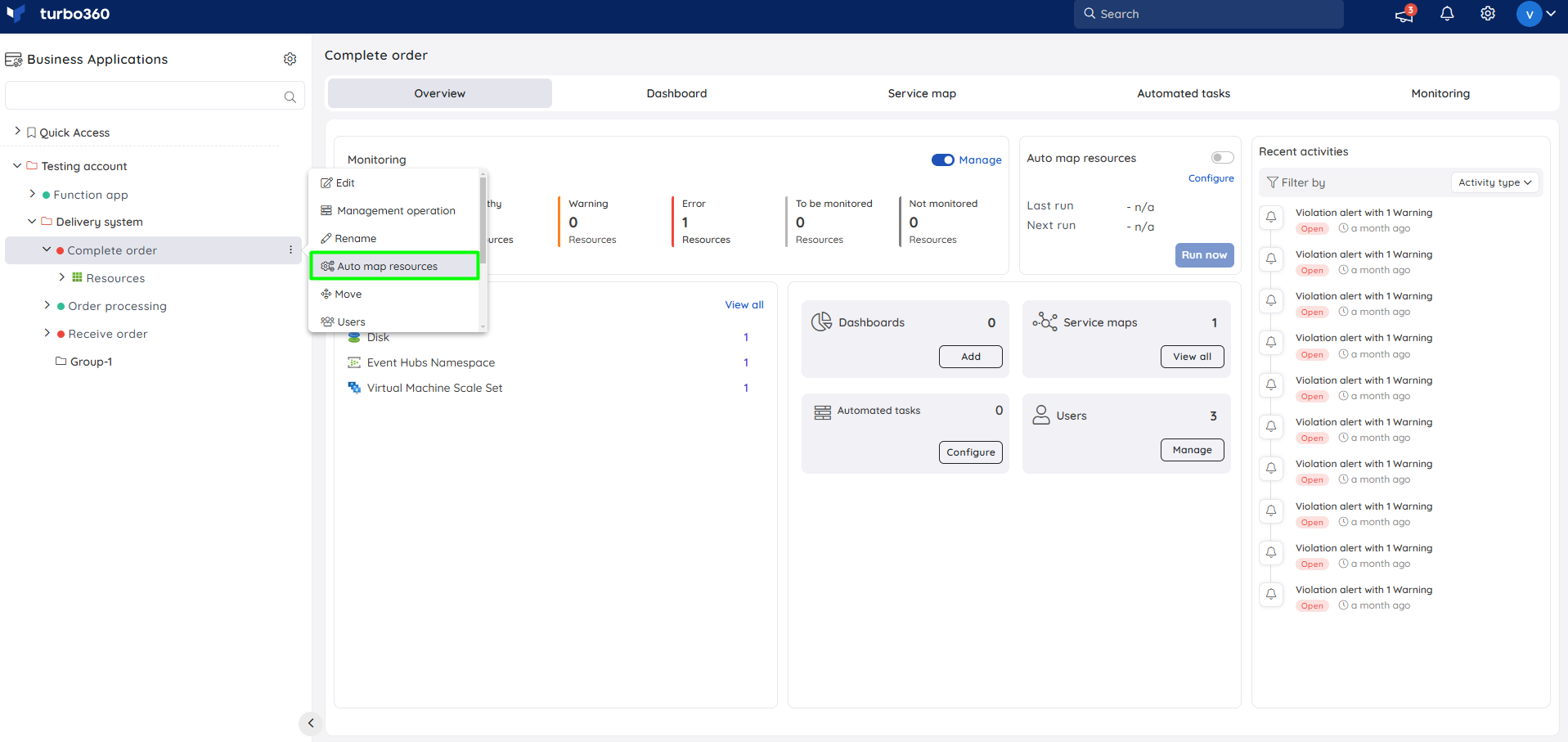
- Click the Context menu ( ⋮ ) next to the Business Application in the tree view.
- Select Auto map resources.
- Click Add rule to add a new automation rule.
- Set the Filter type to one of: Region, Resource Group, Resource Type, or Tag.
- Set the Operator to and or or and enter the corresponding value.
- Click Add sub-rule to add additional conditions to the rule, or Delete rule to remove it.
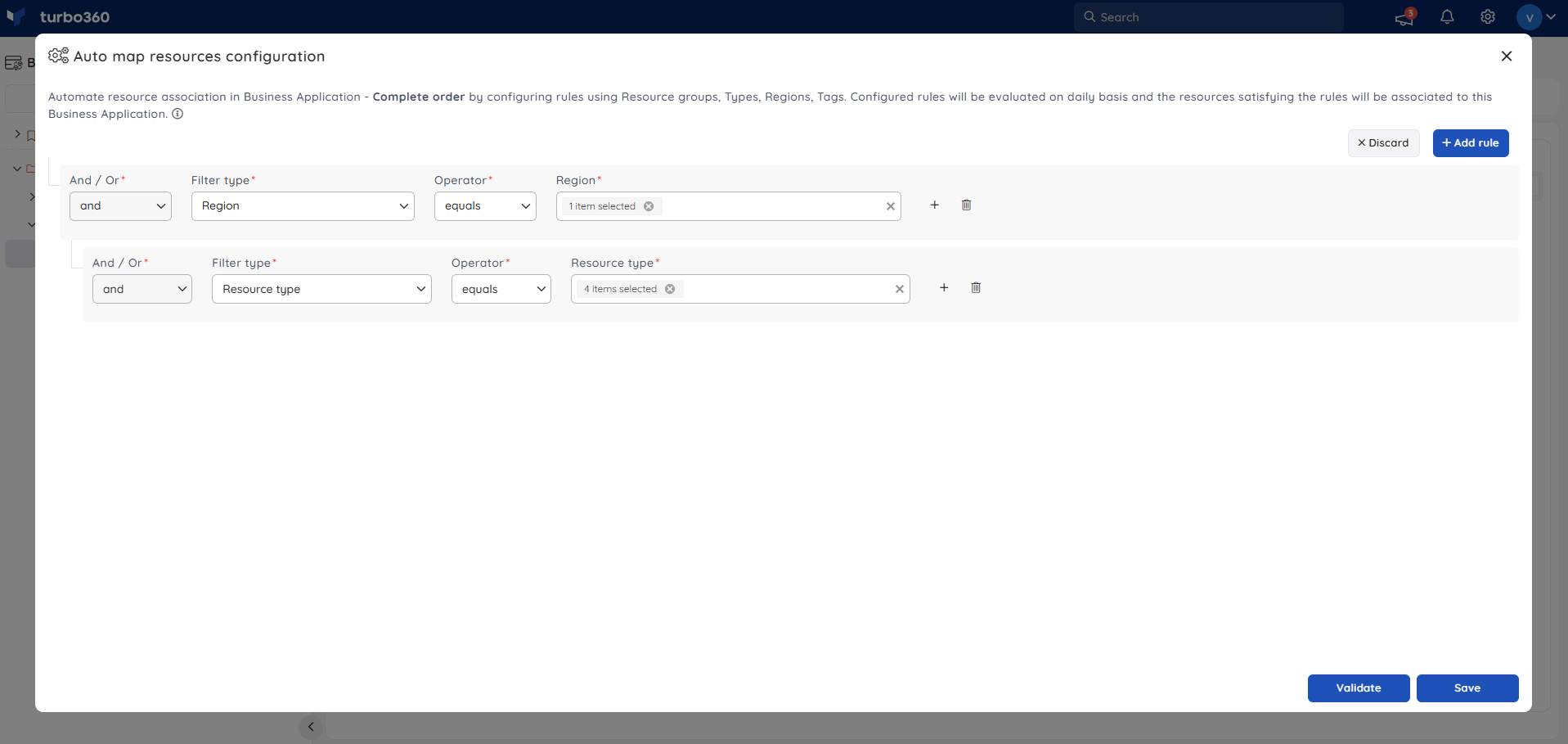
- Click Validate rules to preview which resources the rule will match.
- Click Save to activate the rules.
To discard unsaved changes and revert to the last saved state, click Discard.
Note:
The parent rule and its first sub-rule always use AND as the operator. Additional sub-rules support AND/OR. Resource association is skipped if the purchased resource limit has been reached.
Run now
Triggering an immediate run applies the current automation rules without waiting for the next scheduled execution at 12:00 UTC.
- Open the Business Application overview.
- Locate the Auto map resources card.
- Click Run now.
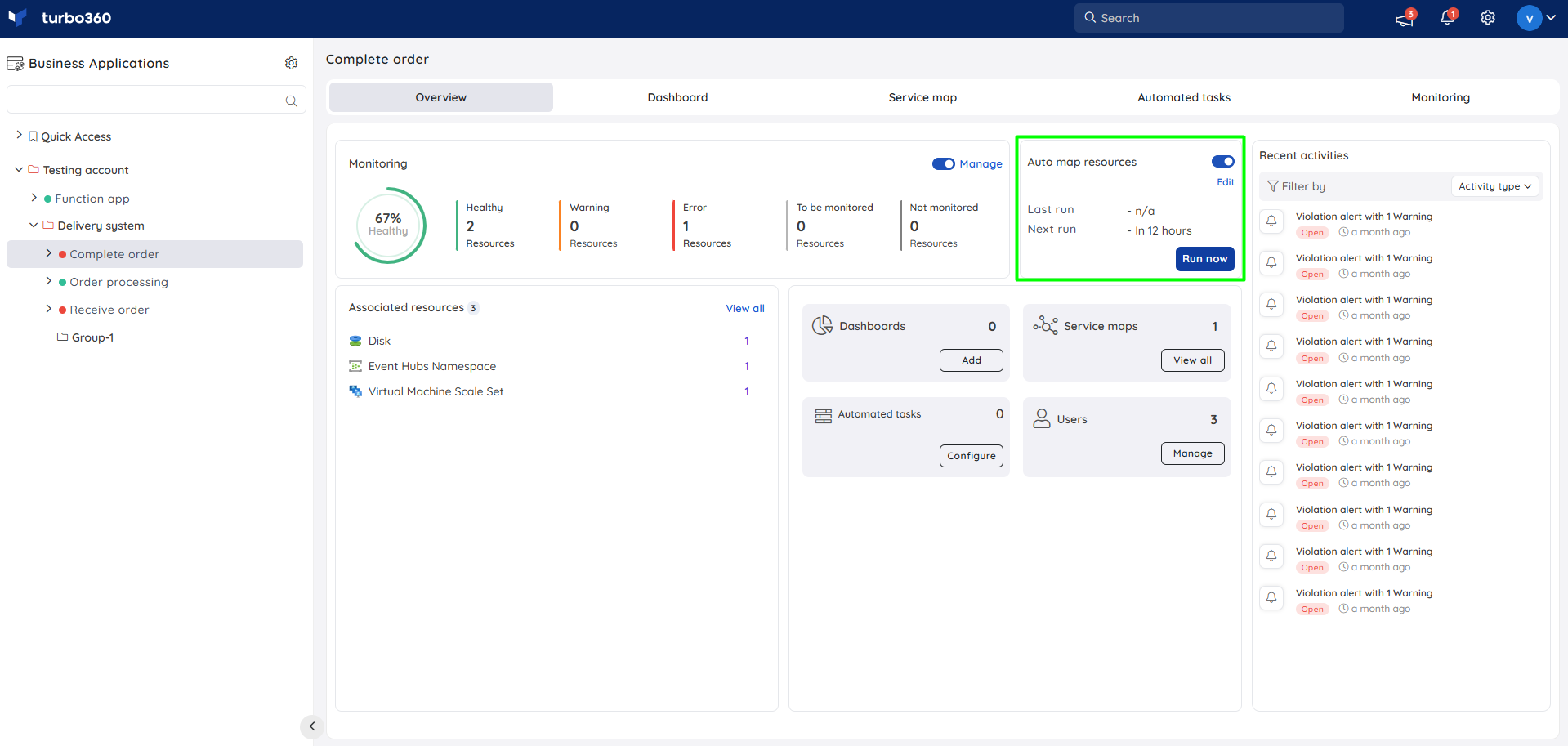
The Auto map resources card also shows the last run details and includes a toggle to enable or disable automated resource association, and an Edit option to update the configured rules.
Example scenario
A team manages a Business Application called Order Processing that spans multiple Azure subscriptions. All resources for this application are tagged with app: order-processing. Instead of manually adding each resource as new ones are provisioned, they configure a single automation rule with Filter type set to Tag, key app, and value order-processing. After saving, Turbo360 immediately associates all matching resources and continues to do so daily, keeping the Business Application current without manual intervention.
Limitations
- Resource association is skipped when the purchased resource limit is reached.
- The parent rule and its first sub-rule are always joined with AND. You cannot change this operator.
Troubleshooting
Resources are not being associated after saving rules.
Cause: The rule criteria may not match any resources in the connected Service Principal, or the resource limit has been reached.
Fix: Click Validate rules to preview matching resources before saving. Check your licensing status if the limit may have been reached.Automated association ran but excluded expected resources.
Cause: The filter values may not exactly match the resource metadata in Azure (for example, tag name casing or region format).
Fix: Verify the tag name, value, region, and resource group values match exactly as they appear in Azure.Run now button is not triggering association.
Cause: Automated resource association may be disabled via the toggle on the Auto map resources card.
Fix: Enable the toggle on the Auto map resources card before clicking Run now.AND/OR operator cannot be changed on the first sub-rule.
Cause: The parent rule and its first sub-rule always use AND by design.
Fix: Add a second sub-rule if you need an OR condition — additional sub-rules support AND/OR operators.Resource limit reached — association skipped.
Cause: The number of associated resources has reached the purchased limit.
Fix: Review your licensing plan or remove unused resources from existing Business Applications to free up capacity.
Related articles
Was this article helpful?