

Azure Documenter quick start
- 05 Aug 2026
- 6 Minutes to read
- Print
- DarkLight
- Download PDF
Azure Documenter quick start
- Updated on 05 Aug 2026
- 6 Minutes to read
- Print
- DarkLight
- Download PDF
Article summary
Did you find this summary helpful?
Thank you for your feedback!
Overview
This quick start guide walks you through setting up Azure Documenter and generating your first document — from configuring a Service principal to viewing a completed report.
Business value
- Skip manual documentation — generate structured reports covering resources, costs, compliance, and access in a single guided flow
- Produce up-to-date Azure documentation for governance reviews, compliance audits, and architecture handovers within minutes
- Choose how documents are delivered: download as PDF, Word, or Excel, publish online, or push directly to Document360
- Schedule recurring generation so reports always reflect the current state of your Azure environment
Prerequisites
Before you begin, ensure the following are in place:
- A Turbo360 account with an active organization
- An Azure subscription accessible to Turbo360
- A Service principal with Reader access on the target Azure subscription
- The Azure Documenter module enabled on your Turbo360 plan
Generated documents are stored in Turbo360's built-in storage account by default. To use your own Azure Storage account, configure it under the settings icon > Storage accounts in the Azure Documenter module.
Required permissions
| Permission | Details |
|---|---|
| Turbo360 role | Account owner, Owner, or Contributor — full access. Custom roles require the Documentation feature permission (Read or Manage). |
| Azure role | Reader on the subscription or resource group to be documented |
Note:
Some document types require permissions beyond Reader access on the Azure subscription. Configure the necessary permissions on the Service principal before generating those document types.
Dependencies
- Service principal configured with Reader access on the target subscription — see Service principal setup
- A document group available in Azure Documenter (a default group is created automatically on first access)
How it works
Azure Documenter authenticates to your Azure subscription using a Service principal and retrieves resource, billing, access, and compliance data for the subscriptions you select. It assembles this data into a structured document of the type you choose. Documents are generated on demand or on a schedule, and published to Azure Storage or Document360, or downloaded as PDF, Word, or Excel.
There are no limits on the number of document groups or document configurations you can create. The limit that applies is on document generations, which is governed by your Turbo360 plan.
Steps
Use the following steps to configure Azure Documenter and generate your first document. Start from the Azure Documenter module in Turbo360.
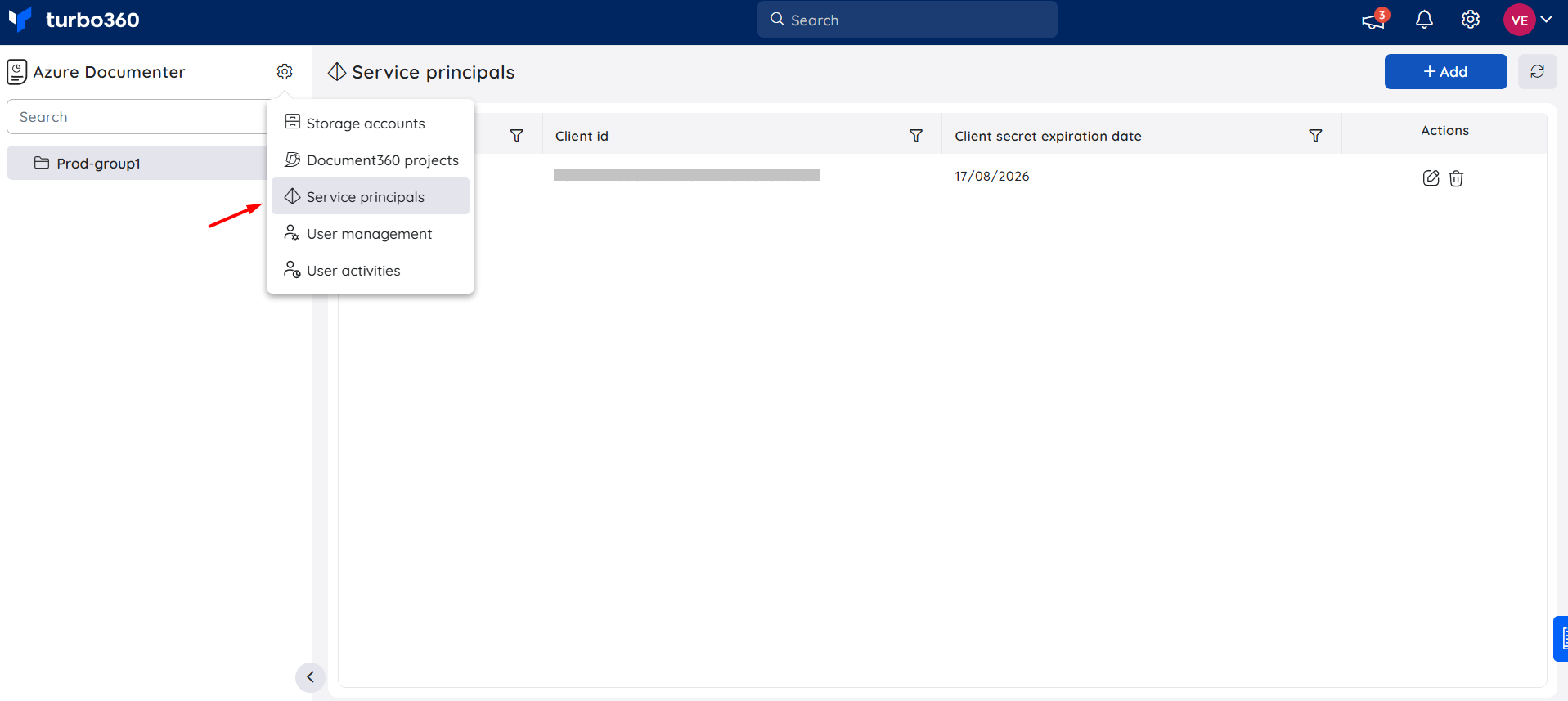
Configure service principal
Verifying Service principal permissions before creating configurations prevents generation failures caused by missing Azure access.
Ensure your Service principal has Reader access on the target Azure subscription. If you plan to generate document types that require additional permissions, configure those on the Service principal before proceeding.
Configure a storage account (optional)
Adding your own Azure Storage account lets you store generated documents in a location your organization already manages.
By default, Azure Documenter stores generated documents in Turbo360's built-in storage account. To use your own:
- In Azure Documenter, select the settings icon at the top of the left panel.
- Select Storage accounts.
- Select + Add.
- Enter the storage account details and select Save.
.png)
Create a document group
Document groups organize your document configurations and control which subscriptions each set of configurations can access.
A default group is available when you first access Azure Documenter. To create additional groups:
- In the tree view, click the Context menu ( ⋮ ) next to an existing group.
- Select New group.
- Enter a name for the group and click Next.
- Choose the subscriptions to scope the document group.
- Click Save.
.png)
Add a document configuration
Adding a document configuration defines the document type, Service principal scope, branding, publish destination, and optional schedule in a single 7-step wizard.
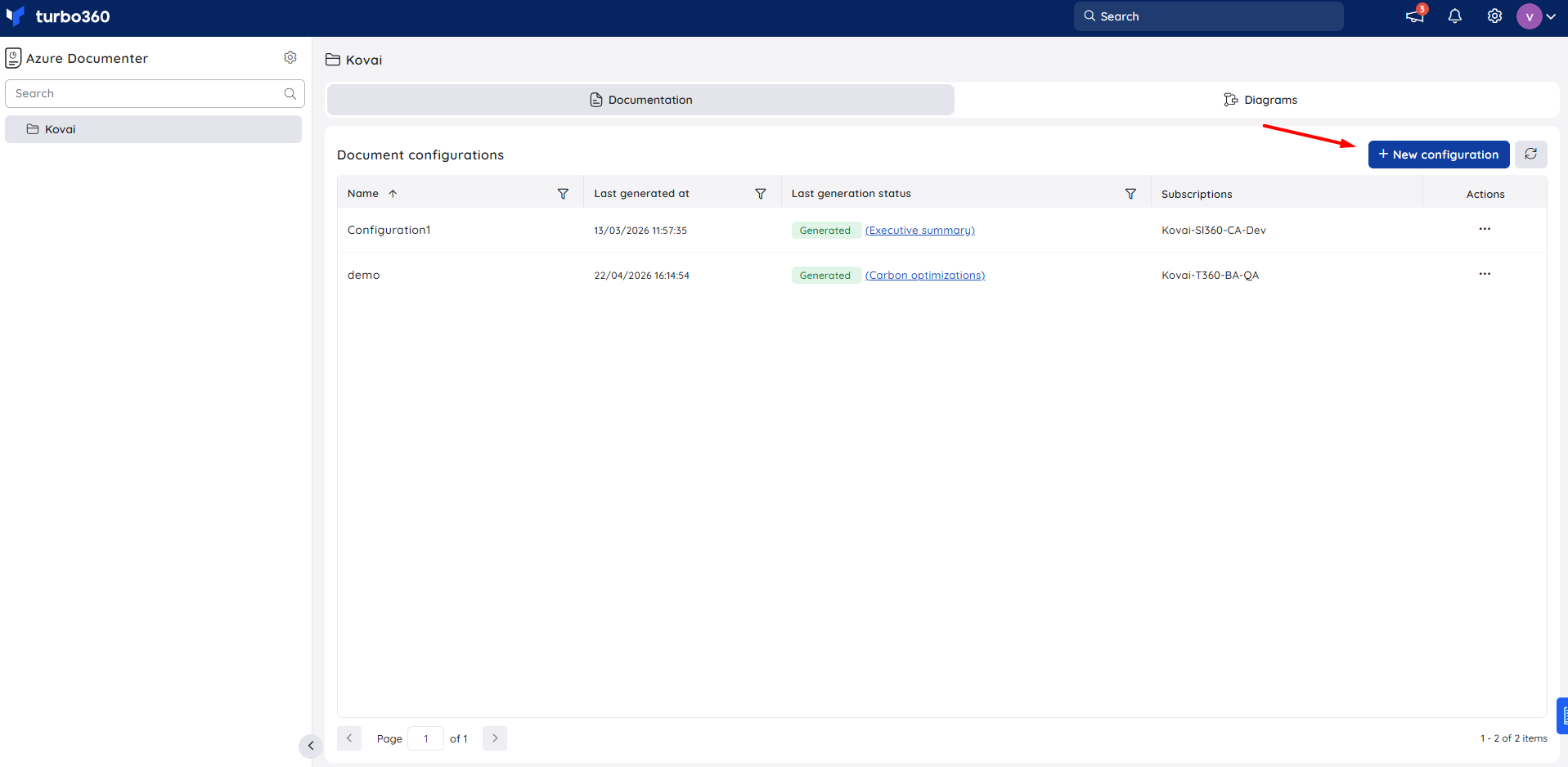
- Select the document group where you want to add the configuration.
- Select + New configuration.
- Complete the Add configuration wizard:
- Basics — enter a Name (required) and optional Description. Under Choose document type, select a document type using the filter tabs (Executive, Finance, Security, Operations, Architecture, Sustainability, Microsoft 365) or the search field. Configure the document-type-specific options that appear (for example, billing range and currency for cost-related types).
- Service principal — select the Service principal and the subscriptions to include. Click Bulk scope selection to apply scope filters across multiple subscriptions at once.
- Branding — set an Accent colour (default
#2b6cb0) and optionally upload a Logo (PNG, JPG, SVG, or ICO; max 100 KB). These apply to the document cover page and accent elements. - Publish settings — choose Publish document to Azure Storage account (PDF, Word, or Excel) or Publish document to Document360.
- Schedule — optionally enable a recurring generation schedule. Set the Frequency (Weekly or Monthly), day, and time. Click + Add schedule for multiple schedules.
- Notifications — optionally configure a recipient email address, email template, and additional notification channels.
- Review — a Summary of all settings is displayed. Click Preview document to preview the output, or click Generate to save the configuration and generate the document immediately.
Generate a document
Generating a document on demand produces a report immediately using the current state of your Azure subscription.
- In the Document configurations list, locate the configuration to generate.
- Click the Actions menu next to it.
- Select Generate document. A summary of the configuration is displayed.
- Confirm by clicking Generate document.
Note:
Documents can be generated as PDF, Word, or Excel depending on the publish settings configured for the document configuration.
.png)
Manage configurations
The Actions menu on each document configuration provides access to generation history, editing, and management options.
From the Actions menu on any document configuration:
- Select View history to access previously generated documents and download or publish them.
- Select Edit to update the configuration settings.
.png)
Configuration
| Option | Default | Required | Description |
|---|---|---|---|
| Name | — | Yes | Display name for the document configuration |
| Description | — | No | Optional context for the configuration |
| Document type | Executive summary | Yes | The type of report to generate — 17 types available, filterable by category |
| Billing date range | Last month | Conditional | Applies to cost-related document types only |
| Currency | Default | No | Currency for billing figures — Default or USD |
| Branding | Turbo360 defaults | No | Accent colour (hex) and optional logo applied to the document cover page |
| Publish destination | Azure Storage | Yes | Azure Storage account (PDF, Word, or Excel), or Document360 |
| Schedule | — | No | Optional recurring generation — Weekly or Monthly, with configurable day and time |
Limitations
- Azure Documenter documents the current state of Azure resources at the time of generation.
- Generation time increases with the number of resources in scope. Large subscriptions may take several minutes.
- Some document types require permissions beyond Reader access. Generation fails or returns incomplete data if the Service principal lacks the required permissions.
- Network topology diagrams and Workload diagrams require that resources have resolvable relationships in Azure Resource Manager. Isolated resources may not appear.
Troubleshooting
Document generation fails immediately
Cause: The Service principal lacks the required permissions for the selected scope or document type.
Fix: Confirm the Service principal has Reader access on the selected scope. For document types requiring additional permissions, verify those are configured in the Azure portal.Generated document is missing resources
Cause: The Service principal lacks access to specific resource groups or resources within the scope.
Fix: Verify Reader access is assigned at the correct scope level and regenerate the document.Export to PDF fails
Cause: The storage account is inaccessible or the connection string is invalid.
Fix: Verify the storage account connection settings under the Azure Documenter settings icon and retry.Publish to Document360 fails
Cause: The Document360 API token is missing, invalid, or lacks required request methods.
Fix: Confirm the API token has GET/POST/PUT/DELETE enabled and that the user email is listed as a project member. See Prerequisites.Diagrams are empty or incomplete
Cause: Resources are not linked in Azure Resource Manager.
Fix: Verify the resources are correctly associated in Azure and regenerate the document.
Related articles
Was this article helpful?