

BAM quick start
- 11 Aug 2026
- 9 Minutes to read
- Print
- DarkLight
- Download PDF
BAM quick start
- Updated on 11 Aug 2026
- 9 Minutes to read
- Print
- DarkLight
- Download PDF
Article summary
Did you find this summary helpful?
Thank you for your feedback!
Overview
This guide walks you through setting up Business Activity Monitoring (BAM) for the first time — from choosing a deployment model to tracking your first business transaction. BAM enables end-to-end visibility into your business transactions running on Azure.
Business value
BAM helps operations and integration teams detect failures, delays, and anomalies in business processes before they impact customers. Getting started quickly lets your team move from blind spots to full transaction traceability in a single session.
Prerequisites
Before you begin, ensure the following are in place:
- A Turbo360 account with an active organization
- An Azure subscription connected to Turbo360
- The Business Activity Monitoring module enabled on your Turbo360 plan
- For the Use your Azure subscription deployment model: a service principal with Contributor access on the target resource group
- For the Use Turbo360 infrastructure deployment model: an Azure SQL Database connection string and an Azure Storage Account connection string
- For the Data Queries (Pull model): a service principal with Log Analytics Reader permission on the App Insights or Log Analytics workspace you want to query
Required permissions
| Permission | Details |
|---|---|
| Turbo360 role | Account Owner, Owner, or Contributor (full privileges); BAM module-specific roles) |
| Azure role (own subscription) | Contributor on the resource group where BAM infrastructure will be deployed |
| Azure role (Turbo360 infrastructure) | No Azure deployment role required — provide SQL and Storage connection strings only |
| Azure role (Data Queries) | Log Analytics Reader on the target App Insights or Log Analytics workspace |
Dependencies
- Azure subscription connected to Turbo360 (see Connect Azure subscription)
- Azure SQL Database and Azure Storage Account (required when using the Turbo360 infrastructure deployment model)
How it works
BAM tracks business transactions across Azure services using two models:
- Push model (Custom Logging) — your integration components (Logic Apps, API Management, Azure Functions) send tracking events directly to BAM via HTTP or a custom connector.
- Pull model (Data Queries) — BAM queries your data sources (App Insights, Log Analytics, Service Bus) on a schedule to retrieve transaction data.
You choose a deployment model for the BAM environment during initial setup, then define business processes and transactions in Turbo360. Once data arrives, you can query transaction instances, monitor for exceptions and delays, and configure alerts.
Steps
Set up the BAM environment
To begin setup, select Get Started on the Business Activity Monitoring card on the Turbo360 homepage.
Step 1 — Choose the tracking type
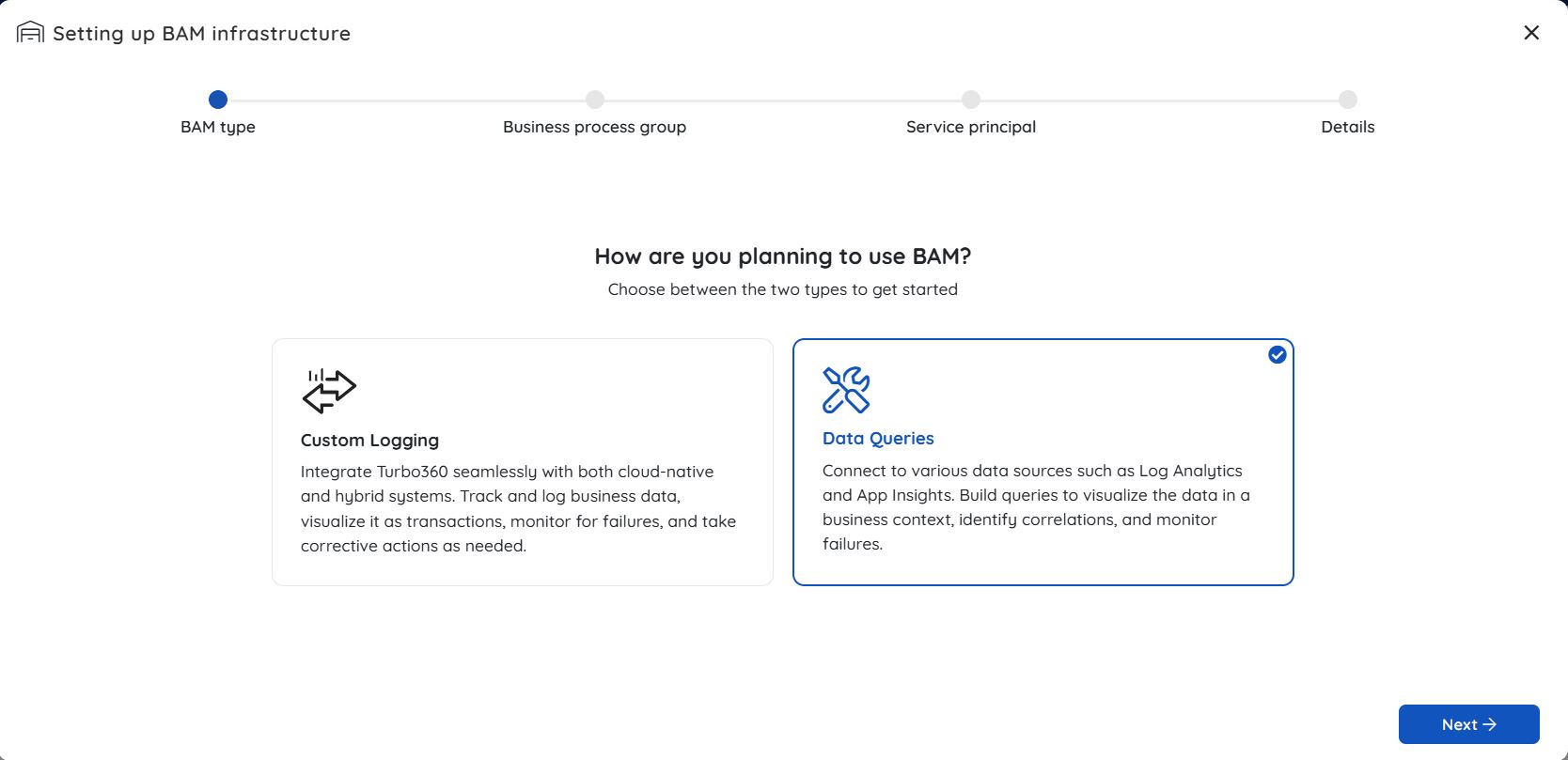
Choose Custom logging for Push model and Data Queries for Pull model.
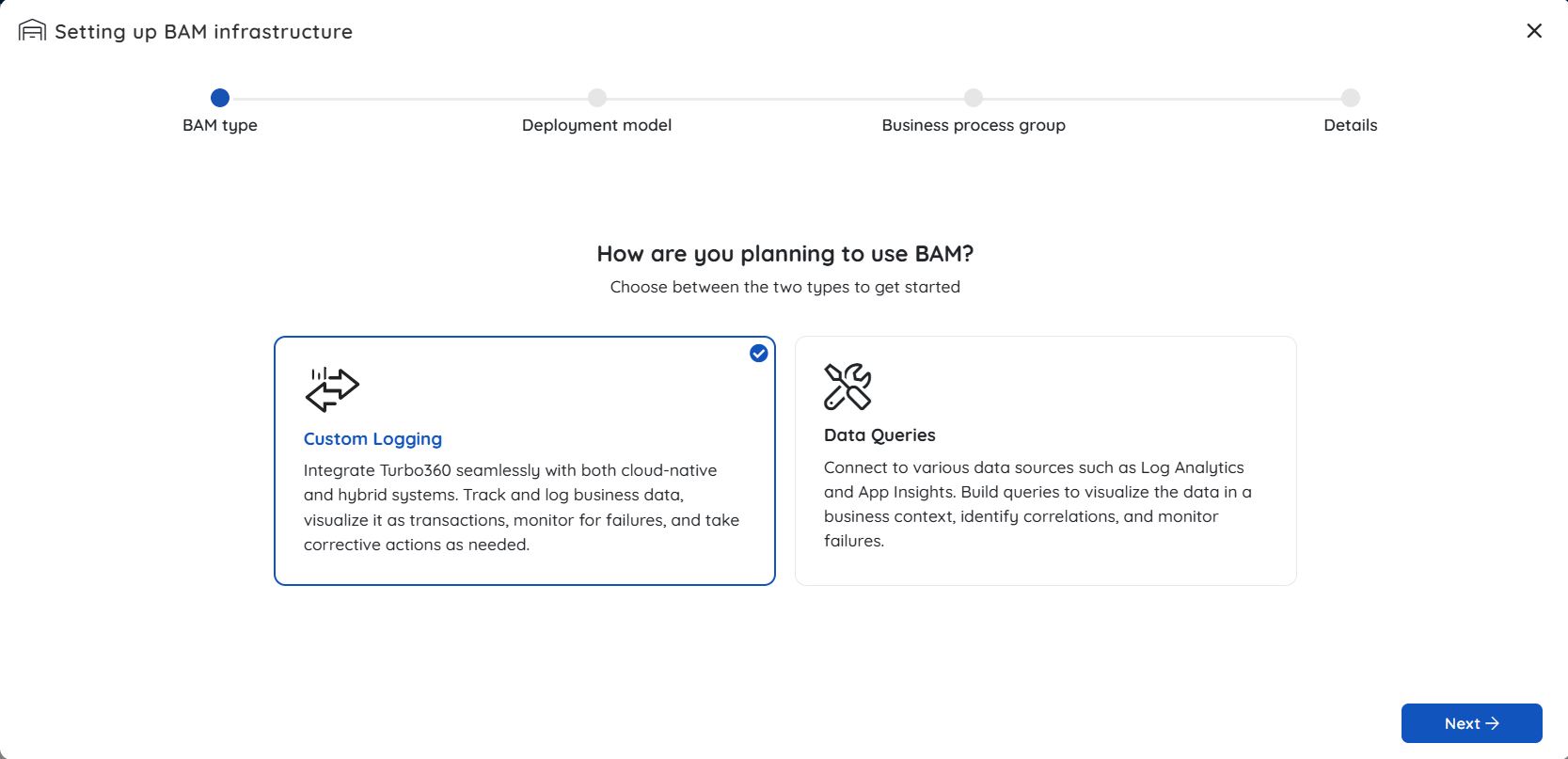
Step 2.(a) — Choose a deployment model for Custom logging BAM type
The push model includes two types of deployment options for BAM.
Option A — Use Turbo360 infrastructure
With this model, BAM event processing is hosted by Turbo360. You provide your own Azure SQL Database and Azure Storage Account to store your business data, keeping it within your control.
Select Use Turbo360 infrastructure.
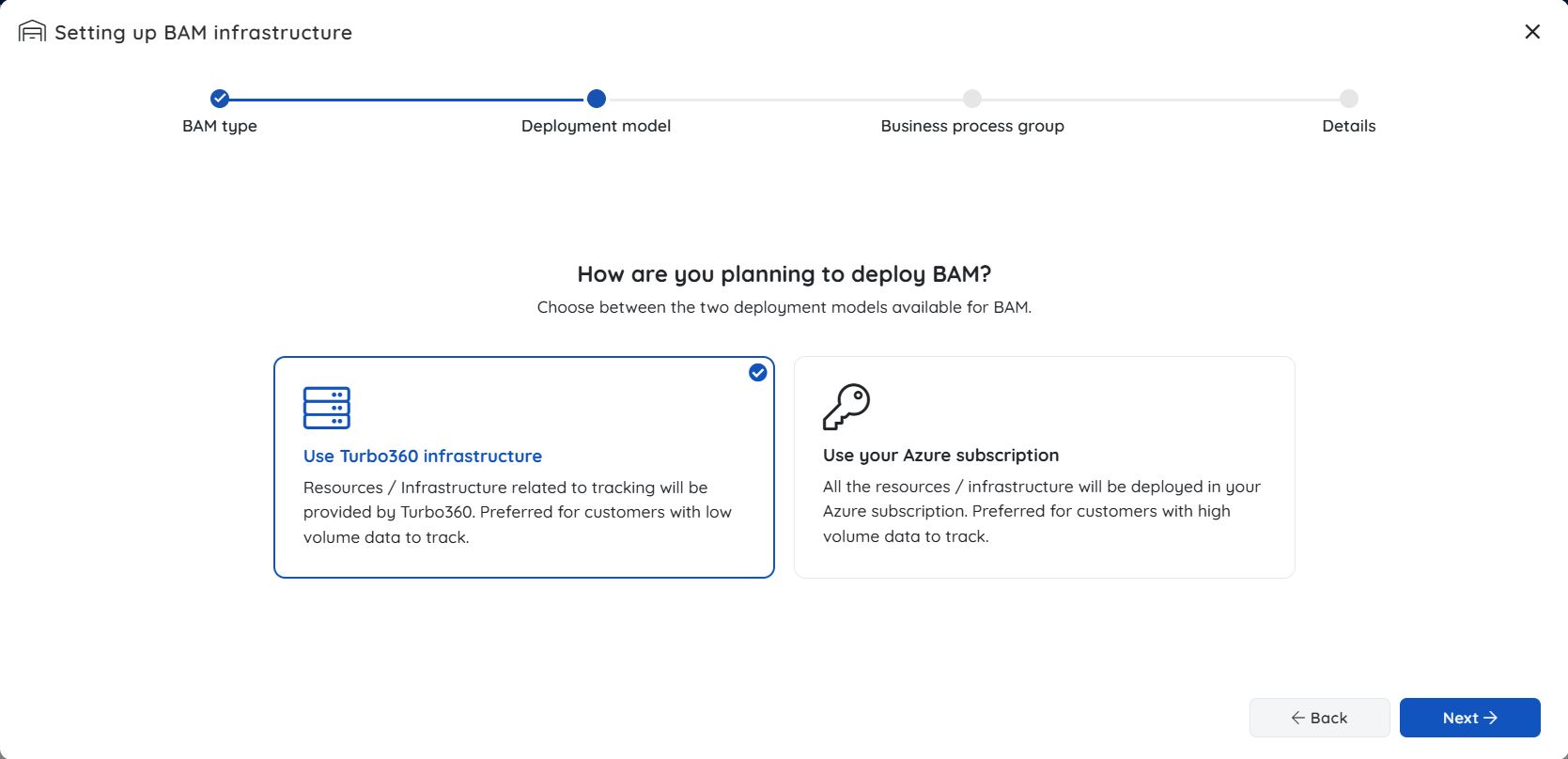
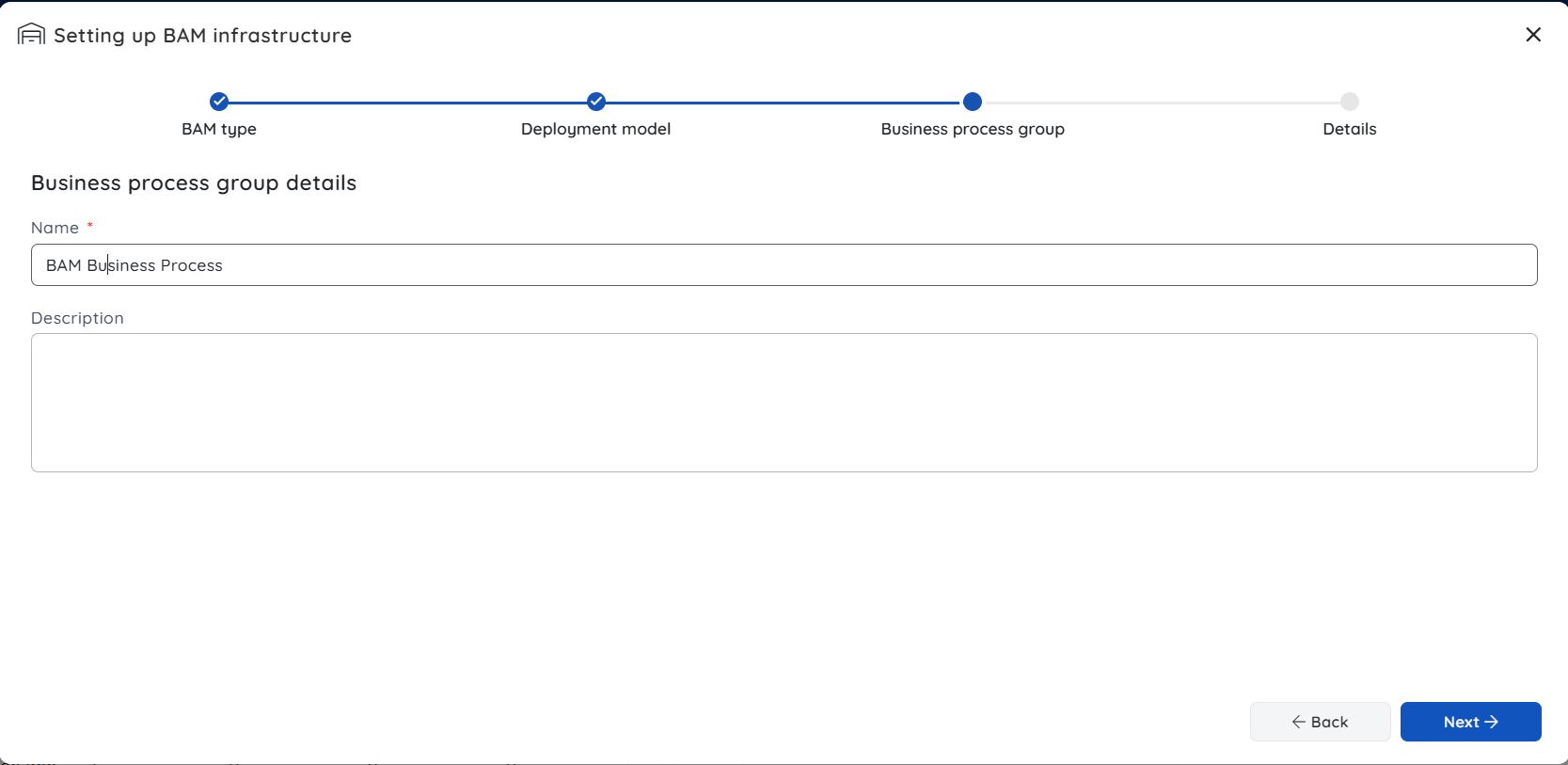
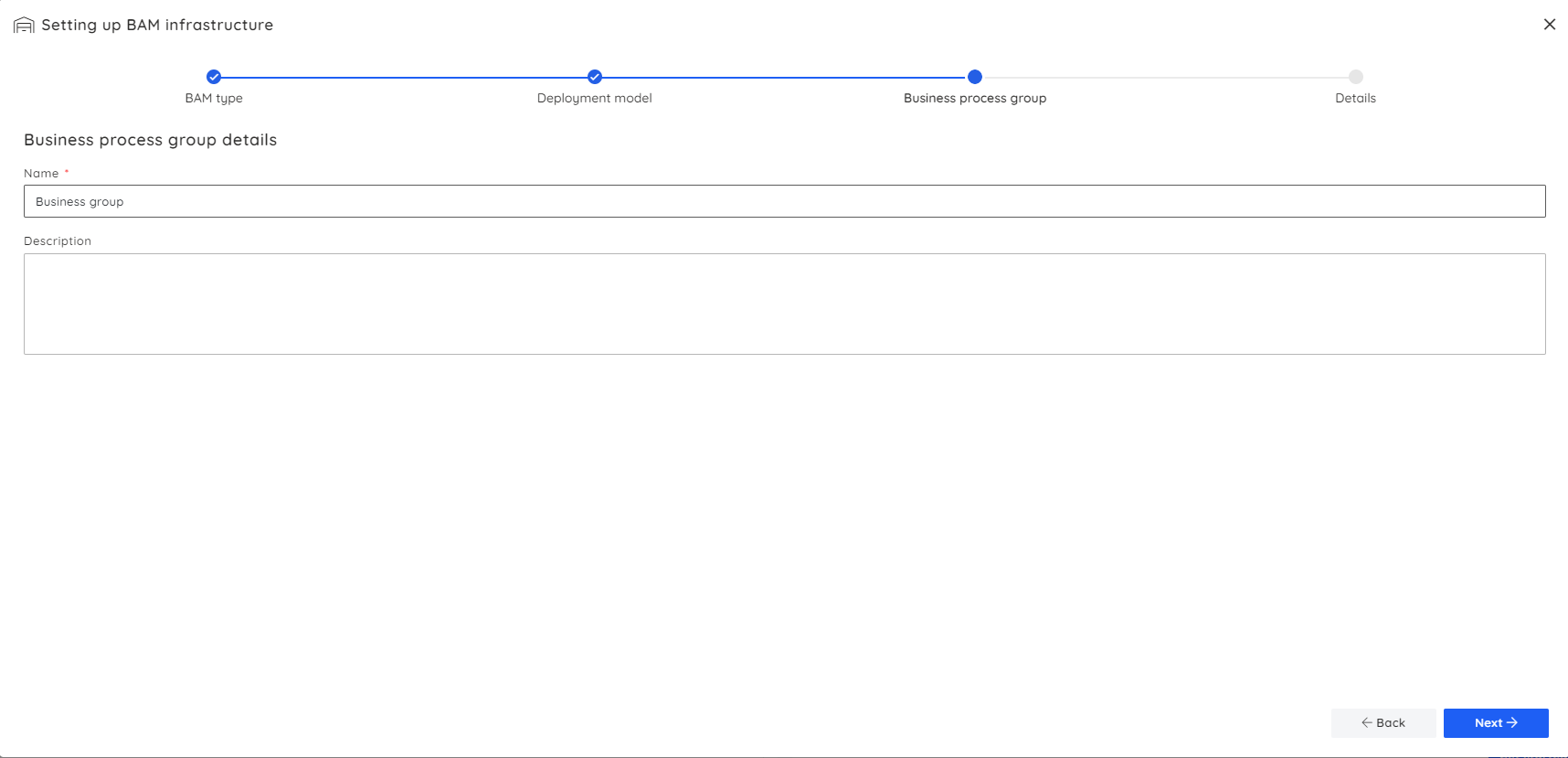
Enter a group name to organise your business processes.
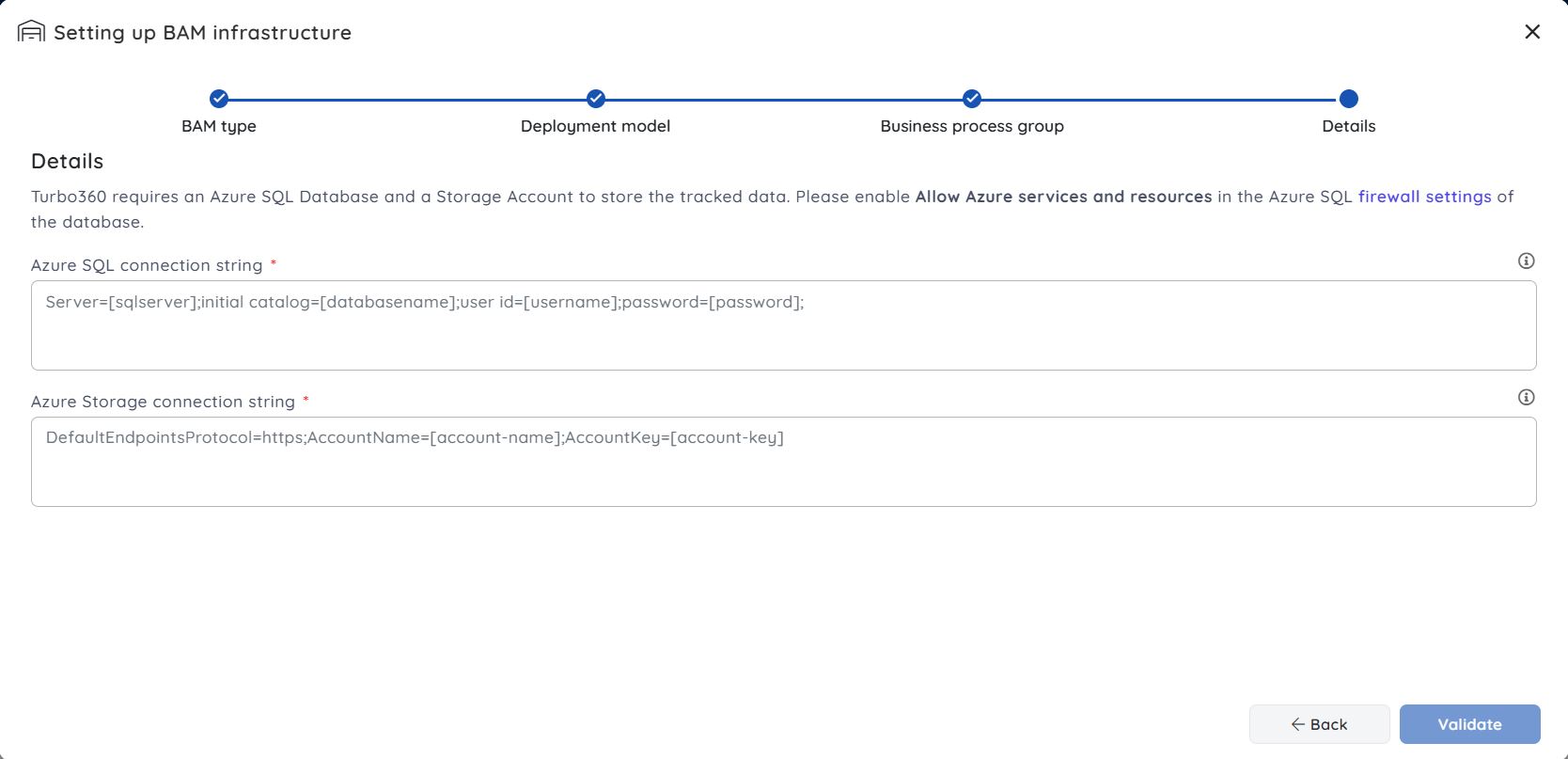
Provide the SQL Database connection string and the Storage Account connection string. Select Validate to verify the credentials.
Once validation is successful, select Initiate deployment.
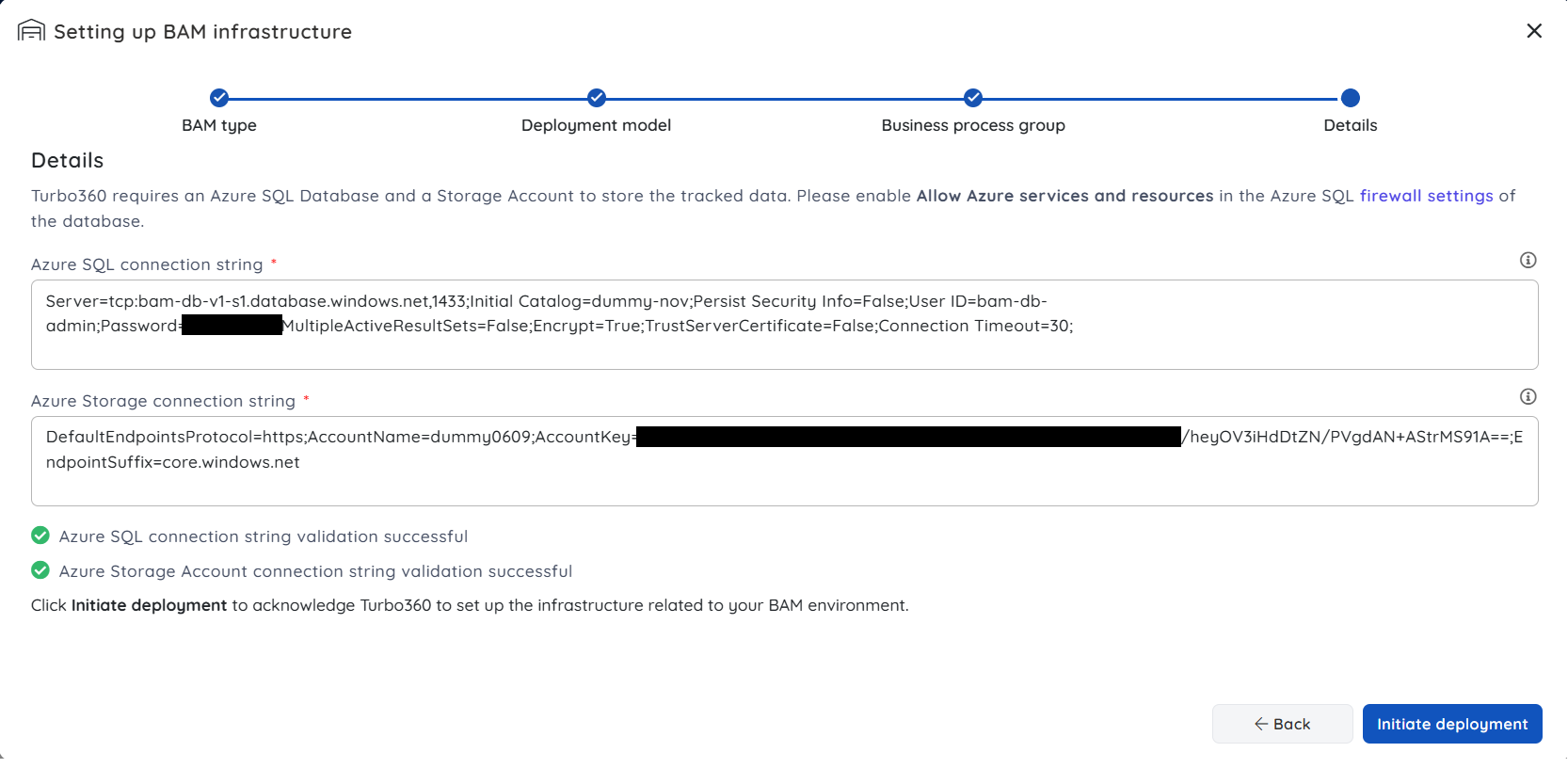
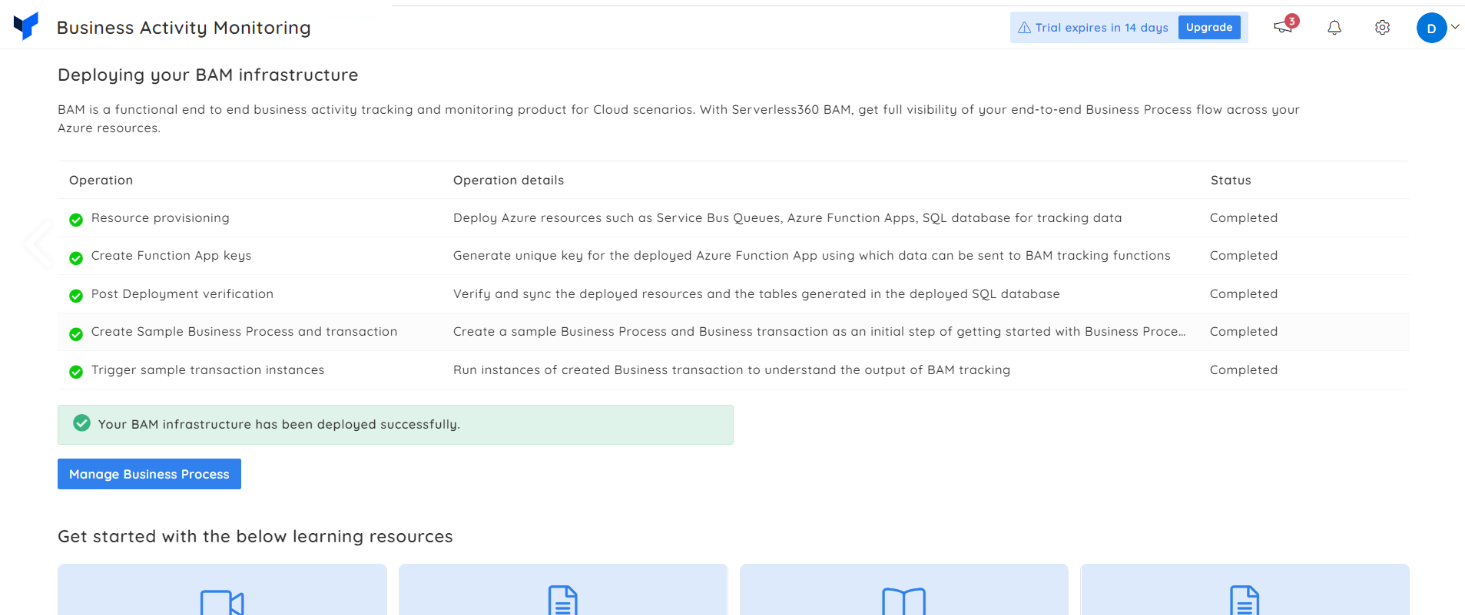
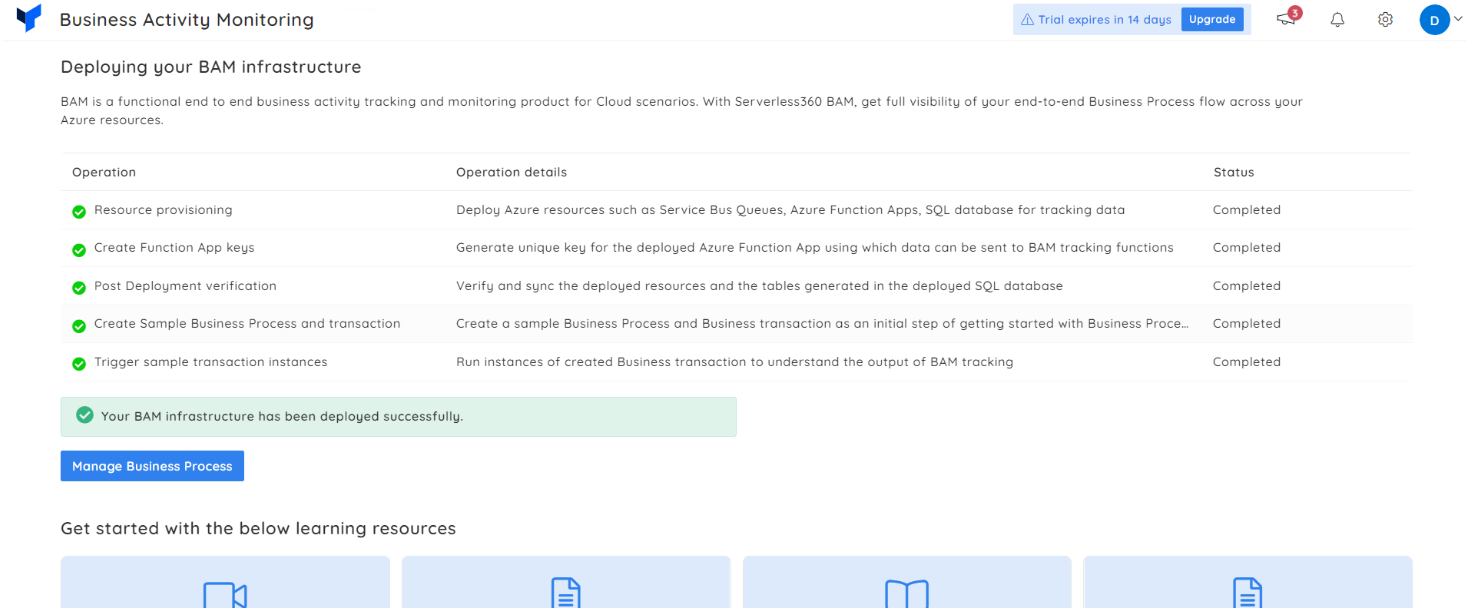
The BAM environment is deployed onto Turbo360 infrastructure. A sample business process and business transaction are created automatically. The deployment screen provides learning resources while the deployment is in progress.
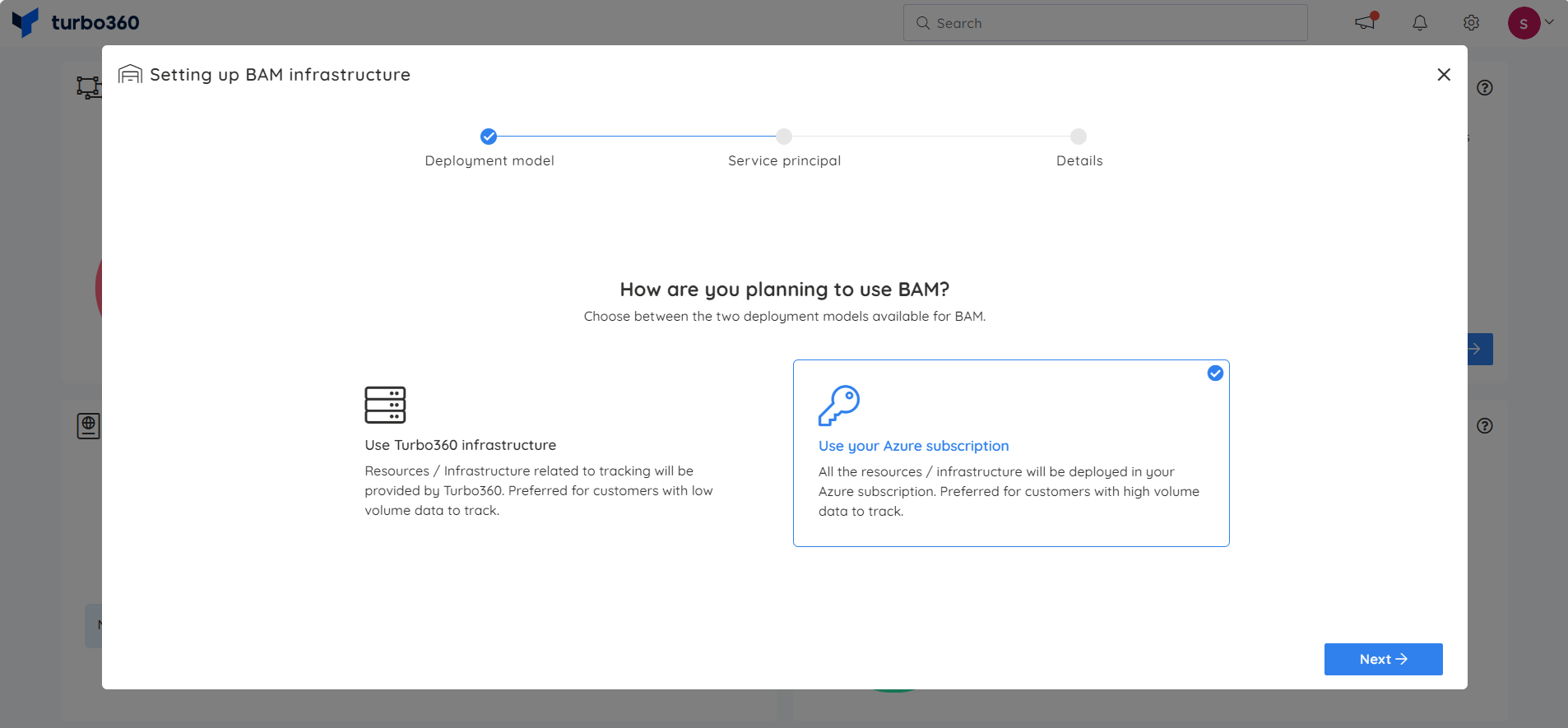
Option B — Use your Azure subscription
With this model, all BAM infrastructure is deployed directly into your own Azure subscription and resource group.
Select Use your Azure subscription.
Enter a group name to organise your business processes.
Provide and validate your service principal credentials. Select Next once validation is successful.
Enter the resource group name and region for the deployment.
Select the service and pricing tiers for the required resources.
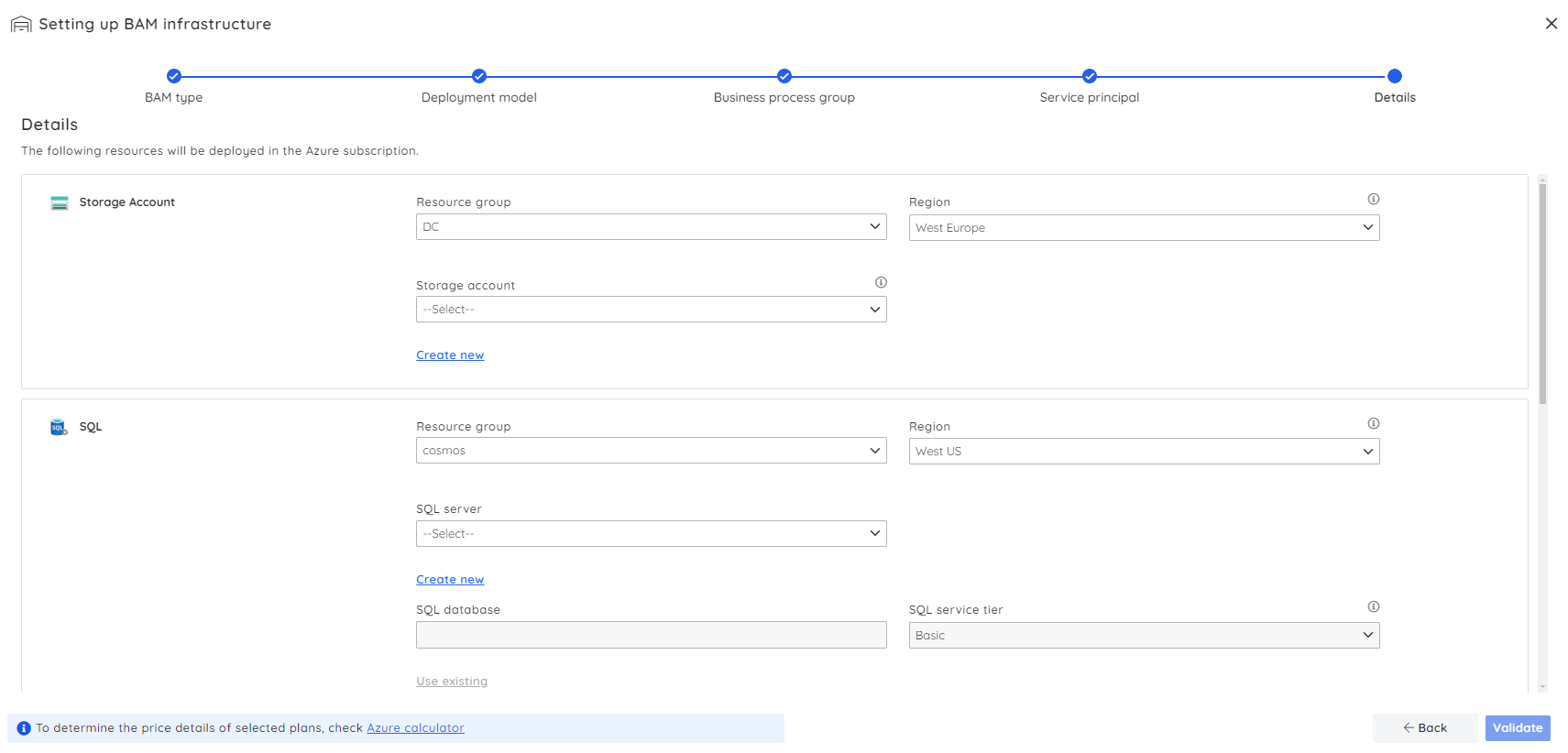
Select Initiate deployment.
The BAM environment is deployed into your Azure subscription. A sample business process and business transaction are created automatically. The deployment screen provides learning resources while the deployment is in progress.
Step 2.(b) — Set up the Data Queries (Pull model) BAM type
The Data Queries tracking type requires only a service principal during initial setup. BAM uses it to locate data sources such as App Insights and Log Analytics for building data queries.
Choose Data Queries and select Next.
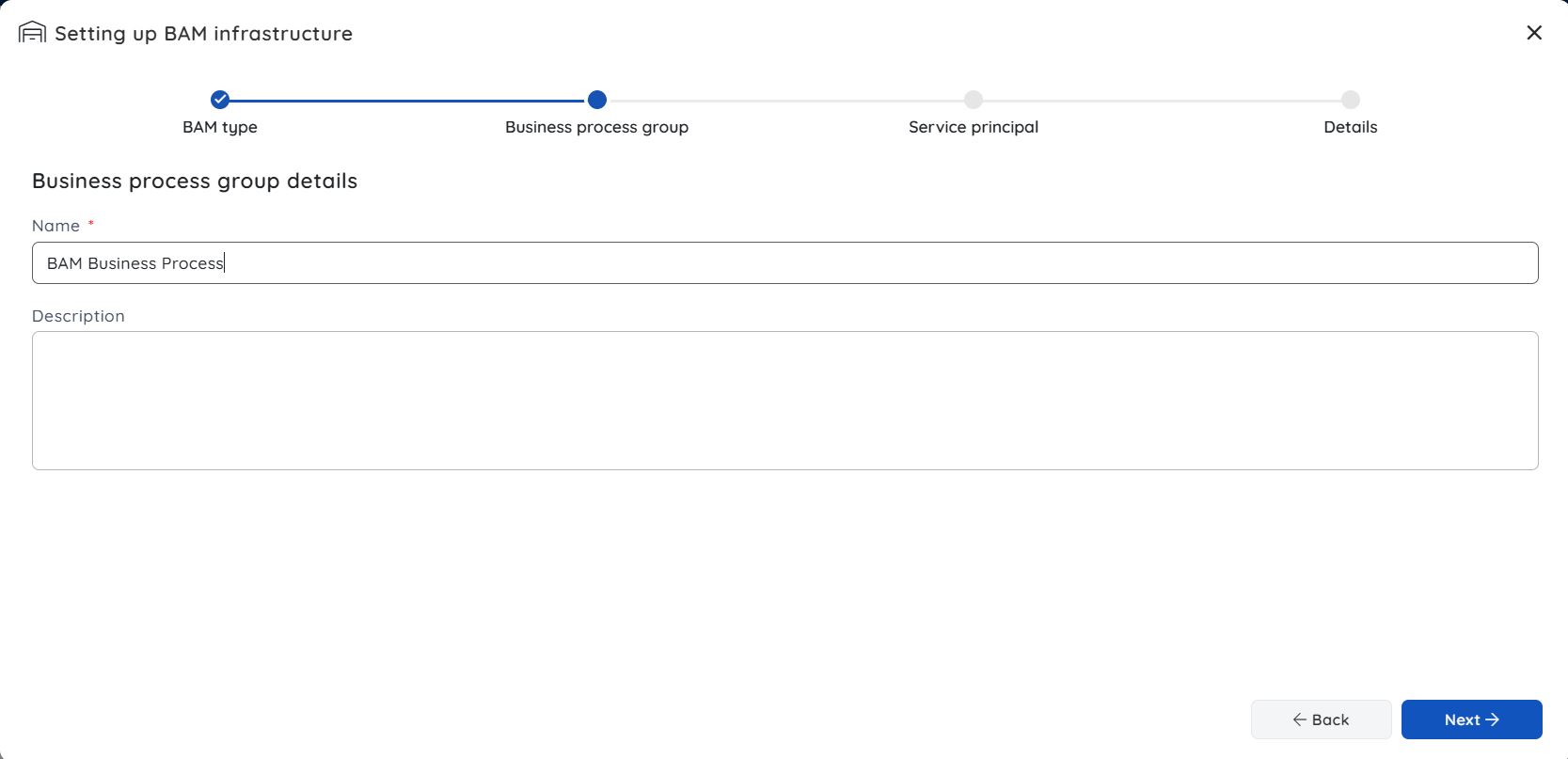
Enter a group name to organise your business processes within the group.
Provide and validate your service principal credentials. Select Next once validation is successful.
Define the scope within which data sources — such as App Insights, Azure Data Explorer (ADX), and Log Analytics — can be configured.
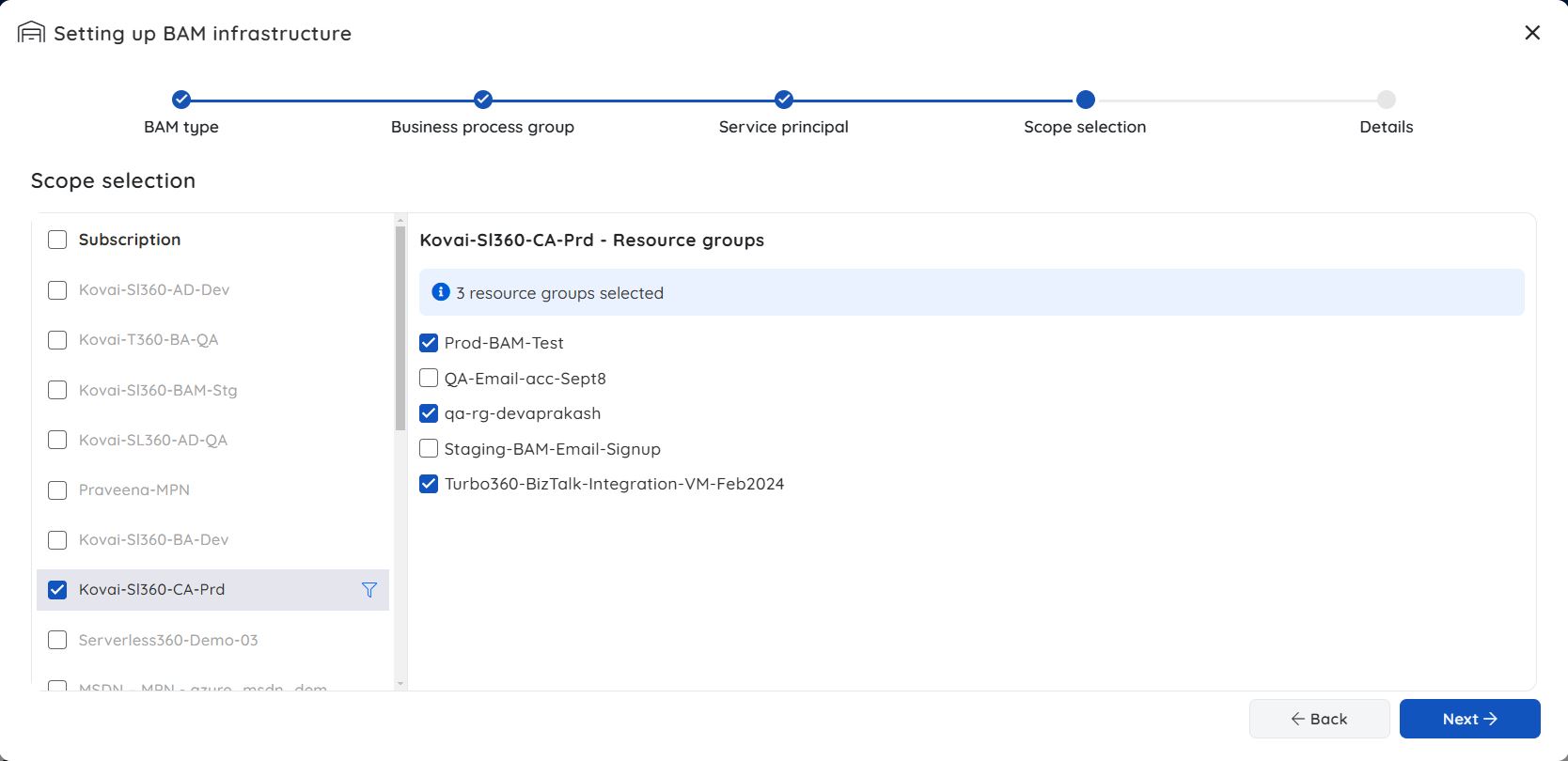
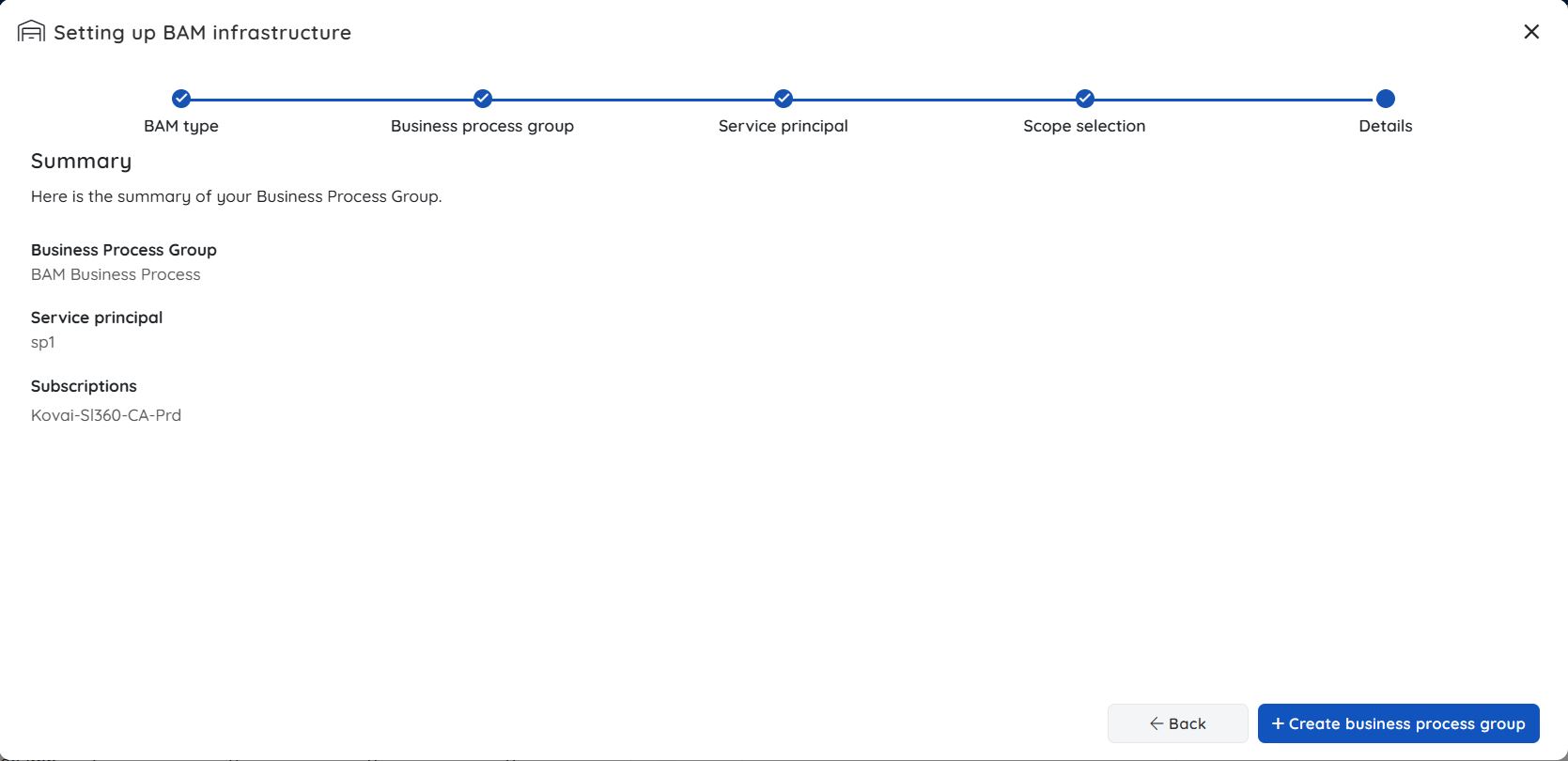
Select Create business process group.
After deployment
Step 3 — Create a business process
- Open the context menu (⋮) next to a Business Process group and select New Business Process.
- Enter a Tracking name to track the Business Process and a Friendly name to uniquely identify it in the BAM module.
- Configure the purging policy for the business process.
- Select Save.
Step 4 — Configure a business transaction
- Within the business process, select Transactions > New transaction.
- Enter a Friendly name for the transaction. Avoid spaces in the name if your integration involves BizTalk components.
- Optionally, enter a Description.
- Set the Direction — select Inbound or Outbound depending on the message flow.
- Optionally, enable Auto update transaction status to automatically mark transactions as successful after a configured interval. When enabled, specify the Transaction with status, Ran more than duration, and the Update to target status.
- Configure Reprocess stage based on transaction status to define which stages are eligible for reprocessing.
- Set Purge data older than to control how long transaction data is retained (in days).
- Select + Create.
Step 5 — Send your first tracking event
For the push model:
- Switch to Custom logging BAM type > Settings > Configuration > Connection details to retrieve your BAM endpoint URL and authentication details.
- Add the tracking call to your integration component (Logic App, Function, or API).
- Trigger a test run of your integration to send a tracking event.
For the pull model:
- Switch to Data queries BAM type.
- Create a Business Process group and choose a data source (App Insights, Log Analytics, or ADX).
- Configure the query and field mappings.
- Save the transaction with desired stage configurations.
Step 6 — Verify transaction tracking
- In the BAM module, select the business process group and open the Tracking tab.
- Set Select top to the maximum number of results to return.
- Use the Started from filter to set the time window — options are Last 15 minutes, Last 1 hour, Last 6 hours, Last 24 hours, Last 2 days, Last 7 days, or Custom.
- Enter a filter expression in the Enter the query field, or select Advanced query for more complex filtering.
- Select Search.
- Confirm the test transaction appears in the results. Select it to review its stage progression and payload data.
Configuration
| Option | Type | Default | Required | Description | Allowed values |
|---|---|---|---|---|---|
| Tracking type | Dropdown | — | Yes | The BAM tracking model to use | Custom Logging (Push), Data Queries (Pull) |
| Deployment model | Dropdown | — | Yes | Where BAM infrastructure is hosted | Use Turbo360 infrastructure, Use your Azure subscription |
| Group name | Text | — | Yes | Name used to organise business processes | Any string |
| SQL Database connection string | Text | — | Yes (Turbo360 infra) | Connection string for customer-owned Azure SQL Database | Valid Azure SQL connection string |
| Storage Account connection string | Text | — | Yes (Turbo360 infra) | Connection string for customer-owned Azure Storage Account | Valid Azure Storage connection string |
| Resource group (own subscription) | Text | — | Yes (own subscription) | Name and region of the resource group for BAM deployment | Any valid Azure resource group |
| Scope (Data Queries) | Selector | — | Yes (Data Queries) | Azure scope for discovering App Insights, ADX, and Log Analytics data sources | Any valid Azure subscription or resource group scope |
| Direction | Dropdown | Inbound | Yes | Message flow direction for the business transaction | Inbound, Outbound |
| Auto update transaction status | Toggle | Off | No | Automatically updates transaction status after a configured time interval | On, Off |
| Purge data older than | Number | 50 | Yes | Number of days after which transaction data is purged | Any positive integer (days) |
| Retention period | Number | 90 | No | Number of days transaction data is retained | 1–365 |
| Reprocess enabled | Toggle | Off | No | Allows failed transactions to be resubmitted | On, Off |
Permission behavior
With access: Users with BAM Owner or BAM Reader roles can view transaction instances, query data, and access monitoring dashboards for processes assigned to them.
Without access: Users without a BAM role cannot see the Business Activity Monitoring module in the navigation. Process and transaction data is not accessible until role assignment is completed.
Example scenario
Your organization processes purchase orders through a Logic App workflow. You set up BAM using the Turbo360 infrastructure model, providing your own SQL Database and Storage Account. After deployment, you create a purchase order business process and configure the Logic App to push tracking events at each stage: order received, validated, approved, and fulfilled. Within minutes of sending a test order, you see the full transaction lifecycle in the BAM dashboard. You then configure a duration monitor to alert your team if any order takes longer than 10 minutes to reach the approved stage.
Limitations
- BAM does not modify or reprocess transactions automatically. Reprocessing must be triggered manually or via a configured rule.
- The pull model is dependent on the availability and latency of the connected data source. Queries run on a schedule and do not provide real-time data.
- Transaction payload size is subject to Azure storage limits. Very large payloads may be truncated.
- When using the Turbo360 infrastructure deployment model, BAM event processing is hosted by Turbo360, but business data remains in your own Azure SQL Database and Storage Account.
Troubleshooting
BAM environment deployment fails (own subscription model)
Cause: The service principal does not have Contributor access on the target resource group.
Fix: Confirm the service principal permissions and check the Azure activity log for specific deployment errors. Retry after resolving any permission issues.Connection string validation fails (Turbo360 infrastructure model)
Cause: The SQL Database or Storage Account connection strings are incorrect, or the resources are blocked by firewall rules.
Fix: Verify both connection strings and check for Azure SQL server firewall rules that may be blocking access from Turbo360.Transaction instances are not appearing after sending tracking events
Cause: The BAM endpoint URL or authentication token in your integration component is incorrect.
Fix: Retrieve the correct endpoint and token from Custom logging > Settings > Configuration > Connection details and resend a test event.Pull model query returns no data
Cause: The data source connection is inactive or the query syntax is invalid.
Fix: Test the query directly in App Insights or Log Analytics to verify it returns results, then re-apply it in BAM.Duration alerts are not firing
Cause: The duration monitor is disabled or no notification channel is assigned.
Fix: Enable the monitor and assign a notification channel under Settings > Notification channels.
Related articles
Was this article helpful?