

Basic recommendations for Reservations
- 05 Aug 2026
- 7 Minutes to read
- Print
- DarkLight
- Download PDF
Basic recommendations for Reservations
- Updated on 05 Aug 2026
- 7 Minutes to read
- Print
- DarkLight
- Download PDF
Article summary
Did you find this summary helpful?
Thank you for your feedback!
Overview
Basic recommendations surface reservation-purchase opportunities identified by Azure Advisor for Reserved Instances (RIs) and similar commitment-based pricing options. They require no additional configuration beyond service principal access, making them the fastest way to see where a 1-year or 3-year commitment could reduce cost.
Business value
Basic recommendations let you act on Azure Advisor's commitment-pricing suggestions directly from Cost Analyzer, without switching to the Azure portal — reducing the effort needed to identify and prioritize reservation purchases.
Prerequisites
Required permissions
Azure
Reservation Reader access must be granted to the service principal in Azure to view reservations and reservation-based recommendations.
To provide Reservation Reader access to the service principal:
- Navigate to the Reservations section in the Azure portal by searching Reservations in the search bar.
- Select the Role assignment option.

- Select Add role assignment > Reservation Reader from the available job function roles.
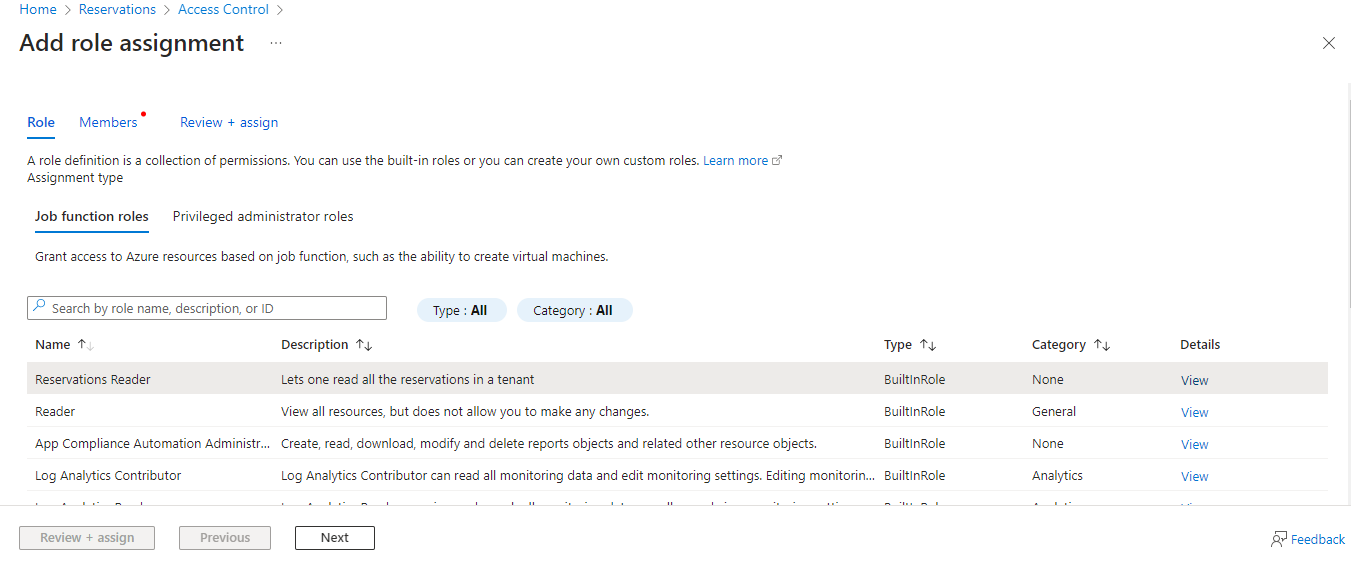
- Click Next and select the required service principal using the Select members option.
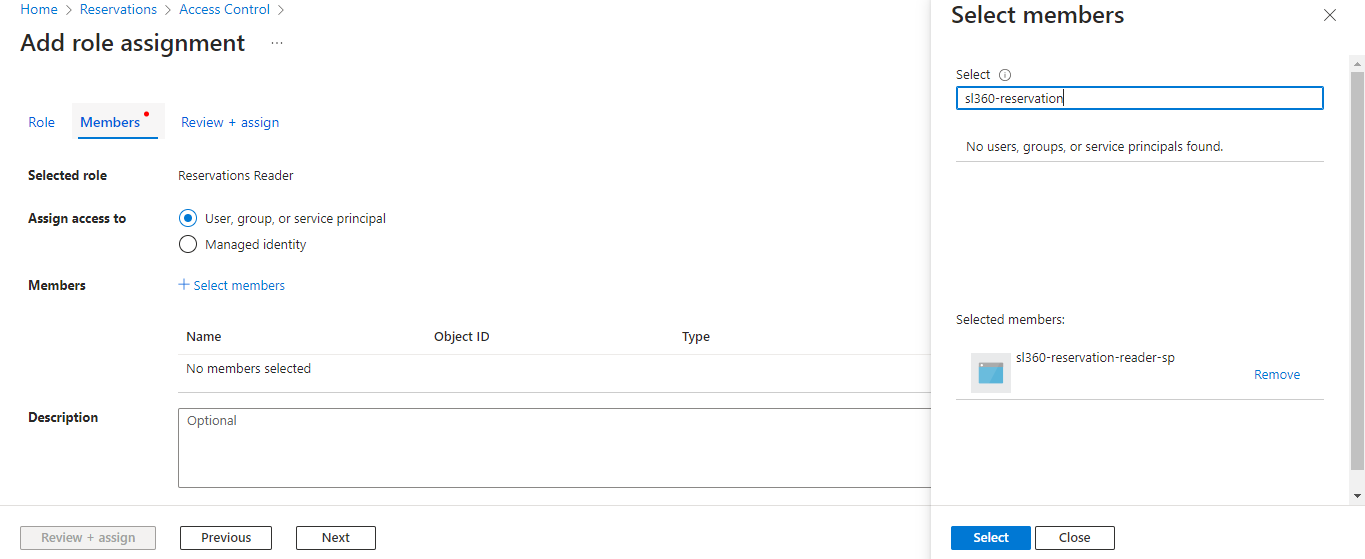
- Click Select and complete the process by selecting Review + assign.
Turbo360
In addition, the following Turbo360 role permissions control access to Basic recommendations within Cost Analyzer:
| Role | Permission level | Access |
|---|---|---|
| Account owner, Owner, Contributor | — | Full access to Basic recommendations and Explain with AI |
| Custom role | Optimization feature enabled + Reservations: Read | View Basic recommendations |
| Custom role | Optimization feature enabled + Reservations: Manage | Full access to Basic recommendations |
| Custom role | AI Agents — Enable, Optimization — Enable, Reservations — Read (or Manage) | Access Explain with AI on any recommendation. Under Specify feature permissions, both AI Agents and Optimization must be set to Enable. Under Specify optimization tab permissions, Reservations must be toggled on with at least Read access. If any of the three is missing, the Explain with AI option is not available. |
.jpg)
.jpg)
How it works
- Basic recommendations are sourced from Azure Advisor, typically for Reserved Instances (RIs) or similar commitment-based pricing options.
- Impacted subscriptions are classified into three recommendation levels — high, medium, and low — each with a recommended action.
.jpg)
Explain with AI
Explain with AI generates a structured seven-section breakdown of the selected Azure Advisor reservation recommendation, giving you everything needed to assess, commit to, or defer a reservation purchase — without leaving Cost Analyzer.
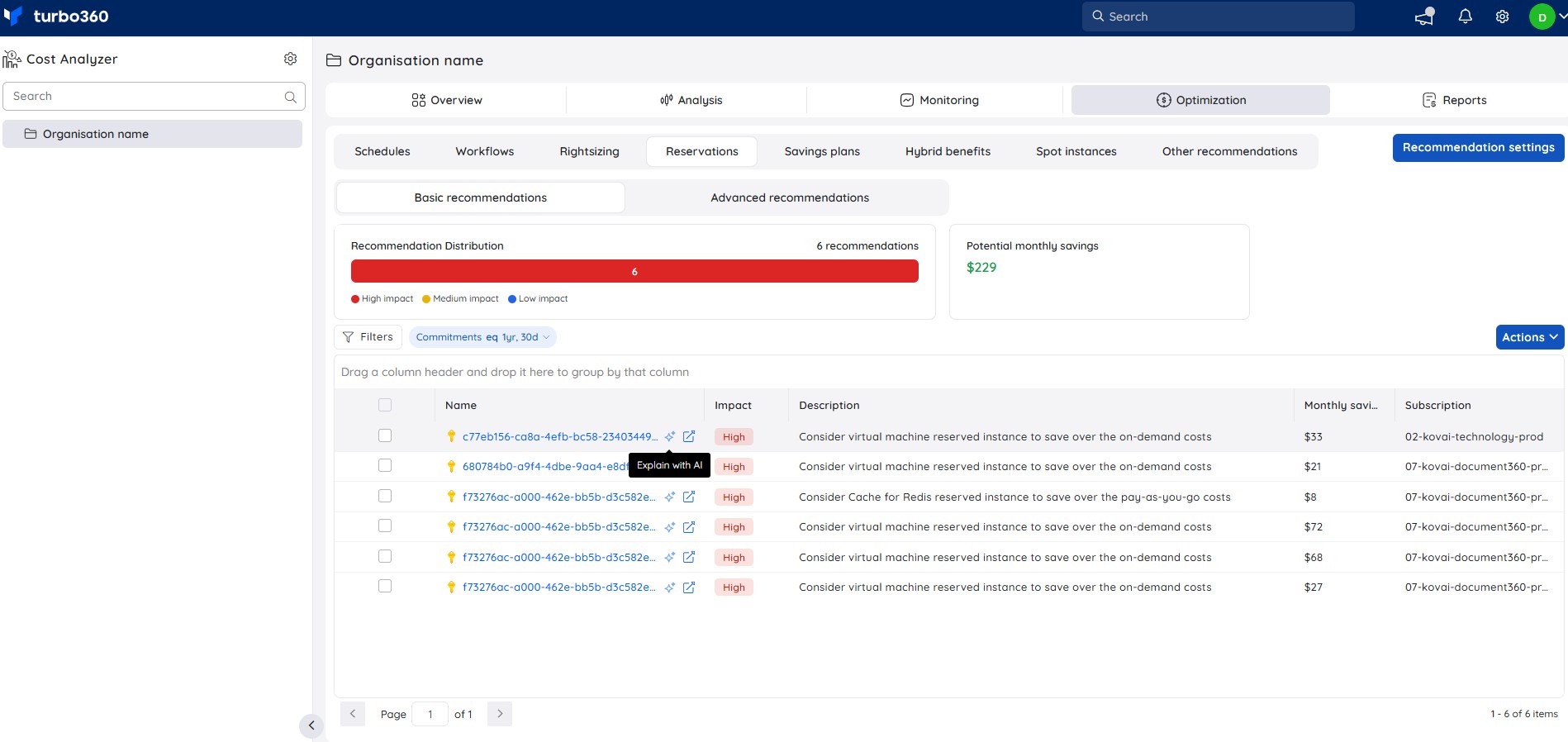
To open Explain with AI:
- Go to Cost Analyzer > Optimization > Reservations > Basic recommendations.
- Select the Explain with AI icon next to any recommendation in the list.
- The AI Insights panel opens with a full analysis of the selected recommendation. Review each section in sequence or jump to the section most relevant to your decision.
- To save the report, select Save as PDF at the top of the panel.
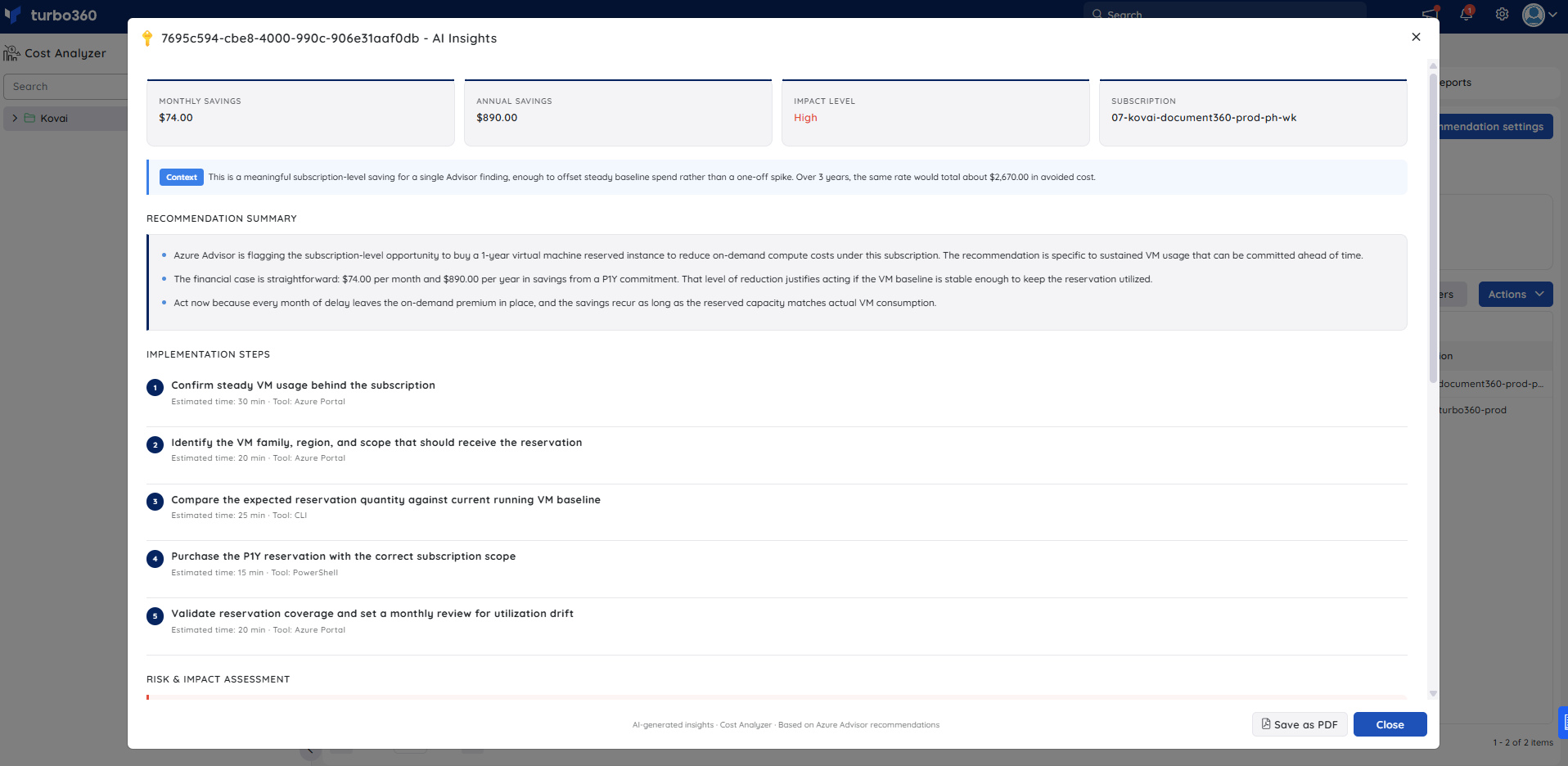
The AI Insights panel covers seven sections:
- Savings summary — displays four key metrics at a glance: recommendation type, current monthly cost, monthly savings, and annual savings. A context callout below the metrics explains the financial significance of the recommendation over the full commitment term and how the savings compound if the reservation is held.
- Metric analysis — presents a table of the resource's utilization metrics measured over the evaluation window, showing average and peak values alongside the downgrade and upgrade thresholds. This section provides the quantitative basis for the recommendation and confirms whether utilization is consistently above or below the threshold band.
- Recommendation summary — explains the resource scope, what Azure Advisor is recommending (for example, purchasing a 1-year VM reserved instance to reduce on-demand compute costs), the financial case for acting, and why the recommendation should not be deferred.
- Implementation steps — lists the numbered actions needed to act on the recommendation, each with an estimated time to complete and the tool required (Azure Portal, CLI, or PowerShell).
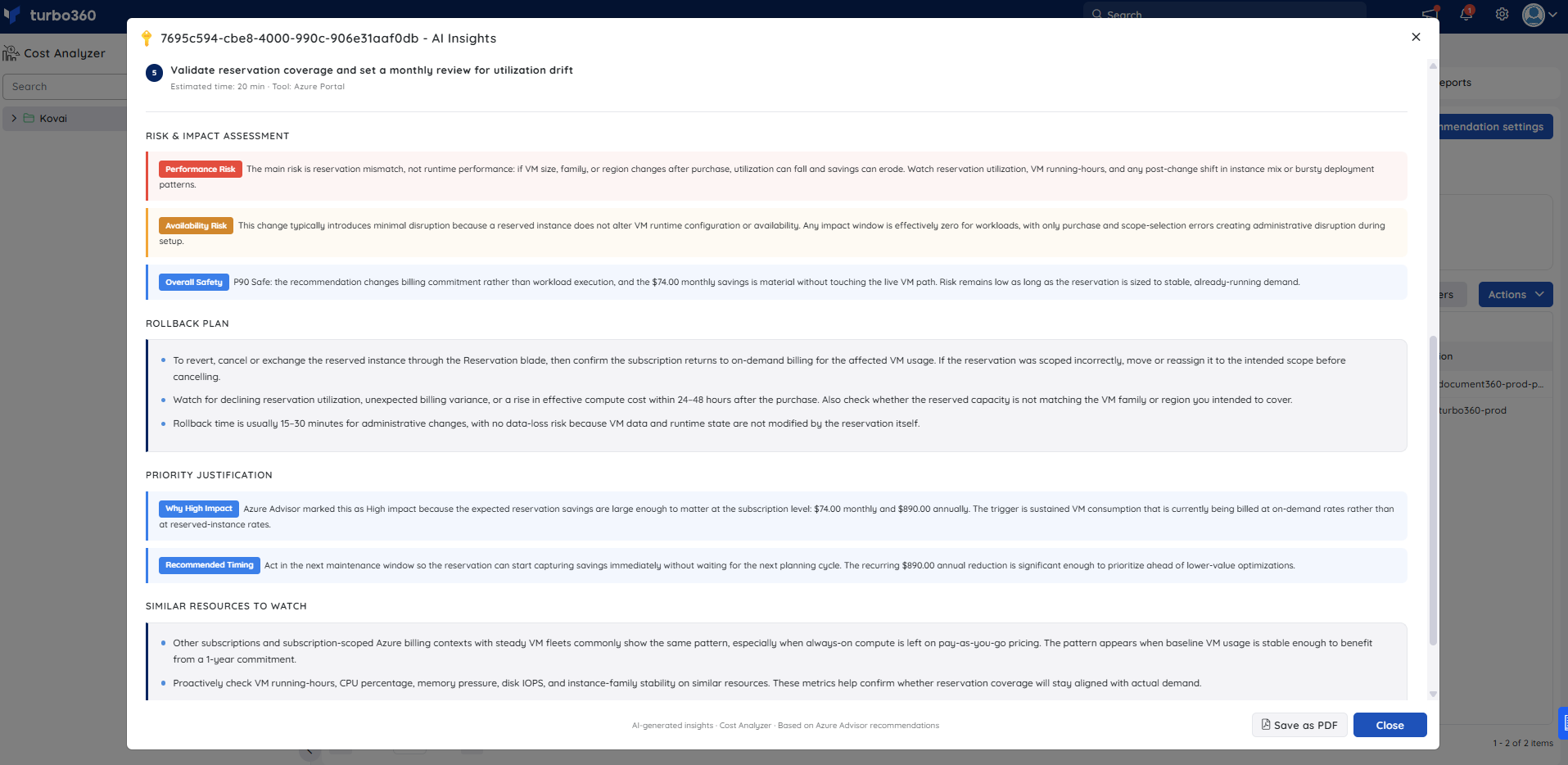
- Risk & impact assessment — covers three named risk dimensions: Performance Risk (reservation mismatch rather than runtime performance), Availability Risk (a reserved instance does not alter VM runtime configuration; the impact window is effectively zero), and Overall Safety (an overall rating reflecting the estimated safety level for the purchase).
- Rollback plan — describes how to revert the commitment if needed — cancel or exchange the reservation via the Reservation blade, watch for declining utilization or unexpected billing variance within 24–48 hours, and the expected rollback time.
- Recommendation justification — contains two callouts: Why Recommended, explaining Azure Advisor's reasoning for the recommendation, and Recommended Timing, advising when to act to start capturing savings immediately.
The full report can be exported using Save as PDF. The exported PDF contains all seven insight sections, making it suitable for sharing with stakeholders or attaching to a change request.
Steps
Use the following steps to postpone or dismiss Basic recommendations within a cost management group. Navigate to Optimization > Reservations > Basic recommendations to get started.
Postpone a recommendation
Postponing temporarily suppresses a recommendation for a selected duration, so it stops appearing until the period ends and automatically reappears.
- Select the recommendation to postpone.
- From the Actions menu, choose Postpone recommendation.
- Select the postponement duration (1 day, 1 week, 1 month, or 3 months) and confirm.
.jpg)
Outcome:
- The postponed recommendation is removed from Basic recommendations and suppressed in Azure Advisor.
- All postponed recommendations are available under Suppressed recommendations, where you can Activate a recommendation if needed.
- After the selected period expires, the recommendation is automatically restored to Basic recommendations.
Dismiss a recommendation
Dismissing permanently suppresses a recommendation that isn't relevant or actionable, while retaining the option to restore it later.
- Select the recommendation to dismiss.
- From the Actions menu, choose Dismiss recommendation.
- Confirm the dismissal.
.jpg)
Outcome:
- The dismissed recommendation is removed from Basic recommendations and suppressed in Azure Advisor.
- All dismissed recommendations are listed under Suppressed recommendations.
- From the Suppressed recommendations blade, you can select a dismissed recommendation and Activate it to restore it to Basic recommendations.
Configuration
| Option | Type | Default | Required | Description | Allowed values |
|---|---|---|---|---|---|
| Postponement duration | Selection | — | Yes, when postponing | How long a recommendation stays suppressed before automatically reappearing | 1 day, 1 week, 1 month, 3 months |
Troubleshooting
No recommendations appear under Basic recommendations.
Cause: Reservation Reader access hasn't been granted to the service principal in Azure.
Fix: Grant Reservation Reader access following the steps under Required permissions, then allow time for the data to sync.A postponed recommendation reappeared earlier than expected.
Cause: The postponement period you selected has ended, and Basic recommendations automatically restores the recommendation.
Fix: Postpone it again with a longer duration if it's still not actionable, or dismiss it if it will never be actionable.A recommendation dismissed by mistake is missing from Basic recommendations.
Cause: Dismissed recommendations are suppressed indefinitely and don't return automatically.
Fix: Go to Suppressed recommendations and select Activate to restore it.A custom role user can't see Basic recommendations.
Cause: The Optimization feature or the Reservations Read/Manage permission hasn't been enabled for that role.
Fix: Update the role under User management > Roles to enable Optimization and grant Reservations Read or Manage access.Explain with AI icon is not visible next to a recommendation.
Cause: The user's Custom role does not have the AI Agents feature permission enabled, or Optimization and Reservations permissions are not correctly configured.
Fix: Go to User management > Roles, edit the relevant Custom role, and ensure AI Agents and Optimization are set to Enable under Specify feature permissions, and Reservations is toggled on with at least Read access under Specify optimization tab permissions.Reservation savings are lower than the AI Insights panel projected after purchase.
Cause: The recommendation is based on recent VM usage patterns. If workload demand decreases or the VM family or region changes after the reservation is purchased, actual utilization of the reserved capacity may fall short of the projected baseline.
Fix: Monitor reservation utilization in the Azure portal's Reservation blade and in Cost Analyzer. If utilization drops below threshold, use the exchange or split options in the Reservation blade to realign the reservation scope to current demand.
FAQs
What's the difference between postponing and dismissing a recommendation?
Postponing temporarily suppresses a recommendation for a set duration, after which it automatically reappears. Dismissing suppresses it indefinitely, until you manually reactivate it from Suppressed recommendations.Where do Basic recommendations come from?
They are sourced from Azure Advisor's Reserved Instance and commitment-based pricing suggestions.Can I see Basic recommendations without granting Reservation Reader access?
No. Reservation Reader access on the service principal is required to view reservations and reservation-based recommendations.Does Explain with AI purchase the reservation automatically?
No. It provides a commitment plan only; you purchase the reservation manually using the implementation steps provided.Are the savings figures shown guaranteed?
No. Savings estimates are based on Azure Advisor's analysis and current pricing. Actual savings depend on workload demand remaining stable over the reservation term.
Related articles
Was this article helpful?