

Basic recommendations for Rightsizing
- 05 Aug 2026
- 4 Minutes to read
- Print
- DarkLight
- Download PDF
Basic recommendations for Rightsizing
- Updated on 05 Aug 2026
- 4 Minutes to read
- Print
- DarkLight
- Download PDF
Article summary
Did you find this summary helpful?
Thank you for your feedback!
Overview
Rightsizing aligns your Azure resources with actual workload needs, for optimal cost efficiency without sacrificing performance. Basic recommendations surface Azure Advisor's cost recommendations directly within your cost management groups, for the selected subscription and resource groups.
For configurable, resource-specific recommendations, see Advanced recommendations for Rightsizing.
You can access Basic recommendations at: Cost management group > Optimization > Rightsizing > Basic recommendations.
Business value
Basic recommendations let you act on Azure Advisor's cost insights without leaving Cost Analyzer — catching idle and underutilized resources early, without cross-referencing Azure Advisor separately.
Prerequisites
Required permissions
| Role | Permission level | Access |
|---|---|---|
| Account owner, Owner, Contributor | — | Full access to Basic recommendations and Explain with AI |
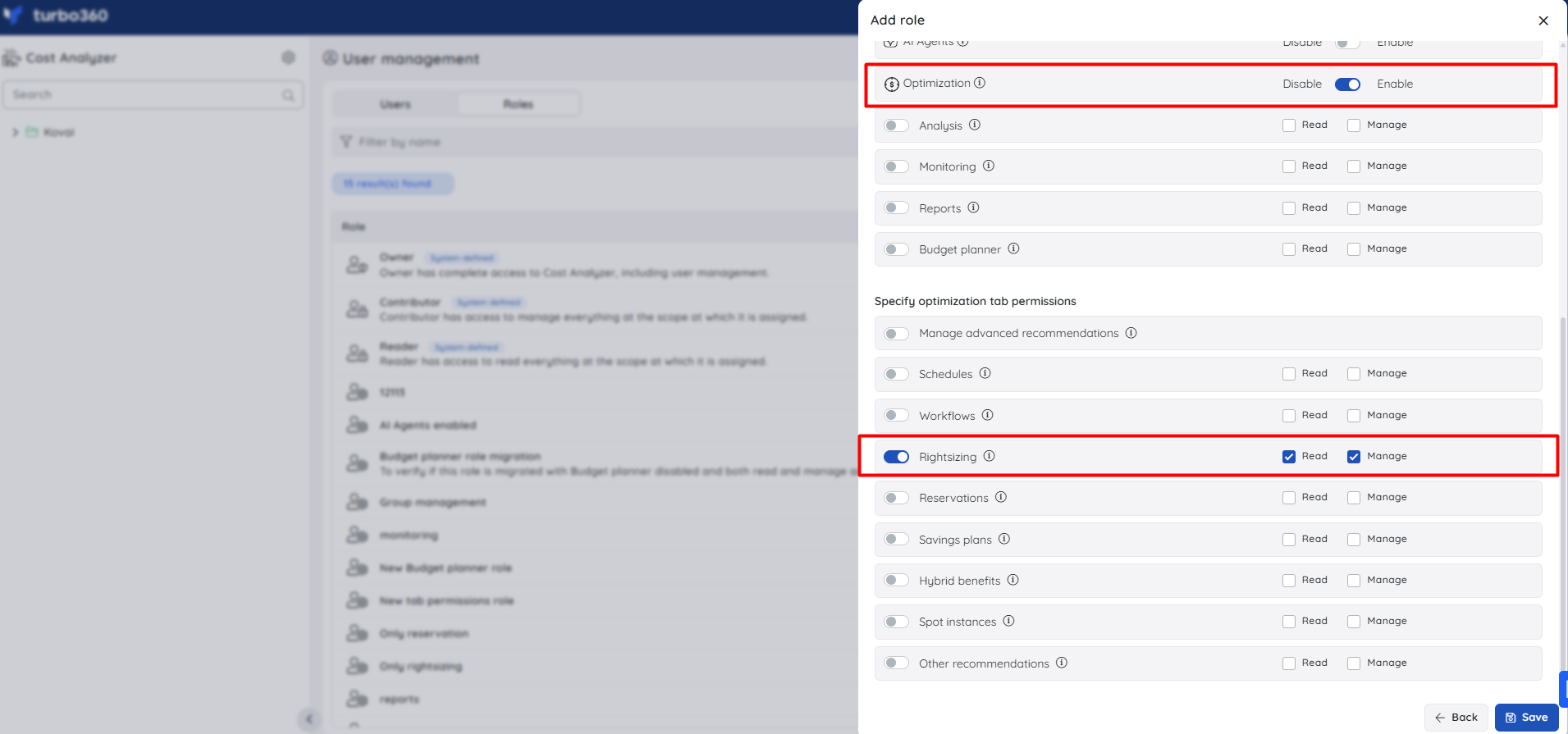
| Custom role | Optimization feature enabled + Rightsizing: Read | View Basic recommendations |
| Custom role | Optimization feature enabled + Rightsizing: Manage | Full access to Basic recommendations |
| Custom role | AI Agents — Enable, Optimization — Enable, Rightsizing — Read (or Manage) | Access Explain with AI on any recommendation. Under Specify feature permissions, both AI Agents and Optimization must be set to Enable. Under Specify optimization tab permissions, Rightsizing must be toggled on with at least Read access. If any of the three is missing, the Explain with AI option is not available. |
To view or manage Basic recommendations, a role needs:
- Optimization tab permission enabled, and
- Read (view only) or Manage (postpone/dismiss) on Rightsizing feature.
Roles are created under Cost Analyzer > User management > Roles > Add role, and can be scoped to specific cost management groups or subscriptions.
How it works
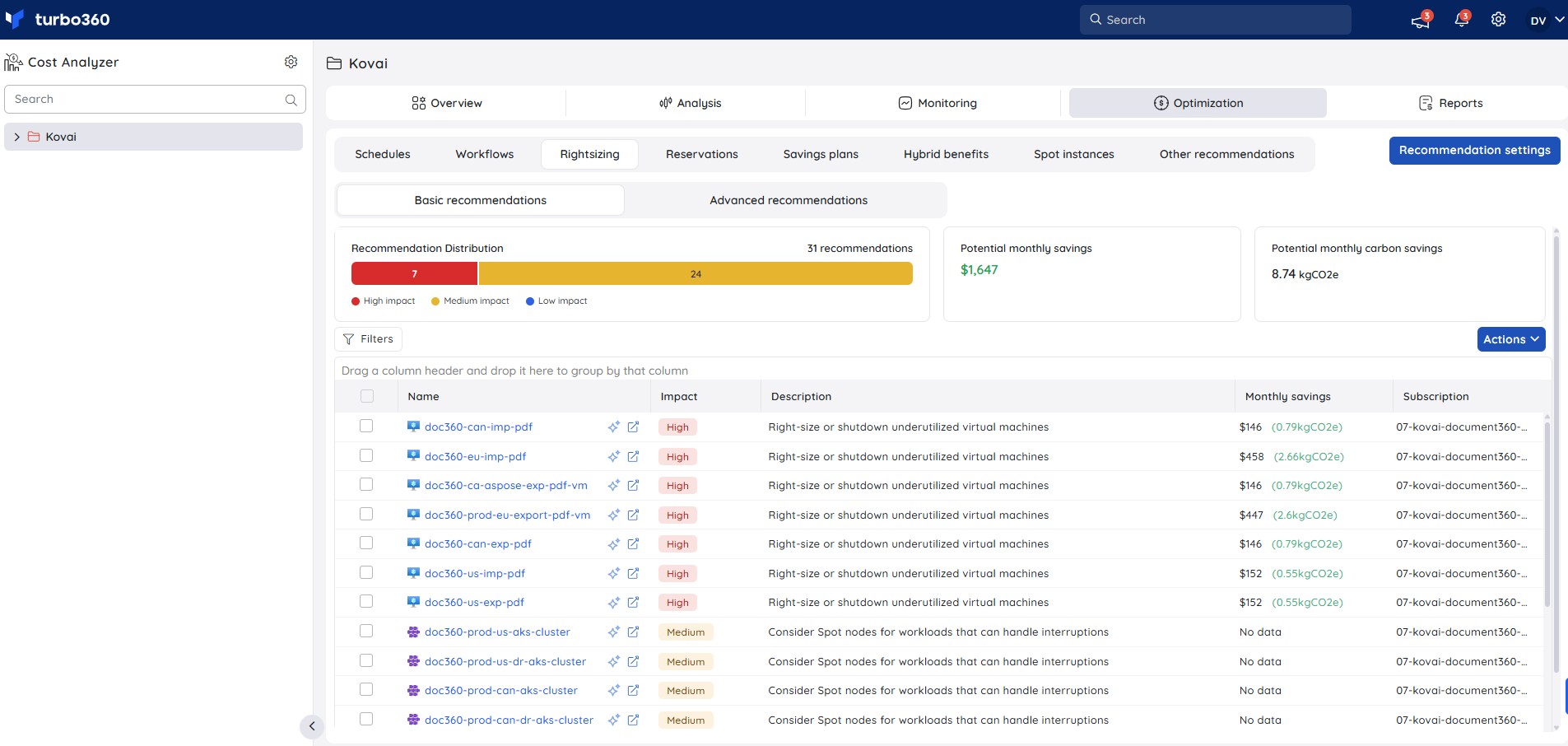
Basic recommendations classify impacted resources by severity and estimate carbon savings, helping you spot idle and underutilized resources without leaving Cost Analyzer.
- Resources are classified as high, medium, or low impact, each with a recommended action.
- Each recommendation also shows monthly carbon savings, to help reduce emissions from your Azure usage.
Explain with AI
Each Basic recommendation includes an Explain with AI option that opens a detailed AI-generated analysis panel for the selected recommendation. Click the Explain with AI icon next to any recommendation to open it.
.jpg)
The panel covers eight areas:
- Savings summary — monthly and annual savings, impact level, and subscription, with a note on the overall financial significance.
- Recommendation summary — what the resource is, why Azure Advisor is flagging it, the financial case for acting, and why to act now rather than defer.
- Sustainability impact — carbon footprint reduction (monthly and annually) with real-world equivalents such as driving distance avoided.
- Implementation steps — step-by-step actions with estimated time and tool required (Azure Portal, Azure Monitor, CLI, or PowerShell).
- Risk & impact assessment — Performance Risk, Availability Risk, and an Overall Safety rating, with guidance on what to monitor after the change.
- Rollback plan — how to revert the change, including early warning signals and expected rollback time.
- Priority justification — why the recommendation is marked at its current impact level and when to act.
- Similar resources to watch — other resources of the same type that may show the same underutilization pattern.
The full report can be saved using the Save as PDF button at the bottom of the panel.
.png)
.png)
Steps
Use the following steps to postpone or dismiss Basic recommendations. Navigate to Cost management group > Optimization > Rightsizing > Basic recommendations to get started.
Postpone a recommendation
Postponing a recommendation temporarily suppresses it for a selected duration — it automatically reappears after the postponement period, keeping the recommendation visible when it becomes actionable again.
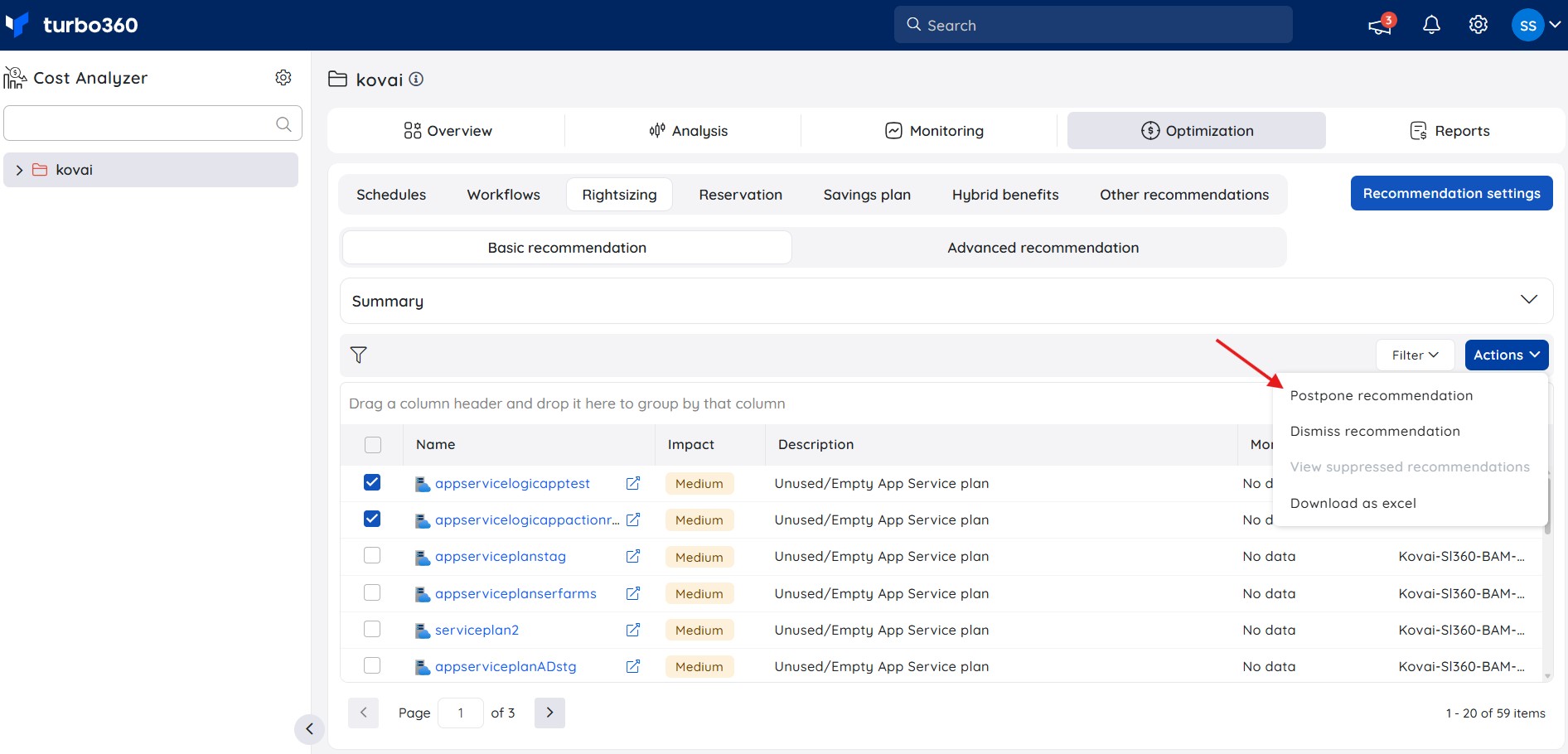
- Select the recommendation to postpone.
- From the Actions menu, choose Postpone recommendation.
- Select the postponement duration (1 day, 1 week, 1 month, or 3 months) and confirm.
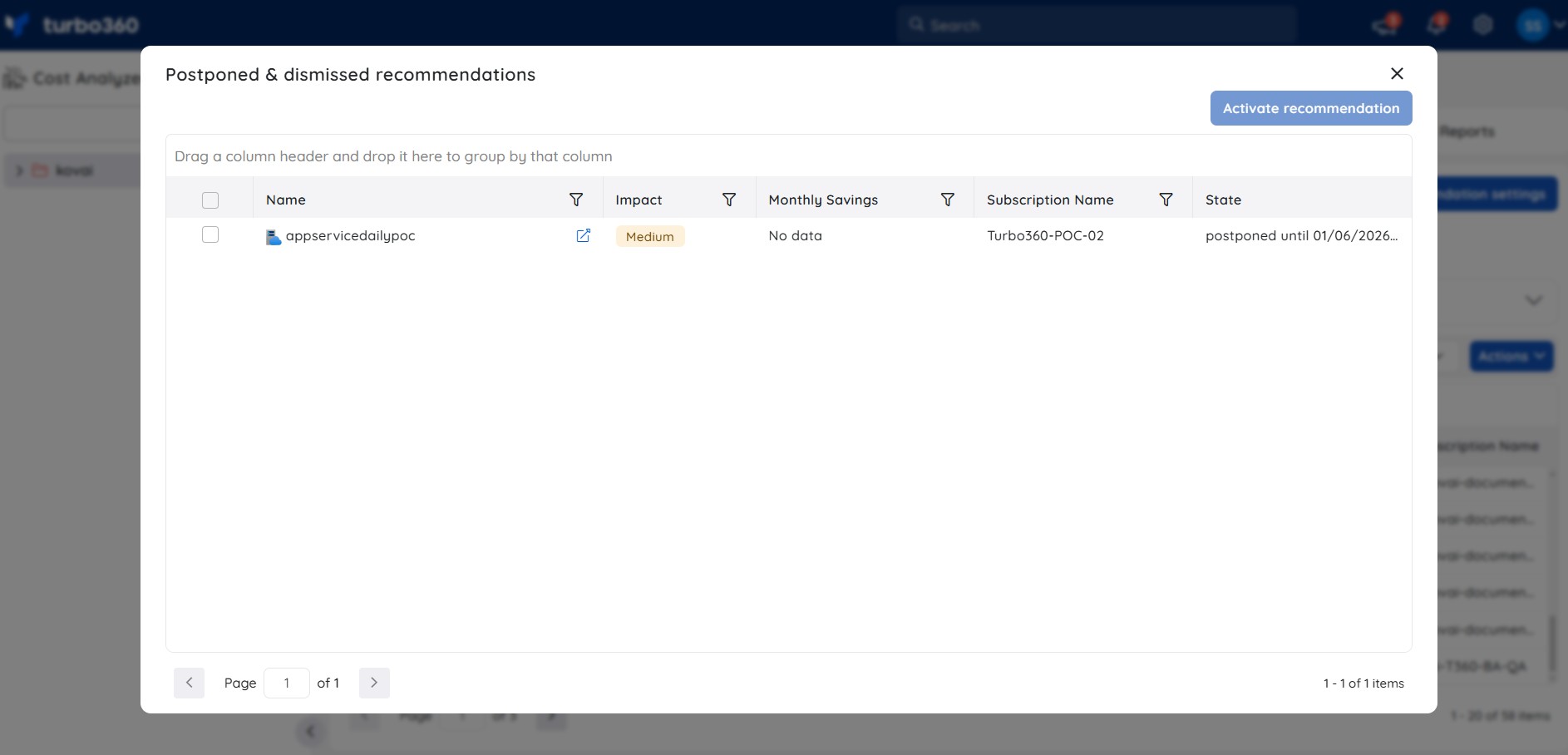
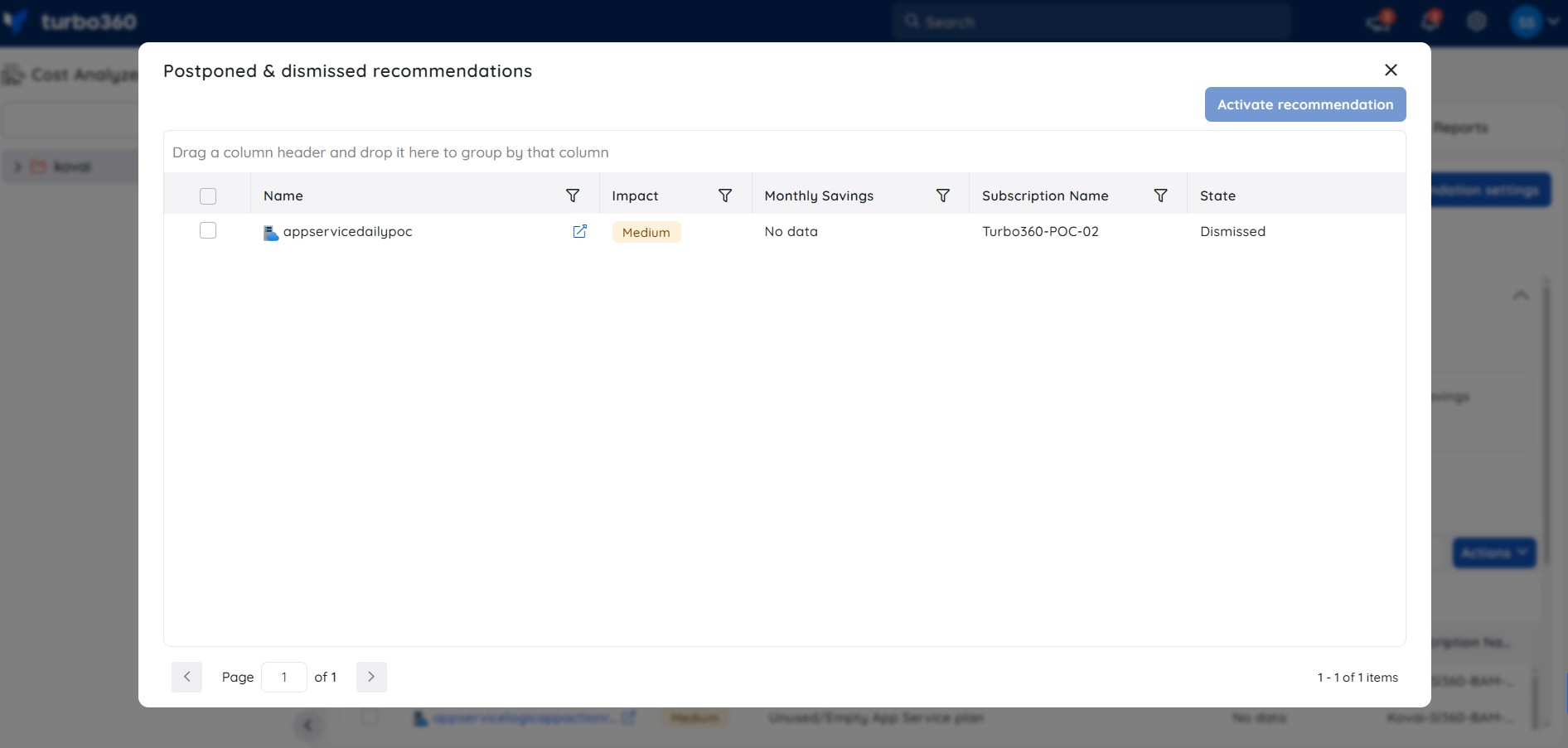
The postponed recommendation is removed from Basic recommendations and suppressed in Azure Advisor. All postponed recommendations appear under Suppressed recommendations, where you can Activate one if needed. After the selected period expires, the recommendation is automatically restored to Basic recommendations.
Dismiss a recommendation
Dismissing a recommendation permanently suppresses it — use this for recommendations that are not relevant or actionable, while retaining the option to restore them later.
- Select the recommendation to dismiss.
- From the Actions menu, choose Dismiss recommendation.
- Confirm the dismissal.
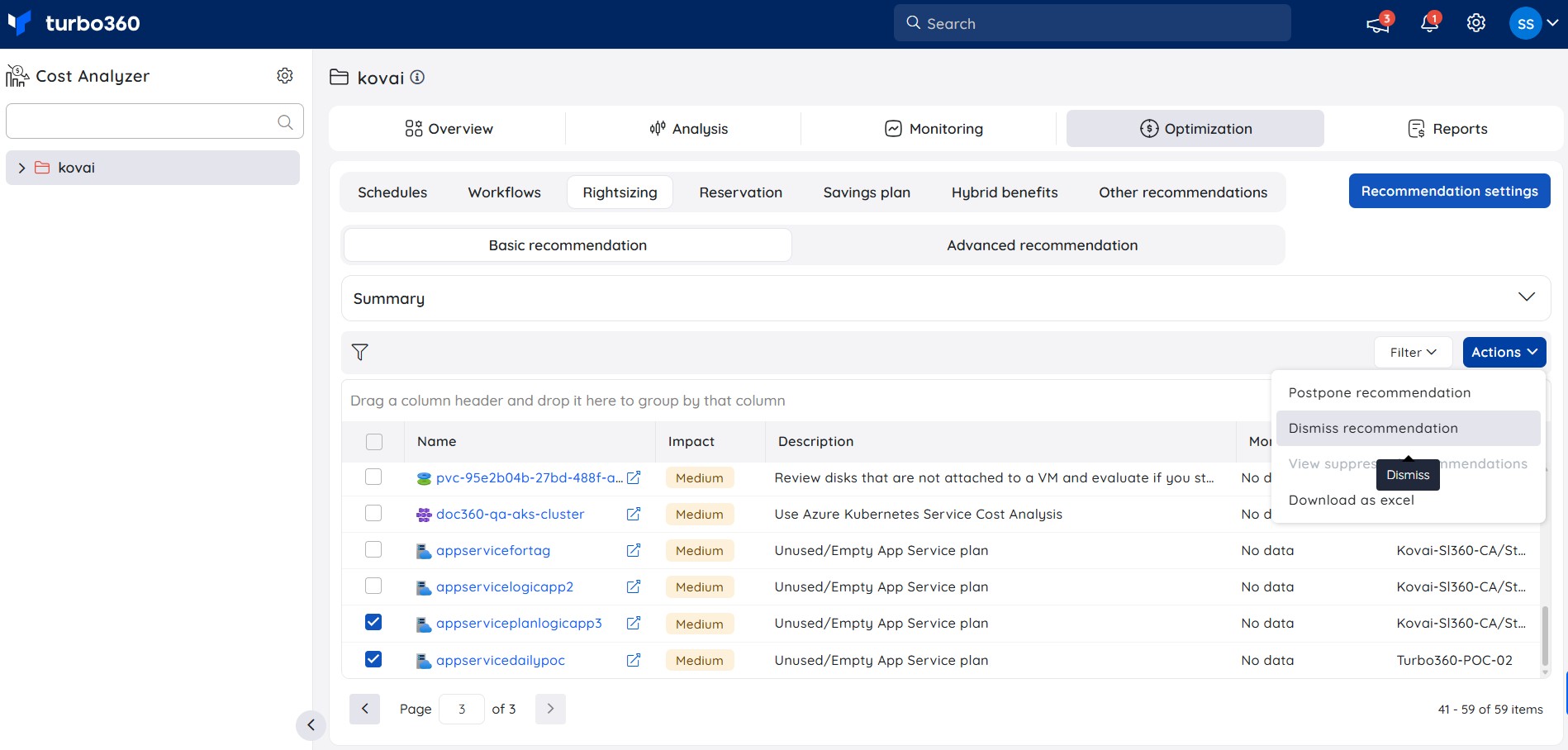
The dismissed recommendation is removed from Basic recommendations and suppressed in Azure Advisor. All dismissed recommendations are listed under Suppressed recommendations, from which you can Activate an item to restore it.
Troubleshooting
The Basic recommendations tab isn't visible
Cause: The Optimization feature permission is disabled for your role, or the Rightsizing tab permission isn't set.
Fix: Ask your Account owner to enable Optimization and grant at least Read on Rightsizing in Roles.Can't postpone or dismiss a recommendation
Cause: Your role only has Read permission on Rightsizing.
Fix: Request Manage permission on Rightsizing from your Account owner.A postponed recommendation reappeared earlier than expected
Cause: The selected postponement duration (1 day, 1 week, 1 month, or 3 months) has elapsed.
Fix: Re-postpone the recommendation for a longer duration, or dismiss it instead if it's not actionable.
FAQs
Who can view Basic recommendations?
Any role with Read or Manage permission on Rightsizing (with Optimization enabled) can view Basic recommendations.Who can postpone or dismiss a recommendation?
Only roles with Manage permission on Rightsizing.What's the difference between postponing and dismissing a recommendation?
Postponing temporarily suppresses a recommendation for a set duration and it automatically reappears afterward. Dismissing suppresses it permanently until you manually restore it from Suppressed recommendations.
Related articles
Was this article helpful?