

Budget and cost monitoring
- 05 Aug 2026
- 2 Minutes to read
- Print
- DarkLight
- Download PDF
Budget and cost monitoring
- Updated on 05 Aug 2026
- 2 Minutes to read
- Print
- DarkLight
- Download PDF
Article summary
Did you find this summary helpful?
Thank you for your feedback!
Overview
Cost Analyzer's budget and cost monitoring capabilities help you track Azure spending against defined targets and receive alerts when thresholds are breached. Cost Analyzer provides four budget and monitoring capabilities, each serving a distinct purpose in the cost governance lifecycle.
Business value
- Set spending limits to prevent budget overruns before they occur
- Project future costs using growth rates or planned values
- Detect unusual cost spikes automatically using ML-based anomaly detection
- Define custom monitoring rules for precise, scenario-specific alerting
How it works
Budget planner
The Budget planner visualizes historical Azure cost trends and projects future spend based on a planned cost value or a defined growth percentage. It supports ML-powered forecasting with upper and lower cost limit estimates for upcoming months.
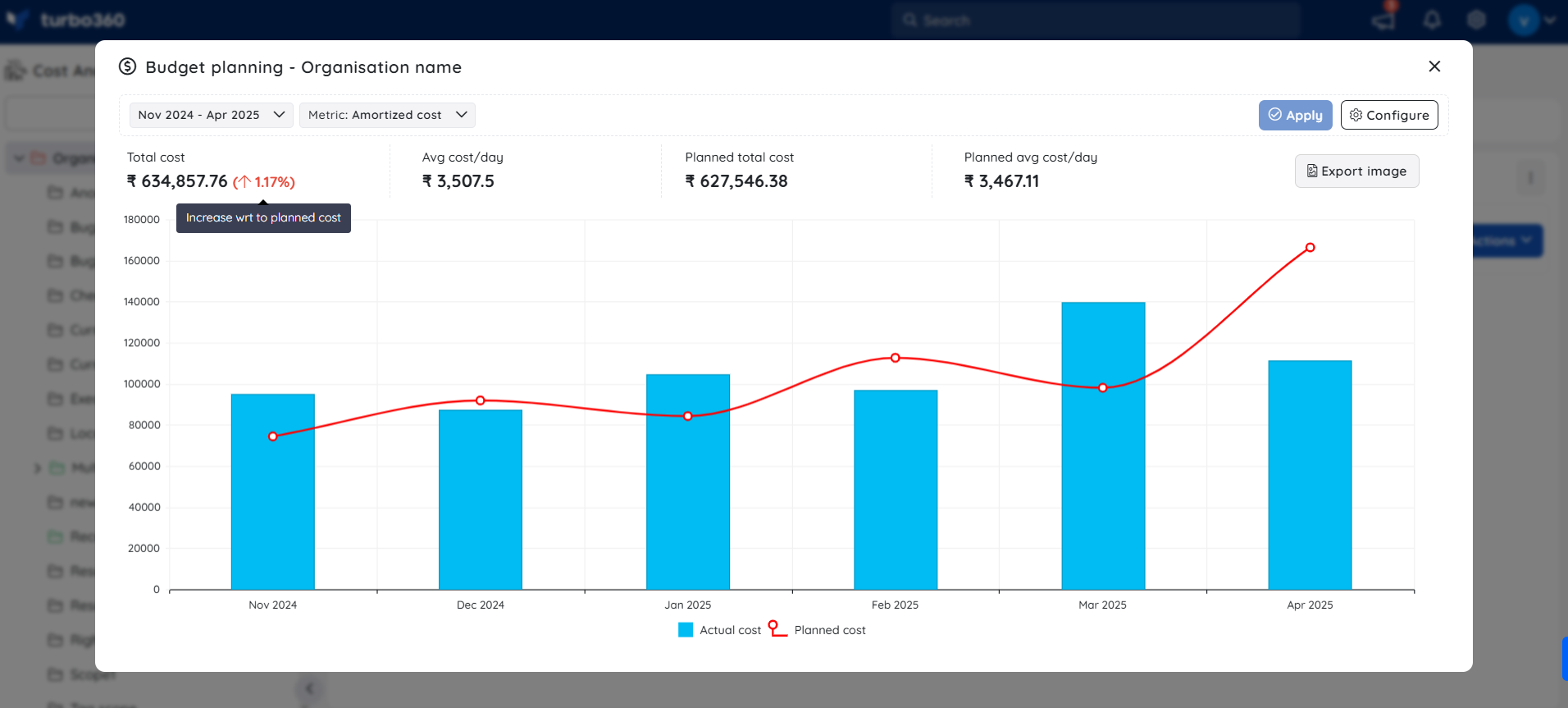
Group budget
Group budget enables threshold-based budget monitoring on a cost management group. Define a monthly spending limit and configure notification channels — alerts trigger automatically when spend approaches or exceeds the threshold. Group budget alert incidents also drive the health indicator on each cost management group in the tree view.
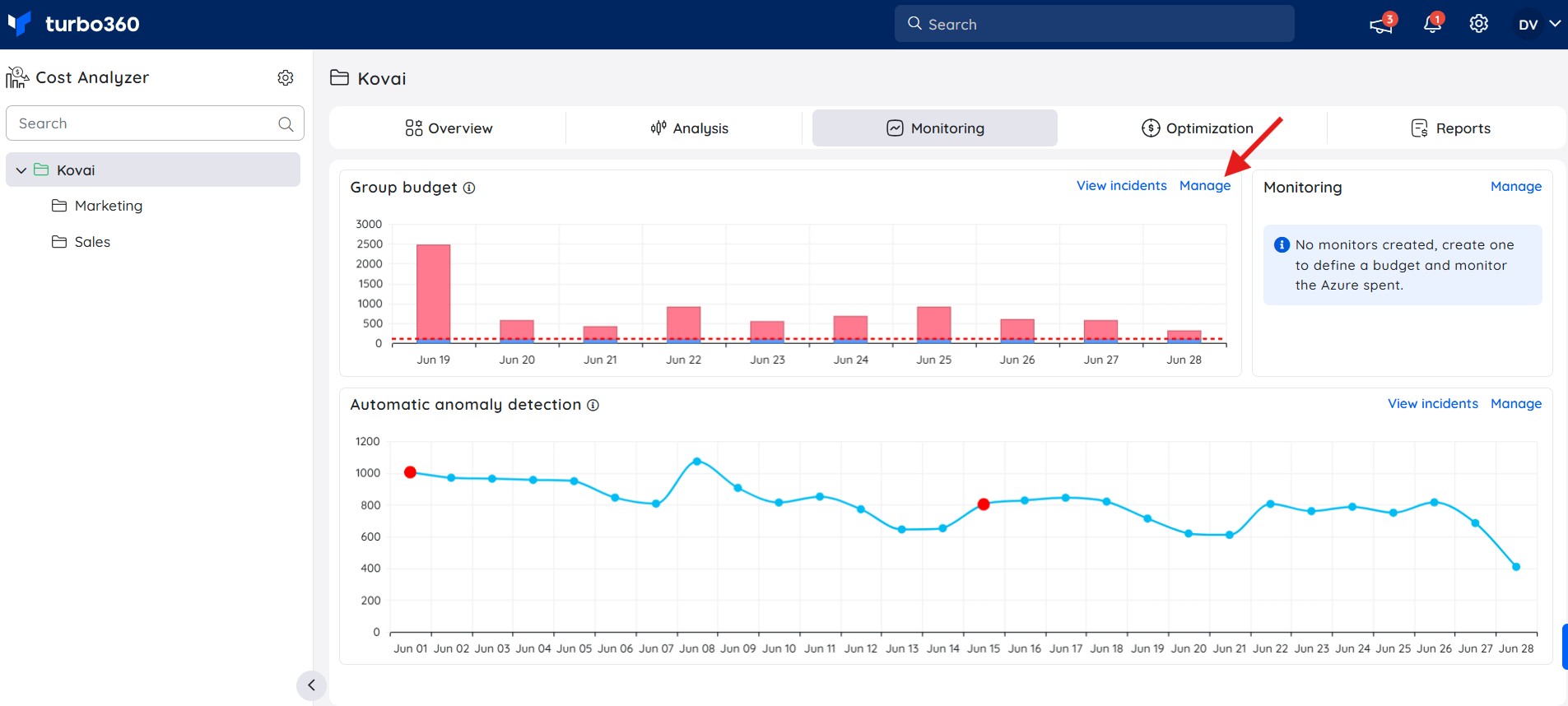
Monitoring
Monitoring lets you define your own cost monitoring rules beyond standard budget thresholds. Set conditions based on specific metrics, time intervals, or resource scopes — such as VM costs only or costs associated with a specific tag — to trigger alerts for scenarios not covered by group budget monitoring.
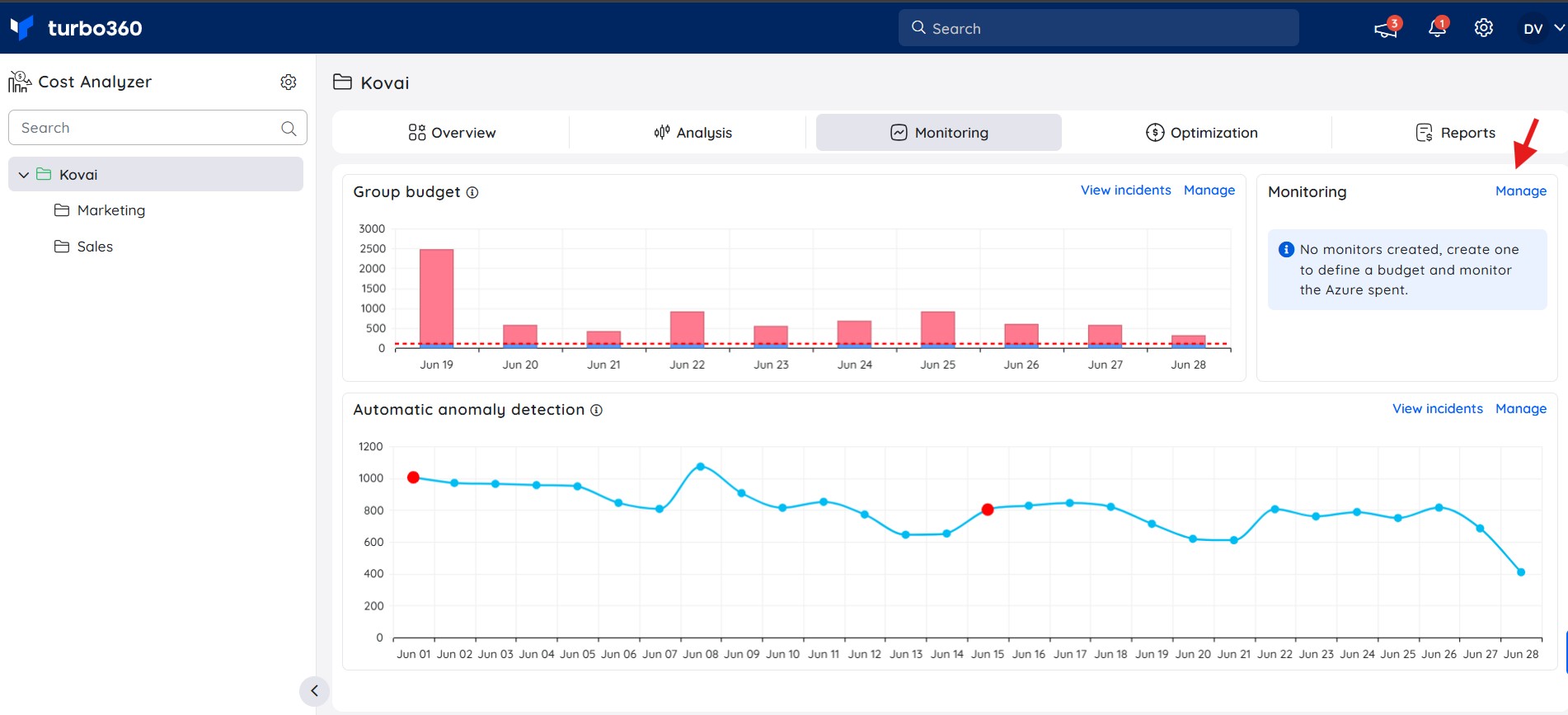
Anomaly detection
Anomaly detection automatically identifies unusual cost spikes within a cost management group at daily intervals. It uses a standard deviation model based on the past 30 days of cost data to flag deviations. Anomaly detection activates automatically when a cost management group is created.
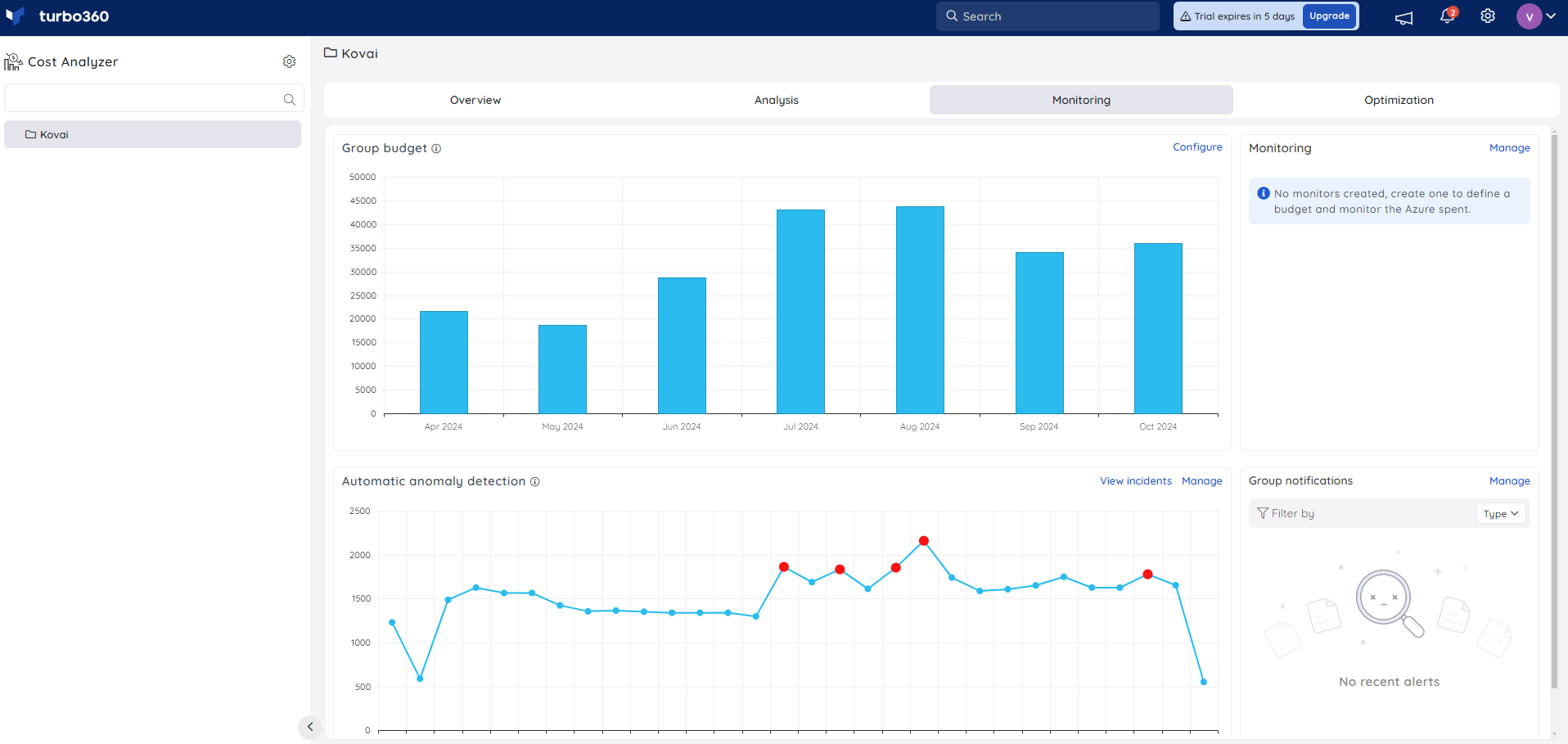
FAQs
Group budget vs Monitoring — what's the difference?
Group budgets let you set a monthly spending limit for a cost management group and receive alerts when budget thresholds are crossed. Monitoring offers more advanced, rule-based alerting with filters such as subscription, resource type, resource group, and tags, enabling more granular cost monitoring.Can multiple monitoring types run on the same cost management group?
Yes. Budget planner, Group budget, Custom monitoring, and Anomaly detection can all be active simultaneously on the same cost management group.Where do alert incidents appear?
Monitoring incidents are listed in the Incidents tab of each configured monitor. Group budget incidents are available through the View incidents option on the corresponding Group budget card, showing alerts generated for that budget.
Related articles
Was this article helpful?