

Budget planner
- 05 Aug 2026
- 5 Minutes to read
- Print
- DarkLight
- Download PDF
Budget planner
- Updated on 05 Aug 2026
- 5 Minutes to read
- Print
- DarkLight
- Download PDF
Article summary
Did you find this summary helpful?
Thank you for your feedback!
Overview
Budget planner in Cost Analyzer helps you plan and forecast Azure spending by analyzing historical cost trends and projecting future costs. You can define planned cost targets or apply growth percentages to estimate future spending and compare projections with actual costs before budget overruns occur.
Business value
Budget planning based only on historical spending often results in unexpected cost overruns. Budget planner provides finance and cloud operations teams with a forward-looking view of Azure costs, enabling them to:
- Set realistic spending targets.
- Identify budget deviations early.
- Take corrective action before budgets are exceeded.
- Reduce manual budget planning through forecasting and automated alerts.
Prerequisites
Required permissions
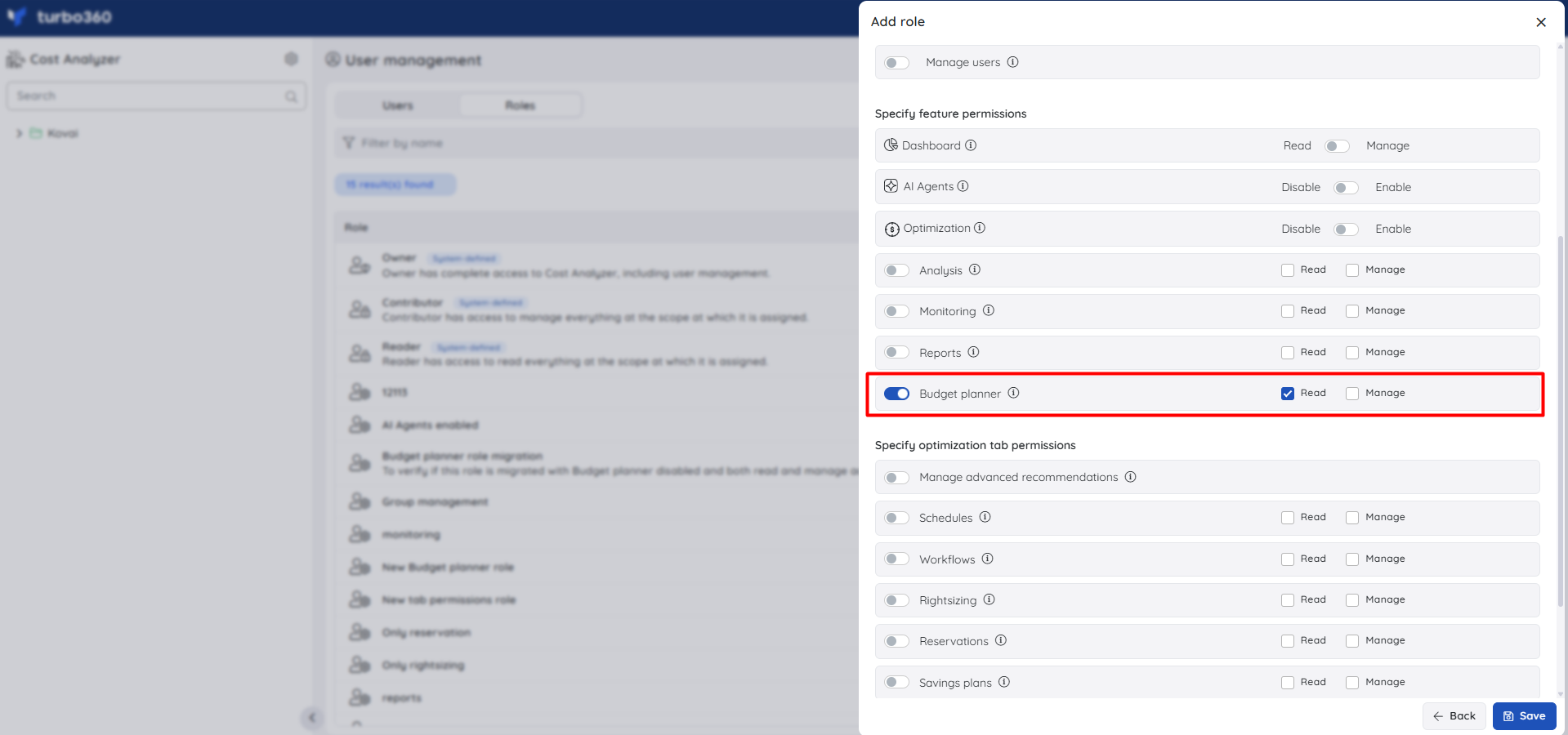
The Budget planner toggle must be enabled for the cost group role before users can access it. To enable the toggle, an administrator must edit the role in role management.
| Role | Access |
|---|---|
| Account owner, Owner, Contributor | Full access — can view and configure Budget planner |
| Custom role with Read | Can view cost trends based on configured growth rates; cannot configure |
| Custom role with Manage | Can configure planned costs, growth rates, and alerts |
How it works
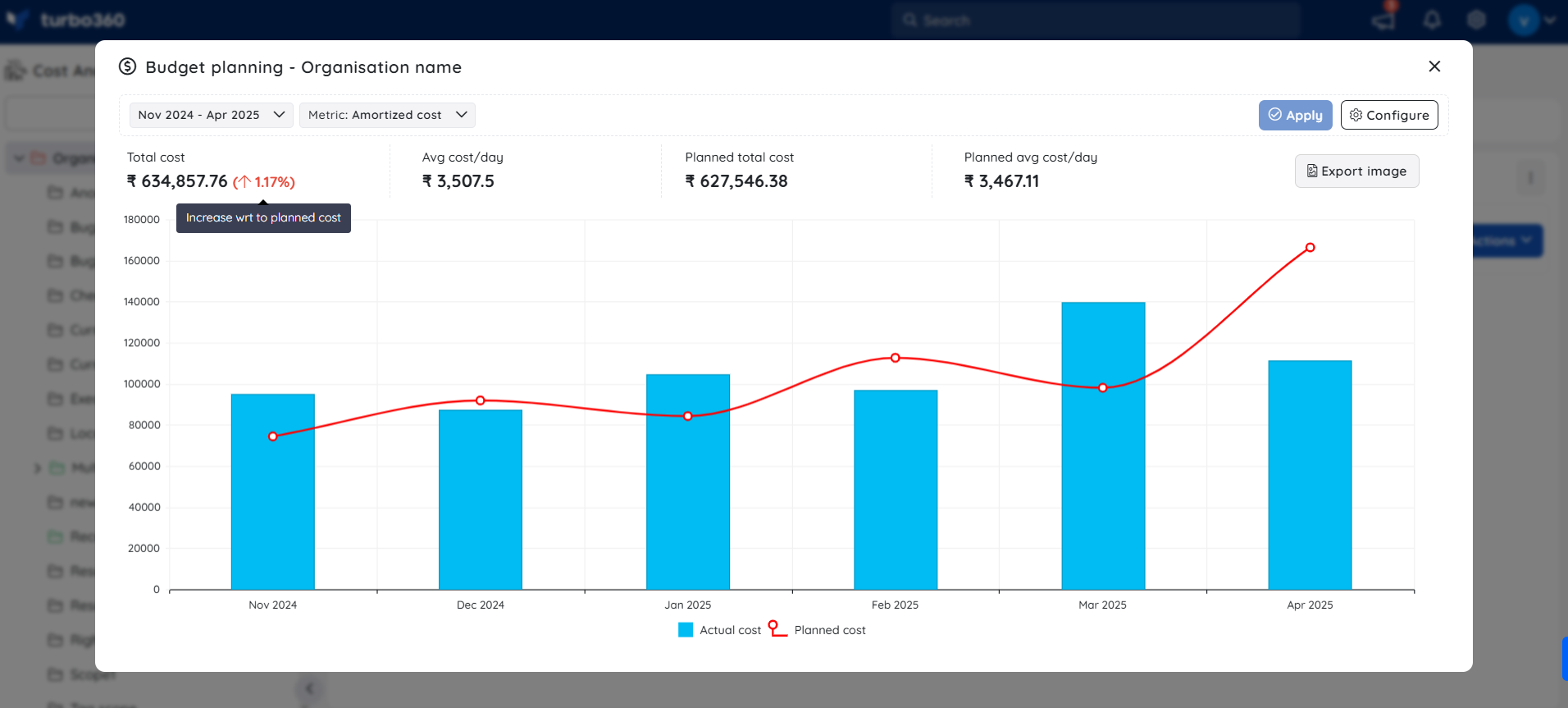
Budget planner overlays projected costs on the cost trend chart using a red line. Projections are based on either:
- A planned cost amount, or
- A user-defined growth percentage.
The chart supports monthly, quarterly, and yearly planning periods.
The chart displays:
- Total cost — actual spend for the selected period
- Avg cost/day — the daily pace of expenditure
- Planned total cost — the projected total based on your configured targets
- Planned avg cost/day — the projected daily average based on configured targets
You can export the cost trend visualization using the Export image button to include it in business presentations or reports.
ML-powered forecasting
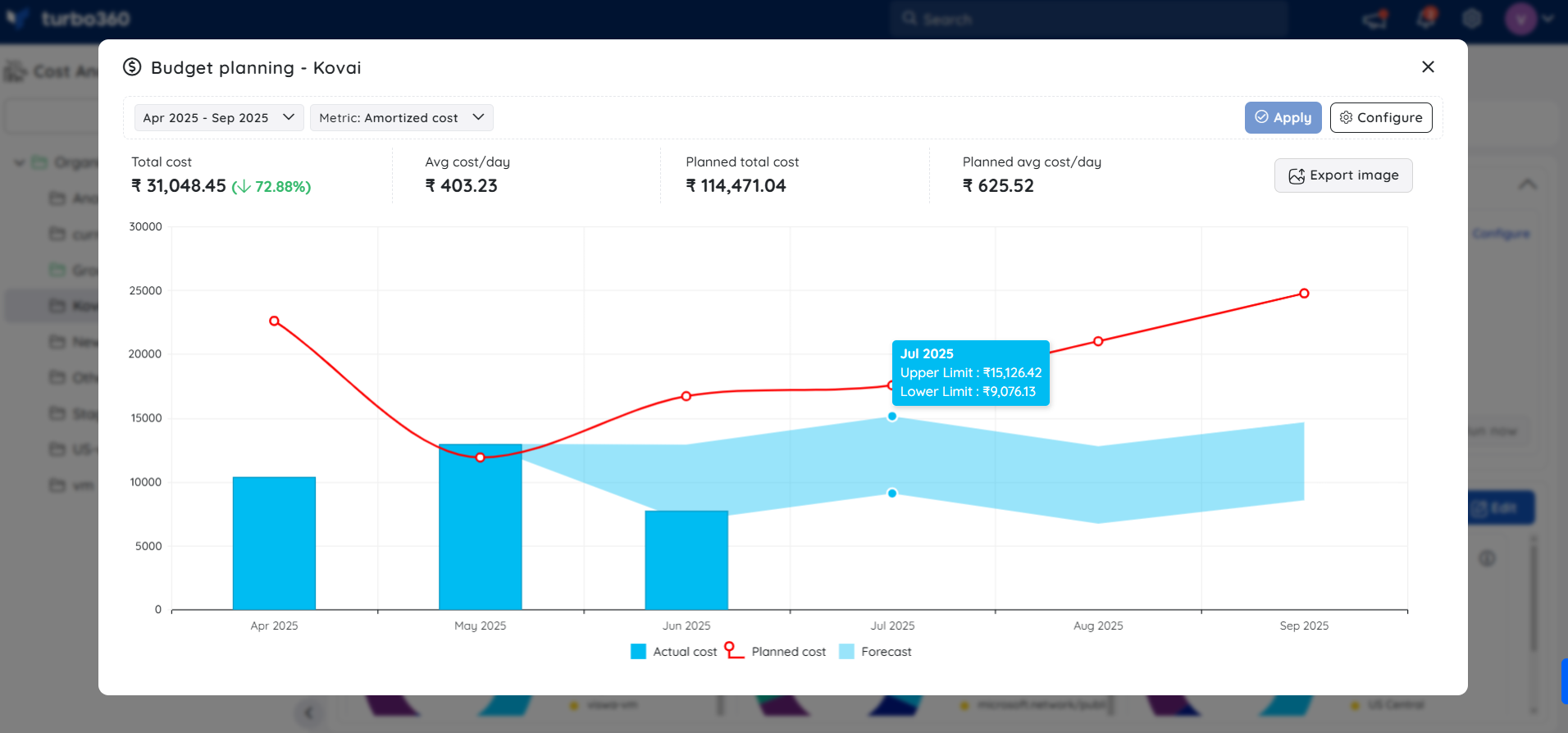
ML-powered forecasting uses historical spend patterns to project a range of possible outcomes for upcoming months — instead of a single estimate, you see an upper and lower bound. This helps you gauge budget risk before it materialises.
Forecasting is available for the current and future months only. Past months show actual cost data and are not eligible for forecast overlays.
Each forecast range includes:
- Upper limit — the high-end projection, based on optimistic spending trends
- Lower limit — the low-end projection, based on conservative or risk-prone trends
Example
Current date: June 16, 2025
Selected interval: April 2025 to September 2025
Steps
Use the following steps to configure projected costs or growth rates and set up monitoring alerts in Budget planner. Navigate to the relevant cost group in the tree view to get started.
Configure projected costs or growth rates
Configuring a planned cost or growth rate overlays a projected spend line on the cost trend chart, giving your team an early warning when actual costs approach or exceed the target.
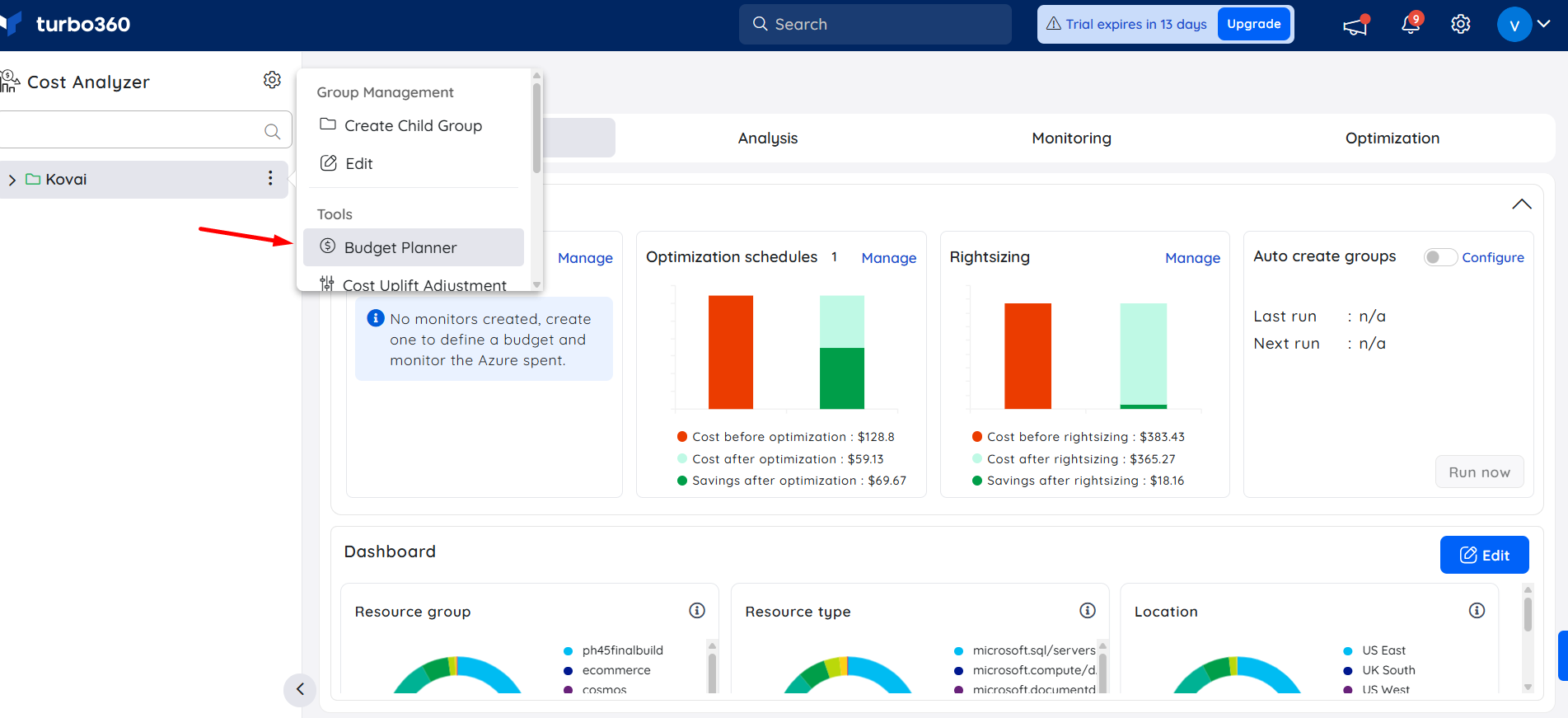
- Click the Context menu ( ⋮ ) next to the required cost group in the tree view.
- Select Tools > Budget planner.
- Click Configure to open the configuration panel.
- Click + Add config, choose the target month, and enter either a planned cost amount or a growth percentage relative to the previous month.
- Optionally, add a note for context or justification.
- Click Apply to save the configuration and overlay the projected cost line on the chart.
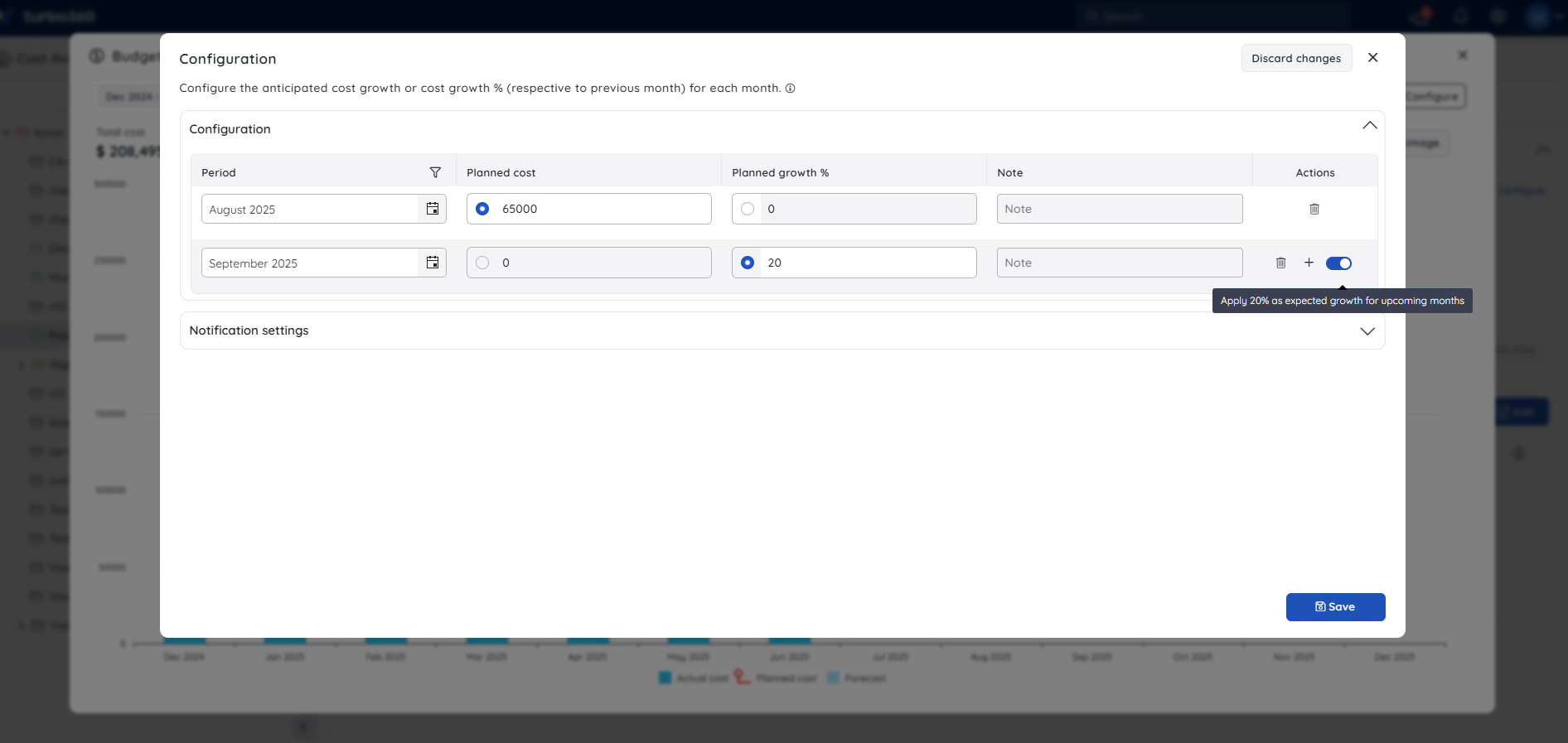
Amortized cost is used for budget calculations. Actual cost can be used for reviewing trends without affecting budget calculations.
Configure monitoring alerts
Configuring monitoring alerts enables Budget planner to notify your team automatically when actual Azure spending exceeds the planned cost or growth percentage for the month.
Budget planner supports automated alerts that compare actual Azure spending against your planned costs or growth percentages. Alerts are triggered when monthly spend exceeds the configured plan.
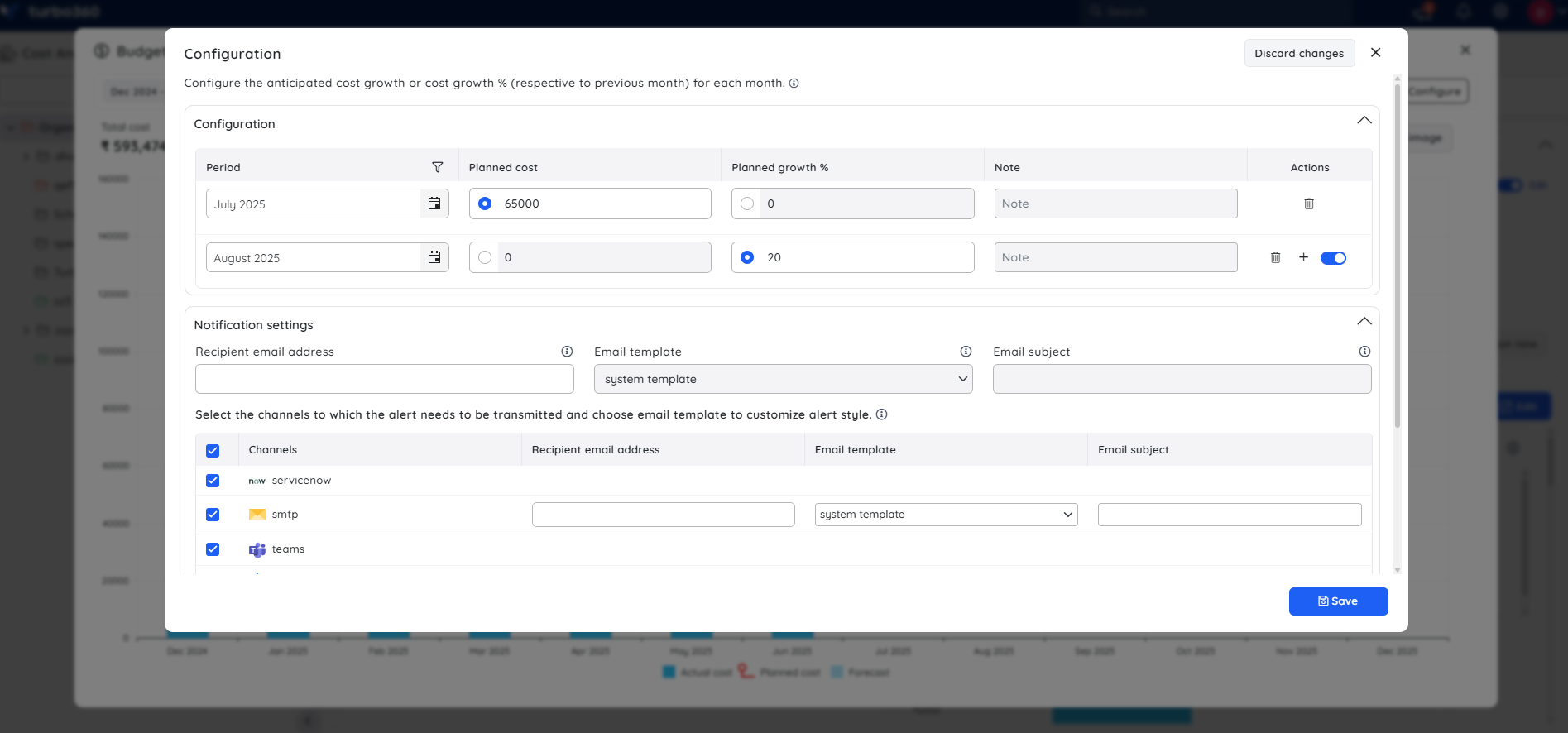
- Click Configure on the Budget planner chart for the cost group.
- In the Notification settings section, enter a recipient email address and select an email template.
- Select one or more notification channels from the list (Teams, Slack, PagerDuty, webhook, Jira, and others).
- Click Save.
Alerts are sent to the configured channels when thresholds are breached.
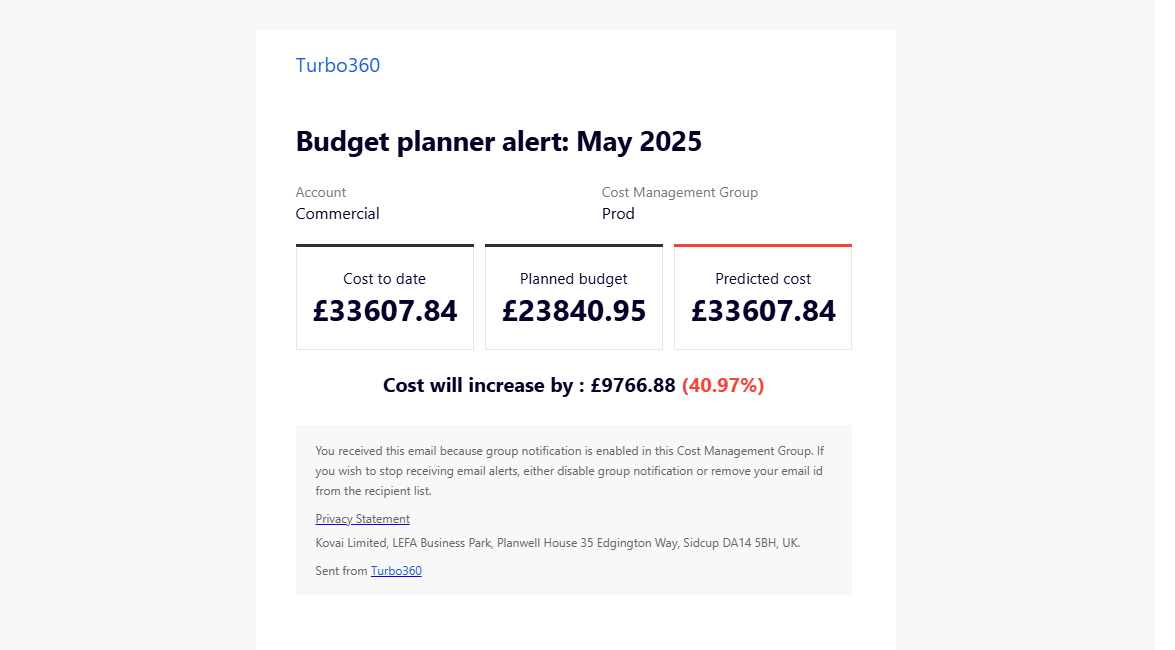
Sample alert
The screenshot below shows a Budget planner alert email summarizing actual spend, planned budget, projected costs, and forecast deviations.
Permission behavior
Access to Budget planner is governed by role-based access control (RBAC) within the cost management group. The Budget planner toggle must be enabled before granting access during role management.
| Access level | What the user can do |
|---|---|
| Read | View cost trends based on configured growth rates |
| Manage | Configure planned costs or growth rates and manage alerts |
Example scenario
A cloud operations team notices Azure spending has increased by 10% month over month due to workload growth. To prepare for additional service onboarding, they configure a 25% projected growth rate for the affected cost group.
Budget planner immediately overlays the projected cost trend using a red line, allowing the team to compare projected and actual spending. When actual spend exceeds the planned budget during the month, an alert is triggered, enabling the team to investigate before the billing cycle ends.
Troubleshooting
Budget planner option is not visible in the Tools menu
Cause: The Budget planner toggle has not been enabled for the cost group role.
Fix: Ask your administrator to enable the Budget planner toggle in role management for the cost group.Planned cost configuration is not reflected in the chart
Cause: The configuration may not have been saved, or the selected month does not match the chart's active time range.
Fix: Confirm the configuration was saved and that the chart time range includes the configured month.Alerts are not being received after threshold is breached
Cause: Notification channels may not be configured, or the alert was not saved.
Fix: Open the Budget planner configuration panel, verify the notification channels are selected under Notification settings, and click Save.Forecasting is not visible on the chart
Cause: Forecasting only applies to the current and future months. If the selected time range is entirely in the past, no forecast overlay is shown.
Fix: Extend the time range to include the current or a future month.
FAQs
What cost type is used for budget calculations?
Amortized cost is used for budget calculations. You can use actual cost for trend review without affecting budget calculations.Can I configure planned values for multiple months?
Yes. Each month is configured individually. Click + Add config in the configuration panel for each month you want to target, and enter the planned cost or growth percentage for that month.Who can configure Budget planner for a cost group?
Users with Manage access to the cost group can configure planned costs, growth rates, and alerts. Users with Read access can view cost trends but cannot make changes. Account owners, Owners, and Contributors have full access by default.
Related articles
Was this article helpful?