

Views and navigation
- 05 Aug 2026
- 2 Minutes to read
- Print
- DarkLight
- Download PDF
Views and navigation
- Updated on 05 Aug 2026
- 2 Minutes to read
- Print
- DarkLight
- Download PDF
Article summary
Did you find this summary helpful?
Thank you for your feedback!
Overview
The Business Applications module provides two ways to view and navigate your applications and groups. You can switch between a card view and a list view when working with individual Business Applications, and use a dedicated group overview to navigate hierarchical Business Application Groups. A tree search lets you locate any application or group quickly across large datasets.
Business value
Flexible view options and group navigation reduce the time it takes to assess application health at a glance, manage high-priority applications, and drill into nested group structures — without losing context as your application portfolio grows.
How it works
Business Application views
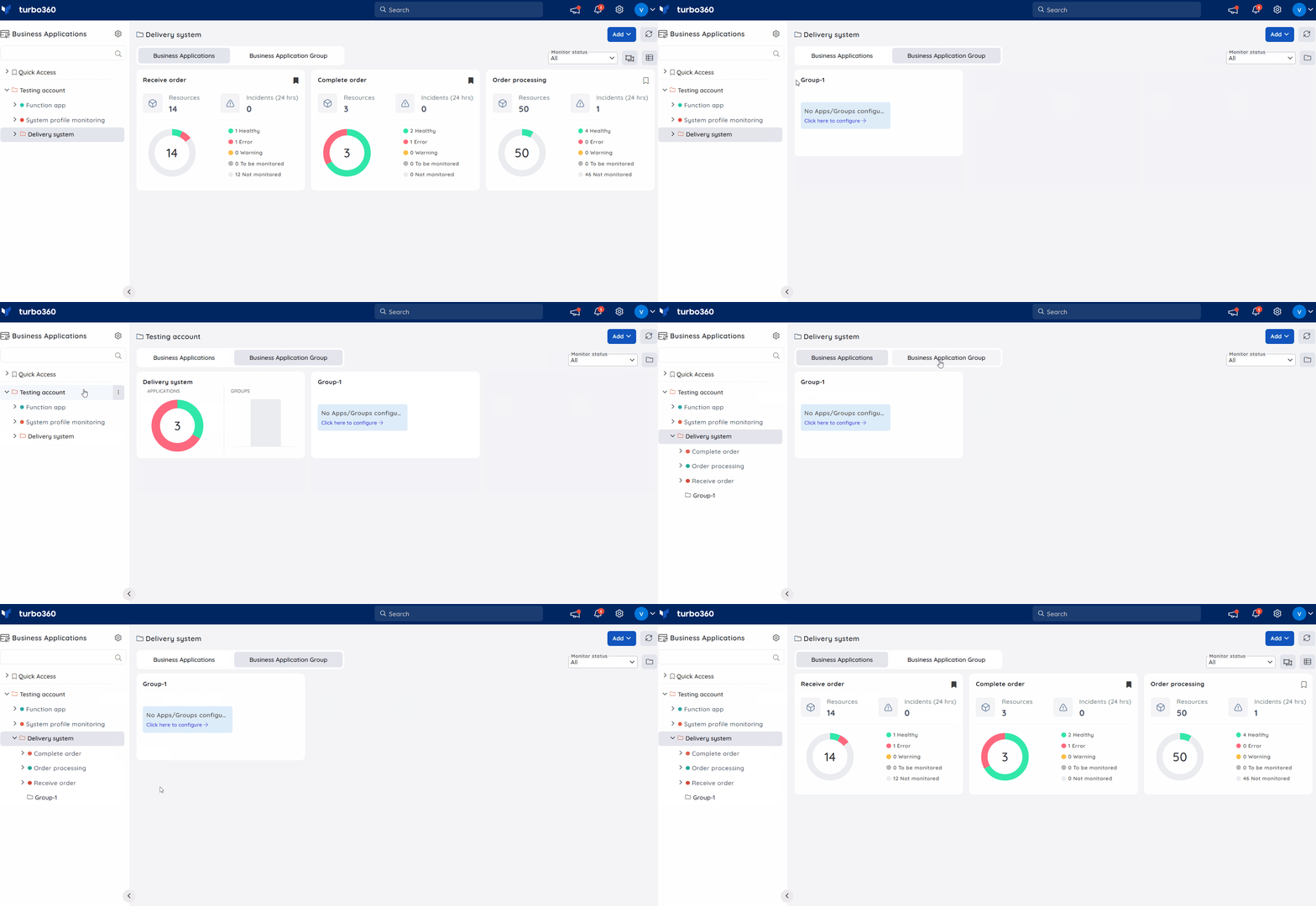
When you open the Business Applications module, you can toggle between two display modes for individual Business Applications:
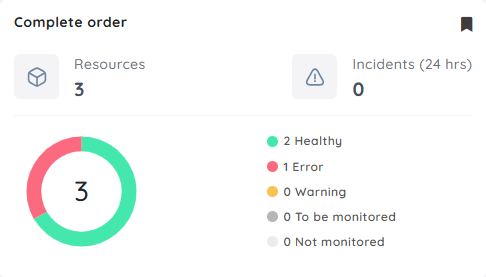
- Card view displays each Business Application as a card showing the number of associated resources and their aggregated monitoring status. Each card also includes a monitoring summary and a Quick Access option for marking high-priority Business Applications.
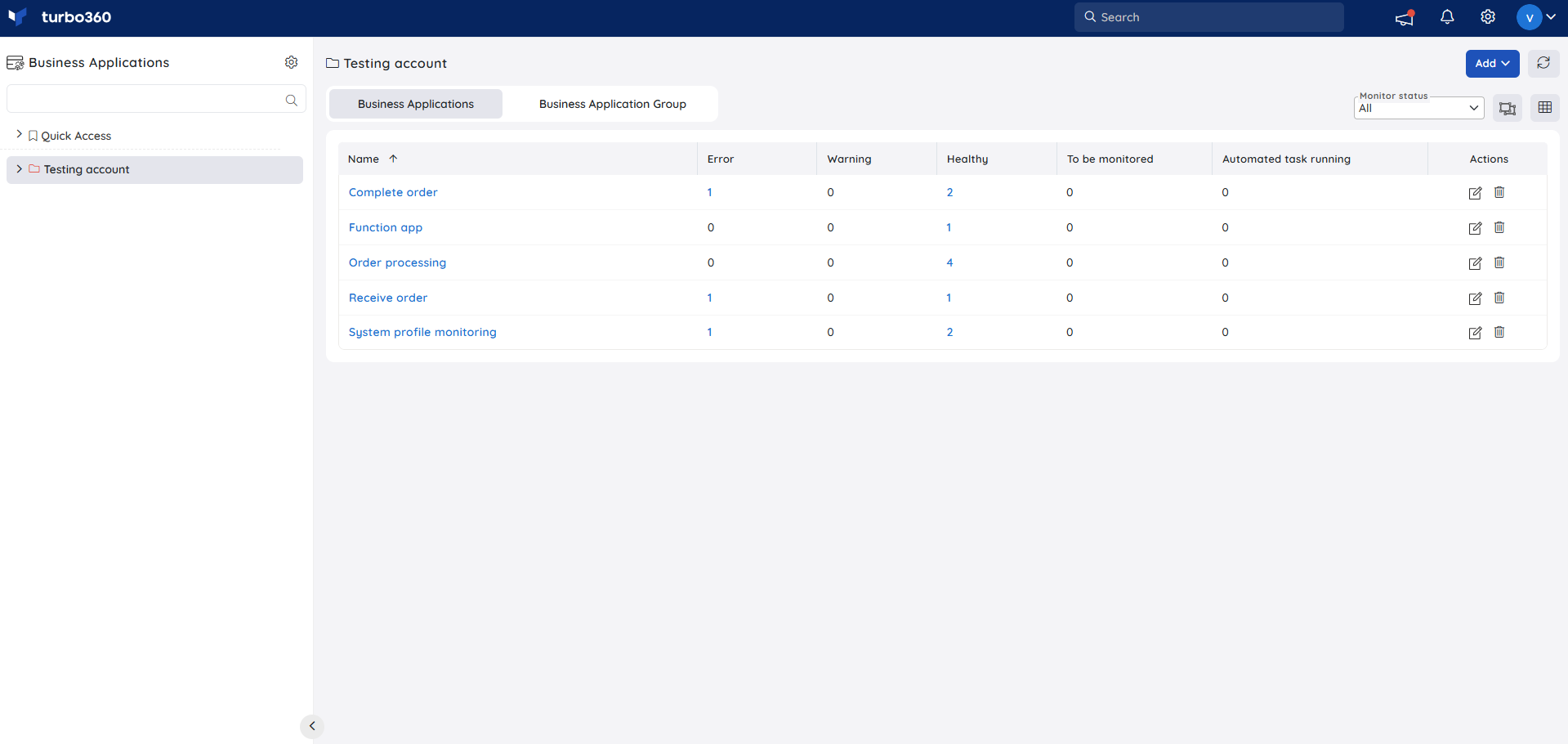
- List view presents Business Applications in a tabular format showing the consolidated monitoring status of associated resources. From the list view you can also update or delete an existing Business Application.
Business Application Group overview
The Business Application Group overview is divided into two sections: Business Applications and Business Application Groups.
Business Applications section
This section lists all Business Applications present in the selected group. You can filter the list by monitoring state.
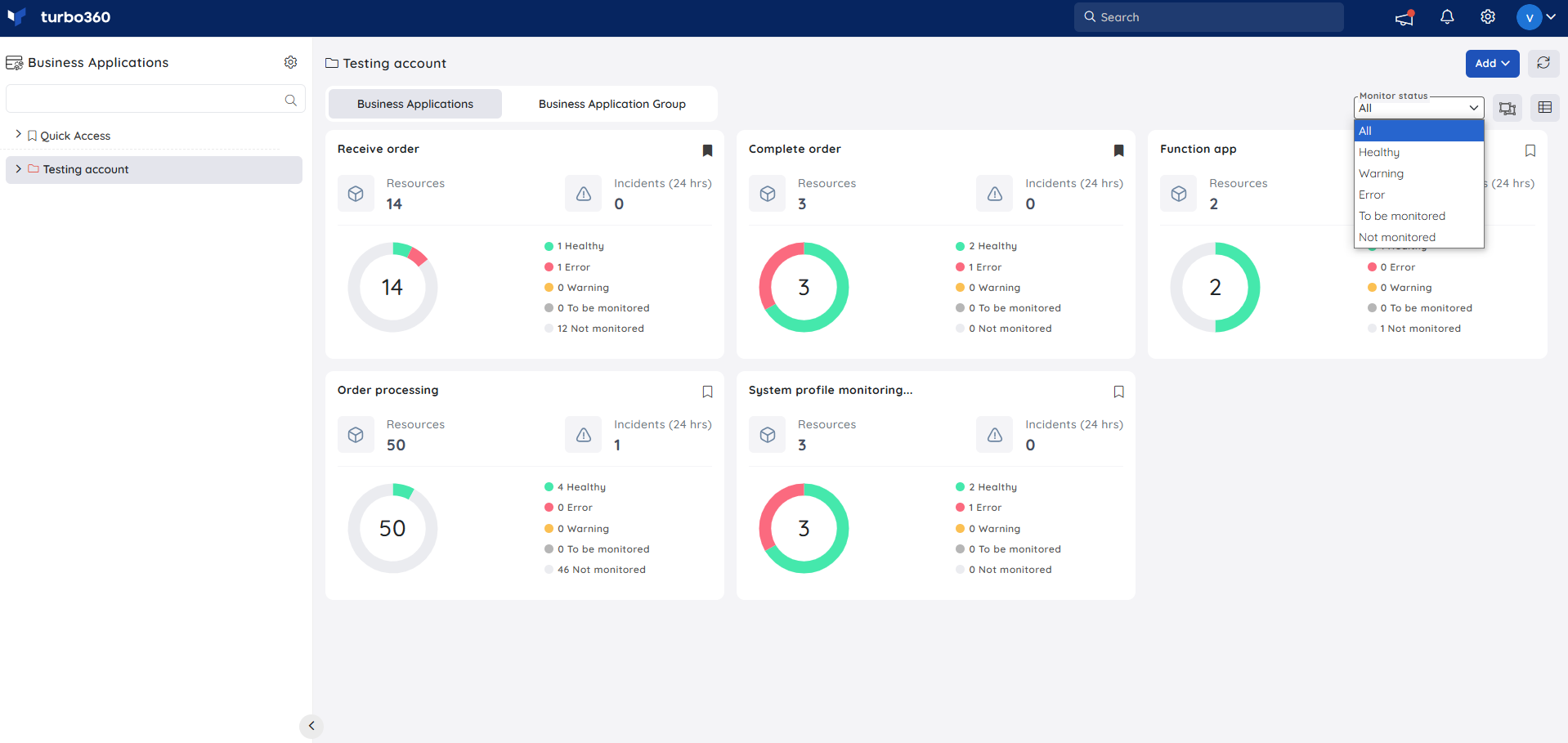
Two display modes control which applications are shown:
 View Child Applications — shows only the immediate child Business Applications in the group. Business Applications nested within sub-groups are hidden.
 View All Applications — shows all Business Applications in the group, including those nested within sub-groups.
Business Application Groups section
This section lists all groups within the selected Business Application Group. You can filter the list by monitoring status. Each group card shows the total count and aggregated monitoring status of the Business Applications and sub-groups it contains.
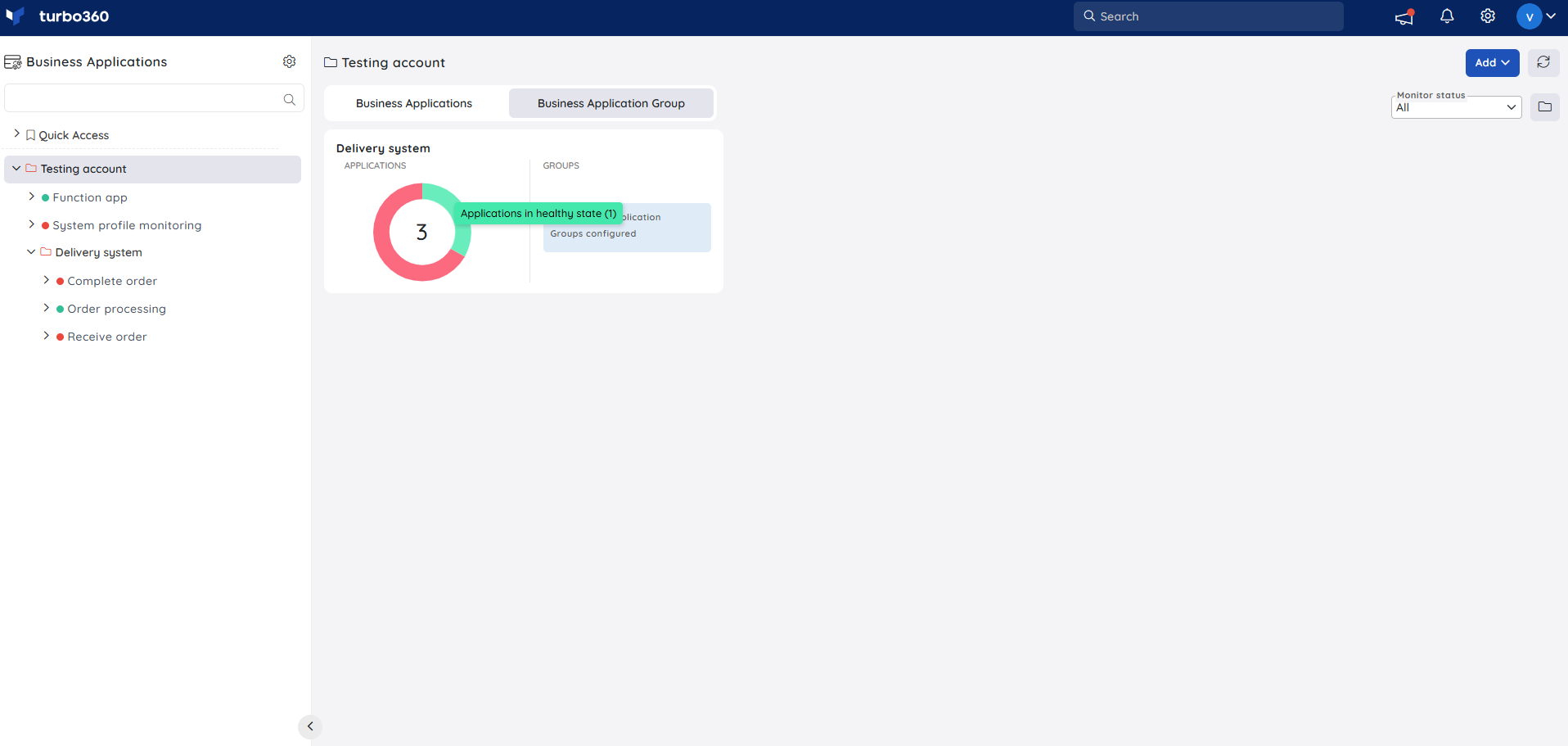
Two display modes control which groups are shown:
 View Child Groups — shows only the immediate child groups within the selected group. Sub-groups of those child groups are hidden.
 View All Groups — shows all groups within the selected group, including immediate child groups and their sub-groups.
Clicking a group card navigates into that group and refreshes both sections to show the applications and sub-groups it contains.
Tree search
Use the tree search to locate any Business Application or Business Application Group node by name across large datasets.
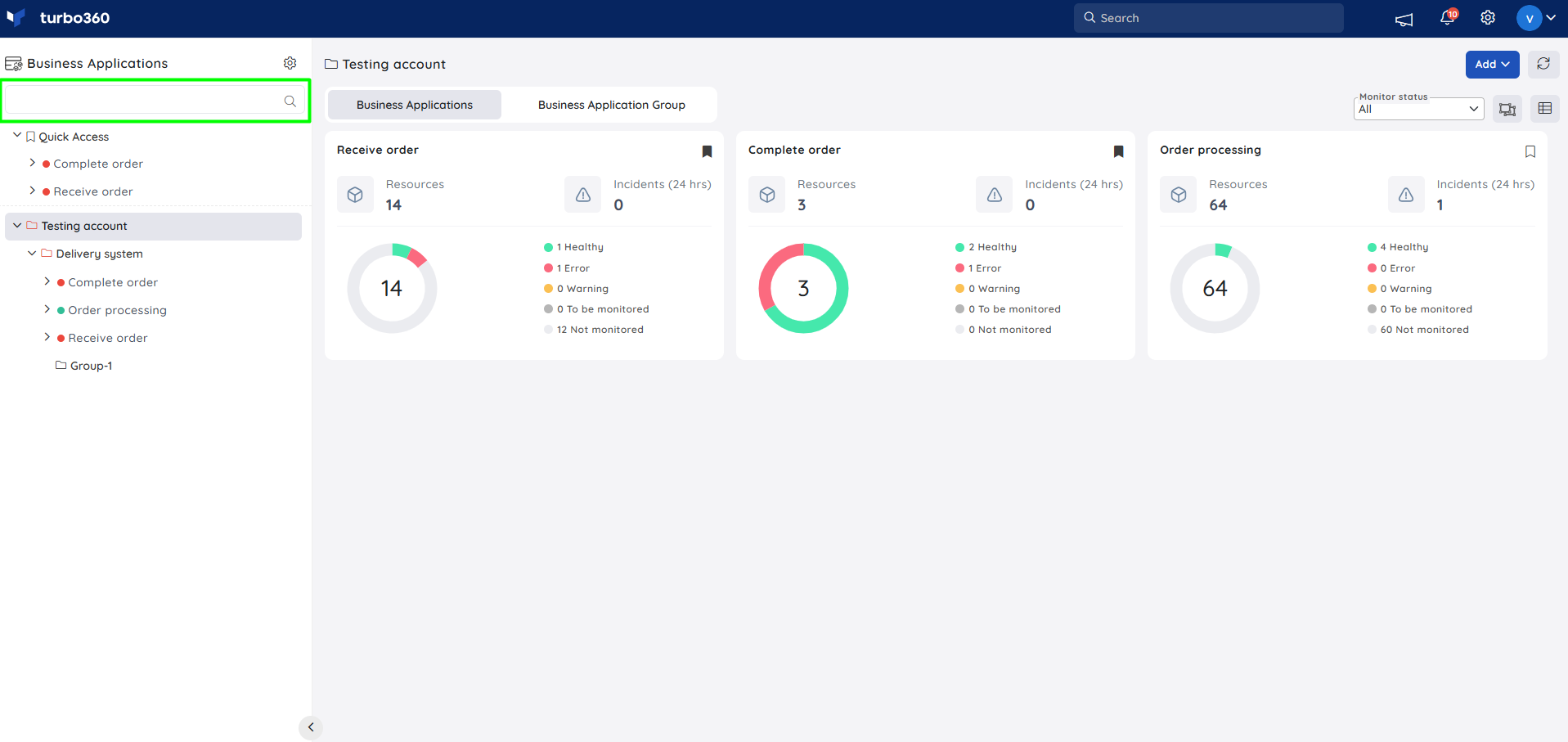
The tree search filters Business Application and group nodes only. To filter by resource name within a Business Application, use the search in the top navigation bar.
Related articles
Was this article helpful?