

Business Applications quick start
- 05 Aug 2026
- 6 Minutes to read
- Print
- DarkLight
- Download PDF
Business Applications quick start
- Updated on 05 Aug 2026
- 6 Minutes to read
- Print
- DarkLight
- Download PDF
Article summary
Did you find this summary helpful?
Thank you for your feedback!
Overview
This guide walks you through setting up Business Applications for the first time — from creating your first business application to configuring monitoring and alerts. Business Applications in Turbo360 lets you group and monitor Azure resources that together deliver a business capability.
Business value
Business Applications gives operations teams a logical view of Azure infrastructure organized around business outcomes rather than individual resources. Getting started quickly means your team gains health visibility across services, enabling faster incident response and proactive monitoring.
Prerequisites
Before you begin, ensure the following are in place:
- A Turbo360 account with an active organization
- One or more Azure subscriptions connected to Turbo360, each with a configured service principal
- A service principal with Reader access on each target subscription
- The Business Applications module enabled on your Turbo360 plan
- Azure resources already provisioned in the subscriptions you want to monitor
Required permissions
| Permission | Details |
|---|---|
| Turbo360 role | Account Owner, Owner, or Contributor (full privileges); BAM module-specific roles) |
| Azure role | Reader on the subscription or resource group containing the resources to monitor |
Dependencies
- Azure subscription connected to Turbo360 (see Connect Azure subscription)
- Service principal configured with Reader access on each target subscription
How it works
A business application is a logical container that groups related Azure resources — such as Logic Apps, Service Bus namespaces, API Management instances, and Azure Functions — that together support a single business process or application.
A business application can include resources from subscriptions managed by different service principals, enabling cross-subscription monitoring within a single application. You define the resources that belong to the application, configure monitoring rules for each resource, and set up escalation policies and notification channels for alerts.
Turbo360 then continuously monitors the health and performance of those resources and surfaces issues through the Business Applications dashboard.
The same Azure resource can be associated with multiple business applications simultaneously, each with its own independent monitoring rules.
The total number of Azure resources you can associate across all business applications is governed by the purchased resource limit for the Business Applications module — there is no separate restriction on how many resources a single business application can contain.
Automatic resource association (automapping) is not restricted by resource type and applies across all supported Azure resource types.
Steps
Step 1 — Create a business application
- In Turbo360, navigate to Business Applications.
- Select New business application.
- Enter a name and description for the application.
- Select the Azure subscription that contains the resources you want to include.
- Select Save.
.png)
Step 2 — Add resources to the application
- Open the business application you just created.
- Select Resources > Add resource.
- Choose the resource type (for example, Logic App, Service Bus, or Azure Function).
- Select the specific Azure resource from the list.
- Repeat for all resources that belong to this application. Resources from different subscriptions and service principals can be added to the same application.
- Select Save.
.png)
Step 3 — Configure monitoring rules
Monitoring rules are configured from the Monitoring tab within a business application. Select Monitoring, then open the Settings sub-tab. Two types of rules are available:
Resource rules
Resource rules define monitoring conditions at the individual resource level. Each business application has a single resource rules entry that covers all resource-level rule configuration.
- In the Settings tab, locate the Resource rules row.
- Use the Disable/Enable toggle to activate or deactivate resource-level monitoring for the application.
- Select the Settings icon to configure alert settings for rules monitored via Resource rules.
- Select the Edit icon to configure the individual resource rules — set thresholds, metrics, and alert conditions for each resource type in the Business Application.
Monitoring profiles
Monitoring profiles let you define reusable sets of monitoring rules that can be applied to the business application. Multiple profiles can be configured and independently enabled or disabled.
- Select Apply profile to attach an existing monitoring profile to the application.
- Each profile appears as a row in the profiles table with its name, description, and a Disable/Enable toggle.
- Use the Settings icon to configure the resource selection and alert settings for the applied profile.
- Use the Edit icon to modify the profile rules directly from the Business Application which will be reflected across the entire Business Applications module.
- Use the Delete icon to remove a profile from the application.
.png)
Step 4 — Test an alert
- Trigger a condition that meets your monitoring rule threshold (for example, cause a Logic App run to fail).
- Wait for the evaluation interval to elapse.
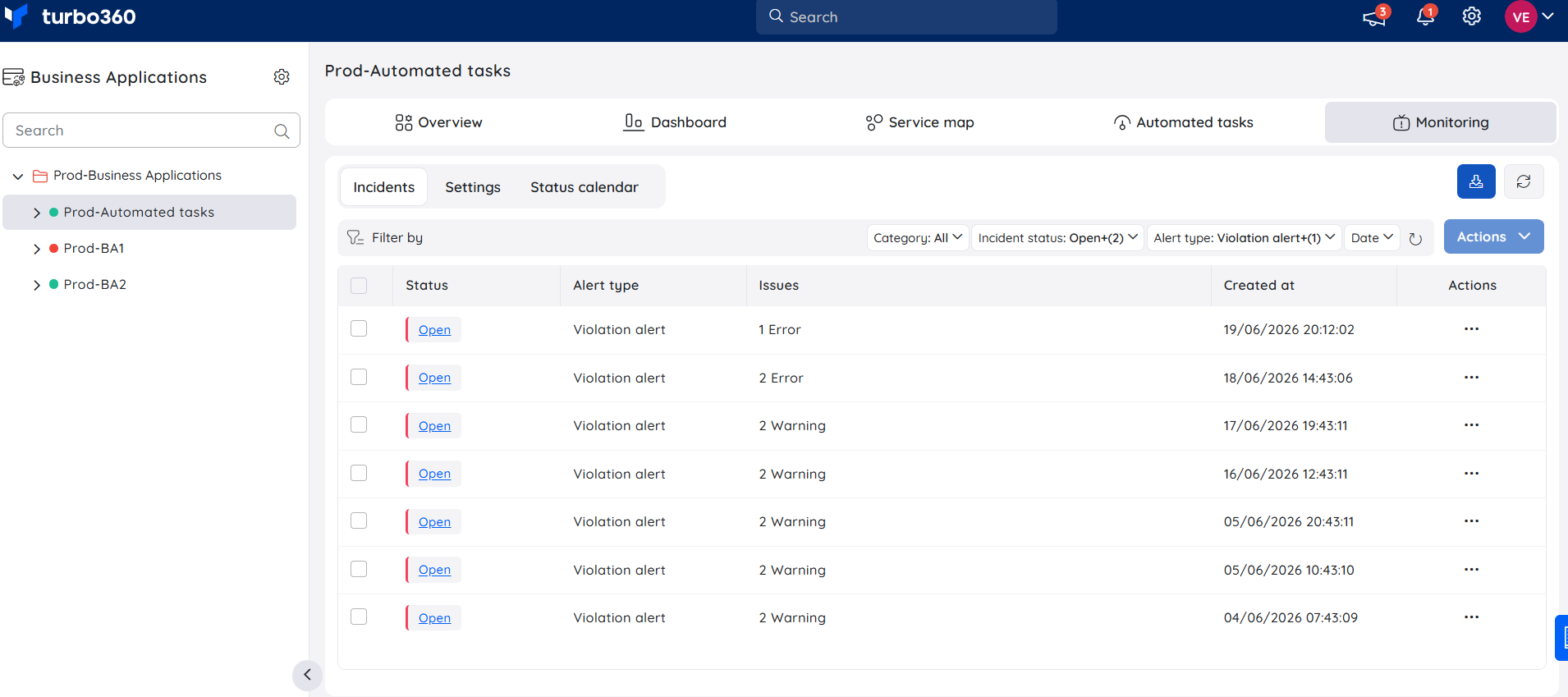
- Confirm an alert is raised in the Monitoring > Incidents tab
Configuration
| Option | Type | Default | Required | Description | Allowed values |
|---|---|---|---|---|---|
| Application name | Text | — | Yes | Display name for the business application | Any string |
| Subscription | Dropdown | — | Yes | Azure subscription containing the monitored resources | Any connected subscription |
| Resource rules | Toggle | Enabled | No | Enables or disables all resource-level monitoring rules for the application | Enabled, Disabled |
| Monitoring profile | Dropdown | None | No | Reusable profile containing a set of monitoring rules to apply to the application | Any configured monitoring profile |
| Escalation policy | Dropdown | None | No | Policy that controls how alerts are escalated | Any configured escalation policy |
Permission behavior
With access: Users with Business Applications Admin or Viewer roles can view business applications, resource health, and alert history for applications assigned to their access scope.
Without access: Users without a Business Applications role cannot see the Business Applications module in the navigation. Application and resource data is not accessible until role assignment is completed.
Example scenario
Your team supports an order processing system built on Logic Apps, Service Bus, and Azure API Management spread across two Azure subscriptions managed by different service principals. You create a business application called "Order Processing" and add resources from both subscriptions. You configure resource rules for Logic App run failures and apply a monitoring profile that covers Service Bus dead-lettered message thresholds. Within the first hour, a monitoring rule fires because a Logic App is experiencing repeated failures. Your on-call engineer receives the alert via the configured Teams notification channel and resolves the issue before it affects downstream systems.
Limitations
- Business Applications does not provision or modify Azure resources. It provides read-only monitoring of existing resources.
- The total number of Azure resources that can be associated across all business applications is governed by the purchased resource limit for the Business Applications module. Contact your account team to review or upgrade your resource limit.
- Alert delivery depends on notification channels being correctly configured. Misconfigured channels result in silent alert failures.
Troubleshooting
Resources are not appearing in the Add resource list
Cause: The service principal does not have Reader access on the subscription or resource group containing the resources.
Fix: Confirm Reader access on the target subscription or resource group and refresh the resource list.Monitoring rules are not triggering alerts
Cause: The resource rules or monitoring profile is disabled, or the rule threshold is misconfigured.
Fix: Check the Monitoring > Settings tab to confirm the relevant resource rules and profiles are enabled, and verify the configured thresholds.Alert history shows alerts but notifications are not received
Cause: The notification channel is inactive or misconfigured.
Fix: Verify the channel is active and correctly configured under Settings > Notification channels. Check for delivery errors in the channel's activity log.Business application dashboard shows resources as unhealthy immediately after setup
Cause: Some resource types take a few minutes to return their first health status.
Fix: Wait one evaluation cycle and refresh the dashboard.Cannot add a specific Azure resource type to the application
Cause: The resource type is not supported in Business Applications.
Fix: Confirm the resource type is supported. See Supported Azure resources for the full list.
Related articles
Was this article helpful?