

Carbon optimizer recommendations
- 05 Aug 2026
- 6 Minutes to read
- Print
- DarkLight
- Download PDF
Carbon optimizer recommendations
- Updated on 05 Aug 2026
- 6 Minutes to read
- Print
- DarkLight
- Download PDF
Article summary
Did you find this summary helpful?
Thank you for your feedback!
Overview
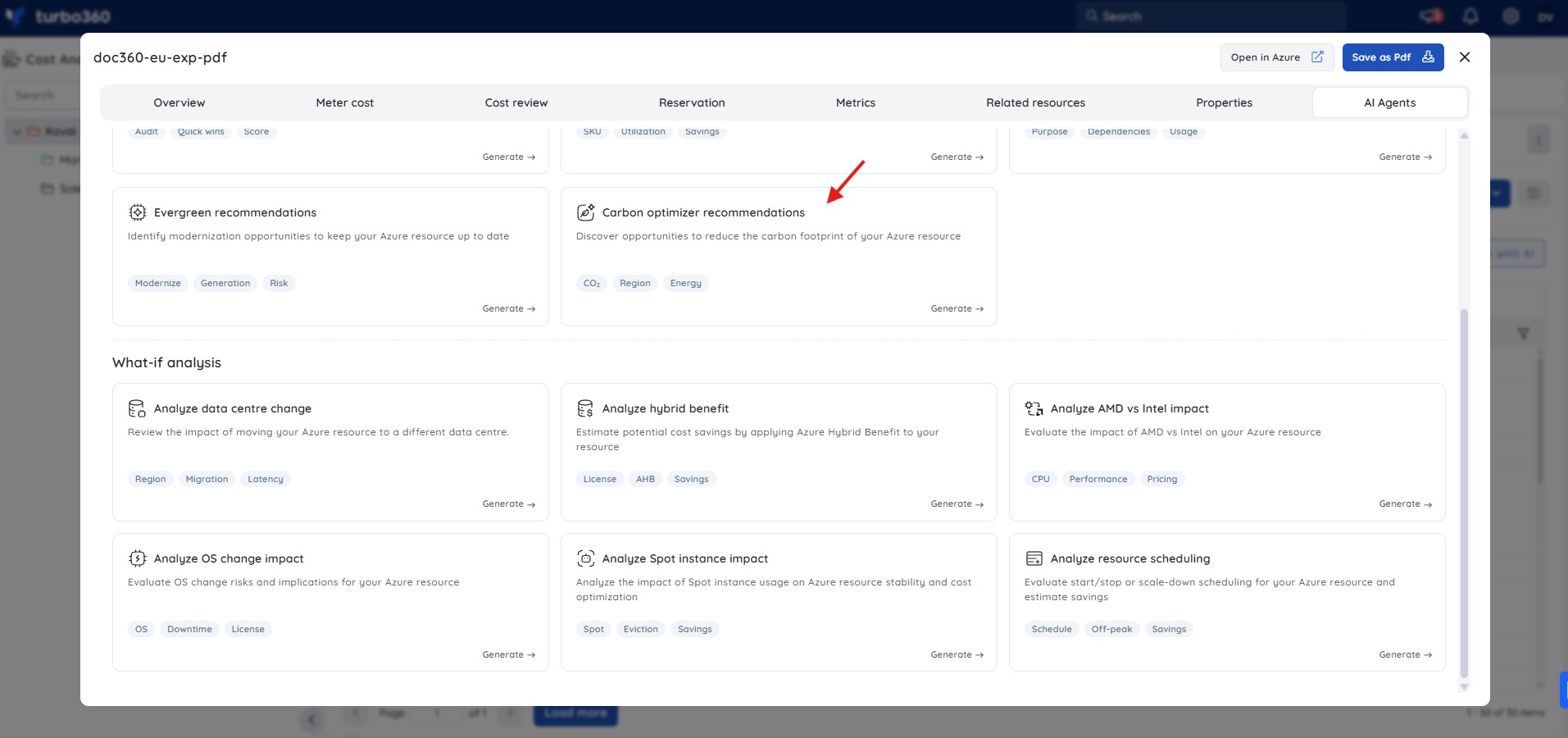
Carbon optimizer recommendations is an AI Agent in Cost Analyzer that analyzes Azure resources and provides actionable recommendations to reduce their carbon footprint. The agent evaluates workload behavior, cost patterns, region characteristics, and resource configuration to identify opportunities that balance sustainability, cost efficiency, and performance.
Business value
Surfacing carbon impact alongside cost and performance data helps you meet sustainability goals without trading off operational efficiency.
Prerequisites
- On Private Hosting deployments, an Azure OpenAI connection must be configured before this AI Agent can generate insights. See OpenAI setup in Turbo360 for setup instructions. SaaS deployments do not need this step.
Required permissions
Access requires both the AI Agents feature to be enabled for the role and Read access to the Analysis feature, since Carbon optimizer recommendations is surfaced from the resource-level Cost intelligence view within Analysis.
| Role | Permission level | Access |
|---|---|---|
| Account Owner / Owner / Contributor | Full access | Can use Analyze cost drivers on any resource |
| Custom role | AI Agents — Enable, Analysis — Read (or Manage) | When AI Agents is set to Enable and Analysis is toggled on with at least Read access, the user can view Carbon optimizer recommendations insights for resources within their assigned scope; if either is missing, the option is not available |
.jpg)
How it works
For each Azure resource, the AI Agent generates a structured sustainability summary containing the following insights:
- Current carbon footprint — an overview of resource configuration and region, usage and cost patterns, and estimated annual carbon emissions (CO₂e).
- Key carbon drivers — the primary factors influencing carbon emissions, such as resource sizing and utilization, region energy efficiency, runtime behavior, and configuration factors.
- Optimization opportunities — actionable, resource-specific suggestions to lower carbon impact, including rightsizing or configuration changes, scheduling and automation improvements, region optimization, reserved capacity or savings model adoption, and efficiency improvements based on service type.
- Carbon vs Cost trade-off — an explanation of whether the recommendation reduces both carbon and cost, improves sustainability with minimal cost trade-offs, or requires operational consideration.
- Estimated impact — projected emission reduction ranges to support decision-making and prioritization.
- Risks and constraints — operational risks such as performance impact, availability concerns, compliance limitations, or reduced flexibility.
Steps
To run a Carbon optimizer recommendations analysis, navigate to Cost Analyzer > Analysis, open a Cost management group, and select a resource from the analysis view to open its Cost intelligence panel.
- In the Cost intelligence panel for a resource, select the Carbon optimizer recommendations tab.
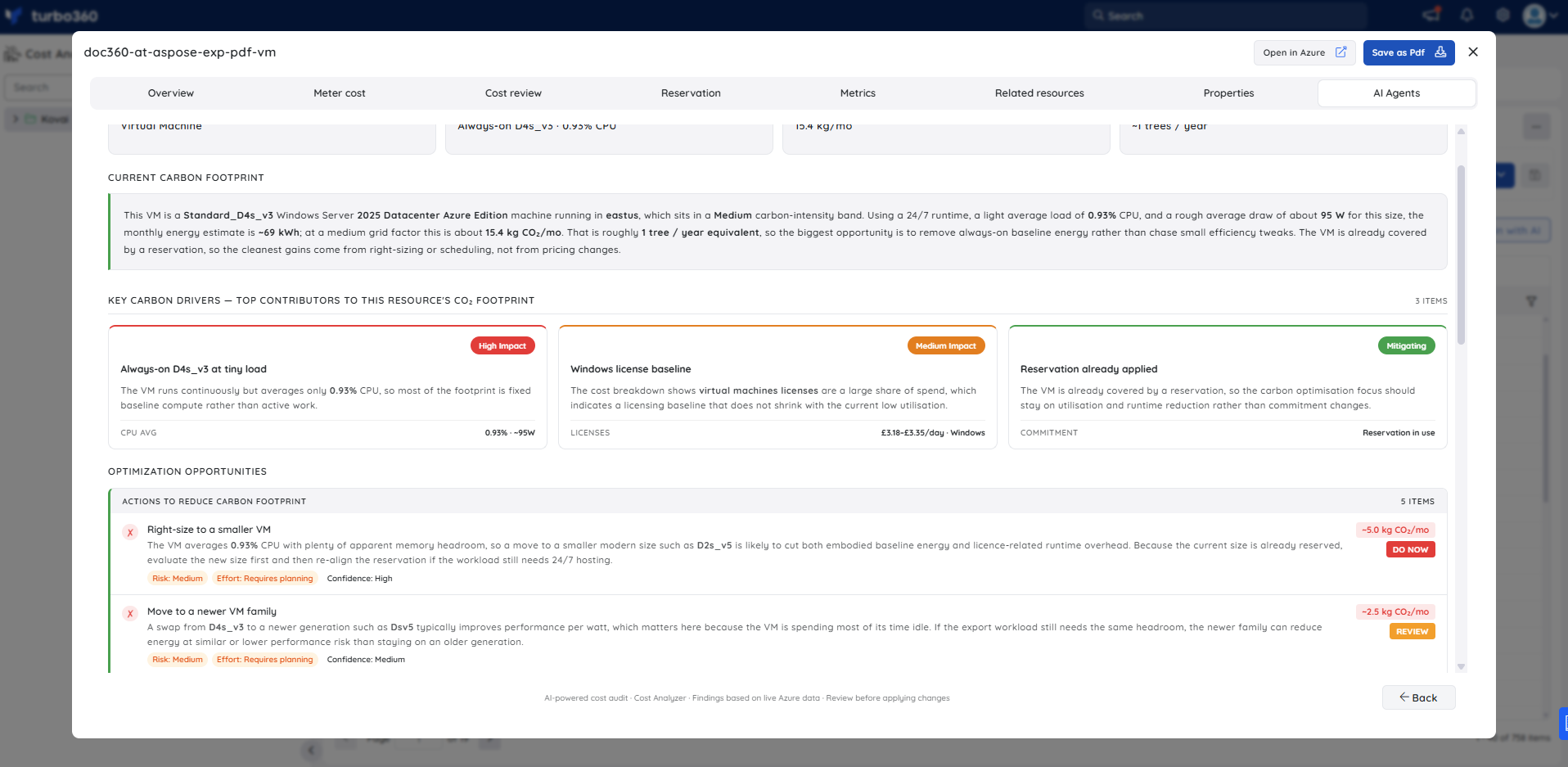
- Review the current carbon footprint summary, which shows the resource's estimated monthly CO₂ output, the top carbon driver, and the equivalent tree impact per year.
- Review the key carbon drivers — each driver is rated High, Medium, or Mitigating impact and explains which aspect of the resource's configuration or behavior contributes most to its footprint.
- Review the optimization opportunities, which are grouped by action priority (Do now, Review, Optional) and show estimated CO₂ savings per action alongside risk and effort ratings.
- Review the carbon vs cost trade-off summary to identify which actions reduce both carbon and cost, which are carbon-only improvements, and which are cost-neutral.
- Use the estimated impact table and the risks and constraints section to prioritize actions and plan any sizing, scheduling, or family changes alongside reservation alignment.
Example scenario
The example below is based on a Windows Virtual Machine (Standard_D4s_v3 in eastus) running an Aspose PDF export workload. The VM is always-on with an average CPU of 0.93%, placing it firmly in the low-utilization, high-footprint pattern.
Current carbon footprint — the agent estimates approximately 15.4 kg CO₂/month, equivalent to roughly 1 tree per year. This is based on a 24/7 runtime, ~95 W average draw for the D4s_v3 size, and a medium carbon-intensity band for the eastus region, producing an estimated ~69 kWh/month. The top carbon driver is identified as the always-on D4s_v3 at 0.93% CPU, where most of the footprint is fixed baseline compute rather than active work.
Key carbon drivers — three drivers are listed. The first (High impact) is always-on compute at tiny load: the VM runs continuously but averages only 0.93% CPU, so most emissions come from baseline energy rather than productive work. The second (Medium impact) is the Windows license baseline: licensing costs represent a significant share of daily spend, indicating a cost and energy overhead that does not reduce with low utilization. The third (Mitigating) is the existing reservation: because the VM is already covered by a reservation, the optimization focus should remain on utilization and runtime reduction rather than commitment changes.
Optimization opportunities — five actions are listed across three priority tiers. Do now: right-size to a smaller VM (Medium risk, Requires planning, ~5.0 kg CO₂/mo saving) and schedule shutdown outside business hours (Medium risk, Quick fix, ~7.0 kg CO₂/mo saving). Review: move to a newer VM family such as Dsv5 (~2.5 kg CO₂/mo saving) and consider a business-hours scaling pattern or queue-driven worker model (~2.0 kg CO₂/mo saving). Optional: pair the modern Windows Server 2025 Azure Edition OS with a smaller VM size as an evergreen action (~0.8 kg CO₂/mo saving).
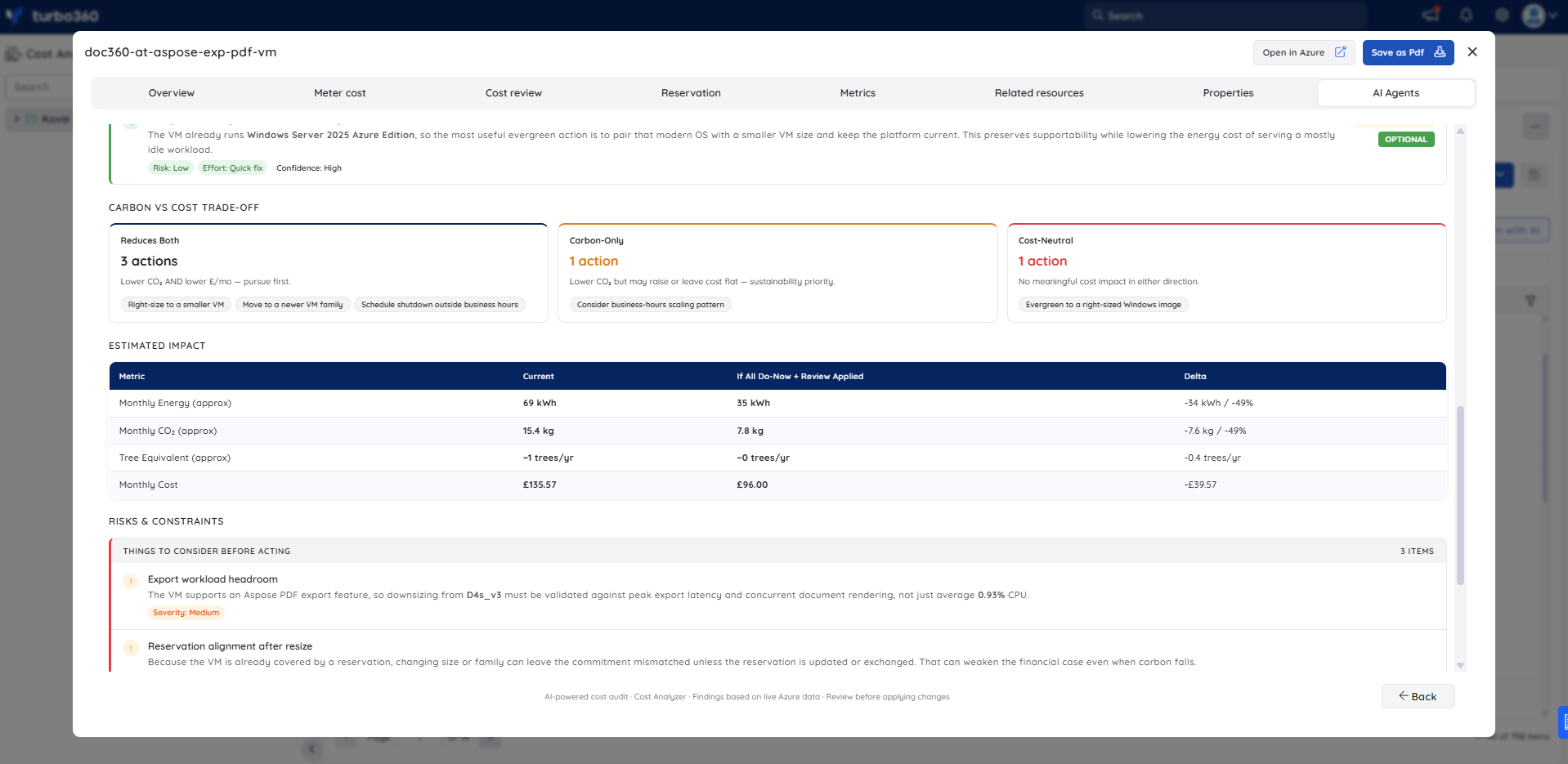
Carbon vs Cost trade-off — the agent categorizes the five actions. Three actions (right-size to a smaller VM, move to a newer VM family, schedule shutdown outside business hours) reduce both carbon and cost. One action (consider business-hours scaling pattern) is classified as carbon-only, as it may leave cost flat. One action (evergreen to a right-sized Windows image) is cost-neutral.
Estimated impact — if all Do now and Review actions are applied, the agent projects monthly energy dropping from ~69 kWh to ~35 kWh (−49%), monthly CO₂ dropping from ~15.4 kg to ~7.8 kg (−49%), and monthly cost dropping from $135.57 to ~$96.00 (−$39.57).
Risks and constraints — three risks are flagged. The export workload headroom risk (Medium severity) notes that downsizing must be validated against peak export latency and concurrent document rendering, not just average CPU. The reservation alignment risk (Medium severity) warns that changing size or family can leave the commitment mismatched unless the reservation is updated or exchanged. The production availability risk (High severity) states that schedule-based shutdowns require business-window approval and rollback plans to avoid user-visible downtime.
Troubleshooting
- Carbon optimizer recommendations tab is not visible for a resource
Cause: The user's Custom role does not have the AI Agents feature permission enabled.
Fix: Go to User management > Roles, edit the relevant Custom role, and enable the AI Agents toggle under Specify feature permissions. - No analysis is generated for a resource
Cause: The OpenAI connection is not configured or has failed validation (Private Hosting only).
Fix: See OpenAI setup in Turbo360 to verify or reconfigure the connection. - Estimated impact shows no projected emission reductions
Cause: The resource may already be in an energy-efficient configuration, region, or SKU tier, with no significant optimization opportunities identified at the time of analysis.
Fix: Review the Key carbon drivers section for context. Consider re-running the analysis after making configuration or workload changes to check whether new opportunities emerge.
FAQs
- Does the agent apply the carbon optimization changes automatically?
No. It provides recommendations only; you review and execute any changes yourself. - How accurate are the carbon emission estimates?
Estimates are indicative and based on region energy characteristics, resource configuration, and usage patterns. They are intended to support prioritization decisions, not to serve as precise carbon accounting figures.
Related articles
Was this article helpful?