

Change analysis
- 05 Aug 2026
- 3 Minutes to read
- Print
- DarkLight
- Download PDF
Change analysis
- Updated on 05 Aug 2026
- 3 Minutes to read
- Print
- DarkLight
- Download PDF
Article summary
Did you find this summary helpful?
Thank you for your feedback!
Overview
Change analysis, available within the Analysis section of Cost Analyzer, gives you a detailed summary of resource-level changes — creation, updates, and deletion — across your Azure subscriptions over the past 14 days.
Business value
Change analysis helps you trace recent resource activity back to its cost impact without switching to the Azure portal, making it faster to spot unexpected spend changes caused by new, modified, or removed resources.
Required permissions
| Role | Permission level | Access |
|---|---|---|
| Account owner, Owner, Contributor | — | Full access to the Analysis section |
| Analysis role | Manage | Can perform all operations in the Analysis section |
| Analysis role | Read | Can only view the Analysis section; cannot perform operations |
.png)
How it works
Change analysis organizes resource activity into three tabs, each covering the last 14 days.
Resources created
- Lists resources created in the past 14 days, with the Subscription, Resource group, and the cost incurred by each resource during this period.
- A warning icon next to a resource indicates it's unavailable — created and then deleted within the 14-day window.
- Click Download as excel to export the data shown on this tab.
.jpg)
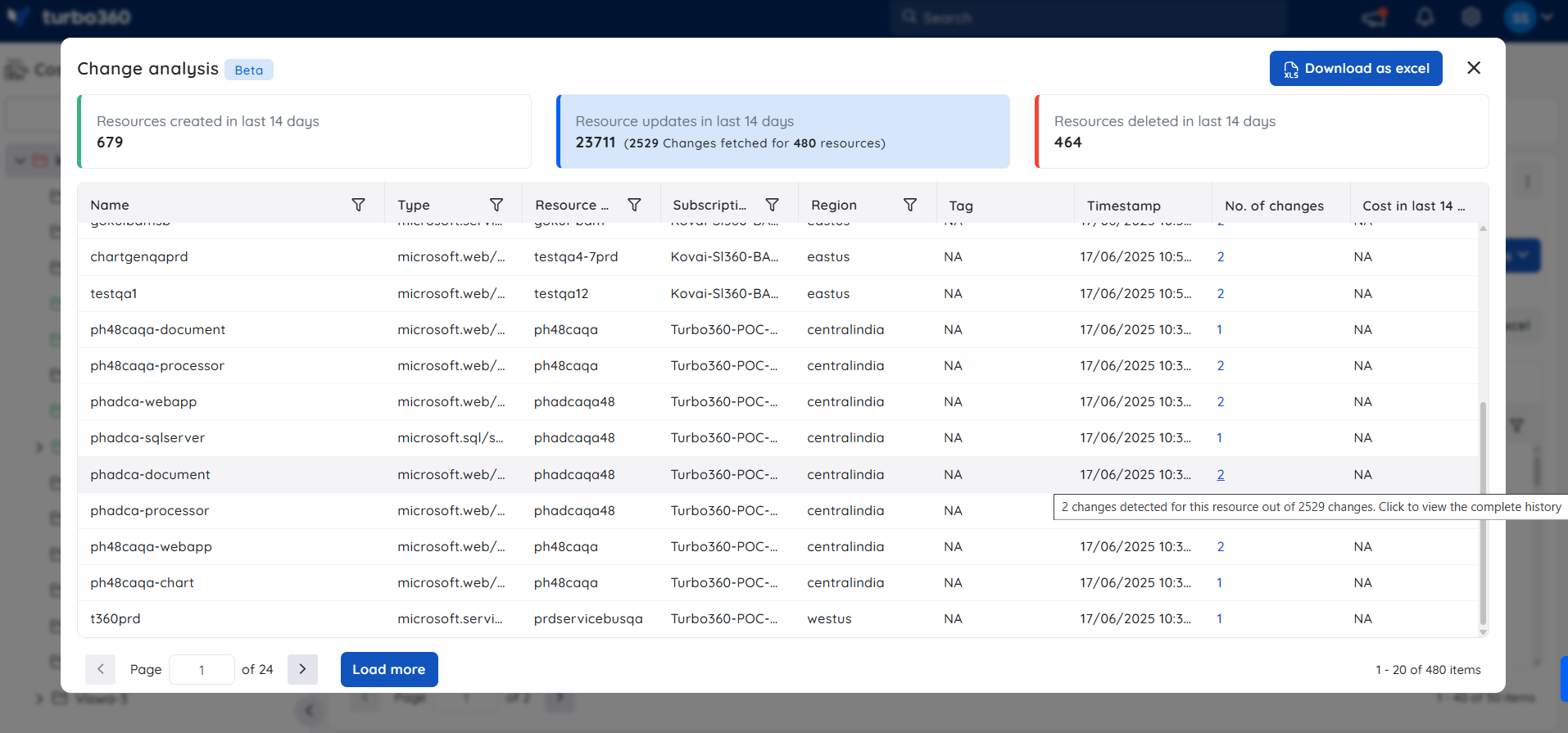
Resources updated
- Lists resources updated in the past 14 days, including the change details for each.
- Click Download as excel to export the data shown on this tab.
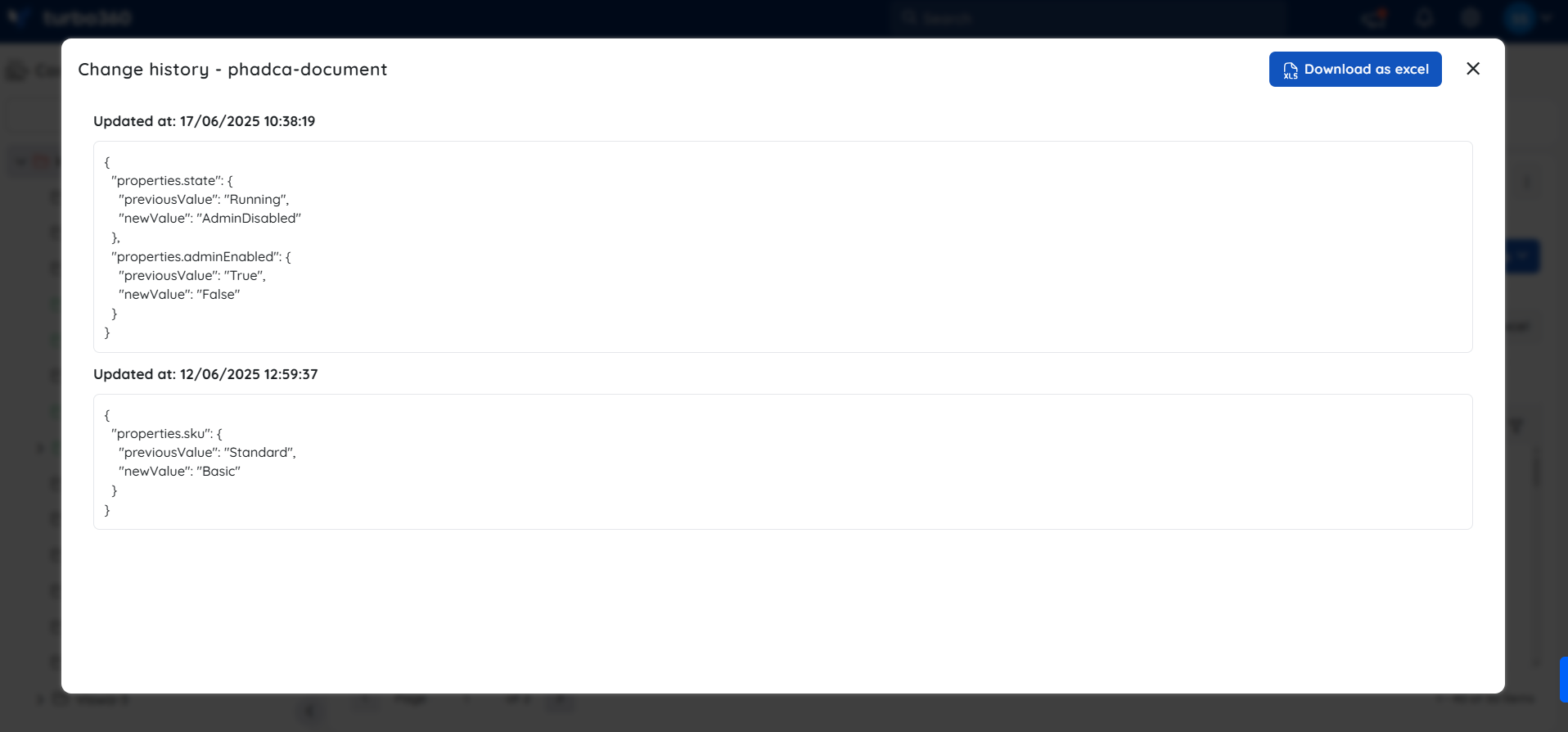
- Click the change count next to a resource to open a breakdown of what changed on that resource over the 14-day window.
- Within the Change history view, Download as excel exports only the data shown in that widget.
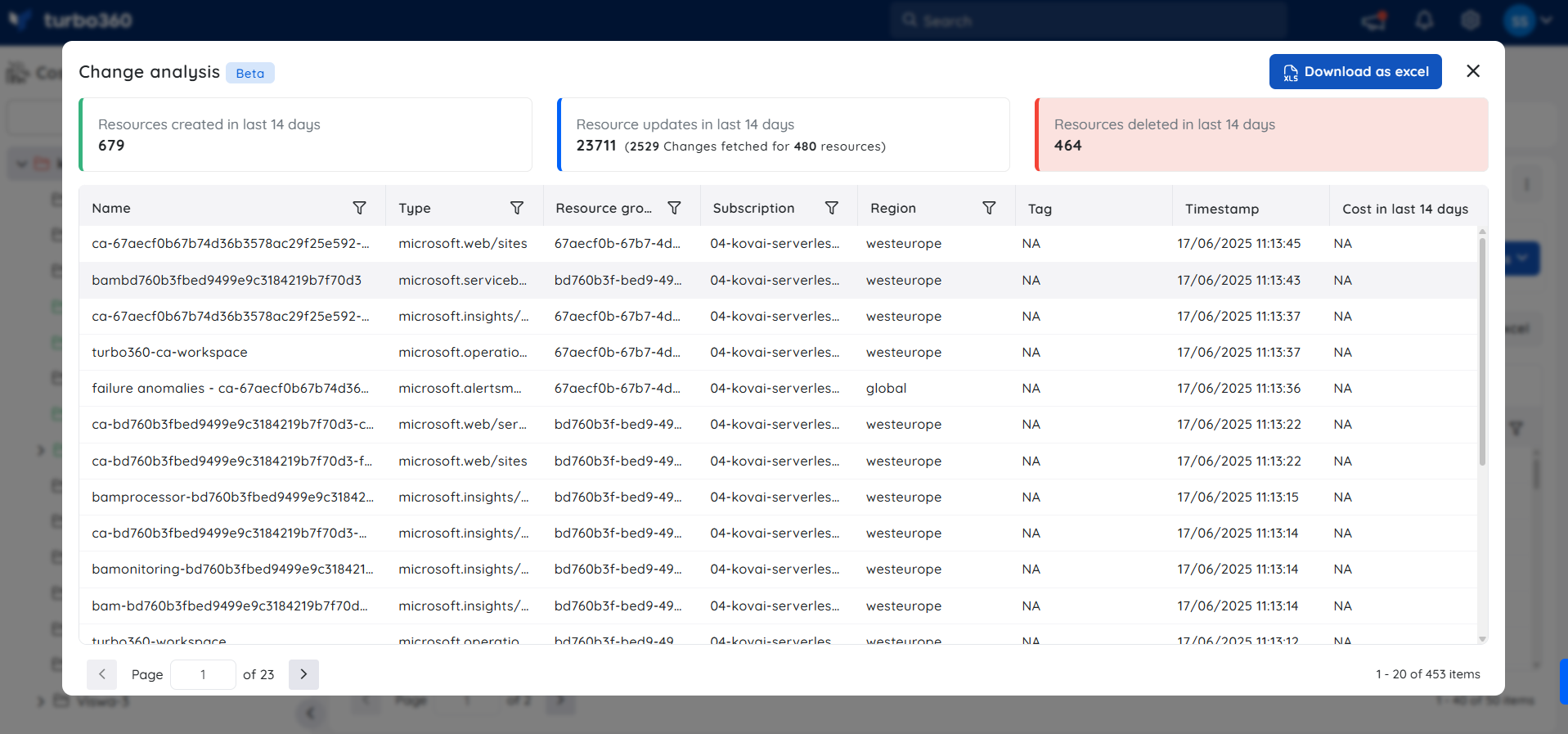
Resources deleted
- Lists resources deleted in the past 14 days, including cost data for that period and associated resource details.
- Click Download as excel to export the data shown on this tab.
Steps
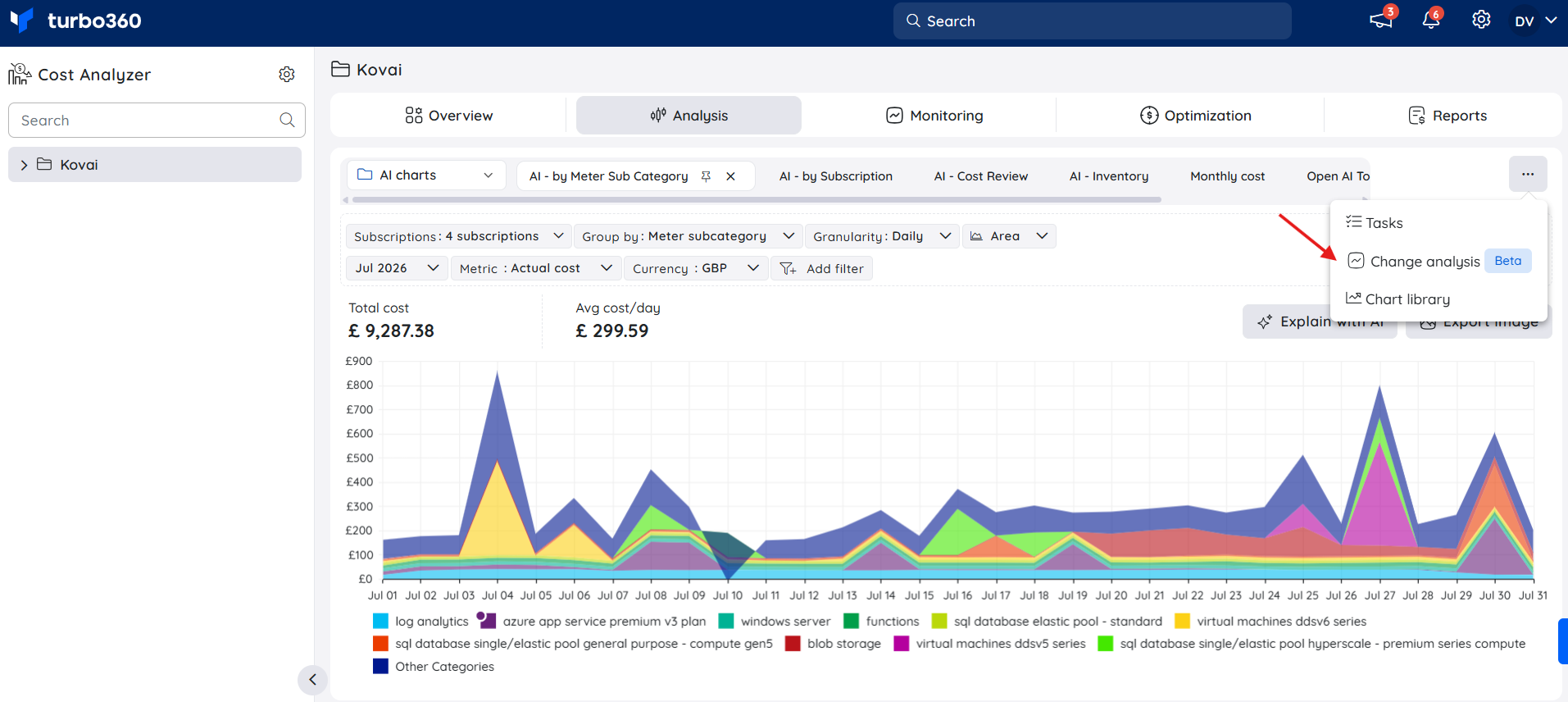
Use the following steps to view resource activity and export data from Change analysis. Navigate to Cost Analyzer > Analysis > Change analysis to get started.
View resource changes
Use this procedure to browse resource creation, update, and deletion activity across your Azure subscriptions for the past 14 days.
- Click the Resources created, Resources updated, or Resources deleted tab to view the relevant activity.
- Click Download as excel on any tab to export the data shown.
View change history for a resource
Use this procedure to drill into the specific changes recorded for an individual resource within the 14-day window.
- Click the Resources updated tab.
- Click the change count next to a resource to open the Change history breakdown for that resource.
- Click Download as excel within the Change history view to export that widget's data.
Example scenario
A FinOps lead notices a cost spike and opens Change analysis to investigate. They check the Resources created tab to see if any new resources appeared in the last 14 days, then switch to Resources updated and click a high-change-count resource to review exactly what changed — confirming the spike traces back to a configuration update rather than a new deployment.
Limitations
- Change analysis only covers the past 14 days; changes outside this window aren't available.
- Resources created and deleted within the 14-day window appear marked as unavailable rather than with full detail.
Troubleshooting
A recently created or deleted resource doesn't appear in the list
Cause: The resource activity may have occurred outside the rolling 14-day window.
Fix: Confirm the activity took place within the last 14 days. Activity older than that isn't shown.Resource shows a warning icon on the Resources created tab
Cause: The resource was created and then deleted within the same 14-day window, making it unavailable.
Fix: Check the Resources deleted tab for the resource's deletion details.Download as excel doesn't reflect the expected data
Cause: The export captures only the data currently displayed in the active tab or widget.
Fix: Apply the correct tab or open the relevant Change history widget before exporting.
FAQs
Why does Change analysis only show data for 14 days?
Change analysis is scoped to a rolling 14-day window to surface recent resource activity relevant to current cost trends.What does the warning icon next to a resource mean?
It indicates the resource was created and deleted within the same 14-day window, so it's no longer available in your subscription.Does Download as excel export all tabs at once?
No. It exports only the data currently shown in the active tab, or within a specific Change history widget if opened from there.
Related articles
Was this article helpful?