

Configuring Data Factory Pipeline automated tasks
- 05 Aug 2026
- 3 Minutes to read
- Print
- DarkLight
- Download PDF
Configuring Data Factory Pipeline automated tasks
- Updated on 05 Aug 2026
- 3 Minutes to read
- Print
- DarkLight
- Download PDF
Article summary
Did you find this summary helpful?
Thank you for your feedback!
Overview
Data Factory Pipeline automated tasks lets you reruns failed Azure Data Factory pipeline runs on a schedule. When a pipeline run fails, the task detects the failure and automatically triggers a rerun, reducing the need for manual intervention and restoring pipeline continuity faster.
Business value
Failed Data Factory pipeline runs left unaddressed can delay downstream processes and require manual monitoring. Data Factory Pipeline Tasks automate the detection and rerun of failed pipeline runs, helping you restore execution continuity without manual intervention.
How it works
Data Factory Pipeline automated tasks work by scanning for pipeline runs that failed within a configurable lookback window (for example, the past 12 hours). When the automated task runs on its schedule, it identifies eligible failures based on the filters you configure, then triggers reruns for those runs.
The task supports the following configuration options:
- Failure Occurrence — defines the lookback window in hours. Only pipeline runs that failed within this window are selected for rerun.
- Include the previous reruns — when enabled, the task also considers runs that were already rerun once but are still in a failed state.
- Rerun the ignored runs of previous run — when enabled, the task includes pipeline runs that were skipped or ignored during a previous rerun attempt.
- Run task once immediately after saving — when enabled, the task executes once immediately after you save the configuration, in addition to running on its configured schedule.
Steps
Use the following steps to configure a Data Factory Pipeline Task. Navigate to Business Applications > Automated tasks > New configuration to get started.
Configure the rerun filters
Configuring the rerun filters determines which failed pipeline runs the task targets when it executes.
- Select Data Factory Pipeline from the New configuration dropdown.
- Set the Failure Occurrence value to the number of hours defining your lookback window.
- Enable any of the following options as required:
- Include the previous reruns
- Rerun the ignored runs of previous run
- Run task once immediately after saving
- Click Next.
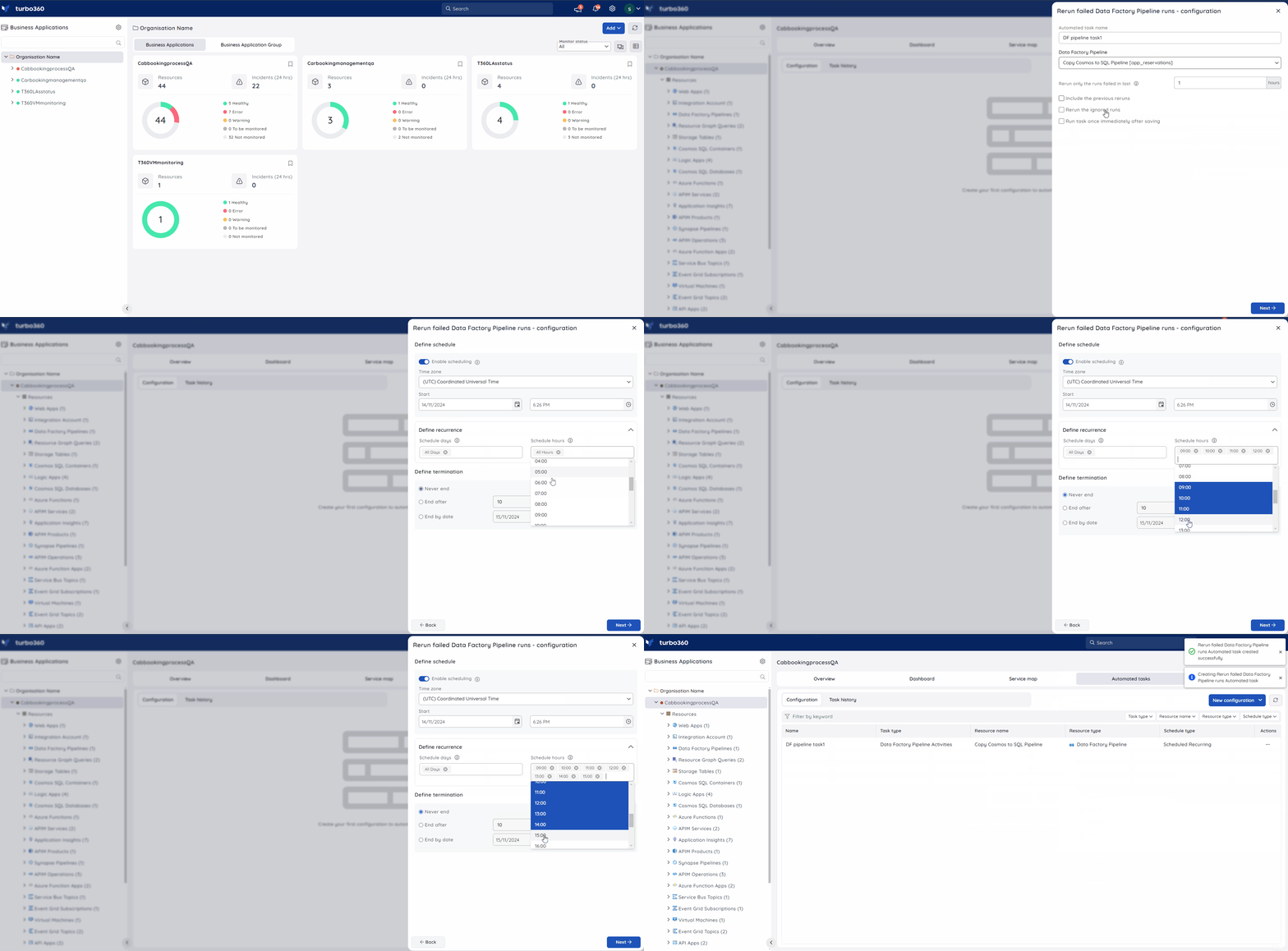
Schedule the task
Scheduling controls when the automated task runs and whether it repeats.
- Configure the recurrence schedule for the task.
- Enable the task to activate it.
- Click Next.
Alert configuration
Notification settings control which channels and recipients receive alerts when the task completes or fails.
- Select the notification channels you want to use.
- Enter one or more email addresses to receive notifications.
- Under Advanced settings, enable either or both of the following options as required:
- Send alerts only when the automated task fails — notifications are sent only when the task itself fails to execute.
- Send alerts only when the completed count is greater than 0 — notifications are sent only when at least one pipeline run was successfully rerun.
- Click Save.
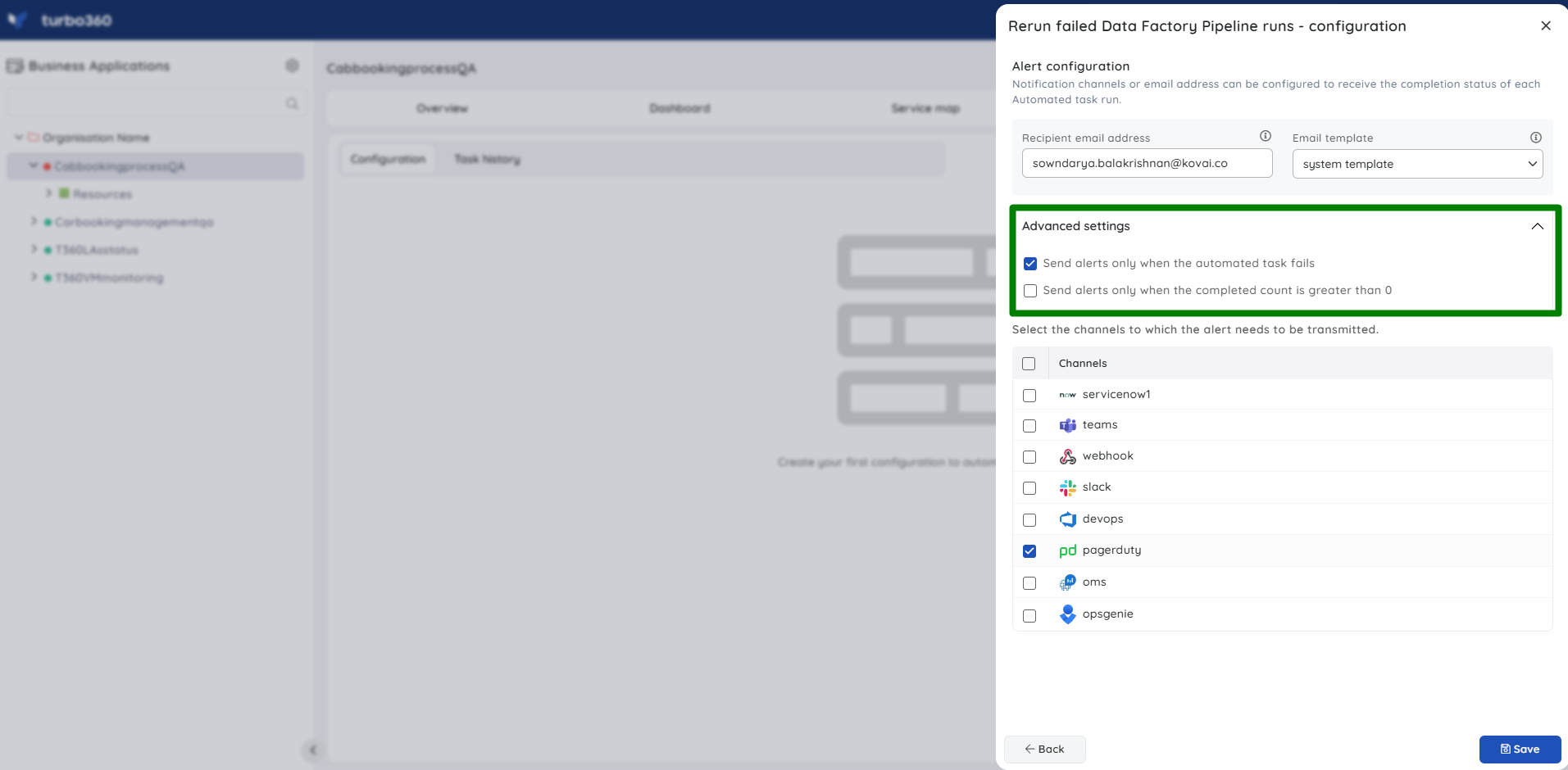
When both Advanced settings options are enabled, you receive a notification if the task fails or if at least one run was successfully rerun.
Troubleshooting
No pipeline runs are rerun after the task executes
Cause: The Failure Occurrence lookback window is set too short, or no pipeline runs failed within the configured timeframe.
Fix: Increase the Failure Occurrence value and verify that failed runs exist within the extended window in the Azure Data Factory monitoring view.The task runs but notifications are not received
Cause: No notification channels are configured, or the Advanced settings filters exclude the current task result.
Fix: Confirm at least one notification channel is selected. If Advanced settings are enabled, verify that the task outcome matches the configured filter conditions.Previously rerun failures are not being picked up
Cause: The Include the previous reruns option is not enabled.
Fix: Edit the task configuration and enable Include the previous reruns under the rerun filters.The task does not run immediately after saving
Cause: The Run task once immediately after saving option was not enabled during configuration.
Fix: Edit the task and enable Run task once immediately after saving. The immediate execution only occurs at save time and cannot be triggered retroactively.Ignored runs from a previous rerun are not being included
Cause: The Rerun the ignored runs of previous run option is not enabled.
Fix: Edit the task configuration and enable Rerun the ignored runs of previous run.
Related articles
Was this article helpful?