

Configuring Event Grid automated tasks
- 05 Aug 2026
- 5 Minutes to read
- Print
- DarkLight
- Download PDF
Configuring Event Grid automated tasks
- Updated on 05 Aug 2026
- 5 Minutes to read
- Print
- DarkLight
- Download PDF
Article summary
Did you find this summary helpful?
Thank you for your feedback!
Overview
Event Grid automated tasks lets you send events to Azure Event Grid Topics and process dead-lettered events in Event Grid Subscriptions. You can use them to validate end-to-end event delivery across multiple subscriptions, run load and performance tests, and recover failed events without leaving the Turbo360 interface.
Business value
Event Grid tasks eliminate the need to build custom test harnesses or switch to the Azure portal for event delivery validation. You can send high-volume, parallelised event batches and process dead letters directly from a Business Application, reducing incident response time and test cycle overhead.
How it works
Turbo360 executes Event Grid tasks against Event Grid Topics and Subscriptions that are associated with a Business Application. Each task run is configured with delivery parameters — event count, parallelism, batch size, and optional think time — and can target one or more subscriptions for the same topic. For dead-letter processing, Turbo360 reads events from the associated Storage Blob container and resubmits or deletes them based on your chosen operation mode.
Steps
Use the following steps to configure and run Event Grid automated tasks. Navigate to the relevant Business Application in Turbo360 and open the Automated tasks section to get started.
Send events to an Event Grid Topic
Sending events to an Event Grid Topic lets you verify that all downstream Event Grid Subscriptions receive the published events, and supports load and performance testing of your event pipeline.
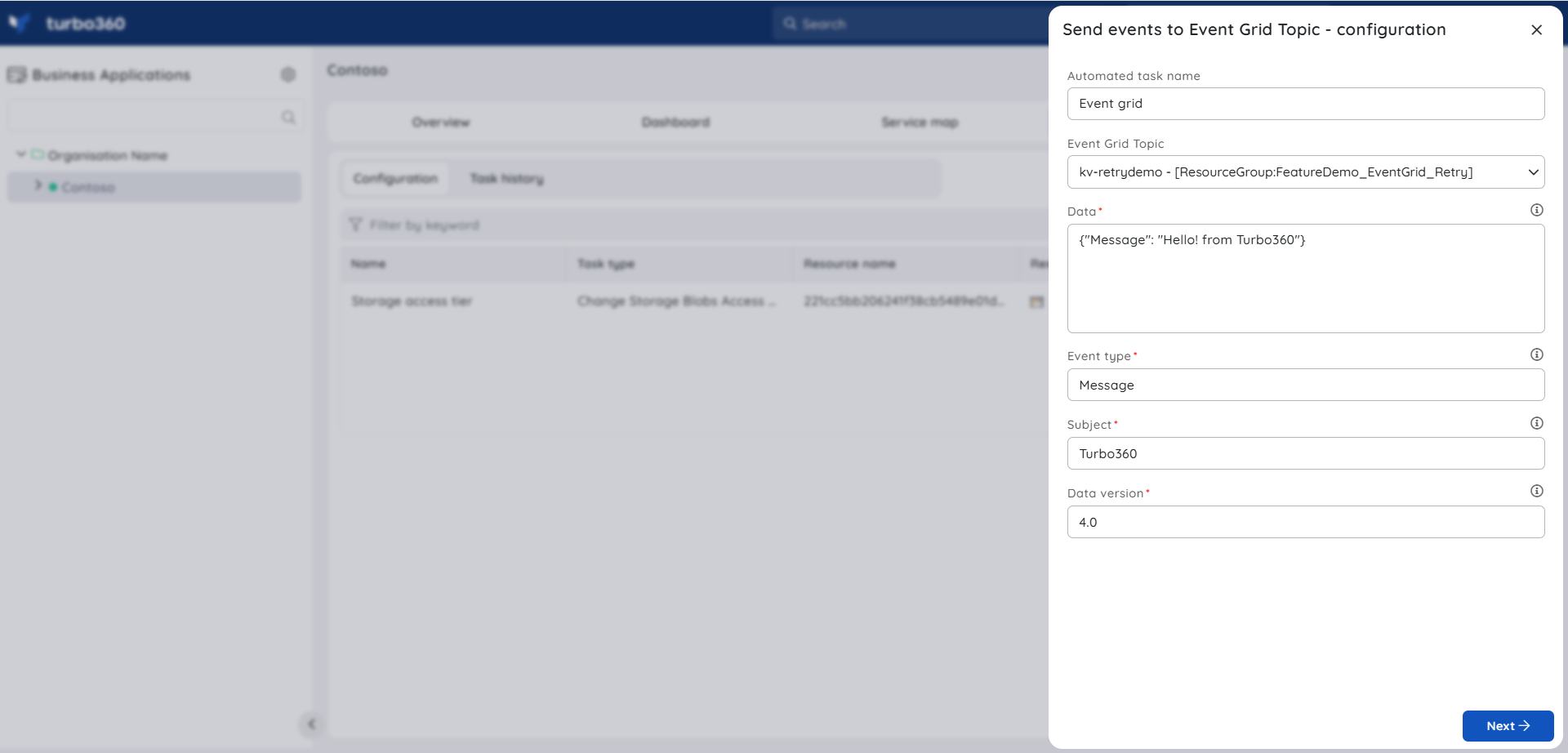
Select the Event Grid Topic associated with your Business Application.
Enter the event data payload. Optionally define the following event properties:
Property Description Subject Publisher-defined path to the event subject Data Version Schema version of the data object, defined by the publisher Event Type One of the registered event types for this event source Configure the delivery parameters:
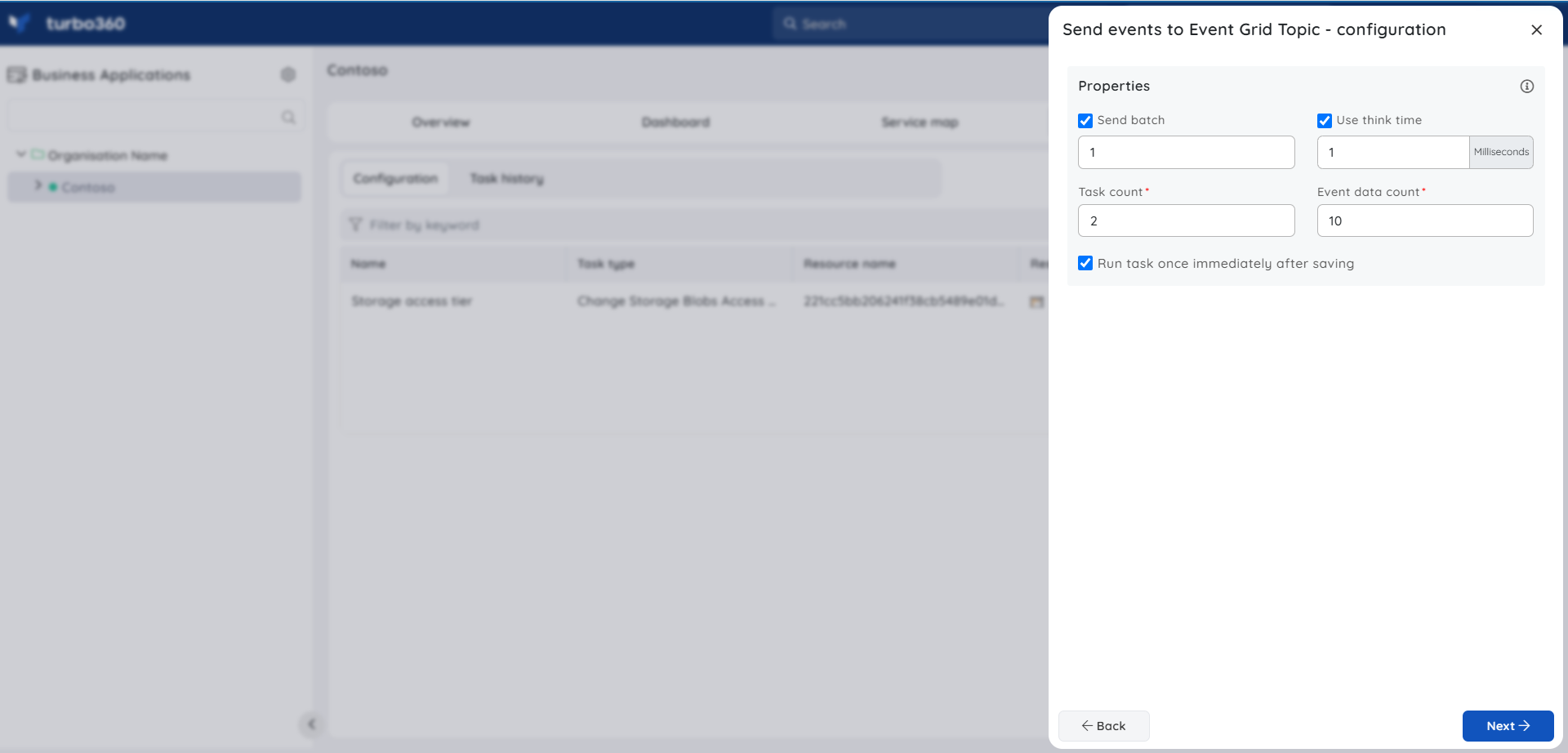
- Event Data count — total number of events to send (maximum 10,000).
- Task count — number of parallel tasks (maximum 10). For example, with an event count of 100 and a task count of 2, the task sends 50 events per task in parallel.
- Batch count — number of events per batch (maximum batch size 10).
- Think time — optional wait time between each event or batch, used to simulate delayed delivery.
Save and run the task.
Process dead letters in an Event Grid Subscription
Processing dead letters lets you recover failed events from the associated Storage Blob container and resubmit them to the Event Grid, or remove them when they are no longer needed.
You must associate the corresponding Event Grid Topic, Event Grid Subscription, and Storage Blob container with the Business Application before you can process dead-lettered events.
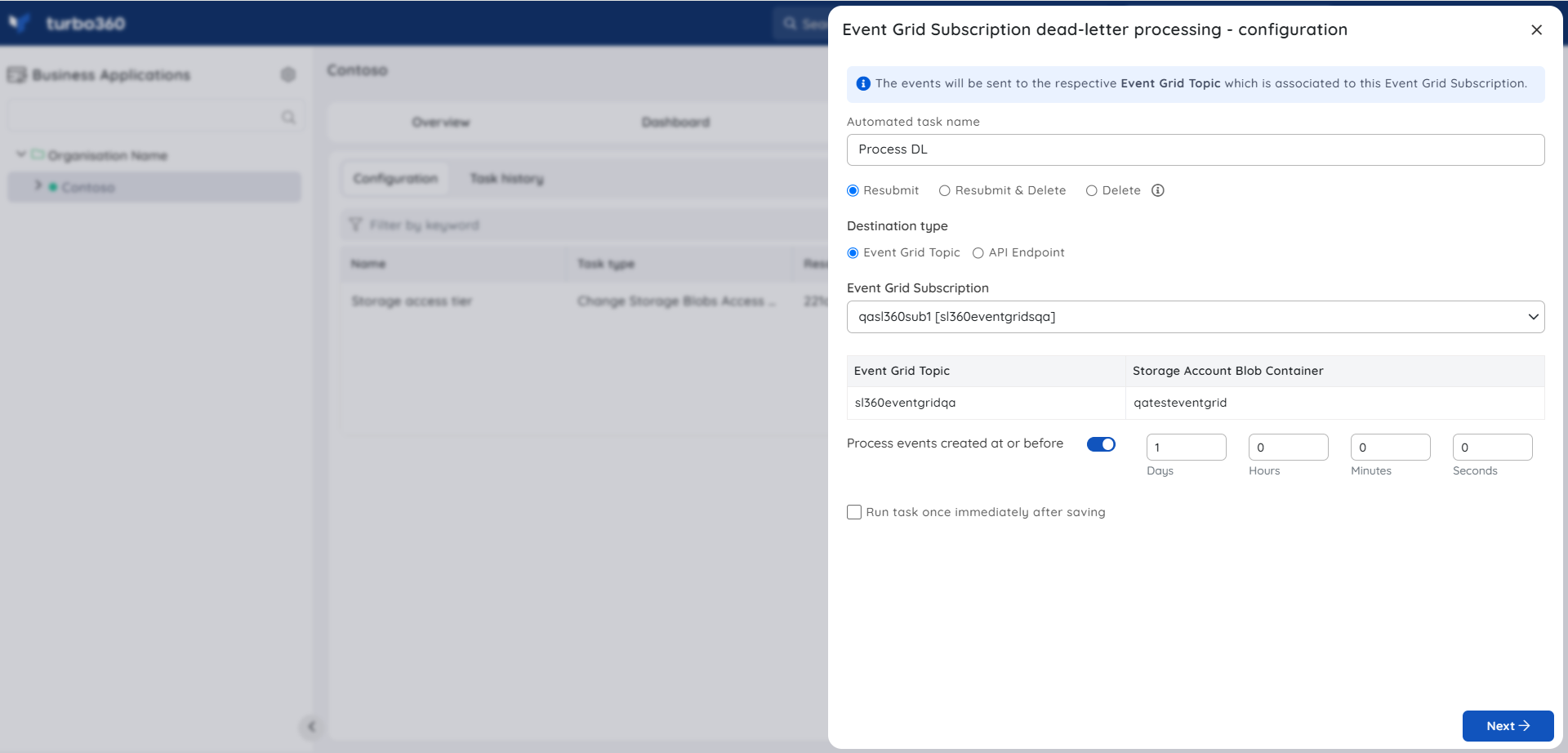
- Select the Event Grid Subscription from which you want to process dead letters.
- Choose a processing mode:
- Resubmit messages — sends a copy of each dead-lettered event back to the Event Grid. The original remains in the blob container.
- Resubmit and Delete messages — sends a copy of each event to the Event Grid and removes the original from the blob container.
- Delete messages — removes events from the blob container without resubmitting them.
- Optionally specify a time range to process only events created within that window. Leave blank to process all available dead-lettered events.
- Save and run the task.
Configuration
The following options are available when configuring an Event Grid automated task.
| Option | Description |
|---|---|
| Event Data count | Total number of events to send. Maximum: 10,000. |
| Task count | Number of parallel delivery tasks. Maximum: 10. |
| Batch count | Number of events per batch. Maximum batch size: 10. |
| Think time | Wait duration between each event or batch delivery. Optional. |
| Subject | Publisher-defined path to the event subject. |
| Data Version | Schema version of the event data object. |
| Event Type | Registered event type for this event source. |
Alert configuration
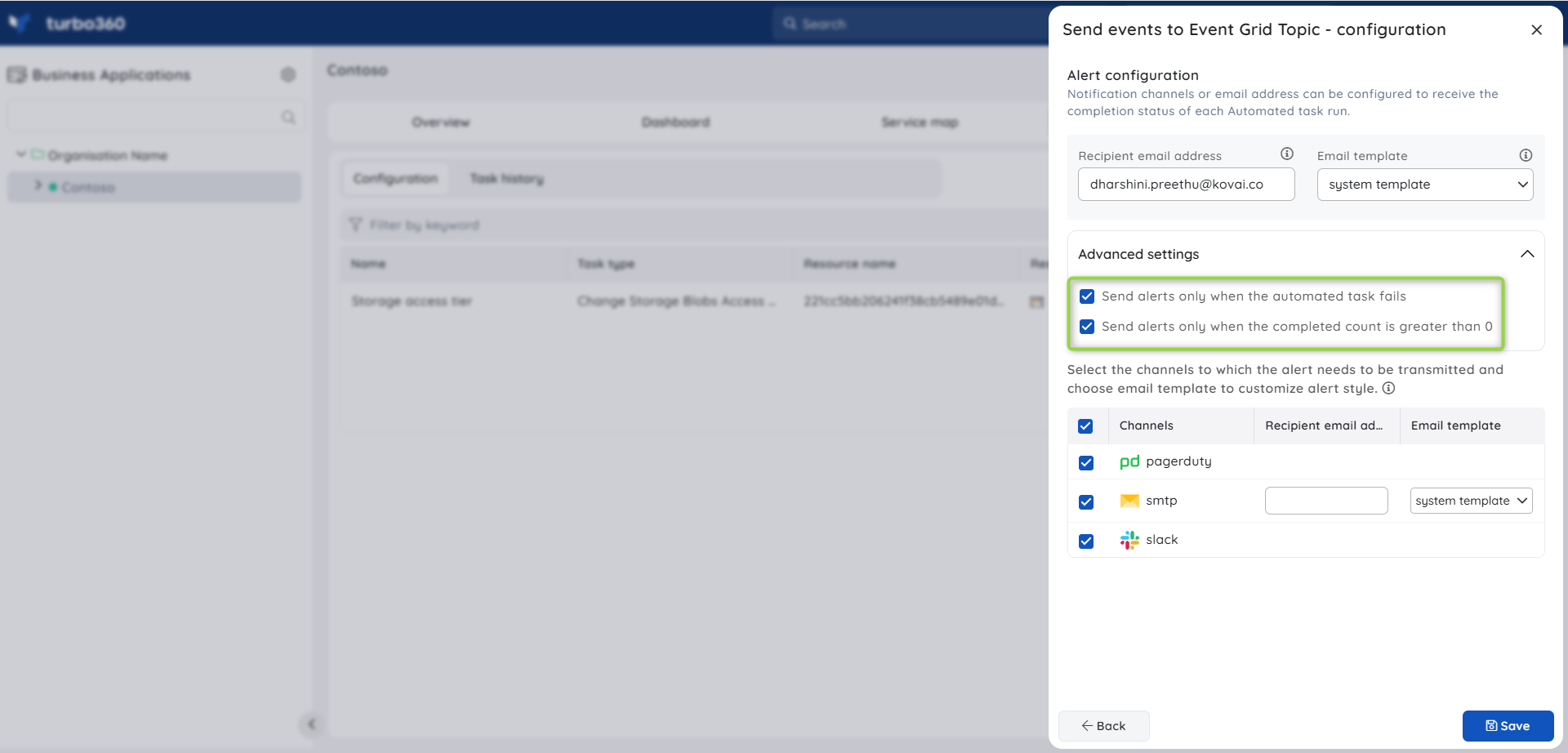
You can configure notification channels and recipient email addresses to receive alerts when an Event Grid task completes or fails.
Under Advanced settings, select one or both of the following options:
- Send alerts only when the automated task fails — notifications are sent only when the task fails.
- Send alerts only when the completed count is greater than 0 — notifications are sent only when at least one event was processed successfully.
When both options are selected, you receive a notification if the task fails or if the completed count exceeds 0.
Troubleshooting
Events sent but not received by one or more subscriptions
Cause: The affected subscription may not be associated with the Event Grid Topic in the Business Application, or the subscription filter is excluding the events.
Fix: Verify that all target subscriptions are associated with the Business Application and that subscription filters match the event type and subject used in the task.Dead-letter processing fails with an access error
Cause: The Storage Blob container is not associated with the Business Application, or the service principal lacks read/delete permissions on the container.
Fix: Associate the Storage Blob container with the Business Application and confirm that the service principal has the required permissions on the container.Task completes but completed count remains 0
Cause: The event payload may be malformed, or the Event Grid Topic endpoint is not reachable from Turbo360.
Fix: Validate the event payload format and confirm that the Event Grid Topic endpoint is accessible. Check the task run log for delivery error details.Think time has no effect on delivery speed
Cause: Think time is applied per event or batch, not per task. With high task counts and low think time, parallel tasks may complete before the delay has a visible effect.
Fix: Reduce the task count or increase the think time to observe the intended pacing effect.Resubmit and Delete mode removes events but does not deliver them
Cause: The delete operation succeeds before confirming delivery to the Event Grid, which can happen if the Event Grid Topic endpoint returns an error after the delete is issued.
Fix: Use Resubmit messages mode first to confirm successful delivery, then manually delete events from the blob container if required.
FAQs
Can I send events to a system topic?
No. System topics are owned by Azure services such as Service Bus and can only be subscribed to. You can only send events to custom Event Grid Topics.What happens if I specify a task count higher than the event count?
Turbo360 distributes events evenly across tasks. If the task count exceeds the event count, some tasks will receive zero events and complete immediately. Only tasks with events assigned will contribute to the completed count.Can I use a time range to target a subset of dead-lettered events?
Yes. When you specify a time range in the dead-letter processing configuration, Turbo360 processes only events created at or before the end of that range. Leave the time range blank to process all available dead-lettered events.
Related articles
Was this article helpful?