

Configuring Logic App Workflow (Standard) automated tasks
- 05 Aug 2026
- 4 Minutes to read
- Print
- DarkLight
- Download PDF
Configuring Logic App Workflow (Standard) automated tasks
- Updated on 05 Aug 2026
- 4 Minutes to read
- Print
- DarkLight
- Download PDF
Article summary
Did you find this summary helpful?
Thank you for your feedback!
Overview
Logic App Workflow (Standard) automated tasks let you configure scheduled jobs that automatically resubmit failed runs from Logic App Workflow (Standard) resources. You define filter conditions and a schedule — Turbo360 identifies matching failed workflow runs and resubmits them on your behalf.
Business value
Failed Logic App Workflow (Standard) runs can stall business-critical integration pipelines. Automated tasks reduce the manual effort of monitoring and resubmitting failures, improve recovery time, and ensure consistent workflow execution across your Business Applications.
How it works
When an automated task runs, Turbo360 queries the Logic App Workflow (Standard) resource for failed runs within the configured time window and applies your filter conditions. Only runs that match all specified filters are resubmitted. If no filters are configured, all failed runs within the time window are resubmitted.
Turbo360 then triggers a resubmit action for each selected run and records the outcome in the task history. You can review results, completed counts, and any errors from the task history view.
Steps
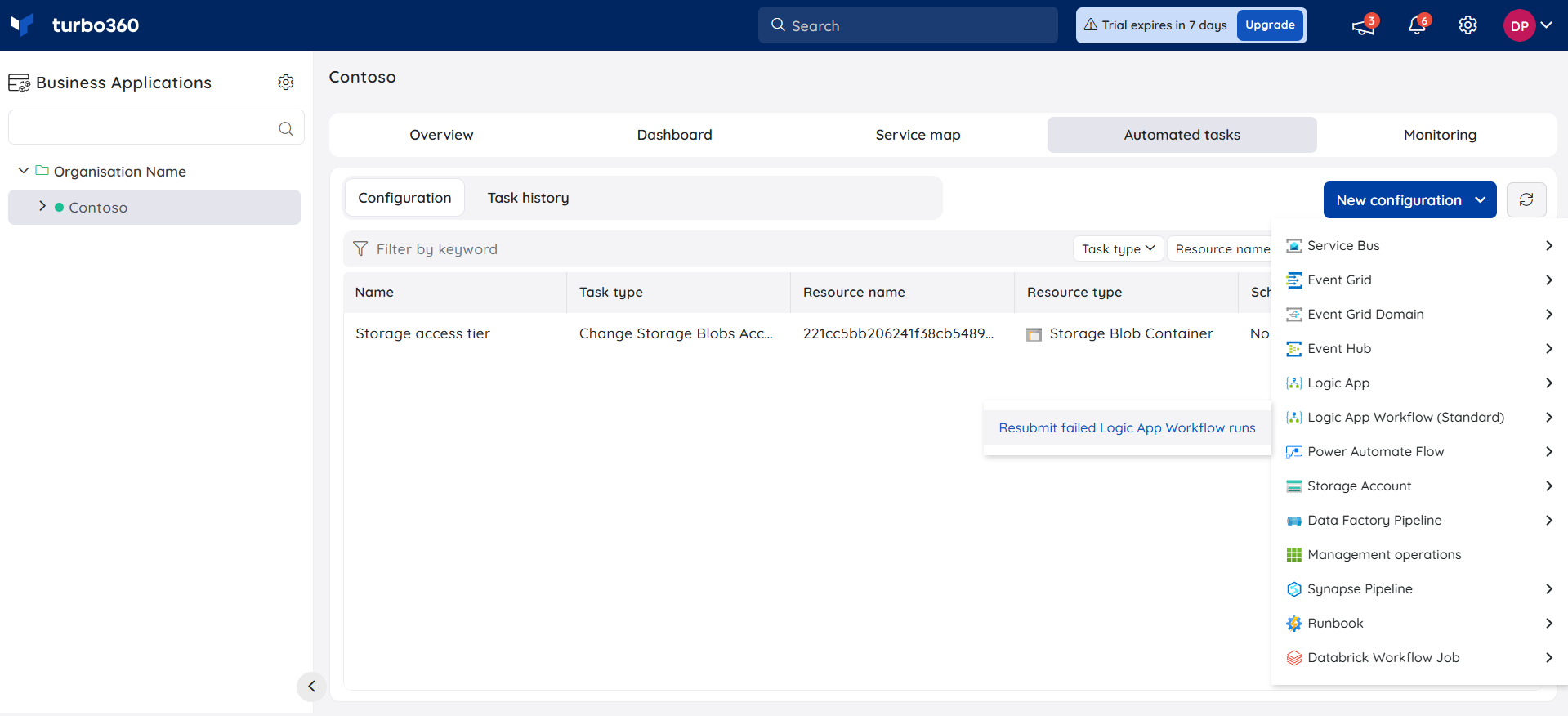
Use the following steps to create and configure a Logic App Workflow (Standard) automated task. Navigate to Business Applications > Automated tasks to get started.
Create a Logic App Workflow (Standard) automated task
Creating an automated task schedules Turbo360 to automatically resubmit failed Logic App Workflow (Standard) runs based on the filters and schedule you define.
- Click New configuration.
- Select Logic App Workflow (Standard) as the resource type.
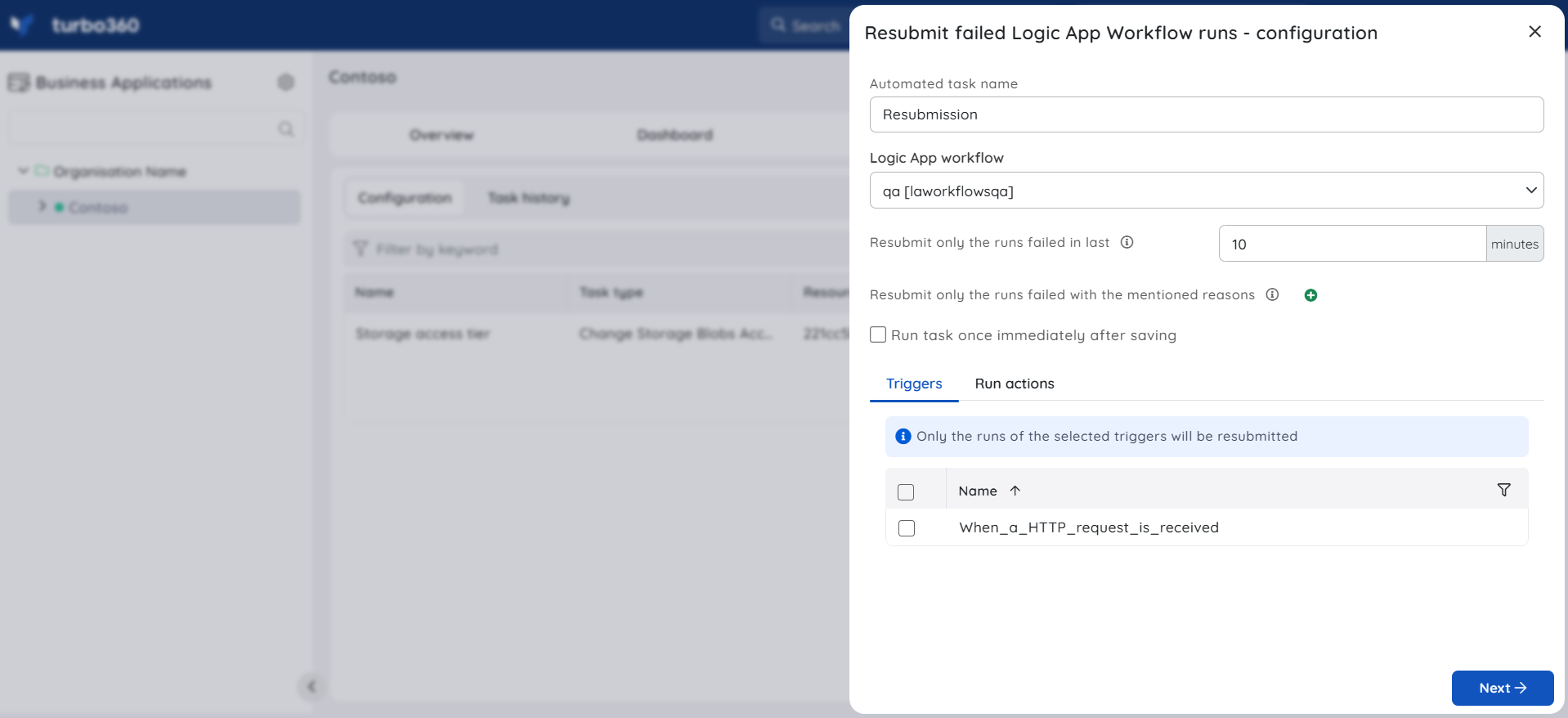
- Select the target workflow from your Business Application.
- Configure the schedule for the task.
- Under Resubmit filters, configure one or more of the following:
- Failure Occurrence — resubmit runs that failed within the past x minutes from the task run time. Set x to match your acceptable failure window.
- Failure Reason — resubmit only runs whose failure reason matches one of the values you specify.
- Trigger — resubmit only runs that were initiated by one of the selected workflow triggers.
- Run Action — resubmit only runs where the specified run actions are in the expected state. If you also set a Failure Reason, the run action's failure reason must match one of the provided reasons.
- Under Notifications, configure your notification channels and recipients (see Notifications).
- Click Save.
If no filters are selected, Turbo360 resubmits all failed Logic App Workflow runs within the configured time window.
Alert configuration
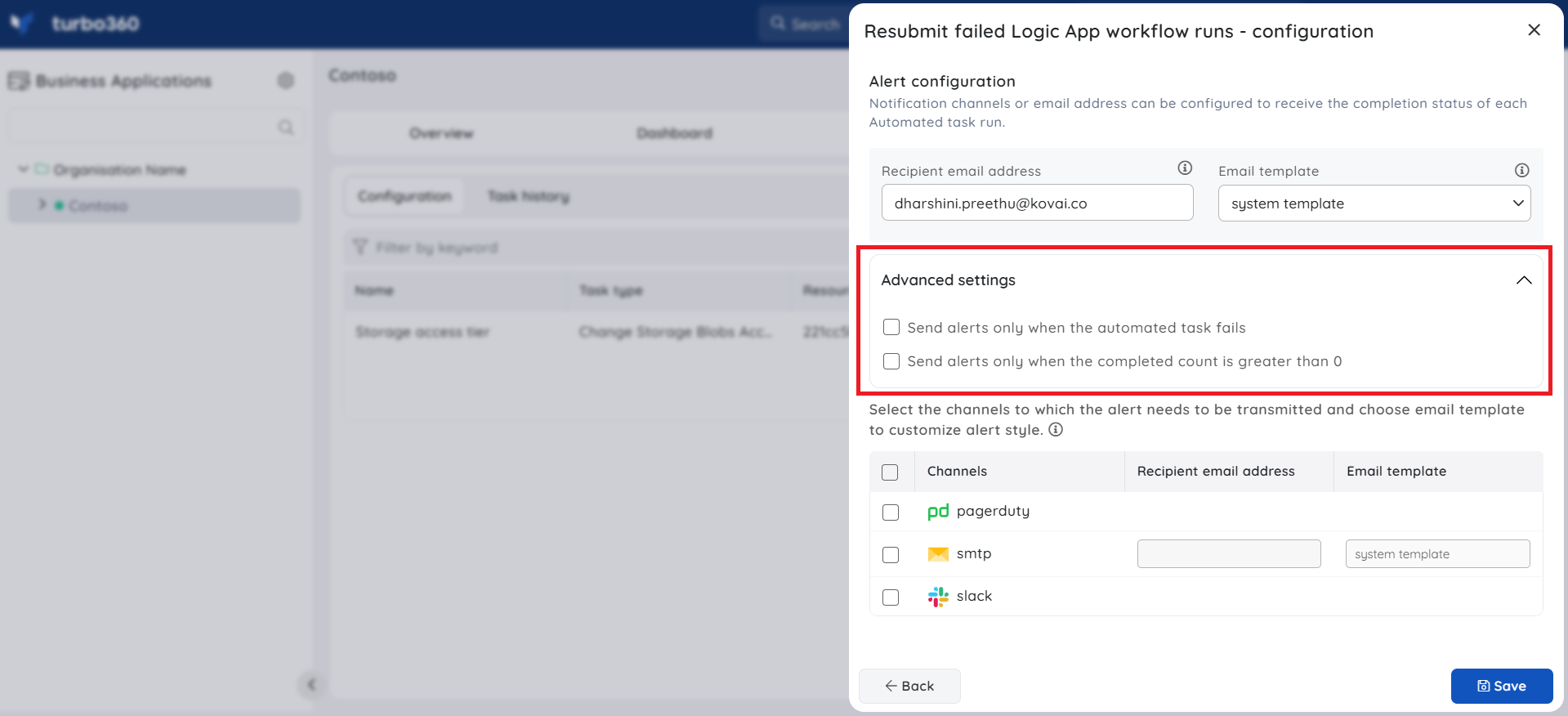
Configure notifications in the final section of the automated task configuration panel. You can set one or more notification channels and provide individual email addresses or a group distribution list.
Under Advanced settings, you can restrict when notifications are sent:
- Send alerts only when the automated task fails — you receive a notification only if the task itself fails to execute.
- Send alerts only when the completed count is greater than 0 — you receive a notification only when at least one run was resubmitted.
Enabling both options notifies you when the task fails or when the completed resubmission count exceeds zero.
Example scenario
Your inventory-sync Logic App Workflow (Standard) occasionally fails due to a transient storage connection timeout. Rather than reviewing runs manually each hour, you configure an automated task to run every 30 minutes. You set Failure Occurrence to 30 minutes and Failure Reason to ActionFailed. Each run, Turbo360 identifies any workflow runs that failed with that reason in the past 30 minutes and resubmits them. You enable Send alerts only when the completed count is greater than 0 to receive notifications only when resubmissions actually occur.
Troubleshooting
Automated task runs but no workflow runs are resubmitted
Cause: The filter conditions are too restrictive, or no workflow runs failed within the configured time window.
Fix: Review the Failure Occurrence window and confirm that failed runs exist in the workflow run history within that period. Broaden or remove filters to verify.Task fails with an authorization error
Cause: The service principal used by Turbo360 does not have sufficient permissions on the Logic App Workflow (Standard) resource.
Fix: Verify that the service principal has the Logic App Contributor role (or equivalent) on the target resource in Azure.Resubmitted runs fail again immediately
Cause: The underlying cause of the original failure has not been resolved (for example, a downstream dependency is still unavailable).
Fix: Investigate the failure reason in the workflow run history. Address the root cause before relying on automated resubmission.Notifications are not being received
Cause: Notification channels are not configured, or the Advanced settings filters are preventing delivery.
Fix: Confirm that at least one notification channel and recipient is configured. If Send alerts only when the completed count is greater than 0 is enabled, verify that resubmissions are actually occurring.Task history shows no records
Cause: The task has not yet run, or runs are being filtered before reaching the resubmit stage.
Fix: Check the task schedule and confirm it is active. Review the task's last run time in the Automated Tasks list.
Related articles
Was this article helpful?