

Configuring Runbook automated tasks
- 05 Aug 2026
- 3 Minutes to read
- Print
- DarkLight
- Download PDF
Configuring Runbook automated tasks
- Updated on 05 Aug 2026
- 3 Minutes to read
- Print
- DarkLight
- Download PDF
Article summary
Did you find this summary helpful?
Thank you for your feedback!
Overview
Runbook automated tasks let you schedule the creation of Azure Automation Runbook jobs directly from Turbo360. You choose the target Runbook, supply any required parameters, and define a schedule — Turbo360 creates the job automatically at the configured intervals.
Business value
Running Runbooks manually or through separate Azure schedules creates operational overhead and limits visibility. Runbook automated tasks consolidate job scheduling inside Turbo360, reduce the risk of missed executions, and keep Runbook activity visible alongside your other Business Application operations.
How it works
When a Runbook automated task runs, Turbo360 submits a job creation request to Azure Automation for the configured Runbook. If the Runbook requires input parameters, Turbo360 passes the values you specified at task creation time. The job executes in Azure Automation and Turbo360 records the outcome — including the completed count and any errors — in the task history.
Tasks can be run immediately or on a recurring schedule. Each execution creates a new Runbook job in Azure Automation.
Steps
Use the following steps to create and configure a Runbook automated task. Navigate to Business Applications > Automated tasks to get started.
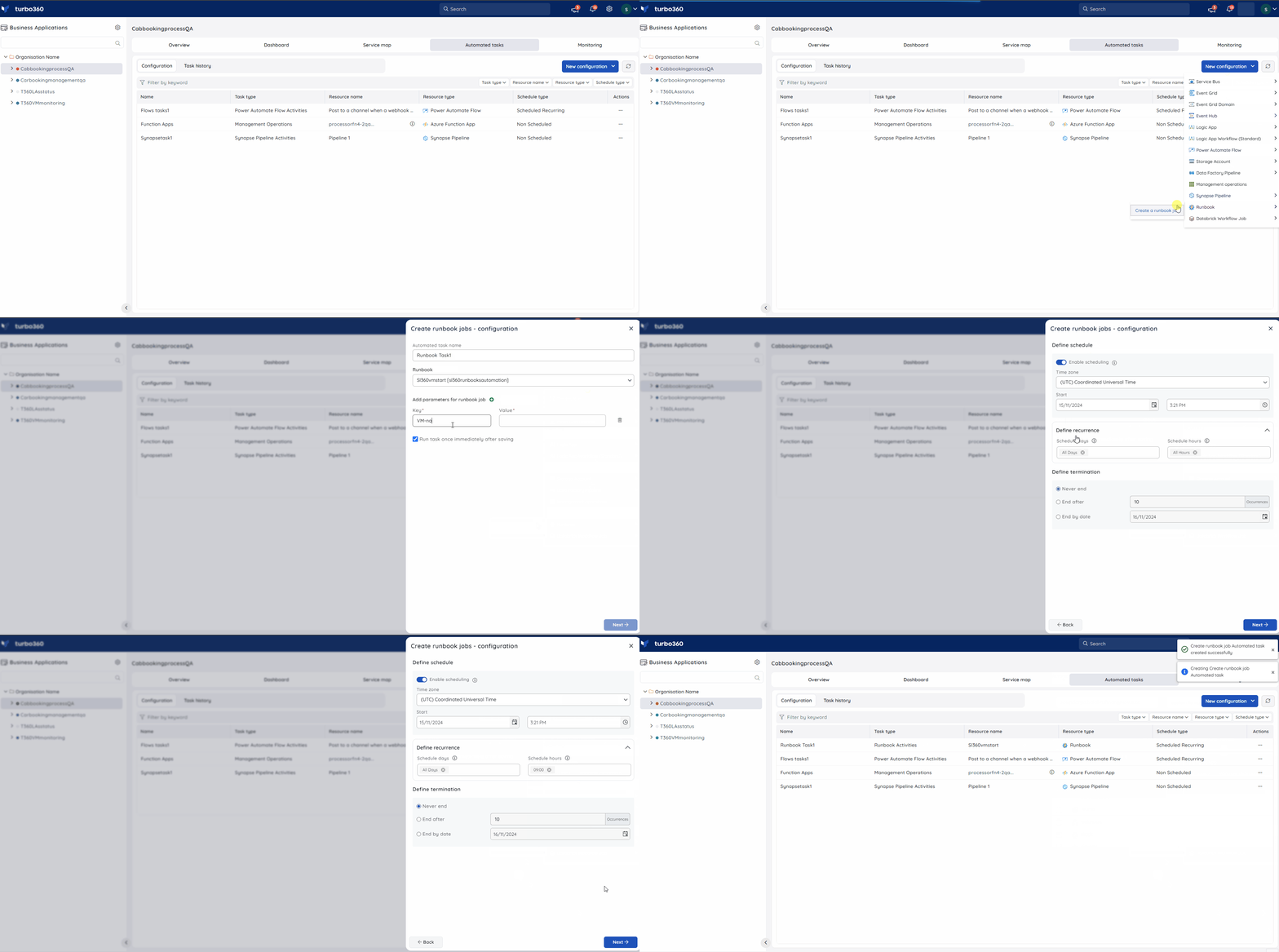
Create a Runbook automated task
Creating an automated task schedules Turbo360 to create Runbook jobs in Azure Automation at the intervals you define.
- Click New configuration.
- Select Runbook as the resource type.
- Select the target Runbook from your Business Application.
- If the Runbook requires parameters, enter the required values.
- Configure the schedule for the task.
- Under Notifications, configure your notification channels and recipients (see Notifications).
- Click Save.
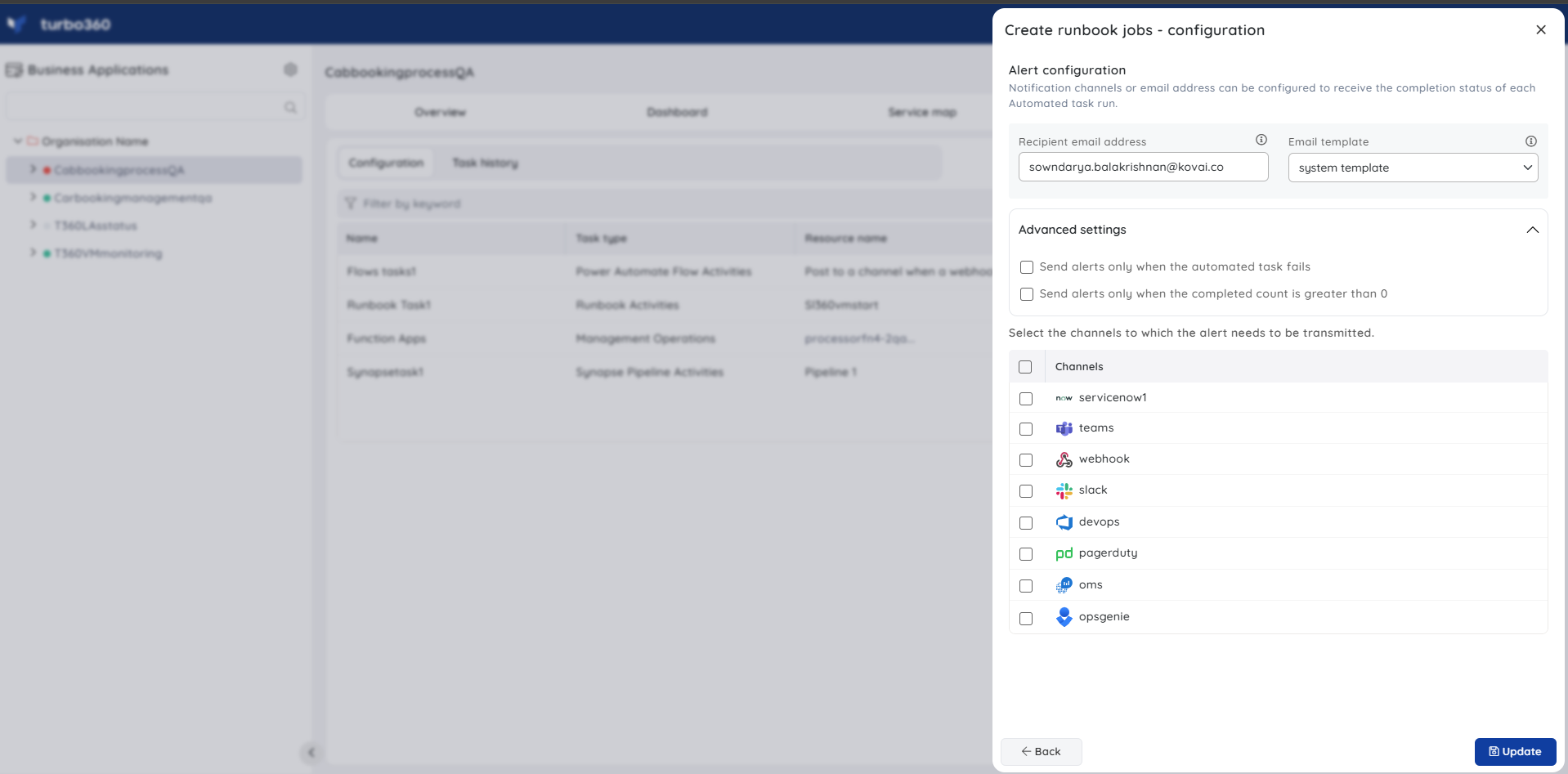
Alert configuration
Configure notifications in the final section of the automated task configuration panel. You can set one or more notification channels and provide individual email addresses or a group distribution list.
Under Advanced settings, you can restrict when notifications are sent:
- Send alerts only when the automated task fails — you receive a notification only if the task itself fails to execute.
- Send alerts only when the completed count is greater than 0 — you receive a notification only when at least one Runbook job was created successfully.
Enabling both options notifies you when the task fails or when the completed job count exceeds zero.
Example scenario
Your team runs a nightly cleanup Runbook in Azure Automation that removes stale records from an Azure Table. Rather than relying on a separate Azure schedule, you configure a Runbook automated task in Turbo360 to trigger the Runbook every night at 2:00 AM. You pass the required retention-period parameter at task creation. You enable Send alerts only when the automated task fails so that you are only notified if Turbo360 is unable to create the job.
Troubleshooting
Runbook job is not created on schedule
Cause: The automated task is inactive, or the schedule is misconfigured.
Fix: Confirm that the task is active and review the schedule settings. Check the task's last run time in the Automated Tasks list.Task fails with an authorization error
Cause: The service principal used by Turbo360 does not have sufficient permissions on the Azure Automation account.
Fix: Verify that the service principal has the Automation Contributor role (or equivalent) on the target Automation account in Azure.Runbook job is created but fails in Azure Automation
Cause: The Runbook itself encountered a runtime error — this is outside the scope of the automated task.
Fix: Review the Runbook job output and error stream in Azure Automation. Resolve the underlying Runbook issue and re-run.Parameter values passed to the Runbook are incorrect
Cause: The parameter values configured at task creation no longer match the Runbook's expected inputs.
Fix: Edit the automated task and update the parameter values to match the current Runbook definition.Notifications are not being received
Cause: Notification channels are not configured, or the Advanced settings filters are preventing delivery.
Fix: Confirm that at least one notification channel and recipient is configured. If Send alerts only when the completed count is greater than 0 is enabled, verify that jobs are actually being created successfully.
Related articles
Was this article helpful?