

Cost allocation
- 05 Aug 2026
- 6 Minutes to read
- Print
- DarkLight
- Download PDF
Cost allocation
- Updated on 05 Aug 2026
- 6 Minutes to read
- Print
- DarkLight
- Download PDF
Article summary
Did you find this summary helpful?
Thank you for your feedback!
Overview
Cost allocation splits the cost of a shared parent resource across its child resources using a distribution strategy you define. Instead of attributing the full cost of a shared resource to a single owner, teams get accurate visibility into what each service or database actually costs.
Cost allocation is supported for two parent resource types:
- App Service Plan — costs are distributed to the Web Apps and Function Apps running under the plan.
- SQL Elastic Pool — costs are distributed to the SQL databases within the pool.
Business value
Cost allocation gives teams accurate, resource-level cost visibility instead of one team absorbing the full cost of a shared resource. This supports fairer chargeback, more accurate per-team or per-service budgeting, and faster identification of which app or database is driving cost on a shared plan or pool.
Prerequisites
Before configuring cost allocation, make sure the cost management group contains at least one App Service Plan or SQL Elastic Pool resource with associated child resources (Web Apps, Function Apps, or SQL databases).
Required permissions
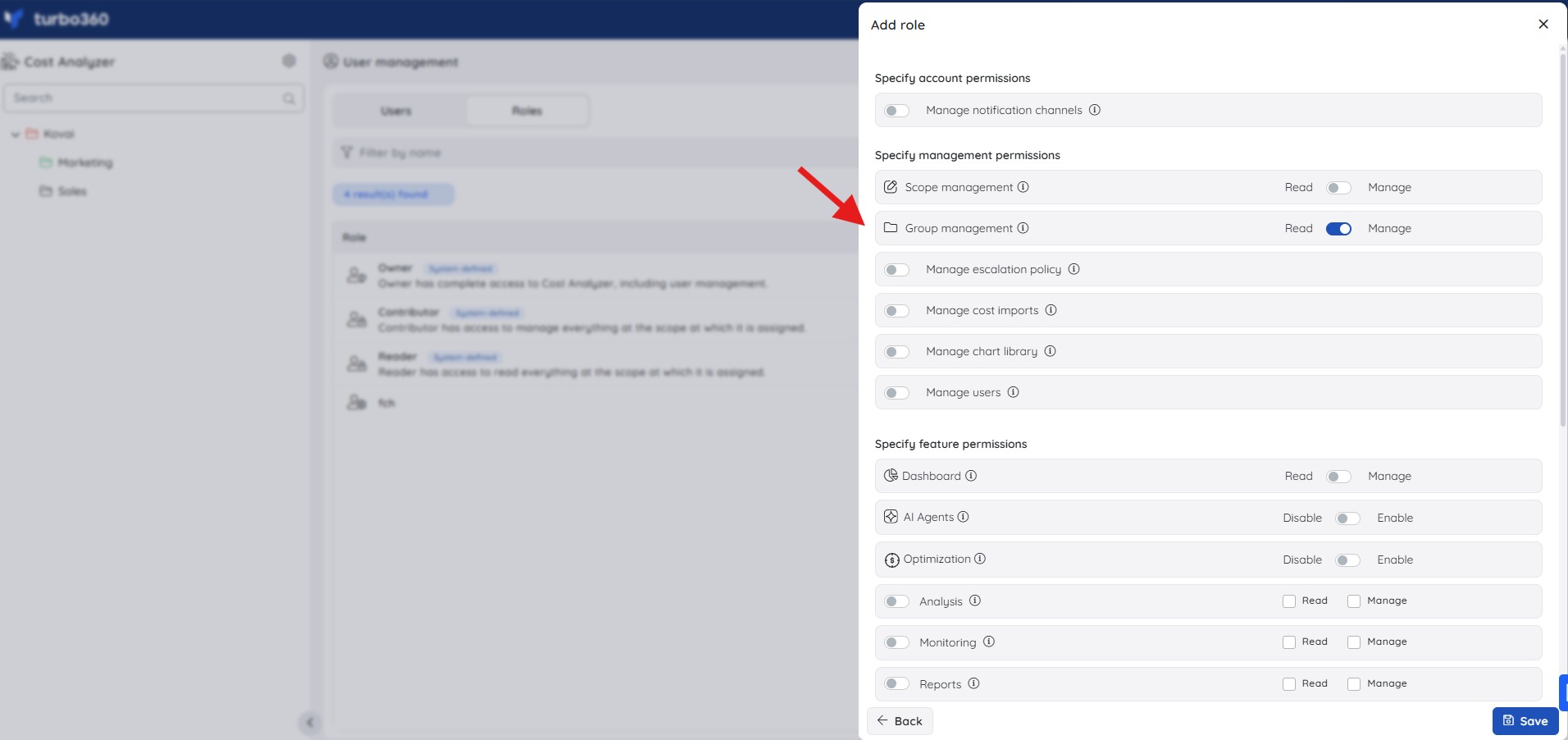
Cost allocation access is controlled by permission level, not just role.
| Role | Permission level | Access |
|---|---|---|
| Account owner, Owner, Contributor | — | Full access to Cost allocation |
| Custom role | Group management: Manage | Full access to Cost allocation |
How it works
Cost allocation is configured per cost management group. Each allocation rule applies one of three distribution strategies to a single parent resource:
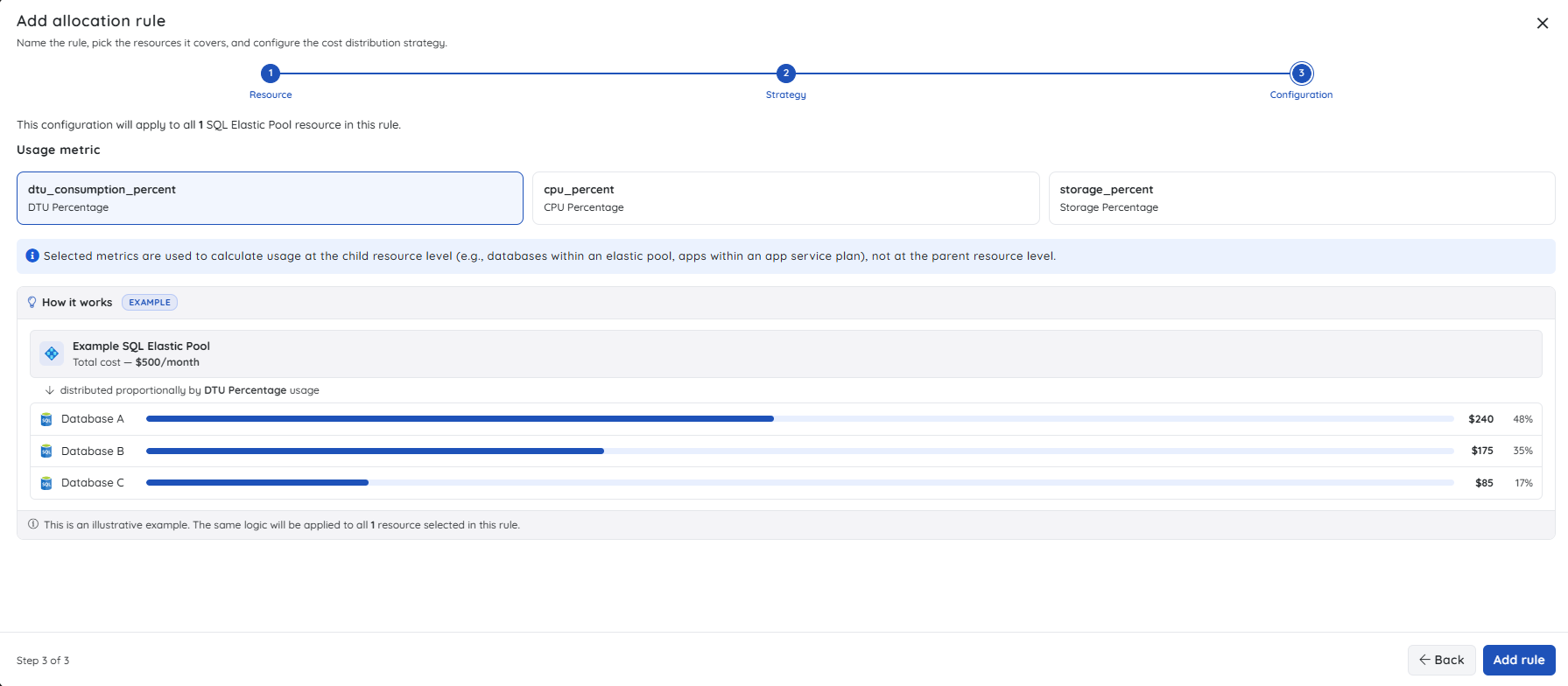
- Metric-based allocation — distributes costs proportionally based on a usage metric measured at the child resource level, reflecting actual usage. This is the most precise option.
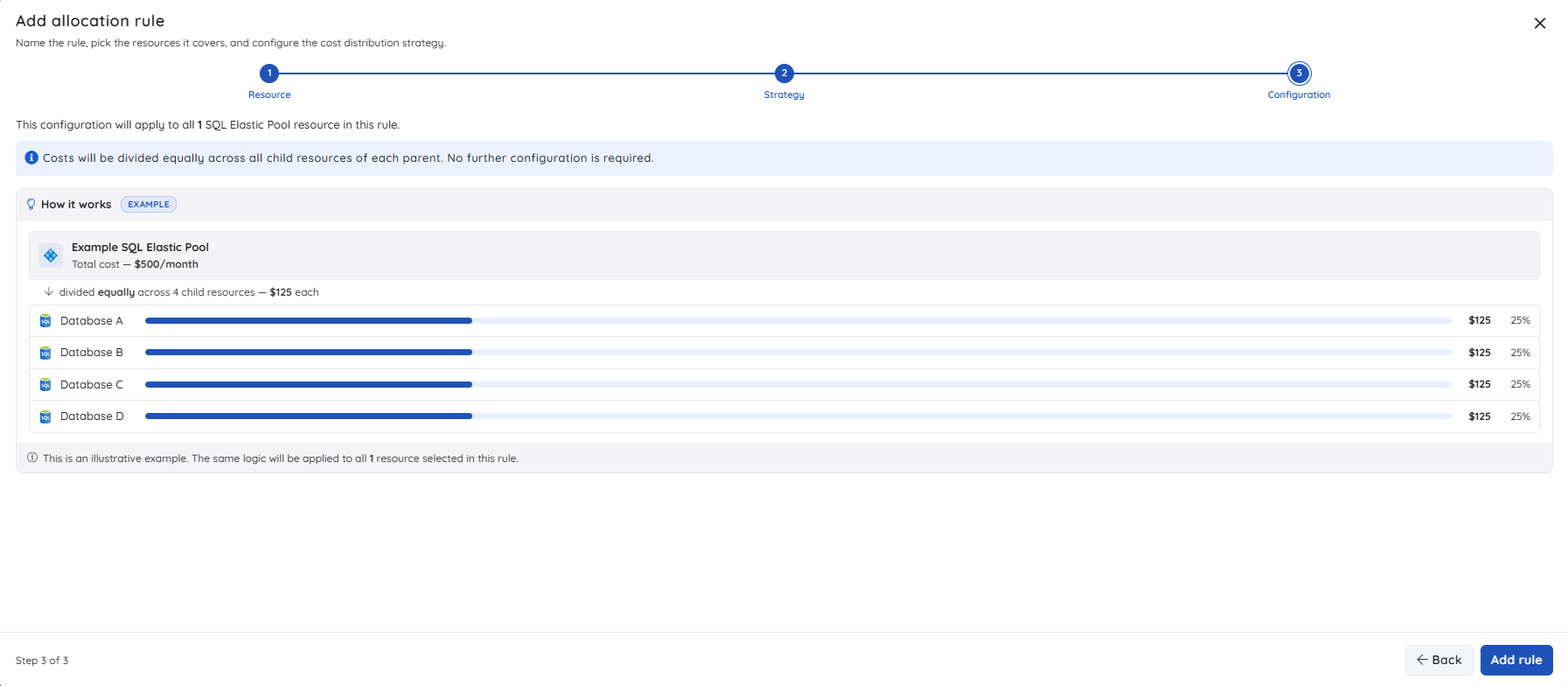
- Equal split — divides the parent's cost equally across all child resources. No further configuration is required.
- Percentage-based — lets you manually assign a fixed percentage to each child resource; the total across all children must equal exactly 100%.
Allocation rules follow group inheritance. Rules set on a parent group apply automatically to child groups that have no rules of their own. Once a child group has at least one rule configured, the parent group's rules no longer apply to that child group — the child group's own rules take precedence entirely.
Allocated costs are reflected at the cost management group level wherever applicable across the platform. This includes areas such as Reporting, Monitoring, and other features that display cost data at the group level — ensuring that the distributed child resource costs are consistently visible wherever the group appears.
Steps
Use the following steps to configure and view cost allocation for a cost management group. Cost allocation is configured per cost management group in Cost Analyzer.
Open the cost allocation panel
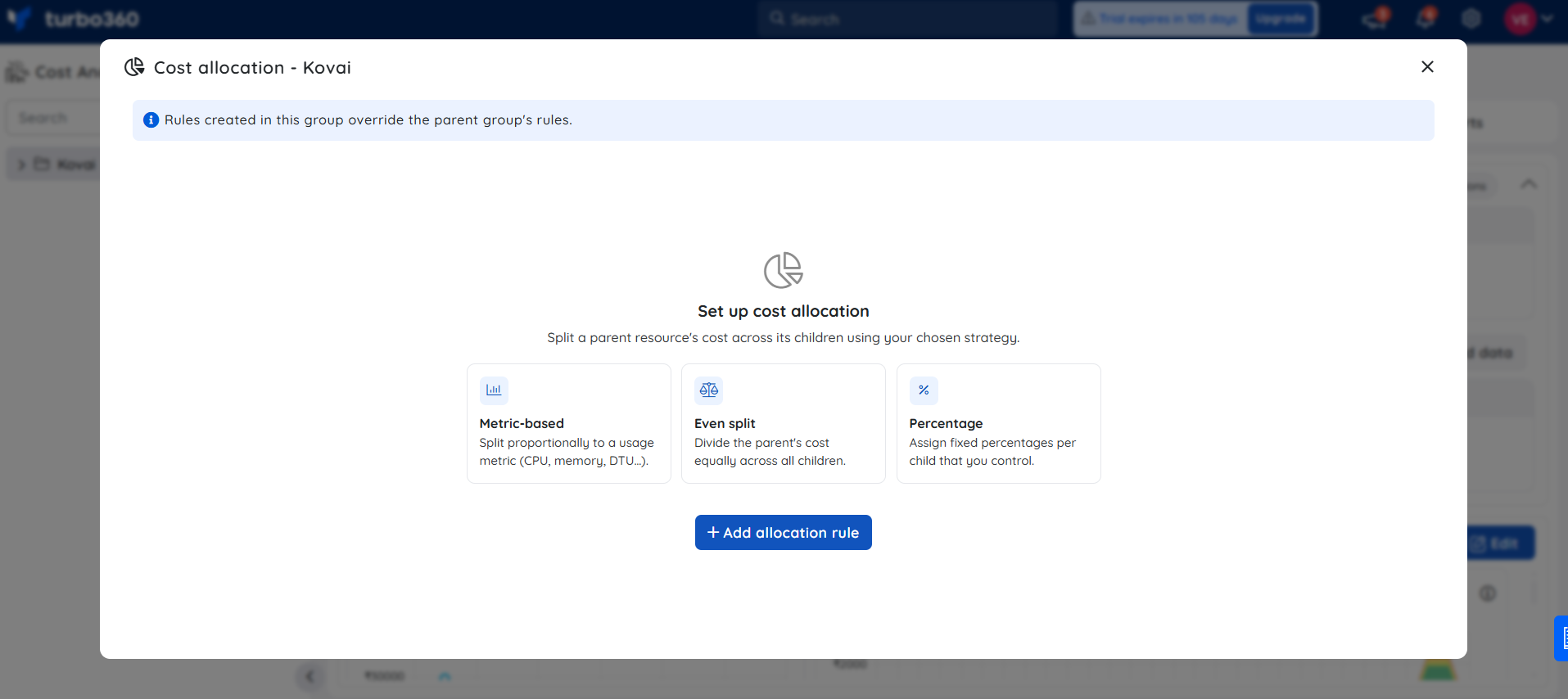
Opening the panel shows any existing allocation rules for the group and an option to add a new one.
- Go to Cost Analyzer and select the cost management group you want to configure.
- Click the Context menu ( ⋮ ) next to the group name in the tree view.
- Select Cost allocation.
.png)
Add an allocation rule
Adding a rule defines how a parent resource's cost is split across its child resources, using a three-step wizard.
- Click + Add allocation rule to open the wizard.
- Step 1: Resource — Enter a rule name (required) and an optional description. Choose the resource type the rule applies to — App Service Plan or SQL Elastic Pool — then select the specific resource from the list that appears. A single rule covers one resource type.
.png)
- Step 2: Strategy — Choose how the parent resource's cost is distributed across its child resources.
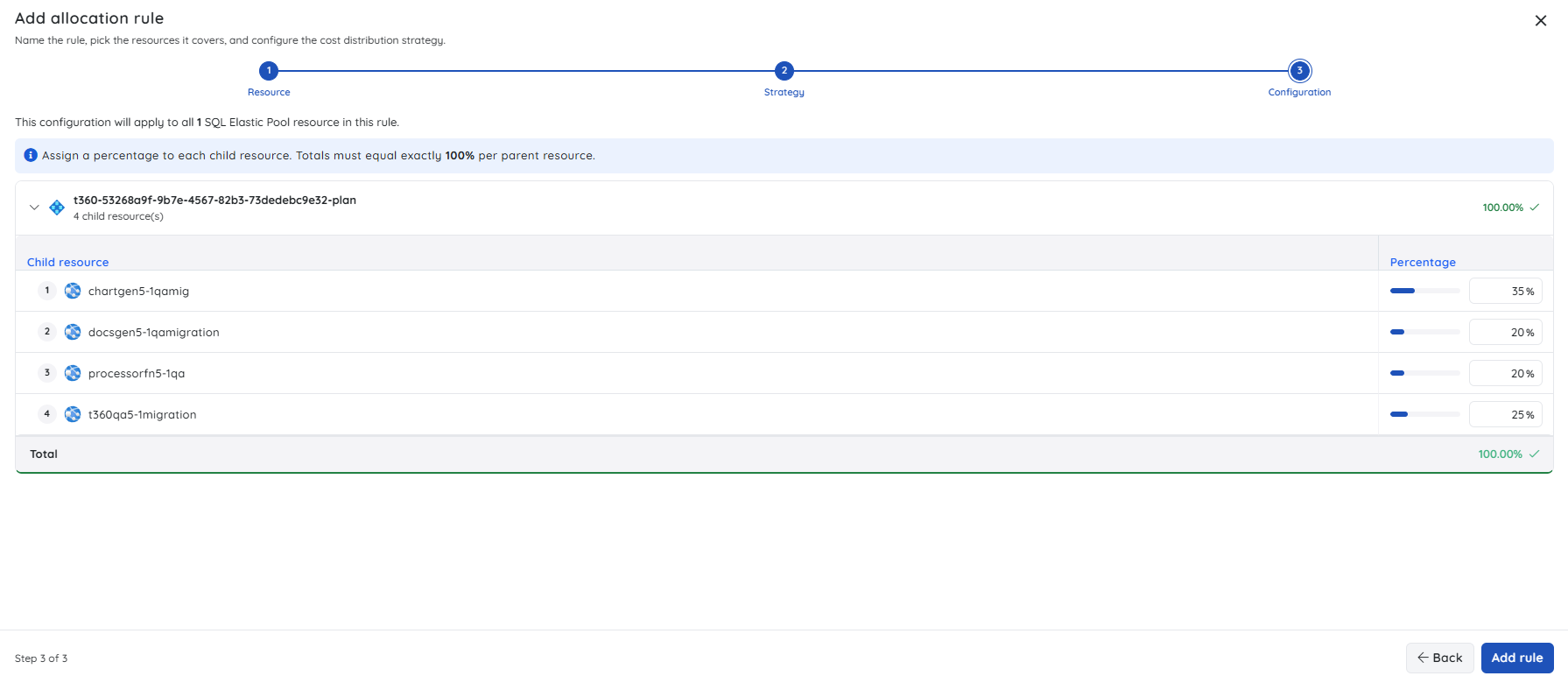
- Step 3: Configuration — the fields shown depend on the strategy selected in step 2:
- For metric-based allocation, select the usage metric used for proportional distribution. Available metrics depend on the resource type — for example, SQL Elastic Pool supports
dtu_consumption_percent(DTU Percentage),cpu_percent(CPU Percentage), andstorage_percent(Storage Percentage). The metric is measured at the child resource level, not the parent. A live example in the panel shows how costs would be distributed based on current metric values. - For equal split, no configuration is needed. The panel confirms costs will be divided equally and shows a preview of the distribution.
- For percentage-based allocation, a table lists each child resource under the parent. Enter a percentage for each child. The running total must reach exactly 100% before the rule can be saved.
- For metric-based allocation, select the usage metric used for proportional distribution. Available metrics depend on the resource type — for example, SQL Elastic Pool supports
- Click Add rule to save. The rule takes effect within a few minutes.
View allocated costs in Analysis
Use this procedure to see how a parent resource's cost breaks down across its child resources after configuring an allocation rule. Wait a few minutes after adding the rule for the data to reflect.
- Go to the Analysis tab of the cost management group.
- Set Group by to Resource.
- Right-click on a parent resource in the chart (such as a SQL Elastic Pool or App Service Plan).
- Select Expand by > Child resource.
Choosing a time interval for which the parent resource has no associated cost data resets the Group by filter value.
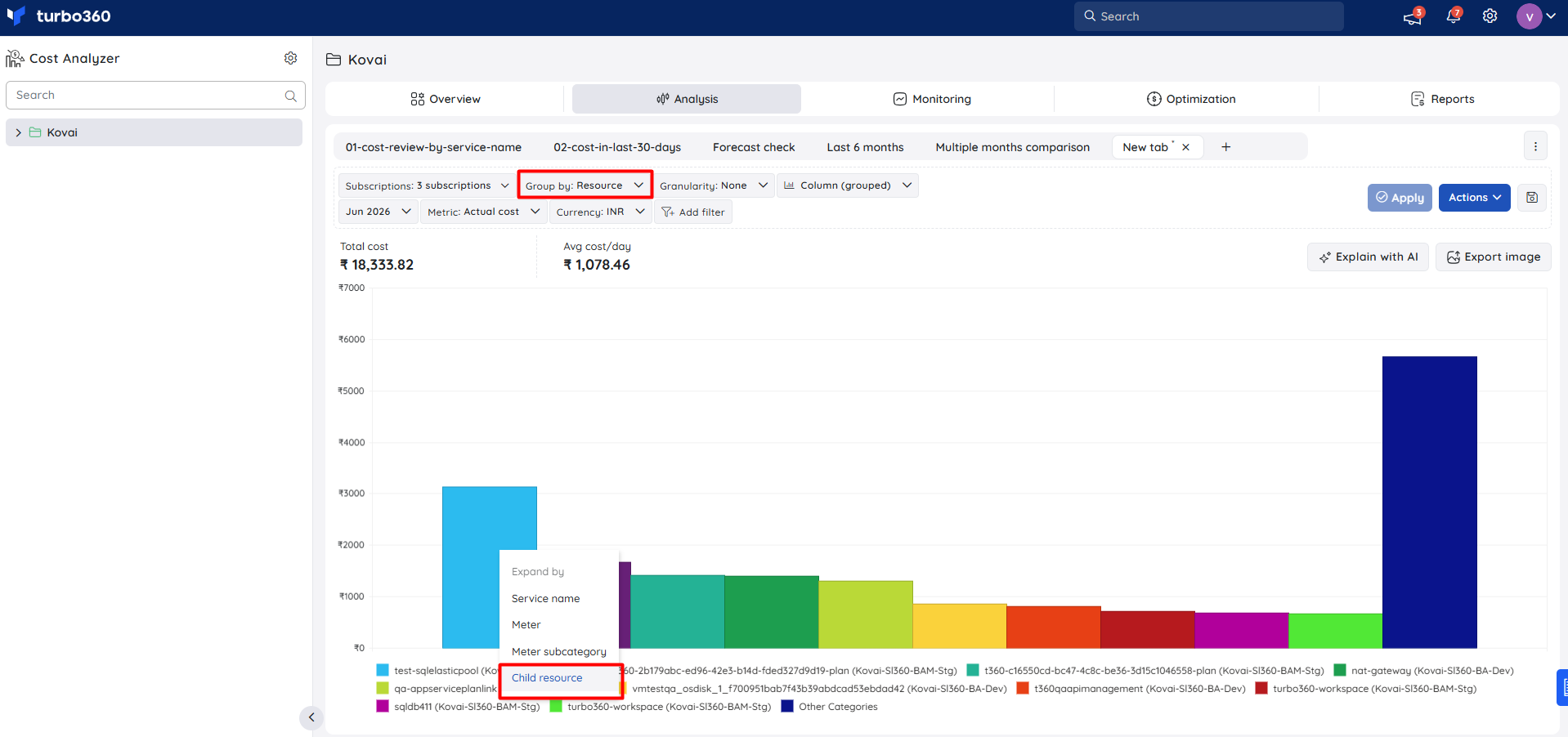
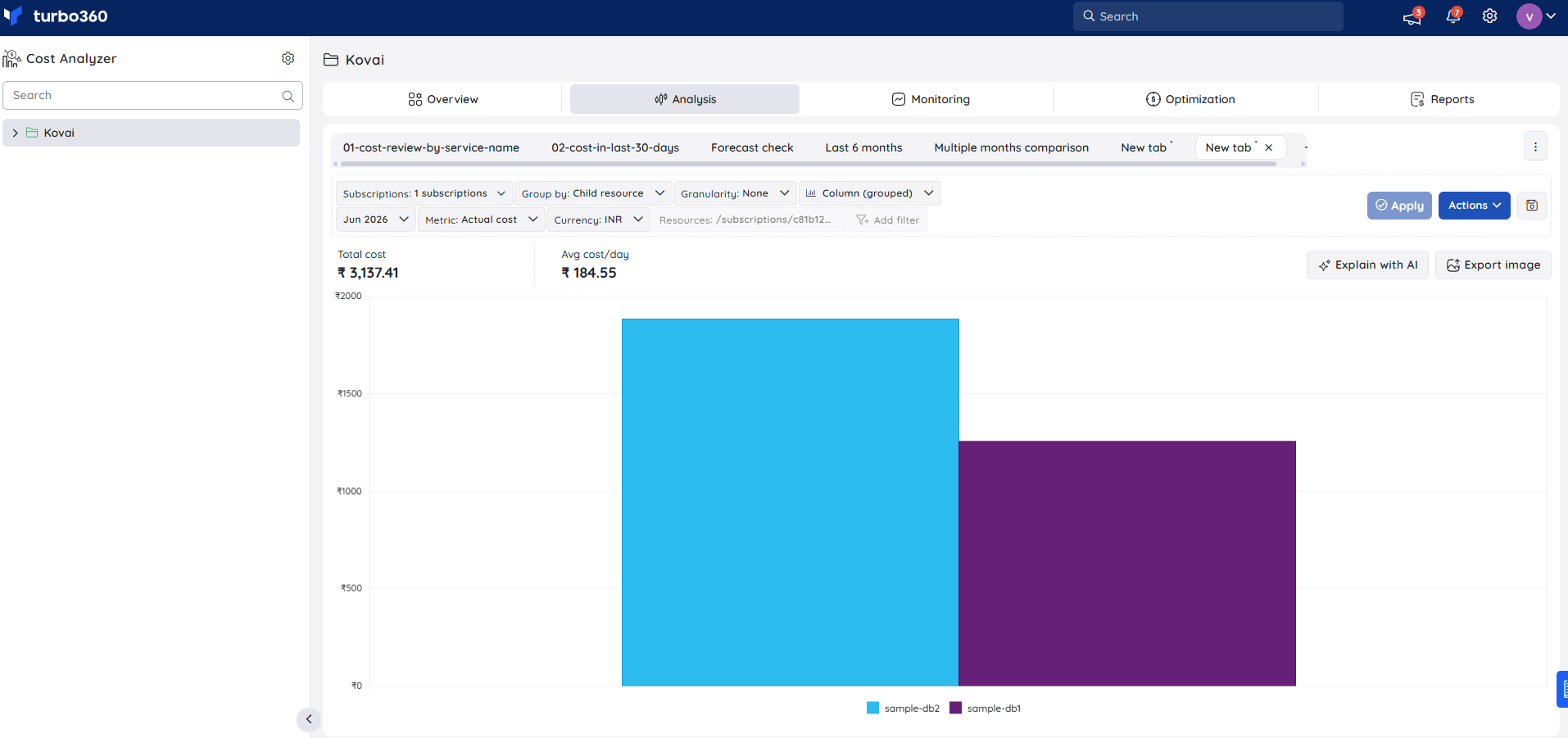
The chart breaks down the parent resource's cost across its child resources according to the allocation rule.
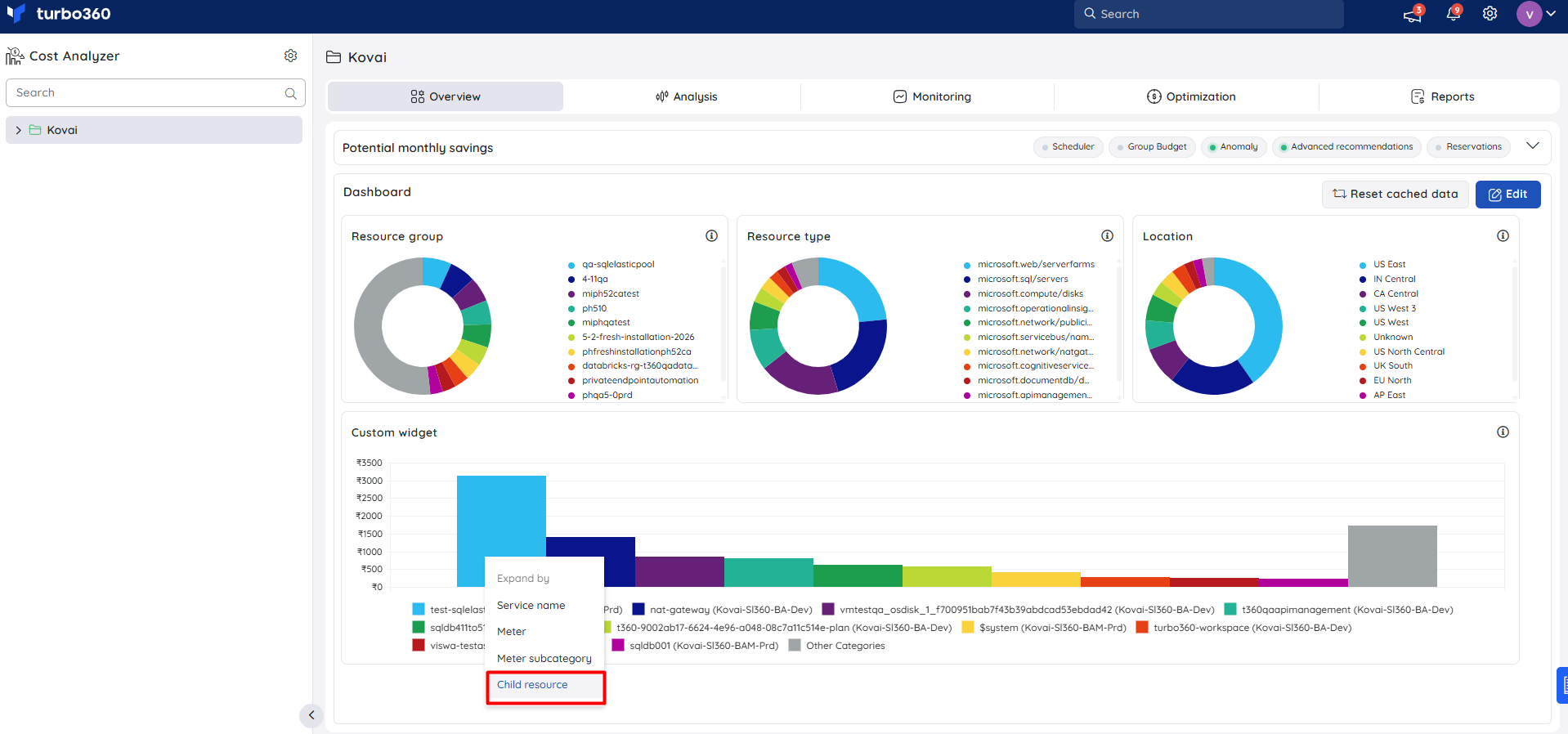
You can also access the child resource expansion from the Cost group overview dashboard. Selecting it opens the Analysis section, showing child resource costs based on the configured rule and the time interval defined in the dashboard widget.
Example scenario
Your SQL Elastic Pool costs
Limitations
- Cost allocation supports only App Service Plan and SQL Elastic Pool as parent resource types.
- Only one allocation rule is allowed per resource type within a cost management group.
- Percentage-based rules must total exactly 100% across all child resources before they can be saved.
Troubleshooting
Percentage-based rule won't save
Cause: The percentages entered for child resources don't add up to exactly 100%.
Fix: Adjust the values until the running total reaches exactly 100%, then save the rule.Can't add a new allocation rule for a resource type
Cause: A rule already exists for that resource type within the group. Only one rule per resource type is allowed per group.
Fix: Edit or delete the existing rule instead of creating a new one.Child resource costs aren't showing in Analysis
Cause: The allocation rule was added recently and hasn't taken effect yet.
Fix: Wait a few minutes after saving the rule, then reload the Analysis view.Group by filter resets unexpectedly in Analysis
Cause: The selected time interval has no cost data associated with the parent resource.
Fix: Choose a time interval for which the parent resource has cost data.
FAQs
Which resource types support cost allocation?
Only App Service Plan and SQL Elastic Pool parent resources are supported.What happens if a child group has its own allocation rule?
The child group's rule takes precedence entirely; the parent group's rule no longer applies to that child group.How long does it take for a new rule to appear in Analysis?
The rule takes effect within a few minutes. Wait a few minutes after saving before checking the Analysis view.
Related articles
Was this article helpful?