

Cost Analyzer quick start
- 05 Aug 2026
- 4 Minutes to read
- Print
- DarkLight
- Download PDF
Cost Analyzer quick start
- Updated on 05 Aug 2026
- 4 Minutes to read
- Print
- DarkLight
- Download PDF
Article summary
Did you find this summary helpful?
Thank you for your feedback!
Overview
This guide walks you through setting up Cost Analyzer for the first time — from connecting your Azure subscription to running your first cost analysis. You will be operational within minutes.
Business value
Cost Analyzer gives you immediate visibility into Azure spending across subscriptions, resource groups, and services. Getting started quickly means your team can identify cost anomalies, set budgets, and begin optimizing cloud spend without delay.
Prerequisites
Before you begin, ensure the following are in place:
- A Turbo360 account with an active organization
- An Azure subscription you have access to
- A service principal with the required Azure permissions
- The Cost Analyzer module enabled on your Turbo360 plan
Required permissions
| Permission | Details |
|---|---|
| Turbo360 role | Account owner role |
| Azure role | Reader + Cost Management Reader on the target subscription |
Dependencies
- Azure subscription connected to Turbo360
- Service principal configured with Cost Management Reader role
How it works
Cost Analyzer pulls cost and usage data from Azure Cost Management and displays it in Turbo360 dashboards, analysis views, and budget monitors. Data is imported on a scheduled basis. After your first import completes, you can explore costs by subscription, resource group, service, and tag.
Steps
Step 1 — Connect your Azure subscriptions to Cost Analyzer
If you have not already connected a subscription, do this first:
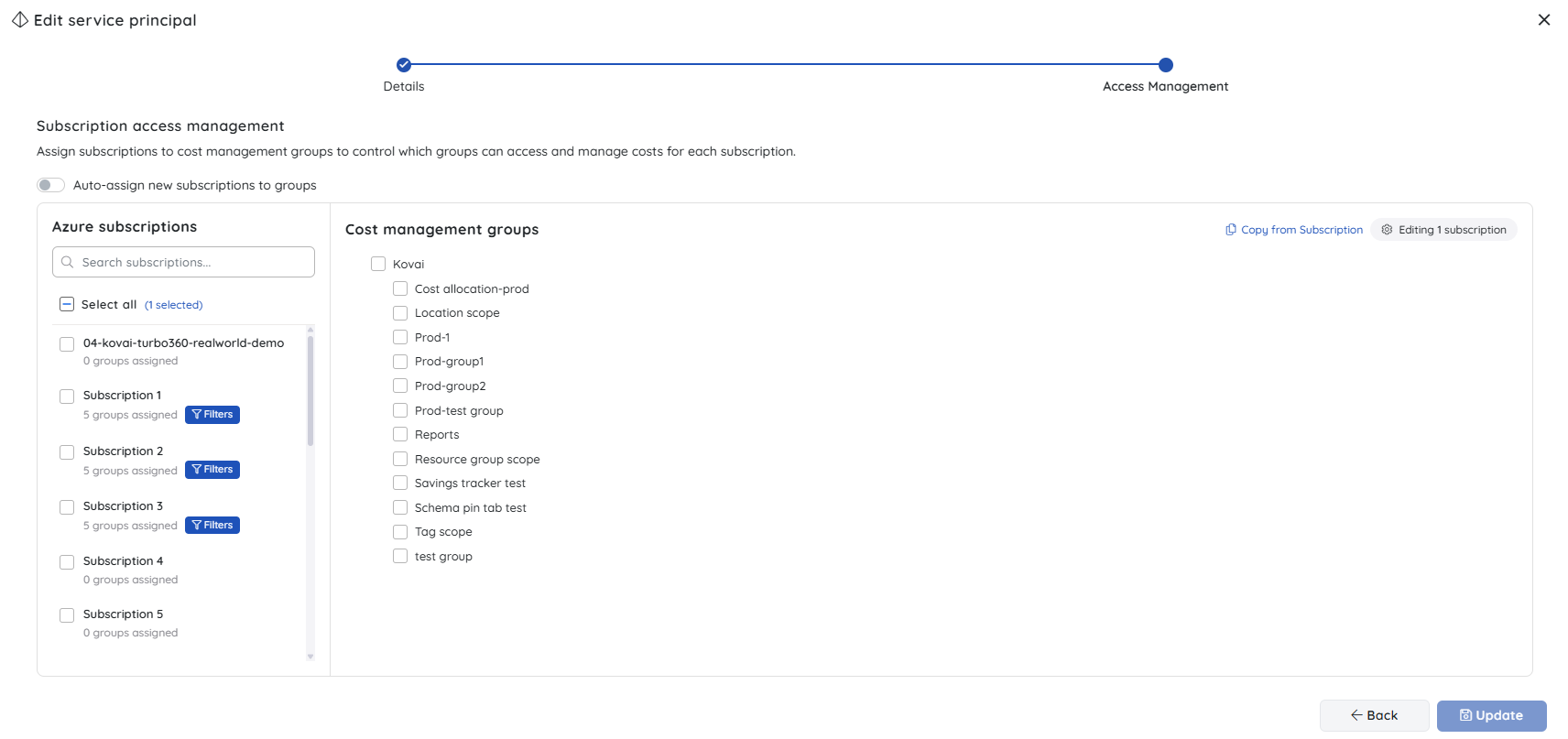
- Go to Cost Analyzer > Settings > Service principals.
- Add or edit an existing service principal.
.png)
- Provide access to the cost management groups using the list of available subscriptions.
- Save the configuration.
Step 2 — Run your first import
- Go to Settings > Cost imports in Cost Analyzer.
- Click Run now next to an Azure subscription to collect cost data for that subscription immediately.
- Wait for the import to complete. The status indicator updates to Healthy when the import finishes.
- Once complete, the cost group populates with cost data based on the historical time period configured.
.png)
Step 3 — Explore the Analysis page
- Select Overview in the cost group navigation.
- Review the cost data for your subscription.
- Use the date range selector to view costs for a specific period.
- Select any chart type.
.png)
Step 4 — Create your first budget
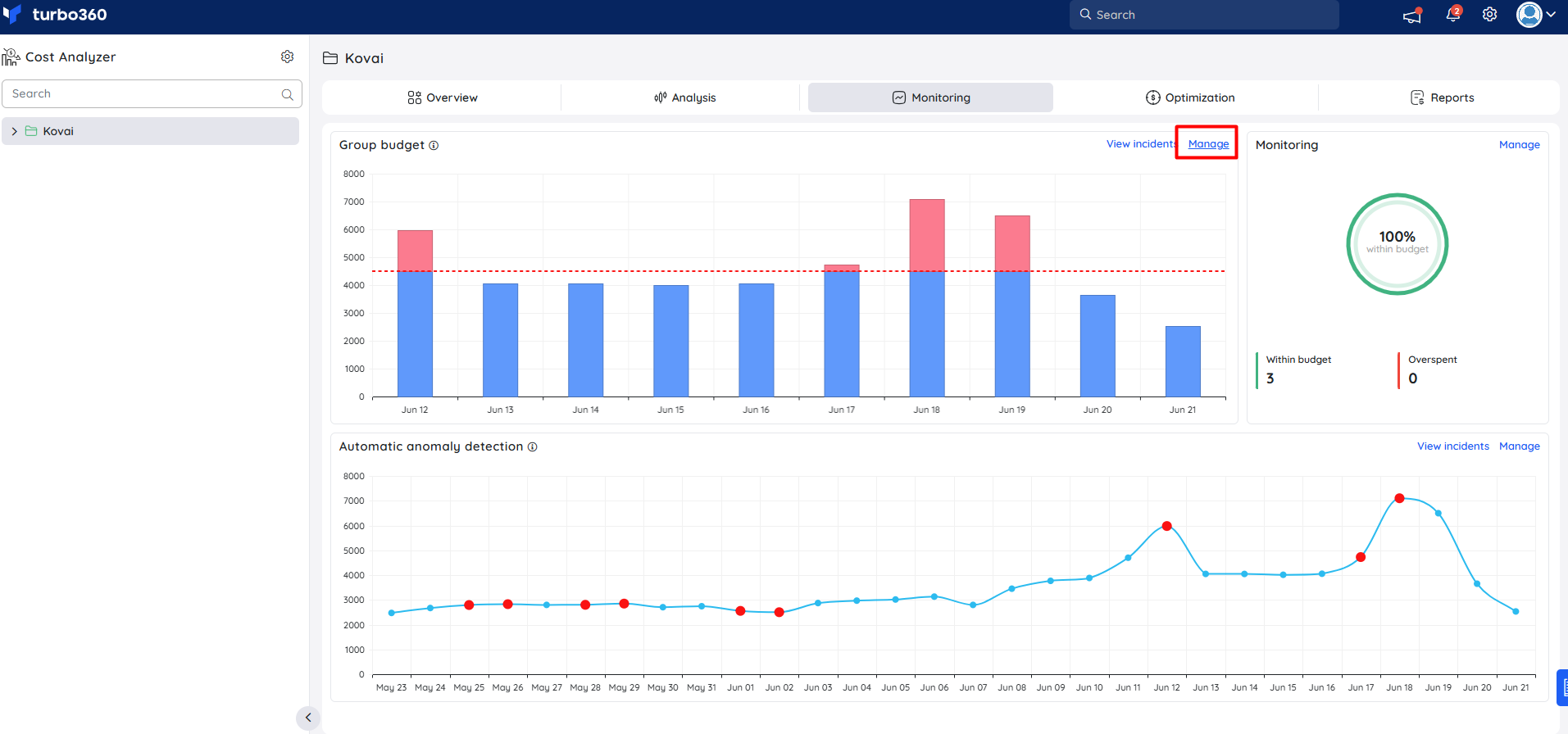
- Navigate to Cost management group > Monitoring > Group budget.
- Select Configure/Manage.
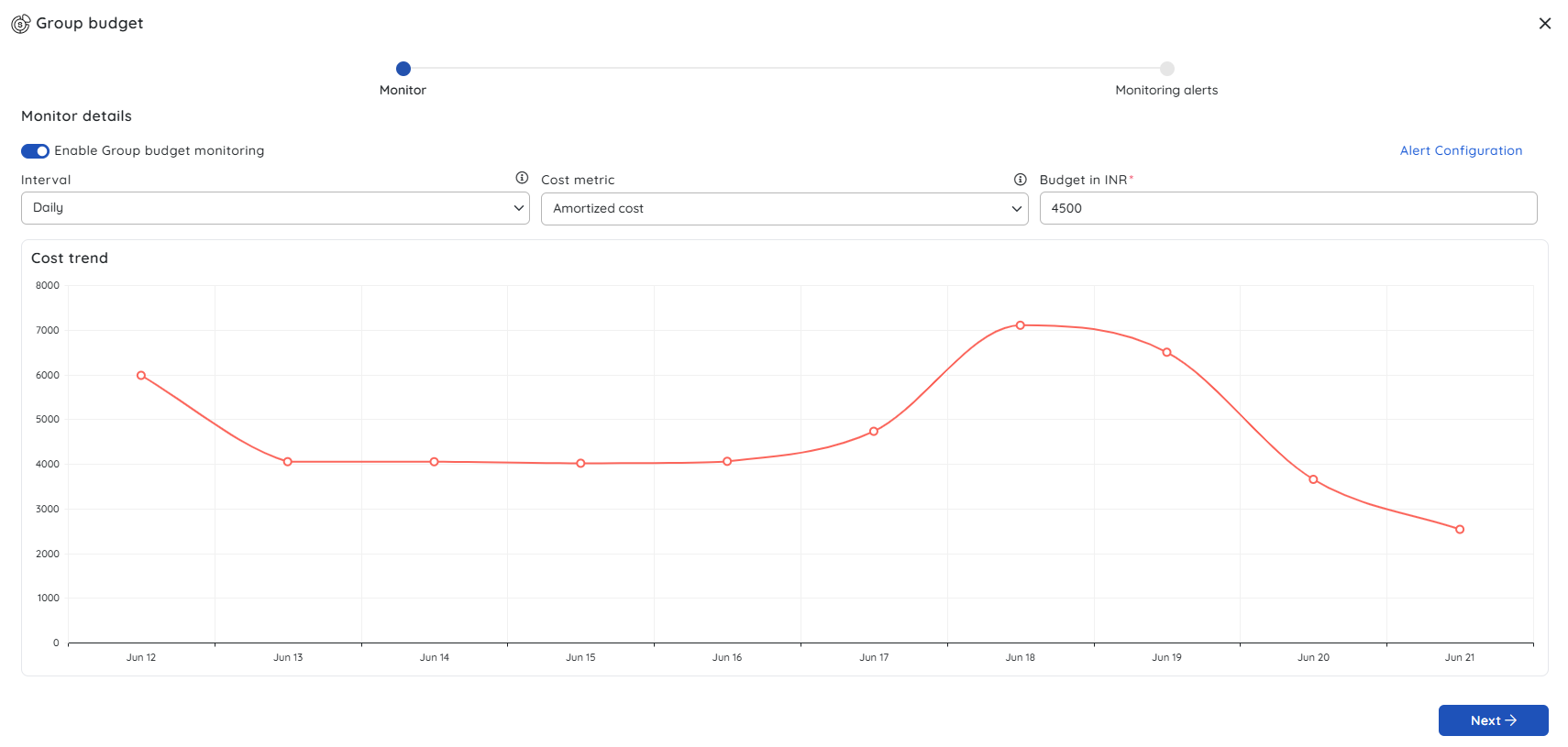
- Turn on the Group budget monitoring toggle, then set the time interval, cost metric, and budget value.
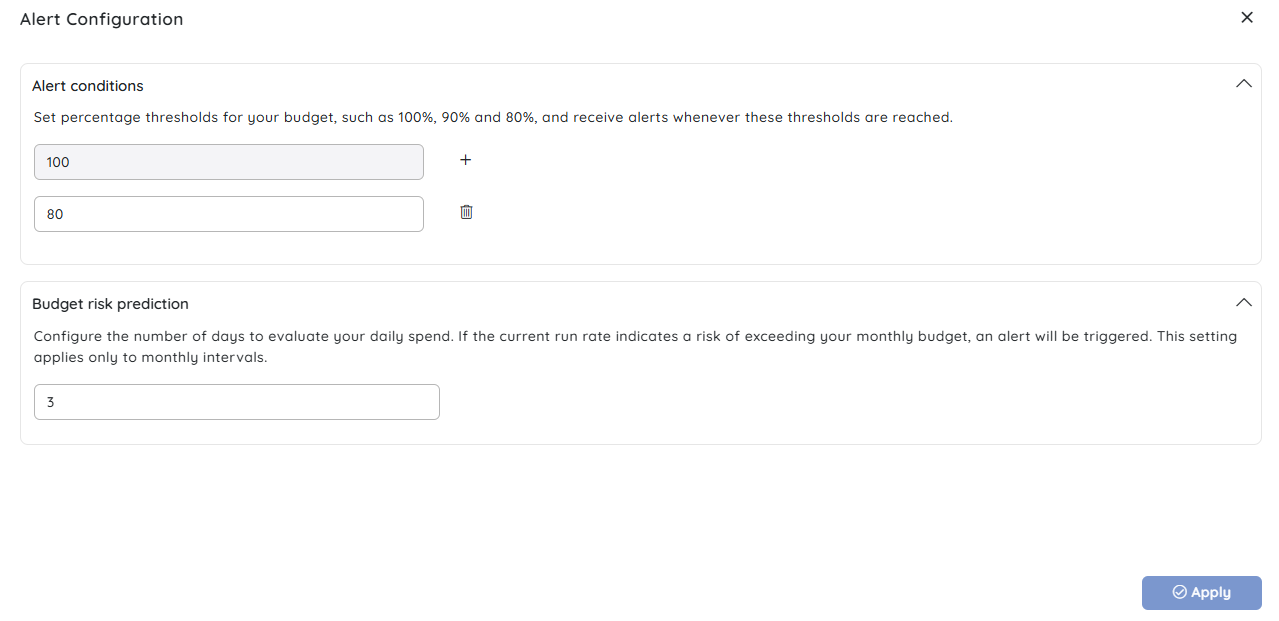
- Under Alert Configuration, set percentage thresholds and enable budget risk prediction as needed.
- Select the notification channels to alert when spend approaches your limit.
- Click Save.
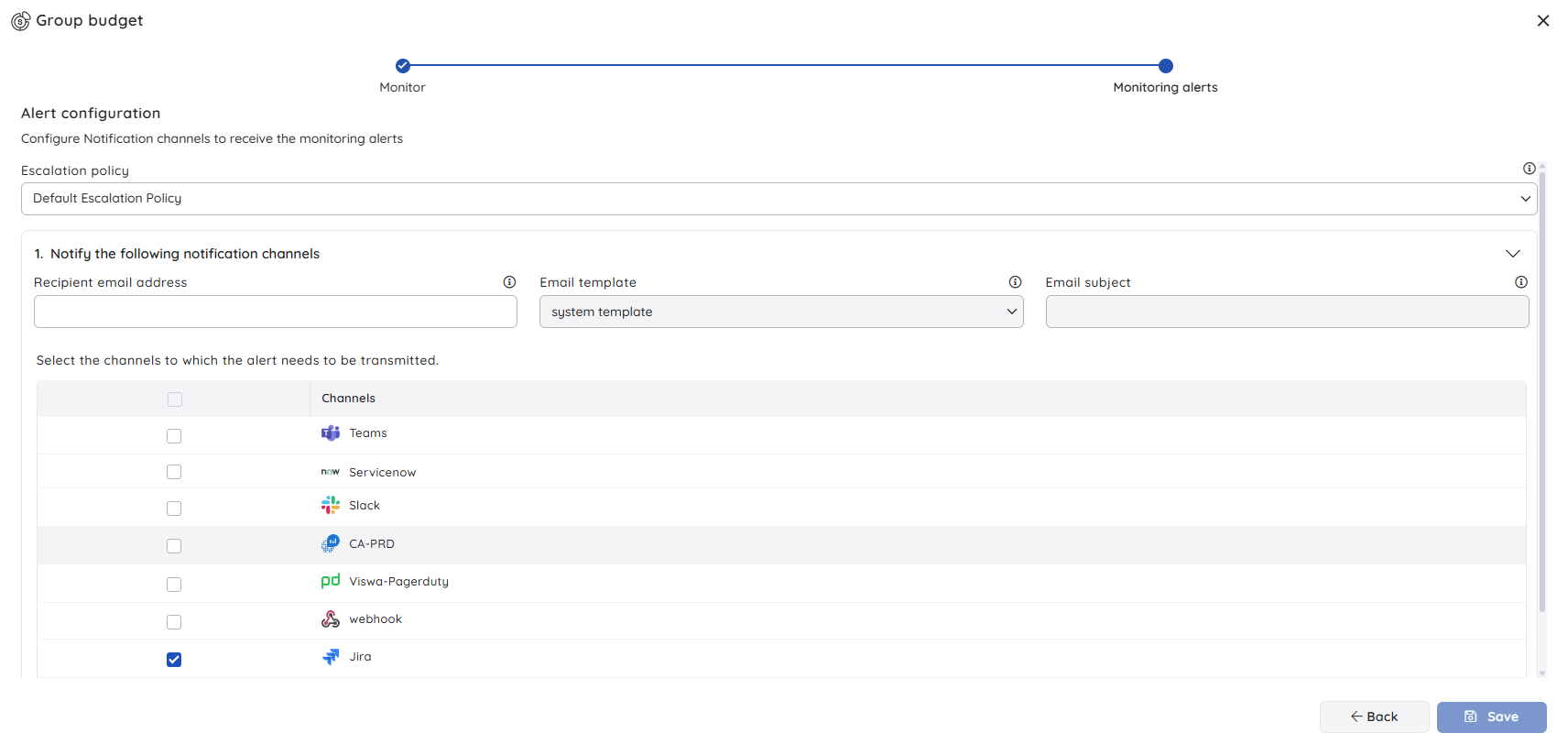
Configuration
| Option | Type | Default | Required | Description | Allowed values |
|---|---|---|---|---|---|
| Subscription scope | Dropdown | — | Yes | The Azure subscription to analyze | Any connected subscription |
| Import schedule | Dropdown | daily | Yes | Historical period for cost data | 1-12 months |
| Currency | Dropdown | USD | No | Display currency for cost values | Subscription billing currency |
| Budget threshold | Number | — | No | Percentage of budget that triggers an alert | 1–100 |
Permission behavior
With access: Users with roles scoped to Cost Analyzer module roles view dashboards, run analyses, and access budget data for subscriptions assigned to them.
Without access: Users without a Cost Analyzer role cannot see the Cost Analyzer module in the navigation. Subscription data is not visible until the subscription is assigned to the user's access scope.
Example scenario
Your organization runs workloads across three Azure subscriptions. After connecting all three and running the first import, you navigate to the Cost Analyzer dashboard and notice one subscription's spend has increased 40% compared to last month. You drill into the Analysis view, filter by service, and identify that a new Azure SQL tier was provisioned unexpectedly. You create a budget with an 80% threshold alert to monitor that subscription going forward.
Limitations
- Cost data is available from the date the subscription was first connected. Historical data before the connection date is not imported.
- Import frequency is limited by Azure Cost Management API rate limits. Very large subscriptions may take longer to process.
- Real-time cost data is not supported. Data reflects the last completed import.
- Tag-based filtering requires that Azure resources are tagged consistently in the source subscription.
- Cost Analyzer does not modify Azure resources. It is a read-only view of cost and usage data.
Troubleshooting
Import fails immediately after connecting a subscription.
Cause: The service principal may lack Cost Management Reader permissions on the subscription.
Fix: Verify the role assignment in the Azure portal and retry the import.Dashboard shows no data after a successful import.
Cause: The import may have completed for a billing period with no spend.
Fix: Check the selected date range and confirm the subscription has incurred costs in that period.Budget alerts are not being received.
Cause: No notification channel is configured and assigned to the budget.
Fix: Navigate to Settings > Notification channels and verify the channel is active.Cost data appears incomplete or lower than expected.
Cause: Some Azure services report costs with a 24–48 hour delay in Azure Cost Management.
Fix: Run another import the following day if costs appear missing.Subscription does not appear in Cost Analyzer after enabling.
Cause: The subscription toggle may not have been saved, or the service principal has expired.
Fix: Refresh the page and verify the subscription toggle is saved. Confirm the subscription is active and the service principal credentials are current.
Related articles
Was this article helpful?