

Cost filtering
- 05 Aug 2026
- 6 Minutes to read
- Print
- DarkLight
- Download PDF
Cost filtering
- Updated on 05 Aug 2026
- 6 Minutes to read
- Print
- DarkLight
- Download PDF
Article summary
Did you find this summary helpful?
Thank you for your feedback!
Overview
Filters let you narrow the cost data shown in an Analysis view down to specific resources, resource groups, resource types, locations, service names, meters, meter subcategories, tags, and other cost dimensions — so you can isolate exactly the spend you want to examine.
Business value
Filters reduce the time spent manually cross-referencing subscription data to answer scoped cost questions, letting you go from a broad spend view to the specific resources, teams, or services you're accountable for in a few clicks.
Prerequisites
Required permissions
| Role | Permission level | Access |
|---|---|---|
| Account owner, Owner, Contributor | — | Full access to the Analysis section |
| Analysis role | Manage | Select filter types, choose their values, apply them, and save the resulting view |
| Analysis role | Read | View existing Analysis views and their applied filters, and build a new view by applying your own filter selections — but can't save that view |
.png)
How it works
Filters draw their available values from the cost data already imported for the subscriptions selected in the view.
Multi-layered filtering lets you combine more than one filter type in the same view for deeper, more targeted analysis.
When you add a filter via Add filter, select its values from the dropdown (searchable, with a Select all option), then confirm the selection using the green check or discard it using the red X before applying the view.
The available filter types are:
| Filter | What it filters by |
|---|---|
| Resource | Specific resources within the selected subscriptions |
| Resource group | Specific resource groups within the selected subscriptions |
| Resource type | Specific resource types available across the selected subscriptions |
| Location | Specific resource locations across the selected subscriptions |
| Service name | Specific Azure service names across the selected subscriptions |
| Meter | Specific billing meters across the selected subscriptions |
| Meter subcategory | Specific meter subcategories across the selected subscriptions |
| Tag | Specific tags and their corresponding values |
| Service Family | Specific Azure service families across the selected subscriptions |
| Product Name | Specific product names billed across the selected subscriptions |
| Pricing Model | Specific pricing models (e.g. on-demand, reserved) applied to costs |
| Charge Type | Specific charge types across the selected subscriptions |
| Reservation | Costs associated with specific reservations |
| Benefit | Costs associated with specific cost benefits (e.g. Azure Hybrid Benefit) |
| Publisher Name | Specific publisher names across the selected subscriptions |
| Publisher Type | Specific publisher types across the selected subscriptions |
Resource
The Resource filter allows you to choose specific resources from the selected subscriptions to view their cost.
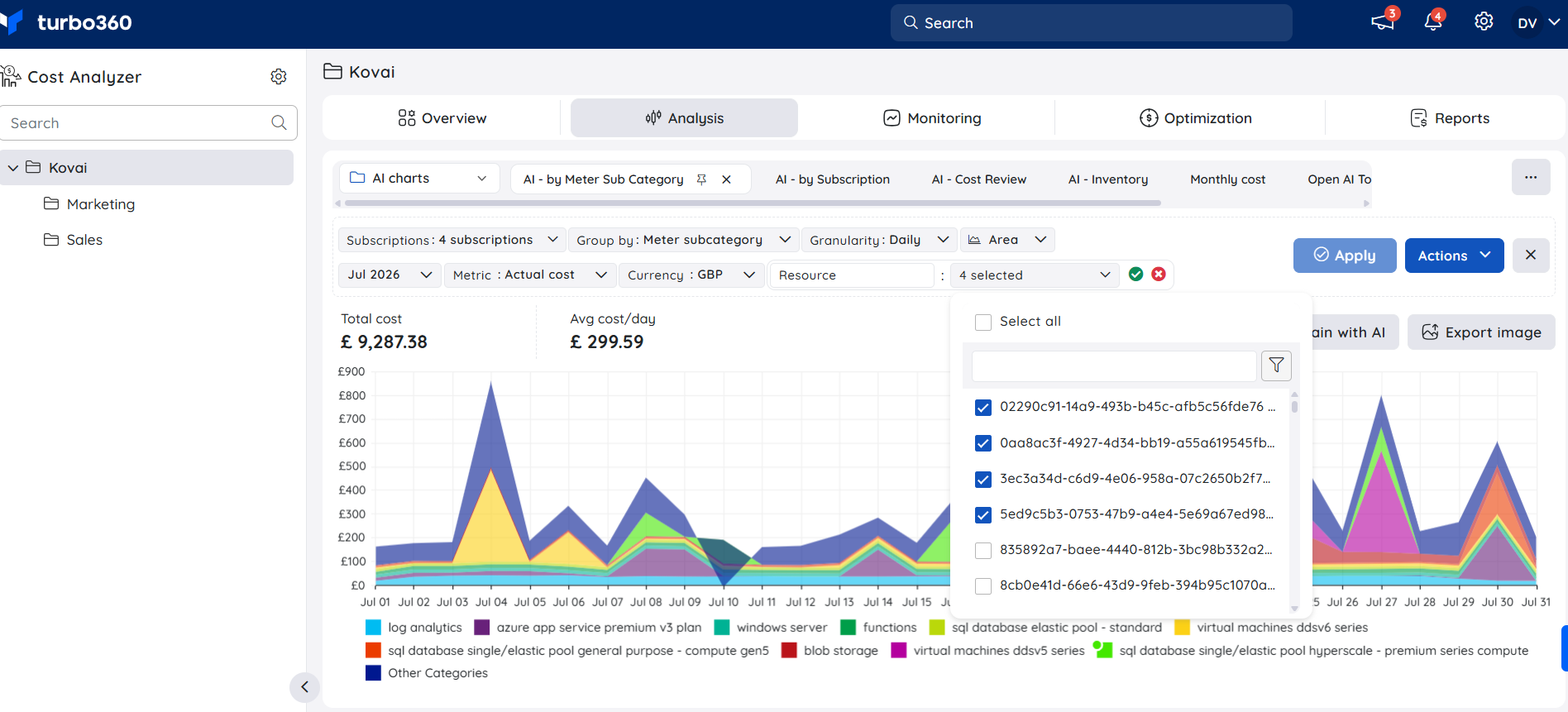
Resource group
The Resource group filter enables you to select specific resource groups from the selected subscriptions to view the cost spent on them.
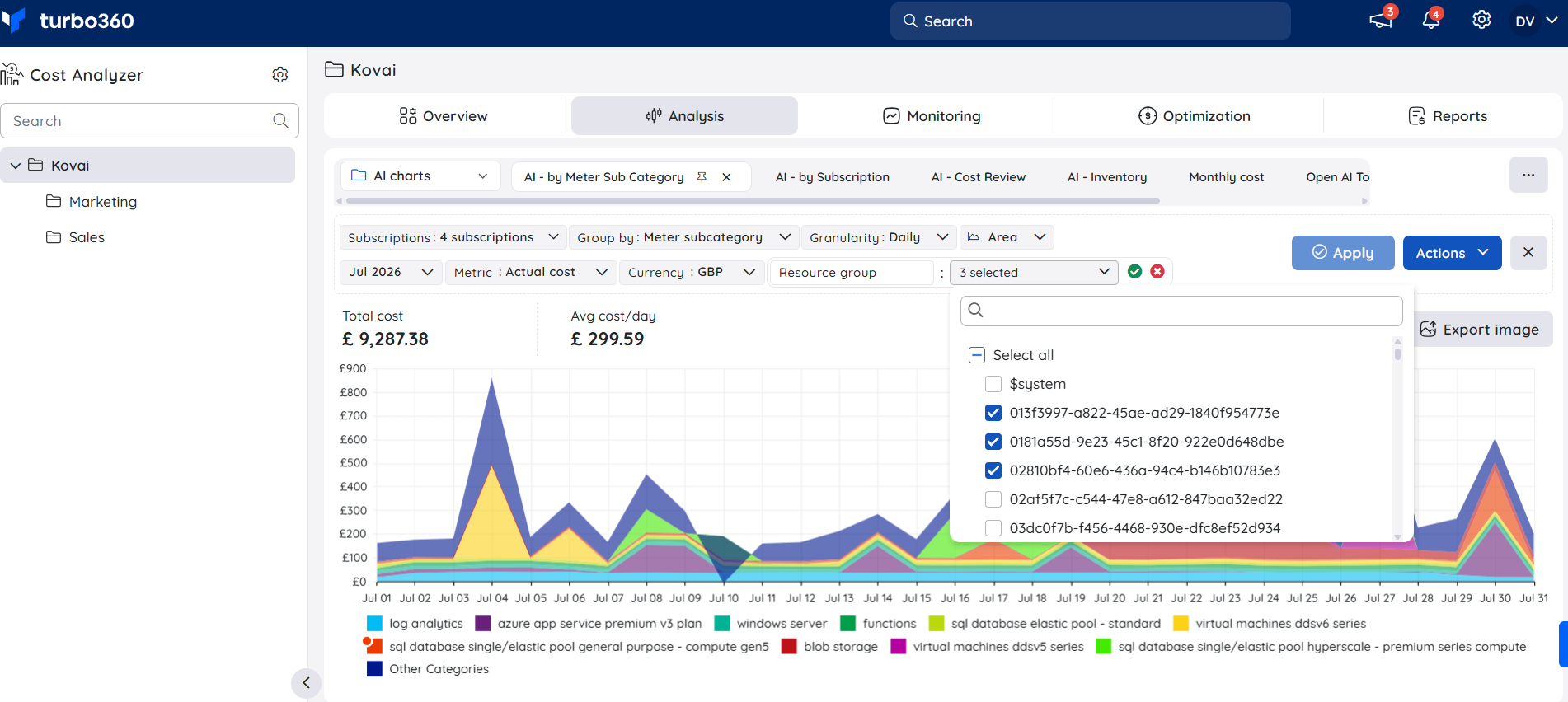
Resource type
The Resource type filter can be used to select specific resource types available from the selected subscriptions to view the cost spent on them.
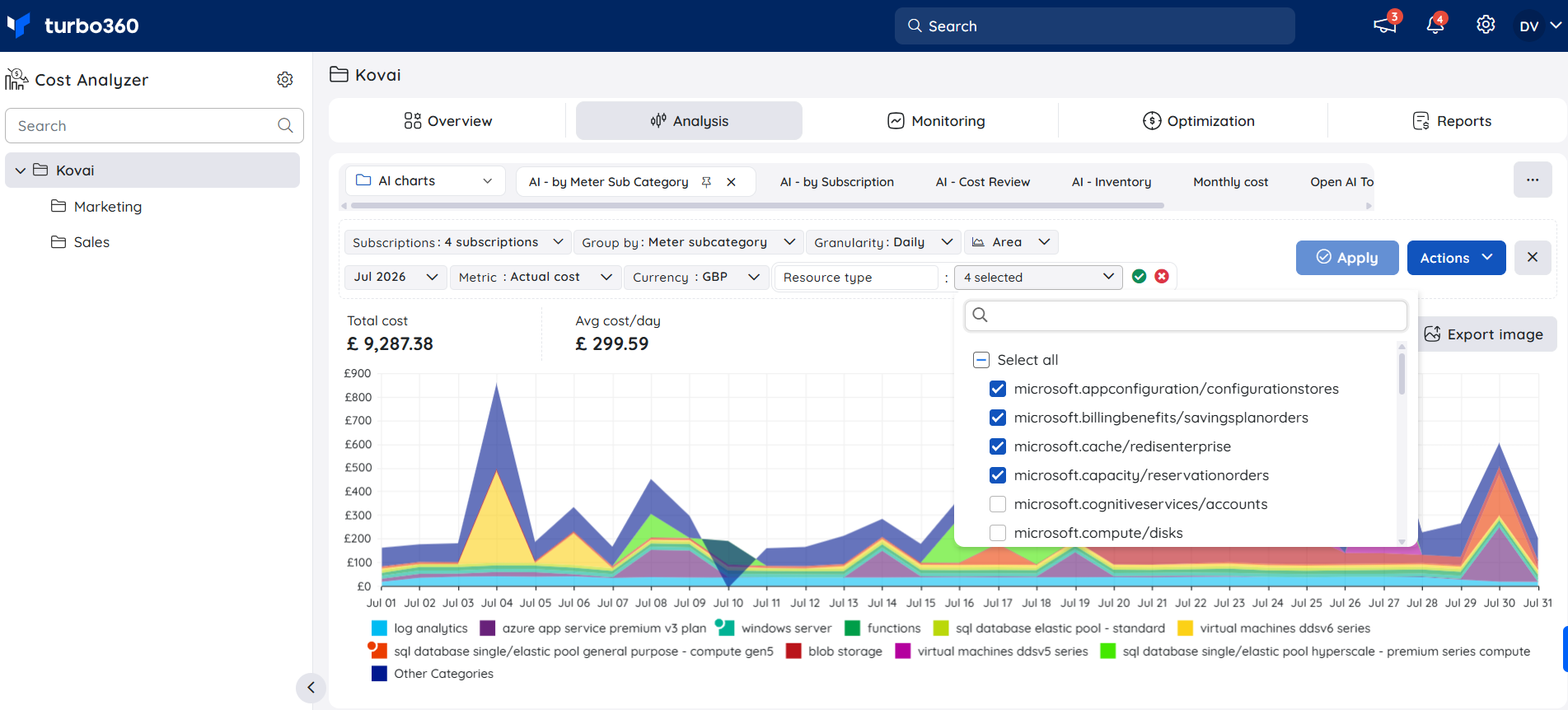
Location
The Location filter allows you to select the required resource locations available from the selected subscriptions to view the cost spent on them.
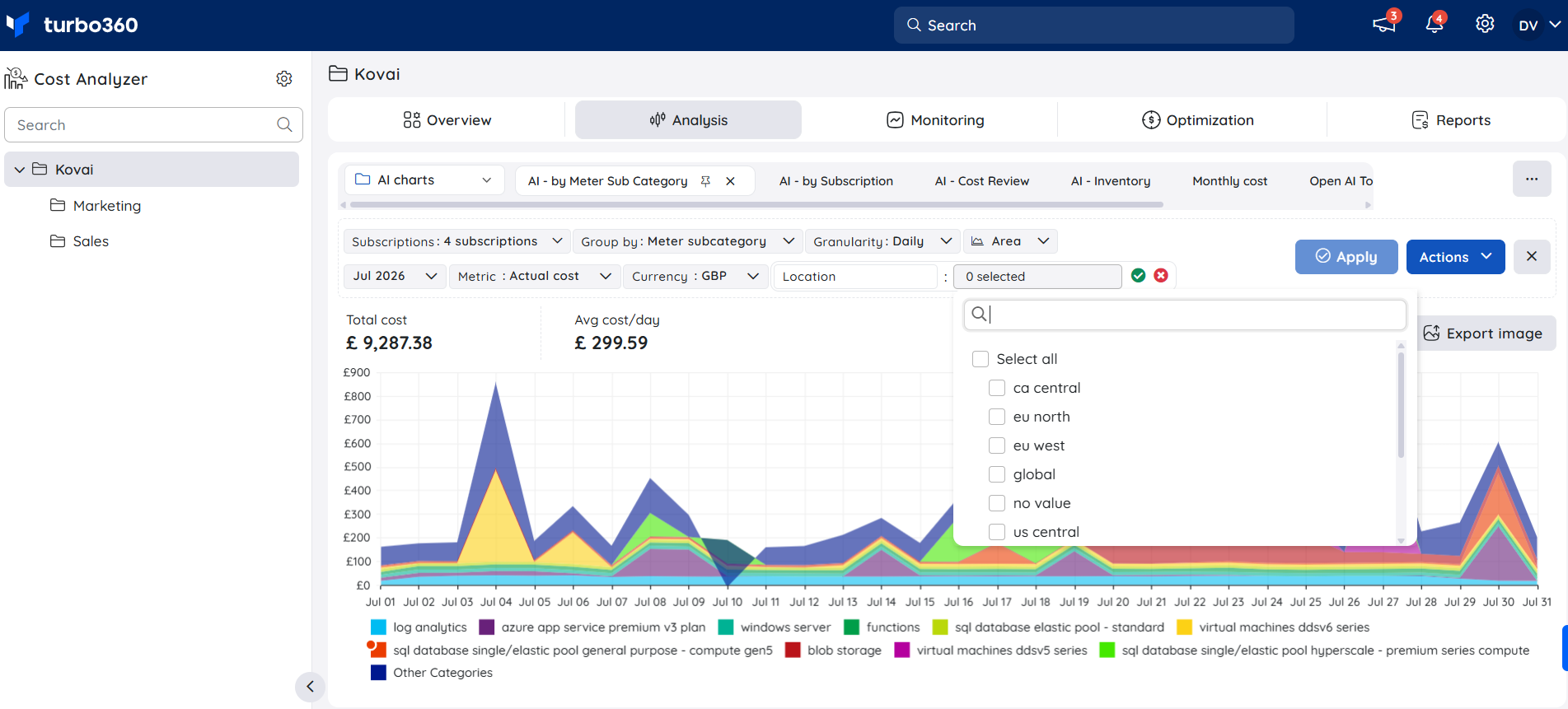
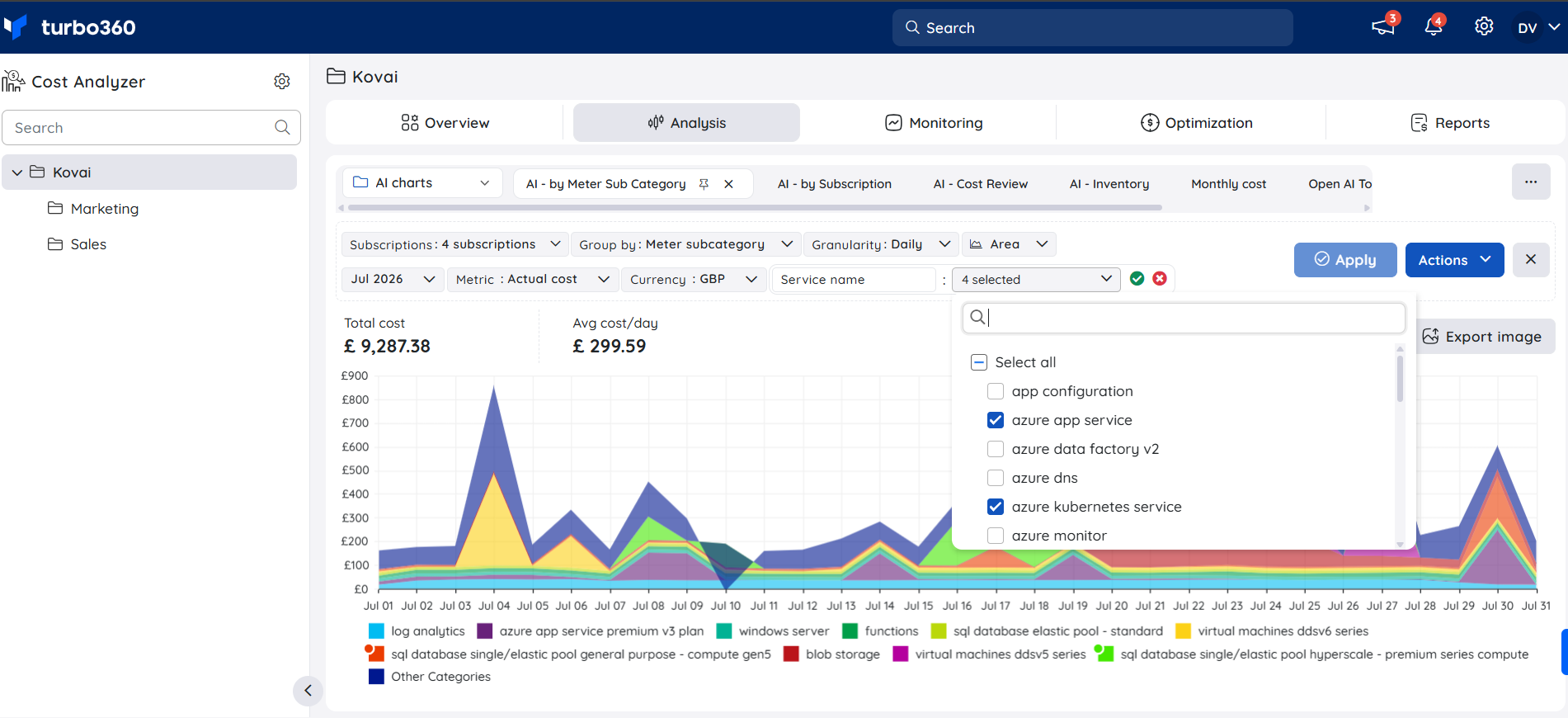
Service name
The Service name filter allows you to select the required service names available from the selected subscriptions to view the cost spent on them.
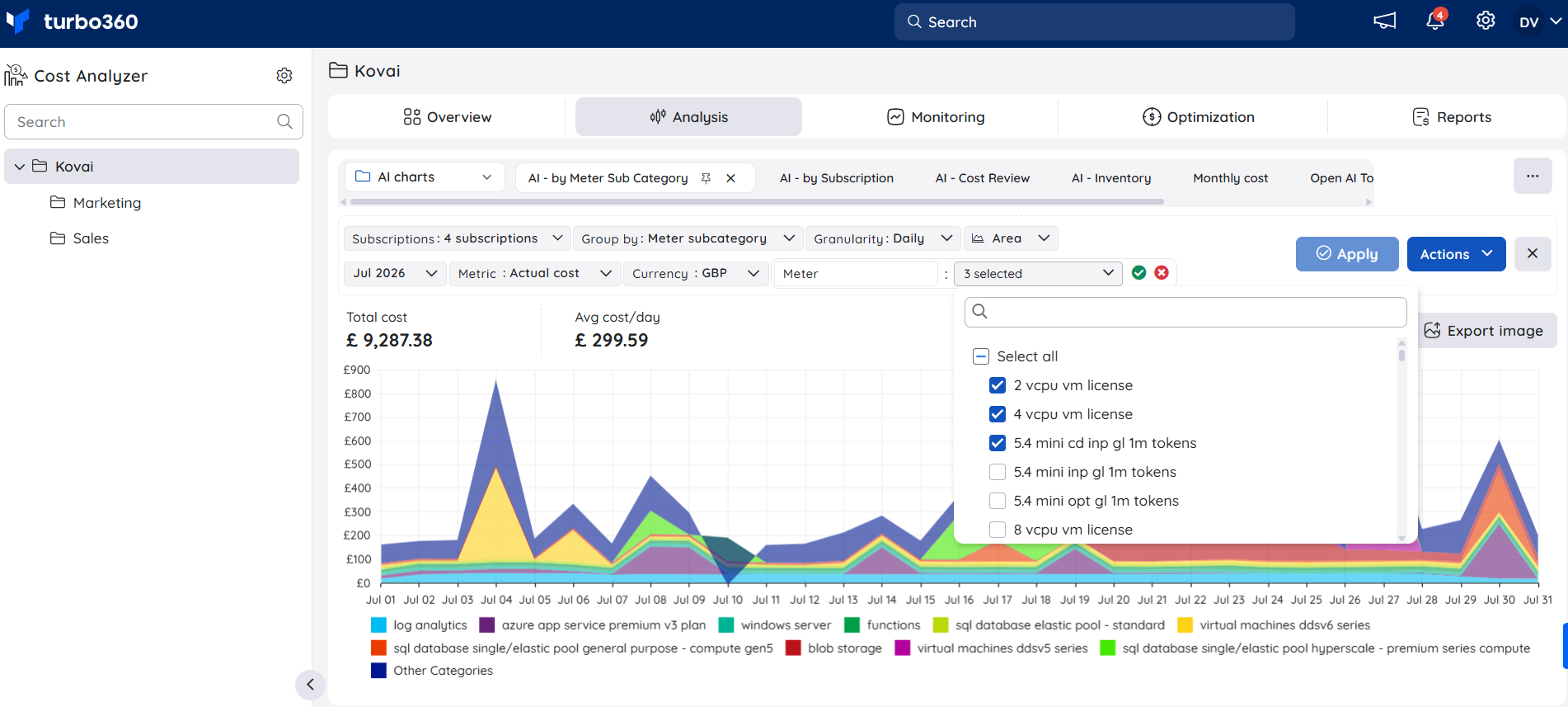
Meter
The Meter filter allows you to select the required meters available from the selected subscriptions to view the cost spent on them.
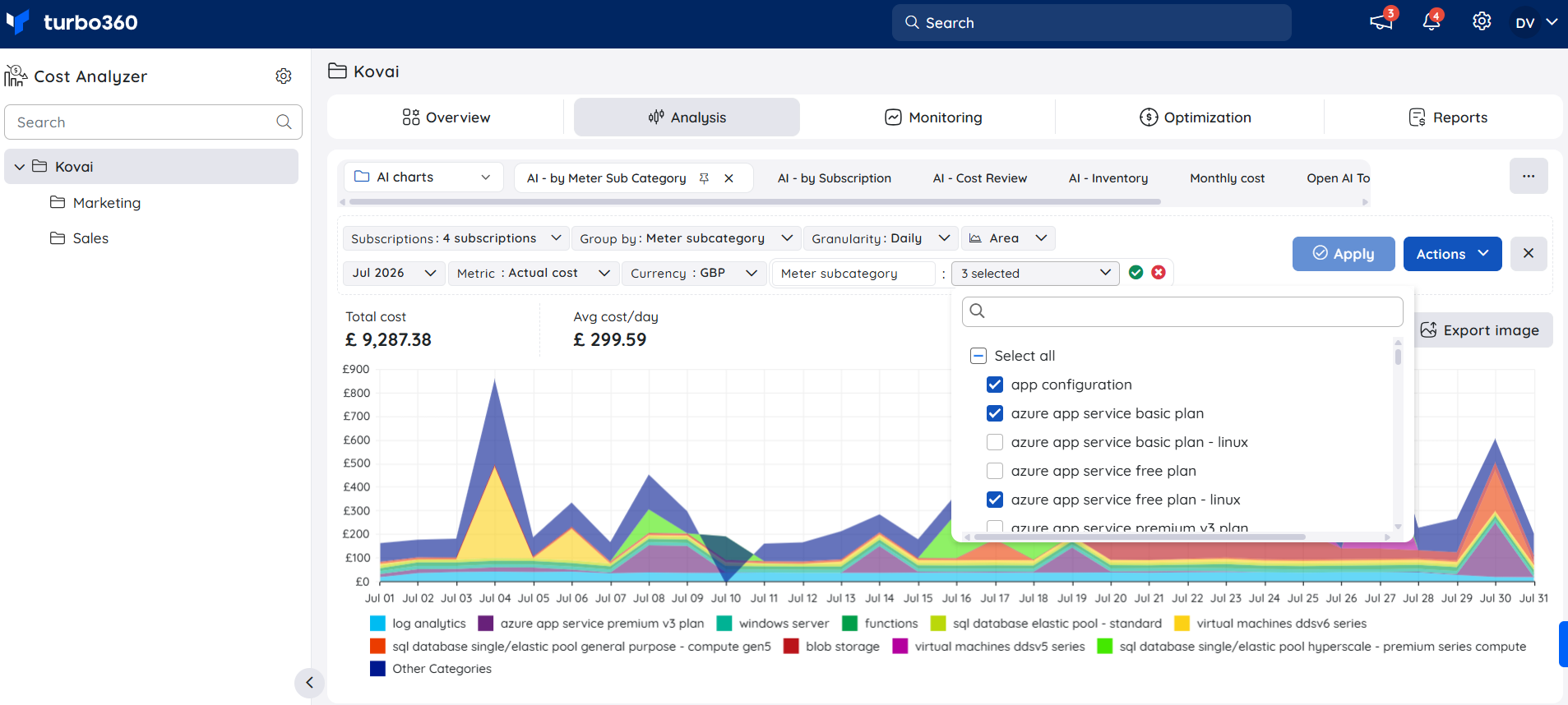
Meter subcategory
The Meter subcategory filter allows you to select the required meter subcategories available from the selected subscriptions to view the cost spent on them.
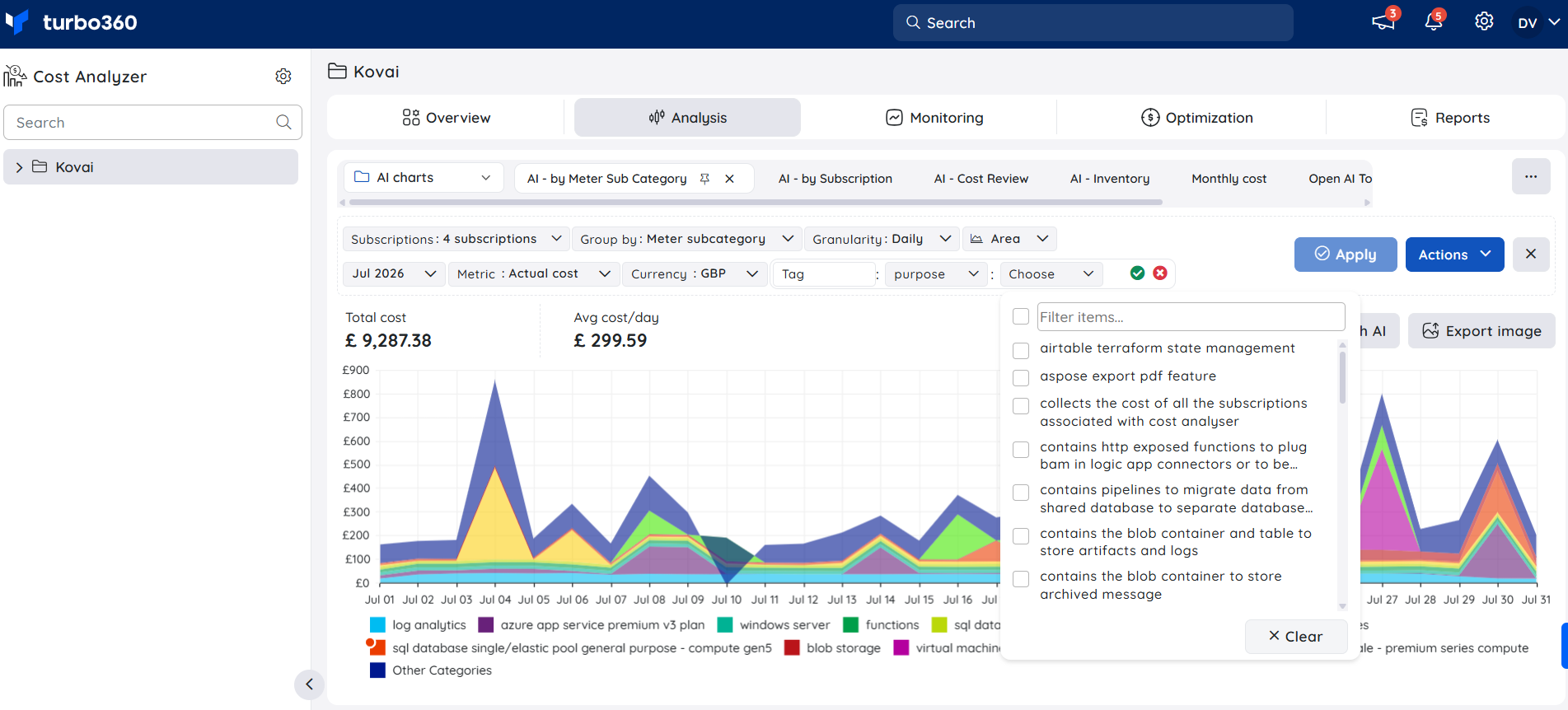
Tag
The Tag filter allows you to choose the required tags along with their corresponding values, and view the total cost of the resources associated with those tags.
Service family
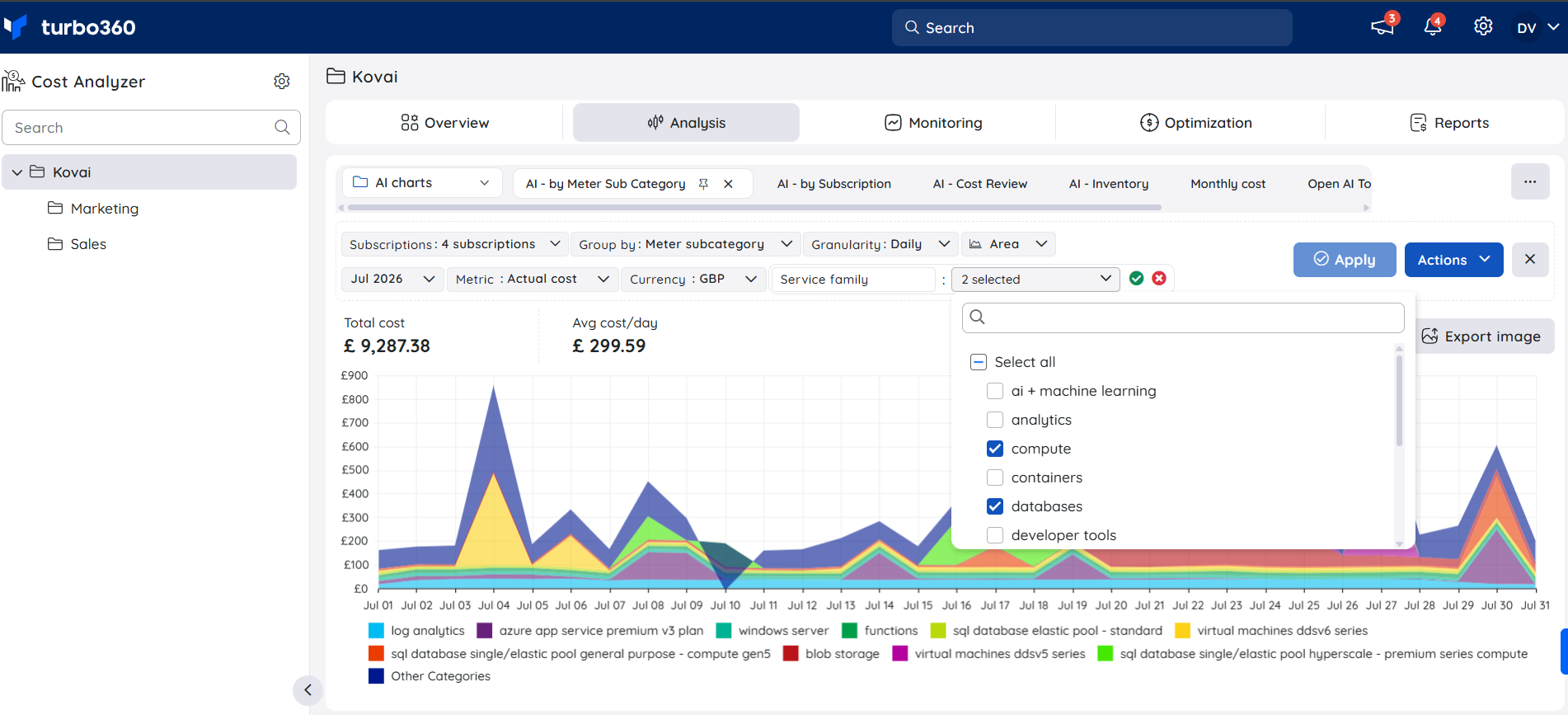
The Service family filter, available via Add filter, allows you to select specific Azure service families — such as ai + machine learning, analytics, compute, databases, integration, and management and governance — to view the cost spent on them.
Product name
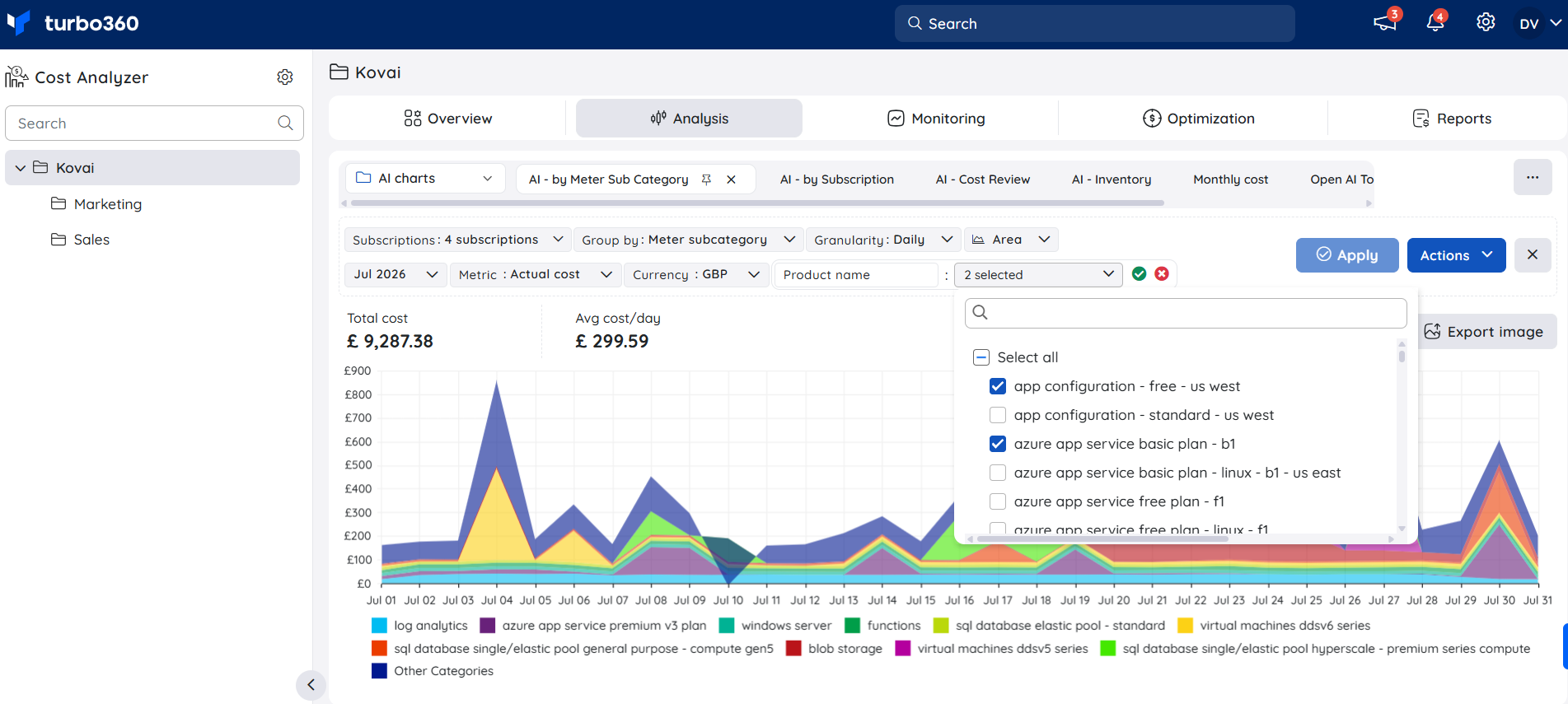
The Product name filter, available via Add filter, allows you to select specific billed product SKUs — such as individual Azure App Service plans or Azure Data Factory tiers — to view the cost spent on them.
Pricing model
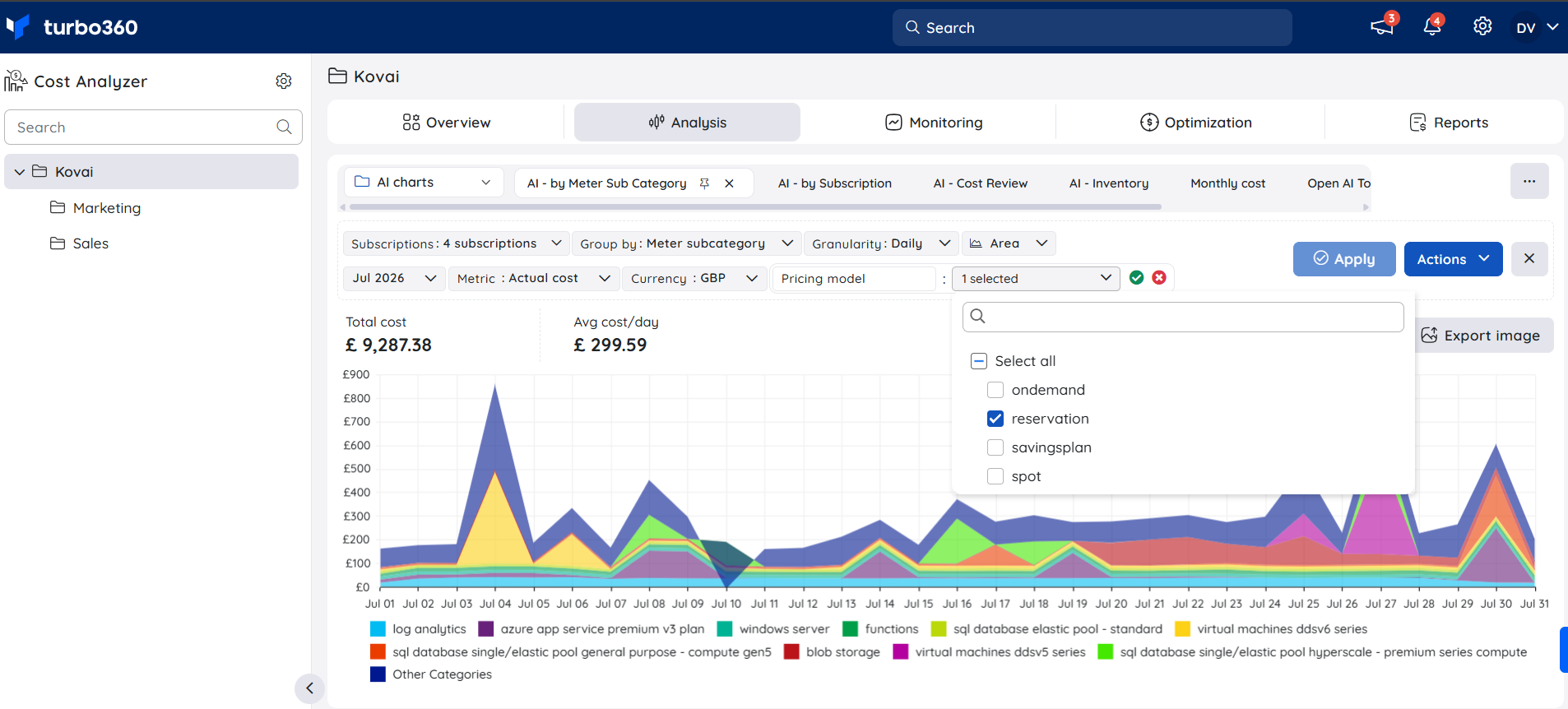
The Pricing model filter, available via Add filter, allows you to select specific pricing models — on-demand, reservation, or savings plan — to view the cost spent under each.
Charge type
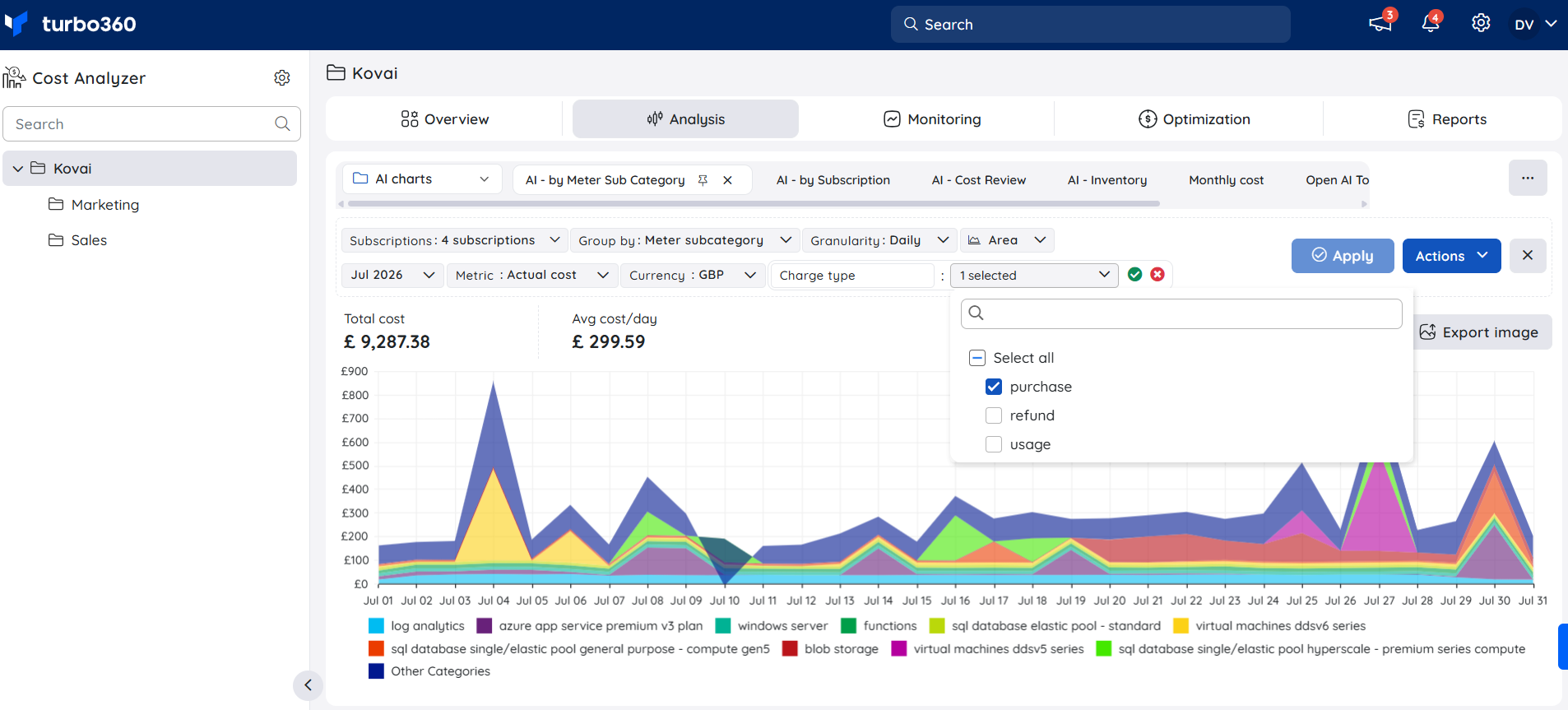
The Charge type filter, available via Add filter, allows you to select specific charge types — for example, usage — to view the cost spent under each.
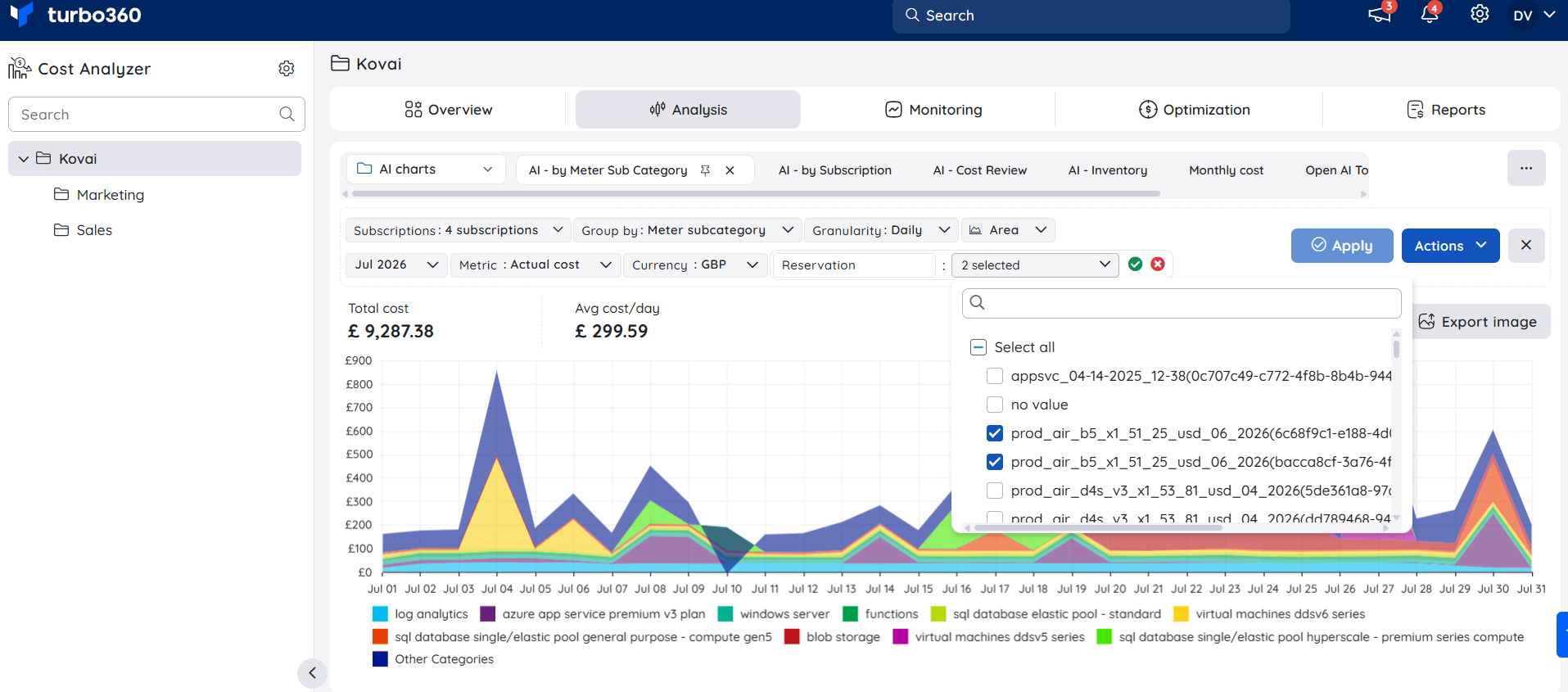
Reservation
The Reservation filter, available via Add filter, allows you to select one or more specific reservations to view the cost associated with them. A no value option is available to isolate costs that aren't tied to any reservation.
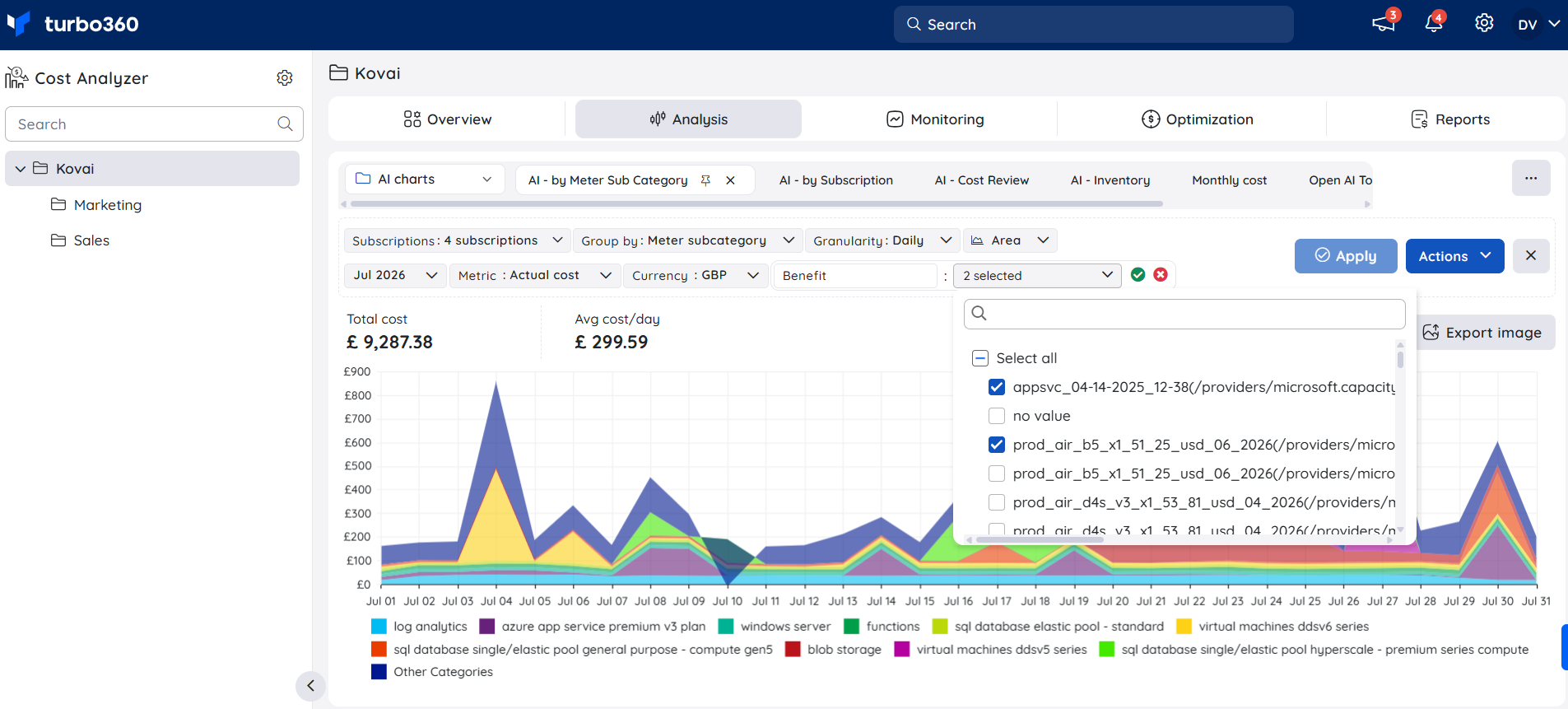
Benefit
The Benefit filter, available via Add filter, allows you to select one or more specific cost benefits (such as Azure Hybrid Benefit) to view the cost associated with them. A no value option is available to isolate costs that don't have an associated benefit.
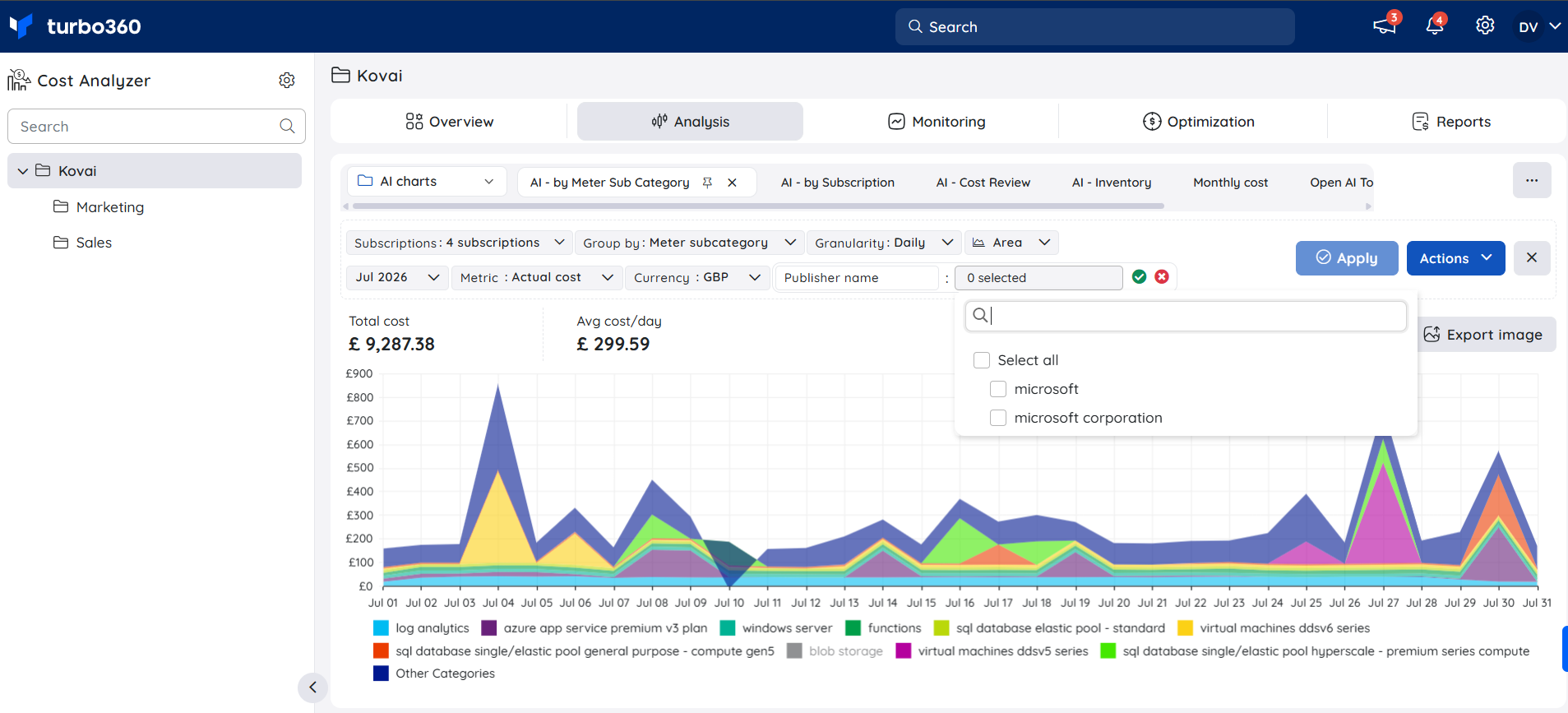
Publisher name
The Publisher name filter, available via Add filter, allows you to select the publisher(s) — for example, Microsoft — associated with the costs in the selected subscriptions.
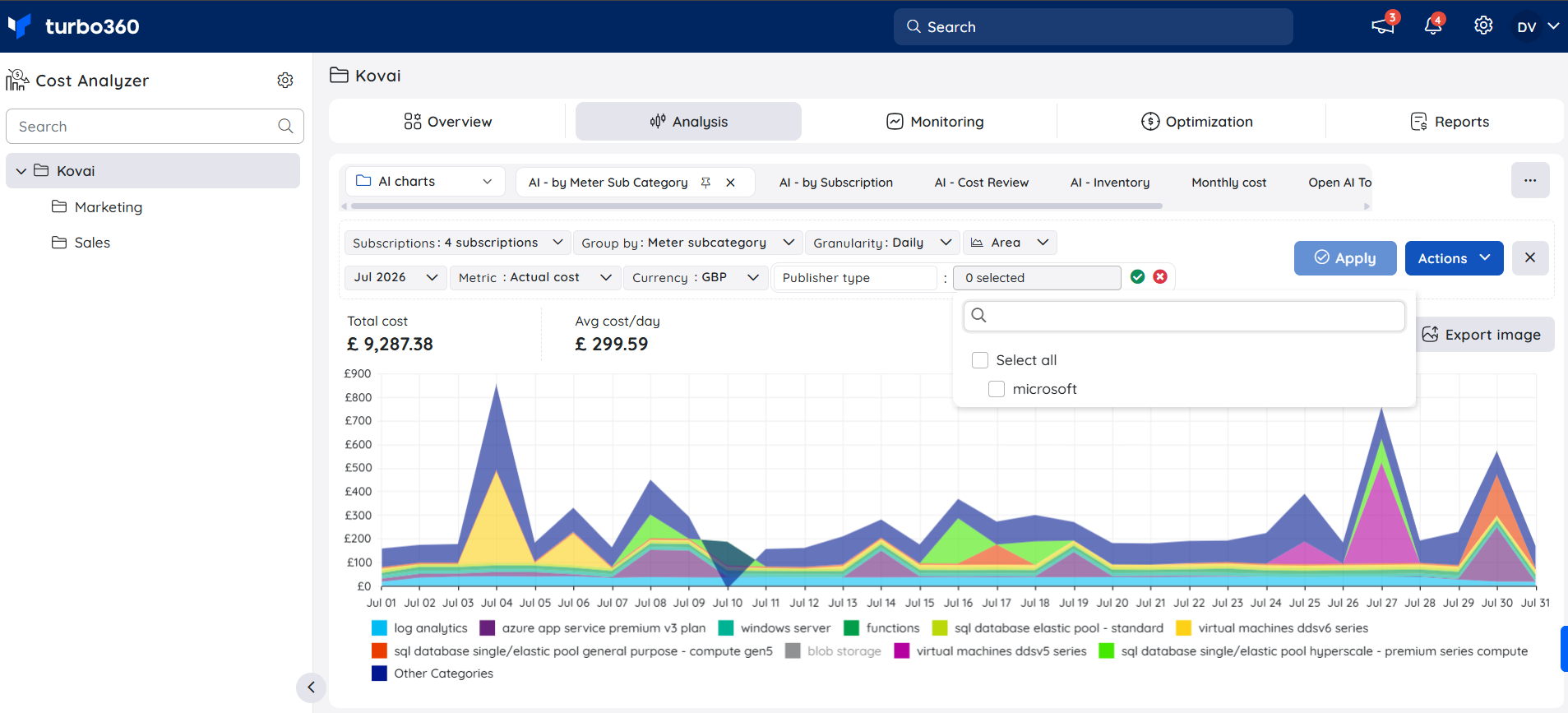
Publisher type
The Publisher type filter, available via Add filter, allows you to select the publisher type(s) — for example, Microsoft — associated with the costs in the selected subscriptions.
Steps
- Open an Analysis view.
- Select a filter type from the filters panel — Resource, Resource group, Resource type, Location, or Service name — or click Add filter to bring in additional filter types, including Meter, Meter subcategory, Tag, Service Family, Product Name, Pricing Model, Charge Type, Reservation, Benefit, Publisher Name, or Publisher Type.
- Choose one or more values for the selected filter type. For filters added via Add filter, confirm the selection with the green check or discard it with the red X.
- Click Apply to update the chart or table with the filtered data.
Permission behavior
With Manage access to the Analysis role, you can select filter types, choose their values, apply them, and save the resulting view. With Read access, you can view existing Analysis views and their applied filters, and even build a new view by applying your own filter selections — but you can't save that view.
Example scenario
A cost analyst wants to see how much has been spent on resources belonging to a specific project. They apply the Tag filter, select the Project tag and its value, then add the Resource group filter to scope the view further to a single team's resources. The resulting chart shows only the cost of resources matching both filters.
Troubleshooting
Filter shows no available values
Cause: The selected subscriptions have no cost data imported yet, or no resources match the selected filter type.
Fix: Confirm cost data import has completed for the subscriptions in this view, then reopen the filter.Filtered chart or table doesn't update
Cause: The filter selection was changed but not applied.
Fix: Click Apply after selecting filter values to refresh the chart or table.Tag filter doesn't show an expected tag
Cause: The tag isn't present on any resource within the currently selected subscriptions.
Fix: Verify the tag is applied to the relevant Azure resources, and confirm the correct subscriptions are selected in the view.
FAQs
Can I apply more than one filter at a time?
Yes. The Analysis view supports multi-layered filtering, so you can combine several filter types in the same view.Do filter values update automatically as new resources are added?
Yes. New resources, tags, and other cost dimensions become available as filter values automatically once they appear in your imported cost data — no manual refresh needed.Which filter should I use to see cost by department or team?
Use the Tag filter if departments or teams are tracked using tags, or the Resource group filter if they're organized by resource group.
Related articles
Was this article helpful?