

Cost import health and management
- 05 Aug 2026
- 8 Minutes to read
- Print
- DarkLight
- Download PDF
Cost import health and management
- Updated on 05 Aug 2026
- 8 Minutes to read
- Print
- DarkLight
- Download PDF
Article summary
Did you find this summary helpful?
Thank you for your feedback!
Overview
After completing the initial setup, Cost Analyzer begins importing billing data from Azure Cost Management for all connected subscriptions. This article covers how to monitor import health across subscriptions, respond to failures, configure alerts, and manage import settings.
Business value
- Confirm that billing data is flowing correctly after setup
- Quickly identify and resolve import failures before they affect reporting
- Monitor the health of all connected subscriptions from a single view
Prerequisites
- Cost Analyzer setup completed with at least one connected subscription
- Service principal with Reader and Billing Reader access on the target subscriptions
Required permissions
| Permission | Scope | Purpose |
|---|---|---|
| Reader | Azure subscription | Required to retrieve cost data |
| Manage cost imports | Turbo360 role — Specify management permissions | Required to manually trigger imports and manage import settings |
.png)
How it works
Cost Analyzer automatically syncs billing data from Azure Cost Management every 8 hours, updating cost data for a rolling period of the past 40 days. For the initial import, historical data is pulled based on the number of months configured during setup.
The Cost imports section provides a real-time view of import health across all connected subscriptions. You can access it from the Cost Analyzer left navigation under Settings > Cost imports.
The section includes three components:
- Health summary — a donut chart showing the number of subscriptions by import status (Healthy, In Progress, Failed, Queued)
- Import status widget — shows details of the last and next scheduled import runs
- Subscription table — lists all connected subscriptions with their service principal, cost date range, import status, and last sync time
Health summary
The Health summary chart provides a visual breakdown of cost data import status across all associated subscriptions.
.png)
- Up to Date — subscriptions where cost data has been successfully imported and is current.
- To Be Collected — subscriptions in a queued state, awaiting cost data collection.
- Failed — subscriptions where the cost data import has failed due to an error.
Import status
The Import status widget provides details of the most recent and next scheduled import runs.
.png)
- Last run — displays the processed subscription, the date range of collected cost data, and the run status (In Progress, Failed, or Success).
- Next run — shows the subscription scheduled for the next import and the date range of cost data to be collected.
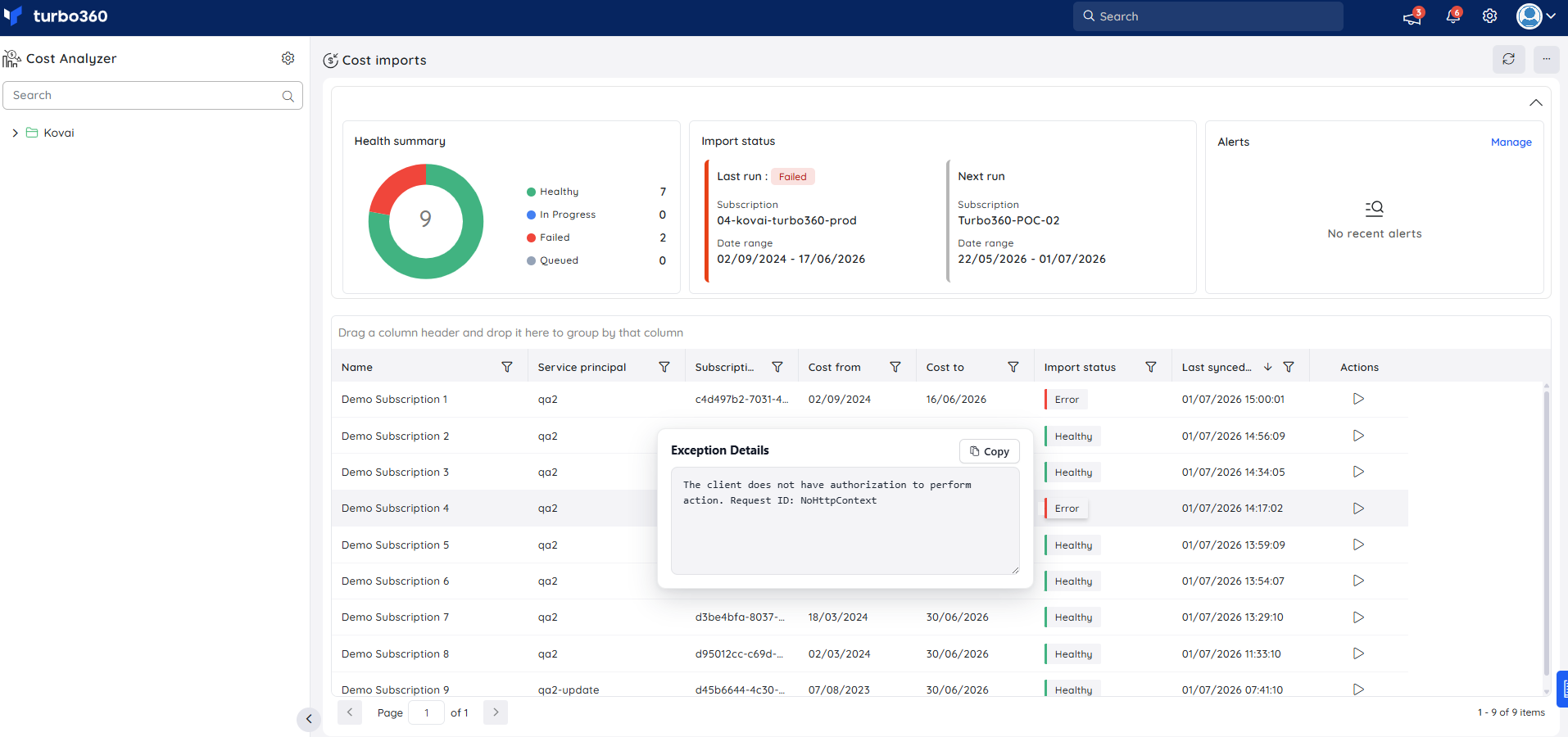
Exception details
When a subscription shows an In Progress or Error import status, you can click the status in the subscription table to view the Exception details panel.
This displays the specific error message for that subscription's last import attempt, helping you identify the cause without leaving Cost imports.
Steps
Use the following operations to monitor import health, resolve failures, configure alerts, and adjust import settings in Settings > Cost imports.
Validate import health
Use the Health summary and subscription table to confirm that all subscriptions are importing successfully after setup.
.png)
- In Cost Analyzer, go to Settings > Cost imports.
- Review the Health overview chart. All subscriptions should show as Healthy within a few hours of completing setup.
- Check the Import status widget to confirm the last run completed with a Success status and review the date range of data collected.
- Review the subscription table to verify each subscription shows a Healthy import status and a recent Last synced timestamp.
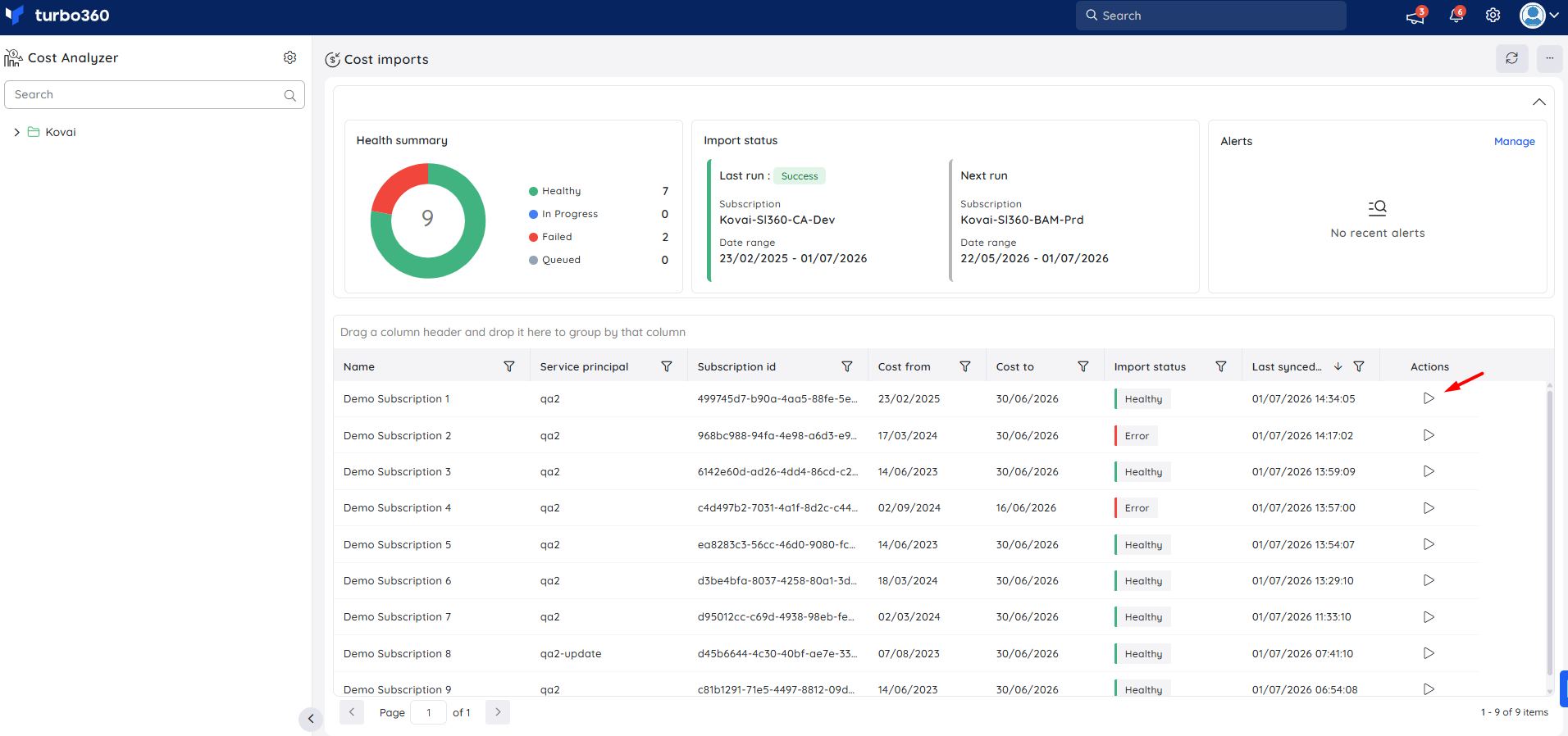
Trigger a manual import
Manually trigger an import to force a subscription to sync immediately without waiting for the next scheduled run.
- In the subscription table, click the trigger icon in the Actions column next to the subscription.
- The import runs immediately. Refresh the page after a few minutes to confirm the updated status.
Configure import failure alerts
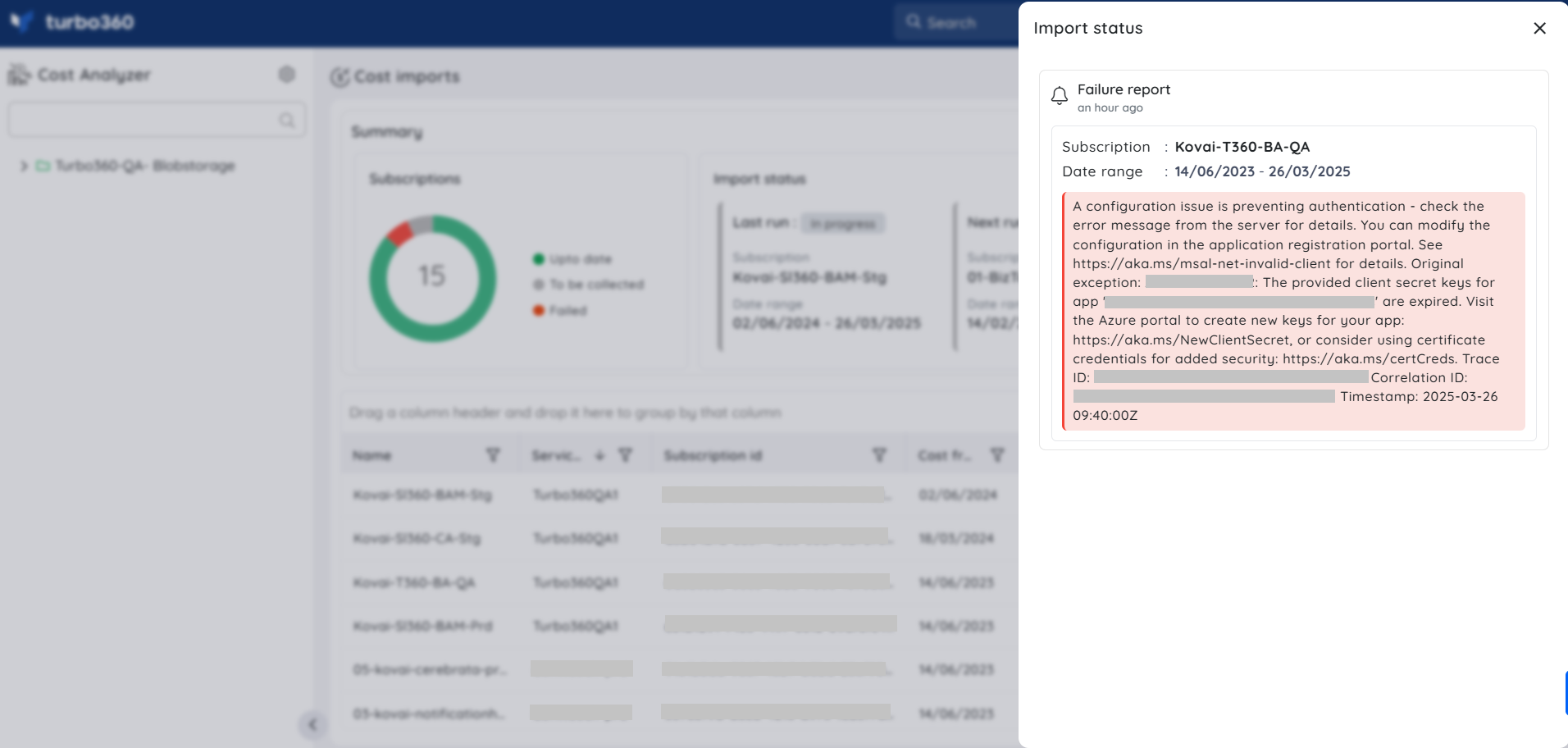
Set up notifications so your team is alerted whenever an import fails.
- In Cost imports, click Manage in the Alerts card.
- Enable notifications for import failures.
- Select the notification channels to receive alerts.
- Click Save.
.png)
Each alert includes the reason for the failure to help with troubleshooting.
Adjust the historical import range
Update the number of months of historical billing data that Cost Analyzer imports during initial or manual re-import.
- In Cost imports, click More in the top right.
- Select Settings.
- Enter the number of previous months to import.
- Click Save.
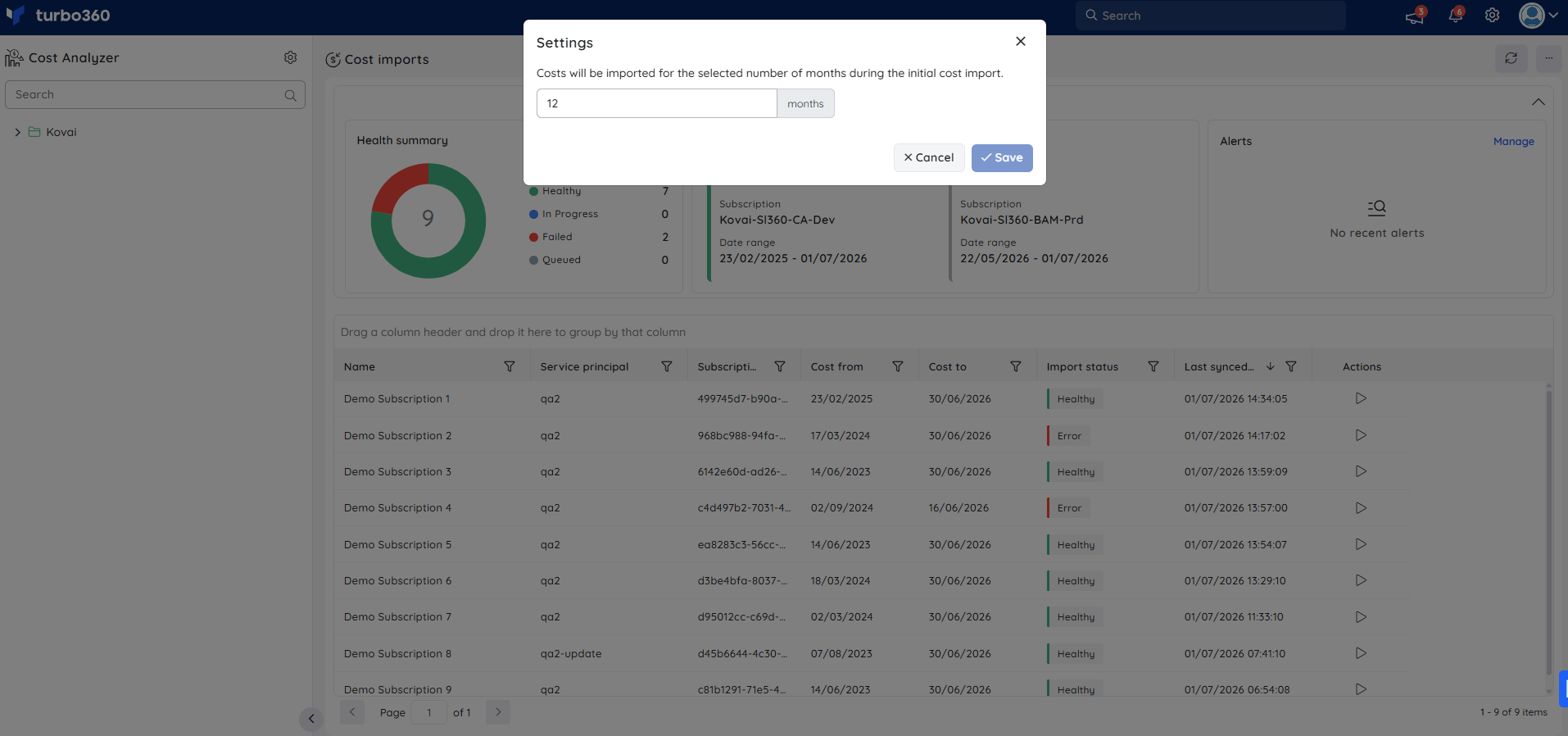
The auto-sync runs every 8 hours and updates a rolling 40-day window. The historical import range only applies to the initial bulk import and any subsequent re-import triggered manually.
Custom cost import
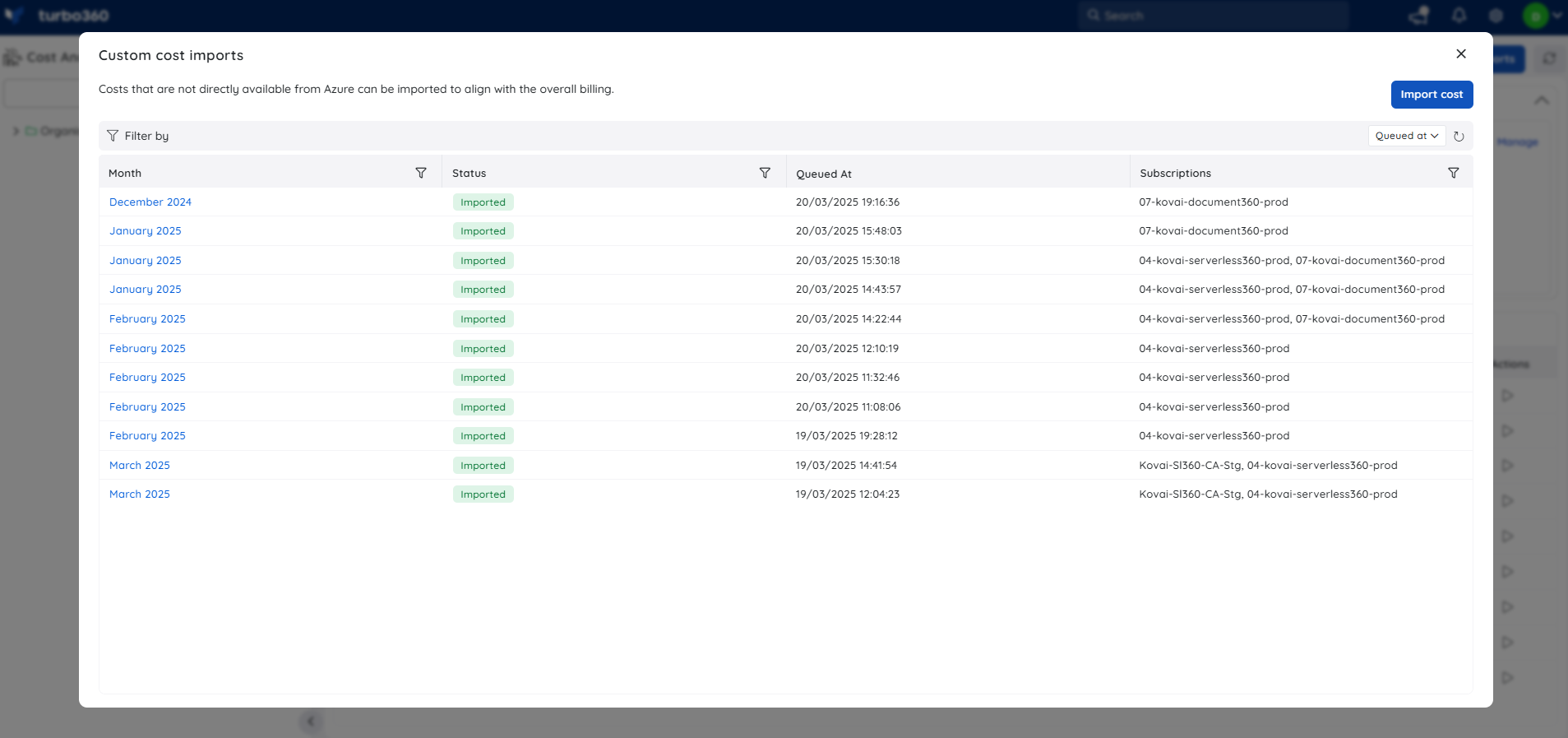
Custom cost imports let you bring external cost data into Cost Analyzer so it appears alongside your Azure costs in analysis, monitoring, and dashboards. To access this feature, navigate to Settings > Cost imports, click More in the top right, and select Custom cost import.
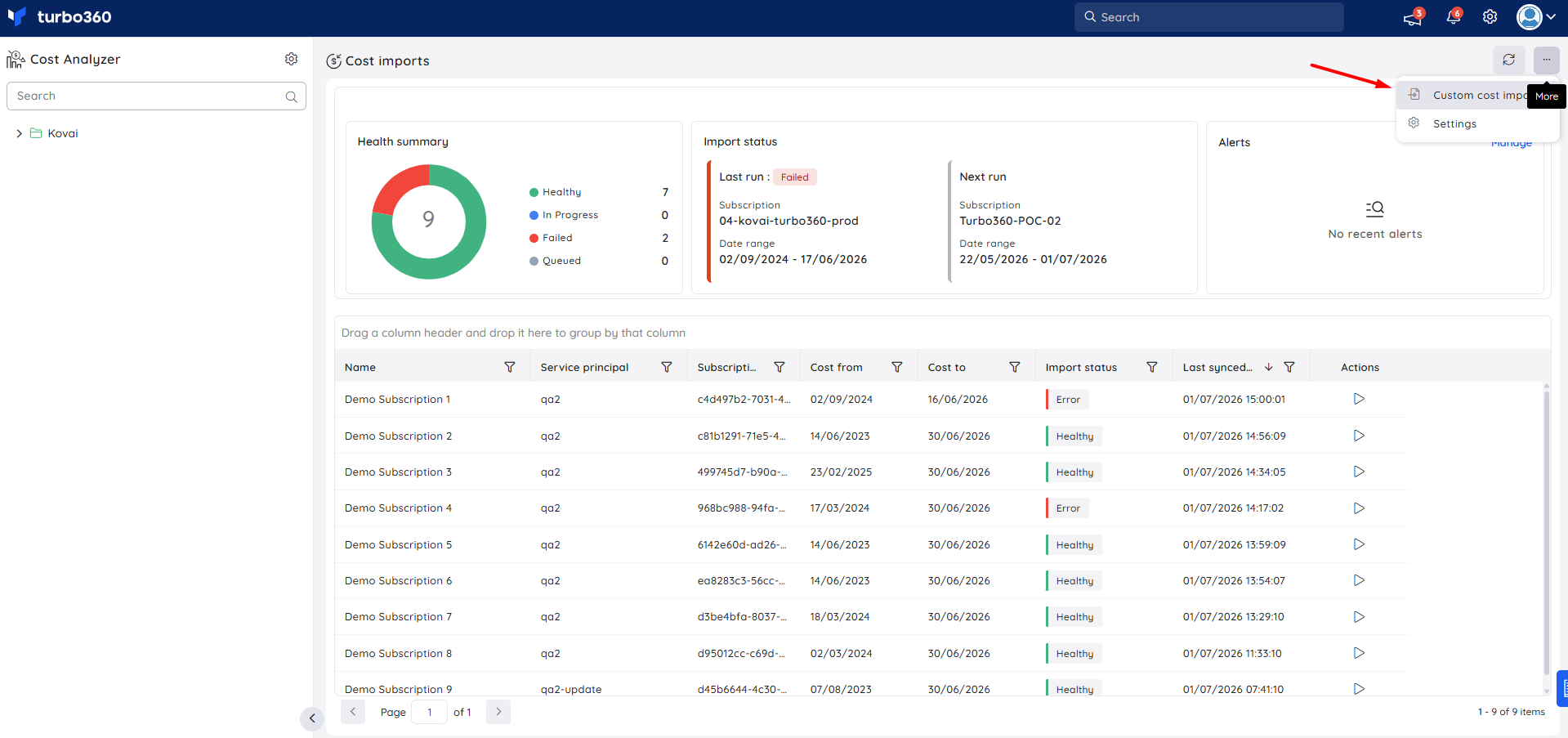
Step 1: Prepare the cost data
Download the template file from the Import cost blade and format your external cost data as a CSV file following the template structure.
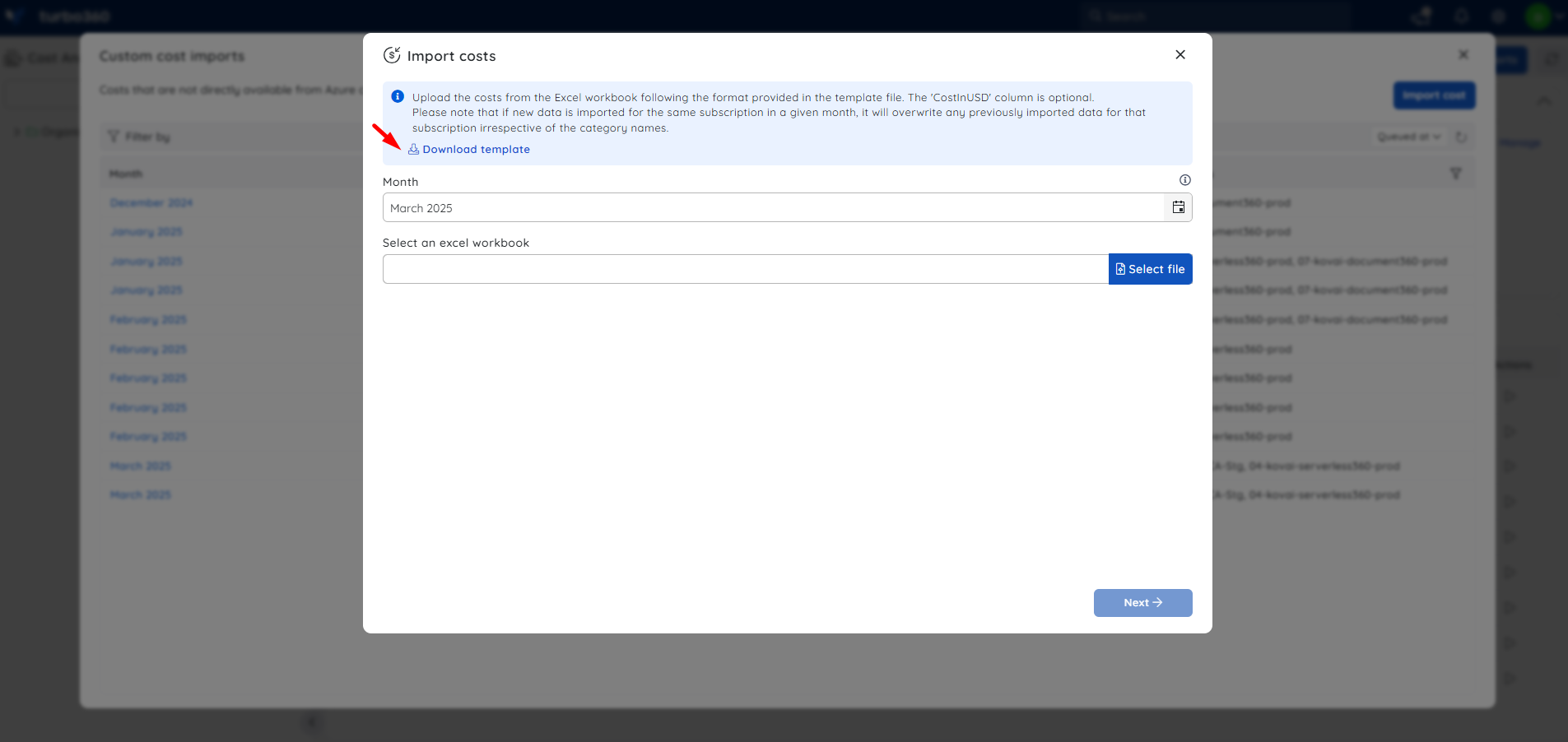
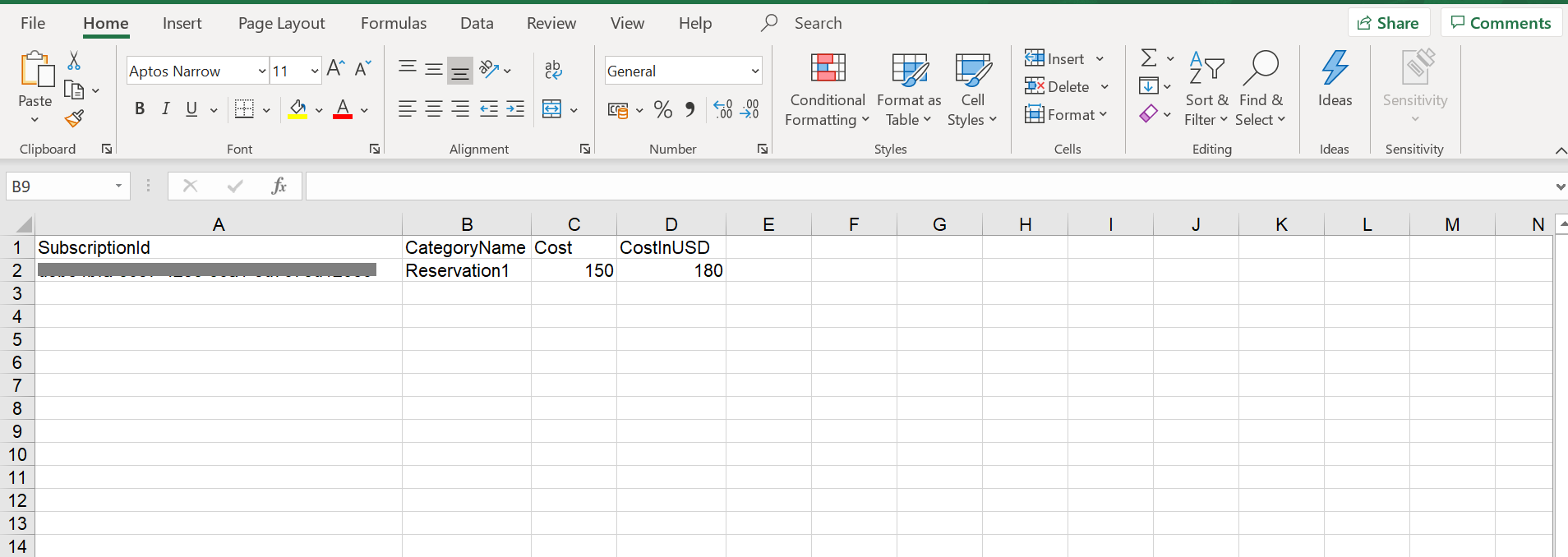
Step 2: Upload and validate the data
- Select the month for which the cost records apply.
- Choose the Excel workbook and select the appropriate worksheet.
- Click Validate to confirm the data format is correct and the subscription ID matches one associated with Cost Analyzer.
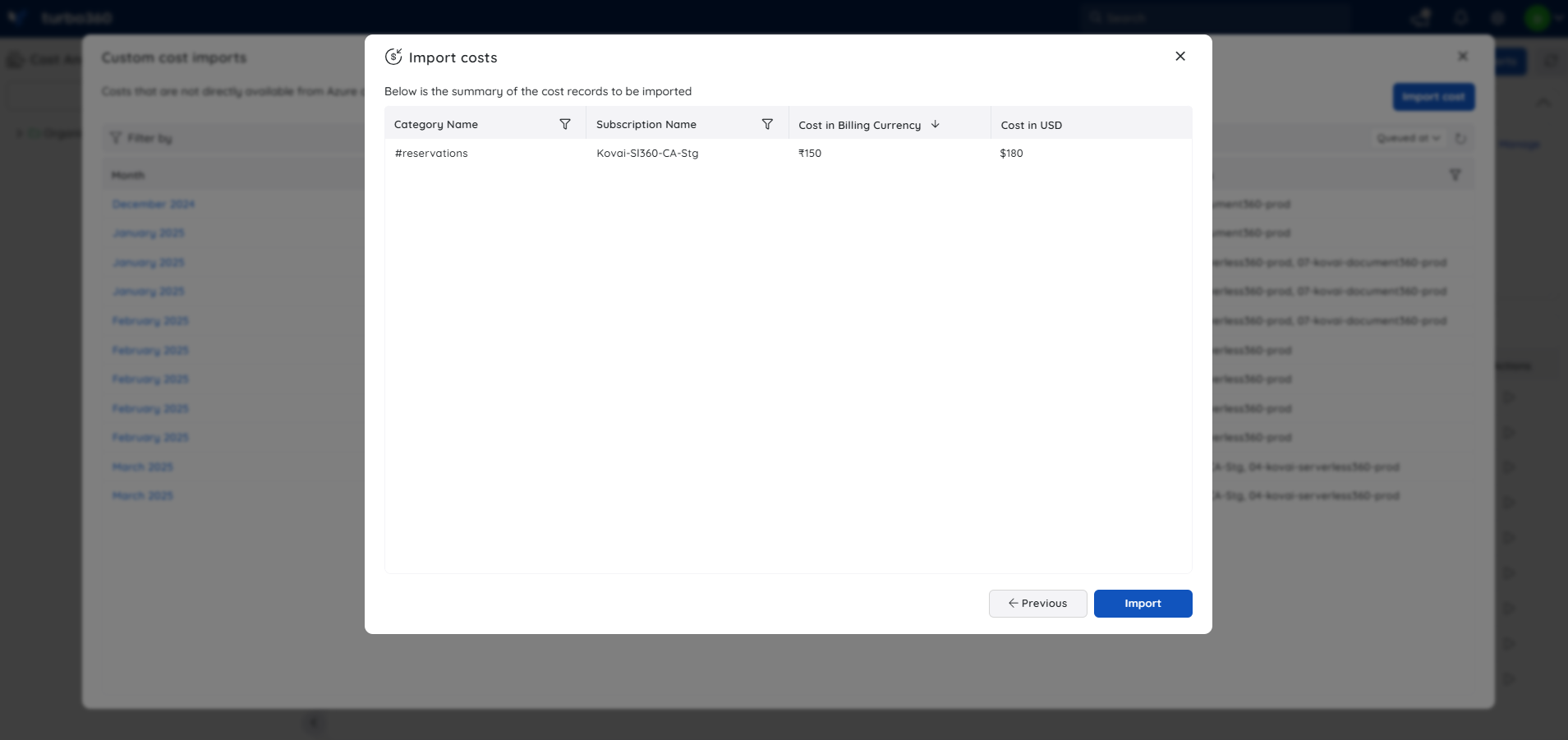
- Navigate to the Summary section to review the cost records before proceeding.
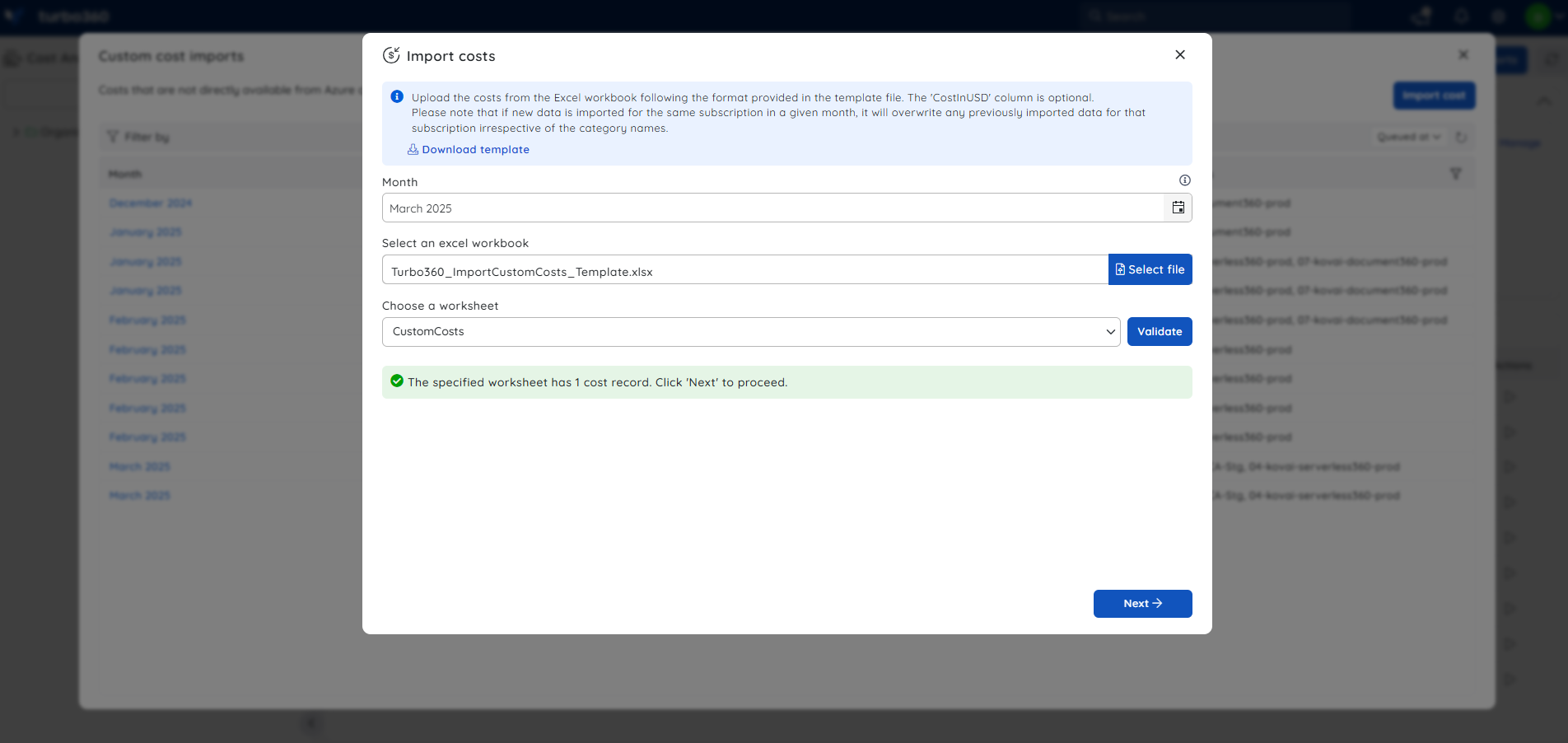
Step 3: Review and import
Review the cost records in the Summary section, then click Import to process the data. The imported cost details are stored and remain available for future review.
Viewing imported cost data
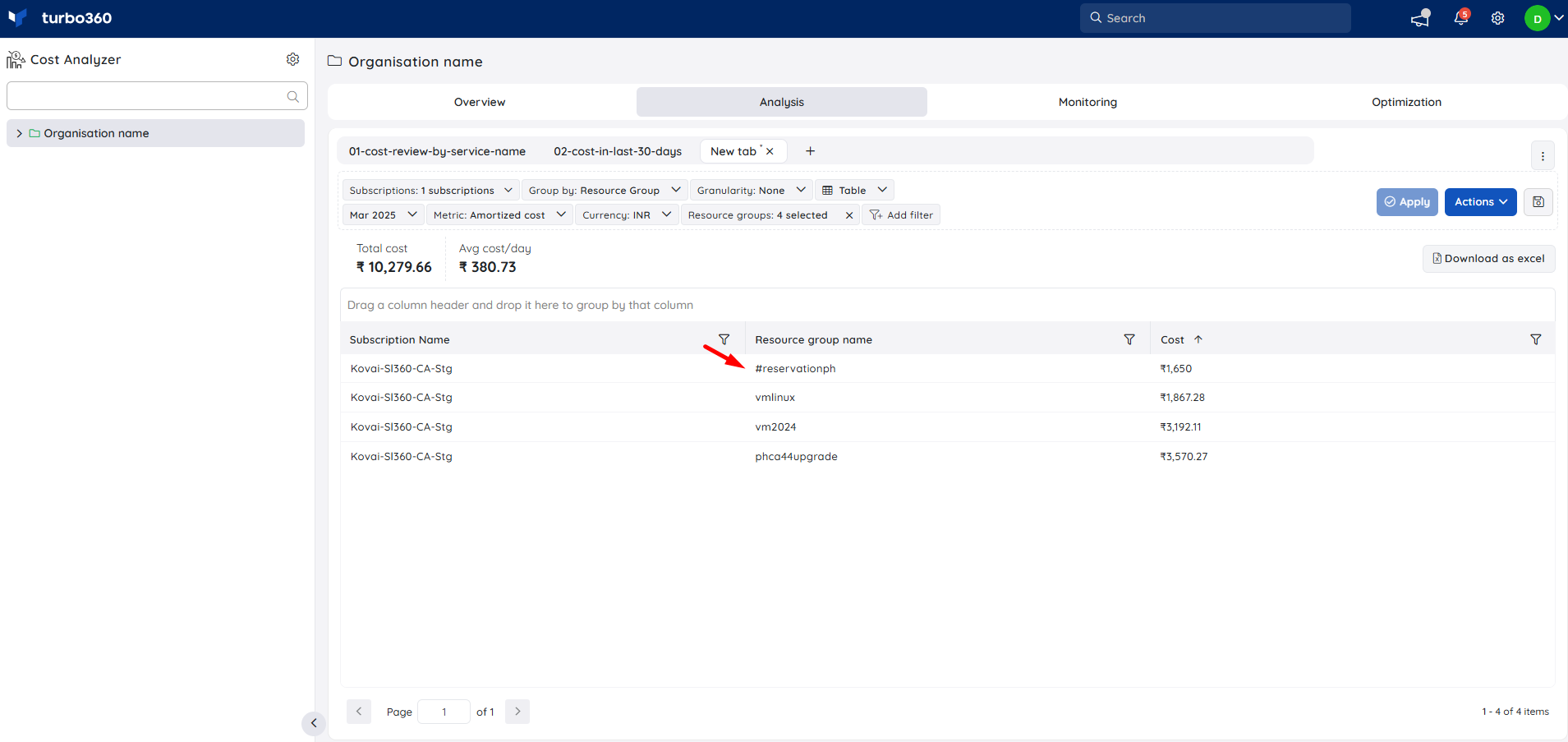
After a successful import, access the data in the Analysis section by setting the time filter to the month you imported. The imported cost appears only when the metric filter is set to amortized cost for the relevant subscription. Imported categories are prefixed with "#" to distinguish them from direct Azure costs, and are also available as cost filters. Imported data is reflected in the monitoring and dashboard sections as well.
Note:
When performing a custom cost import, only the latest import for a subscription within a given month will be retained. Any previously imported cost data for that subscription and month will be removed, and the newly imported cost data along with its categories will replace the previous records.
Configuration
| Option | Description |
|---|---|
| Auto-sync frequency | Every 8 hours. Updates cost data for the past 40 days. |
| Historical import range | Number of months of historical data to import. Configurable via Cost imports > More > Settings. Maximum is 12 months. |
| Alert notifications | Notify when an import fails. Configured via the Alerts card in Cost imports. |
| Manual trigger | Manually re-run an import for a specific subscription via the Actions column. |
Permission behavior
With Manage cost imports permission: You can manually trigger imports, configure alert notifications, adjust the historical import range, and perform custom cost imports.
Without Manage cost imports permission: You can view import status but cannot trigger imports, modify import settings, or import custom cost data. Contact your Turbo360 administrator to assign the Manage cost imports permission.
Example scenario
A cloud administrator completes initial setup and navigates to Settings > Cost imports the next morning. The Health summary shows 5 of 6 subscriptions as Healthy and 1 as Failed. They click the status label on the failed subscription to view the Exception details, confirm the error reason, then click the trigger icon to re-run the import. They also configure an alert so the team is notified if any subscription fails in future.
Limitations
- The auto-sync updates only the past 40 days of data. Older data is not refreshed automatically.
- Import status reflects the last completed sync. A subscription may show as Healthy even if the most recent run is still in progress.
- Azure Cost Management data can be delayed by up to 24 hours after costs are incurred, so recent data may not appear immediately even after a successful import.
- When performing a custom cost import, only the latest import for a subscription within a given month is retained. Previous imports for the same subscription and month are replaced.
Troubleshooting
A subscription shows Failed status after setup
Cause: The service principal may lack the required permissions on that subscription, or Azure Cost Management data may be temporarily unavailable.
Fix: Verify the service principal has Reader and Billing Reader access, then trigger a manual import.The Health summary shows subscriptions as Queued for a long time
Cause: Queued subscriptions are awaiting their turn in the import schedule.
Fix: If a subscription remains queued for more than a few hours, trigger a manual import to force it through.Import alerts are not being received
Cause: Notification channels may be misconfigured or notification service credentials may be invalid.
Fix: Confirm notification channels are correctly configured in the Alerts card and verify the notification service credentials are valid.The Last synced timestamp is not updating
Cause: Cost data has not been refreshed within the expected window. Clicking the In Progress or Error status in the subscription table may show the message: "The cost data hasn't been refreshed in the last 48 hours. Please check the sync process."
Fix: Check the Exception details panel for the specific error, then trigger a manual import. If the issue persists, verify the service principal permissions and confirm that Azure Cost Management is accessible.
FAQs
How often does Cost Analyzer sync billing data?
Automatically every 8 hours, covering a rolling 40-day window.Can I trigger an import for a specific subscription without waiting for the next sync?
Yes. Click the trigger icon in the Actions column next to the subscription in the Cost imports table.What does the Healthy status mean?
The subscription's cost data has been successfully imported and is current as of the last sync.What should I do if a subscription keeps failing?
Check that the service principal has the correct Azure permissions. If the issue persists after a manual trigger, review the alert notification for the failure reason and contact Turbo360 support if needed.Can I set up alerts for import failures?
Yes. Go to Cost imports, click Manage in the Alerts card, enable notifications, select your notification channels, and click Save.
Related articles
Was this article helpful?