

Cost optimization checklist
- 05 Aug 2026
- 6 Minutes to read
- Print
- DarkLight
- Download PDF
Cost optimization checklist
- Updated on 05 Aug 2026
- 6 Minutes to read
- Print
- DarkLight
- Download PDF
Article summary
Did you find this summary helpful?
Thank you for your feedback!
Overview
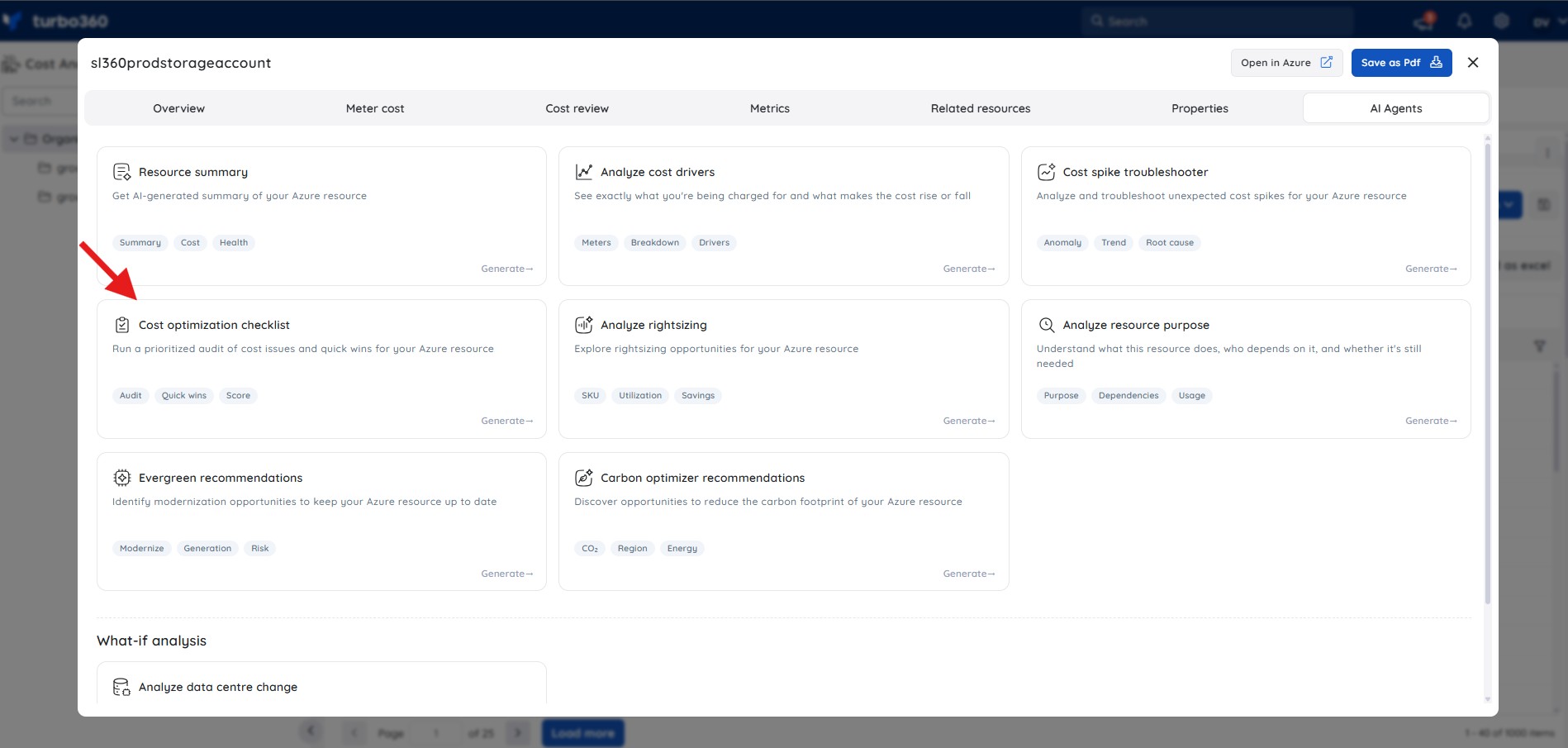
The Cost intelligence view for resources in Cost Analyzer includes a built-in AI capability, Cost optimization checklist, available under AI Agents, that runs a prioritized audit of cost issues and quick wins for an Azure resource — covering networking, redundancy, tier, licensing, storage, scaling, and security configurations.
Business value
Cost optimization checklist replaces a manual, ad-hoc review of a resource's configuration with a single prioritized audit. It helps teams quickly separate immediate cost-saving actions from lower-priority improvements, with an efficiency score and estimated savings to justify each action.
Prerequisites
Required permissions
Access requires both the AI Agents feature to be enabled for the role and Read access to the Analysis feature, since Cost optimization checklist is surfaced from the resource-level Cost intelligence view within Analysis.
| Role | Permission level | Access |
|---|---|---|
| Account Owner / Owner / Contributor | Full access | Can use Cost optimization checklist on any resource |
| Custom role | AI Agents — Enable, Analysis — Read (or Manage) | When AI Agents is set to Enable and Analysis is toggled on with at least Read access, the user can view Cost optimization checklist insights for resources within their assigned scope; if either is missing, the option is not available |
.jpg)
How it works
What the AI Agent analyzes
- Resource type, SKU, tier, and amortized cost
- Networking configuration and public access exposure
- Replication and redundancy settings
- Reservation and licensing applicability
- Storage and disk configuration
- Auto-scaling and scheduling controls
- Security settings — authentication, access controls, and encryption
- Azure Advisor findings for the resource
Insight breakdown
Efficiency score — an overall score out of 100 reflecting how well the resource is optimized, along with a summary count of items across each priority — Do Now, Review, Pass, and Optional.
Checklist items — each finding is grouped by category and labeled with a priority action and estimated monthly saving:
- Do Now — immediate action recommended, with a potential cost saving.
- Review — investigate further before acting.
- Pass — no action needed, already optimized.
- Optional — low-risk improvements that are not critical.
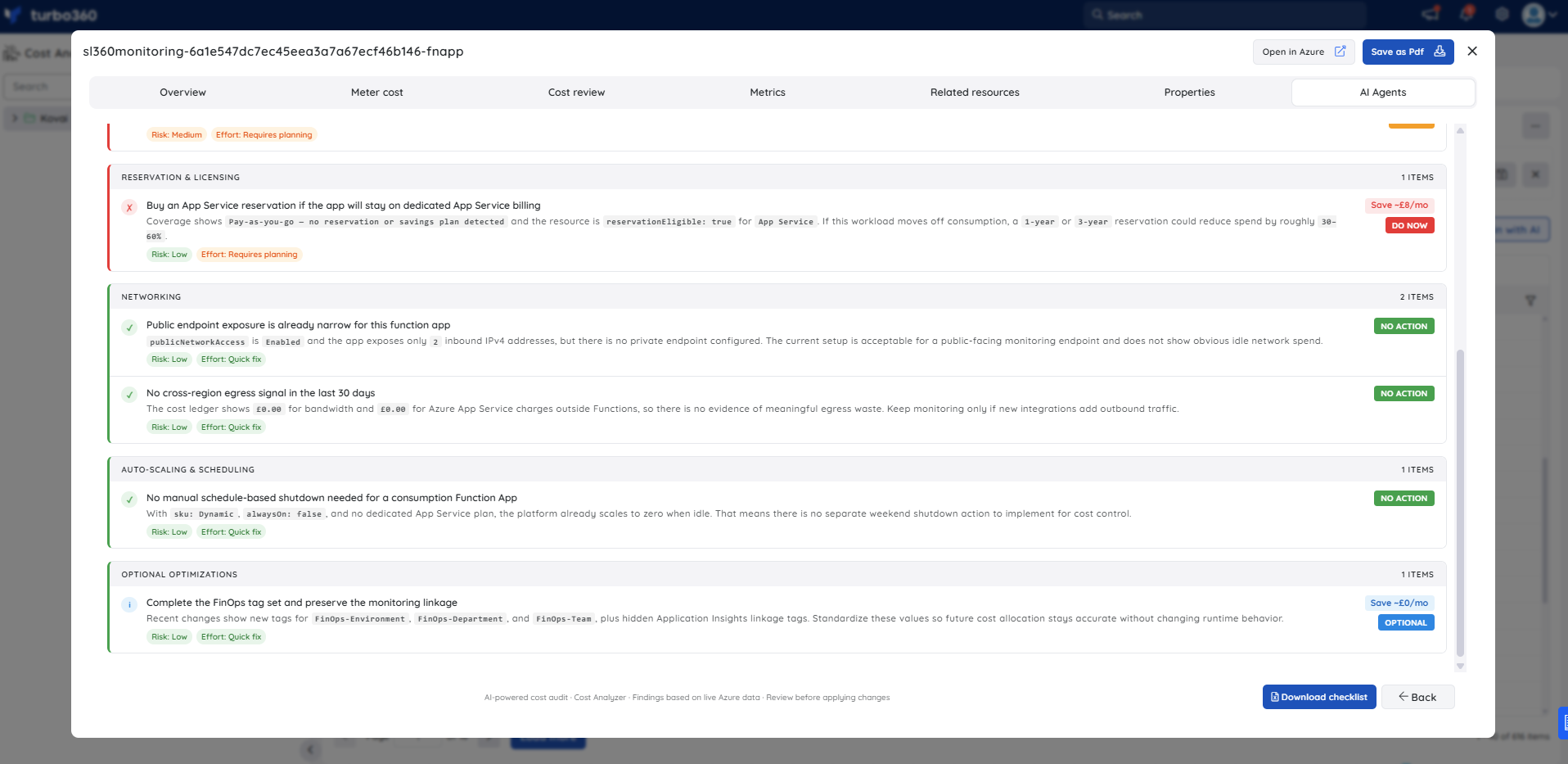
The categories covered in the checklist include:
- Networking — public access exposure and network ACL configuration.
- Replication & Redundancy — whether the current redundancy tier matches actual durability requirements.
- Tier & Compute — SKU and compute tier suitability based on usage patterns.
- Reservation & Licensing — applicability of reserved instances and Azure Hybrid Benefit.
- Storage & Disks — unattached disks, snapshots, and disk tiering costs.
- Auto-scaling & Scheduling — availability of auto-pause, scale-down, or scheduling controls to reduce idle spend.
- Optional Optimizations — authentication and governance improvements with low or no direct cost impact.
Risk and effort tags — each item is tagged with a Risk level (High, Medium, or Low) and an Effort estimate (Quick fix or Requires planning) to help prioritize remediation.
Export
The full checklist can be downloaded as an Excel file using the Download checklist button at the bottom of the panel.
The exported file includes:
- Summary section — efficiency score, rating, and a count of items per priority (Do Now, Review, Pass, Optional) along with the total estimated savings range.
- Checklist items — one row per finding, with the following columns: Section, Item, Description, Risk, Effort, Action, and Est. Saving.
Use the exported file to share findings with stakeholders, track remediation progress outside the portal, or feed checklist output into a FinOps review workflow.
Steps
Open the Cost optimization checklist from the resource's Cost intelligence view in Cost Analyzer. Navigate to Cost Analyzer > Analysis, select a Cost management group, open the Cost intelligence view for a resource, and select the AI Agents tab to get started.
Run the checklist
Running the checklist generates a fresh prioritized audit based on the resource's current configuration and live Azure data.
- In Cost Analyzer, go to Analysis and open the relevant Cost management group.
- Select a resource from the resource list to open its Cost intelligence panel.
- Select the AI Agents tab.
- Select Cost optimization checklist from the agent list.
- Review the efficiency score and the Do Now, Review, Pass, and Optional counts at the top of the panel.
- Browse the checklist items grouped by category. Select any item to read its full description, risk level, and effort estimate.
- Use the filter bar to narrow findings by priority — select Do now, Review, Pass, or Optional as needed.
Download the checklist
Downloading the checklist exports all findings to Excel so you can share, track, or action them outside the portal.
- With the Cost optimization checklist panel open, scroll to the bottom.
- Select Download checklist.
- Open the downloaded Excel file. The file contains a summary section with the efficiency score and priority counts, followed by a table with one row per finding.
Example scenario
A team is reviewing a Function App that Cost Analyzer has flagged as underoptimized. They open its Cost intelligence view in Analysis and run Cost optimization checklist. The agent returns an efficiency score of 43/100 with 2 Do Now items, 1 Review item, 3 Pass items, and 1 Optional item.
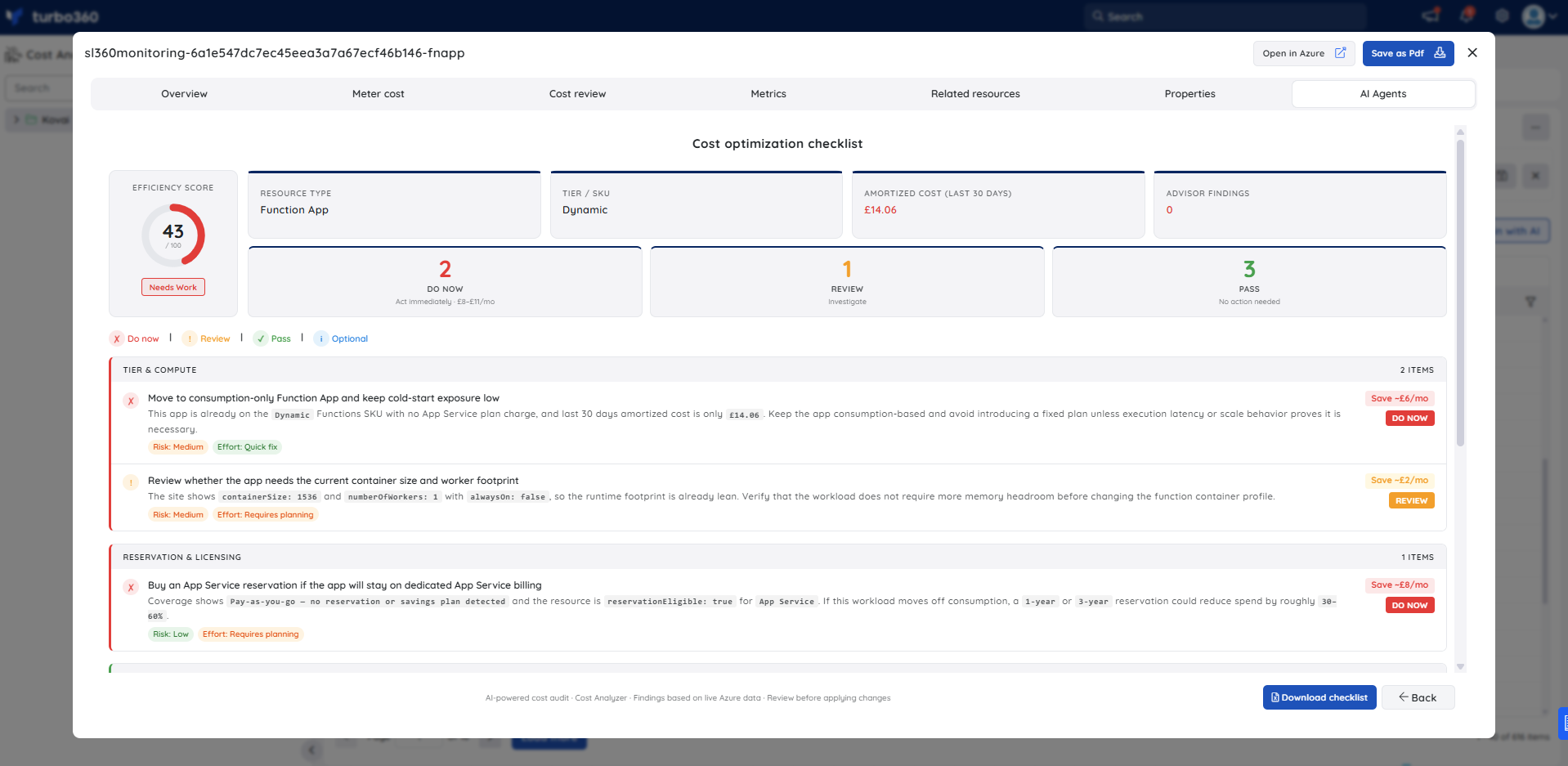
The Do Now findings identify two actions: keeping the app on the consumption-only SKU to avoid introducing App Service plan charges ($6/mo saving), and buying an App Service reservation if the workload moves off consumption ($8/mo saving). The team addresses the first finding immediately as a quick fix. They flag the reservation finding for discussion in the next capacity review, using the Download checklist button to share the full report with the FinOps team.
Troubleshooting
- Cost optimization checklist tab is not visible for a resource
Cause: The user's Custom role does not have the AI Agents feature permission enabled, or the Analysis feature is not toggled on for the role.
Fix: Go to User management > Roles, edit the relevant Custom role, and enable the AI Agents toggle and the Analysis permission under Specify feature permissions. - Efficiency score is unexpectedly low despite recent optimization work
Cause: The checklist is based on the current resource configuration at the time it is run. Changes made outside Turbo360 — such as updates in the Azure portal — are reflected only after the next analysis run.
Fix: Re-run Cost optimization checklist after any configuration changes to get an updated score. - Download checklist produces an empty or incomplete Excel file
Cause: The checklist panel may not have fully loaded all items before the export was triggered.
Fix: Wait for all checklist items to finish rendering in the panel, then select Download checklist again. - Checklist shows no findings for a resource
Cause: The resource may not have enough cost or configuration data for the agent to evaluate — this can occur for newly created resources or resources with very low spend.
Fix: Ensure the resource has at least 7–14 days of cost data imported. If the resource is new, run the checklist again after the next cost import cycle completes.
FAQs
- Does the agent automatically apply any of the checklist recommendations?
No. It provides an audit and prioritized recommendations only; you review and execute any remediation actions manually. - How often should I run Cost optimization checklist?
Run it after significant configuration changes, before capacity reviews, or as part of a regular cost governance cycle to catch new findings as the resource or pricing model evolves. - Can I run Cost optimization checklist on multiple resources at once?
No. The checklist runs at the individual resource level from the resource's Cost intelligence view. To audit multiple resources, open each one separately and download the checklist for each. Use the exported Excel files to consolidate findings across resources.
Related articles
Was this article helpful?