

Cost pulse summary
- 05 Aug 2026
- 6 Minutes to read
- Print
- DarkLight
- Download PDF
Cost pulse summary
- Updated on 05 Aug 2026
- 6 Minutes to read
- Print
- DarkLight
- Download PDF
Article summary
Did you find this summary helpful?
Thank you for your feedback!
Overview
Cost pulse summary is a daily report, available in Excel (.xlsx) format, that provides a structured overview of recent cost performance. The report is distributed to your configured notification services each day by 12:00 AM UTC. Reports are available for download from Generation history.
Cost data is grouped by dimensions you define, such as resource type, service name, meter, and subscription, to support targeted, dimension-based analysis. The report includes either a 7-day daily cost breakdown or a two-month workload comparison, highlighting month-over-month cost changes and performance variations.
Business value
Cost pulse summary keeps your team continuously informed about cost trends without requiring manual report generation. This reduces the effort needed to catch spending anomalies early and supports faster, more consistent cost governance.
Prerequisites
Required permissions
Access to Cost pulse summary is controlled by the same Reports permission that governs Cost Analyzer's reporting suite:
| Role | Permission level | Access |
|---|---|---|
| Account owner, Owner, Contributor | — | Full access to Reports |
| Custom role | Reports: Read | View all reports |
| Custom role | Reports: Manage | Edit report configuration and generate reports |
When assigning a custom role, grant Read or Manage on Reports under Specify feature permissions.
.jpg)
How it works
- Runs automatically on the configured schedule, generating and distributing the report daily by 12:00 AM UTC once enabled.
- Groups cost data by the dimension you select, so you can analyze spend by resource type, service name, meter, subscription, or other supported attributes.
- Presents either a 7-day daily breakdown or a two-month workload comparison, depending on the configured period.
- Embeds a cost chart generated from the report data directly in email alerts, giving you quick visual analysis without opening the Excel file. You can choose to receive only the cost chart, omitting the detailed breakdown table, for a simplified, high-level summary view.
- Records every triggered report in Generation history for later download.
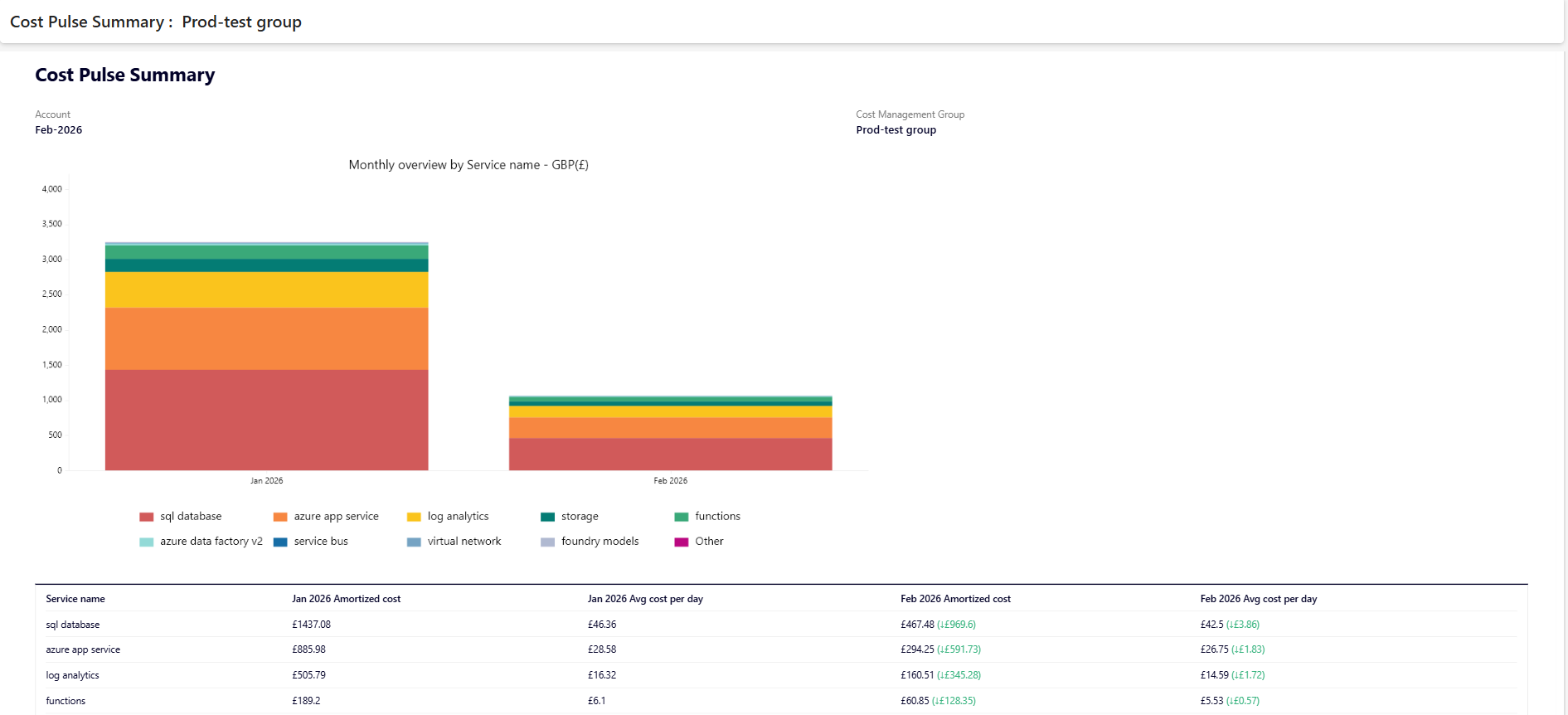
The image below shows a sample Cost pulse summary email alert with a 7-day daily cost breakdown:
Steps
Use the following steps to schedule, generate on demand, and access Cost pulse summary reports. Navigate to Cost management group > Reports to get started.
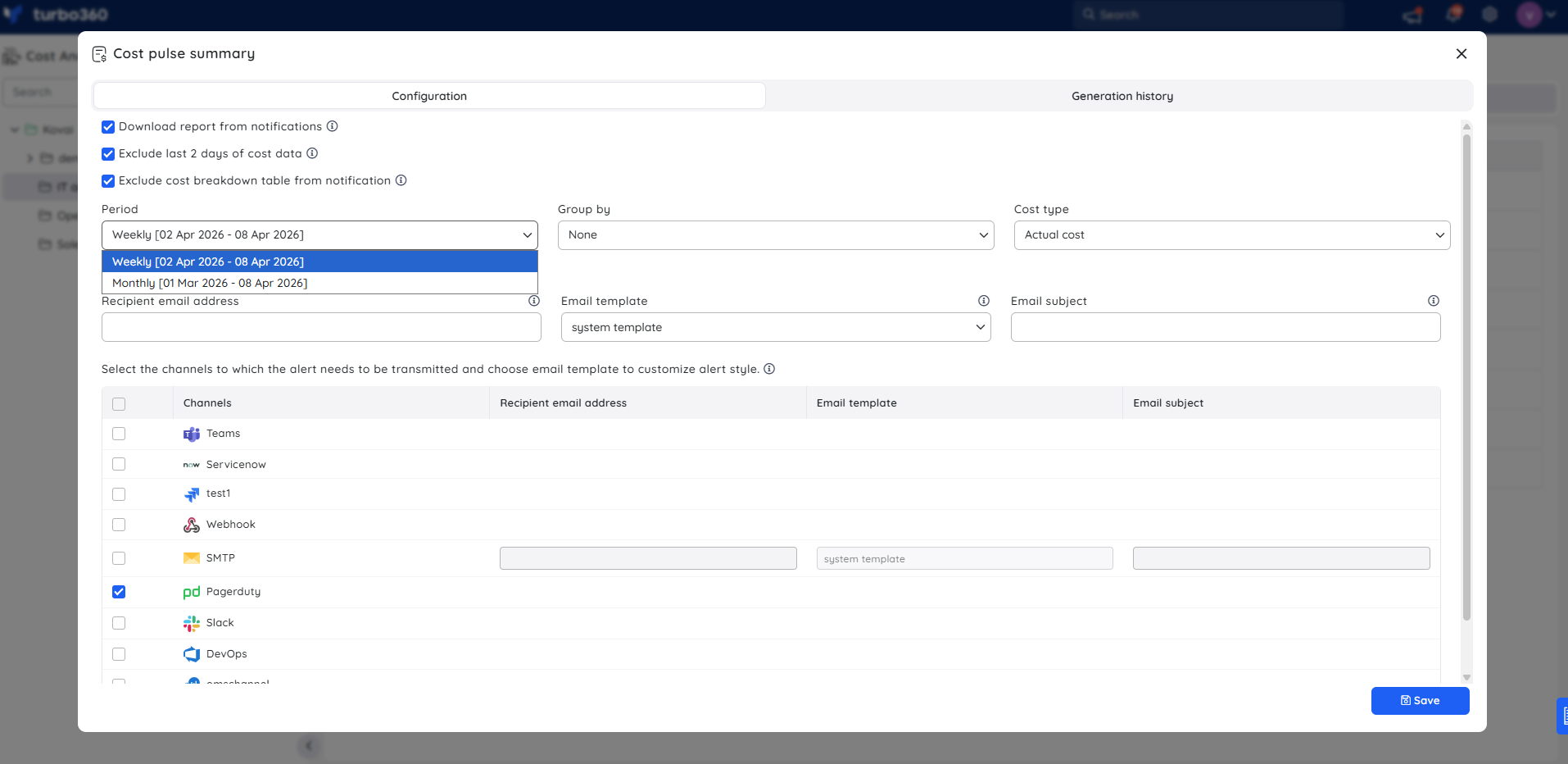
Configure the report
Configuring the report sets up how Cost pulse summary is generated and delivered for your cost management group.
- Navigate to Cost management group > Reports.
- Click the Edit icon next to the Cost pulse summary report type.
- Set the Period — choose Daily (7-day breakdown) or Weekly (two-month workload comparison).
- Select the Group by dimension — for example, resource type, service name, meter, or subscription.
- Choose the Cost type — Actual or Amortized.
- (Optional) Enable Exclude cost breakdown table from notification to receive only the cost chart in email alerts.
- Choose the desired notification services.
- Click Save, and enable the Cost pulse summary report type toggle.
Generate a report on demand
Generating a report on demand lets you retrieve current cost data immediately, without waiting for the next scheduled run.
- Go to the relevant cost management group's Reports section.
- Click the Actions menu next to the Cost pulse summary report type.
- Select Generate Now.
.png)
The toggle should be enabled for the report type in the Reports section, and at least one notification channel should be selected.
View generation history
Viewing generation history lets you access every report previously triggered for this cost management group.
- Go to the relevant cost management group's Reports section.
- Open Generation history to view all triggered reports.
- Click Download next to any record to retrieve that report.
.png)
Example scenario
A FinOps team monitors a cost management group named Production subscriptions. They configure Cost pulse summary with Weekly as the period, Service name as the Group by dimension, and Actual as the cost type. They also enable Exclude cost breakdown table from notification, so the team's email alerts show only the cost chart for a quick daily glance, while the full breakdown remains available in the downloadable Excel report.
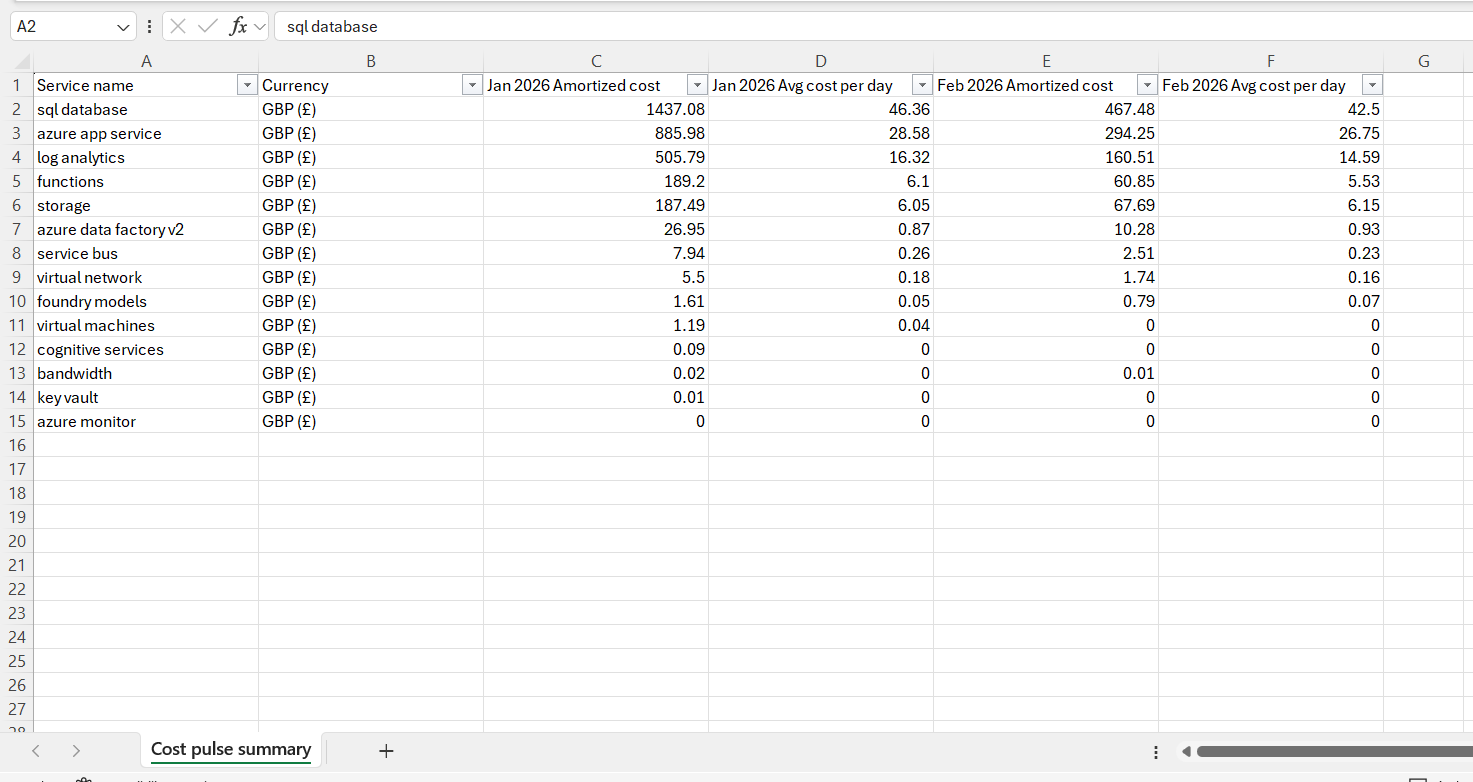
The image below shows a sample Cost pulse summary report featuring a two-month workload comparison, downloaded from Generation history:
Cost pulse summary vs Cost summary
Both Cost pulse summary and Cost summary track cost trends over time and deliver results via notification alerts, but they serve different monitoring needs and offer different levels of control over how data is analysed and presented.
| Cost pulse summary | Cost summary | |
|---|---|---|
| Delivery cadence | Daily (by 12:00 AM UTC) | Weekly (every Wednesday) or Monthly (3rd of each month) |
| Report period | Daily: 7-day daily breakdown; Weekly: two-month workload comparison | Previous two weeks (weekly) or two months (monthly) |
| Group by dimension | Configurable — resource type, service name, meter, subscription | Fixed — subscription and resource type |
| Cost type | Configurable — Actual or Amortized | Not configurable |
| Alert content | Mail alerts embed a cost chart and optionally a cost breakdown table | Notification only; report downloaded separately |
| Chart-only mode | Yes — enable Exclude cost breakdown table from notification to receive only the chart in mail alerts | Not available |
| Child group breakdown | Not available | Optional — enable Include child groups |
| Branding support | Not available | Yes (PDF branding via Branding settings) |
| Report format | Excel (.xlsx) |
When to use Cost pulse summary — use it when your team needs a continuous, daily signal on cost movement, wants to slice data by a specific dimension such as service name or meter, or prefers a chart-embedded mail alert for quick visual review without opening a file.
When to use Cost summary — use it when your team needs a structured weekly or monthly review of cost trends across subscriptions, wants a formatted PDF report for sharing or archiving, or needs a per-child-group spend breakdown in a single report.
Troubleshooting
Cost pulse summary email alert is not received
Cause: The Cost pulse summary report type toggle is not enabled, or no notification channel has been selected in the report configuration.
Fix: Go to Cost management group > Reports, edit the Cost pulse summary report type, select at least one notification service, and enable the toggle.Generate Now option is unavailable in the Actions menu
Cause: The report type toggle must be enabled and at least one notification channel selected before an on-demand report can be triggered.
Fix: Enable the Cost pulse summary report type toggle and configure a notification service, then retry Generate Now.Unable to access or edit Cost pulse summary configuration
Cause: The signed-in user's role does not include the required Reports permission (see Required permissions).
Fix: Ask an Account owner, Owner, or Contributor to grant Reports: Manage access, or verify your custom role includes it.Report is received but the cost breakdown table is missing
Cause: The Exclude cost breakdown table from notification option was enabled during configuration.
Fix: Edit the report configuration, disable Exclude cost breakdown table from notification, and save. The full breakdown will appear in the next delivery.Generation history shows no records
Cause: The report type has not been triggered yet — either no scheduled delivery has run or Generate Now has not been used since the report was configured.
Fix: Enable the toggle and select a notification channel, then use Generate Now to trigger an immediate record, or wait for the next scheduled run.
FAQs
What is the difference between the Daily and Weekly period options?
Daily produces a 7-day breakdown of daily costs. Weekly produces a two-month workload comparison that highlights month-over-month cost changes.Can I receive only the cost chart in email alerts without the full data table?
Yes. Enable Exclude cost breakdown table from notification during configuration to receive a simplified chart-only email. The full Excel report remains available in Generation history.Can I download a previously generated report without triggering a new one?
Yes. Open Generation history in the Reports section and click Download next to any prior record.
Related articles
Was this article helpful?