

Cost spike troubleshooter
- 05 Aug 2026
- 6 Minutes to read
- Print
- DarkLight
- Download PDF
Cost spike troubleshooter
- Updated on 05 Aug 2026
- 6 Minutes to read
- Print
- DarkLight
- Download PDF
Article summary
Did you find this summary helpful?
Thank you for your feedback!
Overview
The Cost intelligence view in Cost Analyzer includes a built-in AI agent, Cost spike troubleshooter, available under AI Agents, that analyzes and troubleshoots unexpected cost spikes for your Azure resource. It evaluates configuration changes, usage patterns, performance behavior, and historical spending trends to determine whether a true cost spike has occurred and what may have caused it.
Business value
Cost spike troubleshooter reduces the manual investigation effort typically needed to diagnose an unexpected cost increase, helping teams identify root causes and act on recommendations faster. Because the agent also evaluates no-spike scenarios — confirming when a cost change is within normal variance — it reduces unnecessary escalations and helps teams stay focused on genuine issues.
Prerequisites
- On Private Hosting deployments, an Azure OpenAI connection must be configured before this AI Agent can generate insights. See OpenAI setup in Turbo360 for setup instructions. SaaS deployments do not need this step.
Required permissions
Access requires both the AI Agents feature to be enabled for the role and Read access to the Analysis feature, since Cost spike troubleshooter is surfaced from the resource-level Cost intelligence view within Analysis.
| Role | Permission level | Access |
|---|---|---|
| Account Owner / Owner / Contributor | Full access | Can use Cost spike troubleshooter on any resource |
| Custom role | AI Agents — Enable, Analysis — Read (or Manage) | When AI Agents is set to Enable and Analysis is toggled on with at least Read access, the user can view Cost spike troubleshooter for resources within their assigned scope; if either is missing, the option is not available |
.jpg)
How it works
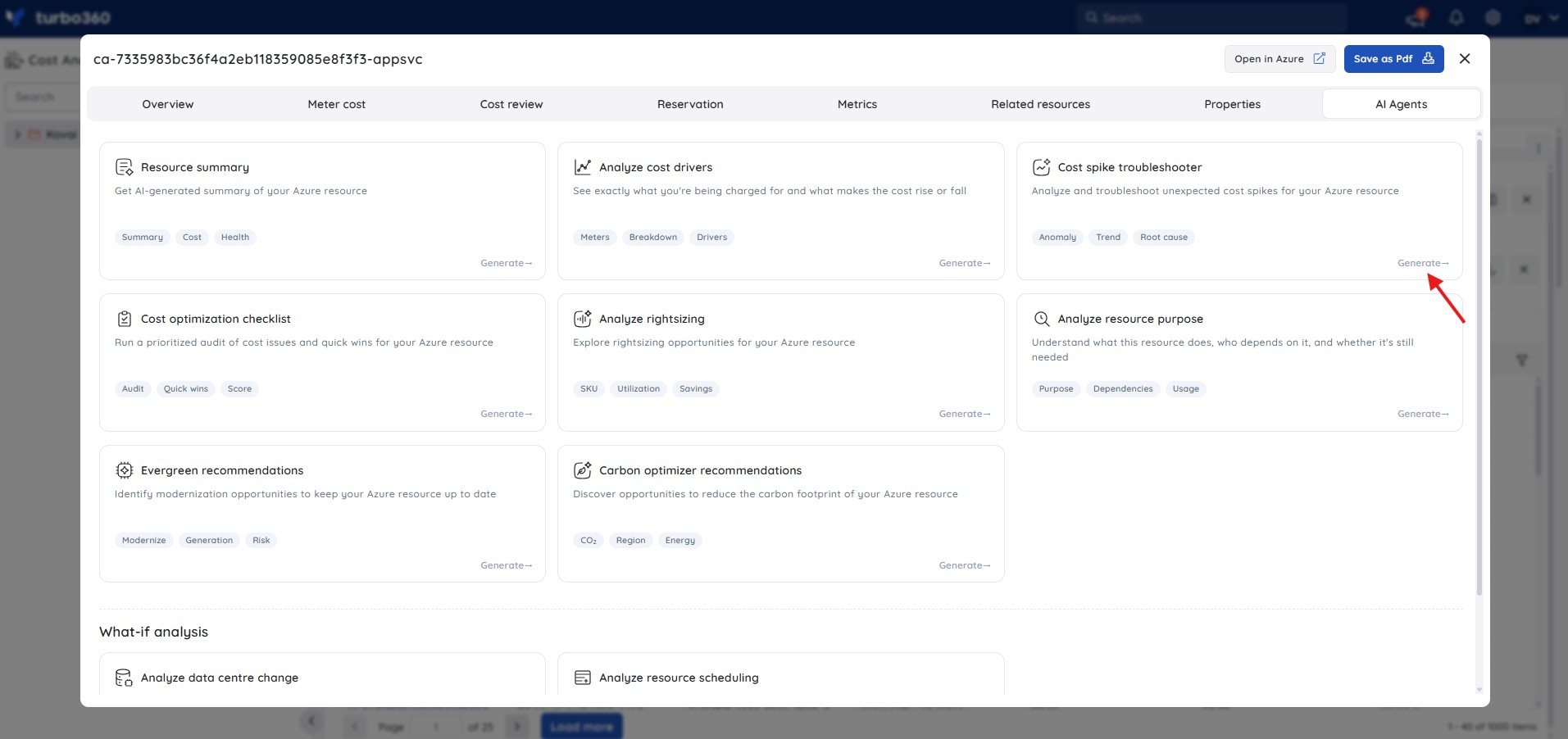
When you open Cost spike troubleshooter for a resource, the agent automatically determines the spike date from the resource's cost history and returns a structured report covering the following sections.
1. Quick takeaway
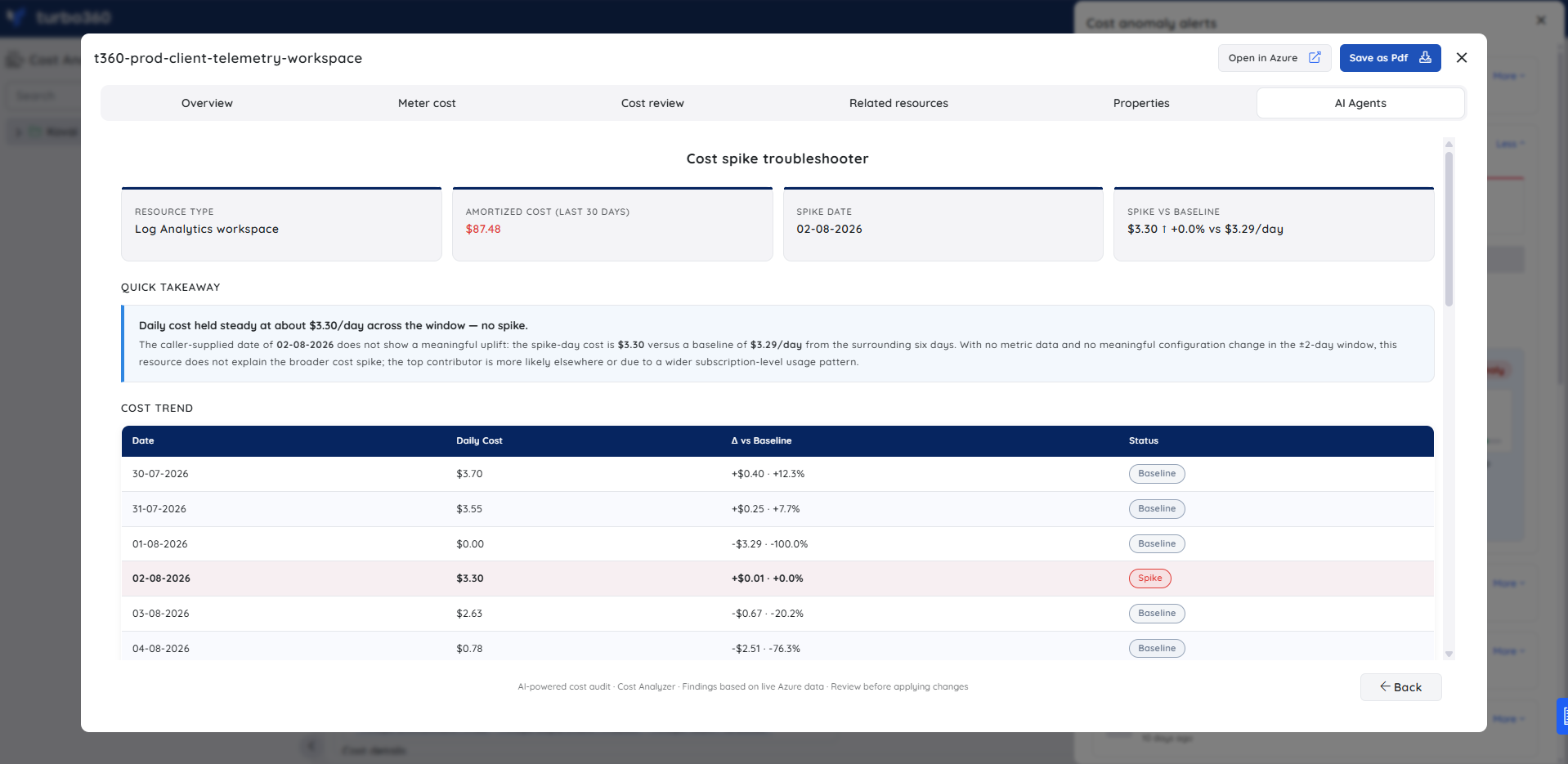
An immediate plain-language verdict — whether a genuine spike occurred or whether cost held steady. The agent states the spike-day cost, the baseline daily cost, and its conclusion before presenting any further detail.
2. Cost trend table
A day-by-day breakdown of daily cost, the delta versus baseline (in dollar and percentage terms), and a status label — Spike or Baseline — for each date in the analysis window. This makes it easy to confirm which day the deviation actually occurred and how quickly cost returned to normal.
3. Recent configuration changes
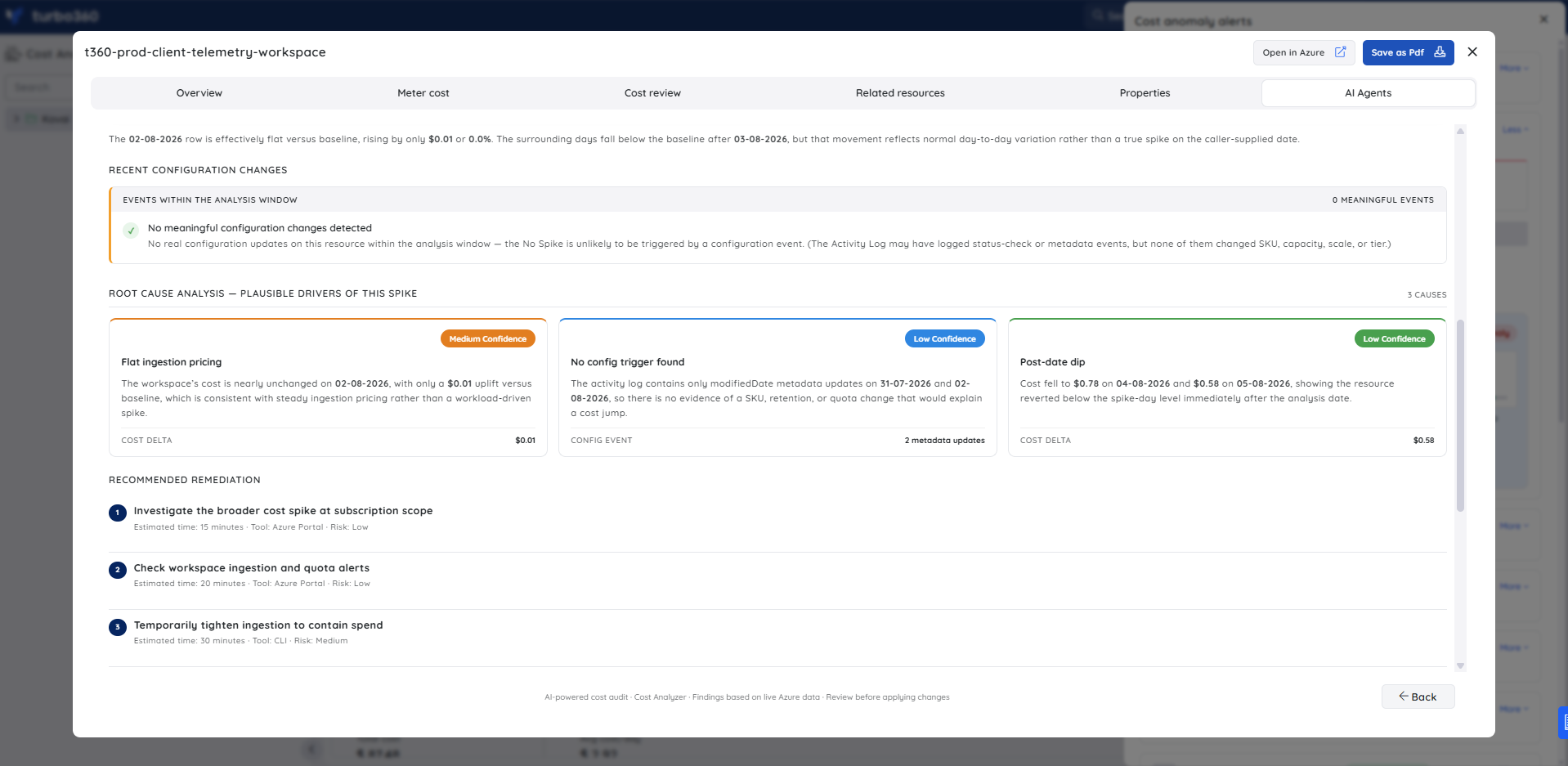
A review of events within the ±2-day analysis window. The agent counts meaningful configuration events (SKU changes, capacity changes, tier changes) and reports whether any are present. When no meaningful events are found, it notes that directly, ruling out configuration-driven causes.
4. Root cause analysis
A ranked list of plausible drivers, each with a confidence label (Medium confidence or Low confidence) and a cost delta. Each cause includes a short explanation of why it is or is not likely responsible for the observed cost movement. Common drivers include flat ingestion pricing patterns, no config trigger found, and post-date cost dips. When the agent concludes there is no true spike, it still surfaces the most relevant patterns to explain the cost behavior.
5. Recommended remediation
Numbered action steps the agent recommends to investigate or contain the cost issue, each with an estimated time, the tool required (for example, Azure Portal, CLI), and a risk level. Steps are ordered by priority and scoped to the specific resource and cost pattern observed.
6. Mitigation strategies
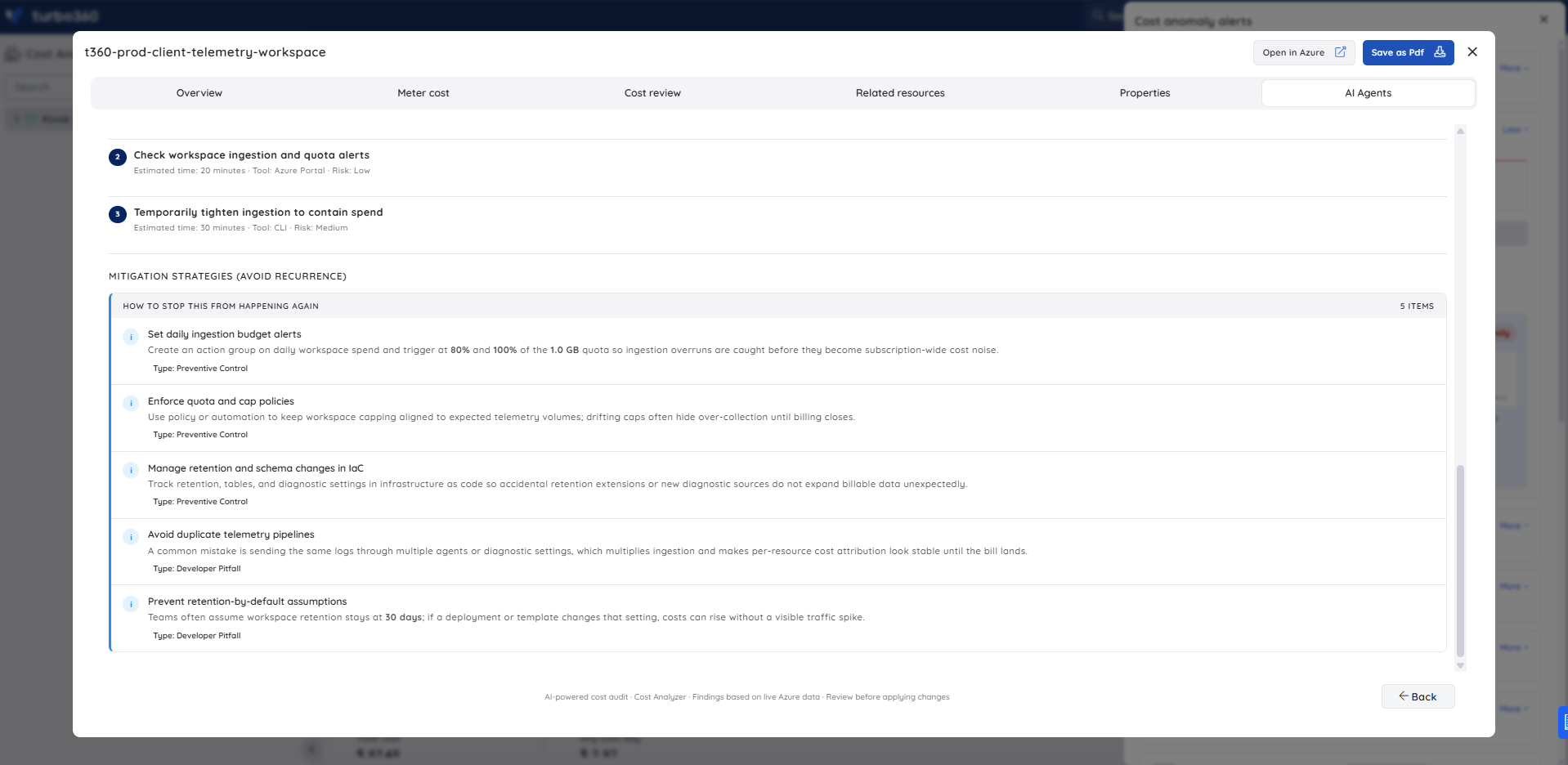
A set of preventive actions to stop the cost pattern from recurring. Each strategy is typed as Preventive Control or Developer Pitfall, helping teams distinguish systemic process changes from common implementation mistakes that introduce cost risk.
Steps
Use the following steps to run Cost spike troubleshooter for a resource. Open the resource in Cost Analyzer and navigate to AI Agents to get started.
- In Cost Analyzer, open the cost management group containing the resource you want to investigate.
- In the Analysis view, locate the resource and click on it to open the Cost intelligence view.
- Select AI Agents and choose Cost spike troubleshooter.
- Click Generate to run the analysis.
- Review the output — Quick takeaway, Cost trend, Root cause analysis, Recommended remediation, and Mitigation strategies.
Example scenario
A FinOps engineer notices an anomaly alert for t360-prod-client-telemetry-workspace, a Log Analytics workspace in West Europe. They open Cost spike troubleshooter under AI Agents and generate the analysis.
The Quick takeaway confirms that daily cost held steady at around $3.30 per day across the window — no genuine spike. The cost trend table shows $3.30 on the spike date against a $3.29 per day baseline, a delta of $0.01 or 0.0%.
The Recent configuration changes section reports zero meaningful events within the ±2-day window, ruling out a configuration-driven cause. Root cause analysis returns three drivers: flat ingestion pricing (Medium confidence, $0.01 cost delta), no config trigger found (Low confidence), and a post-date cost dip (Low confidence, showing the workspace dropped to $0.78 and $0.58 on the following two days).
Recommended remediation suggests investigating the broader subscription scope (15 minutes, Azure Portal, Low risk), checking workspace ingestion and quota alerts (20 minutes, Azure Portal, Low risk), and temporarily tightening ingestion to contain spend (30 minutes, CLI, Medium risk).
Mitigation strategies identify five preventive actions: setting daily ingestion budget alerts, enforcing quota and cap policies, managing retention and schema changes in infrastructure as code, avoiding duplicate telemetry pipelines, and preventing retention-by-default assumptions.
The engineer concludes the spike is not on this resource and redirects their investigation to the subscription level — saving time that would otherwise have been spent on a manual root cause review.
Troubleshooting
- Cost spike troubleshooter tab is not visible for a resource
Cause: The user's Custom role does not have the AI Agents feature permission enabled.
Fix: Go to User management > Roles, edit the relevant Custom role, and enable the AI Agents toggle under Specify feature permissions. - The agent reports cost stability despite a visible cost increase
Cause: The change may fall within normal variance for the resource, or the increase may not yet be reflected in the analyzed spending window.
Fix: Re-run the analysis after the cost data has fully processed, and cross-check with the resource's cost analysis view. - No root cause is identified for a confirmed spike
Cause: The underlying driver (for example, an external usage change) may not be captured in the resource's configuration or performance metadata.
Fix: Review the resource's activity log and recent configuration changes manually, and share feedback so the detection can be improved. - All root cause drivers are rated Low confidence
Cause: The agent found no configuration events and no usage pattern that clearly explains the cost movement, which is common when the spike originates at subscription or service-mesh level rather than on the individual resource.
Fix: Follow the remediation step to investigate at subscription scope in the Azure Portal before concluding the resource itself is the cause.
FAQs
- How does Cost spike troubleshooter differ from Automatic anomaly detection's AI validation?
Cost spike troubleshooter is an on-demand, resource-level investigation you open from AI Agents. The AI validation in Automatic anomaly detection automatically labels a detected anomaly alert as True or False without any input from you. - What data does the agent evaluate?
Configuration changes, usage patterns, performance behavior, and historical spending trends for the resource, plus the cost trend in the ±2-day window around the detected spike date. - Can Cost spike troubleshooter act on its recommendations automatically?
No. It provides guidance and recommendations only; you review and apply changes manually. - What does a no-spike result mean?
When the agent concludes that no genuine spike occurred, it means the cost change falls within normal variance for the resource. The agent will still surface the most relevant cost patterns and suggest where to look if a broader subscription-level issue is suspected.
Related articles
Was this article helpful?